This content has been archived. It may no longer be relevant.
Microsoft Outlook includes several ways to quickly view the information you need -- through hyperlinks in messages and other items, the Outlook Bar and shortcuts. Here is a collection of tips and how-tos for making these work for you.
Tips: If the file path or URL contains a space, you may need to use %20 in place of the space for the link to work. For example, instead of entering outlook:Inbox\Spam list, you would enter outlook:Inbox\Spam%20list
Some characters, such as #, may not work. You'll need to use the hex code to replace those characters. You can get the hex codes from Window's Character Map (Start menu, Run type charmap) or Word's Symbol dialog. Reference lists are also available on the Internet, including Wikipedia's ASCII printable characters.
Beginning with Outlook 2007, the Outlook:// protocol is not registered so these shortcuts will only work within Outlook. See Outlook 2007 and the Missing Outlook:// Protocol for more information and a fix.
In addition, Outlook 2007 and up do not support XNK links by default, See .XNK Extension error: "Cannot Open File" for more information and a fix.
For the hyperlink error message "This operation has been cancelled due to restrictions in effect on this computer. Please contact your system administrator." , see "This operation has been cancelled due to restrictions in effect..."
Hyperlinks | Navigation Pane | Outlook Bar
Shortcuts | File Shortcuts | Offline Calendar Access
Tools | More Information
Hyperlinks
Any Internet address that you type into an Outlook message or other item becomes a hotlink that other Outlook users can use to get quickly to that resource.
For messages sent to non-Outlook users, the recipients' e-mail software determines whether the links are hot or not. Most e-mail software today supports hotlinks.
When you use plain text format or the Outlook editor, just typing an Internet e-mail address (such as invalid@slipstick.com) or www.microsoft.com does not create a hotlink that Outlook users can click on; you need to use the fully qualified URL with the mailto: or // prefix.
In current versions of Outlook and when using HTML email format, email addresses should be converted to clickable hyperlinks provided you press the spacebar or Enter after typing or pasting the address.
Outlook folders and items can also be added as hyperlinks in messages and other items. See the MSKB article Using Hyperlinks to Access Outlook Folders and Items. Angle brackets (< & gt;) around the hyperlink is required. Some examples:
Folder in your default folders
Folder in another user's mailbox that you have added to the Microsoft Exchange Server service in your profile
Folder in another set of Personal Folders that have been added to your profile
Public folder
Item in a folder (note the tilde ~ in front of the specific item name)
Any item where entryID is the long ID associated with the item
There is one significant limitation to this technique: If you don't see a folder in the Folder List, you can't open it with an Outlook hyperlink. In particular, you can't use hyperlinks to open other users' folders that are available to you through the File | Open Special Folder | Exchange Server Folder command. You need to use an alternative method, listed below under Shortcuts.
If you create a link like this as a Windows shortcut -- for example, on the desktop -- you can then drag it to Outlook. This is an effective way to open an individual Outlook item directly from the Outlook Bar.
Offline Calendar Access
While shortcuts make it easy to open colleagues' calendars, they don't help solve the problem of seeing those calendars when you are working offline. Outlook 2003 and up, using cached mode, will cache shared folders. In Outlook 2003 and 2007, only non-mail shared folders are cached; Outlook 2010 caches all folders. This feature can be enabled or disabled in the Exchange account's More Settings dialog, on the Advanced tab.
To check your cache setting, go to Tools, Account settings (File, Account settings in Outlook 2010). Double click on your Exchange account then click More Settings button and switch to the Advanced tab.
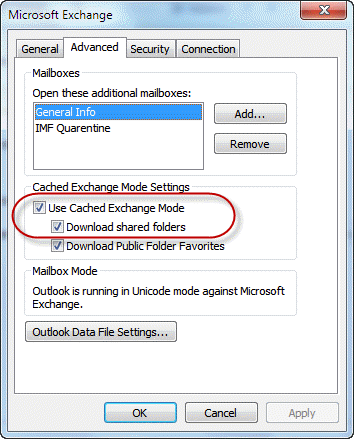
This screenshot is from Outlook, which supports caching all shared folders. In Outlook 2007 and Outlook 2003, only non-mail folders are cached.
If you don't use cached mode or use an older version of Outlook, if you need to see other users calendars while offline you'll need to copy the calendar entries to either a folder in your own mailbox or a public folder; see Synchronize mailbox and Public Folders for some tools to assist with this.
Navigation Pane
The Navigation pane in current versions of Outlook includes a module for Shortcuts. Shortcuts to other user's shared folders are typically added to the module for that folder type, but you can create shortcuts on the Shortcut module.
If you receive a warning dialog when you open shortcuts to files, you can disable the warning by editing the registry as described at Disable the hyperlink warning
You cannot add to the Outlook Bar any shortcuts for Outlook folders that you don't see in the Folder List. In other words, if you open John's Calendar folder with the File | Open Special Folder | Exchange Server Folder command, you cannot add it to the Outlook Bar. Instead, use the alternative method listed below under Shortcuts.
You can, however, add John's Calendar folder to the Outlook Bar if you have added John's mailbox to your profile (Tools | Services | Microsoft Exchange Server |Advanced). John, of course, must first give you permission to access his folder, and must also give you at least Folder Visible permission on the top level of the mailbox. Otherwise, you won't be able to see John's folders in the Folder List.
To reorder the Outlook Bar icons, just click and drag any icon to a new location. If you drag it over the bar for another group, that group will open.
The Outlook Bar icons are incredibly useful as destinations to drag other items to. If you right-drag (drag with the right mouse button held down), then release the mouse button, you'll see a menu of different options, depending on the type of folder you're dragging to.
Outlook Bar
The Outlook Bar is a collection of shortcuts to folders -- either Outlook folders or system folders and to individual files and web pages in older versions of Outlook.
You cannot add to the Outlook Bar any shortcuts for Outlook folders that you don't see in the Folder List. In other words, if you open John's Calendar folder with the File | Open Special Folder | Exchange Server Folder command, you cannot add it to the Outlook Bar. Instead, use the alternative method listed below under Shortcuts.
You can, however, add John's Calendar folder to the Outlook Bar if you have added John's mailbox to your profile (Tools | Services | Microsoft Exchange Server |Advanced). John, of course, must first give you permission to access his folder, and must also give you at least Folder Visible permission on the top level of the mailbox. Otherwise, you won't be able to see John's folders in the Folder List.
To reorder the Outlook Bar icons, just click and drag any icon to a new location. If you drag it over the bar for another group, that group will open.
The Outlook Bar icons are incredibly useful as destinations to drag other items to. If you right-drag (drag with the right mouse button held down), then release the mouse button, you'll see a menu of different options, depending on the type of folder you're dragging to.
Also see:
Shortcuts
The Outlook Email Security Update prevents users from opening shortcut files, so some of these techniques may no longer work in the latest Outlook versions.
Let's start out with the basics of creating Outlook item shortcuts:
To create a new Outlook item that includes a shortcut to another Outlook item:
- Use the right mouse button to click on the item that you want to create a shortcut for, and drag it to the folder where you want to create the new item.
- Release the mouse button, and, from the pop-up menu that appears, choose Copy Here as
with Shortcut .
To add a Outlook item shortcut to an existing Outlook item:
- Open the item, and click in the body of the item (where you'd type notes or message text).
- Choose Insert | Item.
- Select Insert as Shortcut.
- Select the item you want to add, then click OK.
Under Hyperlinks, you saw how to create an Outlook folder hyperlink, but learned that these work only for folders visible in the Folder List. There is a different type of folder shortcut, called an Exchange Shortcut, that can be used to open any folder for which you have permission, whether it's in the Folder List or not. These shortcut files are similar to Windows file shortcuts, but are saved with an .xnk extension.
To create a folder shortcut as an .xnk file:
- Drag the folder from the Folder List in Outlook to your Windows desktop to create the shortcut.
- (optional) Right-click the shortcut on the desktop, then choose Rename and give it a more descriptive name. For example, if Albert dragged his Calendar folder to the desktop, he might want to rename the shortcut "Albert's Calendar."
 These .xnk shortcuts (see example at left) can be distributed as file attachments to people you want to be able to open particular folders from your Microsoft Exchange Server mailbox. Remember that the File | Open Special Folder | Exchange Server Folder command lets you open only certain Outlook folders for other users. You might want to make it easy for someone to open your Sent Items folder, for example, without forcing them to add your entire mailbox to their profile. To do this, grant permissions for your Sent Items folder, create a Sent Items shortcut using the .xnk technique, then e-mail the shortcut to everyone who has permission to open the Sent Items folder.
Also see:
.XNK Extension error: "Cannot Open File" if using Outlook 2007.
- OL2002 Unable to Create a Shortcut from an Outlook Folder to Your Windows 2000 Desktop
A real benefit of this technique is improved privacy for your mailbox. You do not need to grant the Reviewer role to the mailbox root (required if people are going to add your mailbox to their profile) just so people can get to your Sent Items folder. Instead, send them a shortcut.
Taken one step further, you can use .xnk shortcuts to address the problem of quickly viewing all the calendars for everyone on your team. Here's my method:
To get quick access to team calendars:
- Have each member of the team grant appropriate permissions for the Calendar folder.
- Have each member of the team drag the Calendar folder to the desktop to create a Calendar.xnk shortcut, then rename it with their own name (John's Calendar, Abigail's Calendar, etc.) and e-mail it to you. (Or, you could make the team members responsible for putting the shortcuts in a system or Exchange Server public folder, as described in steps 4 and 5.)
- Create a system folder on your local drive to hold the shortcuts. You might name it Team Calendars. If you want everyone on the team to use these shortcuts, either create the system folder on a network drive or create a public folder.
- If Team Calendars is a system folder, save the .xnk shortcuts, which were e-mailed to you as attachments, to that folder.
- If Team Calendars is a public folder, save the shortcuts to any system folder, then drag them into the public folder. You'll probably want to change the view on the public folder so that it shows just the Subject field and maybe the Icon field.
- In Outlook, display the Folder List and drag the new folder to the Outlook Bar to create a shortcut there.
When you're done, you should see something like this folder, where you can double-click any of the shortcuts to open a team member's calendar in its own window. Notice that the Outlook Bar includes a Team Calendars shortcut to this folder:
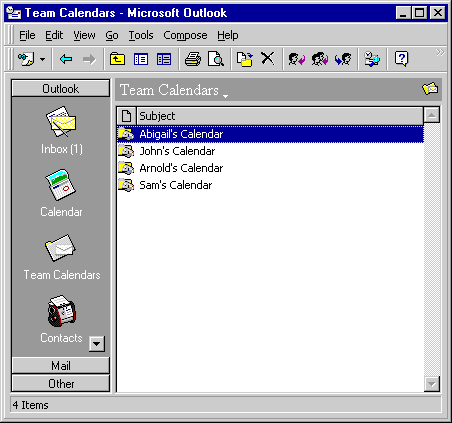
As you may have guessed, putting shortcuts in an Outlook or system folder, then adding a shortcut that points to that folder is one way to get around the limitation of not being able to create Outlook Bar shortcuts for individual items. For example, you could place shortcuts to your Dial-Up Networking connections in a folder named DUN and add the DUN folder to the Outlook Bar to get quick access to all your DUN connections.
File Shortcuts
The Outlook Email Security Update prevents users from opening shortcut files, so they're not as useful as they once were, unless you're in an Exchange environment where the administrator has unblocked them. In Outlook 2002, when you're creating a rich-text format message, you have an option to insert a file as a hyperlink, but this option is missing from HTML and plain text messages.
One workaround is to use the file:// URL syntax to point to a file. If this message is going to other people on your network, the link to a file named myfile.doc in a folder shared with the name OurFiles on a server named FileServer would look like this:
file://\\FileServer\OurFiles\myfile.doc>
Recipients should see it as a blue underlined hyperlink and be able to click on it to open the file, just as they would click on an // link to visit a Web page.
Also see:
Tools
More Information
Sharing an Outlook mailbox with your team members
OL2000: Link to Item in Public Folder Does Not Work
Outlook 2007 and the Missing Outlook:// Protocol

Nicole Ahmee says
Hi Diane - big long time fan of your work
I wonder if you ever came across a solution to sharing links and shortcuts to folders within exchange mailbox folders? As you've written about XNK support has been dropped, but I haven't seen an alternative. Example use case would be to open up each others calendars or folders within mailboxes
Thanks
Diane Poremsky says
With an exchange account, you can use deep links - I'll see if I can find instructions.
Josh says
I am having a problem opening links to outlook:// addresses from within OneNote. No matter how I try to format them. I am using the EntryID to link to an email, as so:
outlook:00000000599788EA333ECD468882F431217357D00700444C21E46C0A6D4EB465684466B062370000003F37DE0000BD6E4B3511BFFD42947375B73AC7C8AD000307B7DE060000
This works fine from within an Outlook message to link to another message, but it won't work from OneNote to open the same message in Outlook. The error message I get is "an unexpected error has occurred".
Do you know if there is a different link format I need to use, a registry tweak I need to make for OneNote to recognize the outlook:// protocol, or maybe an application association or something I need to make to get this to work?
Thank you
Diane Poremsky says
It's likely due to the missing Outlook:// protocol.
https://www.slipstick.com/problems/outlook-missing-outlook-protocol/
William Lucke says
Can I use the outlook protocol to open a specific email message?
I am using Excel to create a lists of tasks derived from email messages. I want each line to be able to link back to the specific email message from which the task was derived.
I have enabled the outlook: protocol
outlook:[Message-ID] gives me "Cannot display the selected folder or item" and a generic "show help" that tells me to use <> around hyperlinks, which returns "The operation failed. The messaging interfaces have returned an unknown error. If the problem persists, restart Outlook"... Restarting doesn't help, of course.
Jonathan D says
What would the syntax be if one wants to filter their inbox for emails from a specific sender? (E.g. Filter for all emails in inbox from John.Smith@abc.com)
Would it be <outlook:Inbox/~john.smith@abc.com>
Diane Poremsky says
This would not create a filter, it opens a specific folder or message.
You would use instant search to find all messages from an address. You can automate it using a macro.
Use Instant search to find messages from a contact (slipstick.com)
Balaji says
Hi,
I want to launch (client)outlook or outloop app from the user desktop from sharepoint modern communication site, can you suggest the possible solution please.
alvin says
Great! This is a very helpful article, Diane. I've been looking for a solution to create a list with check boxes that I can tick within the notes section of calendar appointments/events but it's just not possible. I read an article about linking it with OneNote and from there, create a list with check boxes. Although not the solution I prefer, because it needs to open another program, I was ready to go to that route until I read this article about hyperlinks. This is a great workaround for me. I can just create tasks/to-do list (which is basically my list with check boxes), go back to calendar appointment and create a hyperlink to refer to a task folder that contains my "list". BUT there's one issue, I can't make it to open in maximized window. I'd appreciate any advice you have about this. Thank you very much.
Diane Poremsky says
if the app is at full screen and the link doesn't open it in full screen, I don't think you can do it. As far as I know, you can't build into the link 'open full screen'.
PDAW says
Is there a way to make a desktop shortcut to my "To Do" list?
I have them for Tasklist (similar but not To Do) / Calendar / Inbox etc. but cannot find how to call up To Do
Diane Poremsky says
You can use a command line switch
Outlook.exe /select "outlook:To-Do List"
https://www.slipstick.com/outlook/choose-outlook-startup-folder/#cmdline
Andy says
Hi Diane,
thank you very much for this great article. Is there any way to create a link like outlook:Inbox to a search query. In particular I am looking for a way to add search queries to my outlook appointments to that I can quickly see the latest mails to the people I am meeting with.
Thanks
Andy
Diane Poremsky says
I don't think so, but its an interesting idea, so i will see if i can come up with a good option (which will use a macro)
Oh, wait... if you enable the social connector, the people pane will do that.
https://www.slipstick.com/outlook/social-connector/
matejchalupka@hotmail.com says
Hi Diane, I am able to make link to folder, but I am not able to make link to item in the folder. Do you know why? Thank you,
Matej
PDAW says
Think I can help w that -
outlook:calendar/~appt.-name is the format of the link
Andy says
Hi Diane - I've successfully created hyperlinks in a Post in one .pst sub-folder to a sub-folder in another .pst. Clicking on them opens a new instance of Outlook. Is there a simple add to make the hyperlink function like CTRL+Y but switch directly to the linked sub-folder? Thanks in advance for your feedback!
Diane Poremsky says
you'd need to use the /recycle switch. I have not tested it to see if its one of the switches you can use with other switches.
Ian says
I'm using Outlook 2013 and the format of the links seems to have changed:
This still works: outlook:Sent Items
This doesn't: Outlook://Mailbox - Mary Conrad/Sent Items
But this does: Outlook://mary.conrad@example.com/Sent Items
Public folder needs something similar: outlook://Public Folders - mary.conrad@example.com/All Public Folders/Calendar
Diane Poremsky says
You need to use the same name as you see in the navigation pane (or in folder properties) - newer versions of outlook use the email address for the account name.
Dermot says
Hi, there. If someone enters "/" in the subject such as a date "1/1/2016". Will it still work? Any work around?
Diane Poremsky says
if it doesnt work with that character in the subject, you would need to replace them with the hex code for the character.
Brittany says
Diane,
I've successfully used to open one's Outlook Calendar from a hyperlink. It default's to the current day when it opens. I'm wondering if it's possible to specify a date for the calendar to open to from the hyperlink.
Diane Poremsky says
No, sorry, it's not possible to have it open to a specific date.
Widjaja says
Hi Diane,
I am creating C# program to query Windows Search SystemIndex and planning to shows the result on a website. When the Windows Search result is an outlook email item, I have problem creating the hyperlink on the website page so that the user can click and open the outlook email item.
I have added outlook protocol based on https://www.slipstick.com/problems/outlook-missing-outlook-protocol/ the following HTML works opening Outlook and shows Outlook Folder.
<a href="Search%20FoldersUnread%20mail%20directed%20to%20me" rel="nofollow">here</a>
However, when I uses ~ (tilde) to refer to the outlook email item, I always get the following error.
"Cannot display the selected folder or item"
I have put the email item Subject after the ~ (tilde).
The C# program can collect System.ItemURL like below for an email item.
mapi15://{S-1-5-21-2129867641-919698055-327642922-348414}/....
I have tried to use
outlook:S-1-5-21-2129867641-919698055-327642922-348414
too but I encounter the same problem.
Do you have any idea how I can resolve this?
Please help. Thanks in advance.
Regards,
Widjaja.
Diane Poremsky says
I don't know it's not working, but one guess is that's it's a security feature of Windows 8/10 Search and Outlook. Outlook items are no longer shown in the general windows search. They only show up when you search in Outlook.
Chris says
Hi Diane,
I am trying to write a script to insert a hyperlink to the EntryID of an email.
For HTML emails, the hyperlink displays and the link works.
For RTF emails though, the link comes up as text only - and no hyperlink. Composing via the GUI in RTF format and inserting the hyperlink normally does work.
I've been trying to nut this out for ages, but have had no luck.
This is the line I'm using:
InjectLink = MovedMailSubject & vbCrLf & "" & vbCrLf
If you had any light to shed on this, I would be very grateful!
Thanks!
Jon
Diane Poremsky says
See if this works in your macro - the full macro this snippet came from is at https://www.slipstick.com/developer/create-task-outlookcom-local-tasks-folder/
strID = objMail.EntryID
strLink = "outlook:" & strID
strLinkText = objMail.Subject
Dim objInsp As Inspector
Dim objDoc As Word.Document
Dim objSel As Word.Selection
Set objInsp = objTask.GetInspector
Set objDoc = objInsp.WordEditor
Set objSel = objDoc.Windows(1).Selection
objDoc.Hyperlinks.Add objSel.Range, strLink, "", "", strLinkText, ""
Jure says
Hi Diane,
In Outlook 2013 and Win8 hyperlinks (example copy of path from Explorer: ) to folders in my computer doesn't work anymore like it did in Outlook 2010 in Win 7. Any hint?
Kind regards.
Diane Poremsky says
Hyperlinks are basically dead, due to security issues. If they are in the file system and begin with Outlook:, you need to add the protocol to the file types. See https://www.slipstick.com/problems/outlook-missing-outlook-protocol/ for details.
muffitt says
Hi Diane,
did you have chance to help me create a hyperlink from onenote to an existing task.
eg. I have created a reoccurring task - check the bank account which has a hyperlink to the onenote section which tells me all the processes for doing this. then at the end it states to go back to the task and mark as complete.
It's at this point in the onenote that i want to link from there to the task so i can mark it as complete.
Diane Poremsky says
If you have the onenote addin enabled, you can send the task to onenote or create an outlook task in onenote and the link should be automatic. That would be easier than trying to create a link to the task. (But I'll see if i can make a link work.)
muffitt says
How do I create a hyperlink in my subfolder of my microsoft onenote to a repeated task under a category in my microsoft outlook?
Chris Roux says
Hi Diane, I was wondering if you could help shed some light on an issue. I have an end user who wanted to disable the 'Protected View' from her Excel spreadsheets. So I looked online and found out how to do that: "In Excel go to File > Options > Trust Center > Trust Center Settings > Protected View, and then uncheck ‘Enabled Protected View for files originating from the Internet.' We also unchecked the ‘Enable Protected View for Outlook attachments’ as well as the 'Enable Protected View for files located in potentially unsafe locations.'. This appeared to work, with the following exception: when she opens a file from a hyperlink that is sent to her, it still opens with the Protected View on. Any thoughts? Not sure if it has to do with how hyperlinks are handled, or what...?
Thanks for your time, -ccr.
Diane Poremsky says
I'd think the internet setting should work (as should the unsafe location option) - try adding the domain to the Trusted domains list in Internet Explorer.
juno says
Hi Diane, do you know what is the Outlook Protocol to open or create hyperlinks to Outlook items (open the items outside of Outlook) from a pdf document by any chance?
I've tried and was able to open an Outlook item via hyperlink from a Word document but when I saved that document in pdf format, the same hyperlink wouldn't work. It just won't open the Outlook item.
Any thoughts what I need to do?
Thank you Diane.
Diane Poremsky says
Was the url changed at all in the conversion? If the hyperlink uses the outlook:// protocol and that protocol in use in your version of Outlook/Windows, it should work in any program.
juno says
The URL changed to uppercase (in pdf), other than that they are identical. One other issue, it tried to open in my Internet browser and that in turn crashed Firefox.
PB says
I would like to add a link to an Outlook Exchange (Microsoft Office Home and Business 2010 installed) folder into my Endnote - any idea how to do this? I tried to drag and drop the folder onto the desktop to create the shortcut, but that did not work (action was not allowed). Any advice would be welcome.
Diane Poremsky says
You'll need to create the link in the format outlook://path to item See missing outlook protocol/ for steps to enable the outlook protocol in newer versions.
you can get the path to the folder by right clicking in it, choose Properties - the path is on the page.
Terry says
I cannot use Outlook 2013 embedded hyperlinks. It gives me an error and tells me to contact my helpdesk
Diane Poremsky says
Is it this error? Your organization’s policies are preventing us from completing this action for you.
GA Anderson says
In Outlook 2010, I created a 'signature' that has my email included. The signature has a logo in maroon but I also added my name and address above the logo (typed in the signature window) so this address will display even if a recipient has plain text on their computer. The issue is that in my 'typed in' address, I want my email address to stay in the dark gray color that the rest of the address is in and not change to a blue, underlined hyperlink. No link needed... just want the info there and I want the color it to match the rest of the address. How can I do that?
Diane Poremsky says
After hyperlinking, apply the color, not before.
Mr Trevor Lewis says
Being a computer dummy, I have tried leaving you Feedback but cannot find the Link, also I cannot sign in or out of my Outlook Express in-box, it is always open. I also want to activate my second email account, I have tried several times, but failed. Please believe me, I want to obey your rules, but I don't know how to. Any advise will be gratefully received. Thank you.
Diane Poremsky says
So you are trying to add a second email account to Outlook Express? Do you want a second email account in one Outlook Express profile or two profiles?
lenzi says
why are color codes washed out in the hard copy of calendar appointments using version 2010 outlook?
Diane Poremsky says
It has to do with how printer drivers handle the the shading they use for the color. The colors print better with some printers - in my limited experience (I only have access to a limited number of printers), it's bad on HP's and pretty good on Okidata color laser printers.
Amy M says
Thank you very much for this information, it was very useful to help one of my users.
M.Singh says
Is there a way to have an .xnk link to a public folder open in such a way that the navigation pane in Outlook will also move to the particular folder and show the subfolders?
len raphael says
before moving to exchange 2010, i was able to copy all of a users outlook folder shortcuts to their new machines or other machines on which they had outlook profiles, but going into usersusernameapp datalocal or roaming depending what kind of user microsoftoutlook and copy eithere the outlook.xml or usename.xml file to the new pc.
now the only xml files i see with right dates are " -autodiscover.xml" files with long strings of numbers in front.
i have a bunch of shortcuts to a bunch of multi level deep subfolders.
Diane Poremsky says
Go to C:UsersusernameAppDataRoamingMicrosoftOutlook (%appdata%microsoftoutlook) - the filename is profile_name.xml
(that is the win7 path)