Contact and Address book settings are found in three locations in Outlook. These settings control the search order of the address books (when Outlook needs to resolve the addresses) as well as the display in the address book when you click to To button.
One area which leaves many users confused is where the Outlook address book gets the display names from. As seen in the screenshot below, Contact's File as field is used in the Name field of the address book and the email display name (Display as) field is used for the Display name field. If a contact does not have an electronic address, they will not be listed in the address book.

Note that when you change the Address book display format used in the Name column, the new format is not displayed in the Address book until you restart Outlook.
To remove the email address from the Display as/Display Name field, see Bulk Change Email Display Name Format.
Address Book
In the Address Book's (Ctrl+Shift+B) Tools, Options dialog, you'll find the options to select which address book is shown first when you click To, where your personal addresses are kept, and the order auto-resolution searches your address books.
The dialog is slightly changed in Outlook 2010 and newer, due to the new feature where Outlook chooses the sending account based on the folders you are viewing.

This is the dialog in Outlook 2007 and older:
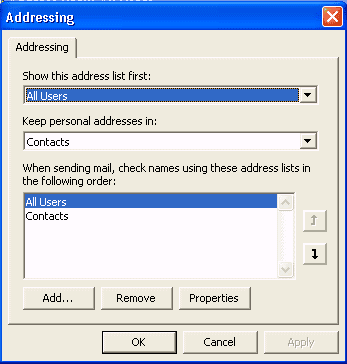
You can choose to start with the Global Address list (Exchange server accounts only), the Contacts folder, or Custom order. If you maintain one contacts folder for all accounts, the Custom order is best, but it can be confusing if you have separate address books for each account type.
Contact Options (in Options dialog)
In Tools, Options, Contact Options you can control the file as format and the default name order. In Outlook 2010, this dialog is at File, Options, Contacts.
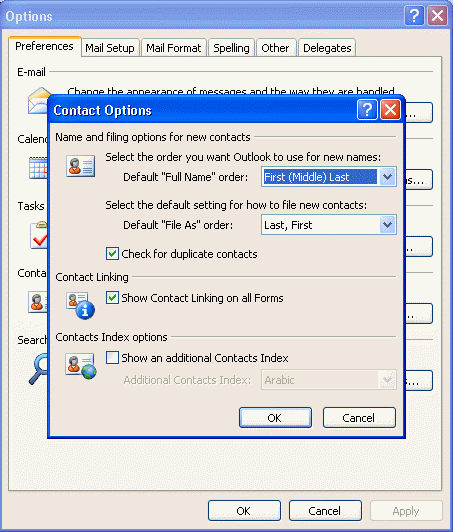
The default name order tells Outlook that "Mary Smith" is in first name last name format. If you prefer to enter names in last name first name format, without using commas ("Smith Mary"), this is the setting you'll need to change.
When Outlook files names in "Mary, Smith" format, check your default name order setting. Changing this setting will not change existing contacts, it applies only to new contacts.
Restart Outlook to insure changes made here to take effect.
Please note that changing this does not change existing contacts, it applies only to new contacts. You need to edit existing contacts, or use the macro at Bulk Change File As Format for Contacts or, if a number of contacts have the first and last names in the wrong fields, see Macro to Swap First and Last Name Fields.
Account settings, Address Book settings
Directory and Address book settings are found in Account Settings (Tools menu in older versions or File tab in Outlook 2010). This controls the sort order you see when you click the To button or view the address book. Double click on the address book or select it and click Change. Restart Outlook for changes here to apply to Outlook's Address Book.
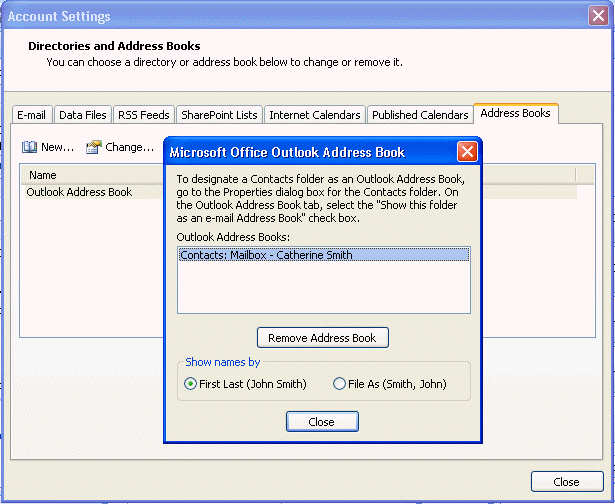
If your contacts use different FileAs formats, we have a macro you can use to change them to a universal format at Bulk Change File As Format for Contacts.
Video Tutorial
This video tutorial is specific to Outlook 2007, but it's similar in newer versions, although the menus have changed or moved.

Sandy M says
Hi Diane, I have MS Outlook 365 and have 3 email accounts with 1 as a default email. All of my email contacts are attached to the default account. I need to delete this email but worried I will lose my email addresses I need to keep (without having to enter them all again). How do I save the emails or migrate them? Is that the correct terminology?
Diane Poremsky says
Are the contacts in the autocomplete list that comes up as you start typing the names or are they in the contacts folder?
If in the contacts folder, export the contacts to a pst file for safe keeping and if they disappear from your profile when you delete the account, you can import from the pst.
If they are in the autocomplete field, you can restore it or export the contents using a 3rd party utility. NK2Edit: Edit AutoComplete files (.NK2) of Microsoft Outlook (nirsoft.net)
Nicole Tomi says
Hi Dianne
Please help out here. We have different people using the same address over the past years and somehow some of their names are still in our address books! How do we change it so we know who exactly is using this email address at present. Even our customers are greeting us with names for those who have long gone from the company.
Diane Poremsky says
This is an exchange account? If so the admin needs to change the display name in Exchange. If it's pop or imap, the display name is set in the account when you add it to outlook - File > Account Settings > Account Settings to open the Account Settings dialog. Double click on the account and correct the display name.
Ray Batig says
Hello,
I am not sure if this is the right place to ask this question so please direct me if it is not.
I am using Outlook 2007 and when you click the new Email button an empty Email opens up. Then I click the To button and a popup titled Select Names: Contacts opens up. I am looking for a way to add the Company information stores in the contacts to this list. Preferable in this order: Name, Display Name, Company, Email.
Is there a way to do this?
Thank you in advance for helping me!
Ray
Randy says
When one user in my organization filters their contact list for a given category, it applies the same filter to all users in my organization. Is this a setting that can be changed, or is this an outlook issue? The contact list is a master list that we all share, but we access it from our local machines.
Diane Poremsky says
There is not a setting that controls that. If the account is opened as an account, the view is pushed to all. If its opened as a shared folder, users might see their own views if they don't have full permissions on the folder (but its buggy).
Tom Bates says
So far, I haven't been able to find an answer to my question, which is "why are there two contacts folders"? What is the purpose of each? OK, that's two questions.
Diane Poremsky says
It depends where they are. :) Each Exchange/Outlook.com account will have their own contacts folder. If you use POP3 accounts and set different pst files as default data files, each pst will have contacts folders.
Jerry Fallon says
Hi Diane,
I added my outlook.com account to my work computer for I cannot sync calendars and contacts to my phone. Adding my personal account allows me to do that. My problem now is job titles and company names keep disappering. I called Microsoft to no avail. I am about to get rid of Outlook.com for good. Any idea how to fix this?
Diane Poremsky says
sorry i missed this earlier - had way too many comments to get through.
>> Adding my personal account allows me to do that. My problem now is job titles and company names keep disappering.
this is was a known issue - it should be fixed now, but if not, adding something to the address field fixes it.
allamarie says
Hi Diane,
I would like to change how addressee is displayed in the To field. For example, I send an email to mcontrary@privateemail.com. When I type "m" in the To: field of my email message, "Mary Contrary" will display. I want to see mcontrary@privateemail.com instead because Mary also has another email address, mcontrary@workemail.com and I want to make sure I don't send my message to that address. I use Outlook 2016.I've spent hours researching the Internet and can't find a solution to fix it. Many thanks for your help.
Diane Poremsky says
outlook picks this up from different places - the original message (when you reply), previous messages (auto comeple cache), from the email display name in the contact or gal. In most cases, you should see 'mary contrary <email@address.com>' format. One exception is the gal - it uses the display name only and unfortunately, you can't change that. If its picking it up from the contact, you can edit the contact to change it - clear the entry from autocomplete too.
Heather says
Hello all! I have a handful of contacts that are JUST companies. I would like to write a macro to Select those without company names, and set the "FullName" to the company name, within the selection.
I've tried these two macros, and can't see my errors. Can you help? Thanks!
----
Sub UpdateContactFullNameToCompanyIfNoFullName()Dim Session As Outlook.NameSpace
Dim currentExplorer As Explorer
Dim selection As selection
Dim obj As Object
Dim strFirstName As String
Dim strLastName As String
Dim strFileAs As String
Dim FileAsFormat As String
Dim CurrentFolder As Outlook.Folder
Dim objItem As Object
Dim objItems As Object
Dim objContact As Outlook.ContactItem
Set CurrentFolder = Application.ActiveExplorer.CurrentFolder
Set currentExplorer = Application.ActiveExplorer
Set selection = currentExplorer.selection
On Error Resume Next
With objContact
' Testing for blank name field
If objContact.FullName = "" Then
strFirstName = .CompanyName
.Save
End If
.Save
End With
Set CurrentFolder = Nothing
Set objContact = Nothing
End Sub
----- AND ALSO TRIED THE SIMPLER ROUTE OF ----
Public Sub NoFullNameUseCompany()
Dim Session As Outlook.NameSpace
Dim currentExplorer As Explorer
Dim selection As selection
Dim obj As Object
Dim strFirstName As String
Dim strLastName As String
Dim strFileAs As String
Dim FullName As String
Dim CompanyName As String
Set currentExplorer = Application.ActiveExplorer
Set selection = currentExplorer.selection
On Error Resume Next
With objContact
' Testing for blank name field
If objContact.FullName = "" Then
If objContact.CompanyName "" Then
strFirstName = .CompanyName
End If
End If
.Save
End With
End Sub
Diane Poremsky says
This: strFirstName = .CompanyName won't work unless you set strFirstname to the fullname earlier.
I needed to do the opposite for a client and used this:
strName = .FullName
.FullName = ""
.CompanyName = strName
.Save
Brian Wilkinson says
I have been using outlook 2010 and now updated to 2013 outlook and it a real pain in the ass. When I click "People" I wish to the standard outlook form. When I add contact now I cannot ad phone numbers and have save then go to address book which opens contacts in the form I wish to add contact information. Is there anyway to change this or am now stuck taking twice long to add a new contact. And when I search in people not all my contacts show up. I have about 300 contacts in my contact list and this really painful in outlook 2013. Let know any advice you can offer. I am strongly thinking to uninstall office 2013 and go back 2010 office a much better suite of programs
Thanks Brian
Mary Lou Levasseur says
Hi Diane,
I am so excited to see your replies on the questions below. I am wondering if you can help me with this one. I would like to manage the columns of the adress book box (when you open a new message and click on '' TO:'')
When I check the global address book (list), I can see these columns : Name, title, Phone number, Email address, etc.
When I check my actual contact, I see only the column : Name, Full name and email address.
Can we manage this view ? From the box itself, we cannot do anything. Do I have to creat a different type of contact list ?
THank you for you help ! :)
Mary Lou
Trevor Aylett says
I hope you can help as this is driving me up the wall because I can't seem to find a way to do it:
I have created new folders under "My Contacts" so that I can sort all my different contacts into their relevant folders (Friends, Work, Shopping etc) - all well and good and I can drag and drop different emails into their respective folders. HOWEVER, is there any way, when I receive a new email that I can right click on the address and select which of the folders I save that new contact in??? It seems the only thing I can do is to save the new contact to "My Contacts" and then actually go into "My Contacts" and then drag and drop the new contact into their relevant folder, which is an extra step I'd rather not have to perform every time! Any help much appreciated please.
Bill says
This definitely does NOT apply to Outlook 2016 - contacts, formats, and fields are not even close in this latest release - and it is much less user friendly
Mike says
All I want is a simple email client like Windows Live Mail. It did everything I wanted and did it simply and without fuss. My wife could use it without difficulty. When we searched for a contact when sending an email, it looked in every field in the contact entry. I have been forced into Outlook 2016 and discussions like this about the esoteric aspects of Outlook contacts make me feel like I have been tossed into a vat of boiling oil. Does anyone know how to get Microsoft to at least think about their decision to abandon WLM as a synchronized supporter of Outlook.com accounts?
Pablo Garcia says
Hello. I am new to Outlook. I'm using Outlook 2007. My mail account is from Google (gmail). When I compose a new mail in Outlook, when I start to write the contact name it doesn't autocomplete the rest of it. I've searched and learned that Outlook uses a .nk2 file. So, using "NirSoft NK2 Edit" software, I've been able to add all my contacts to it. But I'm still having this issue: let's say I want to write a new mail to a contact named John Smith. If I start typing "John" in the "To..." field, the rest of the name appears (along with other Johns I may have), BUT if I write "Smith" first, it doesn't find it!! I refuse to believe that the most used e-mail client in the world isn't able to do such thing (in Thunderbird, Windows Live Mail, EM Client, Gmail and Outlook.com (ex-Hotmail) in the web, they all search whatever you write in the "To" field in the First, Last Name, e-mail address and Nickname). Is this possible to do in Outlook 2007 (or 2010, 2013)? If so, how?
Thanks a lot in advance for your answer!
Pablo
Cindy says
In Outlook 2013 running on a single computer without Exchange: I want my contacts to be displayed a particular way when you click the TO button on a new email. I want the contacts to be displayed alphabetically
WITHIN their assigned categories.
I have more than a couple of hundred contacts, and I need to be able to see the most important, most frequently used contacts first...
I want the addresses displayed in categories and then alphabetically within each category.when I click to TO button at the top of a new email.
Can you help me persuade Outlook to do this? I do hope so!
Diane Poremsky says
That's not possible in the Address book view. You can start the message from contacts - select the contact(s) you want to send mail to and click the Email button (in the Communicate group on the Home ribbon when a contact is selected).
John says
I am not a computer geek or even close to computer competent. I have just changed to Office 365 (not networked on connected to any server outside my home, i.e. clouds, exchanges, or whatever.
I am involved with various organizations and need to keep the address/contact segregated by organization. It appears that unlike Outlook 2007, where each account was compartmentalized, Outlook 365 shows them all at the same time.
How can I set-up address/contact lists and distribution lists which are unique to each individual email account? Having addresses/contacts co-mingled will create a logistics nightmare. When I click on an email account, and need to send an email; I only want to see the address/contacts for that specific account. Is this possible with Office 365 Outlook?
Lori Brooks-McGraw says
Hi Diane,
We are using Exchange 2010 and Outlook 2007. When the user clicks the TO button in a new email message and looks at their CONTACT list of contacts, they see multiple entries for some of their contacts. There is an entry for each email address being stored as well as an entry for phone numbers and fax numbers. Is there a way to remove the phone, fax, and secondary email addresses from this list? I have looked at all the options that I can find but don't see an option for including or excluding this information in Outlook.
Jerome H Horwitz says
DIANE,
Thanks. I have them all pretty much cleaned up now. I do have them in a list view, separated by "companies" and sorted alphabetically by the last name-first name order I mentioned. The list view, with the Display as field added, made it pretty easy to just slog thru it!
I actually got into this thread to try to help the original poster about this.
Have a fun and safe holiday weekend!
JERRY
Jerome H Horwitz says
Yep, those two symbols were bracketing the field names and, after I saw the name gone, figured they were the cause.
I exported these contacts last September (about 1000) from the Windows Mail address book on my Vista system that had crashed. I then imported them into Outlook Contacts on my replacement Windows 7 system. I had been gradually cleaning up the formatting as I worked on the various "companies" (meaning my various groups of contacts, such as an organization or a high school class).
What I wanted was to clean up the entire mess into the following consistent field order:
LastNameGradYear, LastNameNow, FirstName (+INFO), E-mailAddress
Those FOUR parts represent:
Surname back in time (that's what classmates remember) or current, if not changed;
Current surname (if changed from back then);
First name (plus an optional short piece of info in parentheses); and
E-mail address.
I use that optional short piece of info for the amateur radio callsign, such as N3AA, for those who have one.
Of course, Outlook has three separate places for these: Full name; File as; and Display as. They each have their own entry quirks. My target is that all three have my data fields in the same sequence (except for the E-mail address, which doesn't appear in Full name or File as)
Diane Poremsky says
File as might be a problem if it's not one of Outlook's default formats - syncing or other actions tends to reset it.
>> the various "companies" (meaning my various groups of contacts, such as an organization or a high school class).
Are you doing this one at a time? If you use a table (list) view and group by the field, you can change one then drag contacts to the new group. It's faster if everyone has the same group. (might need in cell editing enabled) Other fields can be changed the same way.
The fileas field can be set using a macro - i have one on another page but you'll need to add your custom fields to it.
Jerome H Horwitz says
DIANE,
In my comment just left for moderation at July 2, 2015 at 10:43 pm, some lines containing field names seem to have disappeared entirely. Did they actually show up, or did I format them in some way that gets them "kicked out of school"?
JERRY
Diane Poremsky says
They disappeared, probably because of formatting. Don't wrap anything in these: <>, you need to use the HTML code for less than and greater than: & lt; & gt; (no space after & though). If you need to set field names apart from text use [] to bracket them.
Mark Bagshaw says
Thanks for your quick reply, Diane.
I tried opening one of the "faulty" records, clicking Full Name, then re-saving the record, but the problem was still there. I tried deleting the record altogether then creating a new record for that person, but still the problem exists. I notice that after I enter the email address for this record, then click outside the email address field, the Display As field is filled in automatically in the format FirstName LastName (Email address).
I then tried deleting one of the records that is in the correct format that I want to display in the Name column of the Address Book (i.e. LastName, FirstName) and recreating it, but it goes back with the correct format, and the Display As field automatically displays as LastName, FirstName (email address).
I have completely run out of ideas – there seems no logic in this.
Diane Poremsky says
This is normal - its the default.
Did you double click to open the record from the address book or look for it in contacts? I opened mine from the address book and as soon as i hit save, the address book refreshed with the corrected contact. I'm wondering if you had duplicates - that would explain why creating a new contact had the same problem.
oh, and did you check the settings in file, options, people and in File, Account Settings, Address Books?
Jerome H Horwitz says
I've been struggling with the same problems. The designed solution is not totally synchronized, nor is it obvious.
I always want surnames before first names. Since many of my contacts are for a couple of high-school classes from long ago, what I want looks like this:
,
INFO is a short field in parentheses that could go as Title, but Outlook doesn't keep that together in the above order, so I put it in the name field. An example of this for one of my groups, an amateur radio club, is the licensed call sign (e.g., N3AA).
I want this order everywhere! In the DisplayAs Field, I want exactly the same followed by the E-mail address:
,
In order to make sense (to me!) out how to do this, I found that I needed to click the Full Name button to edit the name and INFO. When I complete that, I find that the File As field is correct.
If I have entered the E-mail address, the Display As filed my have the name, but in the wrong order, and then the E-mail address. If this is so, I delete the name portion, copy the File As name, and paste it into the Display As field. If entering a new E-mail address, it will put you in position to complete the process as above.
I always want the name the same order as above because, when multiple names are used, different versions could appear and I always want them to sort the same way! For the high school classes, people long out of touch need the names they new back in school days: Thus the field, which is the surname from the time of graduation.
Diane Poremsky says
>> In order to make sense (to me!) out how to do this, I found that I needed to click the Full Name button to edit the name and INFO. When I complete that, I find that the File As field is correct
Were the names in the wrong order or did outlook just want you to bring up that full name dialog?
Mark Bagshaw says
Hi Diane,
I am having a frustrating problem where some of my contacts don't display correctly under the Name column in the Address Book window. According to your description of the way this should work, the Name field in the Address Book uses the FileAs column out of the contact record.
In my case, it does this for the majority of my contact records, but for some no matter what I do with the various name fields, it simply will not display correctly – it shows the name in FirstName LastName format even though the FileAs field is in the format LastName, FirstName.
The following is a screenshot showing an example of the problem: https://www.dropbox.com/s/4tmg42s5hiuox2z/Capture.PNG?dl=0
Diane Poremsky says
Were the 'bad' ones added to contacts by using the Add to Contacts command or moved from other folders? When you didn't create the contact in the folder using a new contact form, outlook often displays them in last, first format. Open the contact and click Fullname button then ok and save & close.
Debbie says
In Outlook 2013, I am setting up an address book where individual contacts may be categorised into more than one group, (geographical area/size etc). If a contact change is required (usually a deletion, but sometimes an email address change), is there a way to update the change across all the groups?
Diane Poremsky says
>> categorised into more than one group
If you really do mean categories, then you only need to update one. If you mean Contact groups, there is an update button on the groups but you do need to do it in each group. (This is why we recommend using categories instead of groups.)
Mark says
First of all, Diane - this Q&A is fantastic - thank you!
I have a question: I entered some contacts into Outlook using Office 365 (I'm assuming it's a corporate version). I just noticed that the source on the contact card shows as "Outlook (Contacts, myname@mycompany.com)" - does this mean that when I leave this company's employ I will lose this contact? If so, how can I change the source so that it is local to my computer and not tied to my employer's account?
Diane Poremsky says
Yes, if you leave, you'll lose the contacts. Move or Copy them to a contacts folder in a pst file before you leave (assuming it's not in violation of company policy.)
Mark says
Thank you, Diane. I was hoping there was some way to change the source, as I don't want all of the contacts in my address book to export, but I will do the pst. Thanks again! I don't suppose the answer changes if I have my own copy of Office 365?
Diane Poremsky says
No, not really - the contacts are stored in a data file and the version of Office doesn't matter. You need to make sure the contacts are in a data file outside of your work mailbox.
Tom says
Thanks for the response. For me, it is frustrating that the normal distribution groups are expandable (+ sign next to them) and the dynamic distribution lists are not. Sigh.
Diane Poremsky says
Yeah, that's because the members are determined as it's sent.
Tom says
Diane - I am using Outlook 2013 and have a question about a small icon. When composing a new email, I select recipients by clicking the To... button. I can then select names from my Global Address List (GAL). In the GAL, there are columns, such as Name, E-Mail Address, Company, etc. I have many names from which to choose, including individuals and groups. Some groups, that are bold-faced, have a small icon to the left, that looks like two people, one blue, and one green. I have other groups that are not bold-faced. They have the same icon except the icon also has a small, yellow gear or sprocket. What does the bold-faced font represent and what does the yellow gear represent? Thanks!
Diane Poremsky says
The bold/2 people icons = normal distribution groups while the one with the gear is a dynamic dl. A value is set on the dl and people meeting that condition are part of the group, if the value is changed, they are removed from the group automatically.

Sonny Astillero says
Outlook 2007 - In view, why does outlook separate contacts of same email address if its on a different format e.g. John Doe; John Doe (j.doe@outlook.com); j.doe@outlook.com.
Arranged by To - outlook will separate these 3 even though the email address is the same. Is there a way to sort email by email address and not by name (sent) formats?
Diane Poremsky says
This is in the Contacts folder or Mail folder and you are grouping by sender? When Outlook groups, it uses the display name, not the underlying email address. You can add the sender email field to the view - https://www.slipstick.com/exchange/adding-extended-mapi-fields-to-outlook/ - and sort by it.
Jerome H Horwitz says
Thanks again. However, I guess I am lost again:
In Outlook, Home Tab, I click Address Book and scroll down and find this name and E-mail address. In fact, since all of them have the "rolodex" card image, and since it appears all of them are also listed in the Address Book (I didn't count them, more than 900, for an exact match!), it would seem they all share this failing.
How do I test that and what is the penalty for living with it? I am standalone here, meaning I don't do anything special with these addresses except send mail to individuals and groups. Other than the occasional mass migrations over the years (Outlook Express to Windows Mail in Vista to Outlook in Windows 7 four months ago with the help of Windows Live Mail in that process), new addresses are by saving from an inbound message or by manual entry. I don't have network E-mail nor other devices to which I sync.
Thanks again for your patience and help!
JERRY
Diane Poremsky says
If it's not giving you problems, I wouldn't worry about it.
Jerome H Horwitz says
UPDATE #2: Found what appears to be a cure: The problem seems to be that not all obvious ways to add a contact to a group work properly!
What I found was, from within the group, Contact Group tab, click Add Members and select From Outlook Contacts.
The Select Members: Contacts dialog opens. At the bottom, do NOT use the Members button--instead enter the "Display As" name (with E-mail address in parentheses) and press OK.
It now shows properly in the group, including the icon being the "rolodex" card image and it shows up in the addresses when mail is created to the group.
Of course, testing is limited so far and I don't know what other issues are lurking to bite you know where!
Oomments invited and thanks for the help!
JERRY
Diane Poremsky says
The member isn't linked to the Outlook contact when you do it this way.
Jerome H Horwitz says
UPDATE: I tried creating a new contact and adding that to the group. That contact duplicated the behavior of the original problem contact. I note that the rest of my contacts were all exported from Windows Mail (under Vista) and imported into Outlook.
I also created a new message using this group (not sent, of course) and expanded the group in the "To:" box, selected them all, copied them into a text editor, and searched the results for the original errant contact. Guess what! It wasn't there at all. So, I suspect it is actually the contact itself, but how do I determine what's wrong with it?
Thanks again!
JERRY
Jerome H Horwitz says
Thanks for the quick reply. Took me a couple of minutes to learn how to do what you suggested, but "no joy in Mudville". I first removed the contact itself from the auto complete list.
When that didn't work, I did the same with the group. In that mix, I deleted the contact from the group (again), closed and saved the group, reopened it, and added the contact back in.
One observation: In the Group, looking at the list of contacts, this one contact is unique in another respect: Instead of its icon looking like a rolodex card with the notches at the bottom, it is a perfect rectangle with what appears to be the image of a photo on the left side. None of the other contacts have that and there is no photo in this contact. Hmmm, . . .
One thing I haven't done is closed and restarted Outlook, nor have I shut down and restarted the computer since this showed up last night (because I have a number of other things going on that I didn't want to interrupt until I got to a good break point with them).
Thanks again!
Diane Poremsky says
The two icons symbolize two different types of contacts: the contact card icon means the contact is in your address book, the rolodex icon means it's a "one off contact" and there is not a contact in the address book for the address.

Jerome H Horwitz says
Outlook 2010, stand-alone Windows 7 system: About 325 contacts for one "company" (actually a high school class from long ago) divided into four contact groups due to Verizon limiting addresses to 100 per message. Three groups are fine; the fourth group has one errant address--for this address only, the "Name" in the group isn't just the name, but it also includes the E-mail address thereby matching the "Display as" field. I've been "beating the bushes", including deleting the contact and entering it from scratch. Ideas, please?
Diane Poremsky says
Did you remove the contact group from the auto complete list? Start typing in the contact group name, when it comes up, delete it. Then retype it.
Corrie Simkin-Brocato says
Thank you for sharing your knowledge and promptly responding to our questions! Maybe you can help me :) In Outlook 2013, I am unable to populate search results to include the "File As" names. For instance, I have Mary Smith in my contacts. Her File As name is "John Doe Admin." When I search "Doe", only John Doe appears and not Mary Smith. This always worked for me, until I upgraded to MS2013. I can't find an answer for this anywhere. Any ideas??
Diane Poremsky says
What version did you use before? Instant search searches default fields and even though Fileas: is a valid search field, it gets the value from the fullname field (since fileas is usually the full name or company name field).
Nhi Ha says
We have recently created a public folder for our shared contact list for our company. Public folder and address book are synced, however when we enter the contact in public folders, the contact has all the one contacts information as one file, however when we go to the shared contact list in the address book, the one contact would seem to get split into 2 different contact. One would have the primary number and the other would have the secondary number. This happens as well sometimes with the 2 email addresses. Is there a way to fix this?
Diane Poremsky says
That is normal behavior - the Address book lists electronic addresses, one per line (so you can easily send to address 2 or 3.).
Liz Zoob says
Thanks for your reply. I sync using iTunes. I do have ways of working around this but still find it odd that iTunes automatically sends the single email to Email 2.
Diane Poremsky says
Yeah, it *shouldn't* do that - i will try to repro and see if i can figure out why.
Liz Zoob says
You seem so knowledgeable! I hope you can help me figure out this annoying Outlook quirk. I use an iPhone and I sync it with Outlook 2007. If I add a contact on my iPhone and then sync, the contact's email address always defaults to E-mail 2 or even E-mail 3, meaning it is not displayed in Outlook unless I open the contact's details and manually open the E-mail 2 category. So I have a few questions: Why?!! Can I change this behavior on Outlook's part in some setting? and Can I bulk transfer all the email addresses from E-mail 2 to E-mail?
I have been manually correcting this little by little by cutting the data in E-mail 2 and pasting it into E-mail, but would like it to stop happening in the first place.
Diane Poremsky says
How are you syncing - iCloud, itunes, exchange active sync with outlook.com or exchange, other software? You can add email2 and email3 fields to your view - it won't fix the problem, but will make it less annoying until the solution is discovered.
Karla says
It is when I try to send an email to a category - there are 100 in the category but only 15 email addresses come across with the message that some do not have an email address
Diane Poremsky says
Did you import the contacts? We're seen issues with the addresses not being resolved when importing contacts and this would cause the failure you see. If you open one of the other contacts (that Outlook says don't have an address) and reenter the address, does the address work?
Karla says
My Outlooks is saying a contact does not have an email address when it does - why would this be?
Diane Poremsky says
where are you getting this message? its possible the address is not resolved therefore not recognizable as an address.
Gene Beatty says
No dice. Didn't work. Still nothing listed. Any other suggestions? Thanks.
Diane Poremsky says
So in this dialog is Contacts listed in the Show address list at the top? That will always open the Address book dialog with contacts as the default.

alston28 says
I have Outlook 2007, and I have a ton of contacts, all nicely categorized. I went to create a Distribution List. When I tried to select names to add, it brought up my global address book and there are no names in it. I use the Microsoft Exchange Server, to facilitate syncing of email, calendar, contacts, tasks and notes between my pc and iphone. What gives? Why aren't my contacts listed in my global address book? Thanks.
Diane Poremsky says
The global address book is the list of other people on your exchange server, you need to select your contacts folder from the drop-down.
You can set your contacts folder to be the default in that address book. Open the address book, CTRL + shift + A, then go to tools, options and select the contacts folder that you want to show first, from the menu at the bottom of the screen.
TM says
Diane - Do you know of a way to add fields shown in the Address Book? I need to be able to see the Job Title for my contacts, but I cannot figure out a way to customize the Address Book views to add additional columns. Are you aware of a utility that allows this or some other work-a-round?
Diane Poremsky says
The address can't be customized, sorry.
connie says
is there a way to consolidate address books? I somehow wound up with 2 outlooks and 2 mobiles, and now another popped up. any suggestions?
Diane Poremsky says
You can copy contacts from one contacts folder to another but you might not be able to remove the extra folders. It depends why the folder is there. If you don't use any mobile services, you can remove the mobile address book in Account Settings, Address Books.
Kaye Weiss says
I found just what I was looking for, easily and instructions were clear. Thank you so much.
Singh says
Hi,
is there any way to know that which person had edit or made any changes to a mail in a globally shared folder in outlook.
anyone know please help!!
Diane Poremsky says
You can add the Changed By field to the view but if that field is not available or does not contain data, then no. Exchange 2013 includes better tracking so if you are on an Exchange 2013 server, the admin may have more information.
Sally Bounds says
I created a new group, which shows up under my person contacts in my address book. But I want to make the group list available to anyone in the organization. How do I move it to a public address book?
Diane Poremsky says
Is the public address book in the global address list or in a public (or shared) folder? If it's in the GAL, you need the correct permissions to edit the GAL or someone will need to create the group for you. If you are using a public folder, move or copy the Group to the folder. If you picked contacts from your folder to make the list, you'll either need to copy the contacts too, or save the group as a text file (use forward to internet to create the text file) then create a group in the public folders by pasting the names and addresses in the Member field of a new contact group.
Glenn Twitchell says
I have two Hotmail addresses and I have solved a multitude of problems caused by the change to Outlook but I am now stumped.Though I have managed to get both of my email addresses and their folders to display when I open Outlook I ended up with divided address books, one for each address. When I attempt to send an email from one address it will not find the recipient's address unless it is in that particular email account's address book. How do I sync or merge the address books?
Diane Poremsky says
You can't merge them but they should work in either email account - that's actually a request from a lot of people, but its never worked like that. I'll see if i can repro.
Jeff says
Diane, do you know if there is a GPO/GPP setting to force the GAL to appear first when opening the address book in Outlook 2013, rather than the default setting of "Choose Automatically"?
Diane Poremsky says
I thought so, but i can't find it in the GPO. It's stored in the profile - which usually means its not in the GPO -
HKEY_CURRENT_USER\Software\Microsoft\Office\15.0\Outlook\Profiles\profile-name\\0a0d020000000000c000000000000046
These two were set when i changed it -
000b3d1c: 01 00 <== may be a 'dirty' flag, doesn't seem to change once set. 00033d1b: 02 00 00 00 <== 01 00 00 00 is GAL option at the top of the list. 00 00 00 00 is selecting from the list of address books, but which book you select isnt stored in the registry.
Nick says
if I select the People tab (Outlook 2013) the left-hand column headed My Contacts has 4 entries. The 1st is Contacts - email address where I store my contacts through IMAP. The 2nd says "Contacts - This computer only". This is where any new contact gets saved by default and is thus orphaned from the main list. (I have to check it periodically and manually move data to the 1st Contacts folder.) The 3rd is labelled "Suggested contacts" and the 4th is "Contacts - Outlook Data File".
if I create a new contact from Mail (using Address Book, File, New entry...) the default save is "Contacts - This computer only".
Thanks.
Diane Poremsky says
This computer only folder sounds liek an imap account and it sounds like it is set as the default data file in File, Account Settings, Data File tab. Set a different data file as default and it should fix your problem.
Nick says
Yes, I do use IMAP. I also have a pst file but that's only for archive. The global address list is stored in outlook.com with Exchange ActiveSync.
Diane Poremsky says
Do you have folders in the imap data file labeled 'this computer only'? Or is the rogue contacts folder in the archive pst?
Udo says
is there a way to sort the outlook 2010 address book by the E-Mail Address? all (hundreds) of my contacts had to be imported from web mail and these users do not necessarily have Names (First or Last) so i'd like to sort by email address to find them quicker!
Diane Poremsky says
In the Address book, no. You can sort by the address field in the Contacts folder.
Nick says
Actually I have another Outlook 2013 challenge. I have created a global address list and made it my default contacts folder. (In fact it is the only address book I want.) However whenever I create a new contact it seems to disappear. It actually saves in Outlook's Contacts data file and, if I remember, I have to manually move it to my chosen contacts list. Can you advise on how I get all my new contacts to save into the same list? Even better, can i delete the Outlook Data File and the "Contacts (This computer only)" folders altogether?
Many thanks.
Diane Poremsky says
What type of email account do you use? With Outlook 2013, you don't need a local pst file, but its usually a good idea if you have imap accounts. Where is the global address list you created, stored?
Nick says
It just proves you ARE a godsend! I had to exit Outlook and reopen it for the change to take effect but your instructions work like a dream. I'd trawled through dozens of Microsoft help and community pages and couldn't find the answer. How come it takes you - rather than the mighty Microsoft - to make this so easy? Anyway, many, many thanks!
Diane Poremsky says
You're welcome!
Nick says
Diane, you seem to be a godsend. But Outlook 2013 may defeat even you in getting consistency in last name first (or vice versa) when synching via Outlook.com. I have set both Outlook.com and Outlook 2013 to last name first - and this works if I search either program under People. But if I use the Address Book tab in Outlook 2013 some of the contacts stick as first name last - and can't be changed!
Diane Poremsky says
Check in File, Account Settings, Address book tab. Double click on Outlook Address book. Is it set to use File as or First last? That is one factor in how names display in outlook's address book.
JP Shore says
I have imported my address book from Lotus Notes, via a CSV file, into Outlook 2007. After lots of false starts, it's finally in place. In the "Contacts" folder, each name has a single entry. However, in the Address Book, each name has a duplicate entry. So I have to choose between two duplicate e-mail addresses for each name I try to resolve when sending an e-mail. How did this happen, and any way to fix it other than delete the dupes, one at a time (several hundred)?
Diane Poremsky says
Are the email addresses duplicated? It sounds like you are seeing email1 and email2 fields - i'm not sure why the import would add the same address to both fields. Switch to a list view in Contacts and see if the email1 and email2 addresses are identical for all. If so, i can whip up a macro to delete email2.
Get the macro from bulk-change-outlook-contacts-file-as-format and replace the with ojbcontact block with the following.
With objContact
' Uncomment the strFileAs line for the desired format
If .Email2Address = .Email1Address Then
.Email2Address = ""
.Save
End If
End With
Gabrielle Gagnon says
Thanks for the prompt response. We don't have Redemption, and I haven't worked on the direct MAPI level. Is that accessed via the Property Accessor in the Outlook Object Model? We have another issue with those alerts -- when someone cancels an appointment, we can't include specific appointment information because the appointment no longer exists on the calendar, and although the information appears in the original meeting invitation, we can't access it via the OOM; we've had to add the invitation as an attachment to the alert. Someone told me we could use the Property Accessor to get it. Why didn't Microsoft expose these things in the OOM directly?
Gabrielle Gagnon says
I'm very grateful to you for writing these articles. After spending all morning searching Outlook Developer Help, I found a workable answer to my problem here. A perfect solution for us, though, would have been to use VBA code to set the order of the address lists to search when resolving names. Let me explain. We have a program that sends out alerts to subscribers whenever someone on a watch list books time on a resource calendar, and it broke when one of our subscribers added a few mail drops for documents that began with his user name to the Global Exchange address book (e.g., Doe, John doc type 1; Doe, John doc type 2, etc.). Outlook was unable to resolve his user name so it was unable to send out his alerts. When we wrote the program, we assumed user names would be unique, but apparently Outlook doesn't look at the full entry when resolving names. Is there a way to programmatically tell Outlook to search "All Users" first, "All Groups" second, and finally the Global Exchange address list when resolving names?
Diane Poremsky says
I went to the programming experts -
Donna Rummery says
Outlook 2010. When I click on "New Email" and then I click on "To" it displays all the contacts. This is where I want to sort - particularly the "Display Name" field.
Many thanks for getting back to me.
Diane Poremsky says
The only option there is sort by first last or by your contact's file as field. You can change the setting in File, Account Settings, Address book tab. Double click on the address book entry to open it.
Donna Rummery says
Is there any way to sort the 'Display Name" when sending an email as I sort by surname in my contacts which I want to keep, but when sending emails I use their first name.
Any light you can shed on this issue would be GREATLY appreciated!!
Diane Poremsky says
What version of Outlook? Where do you want to see the sorting - in the To field, in the address book dialog?
Adrienne Johnson says
I need to know how you can set up your contacts with adding in company title with the email address so if you send an email it will have your title to anyone that you send it to.
Diane Poremsky says
You'll need to add the title to the email display name field. If you are using Exchange server, the title needs to be added to the display name in the GAL as that is where Outlook gets it from.
Lisa Kruse says
Help! I have two addresses filed on one contact form for some contacts, one ranked as primary ("Email 1") and one secondary ("Email 2") in Outlook 2010.
Occasionally I need to use the secondary email, say when someone is out of the office. If I enter the secondary address, either automatically by using the address book look-up menu or manually by typing, Outlook always changes it back to the primary address. I cannot find the setting to dis-enable that function. Can you tell me what setting to change?
Thank you.
Diane Poremsky says
there isn't a setting to disable it, but if you select it from the Address book, it should use the selected address. Try deleting the autocomplete cache entry for the person start typing their address, select it when it comes up and press Delete).
John Tate says
Found it.
On the People Tab, move the iCloud contacts to the My Contacts.
Select the Folder tab.
Select the iCloud contacts and then select Folder Properties.
Select Outlook Address book and click "Show this folder as an email address book". The name of the address book should be change another name e.g. iCloud.
Then when an email is composed the iCloud address book can be selected from the Address book icon.
Thanks.
John Tate says
Thanks for your feedback.
Your link to change the order in the address book is related to Outlook 2010.
However Outlook 2013 does not have the same Tools Option but rather the Account Settings.
How do I do this in Outlook 2013?
Also I just want to confirm that I cannot make my email addressbook default to the iCloud contacts. If this is the case then this seems to be a serious limitation of Outlook as the whole idea is to have one address book to choose from.
Thanks again.
John Tate says
I have installed iCloud in Outlook 2013 and works fine under Windows 7.
However I have noticed that when creating an email, the entries in the standard address book are empty as these have all been transferred to the iCloud address book.
While I have copied all the addresses back to the standard Outlook address book, how do I make the iCloud address the default address book for emails so I have only one place to add/update addresses?
Thanks for your help
Diane Poremsky says
You need to change the order in the address book - See Syncing iCloud contacts for screenshots and instructions.
Bob Redwitz says
In Outlook 2010 contact view I have always used the full name column for my contacts. Recently the full name of all my contacts became the company name. If I change the view to First Name and Last Name columns it shows First Name and Last name. If I revert back to Full Name I get the company name again. Also if in list mode and I click on a contact in list mode and pull up the contact form, at the bottom of my screen it shows the full name but not in the contact form.
Diane Poremsky says
Which view are you using? It sounds like the view was changed and company moved ahead of full name.
Joe Scanlon says
Most of the info was a real help organizing my Address Book but i still show 15 different items or contact groups in the pull down menu when i click the To button.
Most of these items are not one of my contact folders, like "Offline global address list".
All i really want to see is two or three groups.
thanks,
Joe
Diane Poremsky says
Unfortunately, You can't remove those - they are added by the Exchange account. Sorry.
Bob roe says
Somehow iCloud ate my Outlook addresses
Is there a recovery?
Diane Poremsky says
Is the Icloud in your folder list? The contacts should be in the icloud contacts folder.
Wayne Shaddock says
Hi Diane,
I found your reply to a question about changing the default address book in Word 2010 which led to this article which, however, doesn't mention how to get the default in Word to change. I have successfully configured Outlook to bring up the desired default, but it had no effect in Word|Mailings|Labels. Any suggestions?
Diane Poremsky says
It's working here - when the desired one is selected in the drop down at the bottom that says "Show this address book first" - it works in Word. You may need to close and reopen Word for it to kick in.
M P Wideman says
Exactly the answer to the question I had. On transfer from one computer to another the names started to be listed by first instead of last. You took me right to the solution. Thank you.
JustGemini says
Hi Diane, in Outlook 2013 when starting a new email, and one clicks To, in previous versions of Outlook you could see all the field with Company name. Outlook 2013 doesnt show them. Have tried everything, read everything, but cant find a way to show the other missing columns. PLEASE help me as need to urgently email several companies, each with 100's of employees, and no way to select/find them. Huge thanks!!!
Diane Poremsky says
what version did you use before? I'm pretty sure it's been the same since 2002 or 2003 (but can't check until Wed. - i'm on the road) Contact folders show name, email display name, and email address; exchange gal has several fields including company name (you need to scroll). It's possible to hide GAL fields - https://www.slipstick.com/exchange/hiding-global-address-book-fields/ - but as long as your or the exchange adin didn't hide them, you'll see the comapny name.
I know outlook 2000 IMO mode showed different fields (as it used a different address book).