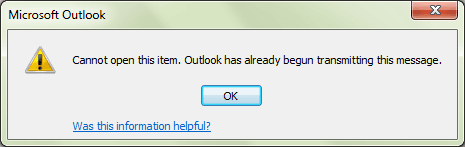
We've all done it once or twice -- we have a message stuck in the Outbox because it's too large for Outlook to send. Deleting it doesn't work - Outlook returns an error because the message is already being transmitted.
Common problems that cause email to stay in the Outbox
Delete Messages Stuck in Outlook 2011 Outbox
How to Delete Stuck Read Receipts
Work Offline
If you have a large message stuck in the Outbox and receive an error message when you try to open or delete it, you need to set Outlook to work offline. Wait about five minutes or more for the mail spooler process to shut down or close Outlook and reopen.
Go to the Outbox and delete the message. Use Shift+Delete to delete it permanently, especially if you have an IMAP account as it will create an error trying to sync to the server.
If you want to keep the message but remove the attachment, open the message and remove the attachment then Send.
Work Offline is on the Send & Receive ribbon. The screenshot shows the default setting of On (as in Working Online). When Outlook is Offline, the button is highlighted and Working Offline is in the status bar on the lower right.
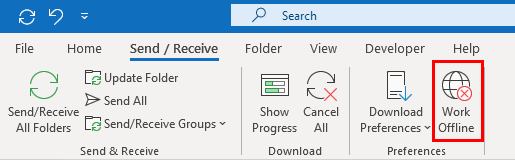
After the stuck message is deleted (or the attachment removed), set Outlook back online.
If your version of Outlook doesn't include a Work Offline command, or you are having problems getting Outlook into offline mode, disconnect from the Internet or disable the network card in the Control Panel, Network. Wait a few minutes, longer if the stuck message is really large, then delete it.
This is one time when patience is a definite virtue - make sure you give Outlook plenty of time to stop processing the message before trying to delete it. A very large message may require longer than 5 minutes to stop processing. You can close and reopen Outlook after setting it to work offline, if you are in a hurry.

David Geifman says
Thank you so much for this advice, especially about having patience or shutting down outlook after taking it offline.
sachin raj says
windows 8 how to search the store:mapi outbox
john festa says
I attempted these methods, have windows 10 and the Email is still stuck. Went off line, also shut down the internet, checked the dialog box says no activity on outlook, still will not delete.
NANCY says
Your instructions were the only ones I found that worked. Thank you so much. I now have the tool(s) to fix this problem if it happens again.
Sharon says
Worked perfectly. thanks so much. Glad you advised us to be patient.
ken says
I just used it for a 106 meg file and it worked. Thanks! KD
Peter says
I wrote an email with 50 recipients which got stuck in my outbox. Before reading some of the fixes suggested (ie work offline, then delete the item in the outbox) I deleted the item without going offline. The offending email disappeared but any further attempts to send other emails does not work. They sit in the outbox. How do I clear this? I have Windows 10 and Outlook 2007
Diane Poremsky says
The only reason to go offline is because if outlook has it in the spooler, preparing to send, you can't delete it.
Do you get any send and receive error messages?
What do you use for antivirus/security software? If it scans outgoing mail, the problem could be there. (Microsoft's Defender does not scan mail.)
sdarshanreddy says
hi it works for me thanks alot i have delete more than 300 mb file
thanks once again
Cindy says
Perfect - thanks so much for the solution! I was looking at 2010 Micro instructions but I have 2007 so your instructions were perfect and clear-thanks so much for helping me on something that could have taken hours-days! I'm going to look for you for online training classes-or tell me where the Outlook forums are?
Diane Poremsky says
I'm glad that I was able to help you. My forums are at forums.slipstick.com
Kostas says
Hi there,
Messages with photos, not more than 20 MBs, not only stuck in the Outgoing File, but Outlook sends them repeatedly !!! Recipients, call me and say that my message was received several times and they do not have any more free space !!!
What to do ??
Thanks,
Kostas
Diane Poremsky says
What types of email account do you have configured in outlook? What antivirus/security software do you use? It sounds like something is causing outlook to think the send failed.
Jonathan Fourie says
Yup, this is exactly what is happening to a client we have on VSAT connection. I wonder if the reason is not latency. I cannot find any information regarding this during research. Help?
Diane Poremsky says
I'm sure there are other reasons, but one reason is definitely an antivirus scanner scanning outgoing email. You can test it using Safe mode - this will bypass an antivirus addin but may not bypass if the scanner is listening on ports.
To open Outlook in Safe mode: Close Outlook then hold Ctrl as you click on the Outlook icon. You'll get a message asking if you want to start in Safe mode. Click Ok.
mempal says
great thanks we resolve
angela izard says
Thank you brilliant, got rid of the email perfectly!!!
Suze says
THANK YOU for this! I finally got rid of an outgoing mail/file that had been stuck for months!!
Larry Clayton says
Thanks! Worked well, going offline and deleting the pesky email with the long attachment. Much appreciate the advice.
jhek says
finally! i get stuck with this problem every once in awhile trying to forward our training videos. This simple solution saved me SO much frustration and down time - wish I had seen it 6 months ago when I got the email stuck in sending mode! Thank you Thank you. I'm going to find you on YouTube now...and spread the word. J Hek
Lee Brown says
Why is there not a simple "Button" that will Stop and/or cancel ALL
outgoing emails and show us a list of them all?
Wouldn't that be the easiest fix for this stuck email problem?
I've been jumping thru hoops for over two weeks (an hour or two at a time)
trying to resolve this problem. If I am answering an email and the pop-up appears
and I do not see it I may have been typing for several minutes before I realise
that the pop-up had caused my typed words not to appear where typed.
Very frustrating to say the least.
Diane Poremsky says
Setting outlook offline will stop the outgoing mail, but that is the only way to stop it once the send has started.
bern says
thanks so much for this advice going offline worked brilliantly!
April says
thank you so so much, my email was also stuck for at least 5 weeks.
I took out the internet connection, had a coffee, came back and I was able to
delete the stuck email.
you are amazing!
ric says
I see your note "The search method does not work on Windows 8/10." Is there any other way to get an outbox unstuck? I've tried the standard stuff like turning off send/receive etc. But nothing is giving my access to open or delete the stuck big e-mail. Thanks.
Diane Poremsky says
Going offline then deleting the stuck message (may need to set it to work offline, then restart outlook) is the only way. What type of account do you have and what happens when you try to delete it from the outbox in offline mode?
Prasad A says
ThanQ...Team...
Emilio says
I did this and it worked perfectly. My outbox message had been stalling there for 2 months. Finally got rid of it. Thank you for the clear instructions.
Ro Dixon says
This worked like a charm for me on my mac. Thank you so much!
Don Thorne says
Thank you for clear instructions. Followed, and it worked like a charm!
Harry Murphy says
Thank you Diane
jen says
I have outlook 16 and this file will not delete or remove no matter what i do. It also delays my outgoing business mail for our proposals and invoices. there has got to be a way to get this large file that is stuck out of my outbox! help me please
Diane Poremsky says
The larger the file, the longer it takes to completely delete it. You can also try opening the message and deleting the attachments off it before saving and deleting the message.
Charles Manthorne says
Have a message with picture attachments hung somewhere in Outlook. Followed instructions to point where I do not have Outbox showing in my items to left of screen. Is there a setting to activate Outbox then allow me to follow the suggested process? Also during the process a number of already read messages popped up in in-box, as unread. I do not find many people to be versed in Outlook including my relied on computer shop. Is Outlook an anomoly in the business. ?
Diane Poremsky says
Is this a Mac? Outlook mac hides the outbox, but it should be visible in outlook for windows.
What type of email account is it? iamp, pop3, exchange
Charles Manthorne says
Using a Toshiba Satetlite notebook laptop 420-3.
Windows 7.premium. Outgoing mail 2225. Incoming POP3(110). Have made a bit of progress in that I have found outbox at bottom of screen. Deleted offending message containing photos. On attempting to send other messages found that text message went OK showing in sent items. Not so for two messages containing small number of photos attached.. Seems to have it out for photos. The other issue has been messages not showing and giving a message that there are messages of the same subject. When offending message deleted other like messages show up. Any people I talk with do not seem to understand the workings of Outlook as to what causes these issues. [removed personal information]
Diane Poremsky says
Do you use security software that scans outgoing mail? It can cause problems such as this. Icloud has also been known to cause problems sending email, of course, you need to be using Apple's icloud for this to be a cause. :)
On the messages not showing up issue, look on the View tab - is Show as Conversation checked?
Gene Smith says
Thank you so much. I started to use you instruction on Windows 10 and got side tracked. However, the ideas you gave me were great! I'm so excited! I disconnected my internet cable. Closed outlook and waited 5 min. Then I opened outlook and set it for off line work, I found the outbox email and opened it and it did open, not like before, it wouldn't open before! I selected the attachments 655MB and deleted them and then deleted the email. Put it back online and it works great. I was on the phone (45 min) with my internet provider IT and they couldn't remove it
Anita says
Oh My Gosh! I did what you did Gene and it worked!!!!!
Amit says
Hi Diane,
I am trying to delete the items in outbox present in server data. Could you please guide me in doing so?
Diane Poremsky says
What type of account is it? If you can't delete them from outlook because it's trying to send them and they are not available if you go offline, you'll need to delete them by logging into your account online.
matt says
I disconnected for 5 minutes, deleted and it worked! Thank you!
Jim says
There may be a much easier way to address this problem. I went into Outlook and to Deleted Items, opened the message with the excessively large attachment, deleted the attachment, and then saved the message (even though it had already been deleted) as a draft. That seem to do the trick.
Diane Poremsky says
If it's in deleted items, it's not stuck in the outbox. :) If you have a large message that won't upload to gmail, then yes, deleting the attachment will work. With IMAP accounts, the deleted item is synced to the server, so moving a large message to the deleted folder won't help - you need to permanently delete it. Permanently deleting a message is harder with imap accounts as you need to purge the folder but removing the attachment is easy.
Tom Davis says
This worked for me. The email did not show in the Outbox, but every time I synched, it gave me the Gmail TOOBIG error. Opening Trash (MS Outlook for Mac), sorting by size, opening the too large email, removing the large attachment, and then saving it without sending it... fixed the problem. No more TOOBIG error. It may not be in the Outbox, but every time I synched before fixing this, it gave me an error in MS Outlook as if it was trying to send it out again.
Samantha says
The first one worked and was super easy! Thanks for the tip, this thing has been driving me crazy.
Theo says
Thanks a lot. The first suggestion worked. Simple! :D
William Dearborn says
I have Outlook 2013 running on a Windows 10 machine. It keeps trying to send an invisible file to gmail which sends back an error message saying the file is too large. I can't see the file in the Outbox. I tried using MFCMap but it tells me it can't work with Outlook 2013. I have been trying to resolve this for several days.
Diane Poremsky says
The current versions of MFCMAPI will work with Outlook 2013.
https://mfcmapi.codeplex.com/
Is your email account a gmail account? It's possible it's trying to sync a large message to the server and it's too large for gmail. This would only happen if you were importing messages to upload to the server though.
Roger says
The desktop solution for Windows 7 worked for me. Thank you!
Elizabeth T says
I have an email stuck in the outbox and I can't delete it. There is no attachment so size isn't the issue. I can't open it (message says outlook is transmitting it), I can't delete it, I can't move it even when I work offline. I tried your suggestions regarding typing outbox into the Start menu, etc, but the email doesn't show up anywhere. It seems to be blocking everything else as well. I'm at a loss.
Diane Poremsky says
If Outlook is transmitting a message, you need to set outlook offline (or disconnect rom the internet) and wait a bit for outlook to stop trying to send it - then you will be able to delete it. If the stuck message is large, it can take a while or outlook to stop trying to send it.
prashanth palled says
suggestion worked perfectly! Thank u
Min says
Thank you so much. It's so wonderful to find people like you who are willing to help. The first suggestion worked! Thanks again!
Arthur says
non is working...any other method?
Diane Poremsky says
I'm not aware of any other ways. Which version of Outlook? How large is the stuck file? What happened when you tried?
Clint says
Hi, for some reason the mail I wa trying to send ended up being 130MB. Had I seen that I would not have tried sending it, but too late now. The above tip didn't hep, any others?
Diane Poremsky says
Disconnecting the computer from the internet** via the NIC and waiting*** should work - maybe close and restart outlook (or reboot with the internet disconnected) after disconnecting will speed it up - is the only way I know. It's essentially the same as taking outlook offline, but insures you that outlook won't keep trying to send it.
**You can either disable the NIC in control panel, networking or if using a wired internet, disconnect the wire.
***With a file that size, the wait for outlook to step sending can be long.
Kay says
I tried to sent an email using Windows Live Mail (outlook Express), the attachments were too big to send.
Live mail keeps trying to send them.
I deleted them from my 'outbox'
But now every time I shut down Live Mail, I get a error box say 'You have unsent mail - Do you want to send them Yes/No'
Yet there appears there is nothing to send.
Any help would be appreciated.
Kay says
I have done it ..........EUREKA
My 'OUTBOX' was hidden, but following the path from 'C' drive to 'OutBox' and there were the two items.
Right.......time to make myself an 'idiots guide' in case it happens again. :o)
Can I say a big 'thank you', because it was your site that enabled me to do what I did, without it I would still have been in the dark'
Diane Poremsky says
Thanks for the update. I'm sure it will help others facing the same problem!
Gwyn says
waiting long enough for the system to stop trying to transmit was key to success. Phew, thank you, quite simple really!!
Binu says
Ok...I tried as you said by typing in the search column... but i am unable to delete it...
as i right click on the option, it shows only "OPEN" and no option for deleting the item.
Diane Poremsky says
Can you select it and delete it using the Delete key? If not, which version of Outlook and windows are you using?
Dawn says
I tried the second method and it seemed to work so many thanks. My problem now is that outlook will not open. The message is that the file is in use and cannot be opened. I rebooted machine and looked at processes in task master and cannot see Outlook processing? Can you please help
Diane Poremsky says
It won't open even after rebooting? What antivirus do you use? Do you use Lync, sync utilities, or any other applications that access Outlook data? That is the usual cause of file in use error.
Do you get the error if you try to open Outlook in Safe mode? To open Outlook in Safe mode: Close Outlook then hold Ctrl as you click on the Outlook icon. You'll get a message asking if you want to start in Safe mode. Click Ok.
Deanna says
Thank you Thank you Thank you!! You are an angel! I am so glad that I found this page and I have now deleted a large email from the Outbox!
Katrina says
My email of 756MB's has been stuck for a month now. This may be the reason my out-going mail is slower than normal. Walked through the task instructed but it's not moving anywhere. I've googled every possible site to see if there's another way. I suppose it's going to require someone more savvy than myself.
Diane Poremsky says
With a message that size, it may take a long time to delete or to go offline so you can try to delete it. Use Shift+Delete so it bypasses the deleted items folder or open it and delete the attachments from the message then save it. You could also use MFCMAPI to delete it - https://www.slipstick.com/how-to-outlook/delete-stuck-read-receipts/ has the basic steps, but you need to open the Deleted items folder in the information store.
Dmunoz says
I've tried both methods, no luck. The stuck email has been stuck for 2 years and driving me crazy.
Diane Poremsky says
Can you see it in the outbox? Do you get any errors when you try to delete it? What type of email account do you have?
Sammy says
It's Window 8, thanks
Diane Poremsky says
Go to the Folder list (Ctr+6) and look for it - it's either 4th folder from the top or in some random order in your folder list.
Sammy Cheung says
What if I can't even locate the Outbox in the folder list?
Thanks
Diane Poremsky says
Is this a mac? Initiate a send and receive and open the Progress dialog. Click the little x at the right of the entry to stop the progress. The Outbox should now be visible in message list.
Carly says
I have the same problem however I am using windows 8, how can I get rid of the email?
Thanks
Diane Poremsky says
It works the same way in all versions of Outlook and on all versions of Windows - go offline and wait. You can open Control panel, Networking and disable the NIC. Wait a few minutes then delete - for Outlook, you might need to wait longer, in the range of 1 minute per MB of stuck ,message size.
julie says
Thank you so much! Worked for me first time but you're right .... be very patient and it will happen!
Olga says
THANK YOU SO MUCH!!! FIRST METHOD WORKED FOR ME.
victor says
Thank you so much......I worked Well
Nitin Sharma says
it is really helpful in deleting the struck email in outlook...I thank you for suggesting me the way to do it...
CM says
Closing Outlook, searching from Start Menu, selecting and deleting works perfectly on Windows 7. Thank you very much. CM
Keisha says
How do you find the parent email. My outbox is empty and my delete folder is empty also
Diane Poremsky says
What type of email account? What is the error message or symptoms?
Bill Cohagan says
Thanks so much. Going offline worked for me.
Kiki says
That solved the problem. I have been holding my breath on this one, so thank you for solving it so quickly!!
Kiki says
Unfortunately, I used the search code but inserted Outlook instead of Outbox. Then after deleting, I couldn't open Outlook and it was not in the Recycle Bin. Next, I tried to open in safe mode with CTRL/Outlook shortcut and nothing happened. Any ideas as to what to do next?
Diane Poremsky says
Go to Control panel, search for add remove programs. Select office, choose Change, then Repair. That should fix it.
Ron Patten says
Thanks!!
Ron Patten says
Darn!! Do you have any suggestions? I'm a one man small business and use Microsoft Office because I have to. I have enough problems keeping up with the graphic programs that I use, there must be an easier way!
Diane Poremsky says
Outlook Inside out by Jim Boyce would be my choice.
Ron Patten says
Thanks for the help! I've been trying to get this large e-mail deleted for weeks! I feel lucky that I came across your help page. I'm going to see if you have a book for Outlook 2010.
Diane Poremsky says
No, sorry, no books for Outlook 2010. :(
Jeff Wolff says
Thanks so much. Worked perfectly.
Jaime Paredes says
Worked very well. Thanks!
Steve says
I clicked on the email and the window closed and now I cannot get outlook to start. I used method one. I did not left click and hit the delete button. Outlook will not come up now. how do I get outlook back?
Diane Poremsky says
Will outlook start in safe mode? Hold ctrl as you click the shortcut to start it in safe mode.
Amit says
Nah, this is my a/c set up on outlook 2010. It's an account hosted on my own domain - http://www.1801display.com
joe.mar says
Thank you Diane, I just had the same problem with my "Outbox" file stuck. I tried your sugestion of Search and it worked. It was getting to be very annoying having the error message every time I send a message. Again, Thanks
Amit says
I keep loosing my wifi connection while trying to send any email larger than 2mb & then the mails get stuck.. Am able to delete them alright but hv to try using an alternative ISP connection to send the email for e.g instead of my office wifi switch to my phones hotspot :(
Diane Poremsky says
This is with your hotmail account? Which version of Outlook and are you using the Outlook connector (or EAS if using Outlook 2013)?
Jeff says
What about a perpetual message in Outlook 2011 for MAC. This has happened to me several times...once before I was able to "catch" the Outbox (which does not always appear until Outlook has tried to send the message ~50+ times), and delete the large message. The time before last, I had already deleted the message in the outbox, but I kept getting the error...I created another large message to try to get the Outbox to show up again, and then deleted it...this fixed the issue. Now I have the error again and I tried the aforementioned trick, but I am still getting the error. Sometime, my Outlook is so slow it is not worth using...
A.Boulton says
Hi there, Using Win 7 Home and Outlook 2003. 74MB file stuck in Outbox.
- Offline doesn't work even after waiting 20 minutes.
- I get "no results" with the search function for outbox or mapi...
- cannot drag and drop either
When I try to open the message, i get the error "Sorry, we're having trouble opening this item. This could be temporary, but if you see it again you might want to restart Outlook" I also see the message that tells me that I'm trying to delete over 4000 messages!
- IMAP/SMTP account
Ideas?
Thank you in advance.
Diane Poremsky says
Because the file is so large and outlook 2003's spooler is slow, I'd allow at least 30 min to an hour for it to release the message.
It's too larger to open. Disconnect from the internet - you can disable the NIC to do this. Close Outlook, wait a few minutes then restart. Outlook should show as offline. - wait a bit longer then Shift+Delete the message.
Jon Lemke says
Nice! Someone should send this to Microsoft. I spent 2 hours on remote with them trying to solve this and then 3 hours with my ISP. I used the offline method and it worked. Thanks
Dilroop says
Thank you sooo muchhhhhhhh
Nicole says
It says 'Outlook is running in Unicode mode against Microsoft Exchange' and below 'Outlook Data File Settings', it doesn't say 97-2002 anywhere, should I still compact?
Diane Poremsky says
Yeah, you can still compact. That was a weird error message as you don't have file size limitations.
Nicole says
There are still however 2 attachments (1 excel and 1 word) left in my outbox when I search store:mapi outbox in Windows, and they do not have parent emails to delete so they are stuck. This still seems to be affecting my sending new emails, as when I try to send new ones it says 'error: message store has reached its maximum size'. This is odd because the original large email that caused the error in the first place was from months ago, and this has never happened before - and now I also have cleared many files except for the 2 attachments that are stuck out of the outbox.. so I'm not sure why it would still be considered full.
Diane Poremsky says
This sounds like you are using the old pst format, not the new Unicode format. If outlook opens ok, empty the deleted items and junk folders and compact the pst. You can check the pst format in File, options, data files tab - select the pst and click Settings. If it just says outlook data file, its the new format. if it say outlook 97-2002, its the old format.
Nicole says
I think I figured out why those files with the Microsoft Office icons would not delete, and this might help with other people that had that issue. Those files are the attachments from the email, and show up as separate files in the outbox when you search Windows.
When I found the parent email and deleted it all of the attachments disappeared from the list after ~15 seconds!
Thanks I will delete the sync logs!
Nicole says
Second Method: The issue here is that my outlook (2010) does not have an 'outbox' folder but a 'sent' folder. In this folder only emails that have been processed appear. So the emails that are stuck do not appear here, and I am not sure where to find them in my outlook. So when I try going offline, nothing changes for me as the emails are still nowhere to be found and I cannot delete them if I can't find them :(!
I have seen people that suggest clicking on the error message and canceling the email, however I now have recent emails stuck with it (The initial stuck message is from months ago) and I do not want to 'cancel all' which is the only option available.
Thank you!!
Diane Poremsky says
What type of email account do you use? IMAP accounts use the Outbox in the default data file. Disable the network card and wait for outlook to stop trying to send it - it can take a few minutes if the message is really, really big. Then it should open so you can remove images or delete. If you delete, i would use shift+delete to permanently delete it.
Nicole says
Hi, I've read through the comments and see some similar problems but I seem to have a combination of these issues. The initial email that I sent had the error: file too large message, as I had attached too many photos to the email.
First Method: When I searched store:mapi outbox the messages did come up, but I am having that same issue of not being able to delete them (using the delete key, or right click - when I right click only 'open' comes up). I also tried dragging the files into recycling or even into a separate folder on my desktop and they will not allow me to move them.
One thing I did notice about this is that in this search folder, the ones that come up that won't allow me to delete them have microsoft word or excel icons associated with them (with small envelopes in the corner of the icon). Other emails that only have the large 'envelope' icon will delete. However the files that I need to delete are the ones with the microsoft office icons unfortunately. I did have my outlook both offline and closed when I tried this. Also, more pale versions of the large envelope icon show up with many items in my store:mapi outbox search, and are titled my name and then 'Syncronization Log'. Is it ok to delete these? I don't want to mess anything up since I'm not sure what these are.
Diane Poremsky says
You can safely delete the sync logs.
If the messages were trying to send, it can take a few minutes for outlook to shut down, but if you closed outlook before searching, it should have been enough time to completely shut down.
Deborah Bell says
Nothing worked. I disconnected from the Internet and tried deleting the message. Waited 1 hour. Nothing. Searched on the Outbox, tried deleting the message there. Waited an hour. Nothing. We eventually had to create a new user account and profile and completely reload MS Office. Even repairing and eventually uninstalling and reinstalling Outlook did not allow us to send or receive any emails. Somehow my profile was completely corrupted. But, even with it gone (and thus the bad file gone), Outlook would not work. I appreciate your help and hope it works next time I have a similar problem, but something went very badly wrong this time. Thanks for trying!
Deborah Bell says
It is 20 MB. No error messages. When I do the search for the outbox, it finds two files: the 20MB pdf (***.pdf) and the outlook file that says Emailing: ***.pdf . I can delete the outlook file (shown with an envelope), but the other file (shown with the PDF symbol) does not give me the option to delete. If I right click, it just says "open". If I just highlight and hit the delete button nothing happens. The Emailing: ***.pdf file/link always reappears after deleting as well. Within Outlook itself, nothing happens when I try to delete it - no error message, no response whatsoever. I have tried working offline, I have tried turning off my internet altogether. I have tried opening it in Safe mode. I can do nothing. I am not receiving any emails either because the send/receive button still does nothing. I tried repairing my pst file as well and that seems to have no effect.
Diane Poremsky says
The one with Emailing: subject is what you need to delete. At 20 MB it can take a bit for it to be deleted - Disconnect the completer from the network, open Outlook then try deleting the message.
Deborah Bell says
I tried both methods. I was unable to delete the file either way. At this point, the file is still there. I cannot delete it. I can open Outlook, but when I hit Send/Receive, it doesn't do anything - neither send or receive. No error message. No response whatsoever. I use Outlook 2010. I have done all of the updates for the program. Not sure what to try next.
Diane Poremsky says
How large is the file? Did you receive any error messages when you tried to delete it?
Toni says
Patience is a virtue. I too had a huge message stuck in my outbox in Outlook. While I was going crazy about not getting back into Outlook to see if the message was deleted, it was being deleted. Outlook wasn't letting me back in because it was doing its thing to delete the message. Thank you Lord! Praise your Holy Name. Just be patient and wait and it will happen! Thanks to all who made comments about their similar situations.
Toni says
I cannot get back into Outlook. I don't know whether the large file was deleted or not. How do I get back into Outlook to find out. I clicked on work offline. Now I cannot get back into find out what happened. Please Help.
Diana says
This is awesome, worked perfect! Thank you!!
Marnie says
Thank you so much switching to offline worked like a charm! Unfortunately not before the recipient got about 30 copies of it. Oops!
sheila says
Absolutely worked when I typed outbox in the search box. Found it, deleted it, life is good! Thank you!!!
ledhani says
Great, god bless you
vasantha says
hey thaaaaaaannnnnnnnkkkkkkkkkkkk uuuuuuuuuu sooooooo much
Amilia says
Thank you so much. It works. Now we don't have to get our outsource IT technician to come to the office just to delete this annoying stuck message in our outbox anymore. Thanks again! Appreciate your assistance.!
Kathleen says
Thank you! The work offline method worked in Windows 8 Outlook 2010!
scott says
Hi Diane:
Thanks for sharing this. You have certainly helped a lot of people. I am running Outlook 2013 on Windows 8 - and I'm getting the message. I have 4 IMAP accounts in addition to the one that I used to set up outlook originally. No emails show up in the outbox for any of these accounts. How do I find the email so I can get rid of it? Thank you for any help you may be able to give me.
Diane Poremsky says
Is a message stuck or are you getting an error message about a large message? What I'm seeing with users with Outlook 2013/IMAP is that it's not a stuck message, but a message on the IMAP server that won't sync down because its large. You need to find it on the server and move it into a folder that is not subscribed in outlook or delete it.
kuldeep gairola says
I used the first method,that's gr8.Thanx
Cat says
I used the first method and it disappeared but once I opened Outlook, it was back!! So I tried the second method, and it worked!! I put it on offline mode, shut off outlook, reopened it, and deleted it! I was dumb to try to email photos of 130 MB and it was stuck in my outbox for a week and slowing down my incoming/outgoing mail!!
Thank you for the genius advice!
doc says
thanks, working offline method is works out perfectly.
Kevin says
I'm trying method 2 and outlook still freezes and become non responsive. I am on XP. I am working offline and in safemode. When I click on outbox, the email is there. When I try to delete it, outlook freezes. I've tried using the delete button, I've tried dragging it to the deleted folder, and I've tried opening the email and deleting it from the "FILE" drop down menu. Getting nowhere. Help please!
Diane Poremsky says
Which version of Outlook? How large is the message? Did you also try Shift+Delete? Scanpst might help...
maddy says
Thank you! I hope you find a $50.00 bill in your pant pockets soon! :)
Diane Poremsky says
That would be nice. :) LOL
Eileen says
The offline method worked fine for me...had been stuck for 2 weeks or more. Thanks for the help.
Emeka says
Thanks!
Ian Cheung says
Hello there, I used the Off-line method and it worked! Many thanks, you don't know how long this email has been sitting there. Many thanks!!!!
A previous suggestion was to change my profile and start everything over. No thanks.
Diane Poremsky says
Yeah, making a new profile is way overkill for this problem. Glad to have helped avoid a new profile.
Barry Dudley says
I tired the "search method" with Outlook 7 closed, When I hit enter the screen flashes for a split second and then nothing??? If I try the "offline" method when I close Outlook I cannot reopen it with oout restarting the computer???
Diane Poremsky says
When you need to reboot to restart Outlook, a utility is keeping Outlook open. Open Task Manager, look on the Processes tab. Find Outlook.exe and End task. With it out of your computer memory, see if the search method works better. If not, start Outlook in safe mode and set it offline.
To open Outlook in Safe mode: Close Outlook then hold Ctrl as you click on the Outlook icon. You'll get a message asking if you want to start in Safe mode. Click Ok.
Tanya says
Thank you!!! 2 messages have been stuck for days. I have a mac and had to disconnect from the internet then reopen outlook in order to see a "outbox" tab to delete the messages.
Diane Hoult says
Thank you so much. I spent ages trying to get in and delete it before it tried to send it but it never worked. Your suggestion of changing to Work Offline, giving it some time (and then I shut it down and came back up again) and I was finally able to delete the file. The worst thing was that the person it was trying to send it to kept getting incomplete messages about it so they were flooded with incomplete messages.
thanks again!
Diane
TJAdams says
Diane,
Nothing works. I shut Outlook 2007 down and after 30 minutes it's still searching for the store:mapi file with no results.
Diane Poremsky says
What type of email account do you use?
yasna says
Work offline, works! Thank you!
yasna
Bomi says
I used the "work offline" method and it worked like a charm
Bomi says
It worked, thank you
Dennis Doherty says
Worked perfectly on Win7 and Outlook 2003. Thanks!
cate says
second suggestion worked great, thank you so much!
Skip Conner says
Did you ever get an answer? The sam thing happen to me. The Delete key on the keyboard did nothing.
Diane Poremsky says
Which version of Outlook do you use?
Philip Soar says
Im sorry - i dont understand this. If one closes OUTLOOK, then where does one type "outbox" - OUTLOOK is closed, so it cannot be in OUTLOOK????????????
Diane Poremsky says
In the Start search field of Windows 7. If you don't use win7, you need to Work offline and wait a few minutes, then delete it.
Vicki says
Thank you so much!
massih says
A/ how can i take the stuck message out of the outbox and put it in my inbox without deleting it?
B/ if i wait long enough would the message be eventually sent? my message is 136GB
Diane Poremsky says
No, Outlook will not eventually send it. Set Outlook offline, wait for outlook to close the connection - with a file that large, it may take 20 minutes or more. Then drag it from the outbox to the inbox or some other folder. It may be faster to set outlook offline, then close it - wait a few minutes and reopen it.
Khan says
thanks a lot, it really helped me.
beverlym says
Thank you thank you thank you! This was driving me nuts!!!
Scott L says
Also, if I select "open" from 'right-click' nothing happens.
Scott L says
Diane, sorry. Before I waste your time I did select the file and hit 'delete' but nothing happened. Still there.
Diane Poremsky says
Is Outlook closed when you do this? Try the alternate method, set Outlook offline and wait a few minutes before trying to delete it from the outbox.
Scott L says
Diane, Thank you for your wisdom. Using the "outbox" search I get 1 file showing in the Outlook outbox. It is a Word doc of only a small size. However, like some of the other readers, this file only offers "open" as an option on 'right-click'. Any other thoughts on how it can be deleted?
Odalis Padron says
THANK YOU..... The Work Offline worked!
chris says
search through windows for email and deleted! thank you very much
Josie says
I have been trying for 7 days to get rid of a PDf file stuck in my outbox, until today! and finally this solution worked a treat ,Thank you so much
Fran says
awesome - thank you :)
Ed in Orlando says
First method worked. Thanks!
Wendy says
Oh my ! THANK YOU SO MUCH I had a very large photo file stuck for a week ! And after 100.00 at computer shop I came home with email still stuck,grrrrrrrrrrrr,so I was determined to fix it myself.....
Diane Poremsky says
I'm only sorry you didn't find this page first. :(
Turiya says
Dear Diane, THANK YOU. You saved my life :-). Unfortunateyl I could not delete 62 Mb file with none of your methods. However, I used second method to deactivate Outlook and then searched in Windows Explorer to find the large file by name. Deleteting in Explorer was easy - no need to wait until Outlook stops processing the file. Have a nice day, Turiya
Paty says
I don't see the emails that are being sent. It says sending message 3 of 3 but all I can find is one message (a test one) I have tried both methods above. I can not find the two other messages anywhere. I've tried doing cancel all while they are being sent and that does not help either.
Diane Poremsky says
see delete stuck read receipts - its probably a stuck read receipt. Unless you have 3 accounts and it's just outlook being stupid and not knowing how to count.
Jen says
Thank you - this worked great!!
Gloria says
Thank you so much.
Tim says
Thank you! The "search" method worked
dnala says
Thank you very much for help. It was easy to do.
Search method worked perfect.
Patrick says
Search method worked for me too. Thanks.
Cassie says
Search method worked, thanks!!
ratna says
wow.. I used the first method and it work! thank you so much!
Beth says
Thank you. 2nd method worked for me after having the problem mentioned above; found the file using the first method and only had the option to 'open' then outlook wouldn't for. Did a shut down and restart then used the 2nd method. Outlook running as normal again.
Thank you, thank you, thank you.
Eldred James says
I used the work offline method and it worked beautifully. Thank you so much!
Meghann Kopecky says
Hi Diane,
I just tried this message today and see that other folks have the same issues...My outlook no longer opens. I checked in programs and it doesn't exist in programs either anymore. I didn't get a "do you want to delete this program?" I just got "do you want to delete this message?" I clicked yes and now outlook is no longer on my system? Please advise.
Diane Poremsky says
If you search for and deleted "Outlook" (instead of Outbox), you can restore it from the Windows Recycle Bin.
Greg says
thanks....the desktop option worked just great .....thanks again for the tip
deborah says
Help! I used the Search method to delete the stuck file, but now I cannot open Outlook!
Diane Poremsky says
Do you get any error messages? What exactly happens when you try to open it?
SUSAN says
"...clicked on the notice at the bottom of the screen "Sending message 1 of 1" and got the option to cancel or send" is the one that worked for me! THANKS!
Bill says
Going offline, shutting down Outlook and restarting and was able to delete immediately. Thanks!
Nancy Lake says
Awesome ! Thanks so much worked beautifully by setting offline and waiting a few minutes!
dwerth says
Used the first procedure and gave it about ten minutes and went to outbox and pressed delete for each of the two .tif pictures and worked like a charm....saved us $49 ATT wanted to rape us.
Diane Poremsky says
I like saving people money. :) Plus I'm sure ATT wouldn't know how to fix it. They'd pass you off to Microsoft.
amr says
u r genius thank yooooooooooooooooooooooooooooooooooooooooooooooooooooou
Steve says
Worked perfectly - thank you !!!
Von Domm says
The second method worked for me. After putting outlook offline then closing and reopening outlook to delete saved a lot of time verses waiting for my Huge file to stop processing. And the best thing is when I put outlook back online and everthing again worked as it should.
Thanks you!
Tim Smythe says
Thank you so much - the solution worked perfectly.
Shiva says
Second method works perfectly for me. Put outlook offline then delete the message in the outbox.
Great!!!!
Thanks very much
JAck Bramah says
Second method worked for me. Tried the first one, but the Search couldn't find outbox anywhere
Ray Sersen says
THANSK! You saved my day.
Scott Ginn says
WOW, that worked great. Just typed in store:mapi outbox in the search box and boom it was there and then it was gone. Wonderful. Thanks so much for the secret!!!
Elaine says
First method worked perfectly - searched outbox from start up selected email opened it and deleted - easy! Thanks
Frank Ellis says
Method 2 worked for me. Got impatient waiting for Outlook to quit trying to send the 88 Mb message so I clicked on the notice at the bottom of the screen "Sending message 1 of 1" and got the option to cancel the send. Then deleted the message in Outlook. Thanks so much for your help.
Donna Fulton says
Thanks!
Jane says
Tried option 1, and mine too says open only......and cant delete.........and now cant open outlook at all ..............PLEASE HELP, MY BOSS WILL KILL ME .......well not literally ......but you get the idea.
Diane Poremsky says
Try selecting the message and pressing the Delete key.
Anthony says
Worked perfectly! THANK YOU!
jyeary3 says
Totally worked for me. I tried and failed several times to delete while in my inbox. Searched for ways to delete a mega file that would not transmit, this solution worked for me in about 60 seconds. THANKS!
Austin says
Shut down Outlook and took the desktop approach. Worked like a charm. Thanks!
K Houpapa says
Thank you all
Patricia says
Thank-you so very much. I tried the desktop search, worked! Been sitting there for 3 days.
Courtney says
Thank You! Second method worked like a charm. That message has been sitting in there for days and slowing down my other outbox messages!!!
Marla says
Thank-you. The search method worked perfectly for me - took only a couple of seconds to delete out a 51mb email.
Janice Smith says
Trying to use the desktop search method. When I find the message and click on it, I don't have the option to delete. If I left click, it goes away. If I right click, it says "open", and when I click on open, it goes away. How do I delete the stuck message once I locate it with this method?
Thank you
Laura Nelson says
Your first suggestion worked like a charm on the first try. Thank you so much!
Bruce Johnson says
The work offline method worked for me thanks
Martin says
Thanks, only the "Work Offline" step worked for me, the message was 18mb and I only managed to delete it after about 15 minutes.
Diane Poremsky says
Wow. A minute per meg. Thanks for sharing.
paul says
nice one, thx!!
Douglas says
Set to work off line, shut down outlook then delete file worked great
Thanks
jenny says
first method worked! thanks!!
judy says
The first suggestion worked perfectly! Thanks!!!
Marg says
I used the Desktop search, and it work great. Thank you so much.
Kirsten Young says
I used the first method, "Use Desktop Search" and it worked quickly. I have been trying to delete the large message for days. Thank you........thank you.....
wayne says
OK, I deleted the message stuck in the outbox, but now I can't bring up my Outlook. What do I do to get it back?
Diane Poremsky says
Which method did you use to delete the stuck message? What happens when you try to open Outlook?
Marvin says
same here... first option may have worked but I can't open outlook express now...
Diane Poremsky says
Are you using Outlook Express or Outlook? If Outlook, which version? I don't know if this method works with Outlook Express.
Lynne Simon says
I tried the first method. I could not immediately open Outlook, but just left it alone for a few hours and then it opened ok. Unfortunately, that pesky file was still in the Outbox.
Diane Poremsky says
Sounds like toy need to set Outlook offline and delete it from Outlook.
Roberta says
Thank you so much--Search method worked like a charm and now I dont have that annoying message stuck there!!
Lilit says
Thank you . the first suggestion works!!
Zahn says
THANKS the 'work offline' suggestion worked. I, like the other prson, am soooo happy to not see that message there. It has been there for about a month. Again, thanks