Also works with Outlook's Contact Groups (which are distribution lists with a friendlier name).
Run the macro, enter a contact's name in the Input box then press OK to create a list of the DLs the contact belongs to in a Word document. Use the exact name to return only that contact, or a partial name to return all contacts with similar names.
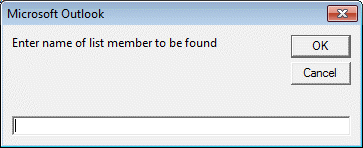
Leave the field blank and press OK to create a list of the members of all DLs.
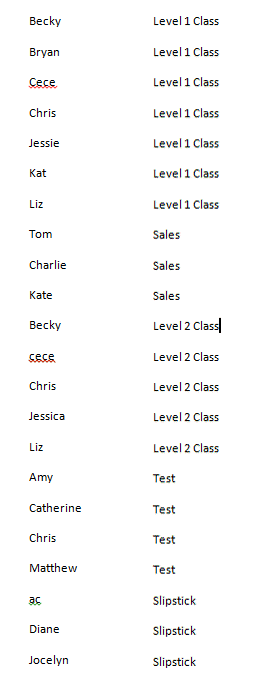
A sample of the output when getting a list of all DLs and members (the name field is left blank). Click the image to see the full version with multiple DLs listed.:
This works in all versions of Outlook.
To search by email address, use GetMember(y).Address instead of GetMember(y).Name. (It's used 4 times in the code.) This will find all partial matches, for example, searching for 'poremsky' will find all addresses containing my last name anywhere in the email address.)
VBA Code sample
A text file of this macro is here.
Copy and paste this code into Outlook's VBA editor and set the references to Word.
    ' Code sample written by Graham Mayor -  Word MVP
    ' //www.gmayor.com

Sub ListNames()
Dim wdApp As Word.Application
Dim wdDoc As Word.Document
Dim myNameSpace As Outlook.NameSpace
Dim myFolder As Outlook.Folder 'use Outlook.MAPIFolder if Outlook.folder fails.
Dim myDistList As Outlook.DistListItem
Dim myFolderItems As Outlook.Items
Dim myListMember As String
Dim sList As String
Dim x As Integer
Dim y As Integer
Dim iCount As Integer

myListMember = InputBox("Enter name of list member to be found")
Set myNameSpace = Application.GetNamespace("MAPI")
Set myFolder = myNameSpace.GetDefaultFolder(olFolderContacts)
Set myFolderItems = myFolder.Items
  iCount = myFolderItems.Count
   sList = ""
  For x = 1 To iCount
    If TypeName(myFolderItems.Item(x)) = "DistListItem" Then
  Set myDistList = myFolderItems.Item(x)
	For y = 1 To myDistList.MemberCount
      If InStr(1, myDistList.GetMember(y).Name, myListMember) Then
        'MsgBox myDistList.GetMember(y).Name & vbInformation, "Distribution List"
      If sList = "" Then
        sList = sList & myDistList.GetMember(y).Name & vbTab & myDistList.DLName
      Else
        sList = sList & vbCr & myDistList.GetMember(y).Name & vbTab & myDistList.DLName
      End If
      End If
    Next y
    End If
  Next x

   On Error Resume Next
    Set wdApp = GetObject(, "Word.Application")
    If Err Then
      Set wdApp = CreateObject("Word.Application")
    End If

   Set wdDoc = wdApp.Documents.Add
     wdApp.Visible = True
     wdApp.Activate
   With wdDoc.Range
    .InsertAfter sList
    .ParagraphFormat.TabStops.ClearAll
    .ParagraphFormat.TabStops.Add Position:=InchesToPoints(4), Alignment:=wdAlignTabLeft, Leader:=wdTabLeaderSpaces
   End With

Set wdDoc = Nothing
Set wdApp = Nothing
End Sub
Set References
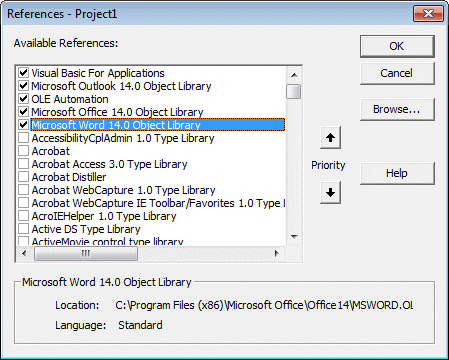
You need to go to Tools, References (in the VBA Editor) and add Word as a reference.
In this screenshot, it lists Word 14. If you use an older version of Word, you'll have a different version here.

Benjay says
This code seems to run but only displays an empty Word doc. I am running this script at work on a work computer. Thank you in advance.
Mark Petereit says
Sweet! I was just about to start writing something like this.
Alex MacQueen says
No worries :)
It's Exchange 2010 SP3 I believe.
The path looks to be correct, other than for the folder "Research / Sales" it shows in the Msgbox as "Research %2F Sales", would this be likely to cause a problem or should it still work for that specific path?
Thanks!
Diane Poremsky says
That could be the problem. It's a "url escape code" and the path you are passing is looking for the /. Try using that format and see if it works.
Alex MacQueen says
OK it doesn't look like it's that - if I change the path to use the escape code it fails there with an "object not found" error. Switch it back to the "/" character and it goes straight past there until it fails at the "For y = 1 To myDistList.MemberCount" line again. On the plus side it does therefore seem to be locating the correct folder from the path at least!
Could there be anything that might prevent the macro from accessing the distributions/contact groups within the final folder? My AD account has full read/write access to those contact groups so I would hope not - what is that line attempting to do if you'll excuse my ignorance?
Really appreciate your help so far - many thanks :)
Diane Poremsky says
Thanks for the update. Yeah, if it’s getting to there, it’s failing on the dl. If you can open the dl and look at it, you should be able to get the count using a macro.
What it’s trying to do is count the number of contacts in the dl. Does the dl contain nested dls? That shouldn’t cause errors in counting since you are counting members, not contacts specifically. I’ll see if I can reproduce it but might not have a chance before Tuesday.
Diane Poremsky says
I didn't think that thru.... Sorry. Use your original path and msgbox myfolder.folderpath - I'm thinking the path isn't right and this will show if your path is correct.
Oh, what version of exchange do you use?
Alex MacQueen says
Hi - I managed to get this working for my own contacts folder, but when I change the myFolder variable to point to the public folders the macro fails at this point:
For y = 1 To myDistList.MemberCount
It's not a particularly helpful error message either:
Run-time error '-1040171003 (c2004005) The operation failed
Any help much appreciated!
Diane Poremsky says
what code are you using to reference the public folder? The mail folder is olPublicFoldersAllPublicFolders so you'd need to walk down it
set folder = Ns.GetDefaultFolder(olPublicFoldersAllPublicFolders).Folders("top level").folders("company contacts")
Alex MacQueen says
Hi Diane - I've used the following:
Set myFolder = myNameSpace.GetDefaultFolder(olPublicFoldersAllPublicFolders).Folders("Organisation (BeGo)").Folders("Research / Sales").Folders("Distribution Lists")
Thanks!
Diane Poremsky says
try Set myFolder = myNameSpace.GetDefaultFolder(olPublicFoldersAllPublicFolders)
msgbox myfolder
What does it give you for the path?
Alex MacQueen says
Thanks - it says "All Public Folders"
Alex MacQueen says
And if I then use my original path, it gives "Distribution Lists", which seems to be correct?
Matt O\'Connor says
I tried using this but the word document that is created is empty. Any ideas as to what is going wrong?
Diane Poremsky says
Any error messages? comment out any on error resume next lines to see if it errors.
Martin Reiser says
The line of code "If TypeName(myFolderItems.Item(x)) = "DistListItem" Then always responds negative, therefore no items are created for the list.
Any ideas?
Thanks for your help.
Martin
Diane Poremsky says
That line is looking for DLs and should only return negative if there are no dl's (contact groups).
Anna says
This is fantastic ... I have been dreaming of this ... With that being said, we use a shared contact list that we add through public folders. As I am not a programmer by trade I am not sure which part of the code I should be changing so that it references the specific shared contacts folder and not my personal contacts. Any help/direction that you can provide would be great. Thank you.
Alex says
It worked pretty well on my computer. But on my brother's computer is not working and it says "Run-Time Error (93) Object variable or With block variable not set". Any suggestion?
Many thanks for your help!
Alex
Diane Poremsky says
Did you set the reference to word in the VB Editors Tools, References menu?
Alex says
Yes, from the beginning, and I've always had that "error (93)"... Thank you for your kind cooperation...
Diane Poremsky says
At what point does it fail? Are any lines highlighted in yellow? Is the name entering inter the dialog spelled correctly?
Jennifer says
2010. And yes it was that line that I replaced the code with and where the error comes from.
Jennifer says
I had attempted that before but it gives me a Runtime Error (483) at the Set myFolder line.
Diane Poremsky says
That would be this line: Set myFolder = myNameSpace.GetDefaultFolder(olFolderContacts) ?
Error 483 means the object doesn't support the action, but I'm not sure why it would be coming up on that line.
Oh, what version of outlook? Try change the dim line to this: Dim myFolder As Outlook.MAPIFolder
Jennifer says
Hi, I'm working on the same problem with 3 exchange emails configured on my outlook and followed the steps in working with non-default folders to try get it to point to the correct contacts folder to search.
Doing it that way I wind up with a Run-Time Error (91) beginning at the line: If InStr(1, myDistList.GetMember(y).Name, myListMember)
Is there something more I need to do to point it to the correct Contacts folder?
Diane Poremsky says
I think the runtime error is from something else... but you need to change this, it uses the default folder in the default data file.
Set myFolder = myNameSpace.GetDefaultFolder(olFolderContacts)
try this to use the current folder:
Set myFolder = myNameSpace.ActiveExplorer.CurrentFolder
Andy says
You can also find this information on OWA. Options, See All Options, Groups.
Fraser Johnson says
In Outlook 2003, I get the following issue.
The line "Dim myFolder As Outlook.Folder" does not compile. Error message is "User-defined type not defined". the Object Browser for Outlook 11.0 has no "Folder" entry, but there is a "Folders" entry. If I correct this line to "Dim myFolder As Outlook.Folders", the code compiles. However, I then get a run-time error '13' at the line "Set myFolder = myNameSpace.GetDefaultFolder(olFolderContacts)"
Diane Poremsky says
Hmm. That is old code, it should work in 2003. Try changing the Dim myfolder line to Dim myFolder As Outlook.MAPIFolder - that worked here.
Orna says
Thanks Diane
It works great with 2010 but not in 2007.
Is there somthing i can do about?
Diane Poremsky says
It should work in all versions of Outlook, as its a fairly old macro. Did you check macro security settings?
Vic Gammill says
Baby, you fine. And MVP.
Alicia says
This is great! Thank you! Is there any way to make it search through the email addresses as opposed to the names?
Thanks!
Diane Poremsky says
Change GetMember(y).Name to GetMember(y).Address - it should be used 4 times in the code. (This will find all partial matches - searching for poremsky returns all address containing poremsky.)
Mia says
Hi,
My outlook is configured to 3 separate email accounts and this macro doesn't seem to want to search the correct address book. Is there a way to specify which contacts folder is searched?
Diane Poremsky says
It's set in Set myFolder = myNameSpace.GetDefaultFolder(olFolderContacts) - this should be your default contacts folder. if the folder is in another data file, see
Working with VBA and non-default Outlook Folders
Mohit says
Hi Diane,
By any chance is it possible to search the Global address List? what will be the modified code for the same?
Many thanks for the much needed help!!
Thanks, Mohit
Diane Poremsky says
It might be possible, but you need to use redemption (or CDO) to access the GAL.
Stacy says
Thank-you very much!! That worked!
Stacy says
Wow this works great, but only seems to search local contacts. How could I modify this to search distribution lists in a Shared Contacts. Basically a secretary needs to be able to search her bosses contacts and modify his Distribution Lists.
Diane Poremsky says
This line tells it where to look:
Set myFolder = myNameSpace.GetDefaultFolder(olFolderContacts)
Try
Set myFolder = Application.ActiveExplorer.CurrentFolder