An often asked question about Microsoft Outlook's Business card layout is how to change it for all contacts. While you can't globally change existing contacts directly, you can change the default which is used for new contacts by creating a custom contact form with the desired business card layout and publish it. Set it as the default Contacts form for new Contacts.
To apply the layout of the new business card to existing contacts, see Code Sample 3: Change the business card layout to match the selected contact.
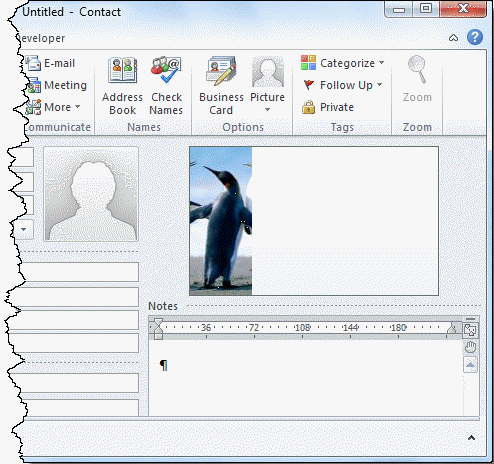
Editing the Business Card
You can edit the business card on individual contacts to add images, background colors, or change the fields displayed.
Open a contact then double click on the business card image or click on the Business Card command on the ribbon (visible in screenshot above) to open the Business Card editor.
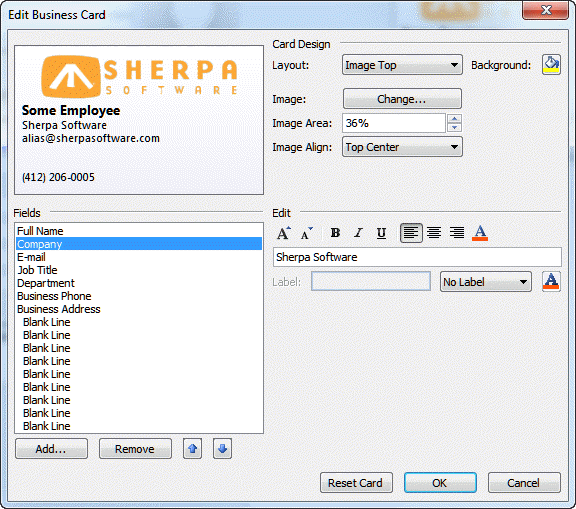
When a contact photo exists, Outlook will use it on the business card or you can add a logo or other image to the card.
Use the business card editor to re-arrange the fields, change the font attributes, add a background color, or position the image.
Create a custom form
- Open a new Contact form and edit it as desired.
Do not add names, addresses or phone numbers in this form. Change only the business card or other features you want applied to all future contacts. - Go to the Office icon, Editor Options and enable the Developer tab (File tab, Options in Outlook 2010)
- From the Developer tab, choose Publish form as.
- Publish the form to Outlook Folders
Using the custom form
Right click on the Contact folder, choose Properties and set the newly created custom form as the default form for the folder.
When you click New Contact, you'll use this form and all newly created contacts will use the new layout.
You can't change the form used by existing contacts, well, you can change the form, but the new business card layout won't be used. Use a tool listed below to change the message class to the new form.
See Using Custom Business Cards for more information on how to use a custom business card with new contacts.
More Information
Using Outlook 2010's Contact Cards
Custom Business Card Forms (Microsoft Office Online)
Customize and Share Business Cards (MSDN)

joseph says
Hello Diane
when I open a new contact with the default form andI click on "design this form" from the developer tab - it shows me another form it seems with the "business card" and the "map it button" missing ...I just want to add a dropdown field to the standard contact form , and I was able to do that but loosing Busines card and Map it ...
Thanks!
Frank F. says
Hello Diane - I have encountered a problem at my workplace with the migration of Outlook to a different server by our outside IT organization. Before, in the Business Card view, one was able to see all relevant default fields, including a multiple line address. Now, the address field in the Business Card view is truncated and whether two or three lines, all show up as one single line. Need to change this globally, if possible, back to the way it was. Our IT company cannot figure this out. Can you? By the way, when you open any individual contact card, the address displays correctly, and it you click on Business Card within the open contact and double click the address field, the situation corrects itself, but if you don't do this, then all parts of the address meld together in one line when looking at the Business Card view prior to opening contact. They copy and paste the incorrect way too. None of us wishes to open thousands of contacts and correct individually, as the IT company suggests.
Diane Poremsky says
How did they migrate it? The business card uses the data in the Address field - if you click the address button to open the address checker, are the fields correct?
If you type enter after each line in the address field does it fix it? Is so, a macro should be able to fix it.
Frank F. says
Thank you Diane. I will attempt to find out.
Eduardo says
Hello Diane! This is Eduardo writing.
I've been trying to customize the information shown in all business cards of my contacts. I view my contacts as Business Cards. I basically want to add 2 more fields to the default fields included in the view. I can do it one by one. But, is there a way to do it for all the cards of all contacts?
Thank you very much for all the help regarding this issue.
Diane Poremsky says
Add the fields to one contact then use the macro at https://www.slipstick.com/developer/code-samples/change-the-business-card-layout-using-businesscardlayoutxml/ to update the rest.
Jen says
MS Outlook Exchange 2010: I modified & published a new public contact template but it's allowing duplicate entries now. Is there a way to fix this or revert back to the original contact template? Help! :-)
Diane Poremsky says
I don't know why it would be creating duplicates but you can change the message class on items using the new form back to ipm.contact. instructions are at https://www.slipstick.com/developer/vba-set-existing-contacts-custom-form/
change the form used by the folder on the folder's properties.
Misha M says
Thank you very much for providing instruction on how to customize outlook contact cards. It works.
My question: It seems I have lost the original Outlook vcard format. Is it possible to restore the original vcard format so as to toggle between the original vcard format and the new customized vcard format?
Thank you in advance.
Diane Poremsky says
No. You'd need to change the message class - it not hard using a macro, but could lead to corruption if you do often.
J Heins says
and I mean all the contacts, for some reason all the business boxes are checked and not the home boxes they way I had it.
Diane Poremsky says
Did this happen when your account was migrated to the new server?
J Heins says
Can I change the mailing from the business box checked to the home box checked? How do I do that.
Diane Poremsky says
You can change it for new messages using a custom form... you can use a macro to change existing contacts (and could use a macro to apply it to future contacts). Code sample to make sulk changes is here - https://www.slipstick.com/outlook/contacts/bulk-change-outlook-contacts-file-as-format/ - there is a code sample near the end to change the mailing address.
Steven Miller says
Is there any way I can change the background of the card to a picture instead of a colour?
Diane Poremsky says
like this?
Choose backgrounds image in the layout menu and set it to fit to full screen on the align menu.
Andrew Zack says
I've noticed that you can use the "Reset Card" command to change the default appearance of the Outlook Business Card. Can one edit that default card? The VBA to change the appearance is not working in a custom contacts folder.
Melinda Bentley says
THANK YOU DIANE!!! Life saver :)
Melinda Bentley says
Yes! I forgot to mention that part. On screen, that line of information shows on the business card. But then when I print that group of contacts in Card Style format, that line of information is not there :/
Diane Poremsky says
Try using the (address) Card view instead of the Business Card view.
Melinda Bentley says
I'm trying to print a selection of my contacts in Card Style. I have one line item (different for each contact) that I'd like included on each contact 'card' once printed. Generally 9-10 contact cards will print on one piece of paper. But I cannot find a place to include this line item so it will print.
Currently, I enter the line of text in the 'Company' field, or in the 'Web Page Address' field. The line of text shows in the Business Card view of these contacts. But then when I print, this line of text will not show up or be printed.
Is there any field where I can enter this line of text so it will be included in the contact's information when I print in Card Style?
Diane Poremsky says
Does the field show on screen before you go into print? All fields in the view are using included in the print.
Cameron Piper says
Diane,
Thank you so much for the help and the quick response. I was able to find the custom control. I opened the custom form in the design mode, opened the control toolbox and then right clicked in an open spot. I selected "custom controls" from the menu that appeared and found the "Microsoft Outlook Contact Photo Control". After checking the box next to the Photo Control and clicking "OK", the control showed up in the Control Toolbox. Seems to work exactly as I had hoped.
Cameron Piper says
Diane,
I have created a custom contact form in Outlook 2013. Is there any way to add a picture of the contact like the default IPM.Contact form has?
Diane Poremsky says
There is an outlook photo control in the control toolbox - right click on the contact toolbar and choose add more controls. (I forget offhand what it's called but it should be obvious once you see it.)
Deanna says
Created a custom contact form in Outlook 2010. It said to change fields; just right click and edit. For example I changed Full Name to Company and the Company to the Full Name. Reason is because I want the Company Name on the top and Bolded, not the Contact Name. The problem is when you do this, the field where you type the Company name keep the formating of Full Name. I am not seeing how to change that portion. Seems like this would cause problems when you want to use those specific field for letter or labels - It recognizes the Company as the Full Name. Please help!!!
Roy says
After adding photos to business cards of individuals, when you click on those photos/thumbnails anywhere on the card, that doesn't render a full size, original image. Can you make Outlook do this? The tiny pictures on the cards themselves are too small to really identify who is in them and are almost next to useless.
In my case, clicking on the left rendering doesn't even open the specific directory they came from, it takes you to the directory one rung higher in the folder hierarchy. Clicking on the picture on the right renders the "edit business card" GUI.
I am an Outlook neophyte, having only recently switching from Outlook Express. I can't find an internet answer addressing this after much searching.
Diane Poremsky says
No, you can't enlarge the photos, sorry. Once they are added to outlook, they are reduced in size and stored with the contact. If the image name matches the contact's name, you could use a macro to open the copy on the hard drive if you needed to view a larger picture, or you could open the image in a photo viewer and copy it, then paste into the notes field.
Jordan says
I was develop a new contact-layout in Outlook and saved it as a vCard (while I was still working on it). How do I pull it back up in developer?
Diane Poremsky says
If you didn't save it as a template or publish it, you'll need to open the vcard to edit it. You'll need to remove the contents of any fields before you open it in the forms designer so you'll probably want to make a copy of the vcard and work with the copy.
Vanessa says
I don't know what happened. I used to be able to copy the contact as a business card and place it in a Word document as a business card. All of a sudden I can't do that after IT made upgrades, so I don't know what happened. That was a nice feature. If there's some way to still do that could someone please let me know?
Diane Poremsky says
What version of Outlook? What steps do you use?
I need to insert the card into an email or use screen clip to get the card image, then i can copy and paste into any other documents. (Right click on card, forward as business card, then copy the card from the resulting email)
Walter ZAMBOTTI says
Dear Diane
(CLICK!!!. Now I get it!)
Open a blank contact form using "New Contact" (in the required contact folder) and not via the form designer.
Just to let you know I got it working exactly as you described.
The mistake I made was designing the new Business card as I desired and saving the blank contact exiting out and jumping into the designer in a seperate step. I completely missed that you can access the designer from the Contact form itself!!!
Thanks
Embarrassed
James says
Hi, I can create a blank contact card but cannot see how to publish it do I then save as a blank?, any chance of breaking this down into step by steps?. I am using Outlook 2010.
thanks
Walter ZAMBOTTI says
When I attempt to customise the Form I do not see any place where I can customise the Business Card. In fact the "General" form that is displayed in the Form Designer for a Contact form appears to look completely different to the usual contact form
Diane Poremsky says
You don't customize the business card in Forms designer, you need to do it in a blank form then go into Forms designer to publish the form.
Alan A says
Dear Diane
Thanks for a prompt and definitive reply. At least someone knows how these things work.
Thanks. Alan
Alan A says
Dear Diane
Used your method for new card contact and card layout - works a treat for new entries. But, when I import contacts from elsewhere i.e. excel it uses to old default. Surely as new contacts they should use my own new design. Any advice please?
Using Windows 7 and outlook 2010.
Thanks. Alan
Diane Poremsky says
Unfortunately, importing uses the old format. You'll need to use the macro at code sample 2 to update imported contacts. Sorry.
Champ says
I think I can live with that, especially if it can be limited to a specific .pst file. Can you point me to instruction for customizing the form?
Diane Poremsky says
Start here: Customizing outlook forms.
Champ says
Hi Diane, my issue with the contact record is that the display of the business card in the upper right quadrant is quite redundant and useless. It wastes 50% of the space allocated and it takes up valuable Notes space. Is there a way to remove this card from the view altogether and use that space for a larger notes field?
Diane Poremsky says
You can customize the form - but if you do, you loose the pretty form and revert to the old outlook 2002 gray form.
Mark C. says
In BCM 2010, my client uses the business card view, they publish a magazine and want a custom field we created to be visible on the business card that shows if they are currently a subscriber or not. When I try to edit the business card the only option I have for custom fields is USER1-4 but not any of the custom fields we have created. Is there a way to change that?
Diane Poremsky says
No, you can't use custom fields in the business card view. You could use the method here: Change business card image to change the image on the card (the default gray vertical) based on the custom field. But you would need to run it to update it. (Actually you should be able to convert it to an ItemAdd macro).
sagar says
Hi Diane...Having one query regarding Outlook 2010.
I was coming across some strange thing while working with MAPI.
I am creating contact using mapi, while passing data to create contact, i am also passing address field values and setAddress() function to set value.
strange thing is when i see contact in my outlook contact folder, it doesnt showing address on business card until i open it. Once i open it, it automatically start to showing the address..!!
Is there anyway to solve this issue??
Thanks.
Regards,
Sagar
Diane Poremsky says
It sounds like it's not being refreshed. I don't know if open then close via code will be enough to refresh it.
Dennis Hammer says
That sucks, but not surprised. Thanks for the help.
Dennis Hammer says
I use Office 2010 and the older I get the harder it is for me to see the small font used in all of the various fields of a contact card. Is there a way to increase the font size of the entry fields for all contact cards, both new and already created?
Thanks,
Dennis
Diane Poremsky says
Sorry, no, not within Outlook. You can change the screen resolution in Windows - this will apply to all programs, not just Outlook.
San Pal says
When I clicked on Contacts the business card format came up 3 or 4 across. Somehow this changed to 6 across and I just want to know how to get it back to 3 or 4.
Diane Poremsky says
Assuming the window size hasn't changed, check the zoom slider in the status bar.
Sean says
Hi Diane,
I list my business contacts in outlook by company.
for example "Hotel - Auckland - Sunshine hotel".
I will also produce a catergory "accomodation" and assign it.
I will then adjust the display as so that the order is the same as above.
However outlook will often revert my listing back to "-Auckland - Sunshine, Hotel" and also delete my catergory for some reason.
Do you have any advice how I can avoid this happening? I have re catergorised my 1000+ contacts on a number of occasions and am getting over it. Seems like an outlook glitch to me.
Thanks
Bruce Fry says
That is a very bad alternative. Your developers should develop something that is more useful for your clients.
I have over 3000 contacts, I guess I should go and individually change them all!
Diane Poremsky says
The business card is the only thing that doesn't change when you switch to a new contact form because they don't want to risk replacing existing data - in this case, business cards you've customized to include photos or logos. It may be possible to change the card using VBA - AddBusinessCardLogoPicture(). Unfortunately, I don't have any code samples that do this.
Diane Poremsky says
As an FYI - i cobbled together some code that will bulk change the business card image. The current version of the code keeps the current image size and placement.