Outlook introduced a new feature when you hover over the address fields in email.
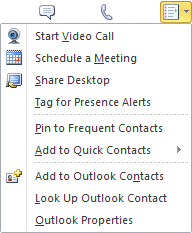
The contact card looks similar to the screenshot below. With the basic contact card, you'll see the person's photo (if available) and their presence information. You can click the icons to send the person an email, IM, call the person or view additional options (see later screenshot). Use the down arrow (on the far right) to expand the card to show more information.

By expanding the card, you can see phone numbers and additional information. Note that this screenshot is from a user of an Exchange server mailbox and the user is signed in to Lync. If the contact is not in the Exchange address list, organization and member of tabs will not be present. The presence information requires a Lync or supported Messenger client.

By using Group policy or setting specific registry values, you can disable these features.
You can also change the placement of the calendar and location fields on the expanded card, change the field names and change the fields used.
How to Disable Contact Card Features
 Outlook does not have an option to turn the card off, however, administrators can disable it using group policy. Note: It's in the Office ADM file, not Outlook.
To disable it without using group policy, open the Registry Editor, browse to the location given below and create or change the DWORD values.
After adding all of the values below, the contact card will resemble the one to the left.
Close Outlook. Press Windows key + R to open the Run command or in the Start menu's Search field, type regedit to open the registry editor.
Browse to the key in the registry editor and create the DWORD if it does not exist.
Turn off photo
With the TurnOffPhotograph value set to 1, the contact picture will not display in the contact card, message header, or other places that display the contact photo.
Note: You can disable contact photos in Outlook 2013's People Options (File, Options, People.)
Outlook 2013
HKEY_CURRENT_USER\Software\Policies\Microsoft\Office\15.0\common
Outlook 2010
HKEY_CURRENT_USER\Software\Policies\Microsoft\Office\14.0\common
DWORD: TurnOffPhotograph
Value: 1 (no picture) or 0 (show picture)
Ready to use reg file
If you don't want to edit the registry, we have a ready to use reg file here:
Outlook 2010 Outlook 2013
Download it (right click, use Save Link as in Firefox), then double click to run it and add it to your registry. Remember to restart Outlook for the registry edits on this page to take effect.
Don't show the card when you hover over the address
With this DWORD value set to 1, the contact card will not pop-up when the mouse hovers over the email address. You can still bring up the contact card by right clicking on the display name.
Outlook 2016
HKEY_CURRENT_USER\Software\Policies\Microsoft\Office\16.0\common\contactcard
Outlook 2013
HKEY_CURRENT_USER\Software\Policies\Microsoft\Office\15.0\common\contactcard
Outlook 2010
HKEY_CURRENT_USER\Software\Policies\Microsoft\Office\14.0\common\contactcard
DWORD: TurnOffHoverFunctionality
Value: 1 (turn off) or 0 (enable)
Ready to use reg file:
TurnOffHoverFunctionality: Outlook 2016 Outlook 2013
Outlook 2010
Download it (Firefox: right click, Save Link as), then double click to run it and add it to your registry. Restart Outlook.
Remove the tabs (Exchange GAL only)
These values remove the Organization and Member of tab (shown in the image above). These tabs are used only with Exchange server mailboxes, including Office 365 or hosted Exchange accounts.
Outlook 2016
HKEY_CURRENT_USER\Software\Policies\Microsoft\Office\16.0\common\contactcard
Outlook 2013
HKEY_CURRENT_USER\Software\Policies\Microsoft\Office\15.0\common\contactcard
Outlook 2010
HKEY_CURRENT_USER\Software\Policies\Microsoft\Office\14.0\common\contactcard
DWORD: TurnOffOrganizationTab
Value: 1 (turn off) or 0 (enable)
DWORD: TurnOffMemberOfTab
Value: 1 (turn off) or 0 (enable)
Ready to use reg file:
A ready to use reg file to disable both tabs: Outlook 2010 Outlook 2013
Download the reg file (Firefox: right click, Save Link as), then double click to run it and add it to your registry. Restart Outlook. Note: if you don't want to remove both tabs, open the reg file in Notepad and edit or delete the value for the tab you want to keep. Save your changes before running the reg file.
Use the legacy address dialog or contact form
This key is misnamed, as it is not restricted to the old GAL dialog or Exchange accounts. When you click on an address in the reading pane, open message, or in a contact, you'll see an expanded contact card. With this key enabled, you'll see the old dialogs: the gal form, a contact, or the email properties dialog.
Users who want to immediately see the email properties dialog when they double click on an address in an open contact (the same behavior as in older versions) will enable it using this value. With the default value, you will need to go to Outlook Properties to open the address property dialog.
Outlook 2016
HKEY_CURRENT_USER\Software\Policies\Microsoft\Office\16.0\common\contactcard
Outlook 2013
HKEY_CURRENT_USER\Software\Policies\Microsoft\Office\15.0\common\contactcard
Outlook 2010
HKEY_CURRENT_USER\Software\Policies\Microsoft\Office\14.0\common\contactcard
DWORD: TurnOnLegacyGALDialog
Value: 1 (enable) or 0 (disable)
Ready to use reg file:
TurnOnLegacyGALDialog Outlook 2016 Outlook 2013
Outlook 2010
Download the reg file (Firefox: right click, Save Link as), then double click to run it and add it to your registry. Restart Outlook.
This short video shows the address property dialogs that are affected by this value.
Remove IM presence in Office applications
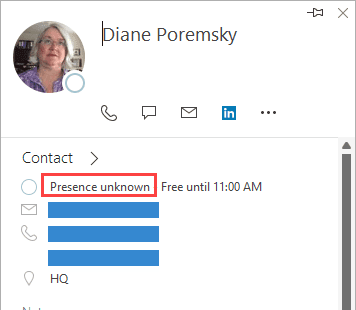
This key removes the presence (the red block in the screenshot) but will not remove the free/busy.
Outlook 2016, 2019, 365
This key works on all Office 16.0 suites.
HKEY_CURRENT_USER\Software\Policies\Microsoft\Office\16.0\common\im
Outlook 2013
HKEY_CURRENT_USER\Software\Policies\Microsoft\Office\15.0\common\im
Outlook 2010
HKEY_CURRENT_USER\Software\Policies\Microsoft\Office\14.0\common\im
Add these values to the key for your version of Outlook:
DWORD: TurnOffPresenceIntegration
Value: 1 (turn off) or 0 (enable)
DWORD: TurnOffPresenceIcon (3 options)
Value: 0 (Show presence everywhere)
Value: 1 (Show only in quick contacts, contact card, sharepoint)
Value: 2 (Don't show presence)
Ready to use reg file:
A ready to use reg file that turns off integration and does not show the icon (value 2):
TurnOffPresence 2010TurnOffPresence 2013
Click to call or IM
Removes the button to contact the person by phone or IM in the contact card and ribbon.
Outlook 2016, 2019, 365
This key works on all Office 16.0 suites.
HKEY_CURRENT_USER\Software\Policies\Microsoft\Office\16.0\common\im
Outlook 2013
HKEY_CURRENT_USER\Software\Policies\Microsoft\Office\15.0\common\im
Outlook 2010
HKEY_CURRENT_USER\Software\Policies\Microsoft\Office\14.0\common\im
DWORD: TurnOffClicktoIM
Value: 1 (turn off) or 0 (enable)
DWORD: TurnOffClicktoPhone
Value: 1 (turn off) or 0 (enable)
Ready to use reg file:
TurnOffClicktos: Outlook 2010 Outlook 2013
Download the reg file (Firefox: right click, Save Link as), then double click to run it and add it to your registry. To remove only one of the icons, open the reg file in Notepad and change the value for the key to 0 or delete it, then save and run the reg file. Restart Outlook.
Change the Expanded Contact Card
Use the following DWORD values to change the expanded contact card. All of the values are under the same registry key:
Outlook 2013
HKEY_CURRENT_USER\Software\Policies\Microsoft\Office\15.0\common\contactcard
Outlook 2010
HKEY_CURRENT_USER\Software\Policies\Microsoft\office\14.0\common\contactcard
These all require two values - one to tell Outlook you want to change the line, name, or field and the second values with the new line, new name, or new field.
Move to a different line
DWORD: TurnOnContactTabCalendarLineMove
Value: 1 (move) or 0 (use default line)
DWORD: CalendarValueLocation
Value: 1 to 8
DWORD: TurnOnContactTabLocationLineMove
Value: 1 (move) or 0 (use default line)
DWORD: LocationValueLocation
Value: 1 to 8
Change label name
DWORD: TurnOnContactTabLabelReplaceTitle
Value: 1 (change) or 0 (use default label)
DWORD: TitleLabelReplace
Value="New Title"
DWORD: TurnOnContactTabLabelReplaceOffice
Value: 1 (change) or 0 (use default label)
DWORD: OfficeLabelReplace
Value=="New Office"
DWORD: TurnOnContactTabLabelReplaceWork
Value: 1 (change) or 0 (use default label)
DWORD: WorkLabelReplace
Value="New Work"
DWORD: TurnOnContactTabLabelReplaceMobile
Value: 1 (change) or 0 (use default label)
DWORD: MobileLabelReplace
Value="New Mobile"
DWORD: TurnOnContactTabLabelReplaceHome
Value: 1 (change) or 0 (use default label)
DWORD: HomeLabelReplace
Value="New Home"
DWORD: TurnOnContactTabLabelReplaceEmail
Value: 1 (change) or 0 (use default label)
DWORD: EmailLabelReplace
Value="New Email"
DWORD: TurnOnContactTabLabelReplaceCalendar
Value: 1 (change) or 0 (use default label)
DWORD: CalendarLabelReplace
Value="New Calendar"
DWORD: TurnOnContactTabLabelReplaceLocation
Value: 1 (change) or 0 (use default label)
DWORD: LocationLabelReplace
Value="New Location"
More Information
The Contact Card in Outlook 2010 does not change when you try to customize it by using Group Policy or the Office Customization Tool (OCT) Includes a list of AD properties you can use in the contact card
How to manage the Outlook Social Connector by using Group Policy

Victor says
Hello Diane,
I've recieved a question from a user to disable the "Files" tab in our M365 enviornment. My google skills fails me. Is there a way to do this? I've looked into Item Insights but I'm not sure this is correct.
Kind regards
Diane Poremsky says
I don't believe that can be removed - but will check.
Victor says
Thanks, I appreciate that.
Muhammad Abid Nasir says
Dear Diane,
Hope you are doing well, Is there any update to this query that how to disable the Files Tab in the contact card.
Thank You
Diane Poremsky says
I'm not aware of a way to do that. Sorry.
Richard Silber says
Hi Diane,
Thanks in advance for your help. We're using Outlook 365. When I use the Find Contact (Search People) I sometimes get an expanded contact card with tabs for Overview, Contact, Organization and Memberships. But I also sometimes get a compact view with no tabs. How can I force Outlook to always display an expanded view with the tabs?
Diane Poremsky says
If you click on the card, you don't get the full view>?
If you mean some cards only have the email address, those would be from the auto complete list, not contacts. (Search People includes the autocomplete list.)
Avrilita Cr says
Hi Diane
Is there a way to block people from editing a contact created when sending it as a vcard, when the recipient receives it, Is there a way to block the recipient from editing the vcard
Diane Poremsky says
No sorry, there is not a way to make it read-only for the recipient.
Colin says
In the latest version of Outlook 2016, the Click-to-Phone icon is hidden in the More options dropdown. Is there a way to bring it back to be listed with IM and email icon?
Diane Poremsky says
No, at this time, you cant edit the Contact card.
Steve Chang says
Hi, how to let the contact card expand automatically when mouse hover over the address, thanks.
Diane Poremsky says
I'm not aware of a way to do that - you'll see the little card and will need to expand it. Sorry.
Rebecca says
So my contact card shows an outlook_*****************@outlook.com address that I have no idea about. It was popping up as the send from address in my sent emails. All my customers emails were going into their junk folder. Some how I managed to get it changed. 2 days wasted online w support - they were clueless. But I'm afraid with it still lurking on the card listed as personal it will rear its ugly head again someday at the least convenient time. Ideas as how to get it banished for good?
Diane Poremsky says
I know of no way to completely banish it since you need an Outlook.com account associated with non-Microsoft addresses and this was the default account when no other outlook.com accounts are on the account.
Sagar Patel says
Hey there I am a user using Outlook 2016. Trying to update Outlook 2016 so that when I search for a contact it opens the full contact editing form every time. I don't want to have to click View Source and then Outlook contacts and view the Notes separately. I just want the full contact editing form enabled.
I saw this for Outlook 2016 however I don't have any files in my 15.0 everything is in 16.0
Always open the full Contact editing form from People Search
To always open the full Contact editing form when clicking on a search result from the People Search, you can apply the following Registry fix.
Key Outlook 2013: HKEY_CURRENT_USER\Software\Microsoft\Office\15.0\Common\Contactcard
Key Outlook 2016:
HKEY_CURRENT_USER\Software\Microsoft\Office\15.0\Common\Contactcard
Value name: turnonlegacygaldialog
Value type: REG_DWORD
Value: 1
What registry key do I have to add in order to do this and where exactly if not in the 15.0 folder?
Diane Poremsky says
I added a "do it" for Outlook 2016 - https://www.slipstick.com/doit/TurnOnLegacyGALDialog2016.reg - outlook 2016 would be 16.0, not 15.0 and if the keys don't exist, you need to create them.
Todd says
We would like to get the Business 2 or Work 2 AD attribute OtherTelephone to show up on the contact card in addition to the Work "telephoneNumber" attribute. We don't want to change the label or read a different mapi value for an existing label but just get the other number to show up on the contact card. Any good way to do this? The purpose is to get +1#########;#### with an extension after the semicolon to show up. This works nicely across Cisco Jabber clients as well as allowing Android and iPhone ActiveSync global address search to find a contact dial a number and then prompt to complete the call with the extenstion. If we enter the number;extenstion as the work number the Contact Card magically helps us by deleting anything after the semicolon even though the legacy contact card shows it is really still there. If we could get the contact card to show some other number, (Work 2, Pager, IP Phone) then we could provide this functionality.
Diane Poremsky says
The only way to do it is by changing the label and the mapi value. sorry.
Todd says
Thanks Diane. Would there be anyway to stop the contact card from deleting anything after a semicolon from the viewable number? It would be preferable for the contact card to use the actual number we entered for the phone number. Any idea why it is deleting all data after the semicolon from the viewable phone number? If we can't stop it from changing the number, I can replace the mapi value for the work number with something like "Pager" and the entire number shows up including the semicolon and the extension but the click to call link then disappears. In this case is there a way to keep the click to call link so user can still click to call? Of course the drop down phone number list from the phone icon still shows the actual Work number with the data after the semicolon stripped out from the viewable information so we would just have to live with that and hope the users don't get confused. We would not have a problem if the Contact Card simply left the data as it is and stopped changing the viewable number.
Diane W says
Oh yeah, forgot to mention, I'm pretty computer illiterate! So an easy method.
Diane W says
Is there a simple way to change the content of the contact card? I need to add a group with extra phone numbers and also phone type, plus contract # and start and stop date. Any help would be extremely appreciated.
Thanks so much,
Diane W
Diane Poremsky says
You need to display extra fields in the new contact card (pops up when you hover over an address then click the expand button) or add additional custom fields to the contact form (the form that opens when you click New > Contact)? Customizing a contact form isn't hard once you get the hang of it - changing the display of the new contact card is more difficult.
Diane W says
So how do I actually add additional custom fields? I would like to be able to have as a template, and only want for 1 group, not to permanently change all cards
Diane Poremsky says
You need to go into Forms Designer and add the fields. https://www.slipstick.com/developer/designing-custom-forms/ has the basics.
Christian says
Hello,
I can't see contact Photos with {
•Outlook 2010;
}
I can see contact Photos with {
• Lync 2010;
• Skype for Business;
• Outlook 2013;
}
Connected to {
• Microsoft Exchange;
}
Best regards
Diane Poremsky says
do you have contact photos enabled in File, Options, Contacts? It's at the bottom of the page.
Christian says
Hello Diane,
the field contains an checkmark but is greyed out so I can't deactivate the field
"Show user photographs when available (requires restarting outlook".
The problem is that I see the grey placeholder photo instead of photos.
Best regards
Diane Poremsky says
There is a group policy in place forcing the contact setting.
Are the photos in the contact in Outlook or in the Active Directory?
Christian says
Hello Diane,
I can't answer the question.
When I change my picture I have the options
a) Do not show my picture
b) Default corporate picture
c) Show a picture from a web address
I used c) because a) and b) shows the grey placeholder photo.
Best regards
Mike says
Hello Diane I'm trying to get this to work
DWORD: TurnOnContactTabLabelReplaceHome
Value: 1 (change) or 0 (use default label)
DWORD: HomeLabelReplace
Value="New Home"
the DWORD: HomeLabelReplace will not allow a text value. I tried making it a string and it did now work. what is the correct 3way to make this change? Also how would i change the value to look at the pager attribute instead of home. I'm running Exchange 2010 and Outlook 2013. thanks
Diane Poremsky says
You need to use both - see https://support.microsoft.com/en-us/kb/981022
Greg Neumarke says
Is there a way to get the full contact editing view to come up quickly in Outlook 2016? It looks like some of the registry settings have been moved around in Office 2016.
Diane Poremsky says
SEtting the legacygal key will bring up the old contact form.
https://www.slipstick.com/outlook/outlook-2010/turn-contact-cards/#legacygal
You might also want to disable the hover card - https://www.slipstick.com/outlook/outlook-2010/turn-contact-cards/#hover - if you right click you can show the card but it won't display automatically.
Angus Walker says
is it possible to display the contact's website in this pop up? It would be great to be able to go directly to their webpage.
Angus Walker says
I see in your example, you have put it under department but that doesn't create a hyperlink!
Diane Poremsky says
Correct, those fields are not clickable.
Diane Poremsky says
If the website field is not one of the options, you'll need to use a text field and it won't be clickable.
Arnold says
Since my upgrade from Office 2010 to Office 2013, my Lync contacts are synchronised incorrectly to Outlook - and subsequently to my iPhone contacts. All settings in Lync are correct, but it shows last name as first name in Contacts and first as last. Note this has nothing to do with how it displays, but rather how it is transferred from Lync and stored to Outlook Contacts. My helpdesk trying to help for 2 months, in vain. Anybody came across this & has a solution?
ben says
Hi Diane
Is there anyway to get the contacts to open up in the same format as outlook 2010 or 2007 so they pop out. The only way i can do this currently is to click on the source contact
Diane Poremsky says
In the contact folder? Change the view - don't use People view. If you mean when you click on an address in the From field of a message, you can set a reg key to enable legacy gal dialog. Double click on the address to open the contact. See Use Contacts not contact cards for details.
Trey says
Diane,
What if the Contact Card that pops up, when hovering over a User name - shows the Users phone number, where the display name should be? This only happens on Outlook 2010 clients; In Outlook 2013 clients, the information listed on a User's contact card is displayed correctly. We are an Exchange 2010 shop.
Diane Poremsky says
Interesting. I haven't heard any one have that problem. Are all users affected or just certain users or people using specific computers? It is possible to change the labels and rearrange the labels using registry changes - my wild guess is that someone tried to do that and messed it up.
Trey says
Diane,
Thank you for your response. It's happened to quite a few people, in different areas of our environment. We recently stood up lync 2013; Wondering if that 'elbowed' the Exchange AB in some way.
We are not seeing this oddity anymore, but I suspect (being aware of Outlook's notoriety) it will pop up again. (no pun intended.)
Wish I knew what caused it.
Diane Poremsky says
It's possible that Lync did it but I'm not sure why it would do that. Or the offline address book was corrupted and later replaced with a good version.
Thorsten says
I'm having the same issue. Exchange 2010, Outlook 2010, Lync 2013. It happens for all users that are _not_ Lync enabled. It happens only when your Lync Client is running. If you close the Lync client, the hovercard ist displayed correctly.
Marko says
Diane you are genius many many thanks for (Remove IM presence in Office applications) the Ready to use reg file it solved the problem and now the email appears instead of that stupid precense many thanks again :))
Rajan says
That worked for me
David Mason says
Hi Diane, Is it possible to open the full contact editor when right-clicking and choosing "Add to Outlook Contacts"? When I do this now, I get a clipped version of the editor. I tried the registry edit and adding this entry:
HKEY_CURRENT_USER\Software\Microsoft\Office\15.0\Common\Contactcard
and changing "turnonlegacygaldialog" to a value of 1, but this didn't change the contact add problem.
Any help would be appreciated.
Thanks,
David
Diane Poremsky says
That value only affects the dialog when you double click on a name - it brings up the older properties dialog.
I was going to say no, but when i went to get the steps to open a contact from a new contact card, that command opens a contact. I have the legacy gal value set and turn off hover - TurnOffHoverFunctionality = 1 This value is under contactcard with the legacy gal key. But it just keeps the little cards from popping up like daisies. :) I don't see any other values set. Do you have all updates installed?
Rollin Kuhn says
This is great! thank you so much for posting this. I just noticed this annoying "presence unknown" business on all my contacts and the registry keys for disabling IM presence got rid of it for me and all my staff.
It seems that software providers now think they have a right to just force new features on their users whether they want or like them or not. At least in this instance they give some option to disable it, even it it's only via registry keys.
Nicolas says
Thank you, Diane. I desperatly needed this help on how to get control on my contacts cards. Great job !!
Mitch McFadden says
Hi Diane! First off, thank you so much! I actually sat on hold with Microsoft support for an hour today and have found more information in 10 minutes on this post! :)
I'm wondering if you can help with something though. When i have Lync up and running, it makes the contact card show up on the "find a contact" bar. I'm trying to remove that. I tried the registry edit to remove the mouseover, hoping that would do it. It definitely worked for the mouseover, but it still shows up on the F11 search.
Do you know the registry keys needed to turn that off?
Diane Poremsky says
Do you have a new contacts folder for lync contacts? (Outlook 2013 does.) That should be why the Lync contacts show up in the search. AFAIK, you can't disable those contact from showing in search, but I will check. You can disable it as an Outlook address book.
Karla Alexander-White says
My contact card has a callout box just above my name. It has a message that I typed to someone (I thought) in an IM during a meeting. When I hover over my name, this message appears. How to I remove that? I noticed some co-workers have a message box but it is usually an out-of-office message. I can't find the answer to this anywhere but it may be that I'm calling it the wrong thing. Ribbon message, callout, tag line?? Where can I edit that or remove it?
Diane Poremsky says
It's the 'what I'm up to' status field in Lync - open lync (or Communicator) and click in that text field - in lync its above your picture. screenshot: https://screencast.com/t/zLnaZrrT
For the record, I have no idea what it's really called - I refer to it as status because that is what Facebook (and others) call it. But Lync calls 'available', 'busy', etc settings 'my status'.
Jonathan Craig says
Hi there. I removed Skype 6.3 and the 'presence unknown' disappeared. Outlook contacts now look how they used to. Thank you Diane.
CLMartin says
Hi Diane,
Please note: Our office uses Hosted Exchange Email set up through Outlook 2010.
I have tried using the key registry, but I only have the following: HKEY_CURRENT_USER\Software\Policies\Microsoft\: with the following folders: 1. SystemCertificates, or 2. Windows. I would like to change the home label of the contact card if possible. If not, how would I create a new selector list button for custom address and phone fields I create? I would like to keep the selector lists in place (with different labels showing) on our custom form for our small business. I have found the default cannot be edited. Any help would be appreciated!Thank you.
Diane Poremsky says
If a key doesn't exist, you need to create it. I don't think you can add custom fields to the card - see the work around section https://support.microsoft.com/kb/981022 for the fields you can use.
dcolbeck says
I can't seem to get this to work at all. I tried Diane's method above, and Arnoud's method also (Arnoud's method matches what the KB article from Microsoft is saying to do), and nothing ever changes in the Contact Card. I had to create the various keys in the registry path (office14.0commoncontactcard) before creating the various values. It seems like Outlook is not reading the registry. Any help on this would be great!
Diane Poremsky says
1. Did you restart Outlook?
2. Did you see this? https://support.microsoft.com/kb/981022
AldeaFM says
A big thank you from me to you for this, Diane.
Mary Stretch says
I
am a complete novice and do not know how to get at this registry key you mention but have the same problem noted above. please direct me in words of one syllable!
Diane Poremsky says
Which problem do you need to edit the registry to fix? It may be something that is suited for a reg file.
Richard Kigner says
Bless you Diane. The registry key you created to remove the "Presence" worked beautifully in my Office 2010 Win7-64 bit.
Vivek says
This is to confirm that the ready to use key works. Thank You.
CM says
Skype is for sure the cause. i just uninstalled it and the boxes are gone.
Vivek says
Hello Diane - I have looked in my registry but cannot locate the entry to turn off IM presence. My installation does not have a 14.0 branch under HKEY_CURRENT_USER\Software\Policies\Microsoft\Office\
I have also looked for the DWord TurnOffPresenceIntegration but cant find it.
I have Office 2010 (with Outlook). Does this mean my installation is corrupt?
Diane Poremsky says
No, not corrupt. Many keys are not created until the feature is set in Options. In the case with policies, they are not created until the policy is applied. I uploaded a ready to use reg key last evening - download and run it to set the keys and see if it works.
raizscanlon says
Hello Diane - mine is now doing exactly what drewproz describes above - it used to be really handy to hover over and retrieve the email address, but now it takes more clicks which is painful when requiring the email address quickly for my CRM application.
I hope to find a workaround - I only have skype and it and MS both had recent updates (in the last 2-3 days) and I suspect this is the new "enhancement" (a load of rubbish IMO).
Diane Poremsky says
I'm pretty sure that skype is the cause. I have not tested it yet (mostly because Skype keeps crashing on me) to see if the key in the Remove IM presence in Office applications section will remove the presence.
drewproz says
I really hope someone can help me. I am using Windows 7 64 bit, Outlook 2010. I don't know what update (shame on MS for sneaking this in a security or essential update) I ran but all of a sudden Outlook has this silly "presence" stuff. Every contact now has a square icon and "presence unknown" - I am in contact with 100's of people daily...that I don't know, and don't want to know there presence info. When I hover over a name in the inbox or double click it where the email used to be is now a worthless "presence unknown"
I have tried:
Registry fix above to remove presence - but my reg pathway is not the same. I can locate Microsoft\office\14.0 - but then there is no "contact card" or any IM folder or keys at all.
I tried unselecting the presence add on in outlook - still silly square icons next to names
I tried editing my installation of outlook 2010 and unselecting presence - still have those silly icons and worthless information
I ended up restoring to a previous point and got rid of them, but then some "essential windows update" added this bloatware crap back in. This is so frustrating - it's like malware, I can't get rid of it. I just want my old Outlook view and functionality back.
I wonder if the real reason behind the social connector stuff is to give Microsoft access to data like Facebook and Google+ have - to give Microsoft access to the "social graph" stuff in which they are out of the loop. Especially as I did not ask, want or need this and it was forced on my = malware in my book.
Diane Poremsky says
It just started? Did you install Skype? What about Lync? Both integrates with Outlook and will show presence. I'm not sure if the reg keys work with skype - will need to check on it.
Tony says
Shame. I'd really like to be able to have the contact card in 'expanded view' by default. We've had a few requests for this, and it would be a really useful feature to have.
Deborah Devor-Henneman says
I detest this feature. I hope future versions of Outlook let US choose whether this is something we want as an option. Really, you presume far too much.
Diane Poremsky says
I assume you mean Microsoft presumes too much, not me. :) I don't care for Outlook 2010's contact cards and dislike the Outlook 2013 People view even more.
You can use the TurnOnLegacyGALDialog reg key - it works with all account types.
Bob says
Is there a way to have it show the expanded card by default on hover? Also, is there a way to do this without regedit? My system admin doesn't allow regedit on our systems.
Diane Poremsky says
No, I'm not aware of any way to force it full sized and if it was possible, it would be with a regedit.
Andy Barzyk says
What if you would like the basic card not to display the "title" and "department?"
Arnoud says
Thanx this is what i was looking for.
Could not change the contact card with the provided sample, the below registry hack, did it for me.
[HKEY_CURRENT_USER\Software\Policies\Microsoft\office\14.0\common\contactcard]
"TurnOnContactTabLabelReplace5"="VOIP"
"TurnOnContactTabMAPIReplace5"=dword:3a21001f