Download US holidays for years 2027 thorough 2031: US-Holidays-2027-2031.HOL. Includes Federal Holidays, US Holidays such as Valentine's Day, Halloween, Mother and Father's day, less known Observances, DST start and end, Seasons, and Sports (Super bowl etc). Each is in a separate "location" so you can choose which to install.
Adding Outlook's predefined Holidays to the calendar is a very simple process:
In Outlook 2010 and up, go to File > Options > Calendar and then click the Add Holidays button. Select the desired Holidays and click OK.
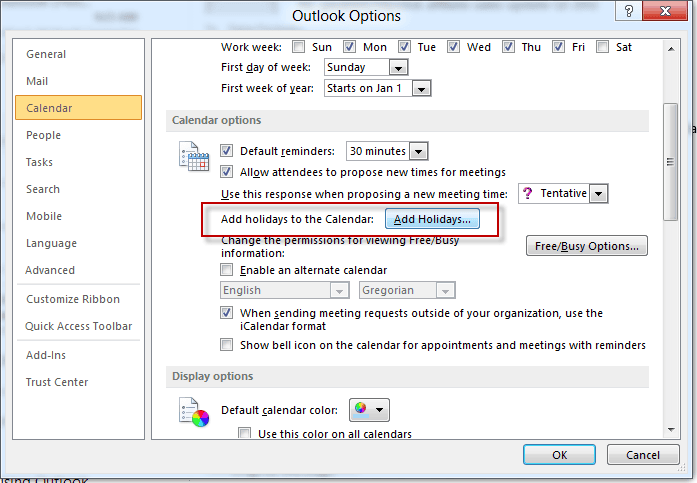
In Outlook 2007 and older, go to Tools > Options > Preference tab > Calendar Options and click the Add Holidays button. Select the desired Holidays and click OK.
It can take a few minutes to add all the holidays, depending on how many countries you are adding.
While major religious holidays are listed with the holidays for some countries, there are separate listings for Christian, Islamic, and Jewish religious holidays.
You will you receive the following message if you previously added the holidays for a specific country. However, if you are upgrading Outlook or using an updated HOL file, it may be detecting older holidays. If you choose Yes and discover your holidays are duplicated, you can delete all of the Holidays and re-run the Add Holidays wizard.
Holidays for [location] are already installed. Do you want to install them again?
See How to Remove Duplicate Holidays From the Calendar for complete instructions.
Create a Custom Holiday File | Use a Script to Import Holidays | Move Events Manually | Custom HOL sample | More Information
Create a Custom Holiday File
Because of tighter security in current versions of Windows, it's generally easier to create a new HOL file. This has one advantage: you only need to double click on the file to open the Add Holidays dialog. You do not have to go to Options > Calendar > Add Holidays to add the holidays to your calendar.
The Outlook.HOL file lists holidays in the following format, one date per line:
[location] ###
Holiday description, yyyy/mm/dd
Holiday description, yyyy/mm/dd
The ### is the total number of holidays listed for the location (or country). Note that there is a space between the bracket and the number. On each holiday line, there is a comma and space between the holiday description (subject) and the date. For example:
[United States] 3
Independence Day, 2012/07/04
Thanksgiving Day, 2012/11/27
Christmas Day, 2012/12/25
To create a custom set of holidays, you can create your own HOL file in notepad by following these steps. Tip: you can work with the dates in Excel, then copy and paste into Notepad to save as an HOL file.
- Open Notepad
- Enter a "county" header, in [country] format. For example, I might use [Slipstick Systems]
- On separate lines under the header, enter the events, one per line in
Event subject, yyyy/mm/dd format. - Save the file using the HOL extension.
- Double click on the file. If Outlook is not on top of the screen, switch to it.
- Select the location and click Add.
Import Holidays
You can use a script to import holidays into your calendar. Save this script as a .vbs file and call it from a logon script. (If you want users to double click on a file to run, use the .HOL method instead.)
Const olFolderCalendar = 9
Const olAppointmentItem = 1
Const olOutOfOffice = 3
CRLF = chr(13)&chr(10)
'Wscript.echo "Importing 2017 Company Holidays."+ CRLF + CRLF + "Press OK to Continue."
Set objOutlook = CreateObject("Outlook.Application")
Set objNamespace = objOutlook.GetNamespace("MAPI")
Set objCalendar = objNamespace.GetDefaultFolder(olFolderCalendar)
Set objDictionary = CreateObject("Scripting.Dictionary")
objDictionary.Add "August 1, 2017", "Company Holiday - Holiday Name"
objDictionary.Add "August 21, 2017", "Company Holiday - Holiday Name"
objDictionary.Add "August 18, 2017", "Company Holiday - Holiday Name"
objDictionary.Add "August 26, 2017", "Company Holiday - Holiday Name"
objDictionary.Add "September 1, 2017", "Company Holiday - Holiday Name"
objDictionary.Add "November 11, 2017", "Company Holiday - Veterans' Day"
objDictionary.Add "November 27, 2017", "Company Holiday - Thanksgiving Day"
objDictionary.Add "November 28, 2017", "Company Holiday - Friday After Thanksgiving"
objDictionary.Add "December 25, 2017", "Company Holiday - Christmas Day"
objDictionary.Add "December 26, 2017", "Company Holiday - Day after Christmas"
colKeys = objDictionary.Keys
For Each strKey in colKeys
dtmHolidayDate = strKey
strHolidayName = objDictionary.Item(strKey)
Set objHoliday = objOutlook.CreateItem(olAppointmentItem)
With objHoliday
 .Subject = strHolidayName
 .Start = dtmHolidayDate
 .End = dtmHolidayDate
 .Categories = "Company Holidays"
 .AllDayEvent = True
 .ReminderSet = False
 .BusyStatus = olOutOfOffice
 .Save
End With
Next
Set objOutlook = Nothing
Wscript.echo "Completed Importing 2017 Company Holidays."+ CRLF + CRLF + "Press OK to End."
Wscript.quit
For a PowerShell example and a VBScript that uses a CSV file, see Outlook Code: Importing bank holidays from an Outlook.hol based CSV file (MSDN).
When the Holiday file is wrong
The question a lot of people ask:
Why does Outlook put some Holidays on the wrong date?
I don't recall any version of Outlook shipping with a perfect Holiday file.
The problem is in the Outlook.HOL file used to import holidays - the author (or authors) get some dates wrong. While we expect perfection from them, to be fair, with hundreds of locations and thousands of dates in the HOL file, its easy to make mistakes. (There are more than 21,000 holidays in Outlook 2010's HOL file.) However, it shouldn't be that hard to get common holidays, like the Monday after Easter right (that is one of the big mistakes in Outlook 2010's HOL file.)
You can either move the events to the correct date, edit this file yourself, or download an updated version. You can even create your own HOL file.
A link to an updated Holiday file containing dates through 2028 is available at Missing Holidays. For Outlook 2002 and up. Note, this is the same file that is included with Outlook 2010 but contains the correct dates for Easter Monday.
Move Events Manually
To fix a holiday that's already in your Calendar folder on the wrong date, just drag the item to the correct date.
Fix a Holiday File
Outlook stores a read-only text file called Outlook.HOL in the installation directory for your version and language of Office (ie, C:\Program Files\Microsoft Office\root\Office16\1033 for US English version of Office), which it uses for the Options > Calendar Options > Add Holidays feature.
You can open the HOL file in notepad and edit it.
- Start Windows Explorer, locate the Outlook.HOL file. (You may want to make a backup copy.)
- Right-click on Outlook.HOL and choose Open with then select Notepad from the list.
- To edit a specific country's dates, use Find to locate the Country by name and edit the dates.
- To add a new location, press CTRL+END to position the insertion point at the end of the file.
- Type a new country header and custom holidays using the format described below.
- Save and close Outlook.HOL. Note: Due to security features in newer versions of Windows, you will need to give your Windows account permissions to write to the Office\xxxx folder.
Fun with Holiday files: Countdown the days in a year
You can use a custom HOL file for any all day events you desire. In this example, we are going to add all day events to the calendar to countdown the days in a year, from 1 to 365 and include the number of days left in the year.
Do you need to know what day of the year today is or how many days are left until the end of the year? Although Outlook doesn't display these numbers, it's very easy to create a file counting the days using Excel and import it into your calendar.
The original suggestion came from "Alawishes". He suggested using a CSV containing the Subject, Date, and a Category then importing it.
Create a file with the Subject, Date, and a Category using Excel's fill series feature then save it as a CSV to Import into Outlook's Calendar. While a category is not required, it makes it easy to filter the events. Using this method, you can import the events to any calendar.
While his suggestion is a great idea and has certain advantages: you can choose your own category or import it into a different calendar folder, you could create a HOL file and save the Import step. In the CSV, use only the Subject and Date fields then save it and change the extension to HOL. Open the HOL in Notepad and change the line above the dates to a "location" and the number of items in the "location" group, in [location] 366 format. (The location name can be anything you like. )
Users can double click on the HOL to open the Add Holidays dialog and add the dates to the default calendar. When you use this method the events will be added to the Holiday category.
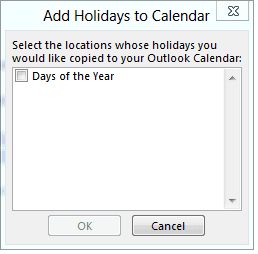
To delete these Holidays, group, sort, or filter by Location field and delete the items for your location.
We have sample HOL files available for download. When the HOL includes more than one year or (day and week numbers), they are separate "locations" so you can choose which ones yo install. They are in English, but you can open the HOL files in Notepad and use search & replace to change the text.
Day Numbers 2023 through 2028 Day & Week Numbers 2022
Day & Week Numbers 2021 DayNumbers 2020
DayNumbers 2019
Note: You may need to right click on the link and use Save Target As (or Save Link As). Double click on the HOL file to open it in the Add Calendar wizard.
More Information
To remove duplicate holidays from the Calendar folder
US holidays for years 2027 thorough 2031: US-Holidays-2027-2031.HOL. Includes Federal Holidays, US Holidays such as Valentine's Day, Halloween, Mother and Father's day, less known Observances, DST start and end, Seasons, and Sports (Super bowl etc). Each in separate categories so you can choose which to install.

If you receive a message "US-Holidays-2027-2031.HOL can't be downloaded securely" in downloads, right click on the entry and choose Keep. You can open the file in Notepad to verify it contains holidays.
US-Federal holidays only though 2029 is available: US-Federal-Holidays2025-2029.HOL.
A HOL for Cote d'Ivoire (Ivory Coast) for years 2019 though 2026 is here: Coted'Ivoire.HOL. This was created using the holiday list at Holidays and Observances in Cote d'Ivoire (Timeanddate.com)
A HOL for Palestine for the years 2021 - 2026 is here:
Palestine.HOL This list was created from the holidays list at Public Holidays in Palestine | Office Holidays. Islamic holidays are included only for 2021 and 2022. (Outlook includes a separate Islamic religious holiday list.)

Phil McCracken says
Also ... 2028 is a leap year.
Phil McCracken says
Hi, this is great! Thanks so much for this!
Any way we could encourage you to go ahead and add another 5-10 years to "Day Numbers 2023 through 2028?"
Diane Poremsky says
I can add more years and fix the leap years.
Laurel Zitney says
Is there a way to add a start and end time to a custom notepad holiday list? I'd like them to show up as a start of 8am and end at 5pm to block the calendar.
Diane Poremsky says
No, not in the holidays. They are all day events only.
Ray Beckwith says
Hi Diane. I've been a fan and user of much of your stuff for years. I recently tried the VBS script to add holidays on Outlook 2013 and noticed a strange issue. When you view the appointment details in list view or in the form, the item is set as an all day event and Out of Office as specified in the script but when you look at the calendar view, It appears as a 30 minute appointment starting at 12:00 AM and free. Also, the free/busy on the server does not show busy.
We can manually fix by toggling the all day appointment off and on and saving the appointment but would like to be able to use the script for all our users without this step. Any ideas?
Tarun says
1. Is it possible to add the "Show as" field - to show the day as "Out of office", or "Busy"?
2. Some of the rows have a comma separated number at the end (after the date string) - seems like an optional value. Any idea what's this for?
Diane Poremsky says
1. No, not using these methods. you'd need to change them after import or create them as appointments, not holidays.
2. The format for holidays is name,date - those are the only values.
Bjarne Kindermann says
Hello Diane,
I made a custom hol file named holidays.hol. I want to deploy it to all users (4000+) but without a user interaction. In the current state when I doubleclick holidays.hol I must select what days to import. I want to skip this and just enter the holidays without the question which one to import. Can I somehow skip this step so we can push this file to all users and execute it?
Ian says
Hi Diane, I'm trying to use the .HOL method, however, I'd like to build in reminders to these events in my .txt file, is there any easy way to do this?
Diane Poremsky says
Sorry, no, the HOL does not support reminders. I don't recall if reminders are enabled for new items by default, if ones would be added to the imports, but that would be the only way to get reminders on them during import.
Jørgen says
Hi!
Is there a way to make outlook auto update the imported dates from the .hol file?
I'm trying to make a calendar that views important dates, but want to have the possibility to change/add dates without sending a new file every week.. :)
Thanks!
Diane Poremsky says
No, not totally. You can restart Outlook using a switch (outlook.exe /hol holfilename.hol) or double click on the HOL file - if any events in the file already exist, they will be duplicated.
if this is a corporate network situation, use a logon script - this script will add events to the default calendar: Add Events to Calendar
Julien says
Is there a way to create time specific events with the .HOL? Or is it just 'all day" events? Thanks!
Diane Poremsky says
The HOL file only creates all day events.
Captn says
I have created the .hol file (from scratch) saved as .hol (unicode - it syas "hol file"). BUt when I double click it, it does not open in outlook, only the notepad opens. How do i get MY .hol file outlook?
Outlook 2013
Diane Poremsky says
That happens when either the extension is set to use notepad, not Outlook or the extension is wrong. What is the icon - notepad icon or a white icon with a calendar over it? File Type is 'Outlook Holidays'
Yatin P says
If I update the Outlook.hol file after it is imported (selected) for the first time, it does not refresh even if I restart Outlook (Office 2013 / Windows 10). Any ideas?
Diane Poremsky says
Can you find them if you search? After you use the add holidays wizard, the events go into the default calendar. if you din't delete the old events first you'll be warned that you have those events on the calendar - you need to add them anyway. No need to restart.
VanguardLH says
Microsoft migrated me from Outlook.com to Outlook Mail (to use the Office 365 GUI and Exchange Server backend). I deleted the EAS accounts in Outlook 2016 and created new ones. Autodiscover created them as Exchange accounts. Okay but holidays are missing from my calendar. I followed the instructions on how to add holiday but they still don't show up. I can elect (enable) the separate Holidays calendar but then I see 2 squashed calenders: mine and the separate holidays calendar. I wanted the holidays to get added and appear in my one calendar. Maybe that is not possible when using Exchange Server to sync the client and server-side calendars.
Diane Poremsky says
Add Holidays should have worked and added them to your default calendar. (It worked here.) Do you have a filtered view set? Do you have more than one calendar?
VanguardLH says
There are no filters (nothing special about the view - using the default one).
After adding the holidays (File -> Options -> Calendar -> Calendar options -> Add holidary to the Calendar and clicking Add Holidays, they did NOT show up in my calendar.
There is a separate Holiday calendar in my online account. I'm using Exchange Server (not EAS) to connect to my Hotmail account. As a result, OL2016 shows My Calendar and the Holidays calendar, the same ones that I see when I use the web client to view my account online. So I selected to show both of those and later found out how to overlay the calendars (i.e., visually merge them, not physically merge them). This will work for now. Each calendar's events has the same color as its tab color. Although I found out how to overlay the calendars, I will credit Doug with coming up with that solution here.
Diane Poremsky says
You aren't using an older version of Outlook are you? The HOL file in 2007 and older doesn't have 2016 holidays. The new versions all have through at least 2020 (outlook 2010).
Yeah, the outlook.com/exchange online accounts have the holiday calendar - not sure I like it (or the birthday calendar).
Doug says
In the tab at the top of the right squashed calendar, is there a black arrow pointing to the left you can click? When I click this it overlays them. (Should work for 3 or 4 calendars, but once I get to about 5 calendars though this doesn't work, it changes to a vertical row based view)
Pninah says
I have added Hebrew holidays to my outlook calendar but it has only added them in till the end of this Hebrew Year (rosh Hashana) How do I add next years festival in or do I have to wait til the beginning of the next Hebrew Year
Diane Poremsky says
The files have the upcoming dates in them, so they should all be in the calendar at once. Do you have a filter enabled that would hide future events?
Bev Miller says
Thanks. Actually, I found another option for including reminders. We can set it up and import it as a .csv file and include more info. It's not as easy as using a .hol file and double-clicking on it, but it isn't difficult. This gives instructions for an older version of Outlook but it basically works the same. https://www1.towson.edu/adminfinance/ots/training/documents/Outlook_2003_Importing_Calendar_Data.pdf
Bev Miller says
Is there any way to set a reminder for the items in the holiday file? (We're trying to use a holiday file to provide deadlines for people.)
Diane Poremsky says
No, not as they are importing. You can set reminders on them later, but that won't help you.
Wendy says
Hi Diane
I am trying to import a .hol file that was sent to me which should update my outlook calendar with specific sporting fixtures for our wrestling club. When I open the attachment I see Add Holidays to Calender with three options to tick. I chose the two options I want and enter, I get a message "Already installed, do you want to install again?" (I have tried numerous times), I say Yes. Then I get an error message "The holiday file contains errors or it is not in the correct format. Some holidays might not have been added to your calendar". In the background I see the action for a file transfer, but nothing is transferred. If I say OK to the error message or close it, the operation stops. If I leave it with the file transfer action happening in the background still nothing is transferred. This .hol file has been sent to a number of us at the club and I am the only one not able to import it successfully. Please help!
Diane Poremsky says
I'm surprised it works for some and not you. Could the others be skipping one of the lists you are trying to add? What version of Outlook do you use?
I know two things that will definitely cause issues: the wrong count of items at the top of a group and the wrong date format. You can open the Hol file in notepad and review it.
Jerry says
I want to display Holidays - but without the Location. I already know all my holidays are for my country. Can I change the view to not display location?
Diane Poremsky says
You can remove the location from the holidays - group by location then select the holidays and drag to the location group that is '(none)' - if you don't have a 'none' location, remove the location from one holidays event and save it. See https://www.slipstick.com/tutorial/how-to-easily-change-the-private-flag/ if you need to see a demonstration of this.
Charlie says
Hi, I went to "C:\Program Files\Microsoft Office\Office14\1033" but could not find a Outlook.HOL file. I am able to enter holidays by region or religion by going to "Options > Calendar Options > Add Holidays". I would like to create a custom holiday list.
Diane Poremsky says
You don't need the HOL file for that - create a list in notepad, save it with the HOL extension then double click to run. All you need to do is make sure the count is correct next to the location and the event names and dates use the correct format.
Nancee says
Diane, You truly should be instructing the staff at Microsoft as your instructions are virtually infallible, and simplified to say the least. Many Thanks!
Angela says
I have two Outlook Calendars that I have at work - one for myself and one that I have shared with my co-workers for vacation days. When I went through and added the holidays they showed up in my calendar, but they did not show up in the calendar that I share with the vacation days. Can anyone help me add the holidays to my second calendar? Thank you for any help that you can be!!
Diane Poremsky says
To add holidays to your non-default calendar, you'll need to switch to a List view, group by category and select the holidays then move or copy to the other calendar.
Mark says
Thank you very much for the Add Holidays - not often you attempt something and it all goes seamlessly and at a busy time to boot.
Bob says
Can you tell us how to include the custom holiday file in our office 2010 deployment? How could we replace the default outlook.hol with our custom file so users get it during setup?
Diane Poremsky says
It's been a while since I looked at creating a deployment... but you'd want to replace the outlook.hol file with the custom one.
Pam says
In my Outlook 2010 it only lets me choose Holidays by COUNTRY and US does not include Jewish holidays...
Diane Poremsky says
You should have an entry for Jewish Religious Holidays. (Christian and Islamic religious holidays also have their own 'locations'.)
bgrits5775 says
Thanks! That worked!
bgrits5775 says
I have calendar events grouped by location; however, I can't figure out "drag them to the (none) goup." I do not see "none." Can you break it down for me? Thank you
Diane Poremsky says
Delete the location from one event. That should create a (none) group. Drag the others to the group. This tutorial shows how to drag contacts between groups to change values but its the same for appointments too.
Irene M says
Perfect, thank you Diane. :)
Irene M says
I have successfully added the UK public/bank holidays to my calendar. I also have an additional calendar, but the holidays are not showing there. How can I copy them across?
Diane Poremsky says
Switch the calendar with the holidays to a list view. Select the holidays you want to copy and right-click drag to the second calendar folder.
bgrits5775 says
I have Outlook 2010. Is there a way that the holiday is displayed but not the region? Example: Instead of May 12 displaying "Mother's Day; United States," I want it to display "Mother's Day" on my calendar. Thank you.
Diane Poremsky says
You'd need to remove the location, which is easy enough - group by location and drag them to the (none) group.
Judy Sheridan says
Well you can ignore my last post. I deleted the file again and downloaded the file again today and lo and behold, the button is there. I don't know why that didn't work yesterday. Gremlins!
Diane Poremsky says
Those darn gremlins can be so cute but also very annoying. :) Thanks for the update!
Judy Sheridan says
I downloaded the file and then when I accept the agreement (or whatever it is called) it says that the update is already on there. I put the update on in December but didn't check the box for the religious holidays so that's what I'm trying to add. I found the HOL file and deleted it and tried to download again but it still says the update is on there but no add holidays button.
Judy Sheridan says
Sorry, I should have said that the holidays are in my calendar but I want to add the religious holidays and I don't see the button to add holidays.
Diane Poremsky says
It's not in Options, Calendar? If you download the HOL file and double-click on it does the Add Holidays dialog come up?
Sandesh says
its showing "file corrupted" please help
Diane Poremsky says
The file is good, I just tested it. Try redownloading it again or use a different browser.
Judy Sheridan says
I don't have the add holidays button available. What should I do?
John Katayama says
This was very helpful with the information. Do you know how to make the holiday's show up as busy rather than a free appointment?
Diane Poremsky says
You'll need to change them after importing. Add the Show time as field to a list view, group by Category then Show time as. If there are is not a busy group in the Holiday category, right click on one event and set it to busy. Now you can select all holidays and drag to the busy group.