The gadgets are at %localappdata%\Microsoft\Windows Sidebar\Gadgets\. If you don't have a copy on another computer, you can download the MiniInbox, OutlookAppointmentsGadget, and OutlookTasksGadget below. You'll need to unzip them into the Gadget folder. These files were edited to work with all versions of Outlook. Please note: These are the only gadgets I have.
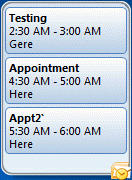 I didn't think anyone used the Outlook gadgets as they tended to cause issues with Outlook closing properly, but apparently a few people do use them.
The existing Windows gadgets for Outlook won't work with Outlook 2010 because they are looking for Outlook 2007. Until Microsoft releases updated gadgets, you can edit the gadget's script to work with Outlook 2010. (Gadgets are one of the few programs that will work with the Outlook 2010 64-bit.)
After installing the gadget, go to this local appdata folder: C:\Users\username\AppData\Local\Microsoft\Windows Sidebar\Gadgets\[Outlook_gadget]\en-US\js\
You can get to the folder, by pasting the following line into the address bar of Windows Explorer and pressing enter, then browsing to the subfolder: %localappdata%\Microsoft\Windows Sidebar\Gadgets\
Locate and open outlook.vbs in Notepad and either remove the version checking lines or change all instances of 12 to 14:
if value = "Outlook.Application.12" then
and
if mid(versionString, 1, 2) <> "12" then
Editing the vbs also allows the gadgets to work with older versions of Outlook.
Outlook Upcoming Appointment Gadget
This gadget is no longer available from the Gadget Gallery. If you have a computer with a gadget installed, you can copy the gadget folder to other computers. Or download the OutlookAppointmentsGadget gadget, includes the edited file. Unzip and into the Gadget folder.
After removing the version check from Outlook Upcoming Appointments the section of code will resemble this code snippet:
function CheckOutlookVersion()
on error resume next
Dim wshShell
Set wshShell = CreateObject("WScript.Shell")

dim value
value = wshShell.RegRead("HKEY_CLASSES_ROOT\Outlook.Application\CurVer\")

CheckOutlookVersion = true

set wshShell = nothing
end function

''''''''''''''''''''''''''''''''''''''''''''''''''''''''''''''''''''''''''''''''
''
'' Opens a connection to the Outlook object model. Returns true if successful
''
''''''''''''''''''''''''''''''''''''''''''''''''''''''''''''''''''''''''''''''''
function ConnectToOutlook()
on error resume next
Set outlookApplication = GetObject(, "Outlook.Application")
if outlookApplication is Nothing then
outlookFailed = true
ConnectToOutlook = false
else

outlookFailed = false
ConnectToOutlook = true

end if
end function
Download the edited script to use with an existing gadget install: OutlookAppointmentsGadget vbs
Outlook Tasks Gadget
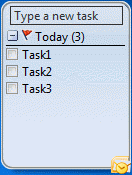 This gadget is no longer available from the Gadget Gallery. If you have a computer with a gadget installed, you can copy the gadget folder to other computers.
The gadgets are at %localappdata%\Microsoft\Windows Sidebar\Gadgets\
If you don't have a copy on another computer, you can download OutlookTasksGadget and unzip it into the Gadget folder. This file was edited to work with all versions of Outlook.
If you have this gadget but need to make it work with Outlook 2010, edit the outlook.vbs file for Outlook Tasks in notepad in the same manner as for the Appointments gadget (instructions above) or download the edited script: OutlookTasksGadget.vbs and replace the outlook.vbs with the edited copy.
MiniInbox Gadget
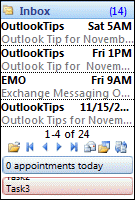 This gadget is no longer available in the Gadget Gallery. If you have a computer with the gadget installed, you can copy the gadget folder to other computers. Gadgets are at
%localappdata%\Microsoft\Windows Sidebar\Gadgets\
If you don't have a copy on another computer, you can download the MiniInbox gadget and unzip it into the Gadget folder. This file was edited to work with all versions of Outlook.

Mitchell Jordan says
Will the above gadget appointment download and vbs script file work with Outlook 2007 on Windows 7 Professional OS?. I accidentally deleted my files from my computer and the recycle bin and I can't seem to find one to download.
Diane Poremsky says
It should - but its been so long since I last used it that I could be wrong. :)
Mitchell Jordan says
Thanks, It did work and I have my appointments back on my computer desktop.
Jerry says
I edited outlook.vbs per the example and it now launches but no appointments show up. I'm using outlook 2016.
Diane Poremsky says
Which OS are you using? Are you using 32- or 64-bit Office?
I think its a due to some changes in outlook, but will test it.
Jerry says
I am using Windows 7 64 bit and Office 2016 32 bit.
Bushman says
I switched from Office 2013 to 2016 and my appointments gadget stopped its work. After editing outlook.vbs acc. to this page it works again! Thanks
Caroline Martin says
could you find me a free appt or gadget for the FT 100 index I have lost mine with the changes
Diane Poremsky says
I didn't have the gadget and unfortunately, the gadgets were removed. if you have access to a computer that was using it, you can get the files from it. Sorry.
Adi Feldgajer says
Thank you so much...just stumbled across this and updated my gadgets to work with office 2013. Working Well. Thank you!!!
MoZo says
I unzipped the file and copied to the path of the gadget. I have the gadget and outlook open but the gadget is set to "No upcoming appointments" and I have many appointments on my outlook. Do you know what the problem is? btw i have windows 7 and Outlook 2007
Thx
Diane Poremsky says
Check the settings for the versioning. It's been awhile since I last used a gadget but I seem to recall that it does that if Outlook isn't loaded when it loads.
lacibatyo says
Thank you! Fine work! Office 2010 - technikai OK. But unhappily the program don't displays standard birthdays, only explicit appointments.
Do You plan extend it?
Diane Poremsky says
The gadgets won't be updated - they are no longer supported. Sorry. :(
Mikaalswa says
It is possible to modify the Appointments gadget to show all calendar events.
Open this file using Notepad:
C:\Users\username\AppData\Local\Microsoft\Windows Sidebar\Gadgets\[Outlook_gadget]\en-US\js\appointments.js
Scroll down, about half way, to this section:
////////////////////////////////////////////////////////////////////////////////
//
// Connect to Outlook and retrieve upcoming appointments
// UsesOutlook: True
//
////////////////////////////////////////////////////////////////////////////////
function processAppointment(apptItem)
{
// Ignore all day events
if ( (apptItem.IsConflict == false) && (apptItem.AllDayEvent == true))
{
apptItem = null;
return null;
}
// Ignore appointments than span 24 hours or more
var startDate = new Date(apptItem.Start);
if (startDate.setDate(startDate.getDate() + 1) <= new Date(apptItem.End))
{
apptItem = null;
return null;
}
return initAppointmentData(apptItem);
}
Edit the code to read:
function processAppointment(apptItem)
{
return initAppointmentData(apptItem);
}
Then close and re-open your Appointments gadget and it will show all events.
davidlongmuir says
Thank you SO much for this!! I have just upgraded to Outlook 2013 on a Windows 7 x64 machine and the Outlook Appointments desktop gadget is now working again. Brilliant!
Jason Sherry says
The Upcoming Appointments gadget can no longer be found on Microsoft's site, but I was able to find it here: https://www.gadgetsdownload.com/gallery/Outlook_Upcoming_Appointments/82/
Diane Poremsky says
I have have copies of the 3 Outlook gadgets available here on slipstick too.
Johanna says
Thank you--was able to update gadget to work with Outlook 2010. I really appreciate it!!!
Terry Roberts says
Worked like a champ!