This week we have two questions about Outlook window sizes. The first issue is Outlook windows don't appear to open or are stuck on the Task Bar. This usually means they are off the visible screen. The second issue affects users with Surface and other tablets and laptops with smaller screens. Problems caused by screen resolution and non-default display settings have been an issue with Outlook, often with buttons and parts of dialogs missing.
Outlook windows won't resize
This user's problem was that Outlook is either minimized or maximized. Clicking Restore seems to minimize the Window, not restore it.
The usual cause is because the window is pushed off the edge of the screen. Changing the screen resolution may have caused it, but you can fix it without changing display settings.
There are two ways to fix it: use a Windows command to rearrange all open windows and bring Outlook back on the screen or edit the registry to reset the Outlook window to the default size and location.
Right click on the Windows Taskbar and choose from Cascade windows, Show windows side by side, or Show windows stacked. If you like your windows arranged in a specific side and position on the desktop, you'll want to close all other windows before using these commands.

Outlook window position are stored in the registry, in a value named Frame. Each Outlook window has a Frame value in their registry key. To get the main Outlook window back to full size, find and delete the Frame value under HKEY_CURRENT_USER\Software\Microsoft\Office\xx.0\Outlook\Office Explorer, where xx is your version of Outlook. If you have a value called Namespace, delete it as well. When you reopen Outlook, it will open at full screen and recreate the Frame value the next time you close Outlook.
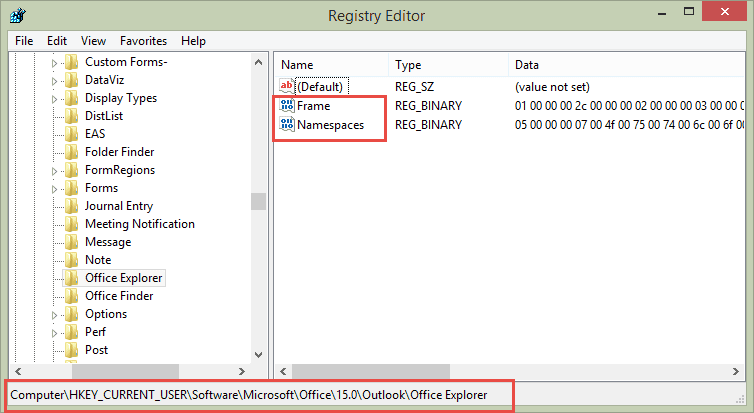
Each item type has a frame value. The keys for current versions are listed below. (Office Finder is the Advanced Find dialog.)
Outlook 2016
HKEY_CURRENT_USER\Software\Microsoft\Office\16.0\Outlook\Office Explorer
HKEY_CURRENT_USER\Software\Microsoft\Office\16.0\Outlook\Appointment
HKEY_CURRENT_USER\Software\Microsoft\Office\16.0\Outlook\Contact
HKEY_CURRENT_USER\Software\Microsoft\Office\16.0\Outlook\Message
HKEY_CURRENT_USER\Software\Microsoft\Office\16.0\Outlook\Task
HKEY_CURRENT_USER\Software\Microsoft\Office\16.0\Outlook\Office Finder
Outlook 2013
HKEY_CURRENT_USER\Software\Microsoft\Office\15.0\Outlook\Office Explorer
HKEY_CURRENT_USER\Software\Microsoft\Office\15.0\Outlook\Appointment
HKEY_CURRENT_USER\Software\Microsoft\Office\15.0\Outlook\Contact
HKEY_CURRENT_USER\Software\Microsoft\Office\15.0\Outlook\Message
HKEY_CURRENT_USER\Software\Microsoft\Office\15.0\Outlook\Task
HKEY_CURRENT_USER\Software\Microsoft\Office\16.0\Outlook\Office Finder
Outlook 2010
HKEY_CURRENT_USER\Software\Microsoft\Office\14.0\Outlook\Office Explorer
HKEY_CURRENT_USER\Software\Microsoft\Office\14.0\Outlook\Appointment
HKEY_CURRENT_USER\Software\Microsoft\Office\14.0\Outlook\Contact
HKEY_CURRENT_USER\Software\Microsoft\Office\14.0\Outlook\Message
HKEY_CURRENT_USER\Software\Microsoft\Office\14.0\Outlook\Task
HKEY_CURRENT_USER\Software\Microsoft\Office\16.0\Outlook\Office Finder
To quickly find a registry key in Windows 10, copy and paste the registry path in the address bar at the top of the editor then press Enter to jump to it.
If you don't want to edit the registry, I have zip files available with *.reg files to delete the Frame value from each of the items types listed above.
Outlook 2016 Outlook 2013 Outlook 2010
Outlook items always open full screen
Every time I open an email, calendar item, contact or note in Office 365 Outlook on my Surface tablet, the item opens full screen. This occurs even though I resized the item window significantly smaller and closed the item.
This is the result of using a high screen resolution on a small screen. The user can't read the tiny text and changes the display settings to make everything larger. To check your settings, go to Control Panel, Display and look at the Change the size of all items setting. If it is set to 150 or higher, Outlook windows open at full screen, lower than that and the window sizes hold as expected. (If you see a slider instead of the percentages, tick the box to choose scaling for all displays.)


david says
Outlook 365 when selecting new mail instead of opening a new pain it just drops to the task bar and will not open up to write in?
John Foll says
Thanks! The registry fix worked good for me. I usually resize the task bar (with it unlocked) and that usually fixes weird problems like this. But that did not work tonight.
Pat Murphy says
Thank You! The cascade Windows tricked definitely worked for this issue!
Ved Prakash says
Go to Outlook-->Properties-->Shortcut-->Run-->Maximized
No need to thank me
Diane Poremsky says
That only works if you want the window maximized. Many users do not.
Kaushik says
Wow! That was such a nice fix. Thanks Ved Prakash. Was struggling with this one
csimione says
That was an awesome fix! I never would've guessed that!!!!
Thank you!
Terrawide says
...thanks, great information, but one more tip that might help if the above information doesn't help.
It turns out that Outlook 2016 (I'm not sure about other versions) has a setting in the main window (lower right) called Display Settings. It allows one to set it to "Optimize for best..." or "Optimize for compatibility". Change it to the latter and window sizes (for Appointments, etc.) will not automatically resize themselves to stupid proportions.
It seems to me the "Optimize for compatibility" name should be changed to "Optimize for your sanity" and the "Optimize for best..." name should be changed to "If you want Microsoft and its software to automatically make crappy decisions for you, choose this setting."
Diane Poremsky says
LOL. I love those suggestions.
The optionize setting is new - i don't think they backported it. You should only see it in the status bar when you use a docking station or access the computer using remote desktop and the screens uses different resolutions.
Stephen says
Thank you very much, I'd been struggling with this problem for 30 minutes and the cascade fixed it for me. I guess the window somehow got pushed off the edge of the screen!
Nats says
Hi. On my my Laptop, when I open Google, only half of my screen appears. When I type in hotmail or Windows Live or Outlook, still only half of my screen appears. The minimize, maximize and Restore buttons on the right side cannot be seen or accessed. The advice I read on the internet said; "You may disable and re-enable the reading pane. by. a. in Outlook, go to View tab>Layout group>Reading Pane> click on Off." But I can't find viewtab or layout group, where can I find them? I have Windows. Thank you.
Diane Poremsky says
can you double click on the title bar to maximize the window?
Are you using outlook desktop software or outlook on the web?
Nats says
Hi, Maximize button/icon cannot show/does not show, because it is off the screen. I am using outlook on a desktop.
Diane Poremsky says
Try double clicking on the title bar - that should maximize it. If not, you can right click on the windows task bar and choose the option to show windows Cascade or Stacked. I recommend minimizing or closing applications if you are going to cascade or stack windows as it will apply to all apps visible on the screen.
Russ says
Thanks very much. Deleting the Registry item fixed my problem.
Deb M says
Thanks to Diane and Alvin Lim. For me, the solution was as simple as 'Right clicking the task bar and select 'Show windows stacked'
ken says
My issue is the "resize" function quit working when I sent pictures on my
outlook account. Continues to work fine on my other laptop with windows 7
but recently quit working on this laptop with windows 10. I'm using
outlook 2016 on the problem laptop. been working fine until a few weeks ago.
I select FILE and then select 'resize large images like I've always done
and the pic sizes shrink on outgoing message. Now they don't.
any help or suggestions would be appreciated.
Ken
Cara says
My problem seems to ONLY be with the advanced find window, which always opens very small, no matter which of these fixes I try. Office 2016, Windows 10, resolution = 3840x2160.
Diane Poremsky says
Are you able to resize it? What display % do you use? 125% is definitely ok, over 150 can cause issues.
Lee says
Thanks my outlook works after using the "Show Windows Stacked"
Rashid says
Hi Experts,
Do we have any inspector/mail resize window event.
What i am looking for is: i have developed a custom form and want to prompt on Attachment add action. So in case of maximize window, I have fixed the form Top and Left property and it is positioned well. But if form is in restore mode or user resizes the window everything is messed.
Need experts advise please to handle the window.
Diane Poremsky says
no nethe event but you can set the controls to resize withe the form. Not sure it will help you any....
Mike P says
Hi Folks,
None of the suggestions have worked for me! I'm running Win 10 with Office 2010 and its been fine until this occurred. Its either full screen or nothing with me
Diederik Weve says
removed frame. thanks
graphite says
this is why microsoft is slowly going downhill. I have this problem and I've been on computers since DOS. After 2003, they just started making everything worse with more moves for most items in outlook. You actually have to leave the page to print unless you make changes. That's the problem. You shouldn't have to do this. It should be easy right out of the box. To have to fix this window size is stupid. They give all these possible solutions because tech people are designing everything, not knowing what the non-tech people, ie the world, need. It's the end of MS as far as I see. Give me MS Word, Excel, Outlook 2003, even Outlook express - back to simplicity instead of this crap. I'm on a good sized laptop and the window size is full screen for a new email. It wasn't earlier, so their update must have changed it. Idiots. It's 365 and they think it's better. bull. My desktop is not 365 so it doesn't get changed whenever they want and I don't this have email window problem.
Kerry Frater says
I have Windows 10 on a 13.3" hi res screen. The control panel does not have the options you show here. In the main I can see what I want but using the Advanced Find in Outlook 2013 will NOT show me all the options. At least with all the permutations I have used so far and still making sure I can read the rest of the screen
Alvin Lim says
I have been searching for the solution many many months and tried many ways including reinstallation of the entire Office , upgrade into 2013 from 2010. However Otlook still faced the same issue, the best way is to open Outlook in Dafe mode but that's not good.
Until I found the soluion and it is so simple.... I just choose to "Show Windows Stacked" and it works....
Thank you very much...
Joe says
I followed the instructions to modify the registry. I did close Outlook 2016 before I made the modification in the registry. I then reopened Outlook 2016 and i am happy to say that it corrected my reading pane viewing issue. GREAT JOB - this was a fix that I could not find in any of the microsoft websites.
avalters says
This unfortunately didn't work for me - the Outlook window resizing issue was due to a user accidentally choosing the "Show Windows side by side" option and then unsetting it. Reboots didn't fix it, nor did the reg hack. Any other suggestions from the peanut gallery?
Diane Poremsky says
Try the cascade windows view then drag the windows to nearly full size and close (don't maximize). It should open at the last used size.
Rick says
I only wish the rest of the internet saw this first. Took quite a bit of digging before I found this gem (and I knew the solution was out there as I had dealt with it before with the registry hack but forgot how). Thanks for the help!
Dinesh says
great ..... it helped me in resetting / resizing the outlook windows
Kat says
Your suggestion to stack the windows worked wonderfully. Thanks for the help!
John Wilson says
I Thank You So Much!!
The registry instructions was what finally worked for me. But I think it only worked after I rebooted.
My problem began after experiencing another problem. When I logged in to Windows and it completed. It showed a window that said "We could not log you in to your account, This can usually be corrected by logging out and logging back in"
It also said that the problem may reoccur even if it is fixed temporarily.
That problem finally went away and then Outlook would start and be running in the Task Manager but would not appear except as an underlined icon on the Task bar.
I finally discovered that if I hovered over that icon, a thumbnail would popup above the taskbar. If I then right clicked on that thumbnail a popup menu appeared and I could choose Maximize. When I did that it would appear Maximized, but could not be resized. It was either Maximized or Minimized.
Then your Registry instructions worked.
Wow what a hassle!!