One often requested feature that is missing in older versions of Outlook is ability to insert a date and time stamp into the body of Outlook items. Beginning with Outlook 2007, Word's insert Date & Time button was added to Outlook's Insert tab; older versions will need to a custom form or an add-in to insert the date stamp.

One complaint about the Insert Date & Time command is that it is too many steps. It's not bad if you use the keyboard shortcuts: Alt+N, D, Enter will insert the date and time format you have set as default. To insert other formats, use the arrow keys to select them, then press Enter. (Home or Page Up jumps to the top entry on the list while End or Page Down jumps to the bottom.) If that is still too many steps, you can use a macro to insert the date and time.
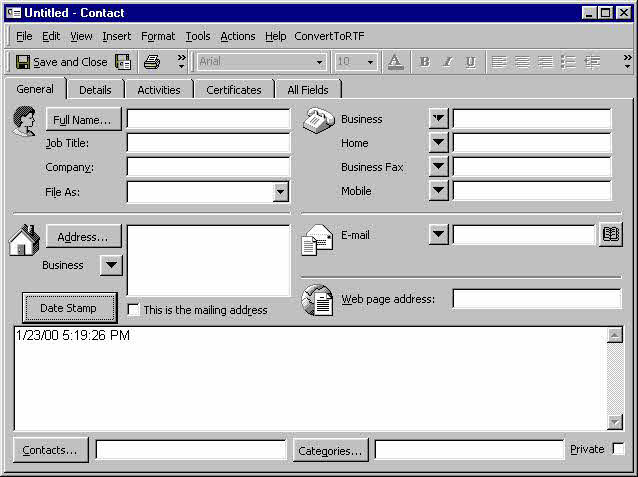
See the Tools section below for add-ins that you can use instead. Note that the custom forms method doesn't work well with Appointment forms since you can't change the first page of the form. It also doesn't work well with contacts in Outlook 2003 and 2007 since editing the first page of the form reverts the form to the older Outlook contact form (as in the screenshot below).
Macro Method
This method uses just a macro, not a command button the form. It will work with any open Outlook item, you just need to put the macro on the Quick Access Toolbar or ribbon.
The macro can either add just the date at the top of the body field or the date and time.
Instructions to use a macro and add it to the ribbon or Quick Access Toolbar well as screenshots are at How to use the VBA Editor
Sub DateStamp()
Dim objApp As Outlook.Application
    Set objApp = Application
    On Error Resume Next

   Set Item = objApp.ActiveInspector.CurrentItem

  ' Date only
  '  Item.Body = Date & vbCrLf & vbCrLf & Item.Body

  'Date and time
    Item.Body = Format(Now(), "mmm d, yyyy h:nn AM/PM") & vbCrLf & vbCrLf & Item.Body

    Set objApp = Nothing

End Sub
Custom Form Method with Button
In a new Outlook 2003 or older, open a form then:
- Select the Tools menu, Forms, Design this form
- Then from the View menu, choose View code
- In the code window, enter this code:
In Outlook 2007 and up, first show the Developer ribbon (File or Office icon, Options), then from the Developer ribbon, choose Design this form. The View Code button is in the Form section.
Sub StampDate()
   Item.Body = Now() & vbCrLf & vbCrLf & Item.Body
End Sub

Sub CommandButton1_Click()
  Call StampDate()
End Sub
After entering the code, close the code window.
Next:
- Open the Control toolbox and drag a command button to the form.
- Rename it by right clicking on it and selecting Properties.
- In the Caption field, type in the desired name.
To use, click the button you created.
Custom Form - Automatic Method
If you want the date stamped in the Notes field every time you open an item, you can create a custom form as described above, but use the code below instead. You also won't need to add a button to the form, so it will work with contacts. Although today's date is added to the Notes field every time you open a contact, it's not saved until you Save the contact.
In Outlook 2007 and up, first show the Developer ribbon (File or Office icon, Options), then from the Developer ribbon, choose Design this form. The View Code button is in the Form section.
In Outlook 2003 and older, or Outlook 2007's main window, go to Tools menu, Forms, Design this form. Then from the View menu, choose View code.
In the code window, enter this code:
Function Item_Open()
Item.Body = Now() & vbCrLf & vbCrLf & Item.Body
End function
Publish the form and set it as the default form for the folder, if desired. If you want to use it with existing items you'll need to convert the items to use the new form. Instructions are at How to Set a Custom Form as the Default for a Folder.
Tools
Used to change the message class of Outlook items,so that existing items will use newly created forms.Free. | |
Stamp any Outlook item with your name and the date/time, in various formats and locations. Enter code WD9BHK53 during checkout. |
How to use Macros
First: You need to have macro security set to the lowest setting, Enable all macros during testing. The macros will not work with the top two options that disable all macros or unsigned macros. You could choose the option Notification for all macros, then accept it each time you restart Outlook, however, because it's somewhat hard to sneak macros into Outlook (unlike in Word and Excel), allowing all macros is safe, especially during the testing phase. You can sign the macro when it is finished and change the macro security to notify.
To check your macro security in Outlook 2010 and newer, go to File, Options, Trust Center and open Trust Center Settings, and change the Macro Settings. In Outlook 2007 and older, look at Tools, Macro Security.
After you test the macro and see that it works, you can either leave macro security set to low or sign the macro.
Open the VBA Editor by pressing Alt+F11 on your keyboard.
To put the code in a module:
- Right click on Project1 and choose Insert > Module
- Copy and paste the macro into the new module.
More information as well as screenshots are at How to use the VBA Editor

Curt Faulk says
Hi, Diane, it's been a while. I hope you are well.
When using this code, I get the date/time format I desire, but I am not getting a new line.
After inserting and formatting the date/time, the cursor jumps to the front of the current line and does not enter a new line where a user could then begin typing a note. Here is my (modified) code:
Sub DateStamp()
Dim objApp As Outlook.Application
Set objApp = Application
On Error Resume Next
Set Item = objApp.ActiveInspector.CurrentItem
' Date and time
Item.Body = Format(Now(), "ddd dd-MMM-yyyy HH:mm:ss-------------------------------") & vbCrLf & vbCrLf & Item.Body
Set objApp = Nothing
End Sub
Maher says
1- Go to: File - Options - Trust Center - Trust Center Settings - Macro Settings, then Enable all macros
2- From the developer tab (you need to add it from the options- customize ribbon) open the visual basic and navigate to ThisOutlookSession from the tree on the left 'project1'
3- write the below and save:
Private Sub Application_ItemSend(ByVal item As Object, cancel As Boolean)
If InStr(item.Body, "########") Then
item.HTMLBody = Replace(item.HTMLBody, "########", Format(Now, "dd/mm/yyyy"))
End If
End Sub
4- In your saved signature put ####### so it will replaced by the current date.
James says
Hi I need this but for the date to be 7 days in the future. I know in excel it would be Now()+7 but can't seem to get it to work maybe syntax is wrong? Any help on what the code would be is appreciated
Diane Poremsky says
Date + 7 or Now ()+ 7 work. What happens when you use it?
Date +7 returns 7/29/2021
Now() + 7 returns 7/29/2021 12:26:11 AM
James says
sorry that was
I ended up using the below. It works but the format still puts the year on and I can deal with that, so not sure what i missed with that but it seems to do the job.
Private Sub Application_ItemSend(ByVal item As Object, cancel As Boolean)
If InStr(item.Body, "1weekdate") Then
item.HTMLBody = Replace(item.HTMLBody, "1weekdate", DateAdd("d", 7, Format(Now, "dd/mm")))
End If
End Sub
Diane Poremsky says
Try this : Format(DateAdd("d", 7, Now), "dd/mm")
other option is something like this
strDate = DateAdd("d", 7, Format(Now, "dd/mm")
item.HTMLBody = Replace(item.HTMLBody, "1weekdate", Format(strDate , "dd/mm"))
Edward Foy says
How can I add/appropriately name my custom fields to the exported CSV files. I dont see the new fields but do see "user fields"
Diane Poremsky says
Import/Export command doesn't export custom fields - you would need to either use a macro or create a list view with the fields you need in the view, then copy and paste. (Doesn't work well with body field or other multi-line fields though.)
Edward Foy says
I have used the custom form methods for years without any problems until recently. Now the button has stopped working and every time I open a contact, the previous note's date. Any thoughts?
Diane Poremsky says
I'm guessing it is this security change: https://www.slipstick.com/outlook/custom-form-security/
there is a reg key you can set to enable scripts (it's in that article).
Edward Foy says
GOD Bless YOU!!!
This has been haunting me all week and your fix worked, Thank You!
Peter says
Dear Diane, I am trying to use Your method with a customized Task Form.
When You use DateStamp for the second time You lose all the formatting of the previous text.
I tried using Item.HTMLBody option, but it doesn't work.
What can be applied?
Thank You!
Diane Poremsky says
Try using rtfbody (it errored for me in outlook 2016) - if it fails in your version too, then you'd need to use word code, which will not work in script within the form. This is only practical if you need it on one computer as you need the vba on all computers - the code samples at https://www.slipstick.com/developer/code-samples/create-task-selected-text/ us this technique to save messages to tasks - you'd use similar code.
Sterling Moore says
I recently was promoted and now I have switch platforms(not by choice). In Windows this was a fairly simple function that I used quite frequently. In OFM 2011, not so much. All I want to do is simply add a date and time stamp to an Outlook/Calendar item. Can anyone point me in the right direction? Is there an applescript that allows one to perform this function? Any feedback will be greatly appreciated.
Thank You!
Fred Johnston says
I may be totally misappropriate in my comments on this forum but here goes anyway. I am totally puzzled by how ANY third party software app can synchronize the contacts in Outlook with any other database (such as my phone, be it my BB10, my BB Priv Android, my iPhone or between my desktop and my laptop) if the Outlook database doesn't have date/time stamps on every contact record showing when it was originally created and when it was last modified. It appears that these two fields exist in Outlook, but do not appear to be managed properly by Outlook (and can't be relied upon) and there appears to be no way to export these fields to a CSV file. I'm beginning to understand why no matter which third party synchronizing app I use, I can always expect an unreliable result (like duplicates or missing or inappropriately merged contact records). I used to get on quite well when I was using Outlook 2003 and a BB O/S 10 phone with BB's proprietary BB LINK utility, but since then I have had to try many different synchronizing apps for my different phones and operating systems and my contacts database has become increasingly screwed up. All I want is to be able to keep my contacts (and of course my calendars and tasks - but mostly my contacts) in synch between my notebook and my phone. (and by the way, I prefer to have a local sych solutions as I don't always have access to wifi or internet and on top of that I DO NOT wish to use Google to synch (or do other things) with my data. Is that too much too ask? However, please excuse my rant. I am not expecting any simple solution, but boy would I like to be surprised.
P.S. Keep up the great work Diane.
Diane Poremsky says
Just because you can't include those fields in an export doesn't mean the programs can't see the date. Some sync utilities set an internal property on the it to help manage the sync. If you are trying to keep in sync using "sneaker net", a macro that checks the dates would be better than using export. (Or just copy the pst back and forth).
The easiest way to keep outlook in sync is using an exchange account (outlook.com is now on exchange server). The second easiest is using icloud or iTunes - which of course, requires apple devices. Companion link works good too.
Katherine Rivette says
Hi Diane,
I created additional fields in Outlook using the Developer tool but this new format applies only to the new contacts created. Is there a way to apply this new format to existing contacts? Thank you in advance.
Mike says
Hi Diane,
I applied the custom above for auto date/time stamp to my office 365 desktop and it works in notes only when I add a new contact and only for the first time...then does not work any longer. Is there a way for automatic date/time stamp everytime I add notes to a contacts record?
GingaDave says
Hi Diane
I have a message template with a table in the body. is there a way of inserting the Datestamp in a specific cell?
Diane Poremsky says
To the best of my knowledge, no, you can't insert it into a specific cell using VBSCript.
Obi Ejiofor says
We are using an autoreply rule. The user wants an time stamp added to each autoreply mail sent from the shared mailbox.
Diane Poremsky says
That is not possible AFAIK. Sorry. You'd need to use a script, which would only work when the account was open in Outlook.
Obi Ejiofor says
Dear Diane i need to configure adding a timestap automatically to an autoreply mail for a shared mailbox. We user outlook 2010 and exchange 2010 how would i script this in VBA ?
Diane Poremsky says
Autoreply? Are you using the out of office manager or a rule? i'm not sure you can do it in an autoreply, but will look into it.
If you wanted to do it when you hit Reply, see https://www.slipstick.com/developer/vba-sample-reply-reply-clicked/ for the basic method.
johnmerd says
Diane,
Thanks for all your help. We view appointment details a lot without making changes, and so we are going to get around the issue by using a macro button on the Appointment Ribbon. I know how to create a macro and put it on the Ribbon. Here is the question:
The same VBA code that I have used successfully in the custom form method with button (pasted into view code) does not work when creating the macro. How would I make the following code work as a macro?
Sub StampDate()
Item.Body = Date() & " - " & "JM Notes:" & vbCrLf & vbCrLf & vbCrLf & "ACTION: " & vbCrLf & "----------------------------------------------------------------" & vbCrLf & Item.Body
End Sub
I keep getting an error regarding the second line. Please help!
Diane Poremsky says
You need a little more code to do it using VBA -
Sub StampDate()
Dim Item As Object
Set Item = Application.ActiveInspector.CurrentItem
Item.Body = Date & " - " & "JM Notes:" & vbCrLf & vbCrLf & vbCrLf & "ACTION: " & vbCrLf & "----------------------------------------------------------------" & vbCrLf & Item.Body
Set Item = Nothing
End Sub
johnmerd says
Thanks much. I'll have to dig into this.
Question: When I open the calendar appointment, the date and lines are automatically inserted above the old notes as it's supposed to do according to the code we derived. However, when I just want to view the notes, Outlook thinks I made changes because of the date and lines inserted, and when I close I have to click on the x in the corner, and then answer the pesky "Do you want to save changes?" Pop up. Is there anyway to turn this off, or create a macro to close and then answer "no"? Any suggestions?
Thanks,
John
Diane Poremsky says
Outlook has no way of knowing when you open a task if you want edit it or just read. One option would be to use a macro you kick off rather than an item_open macro. Or a macro to close without saving - you can use it with a close without saving button.
johnmerd says
Diane,
This works, but the formatting of the first 2 lines is removed when it runs? Why is that? Is there a way to maintain the formatting? Almost there .....
John
Diane Poremsky says
So far, I have not found out how yet... I'll ask some professional devs.
BTW, this errors on items with not text in the Notes field. I added an If then statement
if Item.Body <> "" then
'run the code
end if
end function
Diane Poremsky says
On the formatting, my expert had this to say:
johnmerd says
Diane,
Thanks much. This is what gave me the 2 lines. Added a vbCrlf in line 3. Works great.
Function Item_Open()
arr = Split(Item.Body,vbCrLf,2)
Item.Body = arr(0) & vbCrLf & vbCrLf & Date() & " - " & Application.GetNamespace("MAPI").CurrentUser & " Notes:" & vbCrLf & vbCrLf & vbCrLf & "------------------------------------------" & vbCrLf & arr(1)
End function
johnmerd says
Thanks for the effort Diane. I am giving up on bolding for now. One more question. The code you provided enters the time/date stamp on the first line of the notes and pushes everything that was already in the notes down. Is it possible to leave a line or two at the top of the notes area alone so it doesn't get pushed down with everything else? I was hoping to use the first line for some company info that we would like fixed at the top of the notes area. Hope this one is easy!!!!! Thanks.
Diane Poremsky says
you would need to parse the first line split it from the rest of the body, then insert your code in between. something like
Function Item_Open()
arr = Split(Item.Body, vbCrLf,2)
Item.Body = arr(0) & Date() & " - " & Application.GetNamespace("MAPI").CurrentUser & " Notes:" & vbCrLf & vbCrLf & vbCrLf & "------------------------------------------" & vbCrLf & arr(1)
End function
this splits the body into 2 parts at the first line feed. if you need 2 lines, use a 3 in the split then arr(0) & arr(1) & date...
johnmerd says
Diane,
Thanks for your message. Seems like it would be a simple thing. I'm figuring if you don't know how to do it, maybe it can't be done. If you discover something that would work I would really appreciate an update. Thanks much.
Diane Poremsky says
Yeah, I thought it should be simple too. My first try was using HTML for bolding "<strong>" & Date() & "</strong>" - that format works in something but is not working for this. It enters it as words. :(
johnmerd says
Diane,
Thanks for your insert date code. I have modified it and it works great. How can I bold the first line and leave the remaining lines alone?
Function Item_Open()
Item.Body = Date() & " - " & Application.GetNamespace("MAPI").CurrentUser & " Notes:" & vbCrLf & vbCrLf & vbCrLf & "------------------------------------------" & vbCrLf & Item.Body
End function
I have spent several hours trying to do this. I would REALLY appreciate your help. Thanks. John,
Diane Poremsky says
Wrapping it in works for some things but not for this. :( I think you'll need to use word vba commands but nothing i tried so far actually works.
Alex Z says
Hello DIane!!!
Im really liking what you did here and was wondering if that could be implemented into what im trying to do.
Body of my email message
Date and Time: System Generated.(The computer's time should be time-stamped in this email.)
Event Type: {Outage, Degradation,Information,...}
Location: {Germantown, North Las Vegas, Detroit,...}
Event Status: {Investigation,Outage,Information}
An example of how I'm trying to set this email message up as
Subject: (Status of the problem I'm sending)
Date and Time: 02/01/2013
Event Type: Outage
Location: Germantown
Event Status: Investigation
Please if you could help me out I would be so grateful. I'm new to programming and have been looking around for weeks and nothing that could point me in the direction that I should be going for this. It would make my reports much easier if I could get this going. Its such a tedious thing for filling this out every day. I've been playing around with this but its becoming frustrating =(
Diane Poremsky says
I have some suggestions in the outlookforums thread.
Lino Wchima says
Hi Diane,
I adapted an earlier code published by you, in order to insert the today date in a message body by clicking a button in my ribbon:
Sub InsertarFechaDeHoy()
' Por una única vez en Visual Basic de Outlook (Alt+F11):
' Add reference to Word library in VBA Editor, Tools, References
Dim objItem As Object
Dim objInsp As Outlook.Inspector
Dim objWord As Word.Application
Dim objDocu As Word.Document
Dim objSele As Word.Selection
On Error Resume Next
'Reference the current Outlook item
Set objItem = Application.ActiveInspector.CurrentItem
If Not objItem Is Nothing Then
If objItem.Class = olMail Then
Set objInsp = objItem.GetInspector
If objInsp.EditorType = olEditorWord Then
Set objDocu = objInsp.WordEditor
Set objWord = objDocu.Application
Set objSele = objWord.Selection
objSele.InsertDateTime DateTimeFormat:="yyyy-MM-dd", InsertAsField:= _
False, DateLanguage:=wdSpanishColombia, CalendarType:=wdCalendarWestern, _
InsertAsFullWidth:=False
End If
End If
End If
Set objItem = Nothing
Set objWord = Nothing
Set objSele = Nothing
Set objInsp = Nothing
End Sub
It works great, thank you.
Could it be easier using only SendKeys?
Diane Poremsky says
No, not really. SendKeys is clumsy and not a good solution when VBA can handle it.
If you use Outlook 2007 or up, you can insert today's date using Alt+N,D then Enter (if the desired format is set as default).
Charlie Cato says
Thanks. That seemed to do the trick.
Charlie Cato says
Diane -
I've tried the steps outlined above to add a custom button to an Outlook 2010 Contact form to automatically add the Date/Time when clicked..
When I first entered the code exactly as shown and ran the form in Developer Mode, I got a Script Error telling me that a "Sub" was expected in Line 7 of the Script, i.e. the line in your sample code above which is coded as "End".
So I added a "Sub" command to that line. The code as now showing in the Code Viewer is:
Sub StampDate()
Item.Body = Now() & vbCrLf & vbCrLf & Item.Body
End Sub
Sub CommandButton1_Click()
Call StampDate()
End Sub
End Sub
The form now runs OK in Developer mode and the button shows up as expected on the Contact form. The problem is, when you click it, it does nothing. So I concludethat something is amiss in the "StampDate" sub-routine, but I don't know enough about Visual Basic to figure it out. (My glory days as a coder were 20+ years ago in the days of dBase II!)
Can you give me any guidance. Thank you.
Diane Poremsky says
The extra End Sub is not needed - remove the End instead. It shouldn't be there.
Jessica Jablonski says
Diane -
Can you tell me why when you try to edit the first page of the contact form that it reverts back to 2003 layout? It is so frustrating... is there any way to fix/update this?
Diane Poremsky says
There is no fix - you need to use page 2 for customizations. Sorry. I don't recall the specifics of why the front page is not editable - it has to do with how they added the business card.