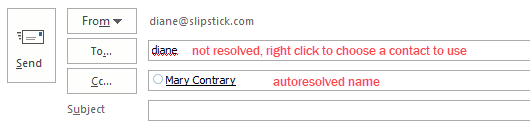
All versions of Outlook support automatic name checking, also known as Autoresolve. This feature allows you to type a name, or even just the first few letters, and the name resolves a few seconds after you tab out of the field. When one match is found, the name has a solid underline. When more than one possible match exist you’ll see a red wavy underline. Right click on it to choose an address. When more than one match exists for a name you’ve used before, Outlook resolves to the last name used and uses a green dotted line to alert you that other possibilities exist. Right click to see the other addresses.
Autocomplete is the feature that shows addresses of people you’ve sent messages to previously and you can select matches as you begin typing. Autocomplete collects the addresses when you send new messages or reply. You can clear the autocomplete cache by clearing the autocomplete cache or delete one address at a time as you type and then Delete.
How to use Automatic name checking:
- Start a new message.
- Type the text you want to use for the nickname into the To box.
- Fill in the subject and start typing a message.
- When you see the name in the To box underlined with a red squiggle, right-click on the name. You'll see a choice of matching names from your address book. Choose the one you want to use. If the contact you want is not listed, press Ctrl+K to bring up the Check names dialog then click More Names to browse for the correct contact.
The next time you want to send a message to that person, just type in the text from Step 2 again. Outlook will automatically get the address for you and will underline the full name in a dashed green line to highlight that auto-resolution did its job.
There is one limitation that "gets" many users: when you use auto-resolution, Outlook searches the address books in order and when it finds a match in one address book, it stops looking in the other address books.
Autoresolution or Automatic name checking
All versions of Outlook support Autoresolve. Also known as automatic name checking, this feature allows you to type a name, or even just the first few letters, and the name resolves a few seconds after you tab out of the field. When one match is found, the name has a solid underline. When more than one possible match exist you'll see a red wavy underline. Right click on it to choose an address. When more than one match exists for a name you've used before, Outlook resolves to the last name used and uses a green dotted line to alert you that other possibilities exist. Right click to see the other addresses. When Name checking is disabled in Tools, Options, Email Options, Advanced Options it won't do it as you type the names in but it will check and resolve them when you hit Send. You can force an autoresolve at anytime using Ctrl+K.
Here's some additional information on how multiple address lists, including the GAL, affect the resolution process.
What fields does Outlook use to look up names for address resolution? It depends on the address list. For the Exchange Global Address List (GAL), it searches several fields -- display name, surname, mailbox alias and office (but, significantly, not first name).
For Contacts and Personal Address Book, the search fields include name and email address fields, but *not* the Nickname field on contacts.
Name resolution searches only one address list at a time. Use the Address book's Tools, Options dialog to control the order in which lists are searched in Outlook. Let's say you have the GAL set as the first list, followed by more than one Contacts folder. If there are matches in the GAL, you won't see any addresses from Contacts. If there is no match in the GAL, then it searches the first Contacts folder in the list. If no matches in that contacts folder, then it searches the next Contacts folder. If you think about performance, this makes a lot of sense. Searching across all address lists in your name resolution list could take a very long time.
For example, entering "William" and pressing Ctrl+K might display a list that includes William Gates, Bart Williamson, and Jane Williams. If there are no matches in the GAL for William, then you might also get names from the PAB with addresses like williamg@domain.dom. The search is always a "starts with" search, looking only at the beginning of the fields. It would not find a name like Alice Fitz-Williams because "Williams" here is not at the beginning of the surname.
Disable Automatic name checking and/or AutoComplete
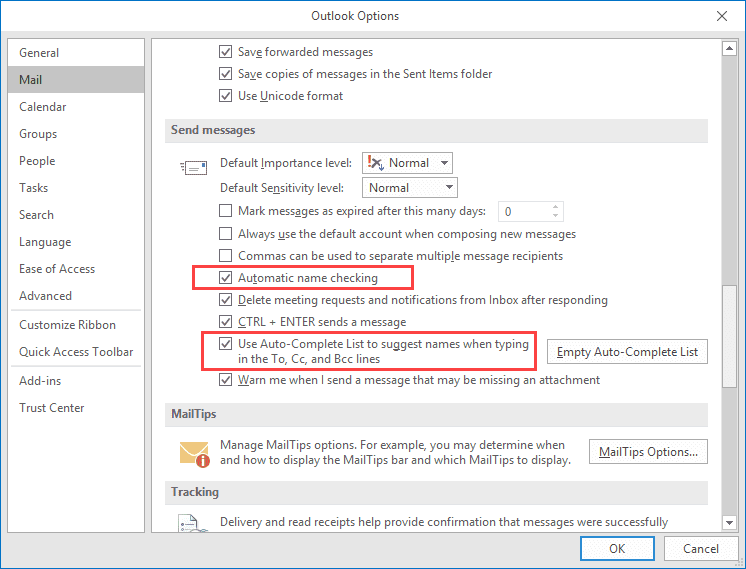
To change the Autocomplete or Automatic name checking settings in Outlook 2010 and newer, go to File, Options, Email and scroll to near the end.
If Automatic name checking is disabled, Outlook will still resolve the names when you send the message, but not immediately. You can force Outlook to resolve the names by pressing Alt+K on your keyboard.
In Outlook 2007 and older, you can disable autoresolution in Tools, Options, E-mail Options, Advanced E-mail Options, Automatic name checking. When this is turned off, Outlook will still resolve the names, but not immediately. You can press Alt+K to force auto-resolution at any time before sending the message; otherwise Outlook will always resolve the address when you send the message. If a match isn’t found, you’ll be asked to pick names using the Check Names dialog.
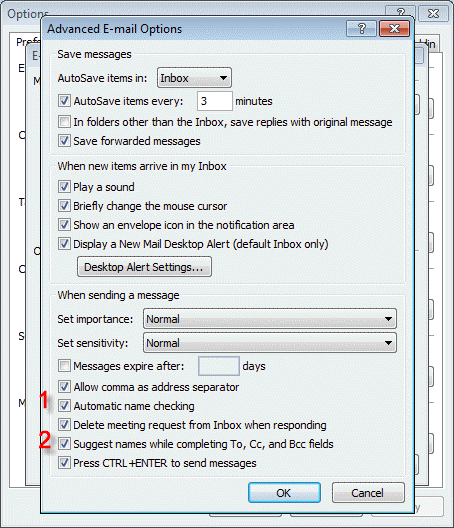
To disable Auto-complete in Outlook 2007 and older, go to Tools, Options, Preferences, E-mail Options, Advanced and deselect ‘Suggest names while completing to To, CC, BCC fields’
The following tools can be used to view the contents of the auto-complete cache.
Tools
Open source project to read MS Outlook autocomplete (NK2) files and extract email addresses. Beta version 0.5 | |
Use NK2Edit to edit or delete information stored in the NK2 file or Outlook 2010/2013's Autocomplete Stream, including the display name, the email address, the exchange string, the Drop-Down display name, and the search string. Free for home use; Commercial license available. | |
Use NK2View to view, edit or delete entries in Outlook's .NK2 AutoComplete file. Export the records to text, html, or xml files. Freeware. Version 1.37 |
More Information
Enabling the Contacts folder as an Outlook Address Book
Tip 132: Suggest names doesn't work? (Outlook-tips.net)
Tip 99: Autoresolve and Autocomplete (Outlook-tips.net)






























Using outlook 19 mail. the auto complete when adding address in to the To: field, displays with a initial symbol and address
This makes the list bigger and I need to scroll. Can I change it where there is no initial symbol so I can see more of the list?
There is a bug in the current build - April 29, 2021 Version 2104 (Build 13929.20296) - the issue may be related to that. And there is no way to fix it right now - the "good autocomplete list" - a small, single file list that is enabled using a registry key won't help due to the bug.
Will we receive a fix soon for the autocomplete situation?
I don't know. They just opened the bug report this morning so it's a bit early to guess at how soon it will be fixed.
My article on the bug is here-
https://www.slipstick.com/outlook/autocomplete-opens-upward-outlook/
I am not computer savvy so likely will need to wait for a fix with a new download. Thank you!
Diane, thank you for the explanation. You're the only I found who has done so. But, I'm with Roy. Will need to wait for the fix to return to the old autofill format. Hopefully soon.
When I want to send a message to someone I enter the name into the address field. Imediately the full name comes up (if I used that address before). But clicking on it doesn't enter the name, it simply vanishes and I'm stuck with the first letter(s) that I entered. Any idea what would cause this problem?
Hi,
I have moved away from Outlook based email onto gmail.
However, I have to return to Outlook to search for older email addresses using Autocomplete, then copy to gmail. I cannot access these email addresses by searching contacts.
Is there a way to access all my previous email addresses to import them into gmail or save in a database?
Get the utility NK2Edit and export the autocomplete list to a CSV - gmail should be able to import it.
Thanks and useful information.
Have query.
I am using O365 Pro Plus. Is it possible to disable the auto-complete feature in Outlook for external email addresses/domains only
Regards
Venkat
No, it's all or nothing.
How we can stop auto-complete feature in O365 web version outlook? Kindly suggest. Thanks
Some addresses in the autocomplete cache are not in users' contacts. This related to at least Outlook 2013. It was necessary to restore a backup or rename the current cache file with the name of active cache file.
auto complete is a list of all addresses you sent mail to, not just people in you contacts.
hi
this is sambasiva Rao .
i am using office home and business 2016.
Problem is while selecting any mail id from my address book it was not showing in my TO address.
while adding manually it was working fine ,any solution
pls
You'd select a name in the Address book and add it to the address field in the dialog but it wasn't added to the To field? That is a known bug - it might be fixed already, if not, it will be soon.
Diane, very helpful info! I am having an MRU list problem (most recently used) that started with the most recent Office update. A more-than-15-year-old feature is now gone! I'm using Outlook 2016 under Windows 7 (have Win10 on laptop, like Win7 better for now). For years I have used the Display Name with an embedded email address in the email recipient fields, because I use the format of "Name (Company Name)". It makes a multiple-recipient list very readable. When I reply or forward email for informational purposes, The Display Name is presented followed by the email address. This lets me delete the email address for cases where the original recipient would not want the address forwarded. Sometimes people write to me from a personal or alternate email address, and would not want that forwarded to others. The most recently used list (MRU) no longer is built from the display name, but is a two-line drop-down list item containing the Name and Email Address fields. When I select from the list, I don't get the Display Name. I get the Name only with embedded email address. To get the Display Name, I have to type part of the Display Name and… Read more »
Diane,
This is great information! One question - I have an Access database which holds customer contact information.
I have some VBA code that allows the user from click on a button, opening an Outlook e-mail template, and then populate the TO with an e-mail address from Access.
However, when the user does this, they (occasionally) receive the error message in Outlook: "Could not complete the operation. One or more parameter values are not valid".
We tried to resolve by clearing their auto-complete cache, but that did not fix the problem. This only happens when the e-mail is being sent with an address pulled from MS Access - but again, not consistently...do you have any thoughts?
Thank you very much!
are you getting any other values from the database? Is outlook always open before you use the macro?