By default, Microsoft Outlook always replies to and forwards mail using the account the message arrived on. Most of the time, this is how most of us want Outlook to handle our accounts. But there are times when you might want to send the reply from a different account.
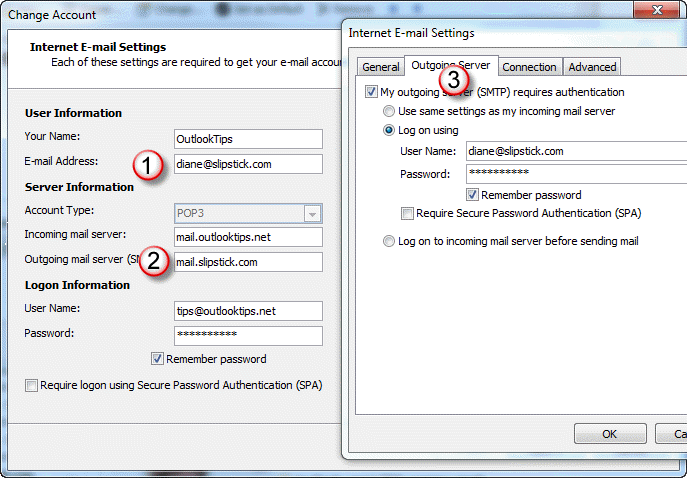
If you always want to send all mail out using a specific email account (such as if you are changing addresses and the old address is inbound mail only), you can configure this in Account Settings by putting the sending email address in the Email address field (1), changing the outgoing server name (2) and configuring authentication for the outgoing server in More Settings, Outgoing Server tab (3). (The login username and password on the first page of the dialog is used to download mail.)
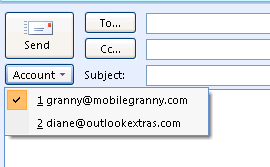
If you just want to choose a different address every now and again, for example, to forward a joke sent to your work account to friends using your personal account. To do this, you need to select the account in Outlook before sending, using the Account or From button.
If you need to frequently send mail from a different account, you can use a macro (below) to set the sending account, then assign the macro to a toolbar or ribbon button.
Macro to Reply, ReplyAll or Forward from a specific account
Outlook should always reply and forward from the account that downloaded the message. However, if you want to force replies or forwards from a specific account, you can use this code and create a custom reply button that uses your desired account, so you don't have to remember to change the sending account.
Replace the_email_account_name with the account name, as seen in the Account Settings dialog or on the Account selector.
To reply to all or forward, change
Set oMail = Application.ActiveExplorer.Selection(1).Reply
to either one of these:
Set oMail = Application.ActiveExplorer.Selection(1).ReplyAll
Set oMail = Application.ActiveExplorer.Selection(1).Forward
Always reply using a specific account
Public Sub New_Reply()
Dim oAccount As Outlook.Account
Dim oMail As Outlook.MailItem

For Each oAccount In Application.Session.Accounts

If oAccount = "the_email_account_name" Then
    Set oMail = Application.ActiveExplorer.Selection(1).Reply
      oMail.SendUsingAccount = oAccount
    oMail.Display
End If
Next

End Sub
To use a reply address you have SendAs rights to, you can use the .SentOnBehalfOfName property. Add it between the .SendUsingAccount and .Display lines (lines 9 and 10 in the sample above), as shown below. Don't forget to change the account name!
oMail.SendUsingAccount = oAccount
oMail.SentOnBehalfOfName = "me@here.com"
oMail.Display
To always send it to a specific address, add the recipient after the account is set:
oMail.SendUsingAccount = oAccount
oMail.Recipients.Add ("alias@domain.com")
More Information
How to use Outlook's VBA Editor
Customizing the Quick Access Toolbar (QAT)
How to Enable the Developer Ribbon
See Outlook 2010, Multiple Accounts and the Default Account for two macros you can use to force Outlook to use a specific account for new messages.






























Hi Diane,
I like the concept but I would like to send out emails where the From address is something like no-reply@abc.com
I think that ".SentOnBehalfOfName" should be able to do that but can't get it to work.
Branko.
First, Thanks Diane for all of your public works. Very helpful.
The 'Always reply using a specific account' macro stops working 100% in Office 365. It won't change the 'From' account on outlook.com accounts, and maybe others. I've had success with the following one line change.
oMail.SendUsingAccount = oAccountbecomes
oMail.Sender = oAccount.CurrentUser.AddressEntryFull macro below.
Hope this helps someone,
Tim.
Public Sub New_Reply()
Dim oAccount As Outlook.Account
Dim oMail As Outlook.MailItem
For Each oAccount In Application.Session.Accounts
If oAccount = "the_email_account_name" Then
Set oMail = Application.ActiveExplorer.Selection(1).Reply
oMail.Sender = oAccount.CurrentUser.AddressEntry
oMail.Display
End If
Next
End Sub
When I use the above macro, the recipient only sees my email address in the 'from' field (), and not my display name. When I manually select the address to send from, the recipient sees my display name and email address in the 'from' field (Firstname Lastname ). It's just a small annoyance, but maybe there is an easy way to fix this?
.SendUsingAccountdoesn't work with one of my outlook.com accounts. It does return the correct address after setting it while the from field still shows the address of the outlook.com account. With other accounts it works perfectly. Is this a known bug? Do I really have to switch to a new account?Could it be this bug? https://www.slipstick.com/outlook/outlookcom/outlook-com-reply-account/
Yesterday I let a post indicating the 1st sentence was wrong with Outlook 2016 "By default, Microsoft Outlook always replies to and forwards mail using the account the message arrived on". The account hosting the calendar and contacts is always used for replies and transfers with Outlook 2016 !
It is confirmed : I only uninstalled Office 2016 and installed Office 2013 keeping all the same accounts, and the problem is now solved !
Don't use Office 2016, and maybe even think twice before using Office.
the first assumption in this text is wrong with Outlook 2016 "By default, Microsoft Outlook always replies to and forwards mail using the account the message arrived on".
Now Outlook 2016 always replies and forward using the mail account that owns the default data file (calendar, contacts), whatever the used email account is used or which default email account is defined. The default email account can be considered for new mails (if the correct settings are done in Outlook 2016), but I can't find no way to force Outlook 2016 to use the account the message arrived on !
Somebody has a trick for such reply other than to return back to Office 2013 ?
it shouldn't do that for replies and forwards - it might for new messages and meeting requests tho, depending on how your profile is configured.
I'm finding exactly the same as Phi061 in Outlook 2016. I have an IMAP [Fastmail] account which is set as my default account and which handles all of my email. I have a (recently migrated) Outlook.com account which I use for calendar and contacts, (and it also has email too, although I don't use this). New emails are defaulted to be sent from my IMAP Fastmail account, but replies or forwards always come from "outlook_xxxxxxxxxxxxxxx@outlook.com" unless I change the 'from' address on a individual case-by-case basis. (where xxxxx is a string of 16 'random' characters.
It's a bug. :( On the goofy address part, log into outlook.com and go to options then Mail > Connected Accounts. At the bottom of the page is your default address. Change it to an outlook.com address or add your fastmail address as a connected account then set it as the default. (You'll need to guess then test it to see which is the correct entry as both the alias and connected account will be listed.)
Diane it's great, (but frustrating), to hear that this is acknowledged as a bug. A couple of quick questions; 1. is there any where to track this bug so that I know to try full exchange sync again after update x to office for example? 2. It is mind-numbingly frustrating to think that I spent over an hour on an MS support call with MS remoteing into my PC trying to fix the issue, (basically re-trying everything I'd already tried). Don't the helpdesk folks have access to bug lists too? Grrrrr
Diane,
Do you know if MSFT are working on this bug / acknowledged it? I am hitting exactly the same issue. New mails are set to be sent by my default IMAP account, but replies/forwards are set to be sent from my outlook.com (Hotmail) account (even when they arrived on the default IMAP account).
Thanks,
Danny
They are working on it, not sure of an ETA though.
You say it shouldn't but my started doing that. It does not matter which email account I am using my replies are always from my default hotmail account. The reply includes the line on behalf of behalf of; alan.cox@hotmail.com. Technically it is sending from the correct account server but why is this line included unless I manually indicate to use my gmail account which I use for personal only.
There is a bug in Outlook.com accounts - it happens when you have either a non-ms alias on the account or a new premium custom domain. I believe it's related to the feature that lists the aliases in the From field selector, but Microsoft hasn't ID'd the cause yet.
This script successfully opens an email thread with a "Reply All" message and changes the "From" field to my desired (y@testing.com) account address. However, once I send out the reply, the address switches back to my unwanted account address (x@testing.com) so that the recipient sees the sender as X instead of Y. Any ideas?
It should be noted that if I click on the already selected Y address that visually shows up in the message's "From" field, then the email sends with the Y address. But the whole point of implementing the script is so that I don't need to click on the field in order to change addresses every time I send an email.
Thanks for your help,
What type of email account do you use? What address is in the from field in the sent folder? If you type the address in the From field, does it use the address you typed?
It's a Microsoft Exchange account managed by the company I work for. I have three different inboxes all with separate addresses. But I never need to send/reply/forward mail from any address except my personal which is the default account.
Sent folder shows the message being sent from my unwanted X address, and interestingly shows up in both the X mailbox's sent folder and in my personal Y mailbox's sent folder, even though both show the sender as X.
Yes, if I type the address it uses the address I've typed.
This is my code:
Public Sub New_Reply()
Dim oAccount As Outlook.Account
Dim oMail As Outlook.MailItem
For Each oAccount In Application.Session.Accounts
If oAccount = "X@testing.com" Then
Set oMail = Application.ActiveExplorer.Selection(1).ReplyAll
oMail.SendUsingAccount = oAccount
oMail.SentOnBehalfOfName = "Y@testing.com"
oMail.Display
End If
Next
End Sub
Is the account open as a shared mailbox or as a separate email account in your profile? This part looks for an account in the profile: If oAccount = "X@testing.com" Then. If you want to change it top Y, try this:
If oAccount = "X@testing.com" Then
Set oMail = Application.ActiveExplorer.Selection(1).ReplyAll
oMail.SendUsingAccount = "Y@testing.com"
oMail.Display
if it error on the sendusingaccount line, make this change:
Dim myAccount As Outlook.Account
Set myAccount = "Y@testing.com"
then use
oMail.SendUsingAccount = myAccount
Hi Diane,
Yes, "X.@testing.com" is a shared mailbox, while "Y@testing" is my private.
Unfortunately neither change worked. I received a mismatch error for
oMail.SendUsingAccount = "Y@testing.com"
And when I created the variable myAccount nothing happens after running the script.
You need to use this is the mailbox is not a separate account in your profile
.SentOnBehalfOfName = "alias@domain.com"
it need to be added before the message displays - once the message displays, vba can't change the account.
Hi Diane,
The X inbox is a shared inbox, while the Y is my personal.
Unfortunately, this did not work. Any other ideas?
is the mailbox configured as an email account in your profile? if it's added as a shared mailbox, you can't use accounts to send as it. You would need to use the sentonbehalfof method.
Hi Diane,
Could you write an article on how to use .SentOnBehalfOf when a user clicks "Reply". I'm having a really tough time figuring out how to do it in the "Outlook Session" part of the Visual Basic Editor.
Thanks,
Mark
Hi Diane,
Thanks for writing this article. I'm quite new to VBA, and I'm trying to figure out why the solution is not working for me. I've copied it directly into a fresh module and only changed only the the_email_account_name to read "george@company.com" -- (not this exact email, but an actual account that Outlook is connected to via Exchange). I also changed the macro security settings in Trust Center. Would this code work on Outlook '16 64-bit? If not, do you know what needs to be updated?
Thanks again!
Yes, it should work in the 64-bit version. Do you get any error messages when you use it?