When you send attachments from Windows Explorer and use the Send to > Mail Recipient command, the message does not use your default stationery, signature, etc. If using Outlook 2010 pre-SP1, the email account may not be the default account set in Account Settings.
It’s possible to create a custom Send to shortcut that uses your default stationery and signature, with your desired email account selected.
Background: Modern versions of Windows have a feature called "Send to" which allows you to right click on a file in Windows Explorer and send it to one of several locations or applications, including "Mail Recipient". This feature does not require Outlook; it will work with any email client that is set as the default client in Internet Options.
When you use Send to... Mail Recipient, the message subject will be filled in with
Emailing: attachment_filename" and the message body will include a warning:
Your message is ready to be sent with the following file or link attachments:
attachment_filename
Note: To protect against computer viruses, e-mail programs may prevent sending or receiving certain types of file attachments. Check your e-mail security settings to determine how attachments are handled.
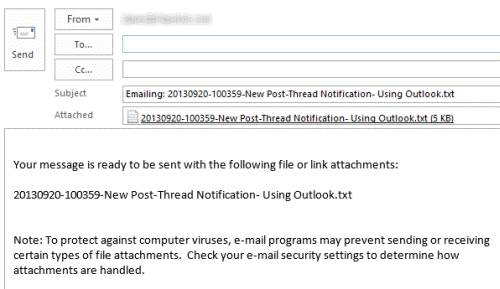
This text is added by the sendmail.dll file included in Windows and cannot be disabled. Select All (Ctrl+A) and begin typing to quickly remove the text in the message body.
Because of the method used to access Outlook, the Send to command will always use the Outlook editor, not Word (Outlook 2003 and older, if Word is set as your email editor) and a signature will not be added to the message body. If you use a default stationery, it will not be used.
You can use this method to create shortcuts that use custom forms, including pre-addressed forms.
However, you can make your own send to shortcut and it will honor your new message settings, including adding your default signature, using your stationery, and using the editor of your choice.
You cannot select multiple files to attach to a message using the Shortcut method. Use Joseph's Script Method if you want to select multiple attachments. Otherwise, you will need to add one file using the shortcut, then drag others to the open message form. If you use a shortcut you create to send images, you will not get the Image Resizer dialog that comes up with the Mail Recipient command.
If your send to menu is not working, see Send to Mail Recipient not working
Shortcut Method | Registry Method | Joseph's Script Method | More Information
Shortcut Method
To create your own shortcut, find the SendTo folder.
In Windows 7/8/10 and Vista, look for it at C:\Users\%username%\AppData\Roaming\Microsoft\Windows\SendTo. Use the following command to jump to the folder.
%appdata%\microsoft\windows\sendto
To jump to the folder, copy the correct command for your version of Windows and paste it into the address bar of Windows Explorer or in the Run command (open it using Windows key + R).
- Right click and choose New > Shortcut.
- Browse to find Outlook.exe, and add /c IPM.note to it.
Use the /a and /m address switches to add an attachment and address to the message.
With Outlook 2013 click-to-run, the command to add the selected file as an attachment and address the message will look like the following if you use 64-bit Office. The path is under C:\Program Files (x86)\ if you use 32-bit Office. Using the /c IPM.Note switch is optional and only necessary if you want to use a different message form.
"C:\Program Files\Microsoft Office 15\root\office15\outlook.exe" /c ipm.note /m email@address /a
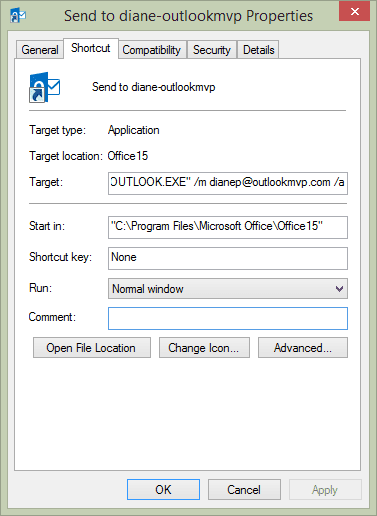
The /m switch is optional. Leave it and the address off to address the message yourself.
Outlook 2016, 2019, 365:
"C:\Program Files\Microsoft Office\root\Office16\outlook.exe" /c ipm.note /a /m email@address.com
Outlook 2013
"C:\Program Files\Microsoft Office\root\Office15\outlook.exe" /c ipm.note /a /m email@address.com
Outlook 2010
"C:\Program Files\Microsoft Office\OFFICE14\OUTLOOK.EXE" /c ipm.note /a /m email@address.com
Outlook 2007
"C:\Program Files\Microsoft Office\OFFICE12\OUTLOOK.EXE" /c ipm.note /a
Using Outlook 2003, the command line looks like:
"C:\Program Files\Microsoft Office\OFFICE11\OUTLOOK.EXE" /c ipm.note
Older versions of Outlook use the same command line as Outlook 2003 but with the correct path to Outlook.exe.
If you often send messages to the same people, you can use preaddressed custom forms or use the /m switch (/m test@slipstick.com or /m alias) in a shortcut's command line. Or you can create a custom form to use instead of the default form, just replace IPM.note with the name of your custom form.
The command line to address the message is as follows. Note: the /m switch doesn't work in combination with many other switches with all versions. If it's not working with your version of Outlook, you can use preaddressed published forms.
"C:\Program Files\Microsoft Office\OFFICE11\OUTLOOK.EXE" /c ipm.note /m dianep
Create a custom Send to shortcut tutorial
Follow these steps to create a Send to shortcut to a custom form.
- Open a new message form.
- Select the account you want to use and delete the signature.
- If you always want to use the same subject, enter it.
- Publish the form to the default publishing location. (See Show developer ribbon if using Outlook 2007, 2010, 2013.)
Next:
- Go to the Send to folder. (C:\Users\%username%\AppData\Roaming\Microsoft\Windows\SendTo or %appdata%\microsoft\windows\sendto in Windows 78/10 and Vista)
- Right click and choose New, Shortcut.
- Browse to and select Outlook.exe (C:\Program Files\Microsoft Office\Office??\OUTLOOK.EXE)
- Type /c ipm.note.form_name /a following outlook.exe. The location field will resemble this line:
"C:\Program Files\Microsoft Office\Office14\OUTLOOK.EXE" /c ipm.note.granny /a
Click Next, enter a friendly name for the shortcut and finish.
Now when you right click on a file in Windows Explorer and choose your new shortcut from the send to menu, the new message will use the desired account, your default stationery and signature.
Notes:
- If you delete the account from Outlook or change its name, the shortcut will revert to using the default account.
- In older versions of Outlook, publish forms from the Tools, Forms menu.
- In Windows XP, the Sendto folder is at C:\Documents and Settings\username\SendTo
Registry Method
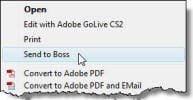 Instead of creating a shortcut in the Send to folder, you can edit the registry to add a command to the right-click context menu, just under the Open, Print, and Edit commands.
Note that when you use this method and select multiple items, you'll create one message for each attachment. You can't use this method to add multiple attachments to one messages. If you need to add multiple attachments, use the shortcut to open a new message form with one attachment then drag the other attachments to the open message.
To use this method, create the registry key
HKEY_LOCAL_MACHINE\SOFTWARE\Classes\*\shell\Send to Boss\Command
The default value will be the path to your Outlook.exe and the switches. As with the shortcut method, the address switch (/m) will not work with Outlook 2007/2010.
"C:\Program Files\Microsoft Office\Office11\OUTLOOK.EXE" /c ipm.note / m you@example.com "%1"
Download a .reg file here. Edit the path to reflect your version of Outlook and edit the display name as necessary then change the extension from txt to reg and double click to run.
Do it for me
Following are registry files that will create a basic Send to shortcut for Outlook 2010, 2007, and 2003.
Outlook 2016, 2019 - 64-bit or 32-bit on 32-bit Windows
Outlook 2013 - 64-bit or 32-bit on 32-bit Windows
Outlook 2010 - 64-bit or 32-bit on 32-bit Windows
Outlook 2007 on 32-bit Windows
Outlook 2003 on 32-bit Windows
Send to Mail Recipient not working
If you are missing the Mail Recipient shortcut in the Send to folder, go to the Send to folder then create a text file in the folder. Rename the file MailRecipient.MAPIMail (do not use .txt extension).
Copy the command and paste it as the text file name.
MailRecipient.MAPIMail
These are the steps if using Windows 8/10:
- Type shell:sendto in the File Explorer address bar to open the Send to folder.
- On the View tab, tick File Name Extensions to show extensions.
- Right-click and choose New > Text Document
- Paste MailRecipient.MAPIMail in as the file name & delete .txt
If that fails, rename Msmapi32.dll located under your Program files in Common Files\System\MSMAPI\1033 and run fixmapi.exe.
Joseph's Script Method
Joseph's method uses a windows script and allows you to select multiple files and attach them to a new message, preserving your signature and stationery settings.
To use, open Notepad then copy this code and paste it in to notepad. Save it as SendToMailRecipient.vbs. You can either save it in the SendTo folder or save it elsewhere and create a shortcut to it to place in the SendTo folder.
Adobe Acrobat addins may remove your signature when you use this script. Disable Adobe Send and Track to fix.
Option Explicit
Dim objArgs, OutApp, oNameSpace, oInbox, oEmailItem, olMailItem
Dim a, oAttachments, subjectStr, olFormatHTML
olMailItem = 0
olFormatHTML = 2
Set objArgs = WScript.Arguments 'gets paths of selected files
Set OutApp = CreateObject("Outlook.Application") 'opens Outlook
Set oEmailItem = OutApp.CreateItem(olMailItem) 'opens new email
For a = 0 to objArgs.Count - 1
Set oAttachments = oEmailItem.Attachments.Add(objArgs(a))
subjectStr = subjectStr & Right(objArgs(a),Len(objArgs(a))-(InStrRev(objArgs(a),"\"))) & ", " 'recreates the default Subject e.g. Emailing: file1.doc, file2.xls
Next
If subjectStr = "" then subjectStr = "No Subject "
oEmailItem.Subject = "Emailing: " & Left(subjectStr, (Len(subjectStr)-2))
oEmailItem.BodyFormat = olFormatHTML
oEmailItem.Display
Joseph's Script with a Signature
This version of Joseph's script adds a custom subject line with yesterday's date and a signature.
Option Explicit
Dim objArgs, OutApp, oNameSpace, oInbox, oEmailItem, olMailItem
Dim a, oAttachments, subjectStr, olFormatHTML
Dim objFSO,strSigFilePath, objSignatureFile, strBuffer
olMailItem = 0
olFormatHTML = 2

Set objArgs = WScript.Arguments 'gets paths of selected files
Set OutApp = CreateObject("Outlook.Application") 'opens Outlook
Set oEmailItem = OutApp.CreateItem(olMailItem) 'opens new email
For a = 0 to objArgs.Count - 1
Set oAttachments = oEmailItem.Attachments.Add(objArgs(a))
subjectStr = subjectStr & Right(objArgs(a),Len(objArgs(a))-(InStrRev(objArgs(a),"\"))) & ", "
Next

Set objFSO = CreateObject("Scripting.FileSystemObject")
strSigFilePath = "C:\Users\windowsuser\AppData\Roaming\Microsoft\Signatures\"
Set objSignatureFile = objFSO.OpenTextFile(strSigFilePath & "Diane Poremsky.htm")
strBuffer = objSignatureFile.ReadAll
objSignatureFile.Close

oEmailItem.Subject = "Custom subject with yesterday's date " & date -1
oEmailItem.BodyFormat = olFormatHTML
oEmailItem.HTMLBody = "My custom body text about this attached file: " & Left(subjectStr, len(subjectStr)-2) &  ". " &  strBuffer

oEmailItem.Display
A user wanted to createCreate one message per selected file. Do this by moving the lines that count the files and create the message around.
Create one message per selected file
One message per file and ask for an address This sends all messages to one address. If they are going to different people, using Outlook's autocomplete list or address book will be easier.
More Information
Send to... Using Your Stationery (Outlook-tips.net)
Send To Revisited (specific to Outlook 2007 and Vista; Outlook-tips.net)

Stephen2060 says
this solution is brilliant
Sarunas says
Hello,
Problem with script is if folder path have spaces, script fails to attach with error "File name or directory name is not valid.". Is there any solution to solve this? Thank you.
Sarunas says
Joseph's Script doesn't work with OneDrive backup of folders (Desktop, Pictures, Documents). Is there any possible fix to this issue?
Christos says
Hi to everyone and Merry Christmas,
Is it possible with the shortcut method to make the subject have the name of the file?.
Thnx in advance
daniel says
is it possible to add a parameter that will change the email that i'm sending FROM? (have 2 email address on outlook)
Diane Poremsky says
No, not using a switch.
Antony Upward says
Hi Diane,
Thank-you for all your work here. Much appreciated over the years.
I want to be able to create a new blank email from Explorer. Logically this should be done by Explorer -> Right Click on Empty Part of Desktop -> New -> Outlook Email Message
But of course this entry is missing from the New sub-menu.
(Here is someone else asking the same question)
I know I can open Outlook with a new message using "outlook /c ipm.note". Is there any way to trigger this command (or equivalent) from either the "Send To" or "New" Explorer context sub-menus?
tim rice says
hi, i cant seem to get this to work using a g mail address within outlook, any other exchange account works fine. any suggestions?
tim rice says
hello. previously i used your method and i was sucessfull in selecting the outbound message account (all exchange accounts). i have recently added a g mail account to my outlook profile but seems the send from account reverts to the default account for my profile when using the short cut. the form was created in outlook and saved as an .ipm.note. and makes the short cut. it works except it doesnt use the "from" address i specified to make the send to short cut. if i click it the link inside the form menu, it uses the address i specified. is there another switch to indicate the send from address that i need to add to the short cut?
tim
Croft says
Hi,
I have tried to add this but I dont have an outlook.exe anywhere on my c: drive. I am running windows 10 and outlook 2016.
I would just like to have the shortcut for send to mail recipient directly under 'open' & 'edit' on the right click menu, as per 'Registry Method' above.
Any help would be much appreciated
Cheers
Sven says
WOW! what you can find in the depths of the internet! Thank you! i have no idea about programming, but with the help of the information here i found a way to use "Joseph's Script Method" to create a mail to a specific recipient with the Sendto function from the Explorer. Now a question: Is it possible to attach several files (marked in the explorer) to different mails to the same recipient by inserting another line in the Script Method?
Diane Poremsky says
You can open multiple new messages, one for each attachment by moving the for a = 0 line above the set emailitem line and moving next to the end.
Diane Poremsky says
BTW, if you want to type in the address so the messages are ready to be sent, you can add two lines - this near the top, before the For a = line
strAddress = InputBox( "Enter to address to send to:" )
and this before you display the email
oEmailItem.To = strAddress
(and add strAddress to the second Dim line.)
And yes, you could send it automatically too - change display to send, but if you do this, you need to make sure you don't mistype the address. :)
Sven says
Oh, thanks for the quick answer! I'll try that. I'll let you know if it worked.
Sven says
mmh. something I didn't understand or can't get right. No wonder, i have only a very vague idea what i am doing. i have shifted back and forth. but not the desired result. either error messages or one mail per attachment or one mail with 2 or 3 attachments (depending on how many i marked).
where exactly must the "for a = 0" line go? - to the end and then: "Next"?
and the whole "For a = 0 to objArgs.Count - 1" line?
and: send automatically would be fine, but only in the next step. first i would like to get this first thing right. thank you for your patience!
Diane Poremsky says
I added a text file with the updated code in it - use that. There are two - one that opens a new message for each selected file and one that addresses each message to one person.
Sven says
ah, thank you, Diane! i used this, changed it a bit ("emailing" in the subject-line out, this "inbox"-line too) and actually it works: e.g. three marked files in explorer and 3 mails with attachments are opened. just one thing: in the first mail - quite normal - the file name is shown in the subject line. but in the second mail, the file name of the first and second attachment, in the subject line of the third mail all 3 file names are shown (although only the -correct- 3rd file is attached).
is there still a little mistake somewhere?
Diane Poremsky says
you need to clear the variable after each message is created.
either right after the for line or before next...
For a = 0 to objArgs.Count - 1
subjectStr = "" <== here[snip] oEmailItem.DisplaysubjectStr = "" <== or here (but not both) Next
rsbrux says
I use Outlook 2016 (Office 365) under Windows 8.Pro x64. My Send to Mail Recipient used to work as expected, but since the October updates,
The file MailRecipient.MAPIMail already exists in shell:sendto. It is a text file containing the single word "Mail" (without the quotes).
I have tried the following:
I found two identical copies of MSMAPI32,DLL, one in c:\Program Files (x86)\Microsoft Office\root\VFS\ProgramFilesCommonX86\SYSTEM\MSMAPI\1031\ and one in c:\Program Files (x86)\Microsoft Office\root\VFS\ProgramFilesCommonX86\SYSTEM\MSMAPI\1033\, but I found two *different* versions of fixmapi.exe, one in c:\Windows\System32\ and one in c:\Windows\SysWOW64\. Which one should I use to recreate MSMAPI32.DLL?
I would prefer not to use a VBS script. Is there anything else I can do, short of waiting for MS to issue another update which fixes the problem?
Diane Poremsky says
i'll see if i can repro your problems - but you first steps would be to delete the shortcut and recreate it. (I can't repro it in a quickie test, but will try on it on different computers.)
https://www.slipstick.com/outlook/create-a-custom-send-to-shortcut/#sendto
rsbrux says
Thanks for your prompt response! I have meanwhile tried deleting and recreating the Mail Recipient shortcut, as described under "Send to Mail Recipient not working" above. From your text above it sounds as though the file should have no content, however, I have read elsewhere that it should contain the text "Mail" (without quotes). I have tried both versions without success. I also tried deleting both copies of MSMAPI32.DLL which I mentioned above and then running both copies of fixmapi.exe which I found (one in System32 and one in SysWOW64) from a privileged command window. Neither of these showed any effect (not even any standard output). In particular, they did not recreate MSMAPI32.DLL. I restored both copies from the recycle bin to stop Send To Mail Recipient from throwing an error. Now it is back to its previous behaviour. Thanks for your support!
Diane Poremsky says
the default sendto shortcut will have mail in it, but if you need to recreate it, you only need to change the file name - it will work (for most people anyway :))
did you run fixmapi?
rsbrux says
" I also tried deleting both copies of MSMAPI32.DLL which I mentioned above and then running both copies of fixmapi.exe which I found (one in System32 and one in SysWOW64) from a privileged command window. Neither of these showed any effect (not even any standard output). In particular, they did not recreate MSMAPI32.DLL. I restored both copies from the recycle bin to stop Send To Mail Recipient from throwing an error. Now it is back to its previous behaviour." meaning that I get no response from "send to Mail Recipient" if Outlook is already running. If Outlook isn't already running, it starts and displays the profile selection menu. Once I select a profile, nothing further happens (i.e. no Outlook GUI appears and no Outlook process is listed in Task Manager).
I also created a "Command" key in the registry under HKLM\Software\Classes\shell\Outlook2016 (see attachment) containing the command "C:\Program Files\Microsoft Office\Office16\OUTLOOK.EXE" /c IPM.Note /a "%1" However, clicking the resulting context menu entry "Outlook 2016" only displays the dialog "How do you want to open this file?", regardless of whether Outlook is already running.
Thanks for your support!
Diane Poremsky says
Which office installation type do you have? Is the path to outlook correct in your key?
The key i need is:
[HKEY_LOCAL_MACHINE\SOFTWARE\Classes\*\shell\Outlook 2016\Command]
@="\"C:\\Program Files\\Microsoft Office\\root\\Office16\\OUTLOOK.EXE\" /c IPM.Note /a \"%1\""
rsbrux says
I have an Office 365 subscription from a school. The path of the registry key was correct, but the value was missing a few extra backslashes and quotation marks compared to what you give above. Replacing the value with the one you suggest above results in the message, "Windows cannot access the specified device, path or file. You may not have the appropriate privileges to access the item" when I click on "Outlook 2016" in the Explorer context menu. However, the regular SendTo link in the context menu is now working again, so I have deleted the new key. I guess a more recent MS patch has fixed the problem; the only question is, for how long? ;-)
Sergio says
Hello,
Thank you for the article.
I created my own "Send to" shortcut and my custom form. It works, but I have a few questions:
1. I have two email accounts on my laptop and I would like to send messages using my shortcut and my custom form from specific account. Though the custom form saved with necessary account in "From" field, Outlook tries to send them from default account and I have to change it manually. Is there any solution to solve this problem?
2. When I send files from Windows Explorer I would like that file name was inserted automatically into "Subject" line and into specific place of body text. Is it possible?
Outlook 2016
Thank you in advance.
Diane Poremsky says
On 1 - saving the template with the account selected works for new items using the form, if you open it from outlook. It's not working if you do it in the send to link. Joseph's script method could handle #2 (but may need tweaked to do it).
Sergio says
Thanks a lot.
I have a few questions about Joseph's script method.
Please let me know if there are any options to:
1. remove file extension from the email subject line;
2. request a delivery and read receipt;
3. insert new lines in body text.
For example:
Line 1 = "Hello,"
Line 2 = "My custom body text about this attached file: "
Thank you in advance.
Diane Poremsky says
2 & 3 are easy - removing the extension can be done, but i don't have the code to do it (and don't have time to figure it out right now). This part removes the path, leaving just the attachment name: Right(objArgs(a),Len(objArgs(a))-(InStrRev(objArgs(a),"\"))) - you need to get the left, less either 4 or calculate the position of the . I would probably do something like this (but that isn't working for me)
strName = left(objArgs(a),Len(objArgs(a))-(InStr(objArgs(a),"."))
subjectStr = subjectStr & Right(strName,Len(strName)-(InStrRev(strName,"\")))
oEmailItem.Body = "Hello," & vbcrlf & "My custom body text about this attached file: "
oEmailItem.ReadReceiptRequested = True
oEmailItem.OriginatorDeliveryReportRequested = True
Sergio says
Well done! Thank you very much!
#3 I've made in such way:
oEmailItem.HTMLBody = "
Line 1 of my custom text,
Line 2 of my custom text."
#2 works with your code.
#1 I couldn't solve it unfortunately. I would be very grateful if you could help me to hide or remove file extension.
Diane Poremsky says
>> #1 I couldn't solve it unfortunately. I would be very grateful if you could help me to hide or remove file extension.
I worked on the removing the file extension and so far, my attempts fail. I'll keep trying.
Sergio says
Thank you! I've already solved it.
Adam Rowe says
Please can you share how you removed the file extension text from the subject line?
Diane Poremsky says
This removes the extension from the subject - it's a little easier to read than doing it all in one line.
After stripping the path from the file name, get the position of the period then keep the left-most characters, less 1 (the period)
Need to add strName, lenstr to the Dim list.
It goes in between the first and last lines of the snippet.
Set oAttachments = oEmailItem.Attachments.Add(objArgs(a))strName = Right(objArgs(a),Len(objArgs(a))-(InStrRev(objArgs(a),"\")))
lenstr = InStrRev(strName, ".")
strName = left(strName,lenstr - 1)
subjectStr = subjectStr & strName & ", "
Next
Set objFSO = CreateObject("Scripting.FileSystemObject")
Charles Asselin says
I am looking to use a different signature than the default signature.
I currently use about 15 different signatures.
Can I specify a different signature for each SendToMailRecipient that I create?
Diane Poremsky says
Yes, you can, using the Joseph script for signatures. You'll need to make a different script for each signature, change the path to the desired signature.
Charles Asselin says
I had to go back to my days of dropping out of computer programming college... but with you I figured it out!
I was having trouble finding the correct file location of the signatures and there are 3 separate files for each signature.
Thank you for all of your help!
David says
Hi
thanks for the useful tips. I have used Joseph's script which works well.
the problem is that the "send to mail recipient" function from Microsoft allows you to chooses the size of the attached file. I cannot seem to get this working.
I am using Windows 10 and Office 2013
Diane Poremsky says
Yeah, when you send images using this method, you can't adjust the size as this just picks up the file and attached it. I'm not sure if we can script that function for images.
Alon says
Hi Dianne,
I reached your lovely post (not for the first time, thanks!!!) trying to solve a slightly different problem (Outlook Pro Plus 2016 V1706, Win10 Pro 1703).
Trying to selects any file from file explorer to "send to Email", the system hangs a few seconds and the file explorer closes silently (no error messages) and no new Email opens. With images, the resize pop up appears yet same final result after size selection.
Per your "not working" part: I found 2x Msmapi32.dll in slightly different paths, 1033 and 1037, renamed both to Msmapi32-OLD.dll, ran fixmapi.exe, nothing happened and problem persists.
The "sendto" properties looks odd to me (I'm no techie) as it "opens with an unknown application", but "type of file" looks OK (Mail service .MAPImail).
My default mail app is correctly marked as Outlook and works well from other applications or web sites trying to generate Emails.
Ideas?
Really love your posts!
Thanks, Alon
Diane Poremsky says
>> Per your "not working" part: I found 2x Msmapi32.dll in slightly different paths, 1033 and 1037,
Did you either have Office in one language installed and swapped it for another or add a language pack? Either would account for the two under the language id's. (1033 is English, 1037 is Hebrew)
Did fixmapi add either of the two files back?
I would go into the sendto folder (shell:sendto in the address bar of file explorer) and delete the Mail recipient entry then recreate it using the steps at these instructions. Make sure you are showing extensions so you can remove the txt extension.
If that fails, an online repair should fix it. (fingers crossed! :))
Arxondas says
Hello,
I get an error when trying to use the vbs script.
Please help..
Thanks
Diane Poremsky says
What does the error message say? That should give me a clue as to what might be he problem.
Arxondas says
I attached a pic with the error.
Can you see it or I did something wrong
Diane Poremsky says
No, it was me. I'm using an app on my iPad and can't see the marker telling me it had an attachment. Sorry about that. I'll look at it from the web page.
Diane Poremsky says
Hmm. If you didn't also post as Kostas, there could be a problem with the update. I would first try repairing the office install. I'll see if I can repro on my systems.
Arxondas says
Thanks for your replay.
I did full unistall of office and reinstall it again and now it works...!!
Thanks again..
Kostas says
Hello,
I have 3 pc's with windows 10 (fully updated).
I have use it on 2 pc's and working fine but on my 3rd pc, I get en error
Active X component cant create object 'Outlook.Application"
Code : 800a01ad
Source : Microsoft vbsscript runtime error
Any ideas how to fix it please.
Thank you
Diane Poremsky says
Are you logged into the 3rd party using the same type of account (ie, administration or user account)? Did you try running repair on office?
Stephen says
Hi
I've been searching everywhere for a fix t my missing SendTo Mail option in the Context Menu.
I have recreated a MailMAPI file as described here and other forums - all to no effect.
You seem to have the solution but the instructions are somewhat beyond me.
While I can handle a keyboard I am not a technical wiz so apologies for not being able to follow your detailed instructions, e.g. scripts, regedits, etc.
Can you provide me with "an idiots step by step guide" to restoring the SendTo Mail option please. I am running Windows 10 and Outlook 2010.
Much appreciated.
Diane Poremsky says
Are you trying to restore a missing send to mail recipient shortcut or use one of the other solutions?
This replaces the missing send to mail recipient shortcut:
Type shell:sendto in the File Explorer address bar.
On the view tab, tick File Name Extensions.
Right click and choose New > Text Document
Paste MailRecipient.MAPIMail in as the file name & delete .txt
Dan says
Thanks Diane,
I used Joseph's Script in Microsoft Outlook 2010 with great results.
leon says
Can you please tell me where can i find the fixmapi.exe?
I found one in system32 folder but nothing happens when i execute it.
Roberto Blatt says
PS: How can I change Joseph's Script Method so that it keeps the names of the attached files in the body of the message?
Thanks
Diane Poremsky says
you'd use this method, with the body: oEmailItem.body - if you want in subject and body, duplicate the lines, otherwise just change the last one to use the body.
'recreates the default Subject e.g. Emailing: file1.doc, file2.xls
subjectStr = subjectStr & Right(objArgs(a),Len(objArgs(a))-(InStrRev(objArgs(a),"\"))) & ", "
Next
If subjectStr = "" then subjectStr = "No Subject "
oEmailItem.Subject = "Emailing: " & Left(subjectStr, (Len(subjectStr)-2))
Roberto Blatt says
Joseph's Script Method is great!!!
Adding the vbs to C:\Users\%userprofile%\AppData\Roaming\Microsoft\Windows\SendTo was the perfect solution. I just edited to omit "Emailing: "
Thanks very much
Andre says
Diane, you are a life saver.
Tina says
I'm a little confused. Which method retains the file name as the subject? I need to send individual emails to same recipient.
Diane Poremsky says
It's been a while since I used any of these methods - The one that uses the C switch to load a custom form definitely won't work. If you are sending the file,s one per message to the same person, this macro might work better for you - https://www.slipstick.com/developer/macro-send-files-email/ you can set the attachment name as the subject (replace the text used for the subject with fName)
Armin says
Excellent, works great! Thanks!
Fromager says
Hello, do you know why SendTo does not work if we select more than one file (on Outlook 2013 - Windows 7) ? Thanks in advance.
Yo
Diane Poremsky says
This is the native sendto that comes with windows, not a custom send to you created? It should work with the native sendto but won't work with most custom options.
Fromager says
A the time of my question, I dont remember :)
But now, it is a custom one...Thank you
Ally says
Thanks Diane. Work perfectly! (inserting the line after "oEmailItem.Display".)
Ally says
Joseph's script does exactly what I want. However, if I add some custom body text, e.g., :
oEmailItem.Body = "My custom body text about this attached file: " & Left(subjectStr, (Len(subjectStr) ))
The signature doesnt get included. Any way around this please?
Diane Poremsky says
It's because you are overwriting the email body. Try this:
oEmailItem.Body = "My custom body text about this attached file: " & Left(subjectStr, (Len(subjectStr) )) & vbcrlf & oEmailItem.Body
If you are using HTML and have links in your signature, use oEmailItem.HTMLBody instead of oEmailItem.Body so the links aren't messed up.
Edward Thibedeau says
Had the same issue as Ally after adding boilerplate text to body of email. No signature. So I added code as written above - oEmailItem.Body = "My custom body text about this attached file: " & Left(subjectStr, (Len(subjectStr) )) & vbcrlf & oEmailItem.Body -
But it does not work. Have same situation of no signature. Seems to be that when text is added with this script in body. The body then becomes plain text - even though HTML is selected.
Here is my entire script:
Option Explicit
Dim objArgs, OutApp, oNameSpace, oInbox, oEmailItem, olMailItem
Dim a, oAttachments, subjectStr, olFormatHTML
olMailItem = 0
olFormatHTML = 2
Set objArgs = WScript.Arguments 'gets paths of selected files
Set OutApp = CreateObject("Outlook.Application") 'opens Outlook
Set oEmailItem = OutApp.CreateItem(olMailItem) 'opens new email
For a = 0 to objArgs.Count - 1
Set oAttachments = oEmailItem.Attachments.Add(objArgs(a))
subjectStr = subjectStr & Right(objArgs(a),Len(objArgs(a))-(InStrRev(objArgs(a),""))) & ", " 'recreates the default Subject e.g. Emailing: file1.doc, file2.xls
Next
If subjectStr = "" then subjectStr = "APM Engineering Report for "
oEmailItem.Subject = "APM Engineering Report for "
oEmailItem.To = "ABC@ABC.com"
oEmailItem.BodyFormat = olFormatHTML
oEmailItem.Body = "Please ensure that appropriate aircraft drawing files and index are updated with this latest version of the APM Engineering Report. A copy of this report must be provided to the aircraft owner. " & Left(subjectStr, (Len(subjectStr) )) & vbcrlf & oEmailItem.Body
oEmailItem.Display
Using notepad and saving as .vbs is there a way to add paragraphs in vb script? If That can be done then signature could just be part of the script.
Diane Poremsky says
Use HTMLBody:
oEmailItem.HTMLBody= "Please ensure that appropriate aircraft drawing files and index are updated with this latest version of the APM Engineering Report. A copy of this report must be provided to the aircraft owner. " & Left(subjectStr, (Len(subjectStr) )) & vbcrlf & oEmailItem.HTMLBody
Edward Thibedeau says
To be more precise, what the added coding: & Left(subjectStr, (Len(subjectStr) )) & vbcrlf & oEmailItem.Body does is insert this; Send to Link Using Personal Stationary.docx,
Diane Poremsky says
Are you creating the message from a template?
Setting the template first shouldn't pick up the template name in the body.
Set newItem = Application.CreateItemFromTemplate("C:\Users\Diane\Templates\email.oft")
E Thibedeau says
Diane, Ally's question was about adding or retaining email signature. The code you provided "& Left(subjectStr, (Len(subjectStr) )) & vbcrlf & oEmailItem.Body" adds the attached file name to the email message body.
Is there a way to add/include the normal HTML signature?
Diane Poremsky says
if the default is to add a signature to a new message, it should be added when you run this code:
Set oEmailItem = OutApp.CreateItem(olMailItem) 'opens new email
the .body at the end of the body keeps it:
oEmailItem.HTMLBody = "My custom body text about this attached file: " & Left(subjectStr, (Len(subjectStr) )) & vbcrlf & oEmailItem.HTMLBody
the new body will look like this:
My custom body text about this attached file: filename from subject
original body, which has signature
if a signature is not added automatically to new messages, then you either need to build it into the HTML or add it using scripting.
oEmailItem.HTMLBody = "My custom body text about this attached file: " & Left(subjectStr, (Len(subjectStr) )) & vbcrlf & "My Name" & vbcrlf & "my title"
Set objFSO = CreateObject("Scripting.FileSystemObject")
strSigFilePath = "C:\path to html\" 'default is C:\Users\%username%\AppData\Roaming\Microsoft\Signatures\
Set objSignatureFile = objFSO.OpenTextFile(strSigFilePath & "my signature name.htm")
strBuffer = objSignatureFile.ReadAll
objSignatureFile.Close
oEmailItem.HTMLBody = "My custom body text about this attached file: " & Left(subjectStr, (Len(subjectStr) )) & vbcrlf & strBuffer
Ed Thibedeau says
Diane,
I added your scripting just as you wrote it. Only changed path for signautre file and name. Still get compilation error Line 23, Char 21 Expected Statement Code 800A0400. Here's my full script.
Option Explicit
Dim objArgs, OutApp, oNameSpace, oInbox, oEmailItem, olMailItem
Dim a, oAttachments, subjectStr, olFormatHTML
olMailItem = 0
olFormatHTML = 2
Set objArgs = WScript.Arguments 'gets paths of selected files
Set OutApp = CreateObject("Outlook.Application") 'opens Outlook
Set oEmailItem = OutApp.CreateItem(olMailItem) 'opens new email
For a = 0 to objArgs.Count - 1
Set oAttachments = oEmailItem.Attachments.Add(objArgs(a))
subjectStr = subjectStr & Right(objArgs(a),Len(objArgs(a))-(InStrRev(objArgs(a),""))) & ", " 'recreates the default Subject e.g. Emailing: file1.doc, file2.xls
Next
If subjectStr = "" then subjectStr = "APM Engineering Report for "
oEmailItem.Subject = "APM Engineering Report for "
oEmailItem.To = ""
oEmailItem.BodyFormat = olFormatHTML
oEmailItem.HTMLBody = "My custom body text about this attached file: " & Left(subjectStr, (Len(subjectStr) )) & vbcrlf & "My Name" & vbcrlf & "my title"
Set objFSO = CreateObject("Scripting.FileSystemObject")
strSigFilePath = C:UsersTHIBEAppDataRoamingMicrosoftSignaturesET.htm
Set objSignatureFile = objFSO.OpenTextFile(strSigFilePath & "ET.htm")
strBuffer = objSignatureFile.ReadAll
objSignatureFile.Close
oEmailItem.HTMLBody = "My custom body text about this attached file: " & Left(subjectStr, (Len(subjectStr))) & vbcrlf & strBuffer
Diane Poremsky says
1. Did you dim all of the variables you added? When you use option explicit, it requires all variables be dim'd.
2. These lines:
strSigFilePath = C:UsersTHIBEAppDataRoamingMicrosoftSignaturesET.htm
Set objSignatureFile = objFSO.OpenTextFile(strSigFilePath & "ET.htm")
point to C:UsersTHIBEAppDataRoamingMicrosoftSignaturesET.htmET.htm
use
strSigFilePath = "C:\Users\THIBE\AppData\Roaming\Microsoft\Signatures\"
Set objSignatureFile = objFSO.OpenTextFile(strSigFilePath & "ET.htm")
(if the slashes are removed, make sure signatures ends with a slash)
3. The first line does nothing because the subject is set by the second line
If subjectStr = "" then subjectStr = "APM Engineering Report for "
oEmailItem.Subject = "APM Engineering Report for "
you can remove these lines
subjectStr = subjectStr & Right(objArgs(a),Len(objArgs(a))-(InStrRev(objArgs(a),""))) & ", " 'recreates the default Subject e.g. Emailing: file1.doc, file2.xls
Next
If subjectStr = "" then subjectStr = "APM Engineering Report for "
ETA: actually, you need the subjectStr line if you want the filenames in the body.
Diane Poremsky says
oh and you need oEmailItem.Display at the end to display the message.
if you aren't going to automatically address the message you can remove this line:
oEmailItem.To = "" ' Add email address here and it will autofill in email To
the strSubject line wasn't working either (for the filename in the body) - it was coming up empty. The one in the original macro works.
Ed T says
Diane,
Used the latest script version you provided. Still getting compilation error. See attached.
Here's the entire script again as I used it.
Option Explicit
Dim objArgs, OutApp, oNameSpace, oInbox, oEmailItem, olMailItem
Dim a, oAttachments, subjectStr, olFormatHTML
olMailItem = 0
olFormatHTML = 2
Set objArgs = WScript.Arguments
Set OutApp = CreateObject("Outlook.Application")
Set oEmailItem = OutApp.CreateItem(olMailItem)
For a = 0 to objArgs.Count - 1
Set oAttachments = oEmailItem.Attachments.Add(objArgs(a))
subjectStr = subjectStr & Right(objArgs(a),Len(objArgs(a))-(InStrRev(objArgs(a),""))) & ", "
oEmailItem.Subject = "APM Engineering Report for "
oEmailItem.To = ""
oEmailItem.BodyFormat = olFormatHTML
Set objFSO = CreateObject("Scripting.FileSystemObject")
Dim strSigFilePath = C:UsersTHIBEAppDataRoamingMicrosoftSignatures"
Set objSignatureFile = objFSO.OpenTextFile(strSigFilePath & "ET.htm")
strBuffer = objSignatureFile.ReadAll
objSignatureFile.Close
oEmailItem.HTMLBody = "Please ensure that appropriate aircraft drawing files and index are updated with this latest version of the APM Engineering Report. A copy of this report must be provided to the aircraft owner "
oEmailItem.Display
=========================
Just a note -I'm selecting to be notified by email when comments are made but I never get any emails.
Diane Poremsky says
One problem: first, the dim does not belong in the list, strSigFilePath should be dimmed at the top with the others and the leading quote is missing from the path.
Dim strSigFilePath = "C:UsersTHIBEAppDataRoamingMicrosoftSignatures"
(The slashes are missing too, but I'm assuming that is not your doing - and the site software did it).
You need this line with the other dim's: Dim objFSO,strSigFilePath, objSignatureFile, strBuffer
Attached is a text file that works for me - i changed it back to your user and signature file - remove the .txt and put it in the send to folder.
>> Just a note -I'm selecting to be notified by email when comments are made but I never get any emails.
Did you check your junk mail folder? I know some notifications are getting thru, so it's working.
Ed T says
I added a couple of dims. Did I get all that's needed? Script does not work still. Get Line 18 Char 20 Error Expected end of statement Code 800A0401. Here's my latest version:
Option Explicit
Dim objArgs, OutApp, oNameSpace, oInbox, oEmailItem, olMailItem
Dim a, oAttachments, subjectStr, olFormatHTML
olMailItem = 0
olFormatHTML = 2
Set objArgs = WScript.Arguments
Set OutApp = CreateObject("Outlook.Application")
Set oEmailItem = OutApp.CreateItem(olMailItem)
For a = 0 to objArgs.Count - 1
Set oAttachments = oEmailItem.Attachments.Add(objArgs(a))
subjectStr = subjectStr & Right(objArgs(a),Len(objArgs(a))-(InStrRev(objArgs(a),""))) & ", "
oEmailItem.Subject = "APM Engineering Report for "
oEmailItem.To = ""
oEmailItem.BodyFormat = olFormatHTML
Set objFSO = CreateObject("Scripting.FileSystemObject")
Dim strSigFilePath = C:UsersTHIBEAppDataRoamingMicrosoftSignatures"
Set objSignatureFile = objFSO.OpenTextFile(strSigFilePath & "ET.htm")
strBuffer = objSignatureFile.ReadAll
objSignatureFile.Close
oEmailItem.HTMLBody = "My custom body text about this attached file: " & Left(subjectStr, (Len(subjectStr) )) & vbcrlf & strBuffer
oEmailItem.Display
Diane Poremsky says
i added the script i tested to the page, after the original script. The screenshot shows what i get when i run it.
Erick says
This function works in Lotus notes? can any one knows?
Diane Poremsky says
Are you using Outlook as the mail client or the Notes client? The examples on this page only work with outlook as they call outlook.exe in the registry or code.
Richard Gray says
This works
Thank you
Richard says
Joseph's Script Methods works great
Except it does use my "Default" IMAP account
Instead it uses the first listed POP account (So I have to fix this before I send)
The Inbuilt Microsoft "Send to:" "Mail Recipient" does use the default account
Does anyone know what's going on, and a fix
Thank you,
Richard
Diane Poremsky says
Try the registry change at https://www.slipstick.com/outlook/outlook-2010/multiple-accounts-and-the-default-account/#sp1
toneking1989 says
Is there a way to do this by having it copy paste the body into Outlook? Not looking to do this as an attachment.
Diane Poremsky says
You mean insert the contents of the file as text? You can, but it depends on the file type. I have a macro sample at https://www.slipstick.com/outlook/email/create-new-message-using-html-file-stationery/ that uses the newest HTML file in the a folder.
Igor Diamant says
The script solution was perfect! I had this problem for a long time... Thank You!
Ed Thibedeau says
I have been using this shortcut for several months now. Works GREAT!!! However, I realize it would also be nice to have these emails have a standard line of text in the email body. Is there anyway to add code to this Shortcut method to do that? If so, what would be the code and where would it be placed within the existing code?
Diane Poremsky says
The only way you could do that is by using a custom template.
Brian says
Getting a
Line:7
Char:1
Error: Out of memory; 'CreateObject'
Windows 7 64
Office 2010 64bit
Any thoughts?
Diane Poremsky says
I wonder if it's because it's 64bit Outlook. It shouldn't matter - but i tested it on 32bit and it works fine.
Rody says
Is it possible to add hotmail pop account under send to menu instead of outlook client.with .mapimail......thanks
Diane Poremsky says
Is the Hotmail account configured in Outlook? If so, yes. If not, the Sent to Mail Recipient command uses the default email client and default account.
If the account is in outlook but is not the default account, create a custom form with the account selected and save it. Use it in the switch.
Douglas says
I am using Outlook 2003 (11.8330.8405) SP3. It did not seem to work as I indicated above, but I played around with it this weekend. I copied Joseph's script from above and added a line just below the oEmailItem.Subject line .....
oEmailItem.To = "Person"
Now I can 'send to' and choose that vbs entry and it works!
Hope this helps someone else.
Thanks for your quick reply. Let me know if you have any other thoughts.
Douglas says
Hello! Can you help. I followed your advice above and created a shortcut named People in the specified "sendto" folder. It is..... __ "C:\Program Files\Microsoft Office\OFFICE11\OUTLOOK.EXE" /c ipm.note /m People ___ People is an alias for several email addresses which I use to frequently send the same file. When I right click a file and choose 'send to People' I get an error message "Cannot start MS Office Outlook. The command line argument is not valid. Verify the switch you are using." However, when i simply doubleclick the shortcut I created, it will launch Outlook with the "To" address filled in with my alias of 'People' I even tried just using a single email address instead of the alias which also did not work when right clicking. Please help if you can.
Thx
Diane Poremsky says
Which version of Outlook? The /m switch doesn't work with newer versions of Outlook.
Kelley says
AWESOME! THANK YOU!
fp says
Thank you very much for the best decision! I needed this so much!
amit janweja says
this is just awsome. the video tutorial helped me a lot to save my time.
there is one drawback and that kind of forces me to not use this trick.
please let me know if there is any possible way of saving the HTML Format that was used to save the form.
Diane Poremsky says
It should use HTML. Which method are you using?
Eric says
Is there a way to use this script to make a sort of "Drop Folder" where one could "drop" the files they want to email onto the folder and the script would open up the new email with the files attached?
Matt says
Thanks Joseph, This solution should be 1st on the page..
Hennie van Vollenstee says
Good Day,
The shortcut command works great. Unfortunately when you want to send 2 or more files simultaneously, it gives the error "the command line argument is not valid. Verify the switch you are using"
Is there a switch that I can put in to allow for multiple file attachments with the righclick sendto option?
Any help would be greatly appreciated.
Regards
Diane Poremsky says
No, sorry, there is not a switch to allow multiple attachments. Use Joseph's script method if you need to send multiple files or drag the additional files to the open message.
Roman says
Thanks!!!
You best!
Joseph Lacy says
There is a method that will allow you to select multiple files and right click and send with the signature. I found this along time ago and forgot how it was done. I came across this website and I remember what I had done. If you copy the following code into a txt file and save it as "Mail Recipient" and then choose Windows Host Script Program as the default reader, this will allow you to select multiple files and right click and send to with a signature. You need to create a shortcut of the Mail Recipient mail service file in the SendTo directory. The target: path of the shortcut should look something like this if your in Windows 2007: "C:\Users\jlacy\AppData\Roaming\Microsoft\Windows\SendTo\Mail Recipient.vbs" This links the script file. Your start in: path of the shortcut should be the path of the sendto directory. "C:\Users\jlacy\AppData\Roaming\Microsoft\Windows\SendTo Here is the code that needs to be pasted into the txt file:
I will check back in later one to see if anyone needs help. This is the best workaround.
Option Explicit
Dim objArgs, OutApp, oNameSpace, oInbox, oEmailItem, olMailItem
Dim a, oAttachments, subjectStr, olFormatHTML
olMailItem = 0
olFormatHTML = 2
Set objArgs = WScript.Arguments 'gets paths of selected files
Set OutApp = CreateObject("Outlook.Application") 'opens Outlook
Set oEmailItem = OutApp.CreateItem(olMailItem) ' opens new email
For a = 0 to objArgs.Count - 1
Set oAttachments = oEmailItem.Attachments.Add(objArgs(a))
subjectStr = subjectStr & Right(objArgs(a),Len(objArgs(a))-(InStrRev(objArgs(a),"\"))) & ", " 'recreates the default Subject e.g. Emailing: file1.doc, file2.xls
Next
If subjectStr = "" then subjectStr = "No Subject "
oEmailItem.Subject = "Emailing: " & Left(subjectStr, (Len(subjectStr)-2))
oEmailItem.BodyFormat = olFormatHTML
oEmailItem.Display
Igor Silva says
Hi Joseph,
I am only replying 3 years after you posted this... But I just found this comment as I was looking for a way to do almost exactly what you posted; create a custom send to that you could add multiple attachments to. (And thank you so much for this post! you are a legend!)
One question though, would it be possible to add to the code lines to automatically add a recipient and automatically send the message?
so that as soon as I click the send to shortcut it would open a new message add the attachment send it off and close without me having to do anything..
I hope you are still around to respond to this.
Cheers,
Igor Silva says
Don't worry, I figured it out.
I added the lines:
oEmailitem.To = "blah@blah.com"
oEmailitem.Send
charlene-o says
Thank you!! It worked for me after days of hair pulling, wailing, sackcloth and ashes!
Juan Walls says
Awesome!
But, can this script be adapted to work with Mozilla Thunderbird instead of Outlook?
Yohann says
Hello Joseph, it is interesting but the picture inside the signature does not appear. Would you know why please ?
Thank you.
Yohann
@lex says
This is great - but has one pitfall: it is not possible to send multiple attachments anymore using this method.
Diane Poremsky says
Correct, you cannot right click on all and add in one click, but you can drag the attachments to the now-opened message form.
Chris says
This is a really useful guide and helped me customise my right click, send to function so that I can send emails to a set recipient. However, is there any way to retain the function of using the attachment file name as the subject of the newly created email (as the standard right click, send to mail recipient function does)?
Thanks
Diane Poremsky says
I'm not aware of a way to do that - the mail recipient feature uses a tiny application to do it.
E. Thibedeau says
Is there a way to add a standard subject line that can then be added to, for each email generated with this send to script?
Diane Poremsky says
Joseph's script uses this to set the subject:
oEmailItem.Subject = "Emailing: " & Left(subjectStr, (Len(subjectStr)-2))
and that can be edited to use whatever you want. If you don't want to include the file name just use
oEmailItem.Subject = "This is my subject"
E. Thibedeau says
Outstanding ! Simple and works perfectly. Many Thanks