I'm frequently asked how to display the recipient's email address in the Sent Items folder. The answer is this macro, which adds a custom field containing the addresses the message was sent to. The custom address field is a text field and you can sort or group by it.
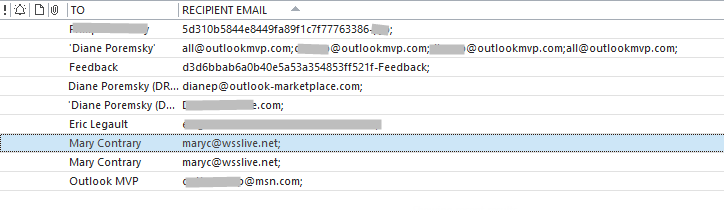
Note that when a message is sent to multiple people, all addresses will be entered in the field as one long string, as seen in this example.
/o=ExchangeLabs/ou=Exchange Administrative Group (FYDIBOHF23SPDLT)/cn=Recipients/cn=43dfb970e3b54f85942d1348b58581e6-drcp;billy@domain.net;
Exchange server addresses are the x.500 address (as seen in the example above), not the SMTP address, however, you can use the Right() function to keep just the alias.
Public Sub GetRecipientAddress()
'http://slipstick.me/9vjgj
    Dim currentExplorer As Explorer
    Dim Selection As Selection
    Dim obj, objMail As Object
    Dim objProp As Outlook.UserProperty
    Dim strDomain
    Dim Recipients As Outlook.Recipients
    Dim recip As String
    Dim i
    Dim prompt As String

    Set currentExplorer = Application.ActiveExplorer
    Set Selection = currentExplorer.Selection

    On Error Resume Next

For Each obj In Selection
         Set objMail = obj
         strDomain = ""
Set Recipients = objMail.Recipients
  For i = Recipients.count To 1 Step -1
     recip$ = Recipients.item(i).Address

   ' To use only the alias from the x.500 address
 ' Exchange online
    'If InStr(1, LCase(recip), "/ou=") Then recip = Right(recip, Len(recip) - InStr(1, LCase(recip), "-"))
    ' on prem
    'If InStr(1, LCase(recip), "/ou=") Then recip = Right(recip, Len(recip) - InStr(1, LCase(recip), "recipients") - 13)

' Use semicolon separator if there is more than 1 address
     If i = 1 Then
         strDomain = strDomain & recip
     Else
         strDomain = strDomain & recip & "; "
     End If

  Next i
     Debug.Print strDomain
    ' Msgbox strDomain

         Set objProp = objMail.UserProperties.Add("Recipient Email", olText, True)
         objProp.Value = strDomain
         objMail.Save

        Err.Clear
    Next

    Set currentExplorer = Nothing
    Set obj = Nothing
    Set Selection = Nothing
End Sub
To write the address list to a new message for easy reading, replace the Set objProp = to objMail.Save lines with the following:
Set objMsg = Application.CreateItem(olMailItem)

 With objMsg
  .Body = strDomain
  .Display
End With
Add the field automatically
To add the recipient address field automatically, you need to use an ItemAdd macro. These macros need to be in ThisOutlookSession. To test, click in the Application_Startup macro and click Run then send a message.
Dim WithEvents olSent As Items

Private Sub Application_Startup()
   Dim NS As Outlook.NameSpace
   Set NS = Application.GetNamespace("MAPI")
   Set olSent = NS.GetDefaultFolder(olFolderSentMail).Items
   Set NS = Nothing
End Sub

Private Sub olSent_ItemAdd(ByVal Item As Object)
    ' Fromhttp://slipstick.me/1
    Dim objProp As Outlook.UserProperty
    Dim strDomain As String
    Dim Recipients As Outlook.Recipients
    Dim recip As String 'Outlook.Recipient
    Dim i

strDomain = ""
Set Recipients = Item.Recipients
  For i = Recipients.count To 1 Step -1
     recip$ = Recipients.Item(i).Address
    ' Exchange online
    'If InStr(1, LCase(recip), "/ou=") Then recip = Right(recip, Len(recip) - InStr(1, LCase(recip), "-"))
    ' on prem
    'If InStr(1, LCase(recip), "/ou=") Then recip = Right(recip, Len(recip) - InStr(1, LCase(recip), "recipients") - 13)
     If i = 1 Then
         strDomain = strDomain & recip
     Else
         strDomain = strDomain & recip & "; "
     End If
  Next i

  Set objProp = Item.UserProperties.Add("Recipient Email", olText, True)
    objProp.Value = strDomain
    Item.Save

    Err.Clear

    Set objProp = Nothing
    Set Recipients = Nothing

 End Sub
How to use this macro
First: You will need macro security set to low during testing.
To check your macro security in Outlook 2010 or 2013, go to File, Options, Trust Center and open Trust Center Settings, and change the Macro Settings. In Outlook 2007 and older, it’s at Tools, Macro Security.
After you test the macro and see that it works, you can either leave macro security set to low or sign the macro.
Open the VBA Editor by pressing Alt+F11 on your keyboard.
To put the code in a module:
- Right click on Project1 and choose Insert > Module
- Copy and paste the macro into the new module.
More information as well as screenshots are at How to use the VBA Editor






























Hi Diane, First off thanks so much for all the years you have contributing and maintaining this forum (sincere and immense appreciation for this). Reaching out to see if you could provide VBA code that does the following: Creates an outlook field to list all email addresses (the sender's and all the recipients' (to, cc, bcc)) included in an outlook item? Ideally this would not include any .500 addresses and show only the external facing SMTP addresses. Would look for this field to be a keyword field. This would allow for a grouping of all messages involving any one specific email address (all messages sent to or from any one address). The approach I had in mind was to use the following: PR_CREATOR_SMTP_ADDRESS_W (0x5D0A001F) to reference a clean “from address” And using the Property accessor with the Recipient object to access the PR_SMTP_ADDRESS_W (0x39FE001F) of all the recipients Would then concatenate the above strings with a semicolon between each SMTP email address. Also, a second macro that utilizes the exact same code or references the result of the above; however, it includes a text function such that the result is only… Read more »
Tweaking this macro to do that is possible... and I have one somewhere that does the domain.
Hi Diane,
I had been searching all over for a solution to this and finally stumbled across your solution. I'm so glad I found your post.
One area of trouble I'm having is that the code in "ThisOutlookSession." Sometimes when I send email, the "Recipient Email" property gets populated and other times it doesn't.
When it doesn't, what's strange is that after emails are sent, the "Recipient Email" property gets populated but then a moment later it deletes itself. I can see it happen live if I add the "Recipient Email" column to my view. Any thoughts on how to correct this?
I've ensured that macros are running so that's not the issue. I added a "Stop" statement to the code so I could debug it, and even after going step by step, the property populates at the line "Item.Save" and then a moment later disappears. And that's before moving onto the next line of "Err.Clear."
David
Hi Diane,
I had been searching all over for a solution to this and finally stumbled across your solution. I'm so glad I found your post.
One area of trouble I'm having is that the code in "ThisOutlookSession." Sometimes when I send email, the "Recipient Email" property gets populated and other times it doesn't.
When it doesn't, what's strange is that after emails are sent, the "Recipient Email" property gets populated but then a moment later it deletes itself. I can see it happen live if I add the "Recipient Email" column to my view. Any thoughts on how to correct this?
I've ensured that macros are running so that's not the issue. I added a "Stop" statement to the code so I could debug it, and even after going step by step, the property populates at the line "Item.Save" and then a moment later disappears. And that's before moving onto the next line of "Err.Clear."
David
Hi Diane
Apologies for my lack of understanding- I originally downloaded this from howtooutlook.com and noticed your address in the script. I have it running, but it shows the senders email address- which isn't any use to me in sent items. I'm trying to see the actual email address of where it was sent to and so want to show the column in the sent items- is this possible with a tweak? I think I may have missed something as this page is headed as though it should do as I need it to. Thanks in advance
I tried following the instructions but it still shows the long exchange data in the recipient address field.
Did you remove the ' from this line:
' If InStr(1, LCase(recip), "/ou=") Then recip = Right(recip, Len(recip) - InStr(1, LCase(recip), "recipients") - 13)
it's still leave an ugly alias: 43dfb970e3b54f85942d1348b58581e6-drcp but drops the rest of the x500 junk. By improving the formula, Right(recip, Len(recip) - InStr(1, LCase(recip), "recipients") - 13), you could get it down to just the alias.
Replacing the line that removes most of the x500 with this works her (none of my aliases have - in them, so there is no risk of error)
If InStr(1, LCase(recip), "/ou=") Then
recip = Right(recip, Len(recip) - InStr(1, LCase(recip), "recipients") - 13)
recip = Right(recip, Len(recip) - InStr(1, LCase(recip), "-"))
End If
HI, I have mail with table and some html elements such as hyperlinks etc. I would like to open the mail and when i run the macro, it has to create an appointment with the same html format (tables as it is and hyperlink text message). I tried it in 2013 and 2010 versions. It is converting into plain text. Any advise.
Also, i have to add an additional text in the appointment along the with the message from outlook. Let' say: "Hi" & mail body with html formats (Tables, hyperlinks).
I have put an item at the bottom here:
https://forums.slipstick.com/threads/86266-customised-to-cc-bcc-and-have-replies-sent-to-columns-in-message-lists/.
That's my own thread dated 10th July 2011 (eleven), though I first started hunting for this facility in 2010 (I think). Very good to see the question at last addressed!
Works like a charm.
Thank you very much Diane!