This macro "watches" for a new appointment to be added to the calendar and copies it to a second calendar. This is useful if you are sharing a calendar or syncing one calendar with a smartphone.
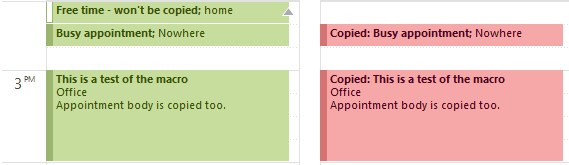
The code contains and If - Then statement (If Item.BusyStatus = olBusy Then) and copies only items that are marked busy. You can use use Categories or keywords in the subject as the filter or copy all items by removing the If.. and Then lines. You can remove or change the "Copied" tag added to the subject line.
This code, as written, assumes the second calendar is in another data file in the profile. It can easily be changed to work with a folder in the current data file. See Working with VBA and non-default Outlook Folders for more information.
To use:
- Enable macros in the Trust Center. In Outlook 2010/2013, this is at File, Options, Trust Center, Macros. In Outlook 2007, go to Tools, Trust Center. Use either warn or no security for now. Once you are happy with it, you can sign it with a self-certificate and set macros to signed-only.
- Open the VB Editor by pressing Alt+F11 on your keyboard.
- Expand Project1 to display ThisOutlookSession and double click to open it to the right side.
- Paste the code below into ThisOutlookSession. I have a text file with the macros here: Text file containing the macros to copy, change, and delete appointments.
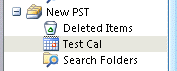
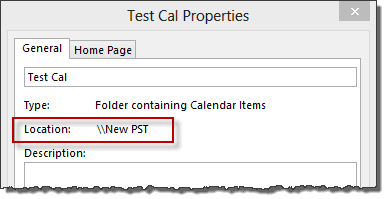
- Change the folder path ("display name in folder list\Calendar") to the display name you see in the Folder List (this is usually the email address in Outlook 2010 and 2013). For example, the path shown in these screenshots is "New PST\Test Cal".

You can see the parent path in the Folder List (Ctrl+6) or right-click on the Calendar folder and choose Properties when in the Calendar module. The path can be copied from the Properties page, which can be helpful for nested folders or long names.
- Place the mouse in the Application_StartUp macro and press the Run button or F5.
- Create an appointment in your calendar and see if it was copied to the other calendar.
May 17 2019: Replaced code that searched on GUID to use GetDATETIME function instead as the GUID function is blocked due to security updates.
If you prefer to use a random alphanumeric code instead of the GUID, use the last code sample at Create sequential numbers or random character keywords for the necessary VBA code and update the macro accordingly.
September 22 2017: changed the code to copy all appointments except those marked Free. It previously only copied Busy appt.)
Dim WithEvents curCal As Items
Dim newCalFolder As Outlook.folder

Private Sub Application_Startup()
   Dim NS As Outlook.NameSpace
   Set NS = Application.GetNamespace("MAPI")
' calendar to watch for new items
   Set curCal = NS.GetDefaultFolder(olFolderCalendar).Items
' calendar moving copy to
   Set newCalFolder = GetFolderPath("data-file-name\calendar")
   Set NS = Nothing
End Sub

Private Sub curCal_ItemAdd(ByVal Item As Object)
Dim cAppt As AppointmentItem
Dim moveCal As AppointmentItem

' On Error Resume Next

' copy all but appt marked Free
' remove to make a copy of all items
If Item.BusyStatus <> olFee Then


   Item.Body = Item.Body & "[" & GetDATETIME & "]"
   Item.Save

Set cAppt = Application.CreateItem(olAppointmentItem)

With cAppt
    .Subject = "Copied: " & Item.Subject
    .Start = Item.Start
    .Duration = Item.Duration
    .Location = Item.Location
    .Body = Item.Body
End With

' set the category after it's moved to force EAS to sync changes
 Set moveCal = cAppt.Move(newCalFolder)
 moveCal.Categories = "moved"
 moveCal.Save

    End If
 End Sub

Public Function GetDATETIME() As String
   GetDATETIME = Format(DateTime.Now, "yyyy-MM-dd hh:mm:ss")
End Function

Function GetFolderPath(ByVal FolderPath As String) As Outlook.Folder
    Dim oFolder As Outlook.Folder
    Dim FoldersArray As Variant
    Dim i As Integer

    On Error GoTo GetFolderPath_Error
    If Left(FolderPath, 2) = "\\" Then
        FolderPath = Right(FolderPath, Len(FolderPath) - 2)
    End If
    'Convert folderpath to array
    FoldersArray = Split(FolderPath, "\")
    Set oFolder = Application.Session.Folders.Item(FoldersArray(0))
    If Not oFolder Is Nothing Then
        For i = 1 To UBound(FoldersArray, 1)
            Dim SubFolders As Outlook.Folders
            Set SubFolders = oFolder.Folders
            Set oFolder = SubFolders.Item(FoldersArray(i))
            If oFolder Is Nothing Then
                Set GetFolderPath = Nothing
            End If
        Next
    End If
    'Return the oFolder
    Set GetFolderPath = oFolder
    Exit Function

GetFolderPath_Error:
    Set GetFolderPath = Nothing
    Exit Function
End Function
This code was submitted by Anshu Nahar, He made some changes to ItemAdd and ItemChange; so now this works for recurring items as well, including all exceptions.
Private Sub curCal_ItemAdd(ByVal Item As Object)
    Dim cAppt As AppointmentItem
    Dim movecal As AppointmentItem

    On Error Resume Next

    Item.Mileage = "$NCDTH1$" & GetUniqueId
    Item.Save

    Set cAppt = Item.Copy
    cAppt.Categories = "Copied"
    cAppt.Move newCalFolder

 End Sub

Private Sub curCal_ItemChange(ByVal Item As Object)
    Dim cAppt As AppointmentItem
    Dim objAppointment As AppointmentItem
    Dim targetItems As Outlook.Items


    On Error Resume Next

    strMileage = Item.Mileage

    Set targetItems = newCalFolder.Items
    targetItems.Sort (Mileage)

    For Each objAppointment In targetItems
        If objAppointment.Mileage = strMileage Then
            Set cAppt = objAppointment
            cAppt.Delete
            Set cAppt = Item.Copy
            cAppt.Categories = "Copied"
            cAppt.Move newCalFolder
        End If
     Next

End Sub
Copy to a Shared Exchange Calendar
When the calendar you want to copy to or from is in a shared Exchange mailbox, you need to resolve the owner's name or alias and pass it to GetSharedDefaultFolder. You can use the alias, default SMTP address, or display name. I recommend using the alias or email address.
Replace the Application_Startup macro in this text file with the version here.
Private Sub Application_Startup()
  Dim NS As Outlook.NameSpace
  Dim CalendarFolder As Outlook.Folder
  Dim objOwner As Outlook.Recipient

  Set NS = Application.GetNamespace("MAPI")
   ' default calendar
Set curCal = NS.GetDefaultFolder(olFolderCalendar).Items


   'calendar you are copying to
Set objOwner = NS.CreateRecipient("maryc")
    objOwner.Resolve


 If objOwner.Resolved Then
   'MsgBox objOwner.Name

  Set newCalFolder = NS.GetSharedDefaultFolder(objOwner, olFolderCalendar)
  Set Items = newCalFolder.Items
 End If

End Sub
Update copied appointment
If you want to update appointments on the second calendar, add this code sample to the module. This code looks for an appointment with the same GUID. When you save changes, the matching event is also updated.
Because this code looks for the GUID, you can change the subject or start time.
This code is written to work with the ItemAdd macros above and gets the newCalFolder name from the application_startup macro.
Private Sub curCal_ItemChange(ByVal Item As Object)
Dim cAppt As AppointmentItem
Dim objAppointment As AppointmentItem
Dim strBody As String
 On Error Resume Next

' use 2 + the length of GetDATETIME string
strBody = Right(Item.Body, 21)

For Each objAppointment In newCalFolder.Items
 If InStr(1, objAppointment.Body, strBody) Then
         Set cAppt = objAppointment
   End If
 Next

With cAppt
    .Subject = "Copied: " & Item.Subject
    .Start = Item.Start
    .Duration = Item.Duration
    .Location = Item.Location
    .Body = Item.Body
    .Save
End With

End Sub
Delete the copied appointment
When you delete the original appointment, the following code will delete the copy as well. Thanks to Adrian for this!
This code watches the deleted items folder for deleted appointments. It gets the newCalFolder name from the application_startup macro.
You'll need to add lines to the top of ThisOutlookSession and Application_Startup.
Updated January 26 2016 to watch the deleted items folder for deleted appointments instead of using the Remove event.
'At top of ThisOutlookSession:
Dim WithEvents DeletedItems As Items

'In Application_Start macro:
Set DeletedItems = NS.GetDefaultFolder(olFolderDeletedItems).Items


Private Sub DeletedItems_ItemAdd(ByVal Item As Object)
' only apply to appointments
If Item.MessageClass <> "IPM.Appointment" Then Exit Sub
' if using a category on copied items, this may speed it up.
If Item.Categories = "moved" Then Exit Sub

Dim cAppt As AppointmentItem
 Dim objAppointment As AppointmentItem
 Dim strBody As String

On Error Resume Next

' use 2 + the length of the GetDATETIME string
 strBody = Right(Item.Body, 21)
 If Left(strBody, 1) <> "[" Then Exit Sub

For Each objAppointment In newCalFolder.Items
 If InStr(1, objAppointment.Body, strBody) Then
 Set cAppt = objAppointment
 cAppt.Delete
 End If
 Next

 End Sub

Jamie Tebbs says
Could anyone help me with the delete function, i have the code setup and it works briliiantly for copying, ammending but it wont delete the copy.
Diane Poremsky says
The delete code is kind of buggy - the problem is having a sure-fire way to identify the duplicate and delete the right one. I'll take a look and see if it can be improved using other methods.
Delphine says
Brilliant functionality and so glad to see you're still involved!
Is there a way to trigger a copy on an event change? For example, an invite that was previously accepted as "tentative" and is now "accepted".
Delphine says
Jamie did you get this working with GUID or have to replace it with getdatetime?
I am also not able to delete.
Jamie Tebbs says
In the end had to give up on it as it was to inconsistent for our usage.
Diane Poremsky says
Yeah, the macro can be inconsistent, or in my words... buggy.
Shameka Harris says
Hello. Thank you so much for this article and instructions! I have put the code as you said, as well as the updates listed below. I am getting the error "Compile error: Ambiguous name detected: curCal_ItemChange" Please help!
Also, I want to move items with "court" in the location name. What would I change to do that.
Thank you in advance for your help!
Noh says
Hi, I made some changes to this code and having an issue with update event if there are more than 1 event in same day.
If i made changes to event 1 it will delete the event 2 and update the event 1 details. The event 2 details should not be deleted as I just update the event 2.
Please help me to resolver this.
Mia says
Hi, I am having an issue if the calendar is having more than one meeting in same day. It will only copied the last updated meeting to another calendar.
Dennis says
Hey All,
Thanks for this Script!
Some Question, i Try to Change it, so that one Calender Sync there Appointments to two other shared calendars.
Could Someone Help me?
Thanks a Lot!
Bryan says
Hi Diane,
Very inspirational code and running for me already.
However there is this tricky issue always haunting me:
Am I the only one having this trouble, and is there any work around, please?
Roshan Sai Pratap says
I have attached the image of my calendar structure.
Roshan Sai Pratap says
Hi Diane,
Thanks for the solution. But I have a question.
My Calendar structure is shown below. My default email id is roshan@ezshred.com. I am trying to copy an event from roshan@ezshred.com to prudhvi@ezshred.com. When I tried to do that, the event is copied in the same email where I have created.
Private Sub Application_Startup()

Dim NS As Outlook.NameSpace

Set NS = Application.GetNamespace("MAPI")
' calendar to watch for new items
Set curCal = NS.GetDefaultFolder(olFolderCalendar).Items
'calendar you are copying to
Set newCalFolder = GetFolderPath("\\alias@domain.com")
End Sub
Ian says
it should be like "alias@domain.com\Calendar"
basically get rid of the \\ and add \Calendar
Leon says
Thanks for the script. I wrote something similar. Do you plan to enhance the scrip to include recurring meeting? My has but it is not so elegant, especially those that got re-schedule more than once. Hence I wonder how would you handle those.
Just to let you know I use GlobalAppointmentID instead of GUID or GetDATETIME.. I store the information in a .UserProperties("GlobalAppointmentIDLink"). Also, I use .Restrict(strSearch) to limit the search to a defined range.
Bryan says
Hi Leon,
Coincidentally, I am also trying to improve on the enumeration speed and also thinking of the .Restrict method, but do you use starting date as filter or?
Meanwhile the "GlobalAppointmentID" also sounds intriguing, do you write it into .UserProperties("GlobalAppointmentIDLink")?
The way posted here cannot handle "clicking Accecpt leading to a new appointment" issue.
Would love to see some code snippet if possible.
Thanks.
Amber Sparkles says
Great Idea! exactly what I was looking to do lol
Can anyone tell me what lines of code to do the following:
I want only copy over certain fields, leave out/remove some, and set a default specific subject line pertaining to which calendar it is copying from - nothing else, as I am doing this only to allow the free/busy time to show from others...
Example - my setup:
My Default Calendar (Private to me)
Calendar for Job Role 2 (shared with some others)
Calendar for Job Role 3 (shared with some different others)
When copying from second calendar to first, fields actions needed:
Subject = All items created always set as "Job Role2"
Start Date/Time = Copy same
End Date/Time = Copy same
Show as (free/busy availability) = Copy Same
I don't think I need anything else...
And this would be a constant copying any new, updating any existing times, and removing any deleted ones.
An help would be great. TIA
Amber
rpiengr says
I used Anshu Nahar's code, and it worked beautifully on the first try! Thanks to all for this convenient solution to bridging Outlook with Google calendar.
Robert D Bivin says
Is there a "final version" of this code, including all additions and enhancements?
Thanks,
Bob
Diane Poremsky says
No, not yet. I should get around and do it though. :)
Anshu Nahar says
Hi - I made some changes to ItemAdd and ItemChange; so now this works for recurring items as well, including all exceptions.
Private Sub curCal_ItemAdd(ByVal Item As Object)
Dim cAppt As AppointmentItem
Dim movecal As AppointmentItem
On Error Resume Next
Item.Mileage = "$NCDTH1$" & GetUniqueId
Item.Save
Set cAppt = Item.Copy
cAppt.Categories = "Copied"
cAppt.Move newCalFolder
End Sub
Private Sub curCal_ItemChange(ByVal Item As Object)
Dim cAppt As AppointmentItem
Dim objAppointment As AppointmentItem
Dim targetItems As Outlook.Items
On Error Resume Next
strMileage = Item.Mileage
Set targetItems = newCalFolder.Items
targetItems.Sort (Mileage)
For Each objAppointment In targetItems
If objAppointment.Mileage = strMileage Then
Set cAppt = objAppointment
cAppt.Delete
Set cAppt = Item.Copy
cAppt.Categories = "Copied"
cAppt.Move newCalFolder
End If
Next
End Sub
Rob says
I like this but I'd like to copy the event on the same calendar and only have the subject and time. I'd want to add a new invitee. I don't want the details or attachments on the new item. The trick is that as-is, this could cause a never-ending loop.
Diane Poremsky says
yeah, unless you add something via code to the appointment subject or body and check for it before making the copy - if it exists, the macro exists.
David says
Hi Diane
Excellent code addition, TY. Curious if this can be modified so that when an outlook appointment is changed/. modified, the original appointment on the primary calendar can get an "updated" time stamp added to the body? I have attempted to modified the code but no matter what I do create an endless loop. I cant seem to change the curCal variable temporarily so that any subsequent changes to the item are stopped....
Assistance would be appreciated
TY
David says
Also , change the color to red/ bold, cant seem to change RTF properties with this code? thx
Diane Poremsky says
I'll need to think about a way to do it to avoid the loop. Maybe an if statement to skip if the change was a date.
Changing RTF properties is a PITA - current versions support HTML bodies which might be easier.
David says
Thanks!
Sounds like I am on the right track then....
I've tried setting the curCal variable as a separate subroutine that is called from application startup, and then "killing" the variable by setting it to a different item location before reinitializing it , to no avail..... not sure if the killing script works correctly as in testing the appointment item still goes into it's loop as soon as the item.save occurs.....
As for RTF yes having no dice with it or HTML, but still trying to figure this one out, prob not inserting it correctly..
Current code that I am working with/ testing attached.
Paul Rayment says
I have entered the code and have managed to transfer appointments via a new shared folder to my default.
Now when I have tried the same on another PC trying to use shared calendar sub - it does not seem to find it with object being nothing ???
Permission is set to same as my PC and shared calendar on server exchange ...
Is there something on the server that needs changing ???
As can see in calendar permission Box on this PC it does not show e mail address for location ???
Paul Rayment says
Hi
Put the code in for calendar and for some reason comes up with runtime error 91...
I am guessing it is object error and wonder is the code designed for outlook 365 with object 16.0 reference?
Diane Poremsky says
if you pasted the code in, it wouldn't be due to a version issue (the subscription version, along with 2016/2019 all use v16.0 object).
One of the Set variables is triggering it. are you copying to a calendar in your profile that you have write access to?
Paul Rayment says
Thanks - removed the run time error as .items was not entered and now change the error for GUID with date time string ...
So why is just copying the appointment hundreds of times in the default calendar and not in the calendar named ?
Vladimir Gasevic says
Hi, I have same problem with macro copying appointment hundreds of time, is there solution for this?
Diane Poremsky says
Something is causing the appointment to be seen as updated. What really depends on your config.
Jimmy McCrillis says
I have been trying to add this macro but I believe that the WithEvents options are incorrect for Office 2016.
Are these still valid in Outlook 2016?:
Dim WithEvents curCal As Items
Dim WithEvents DeletedItems As Items
When I try to run the macro, I am prompted with a compile error "Invalid attribute in Sub or Function" And it goes to the first line with "WithEvents curCal As Items" selected.
Thank you
Diane Poremsky says
They work in all versions of Outlook, including the new ones. Where do you put the macro? It needs to be in ThisOutlookSession. Those two lines need to be at the top, outside of the subs.
G B says
This code works perfectly for mirroring my default calendar with any other but when I am trying to mirror a shared calendar onto a Sharepoint calendar after making necessary modifications, I get Run-time error '438' i.e Object doesn't support this property or method. Can anyone please help me? This is urgent on my end.
Diane Poremsky says
What line does it stop on? Is the sharepoint calendar read/write in outlook?
Ryan says
Hi there, I left a comment earlier saying the deleting of events wasn't working. I figured it out. I took out the following lines and it worked. Thanks!
' use 2 + the length of the GetDATETIME string
strBody = Right(Item.Body, 21)
If Left(strBody, 1) "[" Then Exit Sub
Delphine says
Taking out these lines deleted ALL of the appointments from the secondary calendar.
Ryan says
Hi, thanks for this. I was tried using the macro from the text file and it adds and updates events which is great but it won't delete events on the copied calendar. Any ideas?
Laurence says
Hi,
I am getting a Compile error :
Only valid in object module on the first line....
Dim WithEvents curCal As Items.
Basically i want to simply copy the appointments across to another calendar..
Im pretty stupid with VB ..
Thanks for your help!!
Diane Poremsky says
Did you put the macro in ThisOutlookSession module or in a new module? The macros need to be in ThisOutlookSession.
Laurence says
Hi Diane,
So sorry did not see your reply .. and so quick too (hand on face!! ) . Thank you so much for replying.
Yes i followed the instructions, i place the macro in ThisOutlookSession, but as soon as i click run with the mouse in the Application Startup section it opens a new window indicating module1...not sure what im doing wrong. I tried to attach a snippet but jpeg,pdf is not allowed?
Really appreciate your responses!! :-)
Laurence says
Hi Diane,
I did manage to delete the module1 .. i am now receiving the error. Run-time error '13' . Type Mismatch...
Any help appreciated!!
Laurence says
Further to my reply..
The error "type mismatch 13" comes from this line..
Set curCal = NS.GetDefaultFolder("Laurence@domain.co.za\Calendar").Items
Any help pleeeeeassse!!????
Diane Poremsky says
>> NS.GetDefaultFolder("Laurence@domain.co.za\Calendar").Items
You won't use GetDefaultFolder with the path - that is used for default folders. If the calendar is not in the default data file, you need the folder path function.
If its in the default calendar:
Set curCal = NS.GetDefaultFolder(olFolderCalendar).Items
if its in a different data file
Set curCal = GetFolderPath("Laurence@domain.co.za\calendar").items
Laurence says
That worked Diane!! Thank you.
Now im receiving the :
Run-Time error '21447....891 (800700005)
you dont have appropriate permission ....
error that a user posted earlier....
So close but so far.. is there a solution for this..?
Thank you!
Diane Poremsky says
>> you dont have appropriate permission ....
what permission do you have on the calendar you are writing it to?
Laurence says
Hi Diane,
Apologies here is the error message ...
And when debug is clicked..
Kind regards,
Diane Poremsky says
Oh... an update broken the GUID code. Somewhere in the comments is an solution for that - let me look.
Diane Poremsky says
I found these two - one of the threads might have the explanation for the issue. The first one replaces the GUID code with a date stamp.
Use Date: https://www.slipstick.com/developer/copy-new-appointments-to-another-calendar-using-vba/#comment-208709
More info: https://www.slipstick.com/developer/copy-new-appointments-to-another-calendar-using-vba/#comment-208772
Laurence says
Date Stamp Solution works!!!!!
Thank you so much for this and replying!!
I have no idea how it works but it does !!
Respect to all the devs out there . spinning making the world a better place.
Musicians and Devs !!! :-p!!
:-^ :-^ :-^
Diane Poremsky says
I really need to take time to make that change in the code. :(
Calvin Joshva says
Hi Diane,
Thank you so much for the wonderful code. I just cannot express how grateful I am for this. I have absolutely zero knowledge in coding. The code works great except in the following few conditions:
1) On received recurring meetings (only the first of the lot shows up)
2) I am having to 'accept' the invitations if received from somebody else in the organization for it to populate on the other calendar
3) The GUID is added to the created appointments' notes area and I do not know how to make them invisible
I would be extremely grateful if you could help me fix this.
Thanks!
Truly appreciate the incessant support and dedication to helping out people like us.
Stephen White says
Can you provide any suggestions on how I would recode this to watch an Internet Calendar (called "AACIT") and then COPY any new items to my default/primary calendar?
I tried this and it didn't work:
Private Sub Application_Startup()Dim NS As Outlook.NameSpace
Set NS = Application.GetNamespace("MAPI")
' calendar to watch for new items
Set curCal = NS.GetFolderPath("Internet Calendars\AACIT").Items
' watch deleted folder - I probably don't need to do this
' Set DeletedItems = NS.GetDefaultFolder(olFolderDeletedItems).Items
' calendar moving copy to
Set newCalFolder = NS.GetDefaultFolder(olFolderCalendar)
Set NS = Nothing
any help here is much appreciated!
Diane Poremsky says
You need the getfolderpath function that is on that page and call it like this (no NS.):
Set curCal = GetFolderPath("Internet Calendars\AACIT").Items
Stephen White says
That seems to work now, i.e the Application_Startup sub is not throwing any errors, Now the problem has moved downstream.
I'm getting a Run-time error (no permissions) in the GetGUID function
Public Function GetGUID() As StringGetGUID = Mid$(CreateObject("Scriptlet.TypeLib").GUID, 2, 36)
End Function
Any ideas here?
THANK YOU!
Diane Poremsky says
That's due to a security change in windows a few months ago. A user posted a solution in the comments - https://www.slipstick.com/developer/copy-new-appointments-to-another-calendar-using-vba/#comment-208772
Christian Roth says
Dear Diane,
I was really lucky to find this solution for copying new appointments to another calender.
As you answered to Stephen White's question, I changed the orginal
Set curCal = NS.GetDefaultFolder(olFolderCalendar).ItemsintoSet curCal = GetFolderPath("\\SharePoint-Listen\Calender of Interest").ItemsAll new appointments were copied to my own folder
Set newCalFolder = GetFolderPath("\\myAddress\Kalender\Test_Kopie")Everything works perfectly, exept for appointments which are deleted in the original calender. They still resist in my "newCalFolder".
I change the Set DeletedItems as you can see here:
Original:
Set DeletedItems = NS.GetDefaultFolder(olFolderDeletedItems).Itemsmy change:
Set DeletedItems = GetFolderPath("\\SharePoint-Listen\Calender of Interest").ItemsIf I use another current calender like
Set curCal = Session.GetDefaultFolder(olFolderCalendar).Folders("Test").ItemsEverything works perfectly, if I use the original line to watch the deleted folder:
Set DeletedItems = NS.GetDefaultFolder(olFolderDeletedItems).ItemsNew appointment will be copied in my calender, deleted appointments will be deleted in both calenders.
What do I have to change?
Thank you very much for helping me!
Yours
Christian
Manuel says
Hello,
I've got zero experience with VBA Scripts but I need to sync a Sharepoint calendar to my outlook calendar... I've set the code as stated above only changing the folder path but nothing happens, no error, no copied events, just nothing... any Idea why would this happen?
This it the StartUp part of the script;
Private Sub Application_Startup()Dim NS As Outlook.NameSpace
Set NS = Application.GetNamespace("MAPI")
' calendar to watch for new items
Set curCal = NS.GetDefaultFolder(olFolderCalendar).Items
' watch deleted folder
Set DeletedItems = NS.GetDefaultFolder(olFolderDeletedItems).Items
' calendar moving copy to
Set newCalFolder = GetFolderPath("Listas de SharePoint\Bitrix")
Set NS = Nothing
End Sub
And I attach the full code, but nothing apart from the folder path is changed
Thank you in advance for your help
Diane Poremsky says
The code looks ok... add msgbox "Running" as the first line in Private Sub Application_Startup()
you could also add msgbox newcalfolder at the end and see if it returns the name of the sharepoint calendar. Restart outlook - do the message boxes come up?
oliver says
Hi,
Thanks for this! it works fine, but the problem is it seems to copy all the events to a new calendar in the Shared Calendars group, which means it wont sync to my phone. How can I get it to add to the My Calendars group?
thanks again
Diane Poremsky says
These two lines set the calendar folders - you just need to properly the reference the calendar folder.
This line watches for new items in the default Calendar folder:
Set curCal = NS.GetDefaultFolder(olFolderCalendar).Items
This is the calendar you copy it. This is using a calendar in a different data file.
Set newCalFolder = GetFolderPath("data-file-name\calendar")
oliver says
Thank you very much for the response!
I am very new to vba for Outlook. essentially, I am trying to reverse the Shared Calendar startup macro. I want to copy from a shared calendar into a calendar in my account. here is what I have:
Private Sub Application_Startup()Dim NS As Outlook.NameSpace
Dim CalendarFolder As Outlook.Folder
Dim objOwner As Outlook.Recipient
Set NS = Application.GetNamespace("MAPI")
'calendar you are copying to
Set objOwner = NS.CreateRecipient("calendar@myInstitute.edu")
objOwner.Resolve
If objOwner.Resolved Then
MsgBox objOwner.Name
Set curCal = NS.GetSharedDefaultFolder(objOwner, olFolderCalendar)
End If
Set newCalFolder = GetFolderPath("me@myInstitute.edu\Calendar\testCalendar")
Set Items = newCalFolder.Items
End Sub
The shared calendar seems to be correct, since I get the popup box with the calendar name, but then I get a text mismatch error. I have tried many permutations of the macro with no success. Any help would be greatly appreciated. Thanks again!
Diane Poremsky says
The error is because you reference the curCal as a calendar- but the variable is set to items: Dim WithEvents curCal As Items. You need to use Set curCal = NS.GetSharedDefaultFolder(objOwner, olFolderCalendar).Items
If the copy to calendar is your default calendar, you don't need the getfolderpath function - you can reference it as the default folder:
Set newCalFolder = NS.GetDefaultFolder(olFolderCalendar).folders("testCalendar")
oliver says
Hi Diane!
Thank you so much! It totally works! I have one last little question... There are already a ton of events in the calendar. Would it be possible to copy those as well, and not just events new events that are created?
Diane Poremsky says
A macro could walk through the appointments and copy them - would be easiest to only copy ones with older created dates - or you can use a list view, select all, copy and paste.
Mozhils says
Hi,
Firstly - thanks for the great solution to my annoying problem.
I have a very limited space on my exchange server, which I solved by creating a local pst file. That however caused a new problem - as I moved to local calendar, my events weren`t visible to the others. So, I used Your solution. At first I had the same issue as some others here - not enough permissions to use the GUID option. So I tried the randomize function and GetDATETIME function, but both of them have the same side-effect - each create/delete function takes more than a minute to complete. Do I need to change anything else in the code, when switching from GetGUID to GetDATETIME, besides the direct references?
Thanks in advance for any help on this.
Diane Poremsky says
No, you shouldn't need to change anything else... however, i would leave the calendar on the server and use Rules to move mail (don't move meeting requests), rather than change the delivery location. Or, use autoarchive to clean up older mail every few days (change the archive settings on the calendar so events remain on the calendar longer). If autoarchive is disabled by the admin, you could use a macro to move older mail.
Mozhils says
When You use local mail but the calendar remains on server, You don`t get the reminders for meetings. :( So, no idea, why the macro works so slowly?
Diane Poremsky says
You'll get reminders in every data file that is enabled for reminders... but you also need to set a reminder. The macro doesn't set the reminder field (so you don't get 2 reminders for the same event) but you could copy the reminder from the original event or set a specific reminder on all copies.
Define slow... if you are syncing with an exchange server, the changes need to sync.
Brandon says
Mozhils, Can you show your code for implementing the GetDateTime?
Niles says
Great code, it works perfect! But.... It's not working with all-day-events.
And another thing is not working. Some item in my calendar are automatically created with VBA when Outlook starts (copied from an external application). Those items are not being copied to the second calendar. I think I understand why this is, but I don't know how to fix this.
Does somebody have a solution for this two 'problems'? Many thanks!
Diane Poremsky says
All day events that are marked busy should copy, but free events won't unless you change this line (or remove it and the matching end if):
If Item.BusyStatus = olBusy Then
this will skip Free events but get everything else.
If Item.BusyStatus <> olFree Then
>> Some item in my calendar are automatically created with VBA when Outlook starts (copied from an external application). Those items are not being copied to the second calendar.
what is your theory on why it's not getting them? If the status isn't Busy, see above.
tsoob says
Hello
Thanks for this code. I've set up the macro, but wh'en i'm creating and event in my default calendar, i get a runtime error --2147024891 (80070005) : access deny (not enough permission)
I'm using Outlook 2016, my default account is my compagny exchange mailbox, and the second one (where i want to put new copied items) is an exchange online (O365) mailbox. Thoses 2 mailboxes have differents accounts (local AD and O365 account)
Have you any idea ?
Regards
tsoob says
When using debug, I get the error when the line
GetGUID = Mid$(CreateObject("Scriptlet.TypeLib").GUID, 2, 36)is called.Diane Poremsky says
Does it give you an error message? If something like 'object not found' or unknown object', then the scriptlet.typelib library isn't loaded.
Diane Poremsky says
Is the mailbox in your Outlook profile? You need to have it in outlook in order to save to it.
if it's in as an account, you'd use
Set newCalFolder = GetFolderPath("exchange account name\calendar") - if its in as shared folder, you need to use the code for shared folders.
Bryan says
Thank you for this 'excel'lent script. I have only one small issue I hope you may be able to assist with.
For reference, I audit meetings. Rather than go through the whole process of getting an invitation for each meeting I wish to audit, I just simply copy the meeting to my own schedule by dragging it from the master calendar to my own work calendar.
In addition, I have two accounts in my outlook, one for work and one personal. My attempt is to copy my work appointments automatically to my personal calendar so I may access them on my smartphone. For security reasons I am unable to add my work email (and thus calendar) to my personal smartphone, but calendar alone is OK.
I have made the changes relevant to my information, attempting to copy from the work email to an added hotmail.com email. The script seems to run fine but errors on:
"GetGUID = Mid$(CreateObject("Scriptlet.TypeLib").GUID, 2, 36)"
after I receive an error that I do not have permission to perform this operation.
This only happens on the creation of a new event. If I take an existing event, and move it, it will create a new event in the second calendar, though currently does not seem to delete events that have moved or been changed (though I have not troubleshot this part myself yet, I thought it may be relevant).
Also, I am able to copy events in this manner only if I created the item myself, but not if I copy a meeting from another calendar (moving a meeting in my work calendar that I have copied from the master calendar does not work).
I have changed my permissions for the personal account to be owner level in an attempt to bypass this, to no avail.
At one point in time, I had attempted to set this up to copy to a second calendar that I had created under my same work email, and it worked flawlessly, so I am assuming that the error lies in the added step of the new email account.
I hope this paints a clear enough picture, thank you in advance for your assistance!
Kourtney says
Hello,
Using your code (thank you), I created a macro that automatically copies an out of office meeting from an MS Outlook Calendar to a Shared Calendar that exists in Office 365 (SharePoint site). I have full access to both calendars. This code worked for approximately 6 months, but now is giving me the following error.
Run-time error '-2147024891 (80070005)': You don't have permission to perform this operation
When I go to debug the issue in the code, it goes to the following function.
Public Function GetGUID() As String
GetGUID = Mid$(CreateObject("Scriptlet.TypeLib").GUID, 2, 36)
End Function
Could you please help me figure out why this is no longer working?
Denis says
Hello there,
I'm sorry, but I'm french. I'm so interested in this solution I was hardly looking for, but I'm a VBA noob ;)
My question is about step 5.
"Change the folder path ("display name in folder listCalendar") "
What to do ? Where do I found the folder path I have to change ?
Many thanks ;)
Diane Poremsky says
Typically, it would be
but you can right click on the folder and choose Properties to get the parent - it will be in this format
. Don't use the leading double slashes in the macro.
Denis says
Thanks for trying to help me, that's a challenge.
WHat I don't get is this sentence: "Change the folder path"
I suppose, this is something to change inside the macro, buit can't find where
Diane Poremsky says
It is in his line in the startup macro -
Set newCalFolder = GetFolderPath("data-file-name\calendar")
Common data-file-names used by outlook would be iCloud, outlook data file, personal folders, or your email address; or it could be a name you gave it.
Denis says
I never felt as stupid as I did today ..... I should have learned a little VBA. I was just able to copy macro, but when I have to change them, it's a little problem ...
I want to copy from a shared exchange calendar owned by, for instance noob1@girondins.com to the default calendar owned by expert@girondins.com.
So, i thing I have to put this to adress somewhere in the startup of the macro
Question is where, or what do I have to replace with
Private Sub Application_Startup()

Dim NS As Outlook.NameSpace

Dim CalendarFolder As Outlook.Folder

Dim objOwner As Outlook.Recipient
Set NS = Application.GetNamespace("MAPI")
' default calendar
Set curCal = NS.GetDefaultFolder(olFolderCalendar).Items
'calendar you are copying to
Set objOwner = NS.CreateRecipient("maryc")
objOwner.Resolve
If objOwner.Resolved Then
'MsgBox objOwner.Name
Set newCalFolder = NS.GetSharedDefaultFolder(objOwner, olFolderCalendar)
Set Items = newCalFolder.Items
End If
End Sub
Diane Poremsky says
This is the parent calendar:
Set curCal = NS.GetDefaultFolder(olFolderCalendar).Items
This is the copy to calendar:
Set newCalFolder = NS.GetSharedDefaultFolder(objOwner, olFolderCalendar)
The code in your comment copies from your default calendar to the shared, you just need to reverse those lines.
Set curCal = NS.GetSharedDefaultFolder(objOwner, olFolderCalendar).items
Set newCalFolder = NS.GetDefaultFolder(olFolderCalendar)
The order they appear in the startup macro doesn't matter, so rather than moving the set owner lines around, change the object names in those two lines (newCalFolder,curCal) and move .items to the curCal line. (The Set Items = newCalFolder.Items line does not get changed.)
The alias for the shared mailbox is probably noob1, but if you aren't sure, you can use the full email address to replace 'maryc' in the code.
Michael Lewis says
Diane; I am trying to use the macro to copy to another calendar I created but when I right click and get the properties on the different calendars, they are
Primary: you@domain.com and the secondary calendar I am trying to copy to is you@domain.com/Calendar
However this just seems to copy the entries onto the same primary calendar
Diane Poremsky says
>> Primary: you@domain.com and the secondary calendar I am trying to copy to is you@domain.com/Calendar
it sounds like primary is you@domain.com\Calendar, secondary is you@domain.com\Calendar\Calendar
Walter says
Dear Diane,
Thanks for this macro, this looks pretty much what I'm looking for: copy (all) appointments from a personal calendar to a shared company one and have this used by my colleagues as well.
With minimal coding knowledge I was able to get (most of it) working... :) hence this comment...
I seem to experience three issues:
1.
It seems that the macro is causing Outlook (365 company subscription) to hang for about a good 20 seconds after a new appointment is created (by myself) or if an appointment is received (send by someone else)
The hang seems to be recurring twice right after one-other. So the appointment is made, outlook stalls, after 20 secs, there is about 1 or 2 seconds where everything seems normal (I can click and something gets selected) but then Outlook hangs again for about 20 seconds.
After this: happy days, everything normal and appoints are in (both) calendars.
Both appointments, so the one in my primary calendar and the copy, are shown after the first hang.
However it seems the macro is copying appointments, which is what I was looking for, the hanging makes it kind of annoying and pretty hard to "sell" to my colleges.
2.
Removing an appointment from the primary calendar, doesn't get the copy removed.
I read the comments about the issue with this, and I use the version with GUID and the "removed items" folder instead of the remove/delete function trigger...
Don't understand why this isn't working...
3.
Recurring appointment are only copied once, at the first occurrence. The repeating occurrences are not copied :(
Don't understand why this isn't working... :(
All help is appreciated!
thanks in advance!
kind regards, Walter
Diane Poremsky says
Sorry i missed this earlier. :( 1. is the shared calendar cached locally? Id not, outlook need to send the appt up the the server, which can cause a hang. It will hang a couple of seconds even with cached mode, but it's not a hinderance. you can try adding DoEvents right after the one error resume next line and see if they makes it easier to live with.
2. it's always been a bit buggy, but the deleted folder method works well. it would actually be faster to use a macro with find or restrict - i'll see if i can get one working reliably.
3. Because it just gets the initial information for a single event, not the pattern. It is possible to get the occurrences - but might be easier just to copy the appointment rather than creating a new one. I had one version of the macro that did this but i forget what behavior lead me to change it back to create a new appointment.
Walter says
Thanks Diane,
So to get back to your questions/comment:
1) I believe exchange is cached locally.
(under File > Account Settings > Account Settings > Change > Under Offline Settings, checkbox is set to Use Cached Exchange Mode.
Also under the tab "data files" > settings > advanced > under setting for exhange mode, "use exchange-mode with cache" has been checked)
this seems to be correctly and should give the "least" stall??
Unfortunately I do not get your suggestion to add a "DoEvent".
I know what you mean by "On error resume" line, but I do not understand what I have to add to that....
2) So the issue is, that with the version I use (GUID and the "remove items" folder instead of the "remove/delete" that only deleted appointments from my primairy calender are not removed from the secondary...
Don't know if I got this across in the previous post, because you say the "deleted folder method" works well. What should I be using to get this working?
If you have any other code to try-out I'm very keen to try this out!
3) How would it be possible to get the occurrences?
Also on this point If you have some additional code I would like to try that out!
Don;t understand your comment to "might me easier just to copy the appointment". The whole point of this VBA code is to not copy stuff manually but do it more smart/automated right?? :)?
Looking forward to your response.
Thanks in advance!
Diane Poremsky says
i need to rework the macro because a security update apparently affected the ability to use GUID. That could be the cause of your issues in #2.
>> 3) How would it be possible to get the occurrences?
Doing occurrences is somewhat complicated - you need to go through the pattern and pull out each date in the pattern and any exception. It can be done but it's probably not something I will add to this code, because of the time required to get it right. (I have some macros that take a recurring item and turn it into individual events, which could be worked into this, but it wouldn't be workable for changes or deletions. It's suitable to make a history of meetings or a list of dates in the pattern.)
Copying the event to the other calendar would keep the occurrences - I changed it at one point to do it but don't recall off hand why i changed it back to create a new item. I'll revisit it when i look at fixing the GUID problem.
>> Unfortunately I do not get your suggestion to add a "DoEvent".
Doevent allows outlook to do other things while the macro is running. The prevents it from seeming to lock up if a macro takes a little longer to run.
Walter says
Thanks Diane,
Can you let me know when you updated/fixed the GUID problem?? I'm looking forward to try that out!
Also, in your last reply you explained a bit what the "DoEvent" is, but my question was that I did not understood your suggestion what I should do with it, from your first reply...
There you said: "you can try adding DoEvents right after the one error resume next line and see if they makes it easier to live with."
If you can clear-up to me what I should change in the code, I can try this to see whether it stops hanging.
For now these are the two mayor issues I have with this code, of which I expect it otherwise to be perfect for my situation! :)
Looking forward to your response.
thanks in advance!
kind regards,
Wouter
Russ says
Diane,
I have modified the macro as you suggested to copy items from an internet calendar to my default calendar. This works great - However, every time I get a new appointment all previously copied appointments copy again to my primary calendar. Any Ideas?
Thank You
Russ
Diane Poremsky says
you're using as written? It should only be looking at the new item. Are you using code that looks for updates? Try removing it and see if the problem still occurs.
Paul says
Diane:
I have the same problem as Russ. From what I can tell, the problem is that I can not modify the appointment in the source (internet) calendar and thus can not execute the following lines:
Item.Body = Item.Body & "[" & GetGUID & "]"
Item.Save
Any suggestions?
Diane Poremsky says
Yeah, you can't use those lines - i have a macro around here somewhere that does a lookup by subject and date/time - that will work. I just need to get it posted.
Manon says
Hi Diana,
Is it possible to only copy a selection of appointments. Like only the appointments containing a particular word in the subject?
Bana says
Hello Diane
This has helped me set up a working 'backup' of my very small fledgling business' appointments - something that became urgent when I realised I've just lost all my first 2 weeks customer appointments in 2017 (due to a bungled & too long overlooked synch error)! So wanted to automate a backup so this doesn't happen again.
Thanks for taking the time to share your knowledge online. You've made a difference to our day to day business!
Eric says
Fabulous. People in my office were about to shower me with gifts but I told them I got this from a magical place on the internet, Slipstick.com where a real pro helps people with Office applications. I suggested they visit you when they have a special need. As a C# developer, my plate is already full. Thanks again.
Randy says
Using the GUID didn't really work for me because I am using this code to move and delete appointments that are autoaccepted from meeting items AND manually entered in the default calendar to another calendar folder. Instead, I copied the getglobalappointmentid property to the body and did everything else as suggested. So far, that is working like a charm. Do you know of any issues with using that property in this macro?
I am still trying to figure out how to match canceled appointments with appointments on the copied calendar (so I can delete them from the copied calendar). The getassociatedappointment method only works for matching to the global appointment id for new meetings or meeting changes. Since I automatically delete appointments after they are copied, it doesn't work for canceled meetings because there is nothing in my default calendar to cancel. I am working on a way to pull the global appointment id (or anything from getassociateditem) from a canceled appointment. I will keep searching here until I pull together an answer that's slightly more elegant than matching subject and start time, which I can't even do properly yet. Thanks for everything you do. This site has been a life and time saver.
Diane Poremsky says
I think you will need to use find or restrict to find the matching subject and date then delete it. (I should update all of the macros to do a search because the GUID method is not perfect and fails under some circumstances.
Tom says
This works great, except I have to go into ALT-F11 and Run it every time before I start Outlook. What could be the reason why the script doesn't start up automatically?
Diane Poremsky says
Add msgbox "auto start running" as the first line of the autostart macro - does the message box comes up? You could also add
msgbox newCalFolder.name at the end of that macro - if the name is blank, then it's failing to set it.
Tom says
The dialog box comes up when I run it manually, but not when Outlook starts. So the macro isn't running at all when it starts. I have enabled macros to run on the options, so I'm not sure what else it could be, unless there's some Outlook policy my company is setting that disallows it?
Diane Poremsky says
A policy should disable all macros so i don't think it is a policy. Does it work if you close outlook then open it using run as administrator (Shift+ right click on the outlook shortcut)?
Tony C. says
Hi Diane,
The work you've done is quite impressive, not to mention the support you offer on top of that. I've started using the VBA script which was working fine for a while. Actually, even now, works fine with one exception, events are still copied across but for some reason I can't see them in my new(non-default) calendar. How do I know the events are copied across ?! The new one is an iCloud calendar synced with my phone the the event are still showing up on my phone.
Diane Poremsky says
So the copied events show up on the phone but not in outlook? Do you have a filtered view set on the icloud calendar? I can't think of any other reason why they wouldn't show in outlook after being copied.
Mark says
Diane! Thank you! I've been searching for this solution for a while now. I was able to implement your macros as-is, and was also able to reverse it so it copies from the new calendar to the default calendar, but what I really want is to do both of those things simultaneously. Meaning that I want to watch for new appointments on both calendars to ultimately keep them both in sync at all times.
My first thought was to just create a second version of all the macros and modify all variables to have a unique name (so as to not conflict with the original macros)... but I'm not sure if that's the best approach.
Diane Poremsky says
The problem with watching is they could easy get into loops as the copy is a new event. You need to use the guid or add a word to the subject then exit the sub if present. You could use stub macros to watch each folder and identify the origin and copy o calendars then pass those values to the main macro that does the work.
This would be in the app startup (and needs the proper dims)
Set defaultcal = NS.GetDefaultFolder(olFolderCalendar)
Set curCal = defaultcal.Items
' calendar moving copy to
Set newCalFolder = GetFolderPath("data-file-name\calendar")
Set secondcal = newcalfolder.items
Then two stubs in this format, one called secondcal_itemadd, with movetocal = defaultcal:
Private Sub curCal_ItemAdd(ByVal Item As Object)
movetocal = newcalfolder
Dothemove item
End sub
Rename the current itemadd to
Private Sub dothemove(ByVal Item As Object)
then change the variable in the macro:
Set moveCal = cAppt.Move(movetocal)
I don't think I missed anything, but didn't test it (I'm traveling and can't test it for hours).
Russ says
Mark, What did you change to copy appts in reverse. I am trying to copy from a subscribed internet calendar to the default calendar. I keep hitting dead ends. Any help would be great. Thanks!
Diane Poremsky says
How are you referencing the folder? You'll need to use the GetFolderPath function -
https://www.slipstick.com/developer/working-vba-nondefault-outlook-folders/#GetFolderPath
Jenn Gibble says
Hi Diane! I am hoping that you can help me. I would like to be able to highlight an appointment or meeting in my calendar and click on a button that copy that meeting/appointment to a shared calendar. Can you help me? I know how to insert a macro and create a button to run it, but I don't know vba. :-)
Diane Poremsky says
Sorry I missed this earlier.. The macro on this page just needs a little tweaking.
Replace the code at the top (down to and including the name
Private Sub curCal_ItemAdd(ByVal Item As Object)
With this (and move the two dim appointmentitem lines up)
Sub copyappt()
Dim newCalFolder As Outlook.folder
Dim cAppt As AppointmentItem
Dim moveCal As AppointmentItem
'calendar moving copy to
Set newCalFolder = GetFolderPath("data-file-name\calendar")
Set objItem = application.ActiveExplorer.Selection.Item
' rest of macro
Mike says
Hi Diane,
Is there a way to make this work for a subcalendar on a shared Exchange mailbox's calendar?
Diane Poremsky says
As long as you have the correct permissions and call the calendar correctly. This sample shows how to use a shared mailbox - https://www.slipstick.com/developer/copy-new-appointments-to-another-calendar-using-vba/#shared - you just need to change the application startup macro to reference the shared mailbox. if copying from the shared to your calendar, you need to change the folders used by curcal and newcalfolder.
Gary says
Hi Diane,
First of all, thanks for all the information you're sharing on everything, more often than not when I'm looking for what I think is a weird, unlikely possible solution, you have an answer and more often than not it works.
The code and process above is close to what I'm hoping to acheive, I have an Internet Calendar added to outlook and I'm looking to have those appointments copied into my main/default exchange account calendar, Primarily so those appointments appear in my To-Do Pane. The solution above seems to be used to copy appointments out to a second calendar and I can't figure if the code can be amended to achieve my solution.
Any Ideas?
Thanks.
Diane Poremsky says
You just need to 1) identify the second calendar 2) swap the current calendar and new calendar variables - whatever you see in the folder list for the internet calendar pst is what you use there (i think its internet calendar, but haven't used one in awhile)
' calendar to watch for new items
Set curCal = GetFolderPath("internet calendar\calendar")
Items
' calendar moving copy to
Set newCalFolder = NS.GetDefaultFolder(olFolderCalendar)
Jake says
Hi Dianne - I'm trying to achieve what Gary wanted too. I've stepped through the code and it appears to be populating GetFolderPath ok but it's thowing a 'run time error 13 - type mismatch' error when it hits the main Exit Function line in the GetFolderPath function.
Anything obvious I'm missing to fix this?
Thanks.
Diane Poremsky says
did you add .items to the curCal line? It needs to be identical to the original code, you just change which calendar it points to
Paul Bishop says
Diane, I am thinking of using your code. I want to keep an audit trail of appointments which are made in a shared calendar. I am sharing the calendar with colleagues distributed around my organisation; I have no control over their macro settings. I can have my outlook monitor this shared calendar and copy appointments to a second calendar, where they will be kept even if they are deleted from the shared calendar. However, if I am away and my computer is switched off, there will be no audit trail. There is an inner circle within my department of colleagues who may wish to see this audit trail and for their computers I can control the macro settings. However, if we each make a copy to a second shared calendar, there will be chaos. Perhaps I can add code that will check so that only the first to get there makes a copy but I fear that this way lays madness. Do you think this is workable?
Diane Poremsky says
You can check for subject and date before creating the appointment. This goes in the curCal_ItemAdd macro (replaces the lines that add the GUID)
Dim strStart As String
Dim strDate As String
Dim newCalItems As Items
On Error Resume Next
Set newCalItems = newCalFolder.Items
strSubject = Item.Subject
strStart = Format(Item.Start, "ddddd h:nn AMPM")
Debug.Print strSubject, strStart
Debug.Print "[Subject]=" & strSubject & "[Start]=" & strStart
Set cAppt = newCalItems.Find("[Subject]='" & strSubject & "' And [Start]='" & strStart & "'")
If TypeName(cAppt) = "Nothing" Then
Set cAppt = Application.CreateItem(olAppointmentItem)
Andre C says
Wow. I've been digesting this for over about an hour now to understand what you've done, and it's quite impressive. It's got me thinking; instead of copying the calendar appointment to another outlook calendar, could we instead send it external to the network?
Currently I have to invite my personal (Gmail) address to my work (Outlook) calendar appointments, which is mandraulic and often missed. Is it possible to edit the macro so that instead an automatic appointment is sent to my personal account? Or if not sent, at least created and opened ready for me to hit send.
Very cool stuff
Diane Poremsky says
You could forward it or send it as an attachment. if it's an appt you made, you could convert it to a meeting and invite your other address.
Brad says
Hi, Diane. When I try to use this code, I keep running into run-time error '438' - any thoughts?
Diane Poremsky says
what line is it quitting on? Are the folder names correct?
Marco says
This is exactly what I'm looking for!
Want to sync exchange folder (calendar) and connected sharepoint calendar.
Script runs without error, but doesn't do a thing :-(
Only adapted Start proc, as below. Any stupid thing you spot, maybe?
THANKS FOR HELP !!
Private Sub Application_Startup()
Dim NS As Outlook.NameSpace
Set NS = Application.GetNamespace("MAPI")
' calendar to watch for new items
Set curCal = GetFolderPath("\\SharePoint Lists\Landing Zone - Absence Calendar").Items
' watch deleted folder
Set DeletedItems = GetFolderPath("\\SharePoint Lists\Landing Zone - Absence Calendar").Items
' calendar moving copy to
Set newCalFolder = GetFolderPath("\\Marco.Glauner@xxx.com\Kalender\Absence Calendar")
Set NS = Nothing
End Sub
Diane Poremsky says
Try removing the // in the folder paths - ("SharePoint Lists\Landing
Marco says
Awesome, Diane! Thanks a lot!
Andy says
First off, Diane, you are amazing!
I'm trying to use this script to update a connected SharePoint calendar from a shared Group exchange calendar (all open in my current mailbox) with invites from other exchange accounts coming into the shared Group exchange calendar.
The script is working fine when I manually create/update/delete events on the GRP exchange mailbox and when I receive the first invite from an external source. When I receive updates/deletes from other parties (invites originating from other mailboxes to the GRP Exchange box) the script doesn't recognize the updates or deletes. I think this is because the body no longer contains the absolute ID.
Is there a way to look at a different absolute ID of the calendar event so that externally initiated updates/deletes can be updated in the SharePoint calendar. Or is there a different approach we can take?
If we could figure out how to make this work, I would be eternally grateful! Thanks in advance for any and all support!
Diane Poremsky says
You could look for the subject or other fields - the GUID was the foolproof way of insuring the value was unique.
Wolf says
What Mark said... Took a while to find this, but then it was a piece of cake even for an absolute VBA noob to get it up and running.
But being rather clueless about VBA I have another question:
How could I make a full copy of the calendar item instead of just taking a few properties in that With cAppt loop? I don't need a modified subject but I'd like to have as much details as possible available in the second calendar....
A minor improvement I made: I somehow disliked the look of the GUID being attached straight to the last letter of the body text, so I changed
Item.Body = Item.Body & "[" & GetGUID & "]"toItem.Body = Item.Body & vbNewLine & "[" & GetGUID & "]"Mark says
This is awesome, with a little bit of tweaking I have it doing exactly what I need in very little time. Thank you
Simone says
Hi Diane,
thank you so much, you saved my day!!
I tested your code and it works beautifully, I only had to rearrange it a little because I am copying from a Sharepoint calendar to an outlook-exchange one, but now everything is fine, except that I cannot replicate an appointment deletion from the the current calendar (that is sharepoint) to the new one (outlook).
Any suggestion?
Thanks in advance,
Simone
Diane Poremsky says
When you delete from the SharePoint calendar, where does the deleted item go? You need to watch that deleted items folder.
Kurt says
Hello Diane,
Thx for all your efforts here.
I was wondering if you have a solution for the issue (reported by Trent on 7th april 2014) regarding a double entry or copy in the calendar when accepting the meeting request.
Thanks
Diane Poremsky says
Right now, no. I'll need to research it and do some testing.
Lucio says
Hi Diane
I'm tried to copy an appointment from the default calendar to another but when your program arrives to the sentence
Set moveCal = cAppt.Move(newCalFolder)
gives me an error "type mismatch". The value of newcalfolder is "2015" that is correct. The path of the folder is \\2015 and I put this in the sentence
Set newCalFolder = GetFolderPath("\\2015")
Can you help me?
Thanks
Diane Poremsky says
Where is the 2015 calendar? If it's in another pst or mailbox other than your default, you'd use Set newCalFolder = GetFolderPath("mailbox-or-pst-name\2015"). if it's a subfodler of your own calendar, it would be
Set newCalfolder = Ns.GetDefaultFolder(olFolderCalendar).folders("2015")
See https://www.slipstick.com/developer/working-vba-nondefault-outlook-folders/ for more details.
RIch says
My comment form yesterday disappeared. This code works great until I try to add a live,com calendar as the calendar i am copying to.
I cannot get the correct value for mayrc in this line
Set objOwner = NS.CreateRecipient("maryc")
Diane Poremsky says
Everything stays in moderation until i get a chance to respond, because it makes it a lot easier to find the messages. Unfortunately, I've been busy with work and am woefully behind in responding.
This: Set objOwner = NS.CreateRecipient("maryc") sets the alias of the calendar shared within the same exchange org. Unfortunately, even though live.com is now on exchange, each account is in their own "org" and you can't use this to access them. At this time, the calendars shared through the new outlook.com are read only - you can't write to them. if it's your account in your profile, you'd use getfolderpath("address@live.co\calendar name") as shown here - https://www.slipstick.com/developer/working-vba-nondefault-outlook-folders/#GetFolderPath
RIch says
code has been changed for exchange folders and subfolder
Set curCal = NS.GetDefaultFolder(olFolderCalendar).Folders("NAME").Items
'calendar you are copying to
Set objOwner = NS.CreateRecipient("NAME@live.com")
objOwner.Resolve
If objOwner.Resolved Then
MsgBox objOwner.Name
Set newCalFolder = NS.GetSharedDefaultFolder(objOwner, olFolderCalendar)
Set Items = newCalFolder.Items
End If
run time error on Set newcalfolder
Diane Poremsky says
This sets the alias of the calendar shared within the same exchange org. Unfortunately, even though live.com is now on exchange, each account is in their own "org" and you can't use this to access them. At this time, the calendars shared through the new outlook.com are read only - you can't write to them.
If it's one of your accounts in your profile, you'd use getfolderpath("address@live.co\calendar name") as shown in the first macro on the page.
Mark says
Thank you for developing this script.
I got the script to work on a test computer running Outlook 2013. I have it copying from the default Exchange calendar to another Exchange calendar. On the test computer, new calendar items are copied, updated, and deleted correctly. The exceptions are all day events (not copied) and permanently deleted items not removed. I assume that since the permanent deletions do not show up in the Deleted items, that is why the permanent deletions are not reflected on the second calendar.
I have two problems that I am experiencing when I run it on Outlook 2016. Deletions are not reflected on the second calendar and sometimes when items are added to the first calendar, they appear on the second calendar for a short amount of time before disappearing.
I appreciate any help which you can offer.
Mark says
Hi Diane,
Im trying to get this to work with a shared calendar in a public folder. Copying from the share calendar to my default calendar. I am just using the default macro you have created, using the full public shared folder address. I dont get any errors when running the macro, but nothing copies from the shared calendar. I have full owner rights on both calendars.
Can you point me in the right direction please?
Thanks.
Diane Poremsky says
Was it the same accounts on both computers?
Yeah, since the code watches the deleted folder, only items that hit the deleted folder will be removed from the other calendar.
This line limits it to busy items and all day events default to Free. Remove this line and it's End if to apply to all calendar items.
If Item.BusyStatus = olBusy Then
David says
Diane,
I want to use this code to copy all events from a shared exchange calendar in online mode to my calendar, if those events have a Location field that contains a certain string. I have tried to adapt this as best I can, but I can't seem to make it work. Any advice?
Diane Poremsky says
Any error messages? Any idea where it might be failing?
you need to wrap the meat of the code in an if statement -
if instr(1, item.location, "location string") > 0 then
'do the copy
end if
David Schultz says
Diane, I'm pasting my code below (it may take two replies). No error messages, just nothing copying. Any ideas? THANKS SO MUCH!!
Dim WithEvents curCal As Items
Dim WithEvents DeletedItems As Items
Dim newCalFolder As Outlook.Folder
Private Sub Application_Startup()
Dim NS As Outlook.NameSpace
Set NS = Application.GetNamespace("MAPI")
' calendar to watch for new items = setting objowner as instructed for opposite scenario, with shared folder as destination
Set objOwner = NS.CreateRecipient("useridforsharedfolder@ourcompany.com")
objOwner.Resolve
If objOwner.Resolved Then
'MsgBox objOwner.Name
Set curCal = GetFolderPath("\\DISPLAY NAME OF SHARED FOLDER").Items
' watch deleted folder
Set DeletedItems = NS.GetDefaultFolder(olFolderDeletedItems).Items
End If
' calendar moving copy to
Set newCalFolder = GetFolderPath("\\myemailaddress@ourcompany.com")
Set NS = Nothing
End Sub
Private Sub curCal_ItemAdd(ByVal Item As Object)
Dim cAppt As AppointmentItem
Dim moveCal As AppointmentItem
' On Error Resume Next
'remove to make a copy of all items = if statement to include all locations starting with Conf - XX
If InStr(1, Item.Location, "Conf - XX") > 0 Then
Item.Body = Item.Body & "[" & GetGUID & "]"
Item.Save
Set cAppt = Application.CreateItem(olAppointmentItem)
With cAppt
.Subject = "Copied: " & Item.Subject
.Start = Item.Start
.Duration = Item.Duration
.Location = Item.Location
.Body = Item.Body
End With
' set the category after it's moved to force EAS to sync changes
Set moveCal = cAppt.Move(newCalFolder)
moveCal.Categories = "moved"
moveCal.Save
End If
End Sub
[cont'd]
David Schultz says
Here's the rest of the code...
Private Sub curCal_ItemChange(ByVal Item As Object)
Dim cAppt As AppointmentItem
Dim objAppointment As AppointmentItem
On Error Resume Next
' use 2 + the length of the GUID
strBody = Right(Item.Body, 38)
For Each objAppointment In newCalFolder.Items
If InStr(1, objAppointment.Body, strBody) Then
Set cAppt = objAppointment
End If
Next
With cAppt
.Subject = "Copied: " & Item.Subject
.Start = Item.Start
.Duration = Item.Duration
.Location = Item.Location
.Body = Item.Body
.Save
End With
End Sub
Private Sub DeletedItems_ItemAdd(ByVal Item As Object)
' only apply to appointments
If Item.MessageClass "IPM.Appointment" Then Exit Sub
' if using a category on copied items, this may speed it up.
If Item.Categories = "moved" Then Exit Sub
Dim cAppt As AppointmentItem
Dim objAppointment As AppointmentItem
Dim strBody As String
On Error Resume Next
' use 2 + the length of the GUID
strBody = Right(Item.Body, 38)
If Left(strBody, 1) "[" Then Exit Sub
For Each objAppointment In newCalFolder.Items
If InStr(1, objAppointment.Body, strBody) Then
Set cAppt = objAppointment
cAppt.Delete
End If
Next
End Sub
Public Function GetGUID() As String
GetGUID = Mid$(CreateObject("Scriptlet.TypeLib").GUID, 2, 36)
End Function
Function GetFolderPath(ByVal FolderPath As String) As Outlook.Folder
Dim oFolder As Outlook.Folder
Dim FoldersArray As Variant
Dim i As Integer
On Error GoTo GetFolderPath_Error
If Left(FolderPath, 2) = "\\" Then
FolderPath = Right(FolderPath, Len(FolderPath) - 2)
End If
'Convert folderpath to array
FoldersArray = Split(FolderPath, "\")
Set oFolder = Application.Session.Folders.Item(FoldersArray(0))
If Not oFolder Is Nothing Then
For i = 1 To UBound(FoldersArray, 1)
Dim SubFolders As Outlook.Folders
Set SubFolders = oFolder.Folders
Set oFolder = SubFolders.Item(FoldersArray(i))
If oFolder Is Nothing Then
Set GetFolderPath = Nothing
End If
Next
End If
'Return the oFolder
Set GetFolderPath = oFolder
Exit Function
GetFolderPath_Error:
Set GetFolderPath = Nothing
Exit Function
End Function
Jack says
Hi Diane I have been trying to get the script to pull data from a shared calendar using the below code which is from (Copy to a Shared Exchange Calendar) which as been switched around to see the default Calendar as the shared but I have not been able to retrieve any data from the calendar.
If it is any help I am using Outlook 2010 and have read only access to the calendar
Private Sub Application_Startup()
Dim NS As Outlook.NameSpace
Dim CalendarFolder As Outlook.Folder
Dim objOwner As Outlook.Recipient
Set NS = Application.GetNamespace("MAPI")
' default calendar
Set objOwner = NS.CreateRecipient("alias")
objOwner.Resolve
If objOwner.Resolved Then
'MsgBox objOwner.Name
Set curCal = NS.GetSharedDefaultFolder(objOwner, olFolderCalendar).Items
End If
' calendar moving copy to
Set newCalFolder = GetFolderPath("mypath\calendar")
Set NS = Nothing
End Sub
Diane Poremsky says
if the default calendar is the one you want to copy to you'd switch the two lines (in bold)
' calendar to watch for new items
Set curCal = GetFolderPath("data-file-name\calendar").Items
' calendar moving copy to
Set newCalFolder = NS.GetDefaultFolder(olFolderCalendar)
if the calendar to watch is a shared calendar, you'll need to replace that line with the code for a shared calendar and the default calendar is the one you're adding to, you should still use the getdefaultfolder method.
Now... the code as written creates a copy of the appointment on the 'watch calendar' so you'd need read-write access to it. If you don't have it, you'll need to use a method that copies the appointment directly to the add calendar. One way to do that is to use these lines instead. I think the code below will work, if not the other way to is to create it directly on the copy to calendar using items.add (Set cAppt = newCalFolder.Items.Add(olAppointmentItem)). You'll also need to remove the lines that add the guid if you can't write to the calendar.
The original macro used the code below and i switched it to making a copy, but i forget exactly what caused me to make the change, so watch for problems (possibly new meetings caused issues because they need to know if you want to accept the meeting or make a copy).
delete the guid lines:
If Item.BusyStatus = olBusy Then
Set cAppt = Item.CopyItem.Body = Item.Body & vbCrLf & "[" & GetGUID & "]"
Item.Save
Set moveCal = cAppt.Move(newCalFolder)
moveCal.Categories = "moved"
moveCal.Save
Jack says
Hi Diane,
Sorry if I did not make sense was half a sleep when writing this the other day.
So I have Read/Write access to my default calendar which is where I want to copy to.
The shared calendar is where I am trying to watch for new items ( I am not the owner) and only have read access which I think should be alright as I am just trying to copy an appointment.
Here is the code I am using to trying this which does not seem to work so I am not sure what I am missing. The issue is with the Shared calendar which is hopefully bold. I have got this working with no issue with my own calendars but not with a calendar that someone has shared with me
'Calendar to watch for new items
Set objOwner = NS.CreateRecipient("alias")
objOwner.Resolve
If objOwner.Resolved Then
'MsgBox objOwner.Name
Set curCal = NS.GetSharedDefaultFolder(objOwner, olFolderCalendar).Items
End If
' calendar moving copy to
Set newCalFolder = GetFolderPath("data-file-name\calendar")
Thanks for your help I will be playing around with this till I get it going and try and keep you updated.
Diane Poremsky says
>> The shared calendar is where I am trying to watch for new items ( I am not the owner) and only have read access which I think should be alright as I am just trying to copy an appointment.
The original code creates a new appt on the original calendar then moves it, so not having read/write access means you need to use a different method. You will not be able to add the GUID either, so remove the section that writes it (lined out in my example above)
Try copying the appointment instead of creating a new one and moving it:
Set cAppt = Item.Copy
Set moveCal = cAppt.Move(newCalFolder)
moveCal.Categories = "moved"
moveCal.Save
if that fails, you'll need to use items.add and create it on the copied to calendar directly.
Set cAppt = newCalFolder.Items.Add(olAppointmentItem)
Use the code to resolve a shared calendar for the origin calendar and this for your calendar:
' calendar moving copy to
Set newCalFolder = NS.GetDefaultFolder(olFolderCalendar)
Jack says
Okay I have try all the above but no luck.
What I did do was find a script to try and open the calendar. This does not bring up the shared calendar but opens a new window staying Cannot display the folder. Microsoft Outlook cannot access the specified folder location.
So I think it may be the way it is shared. When I right click properties for the calendar it has no location listed.
Below is the script for opening the shared calendar.
Sub ResolveName()
Dim myNamespace As Outlook.NameSpace
Dim myRecipient As Outlook.Recipient
Dim CalendarFolder As Outlook.Folder
Set myNamespace = Application.GetNamespace("MAPI")
Set myRecipient = myNamespace.CreateRecipient("maryc")
myRecipient.Resolve
If myRecipient.Resolved Then
Call ShowCalendar(myNamespace, myRecipient)
End If
End Sub
Sub ShowCalendar(myNamespace, myRecipient)
Dim CalendarFolder As Outlook.Folder
Set CalendarFolder = _
myNamespace.GetSharedDefaultFolder _
(myRecipient, olFolderCalendar)
CalendarFolder.Display
End Sub
Diane Poremsky says
Did you change the name of the calendar?
Set myRecipient = myNamespace.CreateRecipient("maryc") <== this should either be the shared account's display name or the email alias (part before the @ sign)
Jack says
Yes I am changing the alias, I have just used maryc when posting on here.
I have also used the MsgBox myRecipient.name which will display the staff members name.
Which work correctly.
Here is a copy of the VB script. The only issue is finding the shared calendar which has me puzzled the script was to large so here is a copy. https://cryptb.in/yc5Cf8#556dddc04e733a20558a8eaefdfd2fd8
I have some pictures attached which hopefully may help
- Calendar 1 general property tab of calendar
- Calendar 2 summary tab
- Calendar 3 is my calendars ( I have grayed out names in all pics)
https://cryptb.in/FckjR#5d9e3ad86afef6829a879cb42bc71c7f
Thanks for the help I am sure you get flooded with questions like this all the time.
Diane Poremsky says
I was getting errors on the copy command on my test configuration but copyto works - this would be the itemadd version. (It's not a good solution if you don't want copied tagged to the subject.)
Private Sub curCal_ItemAdd(ByVal Item As Object)
Dim cAppt As AppointmentItem
Dim moveCal As AppointmentItem
Set cAppt = Item
Set moveCal = cAppt.CopyTo(newCalFolder, olCreateAppointment)
moveCal.Categories = "moved"
moveCal.Save
End Sub
Diane Poremsky says
Oh... i should have reviewed the notes. I have read/write on the test calendar. This should work if copyto doesn't - it adds to the copy to calendar folder instead of making a copy and moving it.
Set cAppt = newCalFolder.Items.Add(olAppointmentItem)
With cAppt
.Subject = "Copied: " & Item.Subject
.Start = Item.Start
.Duration = Item.Duration
.Location = Item.Location
.Body = Item.Body
End With
Jack says
Surprisingly still can not get it working does not seem to read anything from the share calendar.
Diane Poremsky says
Are the "on error resume next" lines commented out? This should stop the macro if there are errors. Otherwise, add lines such as msgbox "app startup" at key points, like after the calendar folders are set and before the new appointment is created. Do the message boxes come up?
Jack says
Just thought I would give an update on this.... I became to busy and spent to much time trying to find out what was causing the issue had no luck.
Not sure if it is because the calendar was a new calendar that was made to be shared between a group.
Anyway thanks for the help Diane, if I get some spare time I may attempted it again.
Jack says
Did I send a copy of the script and a few screenshots?
Diane Poremsky says
You did - I took the weekend off and haven't had a chance to look at them yet.
John says
Hi Diane. Been using this for awhile now with great success. However today I stumbled back upon the page and noticed the Delete and Update subs that I wasn't using previously. I'm currently just trying to get the Delete sub added an although ti seems to work....Outlook hangs for minutes upon minutes and I end up killing it via Task Manager only to relaunch and see the appointment removed from the second calendar. I am using a Public Calendar; are there any issues you can think of that would cause such slowness with the Delete routine?
Diane Poremsky says
How many appointments do you have? The routine needs to read each appointment and this can be slow. (Trying to speed it up is on my list - but i haven't had time to look at it. I think using Find instead of For Each will be a lot faster.)
Adam Grice says
Hi - Great work Diane :-)
Worked great apart from the delete with the problem as described by John. Did you manage to 'speeded it up' ?
The other thing is that when I am adding in:
Set DeletedItems = NS.GetDefaultFolder(olFolderDeletedItems).Items
into
Private Sub Application_Startup()
then run. I get the following error:
Run-time error '91' : Object Variable or With Block variable not set
I have added all the other code as described in the delete section. Any ideas what I have done wrong?
Also what do you think is the best way to enable this if the user is not logged on and able to run the code?
Many thanks
Diane Poremsky says
its definitely not going to work if Outlook isn't open and running - that is a big limitation of using a macro. Doesa it highlight (in yellow) the line it is dying on?
I think that message is saying that this wasn't added to the top of the ThisOutlookSession page, but you said you added it:
Dim WithEvents DeletedItems As Items
This line goes in the Application_Start macro - the Dim and set for NS should already be there.
Set DeletedItems = NS.GetDefaultFolder(olFolderDeletedItems).Items
the rest of the macro is separate - it goes at the end of all of the other macros in thisoutlooksession.
Gavin says
Hello Again,
I seem to have a problem with the code related to updating or deleting appointments. After extensive debugging I have narrowed the problem down to the inStr function. For some strange reason InStr does not return a true value when comparing strBody with objAppointment.Body. For matching appointments I have verified they the content of both variables (strBody and objAppoinment.Body) appear identical. If I manually set the value of strBody in the macro to the content of objAppointment.Body it will return a true value and the event will update. What could be the issue here? I have not modified your code at all except for my data file name.
Diane Poremsky says
I hadn't noticed a problem with it... but that doesn't mean its not a problem. I wonder if the presence of extra line breaks is causing issues...
Does it work ok if you set the objAppointment.Body to a string then compare the strings ?
newBody = objAppointment.Body
You could actually set it to the last 38 then just compare the strings:
strBody = Right(Item.Body, 38)
newBody = Right(objAppointment.Body, 38)
if StrComp(strbody, newBody) = 0 then
(0 in strComp = match. )
Gavin says
Hi Again Diane,
What would need to be added to the curCal sub to enable copying of recurrence information?
Diane Poremsky says
You need to get the occurrences and create the appointments - basically, see if the appointment is recurring then copy the values from it. The easiest way to do this is just to copy the appointments (instead of creating a new one). There was a reason why i changed the macro from making a copy to creating a new appointment, but i forget what it was. In any event, try this itemadd macro and see how it works.
Private Sub curCal_ItemAdd(ByVal Item As Object)
Dim cAppt As AppointmentItem
Dim moveCal As AppointmentItem
On Error Resume Next
'remove to make a copy of all items
If Item.BusyStatus = olBusy Then
Item.Body = Item.Body & vbCrLf & "[" & GetGUID & "]"
Item.Save
Set cAppt = Item.Copy
Set moveCal = cAppt.Move(newCalFolder)
moveCal.Categories = "moved"
moveCal.Save
End If
End Sub
Gavin says
Hi Diane,
Thanks for this code. Very useful for what I am trying to do. I am using an IMAP account with the default calendar located in a PST file. I want to use your code to copy new appointments to my Exchange calendar (name@outlook.com). For some reason I get a runtime error when it tries to Set newCalFolder saying the object could not be found. I enabled the MsgBox objOwner.Name and it correctly displays showing it's resolved. Any ideas why it is failing?
Diane Poremsky says
Try using Set newCalFolder = GetFolderPath("data-file-name\calendar") - the data file name would be name@outlook.com.
Gavin says
This worked! Thank you so much. This code is absolutely what I was looking for.
Gavin says
Thank you, this worked!
Thomas Anderson says
Diane, I am stuck: On the first glance the macro seems to work fine (Outlook connected to exchange server transfering entries to icloud/work), however after a while it appears that when tranfering a new appointment to the icloud calendar it suddenly removes all other existing transferred entries in the icloud calendar
Diane Poremsky says
Are you just creating new items? Not deleting? Just adding a new one wouldn't do anything - unless the view is corrupt and they disappear (but are not deleted). Deleting appointments should only delete the one with the same GUID.
Thomas Anderson says
it happens when responding to meeting invitations (accepting the invitation). after a couple of succesfull entries the macro suddenly deletes all previous generated copies in the icloud calendar.
As part of the debugging, I even reverted back to the original macro code (as text) available via the website only changing the enty for the calendar
Diane Poremsky says
Yeah, that is basically what happened here - it worked correctly (or appeared to) then would delete more than 1 item. I updated the delete macro to watch the deleted items folder, although I should tweak it a little to also verify there are [] in the string.
Diane Poremsky says
FYI - i updated the delete macro - it should work correctly now and only delete the copy of the appointment that was deleted.
Dan says
Hi Diane
I'm eternally grateful for you posting this, and it's all working almost perfectly for me, except the delete section. I'm getting the GUID appearing in both appointments, and the GUID's are all unique, but when I delete any of the appointments in the original calendar, all appointments in the copied calendar are being deleted. I've got eyes out on stalks trying to work out why it's not picking up the matching GUID's but I can't see why. Could you, or perhaps another poster, add the required code to just check for the same subject? All the appointments I'll be making using this code will have a unique ID so I could scout for those instead and it should make my troubleshooting a little easier...
Thanks
Dan
PS - this is for work, so if you'd rather do this one on one and I'll pay via Paypal then that's fine - I've just got to get this last bit working!
Diane Poremsky says
I thought I replied to this earlier - the problem is that the remove method fires after the item is gone, so it can't get the GUID. I'm not sure why it sometimes seemed to work as expected or didn't delete everything, just more than expected. I changed the deleted macro to watch the deleted items folder for appointment items. (I'll update it a bit more to look for [], not just the last characters.)
AEDY says
I'm trying to copy from internet calendar has been added online on OWA, but it seems outlook can't copy because there is not folder for this calendar in my computer
Diane Poremsky says
the folder needs to be visible in outlook for it to work. How did you add it to OWA? they will sometimes sync down, depending on how it was added.
AEDY says
Thanks Diane
I can see the calendar in outlook but there is no physical file for the calendar or path on my outlook. I went to OWA, then I click add calendar by url. I didn't add it on computer outlook but it shows
Ross Gordnia says
No we are not caching the public calendar and we can work with the delay but tis more than 2 seconds.
The other behavior of an event not copying or delete or creating duplicates until next time you add something is also happening at the mailbox level 2nd calendar (fro test purposes)but more evident in the public calendar.
Not always but somehow its not reliable I put calendars side by side and observed that both from local 2nd calendar and public folder calendar.
Is there a reset on the variable parameter on the item copying or changing after its done . some how its not consistent and I can not capture all the entries in the destination calendar as its supposed to.
Ross Gordnia says
Diane:
FOR MOST PAART I WORKS BUT it seems, there is delay which takes a while writing to 2nd calendar and sometimes I see if I add stuff on the same day different hours the previous entry is deleted??!! and sometimes the item does not get added if I do few . I don't even have the delete/Item removal portion of the code even implemented. It somehow is not consistent . This is manifesting itself both with local folder 2ND calendar and more evident where the destination calendar is on the public folders.
Anyway to fix that?
Ross
Diane Poremsky says
The delay shouldn't be more than a couple of seconds - you can't avoid the slight delay as it syncs up and down. If there is a longer delay, it sounds like there are issues syncing/updating the second calendar. Are you caching shared and public folders?
Ross Gordnia says
Diane:
I t seems I hacv to do this for a public folder everyone accesses, I created a folder calendar folder called " master" right under "ALL Public Folders"
Why is this code not working? Giviving me error 424 object required
Dim WithEvents curCal As Items
Dim newCalFolder As Outlook.Folder
Private Sub Application_Startup()
Dim NS As Outlook.NameSpace
Set NS = Application.GetNamespace("MAPI")
Dim parentFolder as Outlook.Folder
Dim pfolder as Outlook.Folder
Dim subfolder as Outlook.Folder
' calendar to watch for new items
Set curCal = NS.GetDefaultFolder(olFolderCalendar).Items
' calendar moving copy to
' Set newCalFolder = NS.GetDefaultFolder(olFolderCalendar).Parent.Folders("RGCal")
' Set newCalFolder = objNS.Folders("Public Folders - ross@ceocomputers.com").Folders("All Public Folders").Folders("master")
Set parentFolder = objNS.Folders("Public Folders - ross@ceocomputers.com")
Set pfolder = parentFolder.Folders("All Public Folders")
Set subfolder = pfolder.Folders("")
Set newCalFolder = subfolder.Folders("master")
Set NS = Nothing
End Sub
Diane Poremsky says
object required means something is not dimmed. Looks like it is objNS - try changing that to NS
Ross Gordnia says
Silly me... Thanks Much !!!
Diane Poremsky says
it's always the little things we've overlooked (and I'm not immune to it either).
Ross Gordnia says
Destination calendar is at the same level as Calendar in the same Exchange mailbox so I used
newCalFolder = NS.GetDefaultFolder(olFolderCalendar).parent.folders("RGCAL")
Now I get the run time error 91 on the above line with object variable or With Block Varialbe not set
Diane Poremsky says
Are you using Set newCalFolder = ... ? You need the Set part.
Ross Gordnia says
Dianne, I gave up on public folder calendar path as nothing seems to work , If I achieve this within a duplicate calendar in the personal profile it is Ok as well so I created a destination calendar RGCal where appointments items to be copied to and now my code looks like below. SO I now have two calendars under my exchange profile. Calendar (default) and RGCal
path properties in Outlook for calendar \\ross@ceocomputers.com
path properties in Outlook for RGcal \\ross@ceocomputers.com
I did not use GetFolderpath as I did not have the Sub, so I used application.folder
I am still getting an error 438-- Object does not support this property or method
I am not sure what is going on this simple code.
Thanks.
Dim WithEvents curCal As Items
Dim newCalFolder As Outlook.Folder
Private Sub Application_Startup()
Dim NS As Outlook.NameSpace
Set NS = Application.GetNamespace("MAPI")
' calendar to watch for new items
Set curCal = NS.GetDefaultFolder(olFolderCalendar).Items
' calendar moving copy to
newCalFolder = Application.Folders("ross@ceocomputers.com\RGCal")
Set NS = Nothing
End Sub
Diane Poremsky says
if they are in the same mailbox, you don't use app folders. You'll reference the calendar folder.
If the folder is a subfolder of the default calendar:
newCalFolder = NS.GetDefaultFolder(olFolderCalendar).folders("RGCAL")
if it's at the same level as the default folders:
newCalFolder = NS.GetDefaultFolder(olFolderCalendar).parent.folders("RGCAL")
https://www.slipstick.com/developer/working-vba-nondefault-outlook-folders/ has the different ways to reference the folders. The function is only needed if the calendar IS NOT in your default mailbox.
Ross Gordnia says
Dianne:
the actual destination calendar is right under "All public folders" so I put a blank
on the sub folder of "my files" space so the code looks like below
on debug .. I now get error run time error 424 .. object required .
What am I missing here?
Dim WithEvents curCal As Items
Dim newCalFolder As Outlook.Folder
Private Sub Application_Startup()
Dim NS As Outlook.NameSpace
Set NS = Application.GetNamespace("MAPI")
' calendar to watch for new items
Set curCal = NS.GetDefaultFolder(olFolderCalendar).Items
' calendar moving copy to
Set parentFolder = objNS.Folders("Public Folders - ross@ceocomputers.com")
Set pFolder = parentFolder.Folders("All Public Folders")
Set subFolder = pFolder.Folders("")
Set newCalFolder = subFolder.Folders("CEO's Calendar")
Set NS = Nothing
End Sub
Diane Poremsky says
Dim parentFolder, pfolder, and subfolder as outlook.folder
Ross Gordnia says
Dianne thanks for reply following your suggestion I tried the following
newCalFolder = Application.Folders("Public Folders - ross@ceocomputers.com").folders("ceo's calendar")
I get an error run time 438 -
Object does not support this property or method
Diane Poremsky says
My bad, you need .folders("all Public folders") then the path - one .folders for each folder in the path:
Set newCalFolder = objNS.Folders("Public Folders - dianep@domain.com").Folders("All Public Folders").Folders("My Files").Folders("Cali")
FWIW, that's actually bad coding - too many dots in the line. It should be more like this:
Set parentFolder = objNS.Folders("Public Folders - dianep@domain.com")
Set pFolder = parentFolder.Folders("All Public Folders")
Set subFolder = pFolder.Folders("My Files")
Set newCalFolder = subFolder.Folders("Cali")
Ross Gordnia says
Diane:
Thanks for all the work you do and getting these codes up. I want to use the calendar item copy code in the startup so it automatically executes. The main issue I have is the source calendar is my default calendar and the destination calendar is a shard Exchange calendar (in Office 365 environment) and outlook 2013. I want to use this as an on-going Archive so I will not use the delete portion and want to always keep it going despite any calendar item deletions from source , I copied the code up to the Delete routine.
However on step execution I get an error with Cursor pointing Get folder path
Set newCalFolder = GetFolderPath("\\Public Folders - ross@domain.com.com\All Public Folders\ceo's calendar")
on the exchange public folder property location I get
\\Public Folders - ross@ceocomputers.com\All Public Folders\
I tried different combinations of path name but none seem to work.
Can you kindly see what I am doing wrong!!
Kind Regards,
Ross
Diane Poremsky says
For public folders, try set newcalfolder = Application.Folders("Public Folders - ross@address.com").folders("folder name")
if that doesn't work, see http://www.outlookcode.com/codedetail.aspx?id=1164 for another method.
Dom says
Hi Diane,
Was wondering if you could shed some light on a strange bug I've found with this script.
We use a shared calendar as a master calendar to make appointments then invite staff as a way of keeping track of schedules during trade shows. We create an appointment, invite each user then use this script to copy the appointment and updates to a separate calendar for each user which they can then share with their other team members. They prefer this method so they do not have to share their personal calendar during the show.
So we have a..
Master Calendar
Users Default Calendar
Users Trade Show Calendar
However, I can only appear to get this working by creating a rule that moves the appointment request to the Users Trade Show Calendar as it is received. The user then accepts the meeting in their Default Calendar, a GUID is written and the appointment copied. This leaves a duplicate (created by the original move rule outside your script). Then any further updates will move the appointment but also create a further duplicate. (seems like GUIDS are also being doubled in the original appointment body)
Very strange!
Diane Poremsky says
I know that there are issues with duplicates when accepting meetings - the tentative appointment is added to the calendar then the accepted one is as well.
Jason Smith says
Hi,
I would like to copy user name of the appointment creator into the title of copied event. So instead of "Copied: 'Event name' " I would like to have "Appointment creator username: 'Event name' ".
I know where it is in code, I just fail to define the username variable properly, and the script always fails with my change.
Could you help me?
Regards,
Jason
Jason Smith says
I've managed to do it, simple solution turned out to be the best, After a few hours of research and trying different solutions, I've realised that I just made a typo in my first try.
I wrote Item.Organiser instead of Item.Organizer. With the correct spelling everything works perfectly now.
With cAppt
.Subject = Item.Organizer & ": " & Item.Subject
Diane Poremsky says
Darn UK English. :)
Daniel Schunk says
Hi Diane,
if I accept an appointment from the inbox, the appointment item will be created twice in the second calendar.
Is there an item property, which prevents double entries?
Regards,
Daniel
Diane Poremsky says
What type of email account? Where is the second calendar? It shouldn't create duplicates at all but it's possible the second copy is created by the sync process, assuming the calendar syncs to a server.
Rolf Wachter says
Thank you for the answer. That's why I was wondering. The GUID is added to both items, the original and the copied one. The script deletes randomly items with another GUID. I can't figure out, why tihs happens ...
Rolf Wachter says
Hi Diane,
thank you for this piece of code. It's (almost) exactly what I've been looking after for some years.
But I've got a problem with the deleting part: When deleting an item in my Default Calendar, not only the matching item in newCal will be deleted, but also some others. It seems to be quite randomly which items will be deleted. Even items, that have been copied in this calendar without using the macro are affected.
Do you have an idea? My default calendar is an Exchange calendar, the one I'm copying to is the local copy of a Sharepoint calendar. I'm using Office 2010 on Win 7 and your code (with GUID) without any changes (except the FolderPath, of course)
Thanks for any help
Diane Poremsky says
Is the GUID added to the appointments? As long as it is looking for the GUID, it should only delete ones that match, but during testing there were some instances where the GUID wasn't added. I forget the exact scenario though (I tested it months ago). I'll see if i can repro.
Moritz says
Hello first of all im sorry for my bad english!
I have a question / problem, i've used your code and everything is working fine but there is a small problem: how do i copy a sent appointment from my calendar in to another Calendar?
Thanks for your help!
Diane Poremsky says
I'm not sure I understand what you want to do - as long as the appointment is on your calendar, the macro should copy it. It doesn't matter how it got there.
Mark Lautenbach says
So my question is, what needs to be changed in the code to copy from an Internet calendar that is active in Outlook to the Default Calendar? I have a subscribed internet calendar in Outlook that I would like to copy/move/delete appointments in my default outlook Calendar.
Thanks for any help you can provide.
Diane Poremsky says
If using GetFolderpath doesn't work, you won't be able to do it - the internet calendar is read-only and that could be causing issues. I'll try and test it.
Jenny Bradley says
I'm getting a compile error in the CurCal line saying ambigious name detected CurCal_Item Add. Is the issue that my main outlook calendar properties are "Jenny.Bradley@cheshirepark.com" and my secondary calendar to which I want copies made (at my choosing in msgbox) is "Jenny.Bradley@cheshirepark.com/calendar"??
My script is below:
Dim WithEvents curCal As Items
Dim newCalFolder As Outlook.folder
Private Sub Application_Startup()
Dim NS As Outlook.NameSpace
Set NS = Application.GetNamespace("MAPI")
' calendar to watch for new items
Set curCal = NS.GetDefaultFolder(olFolderCalendar).Items
' calendar moving copy to
Set newCalFolder = GetFolderPath("Jenny.Bradley@cheshirepark.com\calendar")
Set NS = Nothing
End Sub
Private Sub curCal_ItemAdd(ByVal Item As Object)
Dim cAppt As AppointmentItem
Dim moveCal As AppointmentItem
' On Error Resume Next
'remove to make a copy of all items
If Item.BusyStatus = olBusy Then
Item.Body = Item.Body & "[" & GetGUID & "]"
Item.Save
Set cAppt = Application.CreateItem(olAppointmentItem)
With cAppt
.Subject = "Copied: " & Item.Subject
.Start = Item.Start
.Duration = Item.Duration
.Location = Item.Location
.Body = Item.Body
End With
' set the category after it's moved to force EAS to sync changes
Set moveCal = cAppt.Move(newCalFolder)
moveCal.Categories = "moved"
moveCal.Save
End If
End Sub
Private Sub curCal_ItemChange(ByVal Item As Object)
Dim cAppt As AppointmentItem
Dim objAppointment As AppointmentItem
On Error Resume Next
' use 2 + the length of the GUID
strBody = Right(Item.Body, 38)
For Each objAppointment In newCalFolder.Items
If InStr(1, objAppointment.Body, strBody) Then
Set cAppt = objAppointment
End If
Next
With cAppt
.Subject = "Copied: " & Item.Subject
.Start = Item.Start
.Duration = Item.Duration
.Location = Item.Location
.Body = Item.Body
.Save
End With
End Sub
Private Sub curCal_ItemRemove()
Dim cAppt As AppointmentItem
Dim objAppointment As AppointmentItem
Dim strBody As String
On Error Resume Next
' use 2 + the length of the GUID
strBody = Right(Item.Body, 38)
For Each objAppointment In newCalFolder.Items
If InStr(1, objAppointment.Body, strBody) Then
Set cAppt = objAppointment
cAppt.Delete
End If
Next
End Sub
Public Function GetGUID() As String
GetGUID = Mid$(CreateObject("Scriptlet.TypeLib").GUID, 2, 36)
End Function
Function GetFolderPath(ByVal FolderPath As String) As Outlook.folder
Dim oFolder As Outlook.folder
Dim FoldersArray As Variant
Dim i As Integer
On Error GoTo GetFolderPath_Error
If Left(FolderPath, 2) = "\\" Then
FolderPath = Right(FolderPath, Len(FolderPath) - 2)
End If
'Convert folderpath to array
FoldersArray = Split(FolderPath, "\")
Set oFolder = Application.Session.Folders.Item(FoldersArray(0))
If Not oFolder Is Nothing Then
For i = 1 To UBound(FoldersArray, 1)
Dim SubFolders As Outlook.Folders
Set SubFolders = oFolder.Folders
Set oFolder = SubFolders.Item(FoldersArray(i))
If oFolder Is Nothing Then
Set GetFolderPath = Nothing
End If
Next
End If
'Return the oFolder
Set GetFolderPath = oFolder
Exit Function
GetFolderPath_Error:
Set GetFolderPath = Nothing
Exit Function
End Function
Diane Poremsky says
ambiguous name means you are using a macro name twice.
Christian says
Hi Diane,
thanks for publishing your code snippets. I've used and modified your code to just copy new items from one (shared) calendar to another shared calendar. It works in my development environment, but I get an runtime error when trying to implement it in my customer’s outlook environment. The error is caused by
Set newCalFolder = NS.GetSharedDefaultFolder(objOwner, olFolderCalendar)
The goal would be to copy appointments from one exchange account default calendar to another exchange account default calendar. The user is, of course, able to access and edit appointments in the calendars by Outlook. However I get the runtime error: -2147221219 (8004011d). “The operation failed because of a registry or installation problem. Restart Outlook and try again. If the problem persists, reinstall.”
Do you have a clue what the problem might be? Maybe something is missing? Any help will be appreciated! Thanks!
Christian says
I've finally resolved the error. It was an issue with the Outlook profile. Thus, I've created a new Outlook profile (Control Center -> Mail -> Show profiles) and added every account like in the old one. After that, the script is working without any issues! Hopefully my comment helps anybody out there.
Diane Poremsky says
thanks for the update. I should learn to read newer comments first when i work on a page. :)
Diane Poremsky says
offhand, i have no idea what is wrong... is the mailbox the calendar is in in the profile or is just the calendar opened? if the mailbox is in the profile, try using the getfolderpath method. (you'll need the getfolderpath function too).
Set newCalFolder = GetFolderPath("display name\calendar")
Christian says
Thanks for the reply, the mailbox resp. account is in the profile! However, I've another update regarding my issue. It was somehow connected with Outlook Anywhere (connection via HTTP) which had problems to fully load the (global) adress lists, thus the code was not able to resolve the exchange account. I had to manually load the offline address book, afterwards it was working.
Mats Eriksson says
Indeed that's the purpose. Your code was extremely simple to set up for syncing
PC->iCloud calendar, too bad if it doesn't work the other way :(
Thank you for your tenacity with my problem and all others too here.
Mats Eriksson says
I always use debug breakpoints to track what is happening in my code and it is clear that nothing happens in this case. Nevertheless I tried with the msgbox "Event fired" and there was no message.
Diane Poremsky says
This is to sync new iCloud items back to the outlook calendar? I'm guessing the macro is not able to detect new items in that folder.
Mats Eriksson says
It compiles and runs but the event doesn't fire :(
Diane Poremsky says
Add msgbox "Macro triggered" to the top of the macro - this will fire if the macro is called. if it doesn't run than the action is not triggering the macro.
Mats Eriksson says
Exactly! That is why it's not working. I need to back up to the parent and then "step down one step" to iCloud so to speak. With the Debug Watch I can see a path for the set statement that VBA will accept e.g.
Set iCloudCal = NS.GetDefaultFolder(olFolderCalendar).Parent.Session.Folders("iCloud").Items but the event doesn't fire with this construction.
The iCloud folder is at the default location.
Thx for quick response
Diane Poremsky says
if you are copying FROM iCloud, you'd use
Set iCloudCal = GetFolderPath("iCloud\Calendar").items
Mats Eriksson says
Hello Diane,
Your code works like a charm one-way but I want to set up two-way syncing but have problems with the event sink for the iCloud calendar.
For outlook I use (as per your code):
Set outlookCal = NS.GetDefaultFolder(olFolderCalendar).Items
and for iCloud:
Set iCloudCal = Session.GetDefaultFolder(olFolderCalendar).Parent.Folders("iCloud").Items
This is as per your instructions here "Working with VBA and non-default Outlook Folders" but it doesn't work with iCloud.
The ICloud calendar folder looks like:
Set iCloudCalFolder = GetFolderPath("iCloud\Calendar") and works when copying to iCloud.
Any thoughts?
/Mats
PS Thank you for the effort you have put into this!
Diane Poremsky says
Where is the folder this references?
Set iCloudCal = Session.GetDefaultFolder(olFolderCalendar).Parent.Folders("iCloud").Items
This is telling the macro it's in the default data file at the same level as the Inbox & default Calendar.
This is the correct path for iCloud calendars:
Set iCloudCalFolder = GetFolderPath("iCloud\Calendar")
you'd use this if you are syncing between iCloud and the default calendar. If you are syncing the iCloud items back to a folder called iCloud then the line you are trying to use would work.
Bruce says
Hi Diane,
Thanks, your code works really well between my exchange calendars but i would also like to synchronize (one way) to SharePoint calendar. I have the calendar linked to my outlook. Is this going to be possible?
Diane Poremsky says
As long as the calendar is open in Outlook, you can do it. You'd use the path in this line:
Set newCalFolder = GetFolderPath("data-file-name\calendar")
if you want to copy to this calendar and another one, you would set two folders (using bewCalfolder2 as the object) and repeat the lines that create the new appointment on the second calendar. It will be more difficult ot check both calendars when you update or delete but is possible.
daniel says
Hi Diane,
When I remove the busy status if/then and change "Copied" in the subject line to "Work", the edit and delete functions no longer work. Have you or other experienced this? If so, is there a solution? Thanks for all of your hard work!
Diane Poremsky says
Are you using the GUID in the body? If you are using older code (that I originally published), it searches for the "copy: subject" in the second calendar and you need to change it in the update and delete code too. The GUID code is better - it just looks for the guid in the body.
Nate S says
Thanks for the article. This was a great help. This was my first VBA code, so I needed the help getting started. After some tweaking I got this working the way I wanted. Big changes are:
1. Allow edits to the body - with the original code if you append something to the end of the body (after the guid) you lose the link. So I stored the ID in the Mileage field (just picked a free form string that I am not using).
2. With a large calendar (lots of items) looking through each item to find the item is very slow - causing a lot of lag when editing calendar items. So instead of storing a GUID in the appt item, I store the copy's EntryID in the original item's Mileage field. Then find the original item using GetItemFromID(). This is a lot faster.
3. I couldn't get Adrian's approach to deleting to work consistently. ItemRemove() doesn't give you the item that is being removed. So instead I catch the ItemAdd() on the trashfolder and see if I can find the item being added. It doesn't work if you Shift-Delete.
Thanks a lot to everyone who contributed to this thread.
Dim WithEvents curCal As Items
Dim newCalFolder As Outlook.Folder
Dim WithEvents trashFolder As Items
Private Sub Application_Startup()
Dim NS As Outlook.NameSpace
Set NS = Application.GetNamespace("MAPI")
' calendar to watch for new items
Set curCal = NS.GetDefaultFolder(olFolderCalendar).Items
' trashfolder to watch for deleted items
Set trashFolder = NS.GetDefaultFolder(olFolderDeletedItems).Items
' calendar moving copy to
Set newCalFolder = GetFolderPath("\\destcal\cal")
Set NS = Nothing
End Sub
Private Sub curCal_ItemAdd(ByVal Item As Object)
Dim cAppt As AppointmentItem
Dim moveCal As AppointmentItem
'remove to make a copy of all items
If Item.BusyStatus = olBusy Then
Set cAppt = Application.CreateItem(olAppointmentItem)
With cAppt
.Subject = "[Copied] " & Item.Subject
.Start = Item.Start
.Duration = Item.Duration
.Location = Item.Location
.Body = Item.Body
End With
' set the category after it's moved to force EAS to sync changes
Set moveCal = cAppt.Move(newCalFolder)
moveCal.Categories = "moved"
moveCal.Save
Item.Mileage = moveCal.EntryID
Item.Save
End If
End Sub
Private Sub curCal_ItemChange(ByVal Item As Object)
Dim cAppt As AppointmentItem
Dim objAppointment As AppointmentItem
On Error Resume Next
If IsNull(Item) Or IsEmpty(Item) Then Exit Sub
If IsEmpty(Item.Mileage) Or Item.Mileage = "" Then Exit Sub
Set cAppt = Application.GetNamespace("MAPI").GetItemFromID(Item.Mileage)
If IsNull(cAppt) Or IsEmpty(cAppt) Then Exit Sub
With cAppt
.Subject = "[Copied] " & Item.Subject
.Start = Item.Start
.Duration = Item.Duration
.Location = Item.Location
.Body = Item.Body
.Save
End With
End Sub
Private Sub trashFolder_ItemAdd(ByVal Item As Object)
' watch for deleted items
Dim cAppt As AppointmentItem
On Error Resume Next
If IsNull(Item) Or IsEmpty(Item) Then Exit Sub
If IsEmpty(Item.Mileage) Or Item.Mileage = "" Then Exit Sub
Set cAppt = Application.GetNamespace("MAPI").GetItemFromID(Item.Mileage)
If IsNull(cAppt) Or IsEmpty(cAppt) Then Exit Sub
If cAppt.Categories "moved" Then Exit Sub
cAppt.Delete
End Sub
Function GetFolderPath(ByVal FolderPath As String) As Outlook.Folder
Dim oFolder As Outlook.Folder
Dim FoldersArray As Variant
Dim i As Integer
On Error GoTo GetFolderPath_Error
If Left(FolderPath, 2) = "\\" Then
FolderPath = Right(FolderPath, Len(FolderPath) - 2)
End If
'Convert folderpath to array
FoldersArray = Split(FolderPath, "\")
Set oFolder = Application.Session.Folders.Item(FoldersArray(0))
If Not oFolder Is Nothing Then
For i = 1 To UBound(FoldersArray, 1)
Dim SubFolders As Outlook.Folders
Set SubFolders = oFolder.Folders
Set oFolder = SubFolders.Item(FoldersArray(i))
If oFolder Is Nothing Then
Set GetFolderPath = Nothing
End If
Next
End If
'Return the oFolder
Set GetFolderPath = oFolder
Exit Function
GetFolderPath_Error:
Set GetFolderPath = Nothing
Exit Function
End Function
Bryan says
This worked for me where the GUID approach was giving me errors.
Only the deleting does not work at all. Ever get that fixed?
Adrian Hernandez says
I noticed that meetings that last all day and have recurrence are only being copied once w/o a recurrence. Weird thing is that when you open the copied meeting, it appears with the recurrence correctly set, but, when you go to the future you don't see the copied item. Any ideas as to why that happens?
Diane Poremsky says
it's because the copy is just creating a new appointment, not copying the existing one. I'll update the code to handle it better.
Adrian Hernandez says
Ok, finaly question. Now that I have 2 calendar on my Outlook account, is there a way I can set Outlook to not use the reminders of the my Hotmail Calendar (the one I am copying to)? I now get 2 alerts for every meeting, the original, and the one copied to the Hotmail calendar. It's a bit annoying. I would like to leave the alerts so if I am away from my computer for an extended time, my Hotmail calendar on my phone will alert me, but, would like to suppress the alerts on the computer.
Diane Poremsky says
You can use code to not set a reminder on the copies, but Hotmail sets one for you (or it used to) and you can't suppress reminders in one calendar folder. Actually, maybe the solution is to not set reminders on the original in the local pst and only use Hotmail reminders... we can do this using vba if the default calendar reminder options prevents the Hotmail reminders.
Adrian Hernandez says
Diane,
I managed to get some code to work for Deleting. Here's the code :
Private Sub curCal_ItemRemove()
Dim cAppt As AppointmentItem
Dim objAppointment As AppointmentItem
Dim strStart, strSubject As String
On Error Resume Next
' use 2 + the length of the GUID
strbody = Right(Item.Body, 38)
For Each objAppointment In newCalFolder.Items
If InStr(1, objAppointment.Body, strbody) Then
Set cAppt = objAppointment
cAppt.Delete
End If
Next
MsgBox "Trying to delete..." & Item
End Sub
Diane Poremsky says
Cool. I couldn't get itemremove to work - but I was using the subject find method to find it. I hadn't yet switched to using the GUID. I should update all of the code to use GUID by default.
Dan says
Hey Adrian! I hope you won't mind me contacting you rather than the OP... I've been working trying to get this code going for a project, and I'm struggling with the delete part - everything else seems perfect for my needs. The problem seems to be when I delete the original appointment, it deletes the copy and all others too. I've got the GUID appearing in both the original and copied items, so I can't understand why it won't work. The moving of an appointment using the Update section seems to be working, and from what I can tell it uses the same GUID match up as the delete section, so I don't get why they are all deleted. Could you offer any suggestions? I'd be uber grateful for any pointers.... I'm new to VBA (although a long term techie) and from what I can tell, your code looks good!
Diane Poremsky says
When you delete an item, it's gone and the guid isn't picked up.. so it deletes more than just the one you wanted to delete. it's not deleting all, just some, which is why it seemed to work ok for me in tests. Outlook doesn't have a before delete method, so the only way to get any details about it is to watch the deleted items folder... but that would watch all deleted items.
Adrian Hernandez says
Hi Diane,
I noticed that meetings that are set for All Day, are not being copied. Any ideas as to why?
Diane Poremsky says
This line: If Item.BusyStatus = olBusy Then has the effect of filtering out all day events (because they aren't marked busy). Remove that line and the matching End if to copy all appointments.
Adrian Hernandez says
Hello,
My computer was upgraded to Outlook 2013, now I can see my Hotmail account w/o having to use ICS (horray). Code works great. Only thing that I miss is being able to delete the original appointment and then have code aut. delete the copy. Any ideas?
PS :
Diane Poremsky says
I will see if i can do it - I can't remember if i tried deleting before.
Daniel Schunk says
Hi Diane,
copying an appointment item works „soundless“.
Is there a possibility to get a messagebox which says „Do you want to copy the date in the calendar? [yes] [no]“?
Regards, Daniel
Diane Poremsky says
That is actually fairly easy - replace the 'If busystatus' line with this:
Dim intRes As Integer
Dim Msg As String
Msg = "Do you want to copy the appointment to " & newCalFolder.Parent.Name & " Calendar?"
If Item.BusyStatus = olBusy Then
intRes = MsgBox(Msg, vbYesNo + vbExclamation, "Confirm Copy")
If intRes = vbNo Then
Exit Sub
End If
Adrian Hernandez says
I want to copy items from my work calendar (Exchange) to my Hotmail calendar (accessed in Outlook as an ICAL calendar). The issue is that ICAL calendars are read-only, so I get errors when the new appointments are saved. New appointments do appear in the Hotmail calendar, but are not being synced back to the actual cloud Hotmail calendar. I tried using the option to share my Hotmail calendar with people (you enter the e-mail address). I then get an e-mail from Oulook.com (I.E. Hotmail) to accept/decline, I open the link but it always tells me that the invitation expired and is no longer valid. Any suggestions?
Diane Poremsky says
What version of Outlook? Can you add the Hotmail account to Outlook as an account? Many companies won't allow it, but if you can, you'll have a read/write calendar - otherwise you're pretty much out of luck and will need to invite your Hotmail address to the appointment to add it to the calendar.
Paul says
Hello,
is it possible to use this macro to copy an internet calendar (iCal) to Outlook Exchange?
Thanks a lot
Paul
Diane Poremsky says
I have not tested it with an ics, but as long as its the one you are copying from, it should work.
darqp says
Hi Dana,
I'm using your script but always when I create a new appointment i receive the meesage
Run-time error "-2147221233(8004010f)"
Message can't be find and it copy to second calendar.
Could you help me?
Diane Poremsky says
What type of email account or data file does the second calendar belong to? You can't copy imap calendars.
Dana Stodgel (@DanaStodgel) says
Diane: Thank you so much for your efforts on this! I think your page was one of the first search results I found that was thorough and got me 99% of the way there. Here is my code I am happy with and testing for myself before sharing with co-workers. I modified it to handle deleting appointments using BeforeItemMove as well as putting a warning message about the GUIDs to help keep things in sync. That meant adjusting the method of checking strbody's value, but it is still pretty simple. You'll notice I left a few of my debugging MsgBox lines in there, but they are commented out. Again, thanks!
Dana
Dim WithEvents curCalendar As Outlook.Folder
Dim WithEvents curCalendarItems As Outlook.Items
Dim newCalFolder As Outlook.Folder
Dim WithEvents objDelFolder As Outlook.Folder
Private Sub Application_Startup()
Dim NS As Outlook.NameSpace
Set NS = Application.GetNamespace("MAPI")
' default calendar
Set curCalendar = Outlook.Session.GetDefaultFolder(olFolderCalendar)
Set curCalendarItems = curCalendar.Items
'calendar you are copying to
Set newCalFolder = GetFolderPath("YOUR SECONDARY ACCOUNT\Calendar")
Set NS = Nothing
'deleted items folder
Set objDelFolder = Application.Session.GetDefaultFolder(olFolderDeletedItems)
End Sub
Private Sub curCalendarItems_ItemAdd(ByVal Item As Object)
Dim cAppt As AppointmentItem
Dim moveCal As AppointmentItem
If Item.BusyStatus = olBusy Then
Item.Body = Item.Body & vbNewLine & vbNewLine & vbNewLine & "DO NOT DELETE GUID below to maintain calendar sync." & vbNewLine & "[" & GetGUID & "]"
Item.Save
Set cAppt = Application.CreateItem(olAppointmentItem)
Set cAppt = Application.CreateItem(olAppointmentItem)
With cAppt
.Subject = "Sync: " & Item.Subject
.Start = Item.Start
.Duration = Item.Duration
.Location = Item.Location
.Body = Item.Body
.ReminderSet = False
End With
' set the category after it's moved to force EAS to sync changes
Set moveCal = cAppt.Move(newCalFolder)
moveCal.Categories = "CUSTOMCATEGORY"
moveCal.Save
End If
End Sub
Private Sub curCalendarItems_ItemChange(ByVal Item As Object)
Dim cAppt As AppointmentItem
Dim objAppointment As AppointmentItem
Dim strStart, strSubject As String
On Error Resume Next
strSubject = "Sync: " & Item.Subject
strStart = Item.Start
' find the left bracket and then use 2 + the length of the GUID
'strbody = Right(Item.Body, 38)
strbody = Mid(Item.Body, InStr(Item.Body, "["), 38)
For Each objAppointment In newCalFolder.Items
If InStr(1, objAppointment.Body, strbody) Then
Set cAppt = objAppointment
End If
Next
For Each objAppointment In newCalFolder.Items
If objAppointment.Subject = strSubject And objAppointment.Start = strStart Then
Set cAppt = objAppointment
End If
Next
With cAppt
.Subject = "Sync: " & Item.Subject
.Start = Item.Start
.Duration = Item.Duration
.Location = Item.Location
.Body = Item.Body
.Save
End With
End Sub
Private Sub curCalendar_BeforeItemMove(ByVal Item As Object, ByVal MoveTo As MAPIFolder, Cancel As Boolean)
Dim cAppt As AppointmentItem
Dim objAppointment As AppointmentItem
Dim strStart, strSubject As String
On Error Resume Next
'MsgBox "BeforeItemMove sub"
For Each objAppointment In newCalFolder.Items
If MoveTo Is Nothing Then
'Debug.Print Item.Subject & " was hard deleted"
'MsgBox "Hard deleted."
strSubject = "Sync: " & Item.Subject
strStart = Item.Start
' find the left bracket and then use 2 + the length of the GUID
strbody = Mid(Item.Body, InStr(Item.Body, "["), 38)
If InStr(1, objAppointment.Body, strbody) Then
Set cAppt = objAppointment
ElseIf objAppointment.Subject = strSubject And objAppointment.Start = strStart Then
Set cAppt = objAppointment
End If
With cAppt
.Subject = "Cancelled: " & Item.Subject
.Start = Item.Start
.Duration = Item.Duration
.Location = Item.Location
.Body = Item.Body
.BusyStatus = olFree
.Save
.Delete
End With
ElseIf MoveTo = objDelFolder Then
'MsgBox "Moved to deleted folder."
strSubject = "Sync: " & Item.Subject
strStart = Item.Start
' find the left bracket and then use 2 + the length of the GUID
strbody = Mid(Item.Body, InStr(Item.Body, "["), 38)
'MsgBox strbody
If InStr(1, objAppointment.Body, strbody) Then
Set cAppt = objAppointment
ElseIf objAppointment.Subject = strSubject And objAppointment.Start = strStart Then
Set cAppt = objAppointment
End If
With cAppt
.Subject = "Cancelled: " & Item.Subject
.Start = Item.Start
.Duration = Item.Duration
.Location = Item.Location
.Body = Item.Body
.BusyStatus = olFree
.Save
.Delete
End With
End If
Next
End Sub
Function GetFolderPath(ByVal FolderPath As String) As Outlook.Folder
Dim oFolder As Outlook.Folder
Dim FoldersArray As Variant
Dim i As Integer
On Error GoTo GetFolderPath_Error
If Left(FolderPath, 2) = "\\" Then
FolderPath = Right(FolderPath, Len(FolderPath) - 2)
End If
'Convert folderpath to array
FoldersArray = Split(FolderPath, "\")
Set oFolder = Application.Session.Folders.Item(FoldersArray(0))
If Not oFolder Is Nothing Then
For i = 1 To UBound(FoldersArray, 1)
Dim SubFolders As Outlook.Folders
Set SubFolders = oFolder.Folders
Set oFolder = SubFolders.Item(FoldersArray(i))
If oFolder Is Nothing Then
Set GetFolderPath = Nothing
End If
Next
End If
'Return the oFolder
Set GetFolderPath = oFolder
Exit Function
GetFolderPath_Error:
Set GetFolderPath = Nothing
Exit Function
End Function
Public Function GetGUID() As String
GetGUID = Mid$(CreateObject("Scriptlet.TypeLib").GUID, 2, 36)
End Function
Seb says
Hi Diane,
appreciate your effort! I have a question. The macro seems to work fine if I keep the "Copied:" text before the appointments. However, when I remove this prefix, the appointments don't update anymore. Do you have an idea why this is the case? I am using my default outlook calendar and iCloud.
Please find below the code I used:
Thanks!
Seb
Dim WithEvents curCal As Items
Private Sub Application_Startup()
Dim NS As Outlook.NameSpace
Set NS = Application.GetNamespace("MAPI")
' calendar to watch for new items
Set curCal = NS.GetDefaultFolder(olFolderCalendar).Items
Set NS = Nothing
End Sub
Private Sub curCal_ItemAdd(ByVal Item As Object)
Dim cAppt As AppointmentItem
Dim moveCal As AppointmentItem
Dim newCalFolder As Folder
' On Error Resume Next
'calendar to copy the appt to
Set newCalFolder = GetFolderPath("iCloud\Calendar")
Set cAppt = Application.CreateItem(olAppointmentItem)
With cAppt
.Subject = Item.Subject
.Start = Item.Start
.Duration = Item.Duration
.Location = Item.Location
.Body = Item.Body
End With
' set the category after it's moved to force EAS to sync changes
Set moveCal = cAppt.Move(newCalFolder)
moveCal.Categories = "moved"
moveCal.Save
End If
End Sub
Function GetFolderPath(ByVal FolderPath As String) As Outlook.Folder
Dim oFolder As Outlook.Folder
Dim FoldersArray As Variant
Dim i As Integer
On Error GoTo GetFolderPath_Error
If Left(FolderPath, 2) = "\\" Then
FolderPath = Right(FolderPath, Len(FolderPath) - 2)
End If
'Convert folderpath to array
FoldersArray = Split(FolderPath, "\")
Set oFolder = Application.Session.Folders.Item(FoldersArray(0))
If Not oFolder Is Nothing Then
For i = 1 To UBound(FoldersArray, 1)
Dim SubFolders As Outlook.Folders
Set SubFolders = oFolder.Folders
Set oFolder = SubFolders.Item(FoldersArray(i))
If oFolder Is Nothing Then
Set GetFolderPath = Nothing
End If
Next
End If
'Return the oFolder
Set GetFolderPath = oFolder
Exit Function
GetFolderPath_Error:
Set GetFolderPath = Nothing
Exit Function
End Function
Private Sub curCal_ItemChange(ByVal Item As Object)
Dim newCalFolder As Outlook.Folder
Dim cAppt As AppointmentItem
Dim objAppointment As AppointmentItem
Dim strStart, strSubject As String
On Error Resume Next
'calendar to copy the appt to
Set newCalFolder = GetFolderPath("iCloud\Calendar")
strSubject = Item.Subject
strStart = Item.Start
For Each objAppointment In newCalFolder.Items
If objAppointment.Subject = strSubject And objAppointment.Start = strStart Then
Set cAppt = objAppointment
End If
Next
With cAppt
.Subject = Item.Subject
.Start = Item.Start
.Duration = Item.Duration
.Location = Item.Location
.Body = Item.Body
.Save
End With
End Sub
Diane Poremsky says
it's looking for the subject and start time - If objAppointment.Subject = strSubject And objAppointment.Start = strStart Then - and should work without adding copy. Is it making a duplicate when you have copied in the subject?
Seb says
Hi Diane,
thanks for your reply. The calendar entries are duplicating initially. The only thing that is not working is the updates of existing entries. I.e. if I change the subject or time of a Test entry in the default calendar, the duplicate stays as it was...
Seb2 says
Hi Diane,
it does initially create the duplicate in the second calendar, but the new entries are not updated using the code above
Furthermore, I would also like the macro to work both ways, i.e. I want both calendars to be exact copies of each other. Is this possible using your code?
Thanks again,
Sebastian
Diane Poremsky says
Working both ways is probably well above my pay grade (aka skills) but I will see if i can figure out why its not updating. (I'll also look at either side updating the other - it might be easier than I think.)
Trent says
Hi Diane. Very helpful and working for us, except when a recurring event is created. Even if we create the calendar entry on our own calendar, when there is a recurrence, it doesn't copy it over to the real calendar. Any thoughts?
Thanks
Diane Poremsky says
The code needs updated to check for recurrence and copy the recurrence settings. It might not copy exceptions (well, at least not without a lot of code) - but its a fairly simple change. I'll try to update it tonight.
Trent says
Hi Diane. Have you had any chance to look at being able to copy meetings with recurrences? Thanks. Trent
Diane Poremsky says
I looked but haven't had a lot of free time to fine tune it (aka make it work correctly).
mdkarp says
This is fantastic code. Thank you so much. I wanted to see if you ever got recurring appointments to copy - most of the appointments on the calendar I'd like to copy are recurring unfortunately.
Diane Poremsky says
Try this after the end with and before the lines that move the appt to the new calendar. i did a quickie test on it and it worked. It will be more complicated to recurrences that have exceptions - so while you can use this with the new and changed macros, it's not going to handle exceptions.
if item.IsRecurring Then
Dim itemPattern As RecurrencePattern
Dim cApptPattern As RecurrencePattern
Set itemPattern = item.GetRecurrencePattern
Set cApptPattern = cAppt.GetRecurrencePattern
With cApptPattern
.RecurrenceType = itemPattern.RecurrenceType
.DayOfWeekMask = itemPattern.DayOfWeekMask
.Occurrences = itemPattern.Occurrences
.Duration = itemPattern .Duration
.PatternStartDate = itemPattern.PatternStartDate
.StartTime = itemPattern.StartTime
.EndTime = itemPattern.EndTime
End With
end if
Daniel Schunk says
Hello Diane,
I'm in trouble with allday events. If I create a new allday event in my calendar, it will not be copied in the other calendar.
Then, I added a line ".AllDayEvent = True" into the "With cAppt" clause. But now, every copied appointment item is an allday event.
Do you have a hint for me?
Regards, Daniel
Diane Poremsky says
You need to do something like .alldayevent = oAppt.alldayevent
Sebastian says
Hi Diane,
I am really impressed by the effort you have already put into putting this together!
Unfortunately, the code does not seem to work for me, nothing happens when running the macro (no errors, but also no copying of the calendar entry).
I have linked an internet calendar from my school's intranet (using BlackBoard) using an iCal URL in Outlook.
I pasted the code from the .txt file you provided and updated the folder paths. I already tried applying the changes you proposed to Isaac and Jakob, but still nothing happens.
Do you have an idea what could cause the problem?
Thanks,
Sebastian
Diane Poremsky says
The internet calendar is probably the problem. I'll have to test it to see if the code can look for changes there (so it could be a source calendar) - it is read only so it can't be the calendar you copy to.
Jakob Jørgensen says
Thank you. Removing the line of BusyStatus seems to do the trick.
I'm also hoping that you will be able to reproduce and solve the duplicate problem. Please let me know, if you have any questions about my setup.
Jakob Jørgensen says
Thank you for providing this tool. I am also experiencing the issue that multiple copies are added to the second calendar, one new copy on each send/receive. I am trying to copy from an internet calendar (imported into outlook by "subscription" from google calendar) into my main outlook calendar in Outlook 2010. I am using the code you provide in the text file, with calendar paths changed, and I also tried to comment out the "updating" part, as in the comment by Trent above, but I still get multiple copies.
Also, it seems that all-day events are not copied, including all-day events spanning multiple days. Events spanning multiple days, with specified start and end time, on the hand, are indeed copied.
Thanks,
Jakob
Diane Poremsky says
This line: If Item.BusyStatus = olBusy Then is basically telling it to skip all day events as most all day events are not marked busy. you can remove that line and the last end if, if you want to copy all.
Duplicates usually happen when the copy to calendar is the same as the original - a copy is added to the calendar, and the copy is copied (because outlook sees it as new), and so on. I'll test it once again and see if i can repro duplicates.
Jakob Jørgensen says
Is there a way to copy only events today or later, but not ones in the past? I am still having the problem that multiple instances of events are created, and with a long history of past events, this quickly turns into thousands of events, which take more than a few minutes to handle deletion and get rid of reminders. With only future events, this number would be much smaller. Thanks, Jakob
Diane Poremsky says
Yes, you can add a filter to start today. Use this for appointments created for today or later.
If Item.BusyStatus = olBusy And Item.Start >= Date Then
You can also use
If Item.BusyStatus = olBusy And left(item.subject,6) <> "Copied" Then
to skip any that have copied in the subject.
Jakob Jørgensen says
Great, Item.Start >= Date does the trick. Thank you!
I don't understand the second part with "Copied". I am copying from an internet calender with event names without "copied" in them to an outlook calendar and adding "Copied" to the created events in outlook. So I don't need to skip any with "Copied" in subject, since there are none. Or did I misunderstand your suggestion?
Diane Poremsky says
No, I may have misunderstood your problem. If outlook repeatedly copies them in the one calendar and you end up with "Copied: Copied: Copied: real subject" you'd check the subject and stop if copied is there already.
Jakob Jørgensen says
OK, I see your point for that case. What happens for me is different. Identical copies are created in outlook, ie even though the event "Copied: real subject" is already there, a new instance of the same event "Copied: real subject" is created on the next sync, for example when starting outlook, and so it continues with an arbitrarily large number of copies of identical events (each with a single "Copied") until I close outlook again or switch off macros.
My workaround is to use outlook with macros switched off normally, and then every now and then do a sync by deleting all events in the outlook calendar with "Copied" in the subject, followed by restarting outlook with macros enabled to let your macro copy all events from the internet calendar to the outlook calendar, and finally restart outlook again (if I need to use it) with macros disabled. But I would be very happy with a simpler solution without duplicated events. Jakob
Diane Poremsky says
Ah, ok. What is the source calendar?
One way to stop duplicates (or triplicates, which sometimes occur with Exchange accounts in cached mode) is to assign a category to the original then only create items if that category is not assigned.
You could also search for matches and only create it if the match doesn't exist (using the code from the update calendar). I'm not sure how that would work with a large calendar though - it might slow outlook down during the initial sync. If a match is found, you'd exit the macro and move on to the next appt.
Jakob Jørgensen says
The source calendar is a google calendar that I am having 1-way synced into a calendar in outlook. What I use your code for is to copy events from that calendar into my main outlook calendar, that I share with others. I want to only add and edit events in my google calendar, while automatically syncing to my outlook calendar.
Diane Poremsky says
Ah. Yeah, subscribed calendars are difficult. I'm either getting multiple copies or nothing. I recommend using a sync utility like companionlink nstead - you'll be able to add and edit events in outlook and sync to google calendar.
Bradley Davidson says
Diane,
I appreciate all the work you do to help us out here but I have tried the steps above and it almost works. It seems that it continually copies the same event from my local calendar to my outlook.com calendar. I'm using Outlook 2013. Any ideas what could be wrong?
Bradley
Diane Poremsky says
It sounds like it's reusing the same appointment. I'm not sure why it would do that.... I'll see if i can repro.
Diane Poremsky says
I can't repro problems - I don't know if this will help - but the macro in this file create and change an events on a second calendar sets the calendar you are watching and the target calendar in the start up macro so you only have one place to edit. I know some people had problems getting the calendar paths correct and maybe it will help. I'm not sure that is your problem though.
shawn says
Thank you,
I too have the error in the ( If Item.BusyStatus = olBusy Then ) line, This worked on my W8, 2013 computer not using IMAP, this new work computer is W7, 2013. Here is the error code and the code I have installed.
Thank you Shawn
Run-time error '2147221233 (8004010f)':
Dim WithEvents curCal As Items
Private Sub Application_Startup()
Dim NS As Outlook.NameSpace
Set NS = Application.GetNamespace("MAPI")
Set curCal = NS.GetDefaultFolder(olFolderCalendar).Items
Set NS = Nothing
End Sub
Private Sub curCal_ItemAdd(ByVal Item As Object)
Dim cAppt As AppointmentItem
Dim moveCal As AppointmentItem
Dim newCalFolder As Folder
' On Error Resume Next
Set newCalFolder = GetFolderPath("t.s.hippen@outlook.com\Calendar")
If Item.BusyStatus = olBusy Then
Set cAppt = Application.CreateItem(olAppointmentItem)
With cAppt
.Subject = "Copied: " & Item.Subject
.Start = Item.Start
.Duration = Item.Duration
.Location = Item.Location
.Body = Item.Body
End With
' set the category after it's moved to force EAS to sync changes
Set moveCal = cAppt.Move(newCalFolder)
moveCal.Categories = "moved"
moveCal.Save
End If
End Sub
Function GetFolderPath(ByVal FolderPath As String) As Outlook.Folder
Dim oFolder As Outlook.Folder
Dim FoldersArray As Variant
Dim i As Integer
On Error GoTo GetFolderPath_Error
If Left(FolderPath, 2) = "\\" Then
FolderPath = Right(FolderPath, Len(FolderPath) - 2)
End If
'Convert folderpath to array
FoldersArray = Split(FolderPath, "\")
Set oFolder = Application.Session.Folders.Item(FoldersArray(0))
If Not oFolder Is Nothing Then
For i = 1 To UBound(FoldersArray, 1)
Dim SubFolders As Outlook.Folders
Set SubFolders = oFolder.Folders
Set oFolder = SubFolders.Item(FoldersArray(i))
If oFolder Is Nothing Then
Set GetFolderPath = Nothing
End If
Next
End If
'Return the oFolder
Set GetFolderPath = oFolder
Exit Function
GetFolderPath_Error:
Set GetFolderPath = Nothing
Exit Function
End Function
Diane Poremsky says
You are copying from an imap calendar to outlook.com? The code looks good, the error often means a permissions issue but that shouldn't be a problem here.
shawn says
Yes thank you. It is a pop account running in IMAP settings. It will error and copy the event. Then I have to shut down outlook and restart to copy again. Where would I dig for checking permissions? I am the admin on this computer. Thank you again.
Shawn
Diane Poremsky says
Permissions wouldn't be a problem with non-Microsoft accounts. I'll see if i can repro with the same account set up.
Diane Poremsky says
Looks like its because its an imap calendar. Start and other fields fail too.
Is there a reason you are copying from imap to an Outlook.com calendar? I usually recommend setting the Outlook.com data file as the default data file then deleting the imap ost and letting outlook recreate it without the special folders. Just make sure you move the calendar, contacts, and tasks out before deleting it.
shawn.hippen@jcep.info says
Diane,
I have used this in the past with great success, I just got a new computer and have set up my email in IMAP, I cannot make this work now. does something need to change being it is an IMAP? please advise...
Thanx
Shawn
Diane Poremsky says
No, it should work - you just need two calendars. Do you get any error messages?
Alex says
Hello Diane,
I am trying to just have appointments that are sent to outlook from my excel pop up tool go to the shared calendar and appointments that are created on outlook go to a personal calendar. I have an if then statement but it works backwards and I cannot reverse it. Any help would be greatly appreciated.
Private Sub newCal_ItemAdd(ByVal Item As Object)
If AppointmentItem = "" Then
Set calfolder = GetFolderPath("\\Ops.Svc.Shared.Calendar@cfins.com\Calendar")
Item.Move calfolder
Else
Set calfolder = GetFolderPath("mapi")
Item.Move calfolder
End If
End Sub
Lauren says
Now I am getting a "91" error. Did I place Set NS = Nothing in the wrong location?
Dim WithEvents curCal As Items
Private Sub Application_Startup()
Set curCal = GetFolderPath("Surgery\Vascular\VASC Research").Items
End Sub
Private Sub curCal_ItemAdd(ByVal Item As Object)
Set NS = Application.GetNamespace("MAPI")
Dim cAppt As AppointmentItem
Dim moveCal As AppointmentItem
Dim newCalFolder As Folder
Dim NS As Outlook.NameSpace
' On Error Resume Next
Set newCalFolder = NS.GetDefaultFolder(olFolderCalendar)
Set cAppt = Application.CreateItem(olAppointmentItem)
With cAppt
.Subject = "Copied: " & Item.Subject
.Start = Item.Start
.Duration = Item.Duration
.Location = Item.Location
.Body = Item.Body
End With
' set the category after it's moved to force EAS to sync changes
Set moveCal = cAppt.Move(newCalFolder)
moveCal.Categories = "moved"
moveCal.Save
Item.Body = Item.Body & "[" & GetGUID & "]"
Item.Save
Set cAppt = Application.CreateItem(olAppointmentItem)
Set NS = Nothing
End If
End Sub
Function GetFolderPath(ByVal FolderPath As String) As Outlook.Folder
Dim oFolder As Outlook.Folder
Dim FoldersArray As Variant
Dim i As Integer
On Error GoTo GetFolderPath_Error
If Left(FolderPath, 2) = "\\" Then
FolderPath = Right(FolderPath, Len(FolderPath) - 2)
End If
'Convert folderpath to array
FoldersArray = Split(FolderPath, "\")
Set oFolder = Application.Session.Folders.Item(FoldersArray(0))
If Not oFolder Is Nothing Then
For i = 1 To UBound(FoldersArray, 1)
Dim SubFolders As Outlook.Folders
Set SubFolders = oFolder.Folders
Set oFolder = SubFolders.Item(FoldersArray(i))
If oFolder Is Nothing Then
Set GetFolderPath = Nothing
End If
Next
End If
'Return the oFolder
Set GetFolderPath = oFolder
Exit Function
GetFolderPath_Error:
Set GetFolderPath = Nothing
Exit Function
End Function
Private Sub curCal_ItemChange(ByVal Item As Object)
Dim newCalFolder As Outlook.Folder
Dim cAppt As AppointmentItem
Dim objAppointment As AppointmentItem
Dim strStart, strSubject As String
On Error Resume Next
Set newCalFolder = NS.GetDefaultFolder(olFolderCalendar)
' use 2 + the length of the GUID
strbody = Right(Item.Body, 38)
For Each objAppointment In newCalFolder.Items
If InStr(1, objAppointment.Body, strbody) Then
Set cAppt = objAppointment
End If
Next
With cAppt
.Subject = "Copied: " & Item.Subject
.Start = Item.Start
.Duration = Item.Duration
.Location = Item.Location
.Body = Item.Body
.Save
End With
End Sub
Public Function GetGUID() As String
GetGUID = Mid$(CreateObject("Scriptlet.TypeLib").GUID, 2, 36)
End Function
Diane Poremsky says
NS = nothing should be right before the end sub line, but where its at shouldn't cause the error. It looks ok, but I'll check it out better in the morning.
shawn says
Thank you, that is what I suspected since I have never had a problem before. To answer your question, the IMAP is my work email as we do not have an exchange server. I use the outlook so I have a mobile current calendar. I send out multiple calendar invites from the IMAP (work) account and do not want the outlook email is were my appointments are coming from. unlike email, I cannot choose which account to send from. I can drag it over to the outlook calendar, the automatic copy was very handy.
Shawn
Diane Poremsky says
Did you create an outlook.com email address? Try using your work address as a microsoft account - in my tests a few days ago, the meetings were sent using my address (used as a microsoft account), not a guid@hotmail address.
Lauren says
Hi Diane, I am very new to VBA, and am having difficulty incorporating your code into outlook. I am trying to copy calendar items from a shared public calendar to my personal default calendar, both within MS outlook. I also tried to incorporate your modifications to eliminate the If/Then "Busy" status criteria, and allow for the updated calendar item to be changed on my calendar, using the GUID code. When I try to run it, nothing seems to happen. I do not get any error messages. Surgery\Vascular\VASC Research is the public calendar where the events will originate from. The destination calendar is the default for lmharvey@ufl.edu.
Thank you greatly in advance!
Lauren
Dim WithEvents curCal As Items
Private Sub Application_Startup()
Dim NS As Outlook.NameSpace
Set NS = Application.GetNamespace("MAPI")
Set curCal = NS.GetDefaultFolder(olFolderCalendar).Items
Set NS = Nothing
End Sub
Private Sub curCal_ItemAdd(ByVal Item As Object)
Dim cAppt As AppointmentItem
Dim moveCal As AppointmentItem
Dim newCalFolder As Folder
' On Error Resume Next
Set newCalFolder = GetFolderPath("Surgery\Vascular\VASC Research")
Set cAppt = Application.CreateItem(olAppointmentItem)
With cAppt
.Subject = "Copied: " & Item.Subject
.Start = Item.Start
.Duration = Item.Duration
.Location = Item.Location
.Body = Item.Body
End With
' set the category after it's moved to force EAS to sync changes
Set moveCal = cAppt.Move(newCalFolder)
moveCal.Categories = "moved"
moveCal.Save
Item.Body = Item.Body & "[" & GetGUID & "]"
Item.Save
Set cAppt = Application.CreateItem(olAppointmentItem)
End If
End Sub
Function GetFolderPath(ByVal FolderPath As String) As Outlook.Folder
Dim oFolder As Outlook.Folder
Dim FoldersArray As Variant
Dim i As Integer
On Error GoTo GetFolderPath_Error
If Left(FolderPath, 2) = "\\" Then
FolderPath = Right(FolderPath, Len(FolderPath) - 2)
End If
'Convert folderpath to array
FoldersArray = Split(FolderPath, "\")
Set oFolder = Application.Session.Folders.Item(FoldersArray(0))
If Not oFolder Is Nothing Then
For i = 1 To UBound(FoldersArray, 1)
Dim SubFolders As Outlook.Folders
Set SubFolders = oFolder.Folders
Set oFolder = SubFolders.Item(FoldersArray(i))
If oFolder Is Nothing Then
Set GetFolderPath = Nothing
End If
Next
End If
'Return the oFolder
Set GetFolderPath = oFolder
Exit Function
GetFolderPath_Error:
Set GetFolderPath = Nothing
Exit Function
End Function
Private Sub curCal_ItemChange(ByVal Item As Object)
Dim newCalFolder As Outlook.Folder
Dim cAppt As AppointmentItem
Dim objAppointment As AppointmentItem
Dim strStart, strSubject As String
On Error Resume Next
Set newCalFolder = GetFolderPath("Surgery\Vascular\VASC Research")
' use 2 + the length of the GUID
strbody = Right(Item.Body, 38)
For Each objAppointment In newCalFolder.Items
If InStr(1, objAppointment.Body, strbody) Then
Set cAppt = objAppointment
End If
Next
With cAppt
.Subject = "Copied: " & Item.Subject
.Start = Item.Start
.Duration = Item.Duration
.Location = Item.Location
.Body = Item.Body
.Save
End With
End Sub
Public Function GetGUID() As String
GetGUID = Mid$(CreateObject("Scriptlet.TypeLib").GUID, 2, 36)
End Function
Diane Poremsky says
You have the calendars switched - this: Set curCal = NS.GetDefaultFolder(olFolderCalendar).Items is the original calendar and if i read your comment correctly, its the shared calendar. This is the copy to calendar: Set newCalFolder = GetFolderPath("Surgery\Vascular\VASC Research"). Switch the two folders and it should work.
Set curCal = GetFolderPath("Surgery\Vascular\VASC Research").Items
Set newCalFolder = NS.GetDefaultFolder(olFolderCalendar)
You'll need to move Dim NS As Outlook.NameSpace & Set NS = Application.GetNamespace("MAPI") to the itemadd macro. Also move Set NS = Nothing to the end of the item add macro.
Lauren says
I made the recommended changes, but keep getting a 91 error. Is there some other problem I am missing?
Dim WithEvents curCal As Items
Private Sub Application_Startup()
Set curCal = GetFolderPath("Surgery\Vascular\VASC Research").Items
End Sub
Public Function GetGUID() As String
GetGUID = Mid$(CreateObject("Scriptlet.TypeLib").GUID, 2, 36)
End Function
Private Sub curCal_ItemAdd(ByVal Item As Object)
Dim NS As Outlook.NameSpace
Set NS = Application.GetNamespace("MAPI")
Dim cAppt As AppointmentItem
Dim moveCal As AppointmentItem
Dim newCalFolder As Outlook.Folder
' On Error Resume Next
Set newCalFolder = NS.GetDefaultFolder(olFolderCalendar)
Set cAppt = Application.CreateItem(olAppointmentItem)
With cAppt
.Subject = "Copied: " & Item.Subject
.Start = Item.Start
.Duration = Item.Duration
.Location = Item.Location
.Body = Item.Body
End With
' set the category after it's moved to force EAS to sync changes
Set moveCal = cAppt.Move(newCalFolder)
moveCal.Categories = "moved"
moveCal.Save
Item.Body = Item.Body & "[" & GetGUID & "]"
Item.Save
Set cAppt = Application.CreateItem(olAppointmentItem)
Set NS = Nothing
End Sub
Function GetFolderPath(ByVal FolderPath As String) As Outlook.Folder
Dim oFolder As Outlook.Folder
Dim FoldersArray As Variant
Dim i As Integer
On Error GoTo GetFolderPath_Error
If Left(FolderPath, 2) = "\\" Then
FolderPath = Right(FolderPath, Len(FolderPath) - 2)
End If
'Convert folderpath to array
FoldersArray = Split(FolderPath, "\")
Set oFolder = Application.Session.Folders.Item(FoldersArray(0))
If Not oFolder Is Nothing Then
For i = 1 To UBound(FoldersArray, 1)
Dim SubFolders As Outlook.Folders
Set SubFolders = oFolder.Folders
Set oFolder = SubFolders.Item(FoldersArray(i))
If oFolder Is Nothing Then
Set GetFolderPath = Nothing
End If
Next
End If
'Return the oFolder
Set GetFolderPath = oFolder
Exit Function
GetFolderPath_Error:
Set GetFolderPath = Nothing
Exit Function
End Function
Private Sub curCal_ItemChange(ByVal Item As Object)
Dim newCalFolder As Outlook.Folder
Dim cAppt As AppointmentItem
Dim objAppointment As AppointmentItem
Dim strStart, strSubject As String
On Error Resume Next
Set newCalFolder = NS.GetDefaultFolder(olFolderCalendar)
' use 2 + the length of the GUID
strbody = Right(Item.Body, 38)
For Each objAppointment In newCalFolder.Items
If InStr(1, objAppointment.Body, strbody) Then
Set cAppt = objAppointment
End If
Next
With cAppt
.Subject = "Copied: " & Item.Subject
.Start = Item.Start
.Duration = Item.Duration
.Location = Item.Location
.Body = Item.Body
.Save
End With
End Sub
Diane Poremsky says
The only time I could generate that error when I tested your code with my folder names was when I mistyped a folder name. Does the mailbox show up in your folder list with the name "Surgery"?
Lauren says
HI Diane,
I was able to track down the complete folder/path name for the initial calendar. The code is working for the most part. It creates the GUID, and copies the full event over to my default calendar. I cannot get it to update though. I was hoping to do this with only the GUID, and not use the Busy status. What are you thoughts?
Dim WithEvents curCal As Items
Private Sub Application_Startup()
Dim NS As Outlook.NameSpace
Set NS = Application.GetNamespace("MAPI")
Set curCal = GetFolderPath("\\Public Folders - lmharvey@ufl.edu\All Public Folders\Surgery\Vascular\VASC Research").Items
Set NS = Nothing
End Sub
Private Sub curCal_ItemAdd(ByVal Item As Object)
Dim cAppt As AppointmentItem
Dim moveCal As AppointmentItem
Dim newCalFolder As Folder
' On Error Resume Next
Set newCalFolder = GetFolderPath("display name in folder list\Calendar\Test")
Item.Body = Item.Body & Chr(13) & Chr(10) & "[" & GetGUID & "]"
Item.Save
Set cAppt = Application.CreateItem(olAppointmentItem)
With cAppt
.Subject = Item.Subject
.Start = Item.Start
.Duration = Item.Duration
.Location = Item.Location
.Body = Item.Body
End With
' set the category after it's moved to force EAS to sync changes
Set moveCal = cAppt.Move(newCalFolder)
moveCal.Categories = "moved"
moveCal.Save
End Sub
Function GetFolderPath(ByVal FolderPath As String) As Outlook.Folder
Dim oFolder As Outlook.Folder
Dim FoldersArray As Variant
Dim i As Integer
On Error GoTo GetFolderPath_Error
If Left(FolderPath, 2) = "\\" Then
FolderPath = Right(FolderPath, Len(FolderPath) - 2)
End If
'Convert folderpath to array
FoldersArray = Split(FolderPath, "\")
Set oFolder = Application.Session.Folders.Item(FoldersArray(0))
If Not oFolder Is Nothing Then
For i = 1 To UBound(FoldersArray, 1)
Dim SubFolders As Outlook.Folders
Set SubFolders = oFolder.Folders
Set oFolder = SubFolders.Item(FoldersArray(i))
If oFolder Is Nothing Then
Set GetFolderPath = Nothing
End If
Next
End If
'Return the oFolder
Set GetFolderPath = oFolder
Exit Function
GetFolderPath_Error:
Set GetFolderPath = Nothing
Exit Function
End Function
Private Sub curCal_ItemChange(ByVal Item As Object)
Dim newCalFolder As Outlook.Folder
Dim cAppt As AppointmentItem
Dim objAppointment As AppointmentItem
Dim strStart, strSubject As String
On Error Resume Next
Set newCalFolder = NS.GetDefaultFolder(olFolderCalendar)
' use 2 + the length of the GUID
strbody = Right(Item.Body, 38)
For Each objAppointment In newCalFolder.Items
If InStr(1, objAppointment.Body, strbody) Then
Set cAppt = objAppointment
End If
Next
With cAppt
.Subject = Item.Subject
.Start = Item.Start
.Duration = Item.Duration
.Location = Item.Location
.Body = Item.Body
.Save
End With
End Sub
Public Function GetGUID() As String
GetGUID = Mid$(CreateObject("Scriptlet.TypeLib").GUID, 2, 36)
End Function
Diane Poremsky says
Using the GUID should work. I'll see if i can repro it. Oh. Is this the parent calendar?
This is the calendar you're watching for new items:
Set curCal = GetFolderPath("\\Public Folders - lmharvey@ufl.edu\All Public Folders\Surgery\Vascular\VASC Research").Items
The initial copy calendar is
Set newCalFolder = GetFolderPath("display name in folder list\Calendar\Test")
And the changed calendar is
Set newCalFolder = NS.GetDefaultFolder(olFolderCalendar)
The copy/change calendar need to be the same calendar
Dave Woyciesjes says
What I did so far, was to copy the code from the ItemAdd sub, and paste in to the ItemChange routine. Of course, with just that; anytime the item on the main calendar is changed, a new event is created on the second.
What I need to figure out, is how to get an "if does not exist" type of condition (in addition to the item copy code) stuck in the ItemChange sub.
Diane Poremsky says
you'll need to do something like this -
If instr(objAppointment.categories,"Personal") > 0 Then
exit sub
else
' do whatever
end if
David Moore says
everyone should try CodeTwo Sync for iCloud. its $20 but works wonderfully.
Dave Woyciesjes says
Diane ---
Thanks for the code. Through trial, error, and searching; I was able to modify this code so when I create an event with a specified category (Personal), it will copy to another calendar folder on my Exchange account. I also added the code to make updates for location & other info copy over.
What I'm trying to figure out (with no formal VBA training, just basic scripting knowledge) is how to add code so that when I open an uncategorized event, then set it to the Personal category - it will then copy to the second calendar...
Diane Poremsky says
You need to use a change or an open event. If you want to change all uncategorized appt to personal, use an open even to check the category and change it. if you only want to check the category on save, use a item change event. Sample code to detect changes is included in this article.
Dimitris Bantileskas says
Diane, thank you so much for your help. You have been generous and kind with me. The video was amazing from which I realized that my code was not operational as I was making edits on the subject. I added the GUID codes add it finally worked. Thank you
Diane Poremsky says
I totally forgot about it not working if the subject is changed, until i went to record the video and changed a subject and it failed. I wish I had remembered it sooner.
Dimitris Bantileskas says
Diane, I added the dim line as you suggested but I still receive the same error message. Please see the entire code included itemadd and item change:
Dim WithEvents curCal As Items
Private Sub Application_Startup()
Dim NS As Outlook.NameSpace
Set NS = Application.GetNamespace("MAPI")
Set curCal = GetFolderPath("Public Folders - dbantileskas@nsllpcpa.com\All Public Folders\Litigation Support - Forensic Accounting Calendar").Items
Set NS = Nothing
End Sub
Private Sub curCal_ItemAdd(ByVal Item As Object)
Dim cAppt As AppointmentItem
Dim moveCal As AppointmentItem
' On Error Resume Next
Set newCalFolder = GetFolderPath("dbantileskas@nsllpcpa.com\Calendar\Dimitris Team")
If Item.BusyStatus = olBusy Then
Set cAppt = Application.CreateItem(olAppointmentItem)
With cAppt
.Subject = Item.Subject
.Start = Item.Start
.Duration = Item.Duration
.Location = Item.Location
.Body = Item.Body
End With
' set the category after it's moved to force EAS to sync changes
Set moveCal = cAppt.Move(newCalFolder)
moveCal.Categories = "moved"
moveCal.Save
End If
End Sub
Function GetFolderPath(ByVal FolderPath As String) As Outlook.Folder
Dim oFolder As Outlook.Folder
Dim FoldersArray As Variant
Dim i As Integer
On Error GoTo GetFolderPath_Error
If Left(FolderPath, 2) = "\\" Then
FolderPath = Right(FolderPath, Len(FolderPath) - 2)
End If
'Convert folderpath to array
FoldersArray = Split(FolderPath, "\")
Set oFolder = Application.Session.Folders.Item(FoldersArray(0))
If Not oFolder Is Nothing Then
For i = 1 To UBound(FoldersArray, 1)
Dim SubFolders As Outlook.Folders
Set SubFolders = oFolder.Folders
Set oFolder = SubFolders.Item(FoldersArray(i))
If oFolder Is Nothing Then
Set GetFolderPath = Nothing
End If
Next
End If
'Return the oFolder
Set GetFolderPath = oFolder
Exit Function
GetFolderPath_Error:
Set GetFolderPath = Nothing
Exit Function
End Function
Private Sub curCal_ItemChange(ByVal Item As Object)
Dim newCalFolder As Outlook.Folder
Dim cAppt As AppointmentItem
Dim objAppointment As AppointmentItem
Dim strStart, strSubject As String
'On Error Resume Next
Set newCalFolder = GetFolderPath("dbantileskas@nsllpcpa.com\Calendar\Dimitris Team")
strSubject = Item.Subject
strStart = Item.Start
For Each objAppointment In newCalFolder.Items
If objAppointment.Subject = strSubject And objAppointment.Start = strStart Then
Set cAppt = objAppointment
End If
Next
With cAppt
.Subject = Item.Subject
.Start = Item.Start
.Duration = Item.Duration
.Location = Item.Location
.Body = Item.Body
.Save
End With
End Sub
Diane Poremsky says
It works here - https://www.screencast.com/t/TjqTOBZ94bUQ (using your code, with the mailbox named changed to my test mailbox) - but keep in mind you can't edit the subject and time or outlook won't be able to find it because this line looks for a match in those two fields: If objAppointment.Subject = strSubject And objAppointment.Start = strStart Then
if you need to be able to change those fields, you'll have to add a GUID or code to the appointment body then search on it.
Dimitris Bantileskas says
Diane:
I feel sorry but unfortunately I still receive the same error message. I don't understanf why Outlook says that an object doesn't exist since the ItemAdd macro is adding the appointment with no problem.
Thank you again.
Diane Poremsky says
it's not saying the appointment doesn't exist, its saying the object that it uses to access the appointment doesn't exist. Did you add the dim line to the top of the change macro? Dim newCalFolder As Outlook.Folder - that fixed it here. I think i was testing it by creating the appointment then editing it immediately so the object existed in memory, but the object doesn't exist when I go back later to edit it.
Dimitris Bantileskas says
Diane, I checked and fixed the typo errors. Unfortunately I receive the same error message. Please advise. Thanks.
Diane Poremsky says
That error says an object does not exist - try adding Dim newCalFolder As Outlook.Folder
to the macro.
Andreas says
I checked with our administrators and I was missing a permission, network wise, to start vba at outlook startup. Now everything works like it should. Thanks again!
Dimitris Bantileskas says
Diane:
I decided to start from the beginning again and copied your itemadd and itemchange codes into my Outlook. The only changes I made were in setting curCal and NewCalFolder. Provided below I have summarized my changes:
Set curCal = NS.GetDefaultFolder(olFolderCalendar).Items changed to Set curCal = GetFolderPath("Public Folders - dbantileskas@nsllpcpa.com\All Public Folders\Litigation Support - Forensic Accounting Calendar").Items
and
Set newCalFolder = GetFolderPath("display name in folder list\Calendar\Test") changed to Set newCalFolder = GetFolderPath(""dbantileskas@nsllpcpa.com\Calendar\Dimitris Team")
As you know the code works perfectly when I add an appointment. However, now I receive the following error message when I update an appointment:
"Run-time error '91': Object variable or with block variable not set"
When I click on the Debug button the following code line if highlighted: "For Each objAppointment In newCalFolder.Items"
I am looking forward to your help. For your reference, I have copied the entire updated code as follows:
Dim WithEvents curCal As Items
Private Sub Application_Startup()
Dim NS As Outlook.NameSpace
Set NS = Application.GetNamespace("MAPI")
Set curCal = GetFolderPath("Public Folders - dbantileskas@nsllpcpa.com\All Public Folders\Litigation Support - Forensic Accounting Calendar").Items
Set NS = Nothing
End Sub
Private Sub curCal_ItemAdd(ByVal Item As Object)
Dim cAppt As AppointmentItem
Dim moveCal as AppointmentItem
' On Error Resume Next
Set newCalFolder = GetFolderPath(""dbantileskas@nsllpcpa.com\Calendar\Dimitris Team")
If Item.BusyStatus = olBusy Then
Set cAppt = Application.CreateItem(olAppointmentItem)
With cAppt
.Subject = "Copied: " & Item.Subject
.Start = Item.Start
.Duration = Item.Duration
.Location = Item.Location
.Body = Item.Body
End With
' set the category after it's moved to force EAS to sync changes
Set moveCal = cAppt.Move(newCalFolder)
moveCal.Categories = "moved"
moveCal.Save
End If
End Sub
Function GetFolderPath(ByVal FolderPath As String) As Outlook.Folder
Dim oFolder As Outlook.Folder
Dim FoldersArray As Variant
Dim i As Integer
On Error GoTo GetFolderPath_Error
If Left(FolderPath, 2) = "\\" Then
FolderPath = Right(FolderPath, Len(FolderPath) - 2)
End If
'Convert folderpath to array
FoldersArray = Split(FolderPath, "\")
Set oFolder = Application.Session.Folders.Item(FoldersArray(0))
If Not oFolder Is Nothing Then
For i = 1 To UBound(FoldersArray, 1)
Dim SubFolders As Outlook.Folders
Set SubFolders = oFolder.Folders
Set oFolder = SubFolders.Item(FoldersArray(i))
If oFolder Is Nothing Then
Set GetFolderPath = Nothing
End If
Next
End If
'Return the oFolder
Set GetFolderPath = oFolder
Exit Function
GetFolderPath_Error:
Set GetFolderPath = Nothing
Exit Function
End Function
Private Sub curCal_ItemChange(ByVal Item As Object)
Dim cAppt As AppointmentItem
Dim objAppointment As AppointmentItem
Dim strStart, strSubject As String
‘On Error Resume Next
Set newCalFolder = GetFolderPath("dbantileskas@nsllpcpa.com\Calendar\Dimitris Team ")
strSubject = "Copied: " & Item.Subject
strStart = Item.Start
For Each objAppointment In newCalFolder.Items
If objAppointment.Subject = strSubject And objAppointment.Start = strStart Then
Set cAppt = objAppointment
End If
Next
With cAppt
.Subject = "Copied: " & Item.Subject
.Start = Item.Start
.Duration = Item.Duration
.Location = Item.Location
.Body = Item.Body
.Save
End With
End Sub
Thank you again,
Dimitris
Diane Poremsky says
Typo, two double quotes: Set newCalFolder = GetFolderPath(""dbantileskas@nsllpcpa.com\Calendar\Dimitris Team")
John says
Hi Diane,
Thank you for this script. It works wonderfully with one small exception I'm hoping you can help me with. When I add an appointment manually from the outlook calendar this macro works with no issues. However, I have a small console application written in C# that I use to programmatically create the appointment and also fills out the subject and location fields. My problem is that when I use the console app the appointment never gets copied to the public calendar as it would if I created the appointment manually. Any thoughts on how I could get around this?
Diane Poremsky says
Offhand, no, I don't know what you could do to trigger it - it's an itemadd macro, so it should pick up anything that is added to the calendar. One option is to run a macro every so often that checks the public calendar for a match and create one if a match does not exist.
You'd use something like this snippet - and could trigger it with a reminder.
For Each objAppointment In newCalFolder.Items
If objAppointment.Subject = strSubject And objAppointment.Start = strStart Then
else
Set cAppt = Application.CreateItem(olAppointmentItem)
With cAppt
.Subject = Item.Subject
.Start = Item.Start
.Duration = Item.Duration
.Location = Item.Location
.Body = Item.Body
End With
' set the category after it's moved to force EAS to sync changes
Set moveCal = cAppt.Move(newCalFolder)
moveCal.Categories = "moved"
moveCal.Save
End If
Next
Andreas says
No error messages at startup, no msgbox either.
I'll go and asked my admninistrator if there is any restriction to start a macro at startup of outlook in our network.
If not, I'll check back, thanks for your help!
Diane Poremsky says
If macro security is set to none and the VB Editor opens, it *should* work.
Andreas says
Hey Diane,
first of all thanks for this amazing work. It works lika a charm with all of my edits, but I do have one problem: I need to start the macro by hand, it does not start automatically. Trust Center is at no security. Any idea?
Diane Poremsky says
This macro: Private Sub Application_Startup() should start it when Outlook is started. Do you get any error messages when outlook starts?
Add this line: msgbox "Startup called" as the last line of the startup macro then restart Outlook. A box should come up telling you the macro started.
Dimitris Bantileskas says
Diane:
I believe I understand what you mean and I changed the newcalfolder to the calendar I am copying appointments to. However, this time I get an the following error message:
Run time error '91':
Object Variable or With Block Variable Not Set
When I click on debug, the following is highlighted "Subject = Item.Subject"
Provided below I have copied the updated code:
Private Sub newCal_ItemChange(ByVal Item As Object)
Dim cAppt As AppointmentItem
Dim objAppointment As AppointmentItem
Dim strStart, strSubject As String
'On Error Resume Next
Set newCalFolder = GetFolderPath("dbantileskas@nsllpcpa.com\Calendar\Dimitris Team")
strSubject = Item.Subject
strStart = Item.Start
For Each objAppointment In newCalFolder.Items
If objAppointment.Subject = strSubject And objAppointment.Start = strStart Then
Set cAppt = objAppointment
End If
Next
With cAppt
.Subject = Item.Subject
.Start = Item.Start
.Duration = Item.Duration
.Location = Item.Location
.Body = Item.Body
.Save
End With
End Sub
Thank you again.
Diane Poremsky says
91 means there is a coding error - the syntax is wrong somewhere. It could mean the "Item" (the appointment you're editing) wasn't detected. But that makes no sense unless you edited the startup macro.
Dimitris Bantileskas says
Diane, I changed the macro name and it worked only for a minute. I can still add appointments but cannot make edits. Below I have the updated code. Please let me know what I'm doing wrong. Thanks.
Dim WithEvents newCal As Items
Private Sub Application_Startup()
Dim NS As Outlook.NameSpace
Set NS = Application.GetNamespace("MAPI")
Set newCal = GetFolderPath("Public Folders - dbantileskas@nsllpcpa.com\All Public Folders\Litigation Support - Forensic Accounting Calendar").Items
Set NS = Nothing
End Sub
Private Sub newCal_ItemAdd(ByVal Item As Object)
Dim cAppt As AppointmentItem
Dim moveCal As AppointmentItem
Set CalFolder = GetFolderPath("dbantileskas@nsllpcpa.com\Calendar\Dimitris Team")
If Item.BusyStatus = olBusy Then
Set cAppt = Application.CreateItem(olAppointmentItem)
With cAppt
.Subject = Item.Subject
.Start = Item.Start
.Duration = Item.Duration
.Location = Item.Location
.Body = Item.Body
.Save
End With
' set the category after it's moved to force EAS to sync changes
Set moveCal = cAppt.Move(CalFolder)
moveCal.Categories = "moved"
moveCal.Save
End If
End Sub
Function GetFolderPath(ByVal FolderPath As String) As Outlook.Folder
Dim oFolder As Outlook.Folder
Dim FoldersArray As Variant
Dim i As Integer
On Error GoTo GetFolderPath_Error
If Left(FolderPath, 2) = "\\" Then
FolderPath = Right(FolderPath, Len(FolderPath) - 2)
End If
'Convert folderpath to array
FoldersArray = Split(FolderPath, "\")
Set oFolder = Application.Session.Folders.Item(FoldersArray(0))
If Not oFolder Is Nothing Then
For i = 1 To UBound(FoldersArray, 1)
Dim SubFolders As Outlook.Folders
Set SubFolders = oFolder.Folders
Set oFolder = SubFolders.Item(FoldersArray(i))
If oFolder Is Nothing Then
Set GetFolderPath = Nothing
End If
Next
End If
'Return the oFolder
Set GetFolderPath = oFolder
Exit Function
GetFolderPath_Error:
Set GetFolderPath = Nothing
Exit Function
End Function
Private Sub newCal_ItemChange(ByVal Item As Object)
Dim cAppt As AppointmentItem
Dim objAppointment As AppointmentItem
Dim strStart, strSubject As String
On Error Resume Next
Set newCal = GetFolderPath("Public Folders - dbantileskas@nsllpcpa.com\All Public Folders\Litigation Support - Forensic Accounting Calendar").Items
strSubject = Item.Subject
strStart = Item.Start
For Each objAppointment In newCalFolder.Items
If objAppointment.Subject = strSubject And objAppointment.Start = strStart Then
Set cAppt = objAppointment
End If
Next
With cAppt
.Subject = Item.Subject
.Start = Item.Start
.Duration = Item.Duration
.Location = Item.Location
.Body = Item.Body
.Save
End With
End Sub
Diane Poremsky says
add an aprosphe in front of on error resume next and see if it errors.
In the ItemChange Calendar, you are setting this:
Set newCal = GetFolderPath("Public Folders - dianep@outlookmvp.com\All Public Folders\OutlookMVP\Litigation Support - Forensic Accounting Calendar").Items
but it is set in the startup folder. You need to use newCalfolder
Set newCalFolder = GetFolderPath("display name in folder list\Calendar\Test")
Because later, it uses newCalFolder:
For Each objAppointment In newCalFolder.Items
Also, this is the calendar you are copying appointments to. The original calendar is set in the startup, this entry is the new calendar. You can't use newCal for both the original and new calendars.
When you change the names of objects in a macro, you need to make sure all entries are changed and you need to make sure they are unique.
Dimtiris Bantileskas says
Diane:
I added the apostrophe and changed the newcal to newcalfolder. However, Outlook seems to loop through the macro when I edit an appointment and I have force quit the program. Please see the updated code. Thank you again.
Private Sub newCal_ItemChange(ByVal Item As Object)
Dim cAppt As AppointmentItem
Dim objAppointment As AppointmentItem
Dim strStart, strSubject As String
'On Error Resume Next
Set newCalFolder = GetFolderPath("Public Folders - dbantileskas@nsllpcpa.com\All Public Folders\Litigation Support - Forensic Accounting Calendar")
strSubject = Item.Subject
strStart = Item.Start
For Each objAppointment In newCalFolder.Items
If objAppointment.Subject = strSubject And objAppointment.Start = strStart Then
Set cAppt = objAppointment
End If
Next
With cAppt
.Subject = Item.Subject
.Start = Item.Start
.Duration = Item.Duration
.Location = Item.Location
.Body = Item.Body
.Save
End With
End Sub
Diane Poremsky says
It loops because you are setting newCal (in the startup macro) to the same folder as newcalfolder in the itemchange macro.
This is the original/master calendar:Set newCal = GetFolderPath("Public Folders - dbantileskas@nsllpcpa.com\All Public Folders\Litigation Support - Forensic Accounting Calendar").Items
This is the copy: Set newCalFolder = GetFolderPath("Public Folders - dbantileskas@nsllpcpa.com\All Public Folders\Litigation Support - Forensic Accounting Calendar")
Dimitris Bantileskas says
Diane:
I have inserted your code in my outlook. The code works great when I add appointments but unfortunately it does not when I update appointments. Please see the following code and let me know what needs to be fixed. Thank you in advance.
Dim WithEvents newCal As Items
Private Sub Application_Startup()
Dim NS As Outlook.NameSpace
Set NS = Application.GetNamespace("MAPI")
Set newCal = GetFolderPath("Public Folders - dbantileskas@nsllpcpa.com\All Public Folders\Litigation Support - Forensic Accounting Calendar").Items
Set NS = Nothing
End Sub
Private Sub newCal_ItemAdd(ByVal Item As Object)
Dim cAppt As AppointmentItem
Dim moveCal As AppointmentItem
Set CalFolder = GetFolderPath("dbantileskas@nsllpcpa.com\Calendar\Dimitris Team")
If Item.BusyStatus = olBusy Then
Set cAppt = Application.CreateItem(olAppointmentItem)
With cAppt
.Subject = Item.Subject
.Start = Item.Start
.Duration = Item.Duration
.Location = Item.Location
.Body = Item.Body
.Save
End With
' set the category after it's moved to force EAS to sync changes
Set moveCal = cAppt.Move(CalFolder)
moveCal.Categories = "moved"
moveCal.Save
End If
End Sub
Function GetFolderPath(ByVal FolderPath As String) As Outlook.Folder
Dim oFolder As Outlook.Folder
Dim FoldersArray As Variant
Dim i As Integer
On Error GoTo GetFolderPath_Error
If Left(FolderPath, 2) = "\\" Then
FolderPath = Right(FolderPath, Len(FolderPath) - 2)
End If
'Convert folderpath to array
FoldersArray = Split(FolderPath, "\")
Set oFolder = Application.Session.Folders.Item(FoldersArray(0))
If Not oFolder Is Nothing Then
For i = 1 To UBound(FoldersArray, 1)
Dim SubFolders As Outlook.Folders
Set SubFolders = oFolder.Folders
Set oFolder = SubFolders.Item(FoldersArray(i))
If oFolder Is Nothing Then
Set GetFolderPath = Nothing
End If
Next
End If
'Return the oFolder
Set GetFolderPath = oFolder
Exit Function
GetFolderPath_Error:
Set GetFolderPath = Nothing
Exit Function
End Function
Private Sub curCal_ItemChange(ByVal Item As Object)
Dim cAppt As AppointmentItem
Dim objAppointment As AppointmentItem
Dim strStart, strSubject As String
On Error Resume Next
Set newCal = GetFolderPath("Public Folders - dbantileskas@nsllpcpa.com\All Public Folders\Litigation Support - Forensic Accounting Calendar").Items
strSubject = Item.Subject
strStart = Item.Start
For Each objAppointment In newCalFolder.Items
If objAppointment.Subject = strSubject And objAppointment.Start = strStart Then
Set cAppt = objAppointment
End If
Next
With cAppt
.Subject = Item.Subject
.Start = Item.Start
.Duration = Item.Duration
.Location = Item.Location
.Body = Item.Body
.Save
End With
End Sub
Diane Poremsky says
you changed the macro name to Private Sub newCal_ItemAdd(ByVal Item As Object) - newcal = the new calendar folder. The change macro is using Private Sub curCal_ItemChange(ByVal Item As Object) - it should use newcal too.
Steve Smith says
That's brilliant, thank you. It's solved the problem that I've had for ages of not being able to see my work calendar on my phone.
Is there a similar macro that will pick up deletions / changes to events in the main calendar and copy them across?
Thanks,
Steve.
Diane Poremsky says
The item change code sample should pick up changes - I didn't do one for deletions, but yes, it would be possible.
Steve Smith says
Hi Diane, this looks like exactly what I need, but I've tried to use this in Outlook 2003, and when I hit "run", it highlights this line :
Function GetFolderPath(ByVal FolderPath As String) As Outlook.Folder
and brings up a dialog saying "Compile error : User-defined type not defined".
Can you help?
Many thanks,
Steve Smith.
Diane Poremsky says
Try changing Outlook.Folder to Outlook.MapiFolder -
Trent says
The first copy code works perfectly for me. Very nice.
However, when I put in the "updating" code in to handle changes, it's copying the event to the calendar right away, before the event changes from "tentative" (default Outlook uses) to busy which actually adds a new event. Once I accept it it adds yet another event so I end up with 3 calendar entries. What have I done wrong?
Diane Poremsky says
It sounds like its not finding the copy on the second calendar. It should find the copy and change the values. I'll see if i can repro it and figure out where its going wrong.
rharrison75 says
This code is great. Thanks for all of the hard work you must have put in. I have one question. What needs to be added so that deleted appointments are also deleted from the secondary calendar?
Thanks in advance
Richard
Diane Poremsky says
You'd use the BeforeDelete event, with pretty much the same code that is used the itemchange event macro.
gmichael7 says
Thank you very much Diane. I'm going to try this with my client's Outlook 2010, but I tried in my 2007, and when I pull up the macro editor, it starts in VBAProject.otm , and I tried a few different things but got an error related to the 'WithEvents' saying 'Compile Error: Only Valid in Object Module'. I'll try with my client to see if I get something similar.
Diane Poremsky says
Most of it needs to be in ThisOutlookSession - the function can be in a module. In fact, I like to use 1 module for functions since they can be used by other macros. WithEvents line and application startup need to be in thisoutlooksession for sure.
gmichael7 says
Hi Diane,
Thank you for this code. I've only used Macros a couple of times, so a little daunting, but I really need to get this working. My issue is that I want to go from a secondary Outlook calendar one-way to the default or primary calendar.
In the 5th line of your code, I see:
Set curCal = NS.GetDefaultFolder(olFolderCalendar).Items
This appears to be where it's looking for the 1st appointment, then it looks like this line tells it where to duplicate the appointment:
Set newCalFolder = GetFolderPath("display name in folder list\Calendar\Test")
I want to go from 'primary@email.com\Calendar\Subcalendar' to 'primary@email.com\Calendar'
Can you tell me how to write this in? And if it works, where can I send a donation!?
Thanks,
Diane Poremsky says
This is the calendar where the appointment is created:
Set curCal = NS.GetDefaultFolder(olFolderCalendar).Items
Moved to this calendar:
Set newCalFolder = GetFolderPath("display name in folder list\Calendar\Test")
It looks like you are moving from the same data file or mailbox, so you would use these:
Set curCal = NS.GetDefaultFolder(olFolderCalendar).Folders("Subcalendar").Items
Set newCalFolder = NS.GetDefaultFolder(olFolderCalendar)
if I'm misreading and they are in a non-default data file, you'll use these lines:
Set curCal = GetFolderPath("primary@email.com\Calendar\Subcalendar").Items
Set newCalFolder = GetFolderPath("primary@email.com\Calendar")
(donations are always welcome - paypal address is drcp@cdolive.com)
Diane Poremsky says
Finally... working code to update the copy when you edit the original.
Alex says
Diane,
Thank you very much. It`s a very useful code. Did you manage to add update/delete functionality?
Diane Poremsky says
No, I haven't gotten it working. I initially tried using the message id, but need to search for it instead.
Shawn says
Diane,
Thank you this solves a lot of my issues on multiple calendars, I have got the code to work if I create a new appointment, but when I accept a invite for an appointment it does not copy. Is there something I need to add or change to be able to copy an invited event.
Shawn
Anthony says
Hi Diane
Thank you for your work on this, you are very generous. I have been looking for code like this to transfer appointments to my outlook.com calendar. But I can not seem to get it to do this, although the code works fine for local calendars on my computer. The program crashes in the GetFolderPath function, on the line that says
"Set oFolder = olApp.Session.Folders.Item(FoldersArray(0))" and returns an error number -2147221233
I am running windows 8, outlook 2010. I have read the previous posts and tried some of the suggestions without success. I have not been able to set the outlook.com calendar as the default calendar either, as under data file settings says "not available"
Do you have any suggestions?
Thanks Anthony
---------------
Here is the code I have been trying, based on yours (as well the application startup sub and getfolder path function, which are unchanged from yours).
Sub newCal_ItemAdd()
Dim calfolder As Outlook.Folder
Dim cAppt As AppointmentItem
Dim moveCal As AppointmentItem
On Error Resume Next
Set calfolder = GetFolderPath("anthonyxxxxxxxx@outlook.com\Calendar")
Set cAppt = olApp.CreateItem(olAppointmentItem)
With cAppt
.Subject = "test"
.Start = #12/7/2013 10:30:00 PM#
.End = #12/7/2013 11:30:00 PM#
.Save
End With
' set the category after it's moved to force EAS to sync changes
Set moveCal = cAppt.Move(calfolder)
moveCal.Categories = "moved"
moveCal.Save
End Sub
Sean says
No, it is a hotmail/windows live account. I did what you stated above previously per the original instructions.
Dimitrs Bantileskas says
Diane: You have been great and your code works when I add an appointment from the public calendar to the personal calendar. I am still interesred in updating the personal calendar when changes are made in the public calendar. I undertand that the answer to this request is not simple and I wanted to ask you whether we can build a code that will conduct the following: STEP 1: Delete all appointments listed on the personal calendar for the next 30 days from the current date. STEP 2: Export all appointments listed on the public calendar for the next 30 days from the current date in .ics file onto the desktop. Please note that the .ics file will be overwritten every time that I export the file. STEP 3: Import the saved .ics file into the personal calendar. I am currently following the above steps manually at the end of each work day. It takes about a minute to do the above. I wanted to know whether I can run a VBA code that will conduct all the above. Please note that I am not looking for the code to run automatically when appointments change during the work day. I am interested in running the code at the end of the day. Your help is greatly appreciated. Thanks, Dimitris
Diane Poremsky says
That should be doable... I think. I'll have to check.
Sean says
Hi Diane,
I can't seem to get this working. I am trying to copy new appointments made in my default calendar to my live calendar (within outlook) so that it will sync to my phone.
I believe I am using the correct path:
GetFolderPath("xxxx@gmail.com\Work Calendar") this should be the target calendar in which we are trying to copy appointments from our default calendar to, correct?
Whenever I create a new appointment in my default calendar it starts making copies of the appointment into the same default calendar in an infinite loop. I have not edited any of the code. Please help, I'm going crazy. Thanks!
Diane Poremsky says
Is this a google apps account? Right click on the calendar folder and choose Properties - its near the bottom. In the location field is something like \\alias@domain.com - copy it (but not the \\). If the folder is a subfolder, the full path will be there. The calendar name is in the field about it - copy that and put it together with the location.
patrik quick says
Hi Diane
I have run this macro succesfully with a google calendar. The new appointment is succesfully in my google calendar but when VBA runs "moveCal.Save" i dont have the permission to do this. So i stop the macro from runing and the appointment is moved. Is their a way to logg on to the internet calendar? to get the right access?
Diane Poremsky says
How is the google calendar added to Outlook? If the calendar is in Outlook as an internet calendar, it's read only. If you can't create a new appointment in it "manually", the macro won't work either.
Kevin Minkoff says
Hi Diane:
I've go the same issue. I made the substitutions as you listed above. However, when running I get an error and:
Set moveCal = cAppt.Move(CalFolder)
is highlighted. What should I do?
Diane Poremsky says
Is the path in this line: Set CalFolder = GetFolderPath("display name in folder list\Calendar\Test") correct?
If so, what does the error message say?
James Mears says
Hi Diane,
I would also be interested in seeing the code for updating and deleting appointments. I have modified your original code a bit so that an internet calender subscription's items (ical) are copied into a users main exchange calendar... but any updates in the internet calendar trigger a new item to be copied to the main calendar as well as leaving the original copy in place. Deleting items when they are removed from the internet calendar would also be great.
Diane Poremsky says
I worked on it for a bit but ran into a problem tracking the copy - that failed (no good place to store the entry id) - leaving a search query as the other option. I haven't had a lot of free time to work on it from this angle yet.
Isaac Wyatt (@IsaacWyatt) says
Thanks - I'll try that out.
Best,
Isaac
Dimitris Bantileskas says
Hi Diane:
You have been amazing! Thank you so much. It worked perfectly.
It is my understanding from prior posts that you are in the process of developing a code that will update and/or delete appointments from the public to the personal calendar. I wanted to ask whether you have succeeded in this task. If so, can you please help me and send me a copy of your code?
Thanks again,
Dimitris
Diane Poremsky says
No, I have not succeeded in doing it. My plan was to save the entry id of the copy but it wasn't working with outlook.com accounts. That method should work with mailbox and public folders though. I'll see if I can find the code and dust it off.
Callie Daum says
Hi Diane!
Thank you for your willingness to help!
When I run the script I don't get any errors or failures in the script. But the appointment never copies to the new calendar. Nothing happens.
Any ideas?
Diane Poremsky says
Remove or comment out the On Error Resume Next line and see where it errors.
Dimitris Bantileskas says
Hi Dianne:
The edits worked perfectly. I apprciate all your help. However, I have another quetion/challenge for you. What do we need to do in order to copy appointments that are listed from 4pm to 6:30pm from the Shared Calendar to my personal calendar? Is there a way for your code to filter such period?
Thanks again,
Dimitris
Diane Poremsky says
You would add the time field to the If statement -
If Item.BusyStatus = olBusy Then
If TimeValue(Item.Start) > TimeValue("4:00:00 PM") And TimeValue(Item.Start) < TimeValue("6:30:00 PM") Then' codeend if end if
Callie Daum says
I can't tell where it is failing because when I run it in VB, it runs. Nothing happens though - the appointment is not copied over. VB does not indicate any errors.
Diane Poremsky says
If you are using error checking, like on error resume next, delete it for now. We want it to show where the error is. Use the command to step into the macro then watch it - you'll be able to see what it is skipping.
Callie daum says
When I run the script I don't get any errors or failures in the script. But the appointment never copies to the new calendar. Nothing happens.
Isaac Wyatt (@IsaacWyatt) says
Hi Diane - Can you help?
I'm having trouble modifying this for copy events from Internet Calendars (in my case, Google Calendar) to my local primary Calendar. I've set up a stack exchange question here if you care to look:
https://stackoverflow.com/questions/19036052/how-do-i-automatically-copy-events-from-an-internet-calendar-to-my-primary-local
Thanks,
Isaac
Diane Poremsky says
To copy from google, This line in the Application startup code:
Set newCal = NS.GetDefaultFolder(olFolderCalendar).Items
This is the folder outlook watches for itemAdd. It needs to be
Set newCal = GetFolderPath("display name of google calendar in folder list\Calendar").Items
and this line is the folder that the item is moved to
Set CalFolder = GetFolderPath("display name in folder list\Calendar\Test")
it need needs to be this if you are moving to your default calendar
Set CalFolder = NS.GetDefaultFolder(olFolderCalendar)
Callie Daum says
I am trying to copy from my default calendar to another calendar in Outlook. It is in the same .pst under the default calendar. I have copied your code and made adjustments but it is not working. I am very green with VBA so any help you can provide would be spectacular ;)
Sub Application_Startup()
Dim NS As Outlook.NameSpace
Set NS = Application.GetNamespace("MAPI")
Set Items = Session.GetDefaultFolder(olFolderCalendar).Folders("Haymarket Hospital Build").Items
Set NS = Nothing
End Sub
Sub newCal_ItemAdd(ByVal Item As Object)
Dim cAppt As AppointmentItem
Dim moveCal As AppointmentItem
On Error Resume Next
Set CalFolder = GetFolderPath("display name in folder list crichey@novanthealth.org\Calendar\Haymarket Hospital Build")
If Item.Category = "HAMC" Then
Set cAppt = Application.CreateItem(olAppointmentItem)
With cAppt
.Subject = Item.Subject
.Start = Item.Start
.Duration = Item.Duration
.Location = Item.Location
.Body = Item.Body
.Save
End With
' set the category after it's moved to force EAS to sync changes
Set moveCal = cAppt.Move(CalFolder)
moveCal.Categories = "HAMC"
moveCal.Save
End If
End Sub
Function GetFolderPath(ByVal FolderPath As String) As Outlook.Folder
Dim oFolder As Outlook.Folder
Dim FoldersArray As Variant
Dim i As Integer
On Error GoTo GetFolderPath_Error
If Left(FolderPath, 2) = "\\" Then
FolderPath = Right(FolderPath, Len(FolderPath) - 2)
End If
'Convert folderpath to array
FoldersArray = Split(FolderPath, "\")
Set oFolder = Application.Session.Folders.Item(FoldersArray(0))
If Not oFolder Is Nothing Then
For i = 1 To UBound(FoldersArray, 1)
Dim SubFolders As Outlook.Folders
Set SubFolders = oFolder.Folders
Set oFolder = SubFolders.Item(FoldersArray(i))
If oFolder Is Nothing Then
Set GetFolderPath = Nothing
End If
Next
End If
'Return the oFolder
Set GetFolderPath = oFolder
Exit Function
GetFolderPath_Error:
Set GetFolderPath = Nothing
Exit Function
End Function
Diane Poremsky says
Which line does it fail on?
Dimitris Bantileskas says
Hi Dianne:
I receive the error message on the following line:
Set newCal = GetFolderPath("Public Folders - dbantileskas@nsllpcpa.com\All Public Folders\Litigation Support - Forensic Accounting Calendar")
Provided below I have copied the entire code for your reference:
Dim WithEvents newCal As Items
Private Sub Application_Startup()
Dim NS As Outlook.NameSpace
Set NS = Application.GetNamespace("MAPI")
Set newCal = GetFolderPath("Public Folders - dbantileskas@nsllpcpa.com\All Public Folders\Litigation Support - Forensic Accounting Calendar")
Set NS = Nothing
End Sub
Private Sub newCal_ItemAdd(ByVal Item As Object)
Dim cAppt As AppointmentItem
Dim moveCal As AppointmentItem
Set CalFolder = GetFolderPath("dbantileskas@nsllpcpa.com\Calendar\Dimitris Team")
If Item.BusyStatus = olBusy Then
Set cAppt = Application.CreateItem(olAppointmentItem)
With cAppt
.Subject = "Copied: " & Item.Subject
.Start = Item.Start
.Duration = Item.Duration
.Location = Item.Location
.Body = Item.Body
.Save
End With
' set the category after it's moved to force EAS to sync changes
Set moveCal = cAppt.Move(CalFolder)
moveCal.Categories = "moved"
moveCal.Save
End If
End Sub
Diane Poremsky says
I eliminated the error using GetPublicFolder from http://www.outlookcode.com/codedetail.aspx?id=1164 but it doesn't copy the appt... will keep trying.
Dimitris says
Hi Dianne:
I made the edits as you suggested. Here is how I changed it: Set newCal = GetFolderPath("Public Folders - dbantileskas@nsllpcpa.com\All Public Folders\Litigation Support - Forensic Accounting Calendar")
However, now I receive this error message: "Run-time error '13': Type mismatch" Do you know what that means?
I appreciate your help,
Dimitris
Dimitris Bantileskas says
Hi Diane:
I am trying to copy my shared calendar into my personal calendar and copied your code into my outlook session.
I edited the following Set newCal = NS.GetDefaultFolder(olFolderCalendar).Items
into this
Set newCal = Session.GetDefaultFolder(olFolderCalendar).Parent.Folders("\\Public Folders - alias@domain.com\All Public Folders\Litigation Support - Forensic Accounting Calendar").Items
to identify the public calendar
I also edited the following: Set CalFolder = GetFolderPath("display name in folder list\Calendar\Test")
into this
Set CalFolder = GetFolderPath("alias@domain.com\Calendar\Dimitris Team")
to identify my personal calendar.
When I place the mouse in teh Application_Startup macro and press the Run button, Outlook shows this error message:
Run-time error "-2147221233 (8004010f)':
The attempted operation dailed. An object could not be found.
Could you please help with this?
Thanks in advace,
Dimitris
Diane Poremsky says
You get that error immediately? Your PF path is wrong.
Set newCal = Session.GetDefaultFolder(olFolderCalendar).Parent.Folders("\\Public Folders - alias@domain.com\All Public Folders\Litigation Support - Forensic Accounting Calendar").Items
Not sure it will work but try the following.
Set newCal = GetFolderPath("Public Folders - alias@domain.com\All Public Folders\Litigation Support - Forensic Accounting Calendar")
Diane Poremsky says
This format worked in my test with an Exchange 2013 public folder mailbox:
Set newCal = GetFolderPath("Public Folders - alias@domain.com\All Public Folders\Accounting Calendar")
Dimitris Bantileskas says
Hi Dianne:
I made the changes you suggested but now I'm getting the following error message: "Run time error '13": type mismatch"
Do you know what this means?
Thanks,
Dimitris
Diane Poremsky says
It means it is expecting one type of something and you are using another type. Like if you are trying to move mail to a calendar or an appointment to a mail folder.
What line do you receive the error message on?
Diane Poremsky says
I can't believe it took me so long to see the problem. Sheesh. Five missing characters at the end of the public folder line: .items
Because you are using getfolderpath, this is all you need in app start up - but you do need .Items at the end:
Private Sub Application_Startup()
Set newCal = GetFolderPath("Public Folders - diane@slipstick.com\All Public Folders\Company Files\Company Calendar\Litigation Support - Forensic Accounting Calendar").Items
End Sub
Paul says
Hi Diane, any luck with that? :-) Thanks again!
Diane Poremsky says
It has me stumped. On my test setup (copy to a SharePoint calendar) I get the error on .Start = Item.Start but the appt is created and moved if i click end instead of Debug. I added On Error Resume Next after the last DIM statement to eliminate the error. I don't get the error if i step into it.
I used debug.print to see the values:
.Start = Item.Start
Debug.Print Item.Start
Debug.Print .Start
Debug.Print "-----"
.Duration = Item.Duration
Debug.Print Item.Duration
Debug.Print .Duration
Debug.Print "-----"
and it looks like the code is running a second time, when its saved to the second calendar.
Using Set newCal = GetFolderPath("myalias@domain.com\Calendar").Items eliminates the problem (which shouldn't exist to begin with).
Paul says
All of them. I just tried putting a breakpoint before that part of the code and if I go step by step the values get populated. If I let it run freely, the values are not set. Pretty odd, eh?
Diane Poremsky says
It is odd. I'll try and repro it.
Todd Hunter says
Thanks =)
Paul says
Hi Diane,
I posted a comment on Aug 29 on this article to thank you about this great macro! Also posted a question, but it never appeared. Any idea what could happened?
I think my post is still to be moderated?
Thanks!
Paul
Diane Poremsky says
It may have gotten flagged as spam, I get so many comments that I don't usually have time to look for false positives in that folder. Or it just got missed. I'll see if i can find it.
Paul says
Sorry, the quoted value got removed when I posted the message, probably because of the angle brackets in it. Here goes again:
[...] and I see pretty much all the members of the Item object have a value of 'The operation failed.' (wrapped with angle brackets).
Paul says
Hi Diane,
First off, thanks for your macro!
When I run the macro I get a run-time error '-2147221233'. I watch the value of the variables within the newCal_ItemAdd sub in debug mode, and I see pretty much all the members of Item object have a value of ''.
What could be happening?
Thank you again!
Diane Poremsky says
Does this happen with all appointments or just some?
Todd Hunter says
Hi Diane,
I am also having a problem with the error 2147221233 The message you specified cannot be found.
I am using OL 2010 and Win7. It does copy the appointment but throws the error.
Reading through the comments above it was unclear if there was a resolution.
My folder path is
GetFolderPath("SharePoint Lists\SmarterMail_Calendar")
Thanks,
Diane Poremsky says
I'm still looking into this error.
Todd says
Hi Diane, wondering if you had a chance to look into this. I have been using the script but i get the error every time I add an appointment.
Todd
Diane Poremsky says
You and Paul were getting the same error - i thought i solved it, but i don't see anything in the comments. I'll look over it again and look for my notes.
GR8iTUD says
Diane, I recommend adding an and qualifier that looks for "Copied" in the subject to the if statement with your BusyStatus check. I had this run away too, because I commented out the three lines that move the appointment since I am having a permissions issue with the move command (I think my IT group has locked me out of that function).
Diane Poremsky says
Good idea -
If Item.BusyStatus = olBusy And Left(Item.Subject, 6) = "Copied" Then
I don't think they can lock out move by itself. They can block all macros though. They can remove your ability to create items in mailboxes you don't own, but if you are an owner, they can block it. Do you get any error messages?
Carolina Giraldo Correa says
Thank you very much Diana, I would really appreciate it.
Carolina Giraldo Correa says
if helps this is the full code:
'In ThisOutlookSession
Function GetFolderPath(ByVal FolderPath As String) As Outlook.Folder
Dim oFolder As Outlook.Folder
Dim FoldersArray As Variant
Dim i As Integer
On Error GoTo GetFolderPath_Error
If Left(FolderPath, 2) = "\\" Then
FolderPath = Right(FolderPath, Len(FolderPath) - 2)
End If
'Convert folderpath to array
FoldersArray = Split(FolderPath, "\")
Set oFolder = Application.Session.Folders.Item(FoldersArray(0))
If Not oFolder Is Nothing Then
For i = 1 To UBound(FoldersArray, 1)
Dim SubFolders As Outlook.Folders
Set SubFolders = oFolder.Folders
Set oFolder = SubFolders.Item(FoldersArray(i))
If oFolder Is Nothing Then
Set GetFolderPath = Nothing
End If
Next
End If
'Return the oFolder
Set GetFolderPath = oFolder
Exit Function
GetFolderPath_Error:
Set GetFolderPath = Nothing
Exit Function
End Function
Private Sub CommandButton1_Click()
Set Items = GetFolderPath("Staff\Calendar").Items
Dim eventTitle As String
Dim myItem As Object
Dim myRequiredAttendee, myOptionalAttendee As Outlook.recipient
Set myItem = Application.CreateItem(olAppointmentItem)
myItem.MeetingStatus = olMeeting
myItem.BusyStatus = olOutOfOffice
myItem.AllDayEvent = True
myItem.ReminderSet = False
myItem.End = Me.DTPicker2.Value
myItem.Start = Me.DTPicker1.Value
Set myRequiredAttendee = myItem.Recipients.Add(ComboBox1.Value)
myRequiredAttendee.Type = olRequired
'Set myOptionalAttendee = myItem.Recipients.Add("Claudia Hernandez")
'myOptionalAttendee.Type = olOptional
myItem.Subject = Label5.Caption & " days" & " of " & Label8.Caption
myItem.BusyStatus = olOutOfOffice
myItem.Send
MsgBox "You are taking " & Label5.Caption & " days of leaving"
Dim today As Date
today = Format(Date, "dd-mmmm-yyyy")
OptionButton1.Value = False
OptionButton2.Value = False
TextBox1.Value = ""
Label5.Caption = ""
Me.DTPicker1.Value = today
Me.DTPicker2.Value = today
ComboBox1.Value = ""
End Sub
Private Sub CommandButton2_Click()
Dim today As Date
today = Format(Date, "dd-mmmm-yyyy")
OptionButton1.Value = False
OptionButton2.Value = False
TextBox1.Value = ""
Label5.Caption = ""
Me.DTPicker1.Value = today
Me.DTPicker2.Value = today
ComboBox1.Value = ""
End Sub
Private Sub CommandButton3_Click()
Unload UserForm1
End Sub
Private Sub DTPicker1_Change()
Dim sDate As Date
Dim eDate As Date
Dim days As Integer
sDate = Me.DTPicker1.Value
eDate = Me.DTPicker2.Value
Dim WholeWeeks As Variant
Dim DateCnt As Variant
Dim EndDays As Integer
Dim EndDate As Date
Dim begdate As Date
Dim workdays As String
begdate = sDate
EndDate = eDate
WholeWeeks = DateDiff("w", begdate, EndDate)
DateCnt = DateAdd("ww", WholeWeeks, begdate)
EndDays = 0
Do While DateCnt <= EndDate
If Format(DateCnt, "ddd") "Sun" And _
Format(DateCnt, "ddd") "Sat" Then
EndDays = EndDays + 1
End If
DateCnt = DateAdd("d", 1, DateCnt)
Loop
workdays = WholeWeeks * 5 + EndDays
Label5.Caption = workdays
End Sub
Private Sub DTPicker2_Change()
If Me.DTPicker1.Value = Me.DTPicker2.Value Then
MsgBox "Leave must be at least one day"
End If
Dim sDate As Date
Dim eDate As Date
Dim days As Integer
sDate = Me.DTPicker1.Value
eDate = Me.DTPicker2.Value
Dim WholeWeeks As Variant
Dim DateCnt As Variant
Dim EndDays As Integer
Dim EndDate As Date
Dim begdate As Date
Dim workdays As String
begdate = sDate
EndDate = eDate
WholeWeeks = DateDiff("w", begdate, EndDate)
DateCnt = DateAdd("ww", WholeWeeks, begdate)
EndDays = 0
Do While DateCnt <= EndDate
If Format(DateCnt, "ddd") "Sun" And _
Format(DateCnt, "ddd") "Sat" Then
EndDays = EndDays + 1
End If
DateCnt = DateAdd("d", 1, DateCnt)
Loop
workdays = WholeWeeks * 5 + EndDays
Label5.Caption = workdays
End Sub
Private Sub OptionButton1_change()
If OptionButton1.Value = True Then
Label8.Caption = "Annual Leave"
Else
If OptionButton2.Value = True Then
Label8.Caption = TextBox1.Value
End If
End If
End Sub
Private Sub OptionButton2_Change()
If OptionButton2.Value = True Then
TextBox1.Visible = True
Else
If OptionButton2.Value = False Then
TextBox1.Visible = False
End If
End If
End Sub
Private Sub TextBox1_Change()
If OptionButton1.Value = True Then
Label8.Caption = "Annual Leave"
Else
If OptionButton2.Value = True Then
Label8.Caption = TextBox1.Value
End If
End If
End Sub
Private Sub UserForm_Initialize()
Dim today As Date
today = Format(Date, "dd-mmmm-yyyy")
Me.DTPicker1.Value = today
Me.DTPicker2.Value = today
With ComboBox1
.AddItem ""
.AddItem "1"
.AddItem "2"
End With
End Sub
Carolina Giraldo Correa says
Hi Diana,
I'm not a developer but I'm writing a code in outlook which creates an appointment using a not default calendar. The part of the code that creates the appointment is ok but I cannot get VBA to select the correct calendar. This is the code:
Dim Ns As Outlook.NameSpace
Set Ns = Application.GetNamespace("MAPI")
Set Items = Session.GetDefaultFolder(olFolderCalendar).Folders("Staff/Calendar")
I've tried everything but it doesn't work, I get an error "An object could be found" but I followed the instructions you gave earlier to get the name of the calendar and I'm sure that this is the correct name.
Please help me because I've spent so much time in this and don't find any solution
Diane Poremsky says
if its in a different data file, you need to use the getfolderpath function.
https://www.slipstick.com/developer/working-vba-nondefault-outlook-folders/
Carolina Giraldo Correa says
Hi Diana,
Thanks for replying so quick. Yes you were right I needed the getfolderpath function, now it recognizes the calendar but it doesn't use it to create the appointment, I know this because I used the Step Into option and it runs smoothly among the whole code but at the end it creates the appointment in the default calendar.
I'm really sorry for being a pain.
Regards
Diane Poremsky says
I'll test the code this afternoon - in glancing over it, it looks like it should use the correct calendar, but I could be missing something that I'll notice when its in the VB editor.
Jim Fekete says
I agree, weird error. The error occurs after the item is copied, so it runs once, but then nees to be reset and re-run. Could it be that I have an apostrophe in my folder path? ("\\feketejim@hotmail.com\Jim's calendar") That's the only weird thing I can see.
Diane Poremsky says
I don't think that is it - BTW, you don't need the \\ in the path although if it works, then it obviously doesn't matter. :)
How are you opening the appointments? I think the problem is a bug in Outlook related to how the Busy value is set.
Jacob Mulberry says
Diane,
Would there be a way for if the appointment is out of office copy it over and then change it to busy?
Thanks,
Jacob
Diane Poremsky says
Yes, you need to change olbusy to olOutOfOffice in the if line (and select OOF in the show time as field). On the new appt, where oyu copy the fields over, add busystatus -
With cAppt
.Subject = "Copied: " & Item.Subject
.Start = Item.Start
.Duration = Item.Duration
.Location = Item.Location
.Body = Item.Body
.BusyStatus = olBusy
.Save
End With
Jim Fekete says
I agree, weird error. It successfully runs once, but after the item is copied, the run time error pops up. if I reset and rerun, it again copies one item, but then comes the runtime error. Very consistent.
Could it be the fact that my folder path has an apostrophe in it? ("Jim's calendar"). I'd just try it, but I don't know how to change that path without losing the calendar.
Diane Poremsky says
Can you tell comments are sorted new to old? LOL
In thinking about this more, if it's not failing on the Busy line, maybe it is something with the apostrophe. I tested it extensively with both outlook 2013 and 2010 when i wrote it but its possible an update is causing problems.
Jim Fekete says
It failing on the busy line, but since that line is an if...then line, the problem could be anywhere between that line and the End If, right? And the only thing I can think of that is weird in there is the folder path call not playing nice with the apostrophe in that path. although I'm also going to try Jacob's Iferr line above to see if I get the same response.
Diane Poremsky says
I'm pretty sure it's a bug in Outlook where Busy is not properly set when Outlook changes Free to Busy when you change all day events to timed events.
Jim Fekete says
FWIW, this is the same error I reported above, running Outlook 2010. I've poked around in the code, but can't diagnose.
Jim
Diane Poremsky says
I assume you mean the Busy error? That is the weirdest error - I got the same error in my first test, then changed it to olFree - no errors (when copying a Free item). I changed it back to olBusy and it worked. If it had quotes, I'd say it was a problem caused by copying code, but that isn't the problem with this. (I deleted "= olBusy Then" and retyped it, first with OlFree, then again with olBusy.)
If Item.busyStatus = olBusy Then
Jacob Mulberry says
Diane,
It stops on the line "If Item.BusyStatus = olBusy Then"
I am running Outlook 2013 if that makes a difference.
Thanks,
Jacob Mulberry says
Diane,
When I run this script after every time I create a event it works but I get a error stating Run-Time error '-2147221241 (80040107)': The operation failed.
Any ideas? Thanks in advance!
Diane Poremsky says
Which line does it stop on?
Jacob Mulberry says
If Item.BusyStatus = olBusy Then
This happens on Outlook 2010 and 2013.
Diane Poremsky says
Sorry for taking so long to look at this - between vacation and a business trip, I didn't have a chance to look at it.
Try deleting the '= olbusy then' part and retyping - and test with olfree.
Jacob Mulberry says
I tried this to no avail. Still get the error. :/ Not sure what the difference is or what I need to do.
Diane Poremsky says
Are you selecting Busy? Don't let outlook choose it. For whatever reason, letting outlook set the busy state causes it to fail here (in outlook 2013).
Jacob Mulberry says
Diane,
That didn't work for me. However. Maybe this will help you help me solve this problem :). I put in the code " On Error Resume Next ''' " before the olbusy and it works. The only problem is that sometimes it creates 2 appointments one is right and the other is the next 15 min mark in the current day so it pops up with a reminder saying I have a appointment in 15 mins. Hope this helps.
Thanks for your continued work. :)
Diane Poremsky says
The problem is definitely with that line... Are you opening all day events and unchecking the all day box? Does it work if you select something else then Busy in the Free/Busy selector? (That is making a difference here - its probably what i did last night when i tested it.)
Orlando says
Hi,
Unfortunately I was unable to get this to work.
I have multiple .pst folders, all on the same profile of outlook 2010, and an additional hotmail account used to sync my contacts and calendar items to my windows 8 phone.
I want to be able to add items to my default outlook calendar that will copy to the hotmail (MAPI) calendar (which is connected to my phone)
When I right click the calendar properties I get;
the default location is \\orlando
the MAPI location is \\orlando@myemailaddress.com
however that makes the target calendar \\orlando@myemailaddress.com\orlando's calendar
so logic should dictate, Set CalFolder = GetFolderPath("orlando@myemailaddress.com\orlando's calendar")
so when i place a item in my default calendar it should copy right away to my MAPI calendar. However this does not work. So obviously I am missing something...
tried to get my head round the https://www.slipstick.com/outlook-developer/working-vba-nondefault-outlook-folders/ part, but the logic of it doesn't make sense to me, so make its hard to fit it in the existing code, as all that's being set is another default location when that's not the issue, its the target calendar I want it copied too.
Do you have a youtube/video tutorial that we could view instead?
Diane Poremsky says
I don't think i have a youtube for this (I have so many, i forget what's there :)) - I will try to get one made, but I'm traveling this week and don't think I'll be able to do it this week.
right click on Orlando's calendar and choose properties - the calendar name will be listed. That is the name you need to use.
Only one calendar is the default, the other calendar is not. Which calendar is the one you are creating the appointment in? If the Outlook.com/Hotmail data file is set as the default data file, you'll use Set CalFolder = NS.GetDefaultFolder(olFolderCalendar) as the move to calendar and use getfolderpath line to identify the calendar you are watching.
Daniel Schunk says
Hello, Diane,
while using the code in Outlook 2003, I get an compiling error message in this row:
Function GetFolderPath(ByVal FolderPath As String) As Outlook.Folder
Outlook says, the user defined type isn't defined :-/
Any ideas?
Kind regards, Daniel
Diane Poremsky says
Is the folder name / path correct? That shouldn't cause the not defined error - that means you are referring to an object in an object library that wasn't referenced, but everything should be referenced since its pure Outlook VBA. Did you try copying the code again?
Babak says
Terrific. That worked.
Thank you,
Babak
Diane Poremsky says
For all you who want to replace the copy when you edit an event, test this please - https://www.slipstick.com/files/link-outlook-com.txt - it doesn't do exactly what you want (still working on that) but it does link to the copy so you can open it. My goal is to use the entry id to find and delete the match then copy a new one on save. I want to make sure the entryid doesn't change during all the syncs.
Daniel says
Diane,
Has there been any progress on the update/delete functionality?
Thanks!
Diane Poremsky says
I haven't had a chance to work on it a lot lately - I have it down to using the entry id to link to the two appointments but it wasn't working good and I had to put it aside to do some important projects. (I know... this is important too. :))
Babak says
Diane, Terrific! The category trick worked on manual category selection.
I then modified the code:
With cAppt
.Subject = subj & calAppt.Subject
.Start = calAppt.Start
.Duration = calAppt.Duration
.Location = calAppt.Location
.Body = calAppt.Body
.Save
.Move CalFolderTo
End With
to this:
With cAppt
.Subject = subj & calAppt.Subject
.Start = calAppt.Start
.Duration = calAppt.Duration
.Location = calAppt.Location
.Body = calAppt.Body
.Categories = "Blue Category"
.Save
.Move CalFolderTo
End With
The code (.Categories = "Blue Category") does change the copied calendar entry to the "Blue Category" in the Outlook 2013 EAS, however it then does not update in Outlook.com. I then manually changed the category to "Green Category" and hit F9. This did update in Outlook.com.
Kindly suggest a code improvement to mine.
Thank you,
Babak
Diane Poremsky says
EAS is goofy. :( Try setting the category after its moved -
With cAppt
.subject = "Copied: " & Item.subject
.Start = Item.Start
.Duration = Item.Duration
.Location = Item.Location
.Body = Item.Body
.Save
End With
Dim moveCal as object
Set moveCal = cAppt.Move(CalFolder)
moveCal.Categories = "moved"
moveCal.Save
Jim Fekete says
Hi Diane:
I came here after you answered a question about calendar syncing (or lack thereof) on the answers.microsoft.com forum for Outlook. I installed the vba procedure per the instructions above.
The procedure works except for the fact that after an appointment is copied, the program crashes with
"Run-time error '2147221241 (80040107)
The operation failed.
The debugger highlights the "If Item.BusyStatus = olBusy Then" statement.
Otherwise it works great. Is there a simple fix?
Thanks,
Jim
Diane Poremsky says
I don't know - i need to investigate it. Is the folder path correct? That could be one source of the error.
Maurits says
Diane,
Procedure works as a charm. Just like Rafael mentioned this works for new appointments only but, not for changes to an appointment (i.e. adding/changing content like the appointment name, moving the time by dragging the appointment, etc.).
Could you update the code in order to work with the other traps?
Diane Poremsky says
Yeah, it's on my list, along with a 40 hour day. :) I'll try and get to it this week end ad i think i have all the "parts" I need, i just need to put it together.
BAbak says
Diane,
The procedure works correctly to copy new appointments to the Hotmail calendar (EAS), however the calendar in Outlook.com DOES NOT update with the copied calendar entries. If I drag and drop the new appointment to the EAS calendar, the calendar in Outlook.com DOES update with the copied appointment.
How do you suggest that I troubleshoot this?
Babak
Diane Poremsky says
Do the copied ones update to outlook.com if you add a category (in the outlook.com calendar in outlook) ? I
Travis Smith says
When I use If Item.BusyStatus = olBusy Then it throws an error (https://screencast.com/t/ugMoLJa5bCPu). While I don't need Item.BusyStatus, I do need Item.Location, which throws the same error.
Setup: Outlook 2013, Windows 7 64bit
Babak says
Diane, Thank you for your guidance.
These are the changes to the code that fixed it:
1. I changed the first line from newCal to CalFrom:
Dim WithEvents CalFrom As Items
2. I set the CalFrom fodler path as
Set CalFrom = GetFolderPath("B CALENDAR\Calendar (This computer only)\B (local)").Items
The section "B CALENDAR\Calendar (This computer only)" is from the Location path in the General tab of the Properties box. The section "\B (local)" is from the first description box in the General tab of the Properties box.
3. I changed the name of the sub newCal_ItemAdd to CalFrom_ItemAdd.
4. I changed CalFolder to CalFolderTo:
Set CalFolderTo = GetFolderPath("babak.x @hotmail.com\Calendar")
Thank you for your answers. I will wait for your update to the entryId tutorial.
Babak
Diane Poremsky says
Oh, and updating is harder - my plan is to get the entryid of the copy and add it to the original when the copy is created then use the entry id to delete the copy and replace it - but i haven't had time to work on it. I'm getting the entryid for tasks - so I'm halfway there as soon as i get the time.
Babak says
Hello Diane,
Thank you for your quick response. I found my error.
1. In the Application_Startup macro the correct code for my situation (Outlook 2013 on Win 7 home):
'Set newCal = NS.GetDefaultFolder(olFolderCalendar).Items
Set newCal = Application.ActiveExplorer.CurrentFolder.Items
and
2.
Set CalFolder = GetFolderPath("\\babak.x@hotmail.com\Calendar")
The outlook is setup with an EAS (Hotmail), an IMAP e-mail ("B CALENDAR\Calendar (This computer only)"), and others. I wanted that an appointment made in my EAS each time a new appointment would be made in B Calendar.
Correction #1 now sets Application.ActiveExplorer.CurrentFolder.Items as B Calendar folder, IF and only if this folder is active. That is, if I run this macro with F5 AND this folder is active the new appointment is correctly copied to the EAS folder. Upon startup, however, this folder, which is not the active folder, is not set as newCal. Please assist with the following:
1. How can I modify
Set newCal = Application.ActiveExplorer.CurrentFolder.Items
to be set newCal as ("B CALENDAR\Calendar (This computer only)")
I have tried the code:
Set newCal = NS.GetFolderFromID("B CALENDAR\Calendar (This computer only)").Items
which gives me the error:
Run-time error '-2147024809 (80070057)':
Sorry, something went wrong. You may want to try again.
2. The code works well to copy new appointment under the conditions as stated above. How can I modify the code to update the appointment if changed. That is, upon creation the appointment copies from the B Calendar folder to the EAS folder. However if I make a change, for example, if I change the location or time the copied item does not change.
How can I modify the code to change the copied item as well.
Again, I thank you for your response and expertise
Diane Poremsky says
The problem could be this:
GetFolderPath("\\me@hotmail.com\Calendar")
don't use the \ - it should be this;
GetFolderPath("me@hotmail.com\Calendar")
If that fixes it, you don't need to read the rest of this. :)
This is for the default calendar:
'Set newCal = NS.GetDefaultFolder(olFolderCalendar).Items
This is for the selected calendar:
Set newCal = Application.ActiveExplorer.CurrentFolder.Items
Is the either calendar you are copying to or from your default calendar?
if not, you need to use something like this:
From calendar:
Set CalFrom = GetFolderPath("me@hotmail.com\Calendar")
To calendar
Set CalFolder = GetFolderPath("B CALENDAR\Calendar (This computer only)")
Babak says
Hello Diane,
I have two calendars: one is local and the other is an EAS. I have been using this macro and have not had success.
1. I tried it with your original code and there was no error code or action.
2. I tried it with the modifications as listed in your March 22 post -
Set newCal = Application.ActiveExplorer.CurrentFolder.Items
'Set newCal = NS.GetDefaultFolder(olFolderCalendar).Items
and
Set CalFolder = NS.GetDefaultFolder(olFolderCalendar)
'Set CalFolder = GetFolderPath("B CALENDAR\Calendar (This computer only)")
and
'.Move CalFolder
End With
cAppt.Move CalFolder
In the sub "Private Sub newCal_ItemAdd(ByVal Item As Object)"
and I still get no response or error code.
Of course, I run Private Sub Application_Startup() each time and turn Outlook on and off prior to adding a new calendar appointment.
Thank you,
Babak
Diane Poremsky says
What is the error message?
Jakob Riis says
Hi
I'm trying to use your great VB script but I fail pretty fast. I'm trying to copy to another users calendar but it says that it isn't possible to move the appointment. It debugs at: .Move CalFolder. It makes the copy just fine but won't move it.
I hope you can find time to help me.
Diane Poremsky says
This is an Exchange server account? What permission does your account have on the shared calendar folder?
Vaibhav Rajeshirke says
Diane, I appreciate your quick response.
I tried adding .Save but still have the same problem.
Diane Poremsky says
It looks like they fixed the move/copy stuff over the weekend and it works with or without save. You are still getting the same 'message can't be found error'? Are you accepting the meeting from the inbox or calendar? I can't repro it either way. :(
Are you using a non-English version? The only part that should be affected by localization is the folder path so i don't think that is the problem. The error seems to say it can't find the message, which is set in the application_startup code and the Dim WithEvent line.
Oh, and you don't need to restart outlook to test - click in the application_startup macro and press Run.
Vaibhav Rajeshirke says
Hi Diane,
I am having issues running this macro. I am using Outlook 2013 on Windows 8 Pro. I have changed trust center macro settis to "Notification for all macros" and click 'enable macros' at every startup on outlook.
Macro runs fine and when I create new appointment or receive meeting request in my default imap account, it copies appointment/meeting with all details to my hotmail account. But it gives runtime error -2147221233 "The message you specified cannot be found". When I click 'Debug' button it takes me to line after following code:
With cAppt
.Subject = "Copied: " & Item.Subject
Macro stops working after that and I have to restart outlook in order to keep macro ready for next appointment.
Do you have any suggestion what might be wrong here?
Diane Poremsky says
I need to test this - when Microsoft changed over the new calendar format, the ability to copy to the calendar was broken.
You can test adding a save to the code and see if it helps - this will make it a real "Move".
.Body = Item.Body
.Save
End With
Marco says
Diane, I tried to make it work but i do something wrong. I want to copy from the default calendar to the hotmail calendar (also in outlook). so I changed the line:
Set Items = GetFolderPath("xxx.xxxxx@live.nl\Agenda van M").Items
But it doesn't work. What do i wrong?
Diane Poremsky says
Do you get any error messages? Which version of Outlook?
At the moment, moving to the Hotmail calendar works, not copy. (Copy used to work, not move.)
Gary says
Thanks for your help. Hopefully you get a little free time to get that trap working for update/moved meetings, that would be great.
Gary says
Diane, did you ever create the trap so that this will work with changes to an appointment also? Plus how would I alter the code, I want it to grab meetings only with the category Out of Town on it.
Diane Poremsky says
No, i haven't been able to get it to work and haven't had a lot of free time to figure out what i am doing wrong.
Checking for categories is easy - add it to the If statement:
If Item.BusyStatus = olBusy AND Item.categories = "Out of Town" Then
if you don't need the busy filter, remove that part.
Zoheb Siddiqui says
Thank you for your reply. I appreciate your help very much. I'm a non programmer so I'm a bit lost.
It is a shared folder, but not my colleagues primary calendar. It's a calendar shes made called "ABCD". I tried searching for the calendar under (file,open,other uses folder) but it just opens an empty calendar with "no connection" written.
Also, where do I paste this code. I'm sorry for all these questions - im a total n00b and thank you for your help so far
Diane Poremsky says
Subfolder can't be opened using File, Open, Other user's folders. You need to add it to your profile. In Outlook 2010/2013, File, Account Settings, double click on your account, then More Settings - add the mailbox on the second tab. You'll only see the folders you have permission to see.
See View shared subfolders for more information.
madams says
Thanks so much for creating this. I'm also not a programmer as such (linux bash scripting) but like others I find that if you delete an appointment from the default outlook calendar it cannot delete from the secondary calendar. I've noticed that you have indicated that you might make a subroutine to do that. I would be very grateful if you are able to do that. I think with this great script you have created that I'm almost able to get a bit of a kludge working with hotmail that will allow calendar updates/deletions/changes to a phone. We don't have exchange and by using Hotmail I've got it all working except for if the user deletes from his calendar.
Diane Poremsky says
I'm going to attempt to do it. :)
Zoheb Siddiqui says
No Luck :(
This is what I'm trying to achieve : My colleague created a calendar called "ABCD" and shared it with me (giving me write permissions). Whenever one of us creates a calender entry with a "Blue" category, it copies to the calendar "ABCD" with the subject line "Busy". Thanks to your wonderful script, I was able to make this work on her PC. But in my PC, I cant figure out what location to use. I tried using "calendar owner\calendar name" but it just created a copy in my own calendar.
Thanks for your help. Any other suggestion?
Diane Poremsky says
If the mailbox is opened as a secondary mailbox in the profile (Account settings, double click on account, More Settings, Advanced, open mailbox), it works. If ABCD is a subfolder, the mailbox is opened as a secondary mailbox.
Set CalFolder = GetFolderPath("display name\Calendar\ABCD") should work as long as you have the right permissions. If you can double lcick on the calendar and create an appt instead of a meeting request, the permissions *should* be ok - I tested it with owner permission on the folder.
If it's opened as a shared folder (file, open, other users folder), you need to use GetSharedDefaultfolder:
Private Sub newCal_ItemAdd(ByVal Item As Object)
Dim myRecipient As Outlook.Recipient
Dim CalFolder As Outlook.MAPIFolder
Dim cAppt As AppointmentItem
Set myRecipient = Session.CreateRecipient("Catherine Smith")
myRecipient.Resolve
Set CalFolder = Session.GetSharedDefaultFolder(myRecipient, olFolderCalendar)
If Item.BusyStatus = olBusy Then
Set cAppt = Application.CreateItem(olAppointmentItem)
Zoheb Siddiqui says
I figured out the other query myself :) However, even after a lot of googling, I couldn't figure out another query
My collegue shared a calender with me and gave me Editor access. However, when i right click>properties to find out location, the location field is empty. It's under the Shared Calendars folder in my PC. How do I find the location?
Diane Poremsky says
Try using "calendar owner\Calendar" - "Calendar owner" will be the name as seen in the navigation pane in 2010 and 2013. You'll need to have permission to write to the calendar (which I apparently don't, and ended up with a lot duplicates in my own calendar when I tried it until I stopped the macro)
Zoheb Siddiqui says
Hi,
Thank you for this script. You saved me a lot of headache. One question = Suppose I wanted to copy entries having category "Blue", how would I change the If condition?
Thank you for your help. I've never worked with macros before!
Zoheb
Diane Poremsky says
as you discovered before I could answer :) use If Item.Categories = "Blue" Then
Hiral Parikh says
Hi Diane,
Please let me know if you could help me with update macro which also sync modification in existing calendar item. Currently if I change meeting timings in outlook, it does not reflect in the hotmail calendar.
Thank you
Diane Poremsky says
Actually updating the copies will requiring finding the match and deleting it or updating. It might be easier to create a new updated appointment using an item change or property change event. I'll see what I can come up with.
Joe Lehman Jr. says
Thanks Diane Works great.
Andu says
i'm getting an error at line:
Set CalFolder = NS.GetDefaultFolder(olFolderCalendar)
Runtime error 424 - Object required
Can you help me?
Diane Poremsky says
Are these two lines at the top of ThisOutlookSession (above the macro)?
Dim WithEvents curCal As Items
Dim newCalFolder As Outlook.folder
Andu says
Hi Diane! THX for your quick Response! :-)
I copy from calendar 2 into my main calendar -> works now with the following code.
Now I want to implement the delete-Functionality too... with the following code i'm getting the runtime error 424 - Object required on line: strBody = Right(Item.Body, 38)
It would be great if there's some help out there.
Dim WithEvents CalFrom As Items
Dim CalFolderTo As Outlook.Folder
Private Sub Application_Startup()
Dim NS As Outlook.NameSpace
Set NS = Application.GetNamespace("MAPI")
Set CalFrom = GetFolderPath("Andreas.Koller@fh-burgenland.at\testkalender").Items
Set NS = Nothing
End Sub
Private Sub CalFrom_ItemAdd(ByVal Item As Object)
Dim cAppt As AppointmentItem
Item.Body = Item.Body & "[" & GetGUID & "]"
Item.Save
Set CalFolderTo = GetFolderPath("Andreas.Koller@fh-burgenland.at\Kalender")
Set cAppt = Application.CreateItem(olAppointmentItem)
With cAppt
.Subject = "Copied: " & Item.Subject
.Start = Item.Start
.Duration = Item.Duration
.Location = Item.Location
.Body = Item.Body
End With
cAppt.Move CalFolderTo
End Sub
Private Sub CalFrom_ItemRemove()
Dim cAppt As AppointmentItem
Dim objAppointment As AppointmentItem
Dim strBody As String
' On Error Resume Next
' use 2 + the length of the GUID
strBody = Right(Item.Body, 38)
For Each objAppointment In CalFolderTo.Items
If InStr(1, objAppointment.Body, strBody) Then
Set cAppt = objAppointment
cAppt.Delete
End If
Next
End Sub
Public Function GetGUID() As String
GetGUID = Mid$(CreateObject("Scriptlet.TypeLib").GUID, 2, 36)
End Function
Function GetFolderPath(ByVal FolderPath As String) As Outlook.Folder
Dim oFolder As Outlook.Folder
Dim FoldersArray As Variant
Dim i As Integer
On Error GoTo GetFolderPath_Error
If Left(FolderPath, 2) = "\\" Then
FolderPath = Right(FolderPath, Len(FolderPath) - 2)
End If
'Convert folderpath to array
FoldersArray = Split(FolderPath, "\")
Set oFolder = Application.Session.Folders.Item(FoldersArray(0))
If Not oFolder Is Nothing Then
For i = 1 To UBound(FoldersArray, 1)
Dim SubFolders As Outlook.Folders
Set SubFolders = oFolder.Folders
Set oFolder = SubFolders.Item(FoldersArray(i))
If oFolder Is Nothing Then
Set GetFolderPath = Nothing
End If
Next
End If
'Return the oFolder
Set GetFolderPath = oFolder
Exit Function
GetFolderPath_Error:
Set GetFolderPath = Nothing
Exit Function
End Function
Diane Poremsky says
You need to set this in the app startup - when you set it in the other macros, the delete macro doesn't know where to look for the calendar.
Set CalFolderTo = GetFolderPath("Andreas.Koller@fh-burgenland.at\Kalender")
derek christensen says
I have two calendars in the same profile. I added this VB code and it copies from Calendar 1 (default) to Calendar 2. How can I modify the macro to copy from Calendar 2 to Calendar 1?
I tried putting the GetFolderPath as Calendar 1, and it started copying from Calendar 1 to Calendar 1 in an infinite loop (similar to what happened to Chris above, I believe). I was able to delete them using the list view - thanks for that tip.
I then tried to modify the Application_Startup() Set newCal to use GetFolderPath, but got an error.
Diane Poremsky says
I did not test this, so I could be over looking something - but this should work if you are adding a new item to Calendar 2.
Dim WithEvents newCal As ItemsPrivate Sub Application_Startup()
Dim NS As Outlook.NameSpace
Set NS = Application.GetNamespace("MAPI")
Set newCal = Application.ActiveExplorer.CurrentFolder.Items
Set NS = Nothing
End Sub
Private Sub newCal_ItemAdd(ByVal Item As Object)
Dim cAppt As AppointmentItem
Set CalFolder = Ns.GetDefaultFolder(olFolderCalendar)
If Item.BusyStatus = olBusy Then
Set cAppt = Application.CreateItem(olAppointmentItem)
With cAppt
.Subject = "Copied: " & Item.Subject
.Start = Item.Start
.Duration = Item.Duration
.Location = Item.Location
.Body = Item.Body
End With
cAppt.Move CalFolder
End If
End Sub
Cory Hug says
I'm interested in this too. Also, will this update calendar items both directions, or only one? Basically I'm looking for a "sync" between one calendar and another within the same Outlook profile, like a local PST and an Exchange account.
Diane Poremsky says
This macro is one direction only. if you want two-way sync, try CodeTwo's FolderSync.
Megan says
Hi Diane
I have installed Code Two's Folder Sync and it works perfectly with the two way sync, however it requires you to manually click the synchronise button in order for it to run. Is there a macro that could be written to automate this process to update every 2 minutes?
Diane Poremsky says
No, sorry, I'm not aware of a way to use a macro to automate the sync. They might sell a paid version that supports autosync.
Chris says
It's mostly because I'm uniquely skilled at breaking things. As an engineer, it's kind of a curse.
I am not too skilled (read: have always been terrible) with VB or Macros in general. What I was trying to do was have it automatically copy appointments from a non-default AS (outlook.com) account to the local 'default' calendar (I use gmail, so the calendar doesn't sync). Primarily because I wanted to have my email, calendar and tasks all appear on the Today screen, and still be able to sync my calendar with my other computer.
I filled in the path to the local calendar in the macro. A little while after that, I ended up finding another post on your site about how to change the default calendar and contacts without changing the default mail. So I set the default storage to the Outlook one, keeping Gmail as the default mail. This ended up being exactly what I wanted. Thank you!
But for some reason changing the default storage changed the name of my Gmail account in the Nav bar, from 'Work Email' to a misspelling of my work email address (I told you I can break things). In my infinite wisdom, I deleted the PST files and forgot to disable the macro. And the rest, as they say, is history.
Diane Poremsky says
LOL I know what you mean - my son is an engineer, husband was.
The macro should have errored out - I'll have to fix that so others won't run into the same problem.
Chris says
This made thousands of copies of each and every (existing) calendar item when I just started Outlook. So,it worked, it was just a little too good at its job. Not sure what I did wrong, I followed the steps verbatim. At first it didn't seem to work, then it ran wild next time I ran Outlook. Now I just have to figure out how to delete 1,000,000+ calendar items.
Diane Poremsky says
Did you edit it in any way?
Is this with an exchange account and/or do you sync with a smartphone? It should only make copies when you add new items to the folder.
If you added "copied" to the subject, you can search on that in the subject and delete them. If you didn't 'mark' copied items, you can switch to a list view and add the Modified field to the view then sort by it. If the appointments were all copied at the same time, they will have the same modified date.
Aziz says
Can I know event which start to work when i open the new coming letter in outlook(vba). Thank you!
Diane Poremsky says
If i understand the question correctly, you need the open event.
Public WithEvents Item As Outlook.MailItemSub Initialize_handler()
Set Item = Application.Session.GetDefaultFolder(olFolderInbox).Items(1)
Item.Display
End Sub
Private Sub Item_Open(Cancel As Boolean)
'do whatever
End Sub
Rafael says
Thanks. This works for new appointments only but, not for changes to an appointment (i.e. adding/changing content like the appointment name, moving the time by dragging the appointment, etc.). Is there a way to make this possible for all calendar changes and updates, including invites, proposed time changes, etc., not just new appointments?
Diane Poremsky says
It can be made to work with updates - you need to trap a different event. I'll put something together.
Clint says
Hi Dianne - Any luck on the update code for this code
Thanks
Clint
Diane Poremsky says
Nothing that actually works - and I'm on vacation (or supposed to be :)) so I won't have time to work on it for at least a few days.
Mahmoud says
Thanks Diane, this VB code is working like charm.
I have one comment about how to identify the calendar folder path, because it was not clear in your article.
I used copy calendar to find the path of my calendar, it there any other way to get it because the left pane on outlook is not displaying path required for the code
Diane Poremsky says
Are you using the Calendar navigation pane? Yeah, that won't show the parents. You can right click on the calendar and choose properties to see the parent path: \\alias@domain.com\Calendar in the case of a subfolder calendar. Thanks for bringing it to my attention.
Norethel says
What if I want to propagate new item through other, non-default calendar folders?
I have got followind problem:
Two exchange accounts. ItemAdd event arrives on that default one, but is not fired for that second. Exchange for my second e-mail account is in 2003 version. I am using outlook 2010.
Could you explain what reasons could be for that situation with not fired ItemAdd event for my second account?
Diane Poremsky says
You need to use a different itemadd to watch each folder.
Diane Poremsky says
Does it work if you comment out that line?
Kourtney says
I ended up replacing the GUID with a Date/Time stamp. It works again. Thanks!
Public Function GetDATETIME() As String
GetDATETIME = Format(DateTime.Now, "yyyy-MM-dd hh:mm:ss")
End Function
Diane Poremsky says
Thanks for the update. I hadn't yet had a chance to test the guid code to see if an update broke it or something else was going on.
Mayank says
Has anyone found a solution to the run time error "You do not have the appropriate permissions..." yet? I need it urgently for an assignment. When I debug, it points to GetGUID = Mid$(CreateObject("Scriptlet.TypeLib").GUID, 2, 36)
Diane Poremsky says
That is an issue with the newest builds of office and windows - the scriptlet is not available or is blocked. There is a different method in the comments and I'm working on using search to find the messages rather than the GUID, except it has some limitations on what can be changed.
I pinned the relevant comment to the top of the comments.
Diane Poremsky says
Do you know which line is triggering the error? As long as the sharepoint calendar is writable, you can use the getfolderpath function and enter the name of the data file and calendar:
Set newCalFolder = GetFolderPath("sharepoint lists\calendar")
manuel says
Hello!
I have this error now, how did you solved it? I know the comments on this same post may be the key, but I dont really understand, sorry to ask.
thanks in advance
Adrian Hernandez says
Not able to use the GetGuid as OLE32.dll is not accesible as a reference (Online research it is probably disabled do to recent Microsoft patches). Tried an alternative function, but the results are the same as they also depend on OLE32.DLL availability. I am running Windows 7 X64 with Office 2010 X32.
Diane Poremsky says
Yeah, that's what I suspected but hadn't had time to check up on. Thanks. Someone earlier used the date - i'll look at the code and see if there is a better way (like using find and restrict).
Adrian Hernandez says
I found an alternative function for generating GUIDS.
Private Type GUID
PartOne As Long
PartTwo As Integer
PartThree As Integer
PartFour(7) As Byte
End Type
Private Declare Function CoCreateGuid Lib "OLE32.DLL" (ptrGuid As GUID) As Long
Dim WithEvents curCal As Items
Dim WithEvents DeletedItems As Items
Dim newCalFolder As Outlook.Folder
''''''''''''''''''''''''''''''''''''''''''''''''''''''''''''''''''''''''''''''''
' 9/27/2017.
' Adrian Hernandez.
'
' Code is an adaptation from http://www.freevbcode.com/ShowCode.asp?ID=21
Public Function GUID() As String
On Error GoTo errorhandler
Dim lRetVal As Long
Dim udtGuid As GUID
Dim sPartOne As String
Dim sPartTwo As String
Dim sPartThree As String
Dim sPartFour As String
Dim iDataLen As Integer
Dim iStrLen As Integer
Dim iCtr As Integer
Dim sAns As String
sAns = ""
lRetVal = CoCreateGuid(udtGuid)
If lRetVal = 0 Then
'First 8 chars
sPartOne = Hex$(udtGuid.PartOne)
iStrLen = Len(sPartOne)
iDataLen = Len(udtGuid.PartOne)
sPartOne = String((iDataLen * 2) - iStrLen, "0") _
& Trim$(sPartOne)
'Next 4 Chars
sPartTwo = Hex$(udtGuid.PartTwo)
iStrLen = Len(sPartTwo)
iDataLen = Len(udtGuid.PartTwo)
sPartTwo = String((iDataLen * 2) - iStrLen, "0") _
& Trim$(sPartTwo)
'Next 4 Chars
sPartThree = Hex$(udtGuid.PartThree)
iStrLen = Len(sPartThree)
iDataLen = Len(udtGuid.PartThree)
sPartThree = String((iDataLen * 2) - iStrLen, "0") _
& Trim$(sPartThree) 'Next 2 bytes (4 hex digits)
'Final 16 chars
For iCtr = 0 To 7
sPartFour = sPartFour & _
Format$(Hex$(udtGuid.PartFour(iCtr)), "00")
Next
sAns = sPartOne & sPartTwo & sPartThree & sPartFour
End If
GUID = sAns
Exit Function
errorhandler:
'return a blank string if there's an error
Exit Function
End Function
Diane Poremsky says
I was just coming here to post a version from Chip Pearson.
http://www.cpearson.com/excel/CreateGUID.aspx (It works in Outlook as written, I changed the GetGuid line to GetGUID = CreateGUID() and added Chip's code to the page rather than replacing the current function with his.
His code formats it as [8F64A5857F6E43D297546347F482C4DC]
Diane Poremsky says
I believe that error is caused by the GUID function - it's apparently not supported in windows anymore. (I haven't had time redo this in a better way yet.)
If you comment out or delete these lines, does it work?
Item.Body = Item.Body & "[" & GetGUID & "]"
Item.Save