We are often asked how to merge two folders. This can mean one of two things: keep the calendars separate but view them as one using calendar overlay or combine them into one folder.
If you use Outlook 2007 or Outlook 2010 and a day, week, or month view, you can overlay two or more calendars by right-clicking on the calendar folder and choosing Overlay. You can also click the small arrow in the calendar name tab to overlay or separate.
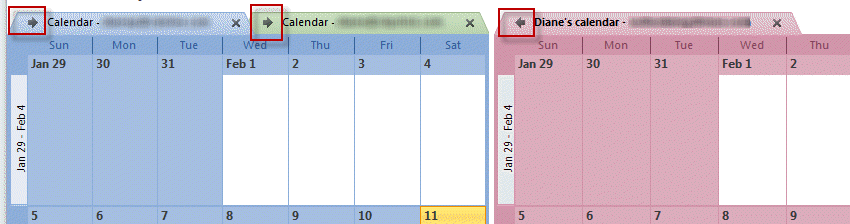
If you have meetings on the second calendar, you need to use Move to folder, not Copy, in order for updates to work correctly.
Merge into one calendar
If you really want to merge the calendars, it's easy - use a list view then drag the items to the other folder. Or use the Move to folder command. It doesn't matter which type of Outlook folder you are using, the method is the same for all folders.
- Begin by selecting the folder you want to stop using. If its a calendar folder, switch to a list view, such as All Appointments or By Category. In Outlook 2010, it's called List view. In Contacts, use Phone list view.
- Click on one item, the press Ctrl+A to select all.
- Use the Move to folder (or Copy to folder) command or drag the items to the folder you want to move the items to.
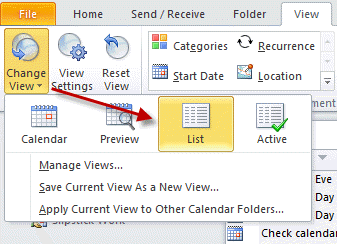
In Outlook 2010 and newer, choose List view from the Change View menu on the View ribbon.
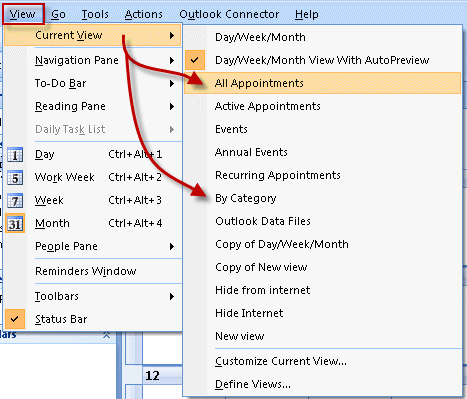
In Outlook 2007 (and older versions) use All Appointments or By Category. In contacts, use Phone list or By Category.
Video Tutorial
More Information
A video tutorial for Outlook 2007 and older is available here

RAY J GOTTSLEBEN says
I'm using Windows 10 64 bit and Outlook 2016. I installed I cloud but don't like the fact that my contacts and calendars are no longer accessible from outlook and would like to reinstall them. I've read the blog posts about copying from Icloud back to Outlook. I can "Select All" contacts from Icloud but I dont see any way to copy them? There is no "copy" prompt anywhere I can find. I also signed out of Icloud and thought if I did that contacts and calendar would be restored to outlook, but that didn't work either. What am I missing?
Susan Jaeger says
I have not been able to sync my iCloud(2) calendar, or even access it, from either my cloud Outlook (on home computer) or my installed Outlook (on work computer) for some time. "Sync your settings" is greyed out. I was using iCloud Calendar(2) and it synced, but stopped several months back. Now iClould calendars won’t open at all in Outlook, I have to use 'Calendars from iCloud.' No opening, no syncing going on, and I can’t do any of the small fixes suggested in Slipstick. I am on the cloud Outlook at home (now) and none of the suggestions work. The installed Outlook at work, same lack of syncing or being able to open iCloud—same issues as noted above for the cloud Outlook.
Diane Poremsky says
What version of Outlook? do you have the newest icloud? (7, but 6.2 should be ok too)
You signed out of icloud and signed back in? Delete the icloud data file from outlook (file, account settings, data files) too, before signing back in and that *should* fix it. If not, verify that icloud addin is enabled in addins - and stays enabled when you reboot.
Andrew J. Dunowski says
There's supposed be two backslashes in front of Outlook1 and one backslash between Outlook1 and Calendar, The same with the archive. But in this forum it just put them together.
Sorry for so many posts. It didn't post it the way I wanted.
Diane Poremsky says
Yeah, it's something in php or wordpress - highly annoying but I know it does it and assume it was the software, not the person, who has it wrong. Using pre tags should keep the slashes but it doesn't always work in the comments. (It also removes greater and less than characters - but keeps the html code which is & lt; or & gt; (without the space after &)
Andrew J. Dunowski says
I have multiple Outlook Calendars from way back, my PST file is named: Outlook1.pst. I have a calendar at \Outlook1 and I have another at \Outlook1Calendar. Which one is the standard default location? I'm on your page learning how to combine them into one, and delete the other. I also have multiple archive calendars at: \archive and \archivecalendar.
Diane Poremsky says
We'll see if the code tag in the editor works for slashes (it failed, will try pre tags - <pre> </pre>)
is probably the default calendar, assuming outlook1 is the default pst. You can check for the default data file in File, Account Settings, Data Files tab.
If you are in the Inbox and create a new appointment, it will go into the default calendar... this is the calendar you need to keep.
The archive calendars are just that - archived versions of your default calendar. This should have older calendar items in it. You can turn archiving off on the calendar in outlook1 - right click on the calendar folder and choose properties then autoarchive tab - set it to never archive.
After you set it to never archive, you can use a list view on the calendar in the archive and select all then move to the default calendar folder. After you do this, right click on the calendar folder in the archive and delete it. As long as the archive was never set as default, you'll be able to delete it.
if you have multiple calendars in the folder, verify they are not duplicated appointments and move the items (if you need to keep the history) then delete the calendar folder.
Pavel says
Thank you very much. It helped me and solved my troubles!
Pavel
Everett says
Will this work if one of the email accounts does not have a calendar? If the non-calendar email account receives a meeting request, can the calendar of the primary account handle incoming and new calendar events from the non-calendar account?
Thank you for your help!
Diane Poremsky says
yes, it should work just like that.
MSS says
thank you that is the easiest and simplest way to merge calendars I've found. Most grateful
Sandy says
I manage 3 separate calendars. Is there a way that when using "scheduling assistant", you can see conflicting time from all 3 calendars? This is more of an issue when others are attempting to invite me to a meeting and can only see busy periods from one of my calendar, not all three.
Diane Poremsky says
Free/busy (which is what scheduler reads) only works with the default calendar in the mailbox.
You'd need to use 1 calendar. if you are using 3 so you can 'hide' some appointments from others, you could mark them private or use a macro to copy just the busy appt to the main calendar and use a generic subject line - a macro is here - https://www.slipstick.com/developer/copy-new-appointments-to-another-calendar-using-vba/
Alice Ray-Overstreet says
This was a Godsend! Thank you for such clear, helpful instructions.
Kira says
Is there a way to keep the two calendars as separate, but merge them for printing in like a weekly view?
Diane Poremsky says
You can either use a 3rd party application or this macro:
https://www.slipstick.com/outlook/combine-outlook-calendars-print-one/
See https://www.slipstick.com/addins/calendar-tools-addins/calendar-printing-tools-for-outlook/ for utilities
Debi Grenseman (@wwmitimom) says
Thank you, thank you, thank you! This has helped me to finally fix a problem that occurred when we copied my calendar and contacts from my PC to my iPad.
Lídia says
Hi,
Is there any way to get a List of all active appointments from all calendars from a calendar Group??
We can see them in Calendar view, but not in List or Active List.
We are using office 2013.
Thanks!
Diane Poremsky says
Instant search across all mailboxes would be the only way to see them together in one list.
I also have a macro that copies appointments to a Print calendar which would work for you as well.
https://www.slipstick.com/outlook/combine-outlook-calendars-print-one/
David says
Wow! Why are calendars so complex? I thought what I wanted to do was simple. I have Office 365 and I have two calendars - one from Office 365 and one from Outlook on my PC. All I want to do is make sure that when I get meeting requests that would normally go into my PC Outlook calendar (i.e. from a POP email account) they actually go into my Office 365 calendar - i.e. the Office 365 handles all of my diary and is the default - in that way my Windows Phone stays up to date too. Alternatively I'd like to see both calendars on my Windows phone. Basically I just want one calendar!
Diane Poremsky says
Set the office365 data file as default then move you appointments (use a list view, copy and paste) and contacts into it. Then Add a new data file to outlook and set it as the delivery location for the pop account and move the mail in the old pst into it. This will get rid of the extra calendar in the pst and all events should go into the office 365 calendar.
Hai says
Diane, I have a similar situation as David: I use Outlook 2013 for POP3 account, and sync Outlook with iPhone through iCloud. When I accept / issue a meeting invite in Outlook through the POP3 account, that meeting stays in the local calendar, NOT sync'd to iPhone. I could copy the meeting into the iCloud calendar in Outlook and it sync well. But any changes to that meeting have to be manually changed in iCloud. How can I make that process automatic: when I receive or modify a meeting either on iPhone or in Outlook, the calendars sync? Or how should I merge these 2 calendar so that I only have ONE calendar across the devices?
Diane Poremsky says
It's a problem because the meetings go into the default calendar and you can't*** set the icloud calendar as default. There really isn't a good, perfect solution. I have a macro that will copy meetings over and update them if the default meeting is changed. https://www.slipstick.com/developer/copy-new-appointments-to-another-calendar-using-vba/
*** some versions of Outlook and icloud will let you set icloud as default but its buggy and may cause outlook to crash.
Mark says
Thanks
Mark says
I brought in my old calendar from Outlook 2003 and I'm wanting to merge the two calendars. If I do as instructed in this video, will it have an option to not duplicate?
Thanks.
Diane Poremsky says
No, calendars don't have an option to skip duplicates. If you have the old calendar in a pst file, you can use Import and skip duplicates.
rachid says
Hello,
I did that in my outlook 2013, i got all the the item like attached file in one item,
what to do?
Chris Fenstermaker says
Hi there.
This explanation seems to be for Outlook 2007 and 2010.
I am using Office/Outlook 2003. How do I make my outlook.com calendar the default calendar in my office outlook?
I have my oulook.com calendar in office outlook, but it's not the default and the dates, appointments etc do not show on my personal folders "outlook today"
Thank you.
Diane Poremsky says
Correct, it is for Outlook 2007 and up. The Outlook.com data file can be set as default, but all new mail POP3 will be delivered to it. Tools, Email account, view or change existing accounts - 'deliver new mail to location' at the bottom of the screen is where you select the outlook.com account.
george says
Having moved "all appointments" from other calendars(outlook2007), following your good instructions, to what I want to keep as "main calendar" succesfully, I now want to delete the "empty" calendars but R/click does not give me the option, the calendars are "ghosted". Any ideas?
Diane Poremsky says
The secondary calendars are in a different data file? What type of email account uses those data files?
Carol says
I am having a problem syncing my Outlook calendar from my laptop to my iphone4 and iPad 2. I am using a USB cable connection and syncing through iTunes. Recurring appointments that have been deleted and replaced with a new one time appointment are duplicated after syncing. Even when I manually remove the duplicates from my laptop and other devices , the same thing happens the next time I sync the devices. Is there any way to sync my iPad and iPhone with my Outlook calendar on my laptop and not have duplicates?
Diane Poremsky says
Move all appt to a new calendar that doesn't sync then sync to clear the calendars. Verify the iCloud and phone are clear and move the appt back and resync. If the problem returns it's something with the sync process.
Casey says
Diane,
A PC user, using Outlook 2010, with an Iphone.
I (finally) loaded iCloud. When I did so, per many above I have two calendars in Outlook - my work email calendar, and my iCloud calender. The problem is when I send or receive any appointments via my work email, I can see it on the iCloud calendar (shaded), but it does not sync with my mobile device. I don't want to send it out appointments as an .ics as not all use iCal. Is there a way to have only 1 calendar, which syncs with my default work email and iCloud calendar so it shows up on my mobile device?
Furthermore, all of my contacts are now saved with iCloud. Yet in Outlook, when I create a new contact and save it (using the default Save & Close), it saves it to "My Contacts" not the "iCloud" folder. I then have to move it - a 2 step process. Can you change the default Save & Close?
Thanks in advance.
Diane Poremsky says
So meeting requests aren't syncing? I'll have to check into it. The only way to use 1 calendar in outlook and sync to the phone is with iTunes. ITunes can sync over wifi so when the phone is using the same wifi network as your computer, it will sync. Or you can use a utility like companion link.
No, you can't change the default folder for save and close. you can use macros to watch for new entries in folders and move or copy the contact or appointment. See https://www.slipstick.com/developer/copy-new-appointments-to-another-calendar-using-vba/ for the code.
ben tillman says
Thanks. The video was helpful, but the problem is that this doesn't merge the calendars. Merging the calendars entails causing each new appointment to be included automatically in both calendars. How do you do that? Thank you.
Diane Poremsky says
If you move the appointments to the other calendar, you won't have duplicates; if you copy the appointments, you'll have duplicates.
(I'll update the video for Outlook 2010/2013 and use the Move to command.)
ben tillman says
I tried overlaying, but it just resulted in side-by-sidelaying.
Diane Poremsky says
:) What version of Outlook do you use?
Tom Sullivan says
Hi Diane,
I have transitioned to exchange 2010. My new mail, calendars, contacts, etc. is working great sending and receiving, sending calendar invites. I have added my old email account as a secondary account with my old mail, calendars, contacts...so I can merge or drag and drop into my new exchange account. Is the process similar to the above discussion on merging calendars? Appreciate your feedback.
Diane Poremsky says
Yes, you'll use the same method to merge any two data files (or use Import command, but dragging gives you more control.)
Peter Baris says
I recommend this solution to all of my clients. I am sure they too will be benefitted with this free option and will be satisfied.
Penny Williams says
Thank you sooooo much! I was loosing my mind looking for that. Worked perfectly and was a piece of cake. Now my calendar on my email screen will work right and my phone calendar will sync right too.
Penny Williams says
How do you do this in Outlook 2013? I cannot find a list view for the calendar after searching for 30 minutes. I desperately need to combine two calendars into one though. Thanks!
Diane Poremsky says
in 2010 and 2013, you need to go to the view ribbon, then Change View. You'll have a List view there.
CP says
Thanks
CP says
Is there a way to automatic run the CodeTwo Folder Sync ? So we dont have to press the button to syc? Any VBA code?
Diane Poremsky says
No, sorry. They have some paid tools that are automatic but i don't think they have a version of this one that is. If the other folder is iCloud that tool is automatic.
John says
Sorry, I meant Outlook 13, not Outlook 10 in my previous question. John
Diane Poremsky says
Ah. Well it could be Outlook then. Outlook doesn't usually crash though, just tell you it can't be done. What addins do you have installed?
Test it in Safe mode.
John says
When I attempt the drag and drop method of moving my local calendar to my outlook.com calendar, Outlook 10 crashes and I get an error message saying that Outlook10 has stopped working, check on line for a solution or end program. I cannot get back into Outlook 10 until I go into to control panel and delete my outlook.com profile. Any ideas?
Thanks,
Diane Poremsky says
I've seen similar problems with Outlook 2013 but 2010 uses the Outlook Connector and handles imports pretty good. At least for most people. Are you trying to copy a single appt or a group of appointments? Are they meetings, recurring appt or anything other than a simple single appointment?
Tina says
I would have to say yes... then only thing to enable is Calendar (and also Contacts, Email and Tasks). There is no sub-menu to check the individual calendars under the account settings of ActiveSync. And under the settings in the calendar app itself, there are just a few minor options like day to start the week and event time intervals. Because the events that sync change with which calendar is specified primary in the Outlook Calendar, that seems to indicate an Outlook issue as opposed to something on the phone. In searching the web, I ran across some references to Google Calendar only syncing the primary calendar, with recommendations to export the data from the secondary calendars and import them in to the primary calendar, but there is no export function in the Outlook calendar, so that is not even an option. I ran across your posts and brought this issue to you because you seemed the most knowledgeable on other Outlook issues.
Diane Poremsky says
You're syncing using a cable or syncing over the air using exchange service? I don't know which version of windows phone started with multiple calendars but it's in 8 for sure, and I think in 7.
Tina says
Also, for further clarification, all five calendars are checked under options on the Outlook (old Hotmail) calendar. If they are unchecked, those (color/calendar specific) events are removed from the Outlook calendar - so they all have to be checked. What does not sync or display on my phone are the "secondary" calendars and their events.
Tina says
Thank you for your time and for answering, but yes, all five calendars are checked and only the one designated "primary" under options displays on the phone after ActiveSync-ing. If I change which calendar is primary, then those events are synced to the phone. What is displayed on the phone is directly connected to only one calendar chosen to be primary.
Diane Poremsky says
Are they enabled on the phone? Go into the calendar settings on the phone - are the other calendars enabled? If I could manage screenshots on my phone, I'd get a screenshot (I always turn the phone off instead of getting a screenshot.)
Tina says
I had Hotmail and used the calendar - setting up five different calendars/colors to keep areas of my life delineated. I was forced into the Outlook format. Now I cannot view my Outlook calandar in an internet web view. I set up an email account so Outlook would sync with my HTC HD2 Windows 6.5 phone. Only the "primary calandar" syncs - leaving 3/4 of my life off my phone calendar. All the above info on merging calendars or other on exporting secondary calendars and importing them into the primary calendar do not work in the "new" Outlook calendar. Hotmail worked seemlessly and perfectly... Outlook is a pale and massively imperfect substitute! Can you suggest any solution so I can see all my events in all calendars?
Diane Poremsky says
This page doesn't apply to your situation.
If I understand correctly, you can't see the calendars online? Are they all selected? see the last Screenshot. They should all sync if selected.
Judy Hansen says
Thank you so much! I have a new Blackberry 10 and was mystified by how to sync the darn thing. Your notes have helped me with the final steps (at least I hope so)!
Diane Poremsky says
Do you like the blackberry? My old one died last fall so I got a windows phone. I really miss my BB and I'm thinking about getting one, even though I really, really don't need it.
Lu says
Diane, I need help. I constantly need to open .ics files for my travel itineraries and Outlook creates a new calednar for each file I open. Is there an easier way to merge calendars without the manual process? This seems a little bit easier than saving and importing the file, but it still needs manual work. Any way around it?
Diane Poremsky says
No, unfortunately not. When outlook detects it as a calendar rather than an appointment, it opens it as a calendar and you need to drag the items to your real calendar. Sorry.
Ben says
OK. Let me recast the issue which takes it away from the specifics of FLOGS.
I'd like to be able to see a subscribed calendar on Outlook, iPad and Blackberry. I can subscribe to it on the first two but can't see how to on the BB (Bold 9000). How do I see a subscribed calendar in all 3 devices so that when the entries on teh subscribed calendar change then that is reflected on all 3 platforms?
Diane Poremsky says
As far as I know, you can't subscribe to internet calendars on blackberry. (I'm not sure if you can on the BB 10 devices.)
If they support BB sync, then you can set it up as an email account and enable calendar sync in the account's sync options.
Jim Gren says
I have Outlook 2003 and going to Outlook.com - I have installed the COnnector but I get message that cannot copy calendar to a web-based version. ANy suggestions?
Diane Poremsky says
See if Move works. I'll check it here too.
Ben says
I have a situation I'm trying to solve which I don't think I see above...
I have Outlook, iPad and Blackberry. They are all connected and sync fine through their default calendars. I want to subscribe to one public calendar on FLOGS and set it up so that all 3 of the devices have the subscribed calendar visible. If I set up the subscription on the iPad or Outlook it appears as an additional calendar and so doesn't appear on the BB. If I set the subscription up on the BB, it replicates brilliantly to each calendar ... except that auto sync doesn't seem to work so I have to manually sync on the BB and these scripting entries then appear on Outlook and iPad.
So until the auto sync using FLOGS on the BB works what can I do to automatically keep all 3 devices in syn with respect to the subscribed calendar?
Diane Poremsky says
I'm not familiar with FLOGS to know what options you might have from that side, but your options are limited in outlook. If you want the items in your default calendar, there are sync tools, but they tend to create duplicates, so you might be better off sticking with manual sync on the BB.
David Livingston says
The down fall to what is described above by "Copying" or "Drag and drop" is this will make a copy of the meeting on the new calendar. The option to "Move" will keep the original meeting in place however is not always an option for all meetings.
Navneet Mehta says
Hi,
I am using MS Office professional plus 2010 and using Overlay calendars. Unfortunately i do not get alerts for the overlaid calendar at all. Not sure how to fix it.
Request if you can help here.
Thanks and Regards
Navneet
Diane Poremsky says
These are shared calendars? You only get reminders for your own calendars.
Ju says
Hi,
I have an outlook 2007 calendar and icloud. When I enabled icloud, I ended up with 2 calendars, which resulted in having 2 ''calendar in icloud'' in outlook. A lot a of the items are duplicates, but not all. I just want to have one calendar. Is there a way to merge these two calendars into one and avoid having duplicates at the same time?
Diane Poremsky says
Both calendars are in the icloud? You can delete the one you don't want *if it only has duplicates*. Right click, Delete. I got rid of the work calendar this way.
If you think it's not all dupes you can move the appointments to it - switch to a list view, select all, drag or use the move to folder command - and then either delete the dupes manually (it might be easier using a list view) or run a duplicate remover utility.
Mark says
I love the overlay calendar option on my Outlook 2010 and OWA. However, I need to see the overlaid calendars on my Android Phone but it appears that the Light Version is the only option on the Android Phone. Is there any way to view the overlaid calendars on my cell phone?
Diane Poremsky says
no, owa light does not support overlay. If Exchange Active Sync is an option for you, that might allow overlays.
Diane says
thank you so much for this tutorial. I bought a new computer with Windows 8. I saved my 2007 pst Outlook file from my old computer and copied it to the new computer. however when moving things around I kept getting the message that the reminder would not work to which I had to reply yes every time to move on. by moving the personal folder I had created to the one created by Microsoft as linked to my email address, the problem was solved. The tutorial was key in solving this problem. Diane
Nick Miller says
Is there a cross-talk application or option that will enable the iCloud calendar to automatically update and mirror the Google calendar, and visa-versa? Much like Google CalendarSync works between Google Calendar and Outlook?
Diane Poremsky says
You mean so that you can use icloud instead of the google sync app to get google calendar into Outlook? I'm not aware of anything like that.
Romona says
Thank you very much for helping me fix my mess after trying iCloud. When I tried to delete iCloud I somehow deleted all the events from my main calendar and everything was in the iCloud copy. Now they are back where they belong.
Lee says
Diana - Maybe you can help me as well. I set up Outlook on my computer as a POP3, accidentally. I sent roughly 150 appointments (I work in event planning) and then realized the POP3 wouldn't be compatible with my cell phone. My IT team in the office set up the Outlook exchange server and COPIED all of the 150 event notifications. Now I cannot make updates / access the appointments (the message at the top of each appointment shows, you are not the planner and cannot make updates.) Is there any way to fix this?
Thanks so much!
Diane Poremsky says
Do you still have the pst with the appointments in it's calendar? Open it in your profile and move the appointments to the calendar, not copy. If that doesn't fix it, it can't be fixed.
Joe says
Diane,
Am I correct in assuming that any appointments made in the cloud (icloud calendar) from any iphone or apple device must be manually added to the outlook calendar in order for it to show up in the To-Do list?? Seems it defeats the purpose of syncing?
Diane Poremsky says
Yes, for the most part. icloud 1 is supposed to sync but often fails. I haven't used icloud 2 enough to know - but you can set icloud 2 as the default data file, as long as you don't use imap accounts. iCloud default data files.
CodeTwo.com has a nice icloud sync utility that will sync icloud and outlook.
consolegoddess says
This worked great for the first time. I now only use and view the cloud calendar. The only problem is that on the Personal Folders page the cloud appointments don't show up under calendar. Is there a way to either keep the calendars synchronized or change which calendar is default for the Personal Folders page?
Diane Poremsky says
You mean on the Outlook Today page? No, sorry, you can't show the icloud appointments in that list.
James Fisher says
Thank You for explaining how to merge calendars! The "list" view is something I hadn't seen before.
Alwin Hauke says
Hello
my current mailbox will be migrated to a new one. I have performed a backup and created a pst-file using the "Export" function in Outlook on my old account. When importing the pst-file into my new account, all looks OK (messages, contacts, tasks) except all my calendar items are now called "Copy: ..." and I cannot manage those anymore, meaning, unable to send updates or cancel them. My new mail account calendar tells me that I am not the owner anymore, which is true. Selecting all calendar items in the view "All appointments" and then using the "Move to Folder" function does not help either, since I cannot select my calendar folder in my new account. The window displays only the old account folders.
How can I import, insert, copy or move my old calendar items into my new account calendar without losing any functionality by remaining the owner of my own meetings. Otherwise I have to recreate them all, which means a lot of work.
I also found a tool to open both mail accounts on the same computer and see my two calendars side by side, the old one and the new one, but drag&drop does not work either. Error message: "Cannot copy the items".
Help !!! Please !!!
Thanks in advance,
Alwin
eric paris says
i want to thank you for your wonderful advice. I merged my new icloud calendar with my default outlook calendar because I like to see all of my appts on the right side bar and in outlook today and as you know, icloud calendar does not allow that. I too am a former mobileme subscriber that just switched to icloud for my office outlook.
i am preparing to attempt to merge my assistant's outlook calendar and tasks with my calendar and tasks. I am going to try code2 sync which appears to be free for life?.. i don't know if it is going to sync the icloud calendar or the outlook calendar?
also until apple or microsoft makes a change, it appears that i am going to have to copy my icloud calendar every time i make a new entry because there is no auto sync??
Kevin Motherway says
Diane
Thanks So much for the tips. But is it possible to schedule that the calendar is copied automatically or do you have to do it manually on a regular basis.
Thanks
K
Diane Poremsky says
No, sorry. If you need to copy between calendars, there is at least one add-in that can do it, however it syncs both folders to each other, rather than syncing one way. CodeTwo Folder Sync - a link to it is here. It's also manual - you need to tell it to sync. As I test some of the other sync programs, I'll add them to the list - and if I find any that are one way sync (and work with Outlook 2010), I'll add them here.
suffering says
I'm trying to get rid of iCloud from my Outlook 2007 (and my life!) - By following the above advice I can move about 500 of the entries, but the remaining 1000 or so (anything I had scheduled from my blackberry, it seems) will not move (though it was in outlook before and was pulled to iCloud from outlook). Any advice?
Diane Poremsky says
What happens when you try to move them?
Robyn says
Thank you so much!! it worked!!! I copied all the items from my calendar (using list view) and moved them to the default "calendar" folder, and viola! my upcoming appointments re-appeared on my outlook page. Thank you so much!
Debbie Schweikert says
Help! I tried merging Outlook with iCloud. I have since shut off iCloud. My appointments from 5/25/11 thru the future are gone. How do I get them back?
Diane Poremsky says
Are they still in the cloud? (They should be, unless you deleted them.) Re-enable the cloud in the control panel and restart outlook then drag the items from the icloud to Outlook. When you are finished, disable the icloud again.
Theresa Goulder says
Thanks for the advice. I've been having a nightmare with my calendar entries since upgrading to ios5 on my iPad as whenever I'm invited to a meeting it ends up in my default Outlook calendar not my iCloud calendar so isn't on my iPad. Now I can just move all the items in my default Outlook calendar across very quickly on a regular basis. I'll be glad when this issue is resolved, but the steps you describe above provide a great workaround in the meantime.
Andre Cloutier says
Hi,
I wish to thanks the one who sent me the instruction, it did work................Again thanks..Andre