When you save a message as HTML in Outlook 2007 and newer, Outlook creates a matching (and annoying) folder containing XML and THMX files, as seen in the screenshot below.

Besides the issue that Outlook is cluttering up the drive and wasting space (although the files total 6 KB, so its not a lot of waste), deleting the folder also deletes the HTML page. Moving or copying the HTML file copies the folder.
This is because the default setting for managing web pages and folders is to set to manage them as a single file.
Workaround
You can't prevent Outlook from creating the folder, but you can change the folder behavior so the folder can be deleted. The setting you need to change is Managing pairs of Web pages and folders in Folder Options. This is an Office-specific option, but Office 2010 and newer does not add this setting to Windows. (Older versions of Office do set the necessary keys.)
If you want to change the settings, you'll need use the manage pairs registry hack to make the option visible. This hack will work with Windows 10 and all supported Windows operating systems. It will work with Windows 10 64-bit and Outlook 2016 32 or 64-bit.
A text file containing the registry values that are added is here webpairs.txt
A ready to use reg file you can download and run to add the keys is here:
Manage WebPairs registry file
After setting the registry key, you'll need to open Windows File Explorer's Folder Options dialog to change how the folders are managed.
- Open File Explorer
- In Windows 8 or 10, click to expand the Options button on the right side of the View tab.

- Select Change Folder and search options from the menu to open the Folder Options dialog.
- On the View tab, change the Managing pairs of Web pages and folders setting to Show both parts and manage them individually.

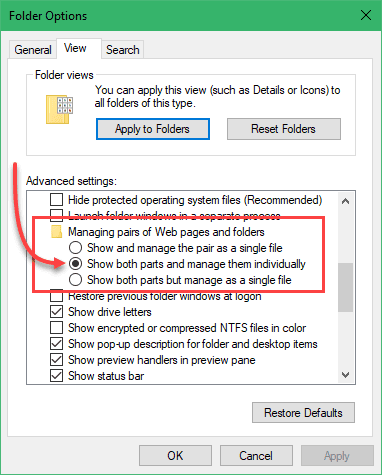
Now you can delete the folder without deleting the HTML file too.
In Windows XP, Folder Options is on the Tools menu. In Vista and Windows 7, go to Organize, Folder and Search options.
More Information
Managing the File System (MSDN)

Gordon Hands says
The "Managing pairs of Web pages and folders" isn't displayed when I open the Folder Optons View tab??
Jamaica Johns says
How is this done in Windows 10 saving an html file, google chrome. I have the same problem. I have been trying to figure it out for what seems like forever and have not been able to find an answer. ;o(
Diane Poremsky says
I've updated the article for windows 10 - the fix is identical for all windows versions- set the reg key.
Eeswar Achanta says
Thank you very much for the help...
Norine Anderson says
I'd like to know how to delete that annoying list of purchase possibilities on the Outlook home page and also how to log out? The list prevents me from reading messages without scrolling back and forth. Gmail, here I come!!!
Diane Poremsky says
This is at outlook.com? I'm not sure list you are seeing - I don't see it when I log into my account.