Outlook doesn't support a way to change or remove the name or message header at the top of the printout.
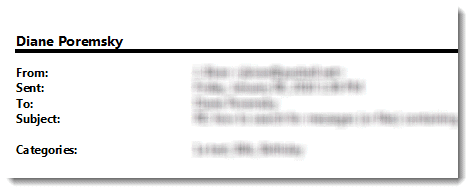
- If you use Word as the editor you can hit Forward or Reply and print from Word. This will include the To/From/subject/Date information. This works with all versions except Outlook 2007 and later. (To set Word as the editor, go to Tools, Options, Mail Format tab and select the option to use Word as the email editor. Note that this only works if Outlook is installed in a suite with Word.)
- Open the Message in Internet Explorer and print. This only works with HTML formatted messages and you will lose To/From/Subject/Date header.
- Configure the print layout to use a font that does not include the standard alphanumeric characters.
- Use a print utility listed below.
eDiscovery warning: If a printed message has the potential to be used in litigation, use the Print key to print the message, in it's entirety with the message header intact.
View in Browser
Look for Open in Browser on the View menu of an open message in Outlook 2003 and earlier. To convert a plain text message to HTML, open the message and go to Edit, Edit message then change the format to HTML
In Outlook 2007 and 2010, look for View in Browser on the Options menu of an open message. Edit message is also on the Options menu in Outlook 2007/2010.
Use a different font
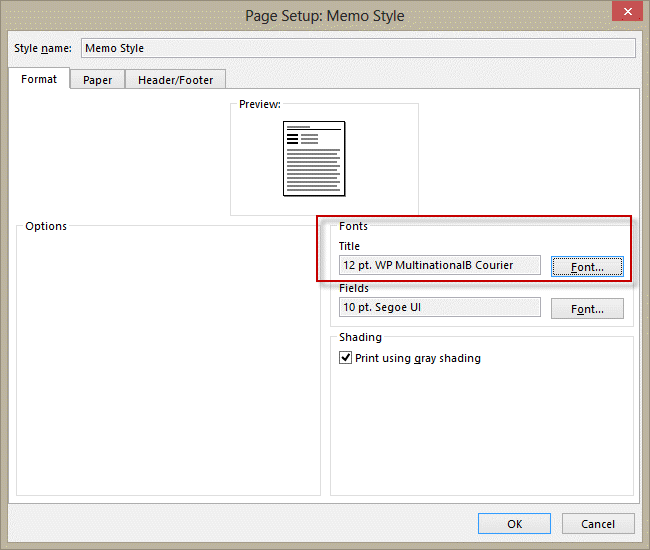
- Go to File, Print
- Click Print Options
- Page Setup
- On the Format tab, click Title Fonts
- Select a font that does not include Alphanumeric characters, such as the WordPerfect WP MultinationalB Courier or Adobe Blank font, then select OK
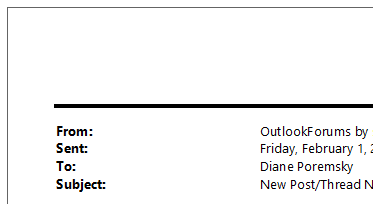
Wrong name is printed
A second problem some users run into is the name that prints is not their name. To fix this, you usually need to make a new profile and use the desired display name in the default account.
Tools in the Spotlight
Sperry Software's Auto Print Pro for Outlook add-in is similar to their Auto Print tool, except that instead of being forced to print to a single printer, this add-in will allow you to set up a number of different "rules" so that emails from this person go to this printer, emails from that person go to that printer, etc. And just like the original add-in, this one will allow you to print just the emails, just the attachments, or both... with an unlimited set of rules. | |
Print Tools for Outlook will help you automatically print incoming and outgoing messages with attachments (as well as messages and attachments separately). The plug-in automatically unpacks and prints packed .ZIP and .RAR attachments, and supports manual and automatic modes. Used with Microsoft Outlook rules, the Print Tools plug-in allows you to create a system that will automatically print messages and/or attached files. You can specify (or forbid) which file types will be printed or print an attachment separately from its message. |


Tools
Sperry Software's Auto Print Add-In for Outlook has support for Outlook 2010, both 32-bit and 64-bit. In addition, it now has the ability to print emails and/or attachments to any printer, not just the default printer. Margins, number of copies, print first page only - many new options are also now available, and Sperry Software now has fully functional 14-day trial versions on its entire product line. | |
Print your Outlook Emails the way you want. Outlook Printer allows you to customize the printing of your Outlook mails with an easy to use interface. Prints incoming e-mails automatically. | |
Print Agent for Exchange - a solution for Microsoft Exchange Server 2013, 2010, 2007, 2003, which allows to automatically print out the necessary emails and attachments. The product consists of three components - a management console, transport agents, installed on the Exchange server, and one or more services that are directly processed printing. A practical system of rules, including conditions, actions and exceptions, allows to define criteria for printing of really necessary messages and attachments. Print Agent for Exchange can print both email messages and attached files (images, html, PDF, txt). | |
Sperry Software's Print On Demand add-in for Outlook is being released for Outlook 2010. The add-in places convenient print buttons on the Outlook toolbar so that you can simply select the emails and/or attachments you want to print then click the Print Email, Print Attachments, or Print Both buttons. This new version now works with Outlook 2010, both 32-bit and 64-bit. | |
Use PrintPage1 to print any email without all the previous exchanges of messages or disclaimers. It discards any messages that are appended at the bottom of the current message and that begin with From:. That means that even if the new message extends to two pages you get it all. |
More Information
VBA macro to automatically open the message in IE and print
The following pages address other Outlook printing issues:

ZMaN19 says
We have a user on an exchange based system and she was experiencing similar difficulties after a name change from a recent marrage. Her maden name would print and appear in her Offline Global Address list. Although others would receive her mail as the correct name and her name would appear correctly in their address list. I closed Outlook, went to C:\users\*username*\AppData\Local\Microsoft\Outlook and verifiesd that her .ost mactched her primary .ost in outlook as well as her *username* and I then noticed that her OAB or Offline Address Book had not been changed in months despite multiple recent re-loads. So I re-named her Offline Address Books folder to "Offline Address Books.1" and re-opened outlook forcing it to re-load correctly. Once I did that, her named appeared correctly during print and in her address book. You may have to adjust your folder options in control panel to view hidden operating system files and know file extensions to do this but it correced the issue here. Hope this helps.
Eric Heavrin says
I have a customer (VIPish) that wants this to happen NOW.. I tried all of the ones above and of them Blueprint and Outlook Printer were able to remove basically anything in the email. The easier of the 2 for me was Blueprint because the templates are configured in HTML and it was easy to find the things I wanted to remove. It also allowed me to put a one-button touch to print with the new format (for 1 or multiple emails). Outlook Printer's templates are configured in Word and to me they are easy to understand, but don't have nearly the options available. You would have to know how to add them into your email. Also, and this is a small issue, you have to click print and then select your icon from a dropdown. Two buttons instead of one and for my customer that is a game changer. Thank you for the links and I hope this helps someone in the future.
muhammet says
justlike tina says, either make your title font WP multinationalB Courier or set the font size to 1 and select a font which looks smallest in preview area.
Chris says
Outlook 2007: Create a new profile, call it anything.
Manually configure the profile if the auto account setup is defaulted. Select Internet E-mail>Next>In "Your Name" which is required, type in your company name, or some other generic header. The rest of the POP info can be bogus. When finished you'll have an empty profile that you can import a PST to. The emails will only have the company name at the top header. The other important info you want - From:, Sent:, To:, Subject: will all appear at the top.
Michelle says
In Microsoft Outlook Go to File--> Info--> Account Settings-->Change Existing Connection Settings--> Double Click on your Email account listed--> Under User Information change Your Name.
Tina says
Go to file, then print, then print options, then page setup and under fonts "title" select WP MultinationalB Courier, then select ok, then print. If you do not have this font on your version of windows, you can download it.
Diane Poremsky says
Yeah, you can hide the text not remove the ugly line. Any font that does not include the alpha characters will work.