Some people just don't like the RSS feature in Outlook. Fortunately you can disable the RSS capability using group policy. While group policy is considered by many to be a ‘corporate’ feature, anyone can change their local group policy, or simply edit the registry.
Create the following key if it does not exist and restart Outlook:
Outlook 2016, 2019, 2021, 365
HKEY_CURRENT_USER\Software\Microsoft\Office\16.0\Outlook\Options\RSS

DWORD: Disable

Value: 1
Outlook 2013
HKEY_CURRENT_USER\Software\Microsoft\Office\15.0\Outlook\Options\RSS

DWORD: Disable

Value: 1
Outlook 2010
HKEY_CURRENT_USER\Software\Microsoft\Office\14.0\Outlook\Options\RSS

DWORD: Disable

Value: 1
Outlook 2007
HKEY_CURRENT_USER\Software\Microsoft\Office\12.0\Outlook\Options\RSS

DWORD: Disable

Value: 1
This turns off the RSS capability but does not remove the RSS folder from your message store. Personal folders created after you enable this registry value will not include the RSS folder; however, you will not be able to delete existing RSS folders using the Outlook UI. You’ll need to use a MAPI editor, such as MFCMAPI Editor or Outlook Spy, to hide or delete the folder.
Using the Group Policy template
To use the group policy templates you need to add the Outlook policy template to the Group Policy Editor. You can do this one of two ways: Import the Outlook template or Save the Office policy templates to the Policy Definitions folder. More information (and screenshots) is available at Use Group Policy ADMX files in Windows 7 or 8 (non-domain computers)
Method 1: Import the Template
If you are using the template for one Office application, this method may be the easiest.
- After extracting the files, go to Start menu, Run and type gpedit.msc
- In the left column of the MMC expand Local Computer Policy then right click Administrative Templates in User Configuration and choose Add/Remove Templates
- Browse to the location where you extracted the templates to and select OUTLK12.ADM and install it.
- Locate the policies you wish to enable and apply.
Method 2: Save the templates in the PolicyDefinitions folder.
If you want to use more than one template, this method installs all of them in the Group Policy editor.
- After extracting the group policy template, copy the files to C:\Windows\PolicyDefinitions
- Press Windows key + R to open the Run command, type gpedit.msc and press Enter.
- All of the Office group policy templates are installed and ready to use.
Do It For Me
If you don't want to edit the registry or mess with the Group Policy Editor, we have registry files available for download. After downloading, double click to run.
Outlook 2016 Outlook 2013 Outlook 2010 Outlook 2007
Delete the RSS folder using MFCMAPI
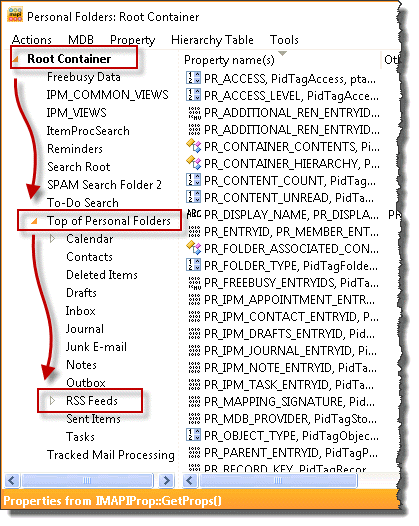
- Download MFCMapi then run it.
- Session menu > Logon then choose your profile (if asked)
- Double click on the data file that contains the RSS folder you want to delete
- Expand Root Container and Top of Personal Folders
- Right click on RSS Feeds folder and choose Delete folder.
Note: While you could use MFCMAPI to delete most of Outlook's default folders, if the data file is used as the default, Outlook will recreate the folders. (See Hiding the folders, it might work better. )
Using MFCMAPI to Delete the RSS Feeds Folder Video Tutorial
More Information
There are policy templates for each version of Outlook (and Office) available in the Policy templates (ADM files), available in the Office Resource kit.
Microsoft 365, Office 2019, and Office 2016 Administrative Template files (ADMX/ADML)
Office 2013 Administrative Template files (ADMX/ADML)
Use Group Policy ADMX files in Windows 7 or 8 (non-domain computers)
Links to Outlook Spy, Exchange Server MAPI Editor and others:
Developer Tools

Name says
Editing regedit doesn't seem to work (anymore), RSS folder is still present after Outlook restart.Outlook 365, v2306 (Build 16529.20182)
Diane Poremsky says
You need to set the key before the data file is created.
Tom says
Diane, how can I edit one of my RSS subscriptions. Where are the subscription details? Couldn't find any on the registry. Looks like I deleted a subscription but it is still stored somewhere, as with that wrong URL in the subscription, I get alsways errors. I have made a new subscription with the correct URL, but when the sync runs, I get an error about the old RSS subscription with the wrong URL.
lmod says
Because RSS feeds were continually downloading old feeds, I removed the RSS Feeds folder from my installation of Office 365 (2016) using MFCMAPI. That deleted the folder and it hasn't returned.
Now I would like to re-instate the RSS Feeds folder (to see if the re-downloading problem has been addressed. Office 365 was updated to 16.0.6741.2017 today (2016 03 22)
Is this possible? I'm happy to edit the registry, if given instructions.
Thanks
Diane Poremsky says
if you set the key to disable RSS, delete the key then restart outlook. Adding an rss feed should recreate the rss folder. if you use imap, exchange, our outlook.com you might need to delete the ost file. (if using imap export anything in the folders named 'this computer only' first)
on duplicates- there is an option in the rss settings to treat updated rss feeds as new - when you do this and the article is updated, outlook will download another copy.
lmod says
Thank you for your response, sorry for my delayed reply. Apparently I didn't check "Notify me ... "
I downloaded and ran MFCMapi from the link above, and used that to delete the RSS Feeds folder. I didn't use the Registry hack, so don't have a key to delete!
I have added now an RSS feed, which would have automatically gone to my hotmail folder (which still has an RSS Feeds folder.
I want any RSS feeds to be in an RSS Feeds folder under/in my main Outlook folder. I have added that folder, and the feed would have gone to that RSS Feeds folder, rather than to a sub-folder. I have added the subfolder, and all 118 messages from that site are now in that sub-folder. Now to see if they download again next time Outlook polls.
Rachel says
Does this disable the initial Enable RSS Feeds Pop up box ( where you can click Yes, No or Remind me later) when Outlook is first configured or does this just disable the syncing or RSS routing?
Diane Poremsky says
If it's enabled before Outlook is used, it should disable the dialog.
kyle says
Worked like a charm. However. After i added the key and relaunched Outlook i was able to delete the RSS feeds folder (although this post said you cannot without 3rd party tools)
Diane Poremsky says
Different account types and later builds can have an effect.
Sanghoon Nam says
It really works. Thanks!
Loretta Yeo says
Hi Diane -
I've recently retired so I can streamline my PST file. I've never used RSS feeds - it's like you're intentionally asking folks to send you spam! I forgot the folder is still there. I don't need to turn off the RSS capability in Outlook, but I'd like to get rid of the folder. Isn't there any way to hack the PST like the Registry and not have to use a third-party solution? Or if I leave the function on w/o the registry key, will OL just keep re-creating the folder? BTW - I'm running Outlook 2013/365.
Diane Poremsky says
Unfortunately, if you don't disable RSS, the folder will keep getting recreated. :(
Jerry Franco, Jr. says
Thank you Diane . .
In the section 'Using the Group Policy template' in step#1, what FILES are supposed to have been extracted -and- from where??
Thanks again!
Diane Poremsky says
The group policy templates - I thought I had a link to them (in More Information) right above it, but I see its missing. Also need to add Office 2013's to it. If this is the only thing you need to change, the reg file is easier to use, but the policy editor is fun to browse, if you are into geeky stuff. :)
Jerry Franco, Jr. says
Diane,
First of all, I think it's great how you're helping everyone with all their customizations.
I followed your first instructions and successfully created the key to turn off the RSS capability; However, in your following steps of 'Using the Group Policy template', I believe I might need additional or different instructions for Windows7.
Examples: 1) in step3, if I were to 'click Add', then 'ActiveX Control' (which is at top of list) launches a 'Welcome to the Insert ActiveX Control Wizard'. 2) step4, I do NOT have 'Group Policy', but I DO have 'Group Policy Object Editor'... and when this is added it launches 'Welcome to the Group Policy Wizard'.
Can you help me?
Diane Poremsky says
That is the correct one. The wizard should have Local Computer selected as the group policy object, so you just need to click OK.
Or you can "cheat" and type or paste gpedit.msc in the Run command (Windows key + R) or the Search field on the Start menu in windows7. That opens the Group policy editor, ready to use.
(I updated the instructions to use gpedit.msc).
stephanie says
Hi Diane,
So all my RSS e-mails are going straight in my unread mail folder and no other.
This never happened before until i was fooling around with some of the features, but im receiving like 200+ a day as well as my bosses.
Help?! :)
Diane Poremsky says
Did you change the folder the RSS feeds pointed to - File, Account Settings, RSS tab. Select a feed and see where it is being delivered to.
Did you set up any rules that could be deleting them?
Hammer says
Diane,
I've used many of your insights and tutorials for Outlook 2010. Thank you for sharing it all. I will buy any book or other item I can from you to support you because I appreciate what you've done for me!
Cameo says
Thank you so much for your help, Ms Poremsky! The unwanted Outlook folders have been a sore point since day one. I purchased HideOutlookFolders and they are gone. Life is good!
Ernest says
Why is the RSS feature only in my default user folder. I would prefer it to bi in all. Is there any way I can add this RSS folder to all my user set of folders.
Also, in case you are a Outlook expert. I would like to use Outlook in IMAP but its synchronizing capabilities screws me up. To explain, one of my user accounts holds the business's saved emails in a 'SAVED EMAIL folder, with several subfolders.The sync feature of IMAP causes these files to be sent to our main Webmail Server, which is too many files and thus clogs the system. I have enough space but it's very cumbersome. Any suggestions how I can use IMAP without all the sync problems. Also in IMAP, the 'Outbox' feature does not work in outlook.
Diane Poremsky says
RSS: It's stored in the default email account only. If you have multiple profiles, each profile can have their own RSS feeds, but don't share them with windows (unless you have separate windows accounts). :)
IMAP: In IMAP everything local will sync up to the server. If you don't want it on the server, you need to store it in a pst file on your computer. Add a pst file (File, Account Settings, Data File) and create your Saved Email folder in it. (If you use Outlook 2010, you don't need to add a pst file, you can use the one your calendar and contacts are in).
Mikolaj Rutkowski says
Apologies for multiple replies - but my Firefox hasn't refreshed the page properly and I haven't seen the latest answer. Thank you for the tip regarding folder - I will check it immediately.
Diane Poremsky says
Not a problem. If you have guessed, I tend to answer from newest to oldest unanswered (because that is how the comments sort). Oops. :)
Mikolaj Rutkowski says
Confirmed - it works in a sense no RSS section is visible under "Accounts". However, the nasty RSS folder is still present within the mail folders. Is there any way to get rid of it?
Diane Poremsky says
If you create new data files, the RSS folder shouldn't be created. You can delete it from existing data files using MFCMAPI. This works best with POP3, IMAP, and Outlook.com (Hotmail) accounts. Deleting with MFCMAPI works with Exchange accounts but the folder may come back.
Mikolaj Rutkowski says
Hmmmm... I've created it and all RSS-related options are still there, including the nasty RSS folder in my basic e-mail account. Well, I'll give it another try and if I fail, I simply wait for the ready reg file. Thanks!
Diane Poremsky says
You need to restart Outlook - to see if it worked, check Account Settings, Rss tab. If the tab is gone, RSS is disabled. The folder won't disappear from existing data files - you need to delete it using MFCMAPI. Or, if you set the key before creating the accounts in Outlook, the RSS folder won't be created in Outlook.
Mikolaj Rutkowski says
Does this trick work in 2013 version as well? There's no "Options" key at all under HKEY_CURRENT_USER\Software\Microsoft\Office\15.0\Outlook\...
Diane Poremsky says
If the key doesn't exist, create it. It should work - i haven't tested it yet, but will next and update the ready-to-use reg files.
(It works in 2013 too.)
sally porter says
I hate the RSS feeds from msnbc and cannot get rid of them. I have finally set up an appointment from a person recommended on Angies list to come out and remove the feed site. You should be able to easily unsuscribe or spam something like that
Diane Poremsky says
Open Internet Explorer.
Click the "Favorites" button and select the "Feeds" tab.
Right-click on the MSNBC feed that you want to remove.
Delete from the drop-down menu that appears.
In Outlook, go into File, Options, Advanced and turn off sync with command feeds list.
James Hankins says
My goodness! I've never been to such a complete web site for us experienced novices. All others draw unilateral conclusions and leave viewers scratching their heads and wondering if they'll destroy their ability to use their program again without starting from scratch with a reload. You explain, and explain it well, then you give options and direct assistance in carrying out the solution that solves the problem. My goodness, I detested the RSS feeds, and even having to look at the folder name as it occupied precious space. Your expert presence made my life a bit easier and more pleasant tonight.
Lori Willett says
Unfortunately this did not work. When I expanded the root container, all that came up were unreadable codes for the files. I tried and tried, opened each code, and could not figure out if rss feed was in there. I did not see the rss feed icon either. I am stumped.
Is it possible Microsoft as hidden it in there so we can't take it out?
Why would they do such a thing. This is like a virus.
Thank you.
Diane Poremsky says
It's more likely you are looking at the wrong place in the pst file. Can you send me a screenshot of your screen? use diane at slipstick and i'll take a look at it.
Jeff says
This did not have the desired effect in 2010 for me.
Now, when I click an RSS feed icon on a website, Outlook tells me that I can't use RSS feeds.
I want to make outlook stop intercepting RSS feeds so I can use a dedicated feed reader.
When I try to disassociate the FEED and other protocols from Outlook, I'm unable to deselect the check boxes .
This is really frustrating! It shouldn't be so difficult to tell Outlook to leave feeds alone.
Diane Poremsky says
Does the reader have an option to check for default and make it's self the default? That is the easiest way to do it. Disabling RSS in Outlook doesn't change the association.
Kim says
OMG! That was so simple. Thanks!