We hear this question a lot:
If I'm reading an email and want a reminder, I choose Follow-up > Custom and then click the Reminder box. The time defaults to 4:00PM - and I would like to change it to 8:00AM.
You need to change your quick click default to anything except Today and the reminder will default to the start of your workday. Right click on the flag column and choose Set Quick Click to change it.
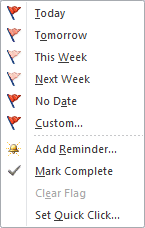 Reminders on flags that are due "Today" (as in, set today, due today) default to have a reminder as of one hour before the end of your work day, as set in Calendar options. This allows you time to complete the task for going home; plus an 8 am reminder won't do you much good at 2 pm.
In Outlook 2007, 2010, or 2013, if you use a custom reminder for later in the day (say 11:30 AM) any messages flagged before that time will use that reminder time. Messages flagged after the reminder time has passed will not have a reminder set. The reminder dialog will default to 1 hour before the end of your workday.
Reminders for tomorrow or later use the reminder time set Task Options, or in older versions, the start of the work day (as configured in Calendar options) for the default reminder time, so you have plenty of time to work on the task before the end of the work day.
If you have the Quick Click default set to "Today" the reminder time defaults to 4 pm (or one hour before the end of the work day) or to the custom reminder set in Options, Tasks. If you use tomorrow, this week, or next week as the default quick click, the reminder defaults to the start of your work day,
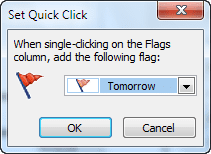 Change the Quick Click flag by right clicking on the Flag icon field and choosing Click "Set Quick Click..." Select any thing but Today.
This week or Next week settings
When Quick Click is set to This Week or Next Week, the default dates are from this week or next, with the due date defaulting to the last day of your work week as set in Calendar options. For most people this will be Friday but if you configured your work week to end on a different day, Outlook will set items flagged for this week or next week to be due the last day selected (Thursday in this screenshot of Outlook 2010's dialog.)
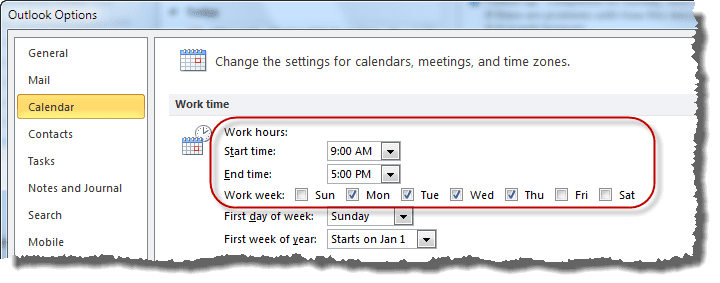
Custom flag reminder default
The default flag and reminder time for a custom flag is based on the Quick Click setting. If Quick Click is set for Today, Custom fields will default to Today, with the reminder 1 hour before the end of the workday setting. If you change the Quick Click to tomorrow, this week, or next week, the default date will change accordingly and the reminder time will default to the start of your workday.
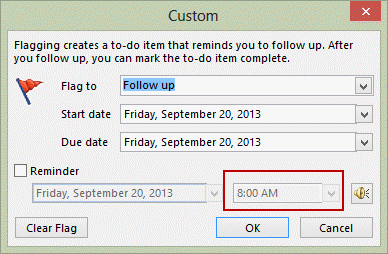 My Quick Click flag is set to This Week, so Custom defaults to "this Friday" and the reminder time defaults to the time I have set in Task Options, which is 8 AM. Changing the Start or End time will change the reminder date, but not the time.
Type a new task default due date
While we're on the subject of Quick Click flags and reminders, your Quick Click choice also affects the default due date for tasks entered into the To-Do's Type a New Task field.
A user asked the following question:
Can I set the default due date for tasks in Outlook 2007 to "None"? Most of the tasks I create do not require a due date. The default seems to be "Today" when I type the tasks into the blank line at the top of the To Do List but when I create the tasks using the new task button, the default due date is none

The due date is set based on the Quick Click flag choice. The To-Do Task list picks up the Quick Click flag setting. You can set the Quick Click flag to No date or use buttons or shortcuts to open task forms instead of using the Type a new task field.
Use Ctrl+Shift+K to open a new task form from anywhere in Outlook and turn off In-cell editing to hide the Type a new task field.
Reminders are set based on your task reminder settings in Task Options. (File, Options, Tasks in Outlook 2010 or Tools, Options, Task options in Outlook 2007.)

Shiraz Esat says
Excellent tip!
Horbaniuc Vlad says
Hello, I have a problem. When I send an email, I use flag for recepients and the recepients are not getting the flaged emails in to task or to do list. Do you know how to treat this issue ?
Diane Poremsky says
Incoming Flags can be removed by the server or by rules. They also show up differently in the message and the recipient needs to reflag them to see them in tasks.
Current versions of outlook flag after the message is sent, so you don't send the flag. There will be a note on the flag that it will be added later.
JHW says
Thanks, this solved a longtime annoyance on my Windows machine. Is there a corresponding fix for Mac? I'm running Office 365 on both machines, but I can't find any option to change the default task settings on the Mac.
Diane Poremsky says
As far as I know, not, you cant set the default reminders for tasks on the mac.
Scot Motzny says
If I flag an item and then delete it, will it still remind me to follow up?
Diane Poremsky says
if you delete the item or clear the flag, the reminder is removed too.
Lee says
What a great tip! I've been so irritated with the reminder time set to 4pm for so many years! Your directions were easy to follow and I was able to make the change.
Thank you so much!
-Lee
Edward Foy says
I have a custom form and for some reason, once I imported it to outlook 2016 it automatically sets a reminder on all new contacts for 09/28/2017 at 10am.
How can I fix this?
Diane Poremsky says
Does the form have a flag and reminder set for that time? You'll need to re-save the form with no reminder set.
Ajit says
If I want to send a reminder/flag to the person to whom I have sent the mail for him to action on something until he sends me a reply.How do I set this ?
Diane Poremsky says
You can set a flag on messages you send, but the recipient could be using a rule to remove the flags... if you want a flag set on your copy in the sent folder, you need to go in an set it.
Nikhil says
Hi Diane,
I'd like 'this week' flag to set due date of my tasks to Sunday of the current week. I changed my default work week in Calendar tab to "Mon to Sun". I thought this would do, but still every time I select 'this week', the due date is set for Friday, instead of Sunday.
Is there a way you can help me?
Diane Poremsky says
I'm not sure if you can get it to do sunday (didn't in my quick tests - sunday is always the first day) but it should definitely set Sat as the due date if you have all 7 days selected.
Karen says
Hi, I have a user who when is creating a Reminder to follow up - she selects the Date drop down but the calendar is in Greek. No greek installed on pc and default language is English. It works ok in safe mode so I've disabled every add on but has not resolved the issue.
Diane Poremsky says
What version of Outlook is it and what type of email account is affected? This is one of those "i remember something like this but can't recall the details" and we can't find anything on it.
Diane Poremsky says
Oh, and do you see this font anywhere else in Outlook controls (or in any other office programs)?
David Norwood says
Nice- was driving me crazy. Switching to Tomorrow worked perfect jto change the custom to 8:am.
Jeff says
Hi Diane, I have business contact manager 2013 32 bit on Windows 7 and when I'm in a contact record and click on custom flag to set a follow up, nothing happens. I can set a custom flag by selecting/highlighting a contact from a list view though...any ideas on how to fix this?
Thanks,
Jeff
Gus says
How do I change the follow up custom flag time?
Diane Poremsky says
If you don't want to use one of the predefined times, you need to choose custom when you right click on the flag. If you means the default reminder time, it's in File, Options, Tasks - but only applies to future tasks, not task you create today for today.
Kim A says
Is there any way to make my own flag (like to remind me in 2 hours) in Quick Steps? Seems like I'm stuck with predefined options there?
Diane Poremsky says
you are limited to the flags they offer but they don't offer reminder options. if you always want to use the sae reminder, you can use a macro to set a flag. You can create a ribbon button and it will be just as convenient as a quick step.
the macro is at https://www.slipstick.com/developer/code-samples/set-flag-follow-up-using-vba/ - i used .ReminderTime = Now + 0.083333 for 2 hours from now. Delete .TaskDueDate line.
Petra says
Hi Diane,
I have noticed that after opening the email from reminder pop-up window and marking it Complete (under Follow up) the reminder is removed from that window but in the Outlook inbox email stays flagged - do you have any idea why this happens?
Thanks in advance,
Petra
Bill Carney says
Somehow my Outlook settings have changed and now automatically flags all incoming emails as a new To-Do? I have no developed rules that instruct this to happen. Any ideas?
Diane Poremsky says
Are you using any addins or a macro? It's not something outlook would do on its own... unless all of the messages are in one thread, then flagging the messages in the thread may be automatic if you flagged the group header.
Aaron Sanford says
Good Afternoon Diane, I have a question regarding custom flags. I often custom flag an email for example by entering "Tom FORAC" in the 'Flag To' block and allow Outlook to create a task in my task list. I would like to be able to print my task list to include the contents of the 'Flag To' block so I can better allocate my time. The best I can seem to do is add the Owner block which doesn't always work say, when I reply to my boss that I'll take care of something and flag it "My ACTION." I haven't been able to find that 'Flag To' block in the column options for the Task List. Do you have any ideas? Thanks much!
Diane Poremsky says
Try the Follow Up Flag field under All Mail Items.
simon747Simon says
Hi Diane, I have a question relating to Business Contact Manager 2013 and not being able to set a Reminder when contact record open. Can do it from the list of contacts.
Please help?
Thanks
Simon Barnes
Diane Poremsky says
Do you get any error messages?
Steven Soep says
Do messages that I want to flag and set a reminder for have to be in the INBOX or can I set a reminder to follow up on a SENT email? I seem to remember there being issues in the past with this. I'm currently using Office 2010 with a SMTP email account.
Diane Poremsky says
You can set reminders in any folder with the newer versions of outlook.
Peter Stroud says
Hi Diane, Is there a way to have Outlook automatically assign a reminder date/time to a sent e-mail? When I select 'follow up in one week' on an e-mail I am sending, I have to also select 'add a reminder'.
Thank you
Diane Poremsky says
It is possible using an itemadd macro - watch the sent folder and do something.
See https://www.slipstick.com/developer/code-samples/set-flag-follow-up-using-vba/ for a macro sample.
mj says
You stated: This allows you time to complete the task for going home; plus an 8 am reminder won't do you much good at 2 pm.
I think it is incredibly presumptuous for someone I don't even know or work with to suggest what good a default reminder at 8:00 am today will or will not do. There simply needs to be latitude for users to use this product that fits their own individual needs. Some people, like me, get in early in the morning and find numerous emails that require action later in the day. I get in before anyone else, and I would simply like to set my default reminder to a time when I know most others have already arrived so I can do whatever I need to respond to the task.
Diane Poremsky says
The bulk of users don't start flagging things to be due today, before the start of their work day. Microsoft has learned over the years that too many options tend to make users confused and sensible defaults are better. For those who don't fit the mold, Outlook is extensible so you can use vba to change how it works.
Which version of Outlook are you using? What is your default reminder for Tasks in Options > Tasks? If the reminder time is later than the time you set the flag, Outlook 2013 will use that time. If you want a custom time you need to use a macro or set the time yourself. (I'll add a macro to this page next.)
Harry Audus says
Pity the flags are all more or less the same colour. Is there some way to change the colours?
Diane Poremsky says
No, sorry, you can't change the flag colors.
Tony Lapetina says
Would like to add, from recent experience, that selecting "No Date" doesn't work. Best to select something like "Next Week". Then it works like a champ!
John Groom says
Hi. Thank you for this clear and, importantly, not condescending, explanation and solution. I discovered another response re Outlook 2007 which basically told me how I should run my working life - on the basis that the application developer 'knows best', e.g reminders for tomorrow will, of course, always be 1 hour before the end of the working day "no choice".
Donna says
When I set a Custom Followup reminder it defaults to 3:30pm, which is neither the start nor end of my day. And my default Task reminder is set to 8am, which is the time I want for my Custom Followup reminder. How do I change the Custom Followup reminder default to 8am?
Diane Poremsky says
Is the end of your workday set to 4:30PM? And your Quick Click is set for Today? The default for custom is based on your quick click setting and a 'today' reminder is 1 hour before the end of your workday.
Louise says
Hi,
What if I want the default reminder time to be today at 1:00 pm?
Diane Poremsky says
You could set the end of your workday to 2 pm - then all items flagged 'today' will use a 1 pm reminder. Or you can use the Custom or Add reminder command to set it. If you are flagging thing for 'tomorrow' or later, you can set the default reminder time to 1 pm.
Vilmos Paradi says
What is then the default reminder time good for as a setting in task properties?
Diane Poremsky says
It covers most reminder settings, just not the one for "today" flags.
Chris says
I have the same issue. I am not familiar with all of the data files for outlook, but i have recently created an outlook.com email in hopes of the follow up functionality to work when i right click the flag icon. However it does not provide those options. If i am not mistaken, outlook.com email addresses are linked with an exchange server which supports the follow up tasks. Any understanding of why i do not have this function? I am using office 2013 and outlook.com email.
Diane Poremsky says
outlook.com is NOT an Exchange account. Office 365 hosted email is, but that costs $4 a month (and up). Hosted exchange will give you a much better experience when using it on multiple computers or smartphones.
EAS (how outlook connects to outlook.com) does not support the multiple flag types.
dada salomon says
Now my followup folder shows the actual day of the due date (April 3, April 4, etc). I want to change it back to TODAY, TOMORROW, NEXT WEEK, etc. How do I do that? Thanks!
Diane Poremsky says
Are you grouping by the received date? Try resetting the view to restore the default view.
dhhsoutlook says
Some emails that I recieve allow me to set a flag. Others tell me that I can't set a reminder because the email has been changed. I have not chaged the email to my knowledge. Other (most) email work just fine for a follow up flag. Any ideas.
Diane Poremsky says
Is this with an imap account? Flags don't work well in imap accounts.
Diane Poremsky says
It is because its an imap account. See https://www.slipstick.com/outlook/outlook-categories-flags-and-imap-accounts/ for other issues.
Chip B says
Please allow me to modify my prior comment. The IMAP account tied to regular GMAIL does allow for follow-up flagging, but the one tied to Google Aps for Business does not. I will say that this is an issue however with 2007. 2010 did not do this. Also, great suggestion on another site to setup a new "quick step" (Home Tab) using the "Create a task with attachment" option. You can assign tasks for follow-up.
Chip B says
Unfortunately Diane's reply is not accurate. I have two IMAP accounts and sometimes I can can set a follow-up day and/or reminder (as opposed to just a flag), and sometimes I can't. I can send screenshots if you would like to see. For a while I was able to almost always set a follow-up after I replied (to the sent mail), but now that technique only occasionally works. I can't figure out what variable is at play. This is super annoying for such a critical management feature.
Diane Poremsky says
What version of Outlook and where are the sent items - in the imap pst or in a local pst?
Diane Poremsky says
Are you using an IMAP account? When Outlook is configured to use an IMAP account, the only flag choice is for Flag Message. No reminders, no flag for tomorrow etc. If you aren't sure how you account is configured, go to Account Settings and look - the account type is to the right of the account name.
Cheryl says
i am having the same problem. there is a control character sequence that makes this work but i have forgotten which letter it is..do you know?
Diane Poremsky says
Try Ctrl+Shift+G - the insert key should set it too (but I have the insert key disabled on my keyboard, so I can't verify it works).
Jeanne Keller says
I am having exactly the same problem. Choices disappeared suddenly. Even "set reminder" no longer there. Help!
gene elias says
Hi,
I all of a sudden lost my choices in the follow up drop down - all i get is "flag message" choice ... how would I go about getting the whole set back?
gene