Beginning with Microsoft Outlook 2000, linking between Contacts and other items in improved - you can link contacts using the Contact linking field and don't need to insert shortcuts in the item. The instructions below are for linking appointments, but you can use them to link any type of Outlook item to Contacts.
Beginning with Microsoft Outlook 2007, the Contact linking field is hidden by default. Enable its display in Tools, Options, Contact options.
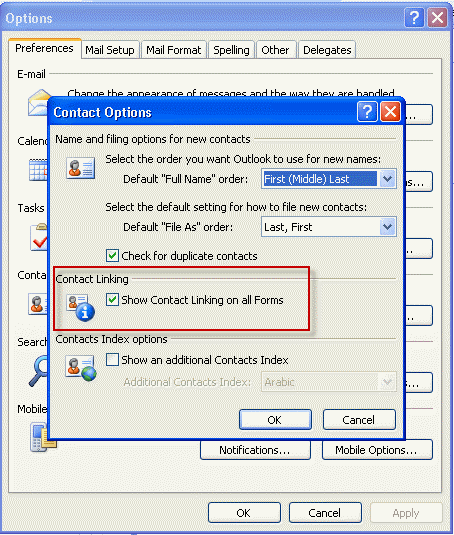
In Microsoft Outlook 2010, you'll go to File, Options, Contact options to enable Contact linking.

Outlook 2007, Outlook 2010
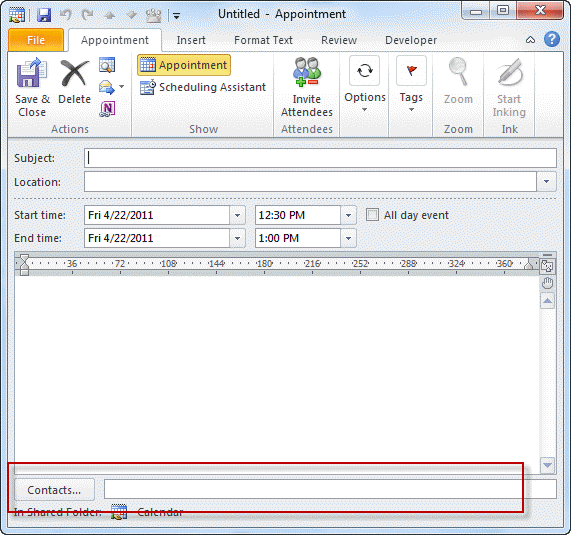
After enabling the option to show the Contact linking field, create (or open) an appointment, click the Contacts button and choose the contact(s) you wish to link with the appointment. Items linked in this manner are visible through the Activities page on the contact item, once you include the items' folder in an activity group for the Contacts folder.
Outlook 2000, 2002, 2003
Create (or open) an appointment, click the Contacts button and choose the contact(s) you wish to link with the appointment. Items linked in this manner are visible through the Activities page on the contact item, once you include the items' folder in an activity group for the Contacts folder.
Outlook 97/98
Select a contact, and use the right mouse button to drag it to the Calendar icon on the Outlook Bar or in the Folder List. Release the right mouse button and choose Copy Here as Appointment with Shortcut from the pop-up menu. This will create a calendar entry whose subject is the name of the contact, with a link back to the contact record.

Nancy says
O 2010 - on Win 10 contact linking no longer works reliably. Possibly though. Here's situation - when opening a contact that has contacts linked to it, get msg O no longer working, will close and reopen. Takes about 2 - 3 attempts to get it to open successfully. Am wondering if it is resolving or performing some indexing operation till it gets it settled. THAT contact then works but the next one I click on with contacts will cause the same problem. So I've just been removing them cause having O open successfully and stay open is more important than having contacts linked. Any recommendations.
Also have issue with issue with linking an email to a contact who is not already include in To, From, CC or BCC. I definitely engaged the 'show contact linking on all items" and I get the field on all items BUT email. Read the above but don't understand this phrase under Outlook 2007, 2010 "once you include the items' folder in an activity group for the Contacts folder." Can't figure out what it means. Appreciate any and all feedback.
Will says
Hello, how do you do this for Outlook 365? Thanks!
Diane Poremsky says
You can set a registry key to show the contacts field on it.
https://www.slipstick.com/outlook/contacts/show-contact-linking-fields/
ben hadman says
Using Outlook 2007, the feature is great on the face of it but when you click to link an appointment with a contact, there is no search feature to find your contacts, this can be quite a slow process if you have a large contact list.
Any advice on this.
Diane Poremsky says
you can type the contact's name in the field and it will autoresolve - or click Alt+K. You do need to know the persons name or at least part of it though.
Simcha says
In Outlook 2010 I can't see any link from the calender using Activities page at the contact.
Simcha says
In Outlook 2010 I can't see any link from the calender using Activities page at the contact.
Diane Poremsky says
Activities are broken in Outlook 2010, gone completely in Outlook 2013. Make sure you have all outlook updates installed (via Microsoft update)- a recent one (last several months) fixed the problems with journal items not displaying. I'm not sure which update it was though.
Cameron Piper says
I noticed that MS deprecated the links function completely in Outlook 2013. Is there a recommended way to keep track of tasks that belong to specific contacts?
Diane Poremsky says
You can enable contact linking in the registry -
HKEY_CURRENT_USER\Software\Policies\Microsoft\Office\15.0\outlook\preferences
DWORD: showcontactfieldobsolete
Value: 1
Diane Poremsky says
Enable contact linking in Outlook 2013 - I was using my ipad yesterday and couldn't find this page. :) It has a reg file that can set the key for you.