Outlook stores a number of recently used lists, from other users mailboxes, to locations, and recent searches, and stationery lists.
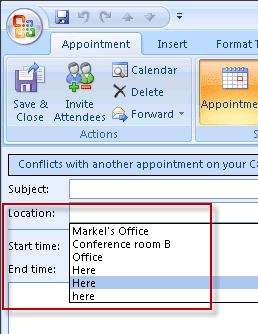
If you want to clear the list, you need to delete the appropriate registry value. Because the values are stored in binary format, you can't edit the list to remove some entries from it, only delete the entire list. The next time Outlook is used, it will recreate a blank key.
Outlook 2013 and Outlook 2016's MRUs are listed at Clearing Outlook's Most Recently Used (MRU) lists
The MRU lists are stored in two areas, the user profile key under Windows Messaging Subsystem or Outlook's key.
MRUs under the profile key
In Outlook 2010 and older, navigate to the profile key, found at:
HKEY_CURRENT_USER\Software\Microsoft\Windows NT\CurrentVersion\Windows Messaging Subsystem\Profiles\profile\0a0d020000000000c000000000000046
| MRU list: | Value to delete from 0a0d020000000000c000000000000046 |
|---|---|
| Actions, New Mail Using, Stationery list | 101f035e |
| File, Open, Other Users Folders (OL97/2002) | 101e0384 |
| File, Open, Other Users Folders (OL2003) | 101f0390 |
| Move to Folder history | 101f031e |
| Save Sent Items folder list | 101f0449 |
| Insert, Signature dialog of the Outlook editor | 101f035c |
| Find Contact (Outlook 20072010) | 101f0446 |
| Insert > Business Card (in compose message) | 101f042b |
Note that this is the key in Windows 2000/XP/Vista - the path may be slightly different in earlier versions. If you can't find it, search for "Windows Messaging Subsystem".
MRUs under the Outlook key
Note that in Outlook 2013, the Profile key is now under this key.
Navigate to :
HKEY_CURRENT_USER\Software\Microsoft\Office\xx.0\Outlook\
where xx is your version of Outlook.
The Fonts MRU list is stored in the SettingsWordMail value in HKEY_CURRENT_USER\Software\Microsoft\Office\xx.0\Word\Data. I'm not sure exactly what else is in the value, but you need to delete the value to clear the Fonts MRU.
Do It For Me
If you don't want to edit the registry yourself, you can download and run the reg file for the key you want to delete. Make sure you choose the correct version and remember to restart Outlook for the key to take affect.
Appointment Locations (LocationMRU): Outlook 2013 | Outlook 2010 | 2007 | 2003 | 2002
Advanced Find's Search for Words (MRU 1): Outlook 2013 | Outlook 2010 | 2007 | 2003
Advanced Find's More Choices, Categories (MRU 3): Outlook 2013 | 2010 | 2007 | 2003
Choose Form dialog (Office Explorer \ Namespaces): Outlook 2013 | 2010 | 2007 | 2003
How to use the Registry Editor
Many of the Most Recently Used (MRU) lists in Outlook can be deleted by editing the registry. Quit Outlook then open the registry editor from the Start menu, Run command by typing regedit, and then click OK.
Navigate the left pane of the registry editor, looking for :
HKEY_CURRENT_USER\Software\Microsoft\Office\xx.0\Outlook\
or:
HKEY_CURRENT_USER\Software\Microsoft\Windows NT\CurrentVersion\Windows Messaging Subsystem\Profiles\
Outlook Version numbers are as follows:
| Popular Name | Version Number |
|---|---|
| Outlook 2016 | 16.0 |
| Outlook 2013 | 15.0 |
| Outlook 2010 | 14.0 |
| Outlook 2007 | 12.0 |
| Outlook 2003 | 11.0 |
| Outlook 2002 | 10.0 |
| Outlook 2000 | 9.0 |
| Outlook 98 | 8.5 |
| Outlook 97 | 8.0 |
Once you locate the proper set of keys, use File, Export to back up this section of the registry. If you are worried you made a mistake, you can double click on the *.reg file to restore it. Next, browse for the specific keys mentioned above. Select the value on the right side and delete it.
MRU's in other applications
If you need to delete MRU list in other windows applications use the Registry Editors Edit, Find menu to look for the keyword "MRU".

Héctor says
Hi. There is a way to clear the Recently Used Fonts list in MS Outlook 2010? I´ve searched a lot information to do that but I've not found how to do that. And in your article you mentions nothing about Recently Used Fonts list.
Diane Poremsky says
I'll need to double check, but I believe you need to disable font mru in word to reset it. I don't recall if there is an option in word to turn it off but you can edit the registry. I'm on tablet right now but will check when I get on a bigger computer.
HKEY_CURRENT_USER\Software\Microsoft\Office\14\Word\Options
String Value: NoFontMRUList
value 1
Les says
Didn't Excel used to have the MRU for fonts? I can't seem to get it to work in Excel 2013 (really miss it)
Diane Poremsky says
i thought it did but could be wrong as it doesn't support everything word and outlook does. Excel 2016 & 2007 don't use the mru, only theme fonts.
Carol says
I have calendar forms that I used in Outlook 2010 which cannot be accessed in Outlook 2013 - Suggestions?
Diane Poremsky says
What happens when you try? (They should work.) Are they published forms or templates?
Amber says
How do I remove stationary I created, from New Items > e-mail message using > ?
Diane Poremsky says
This key should do it - find the profiles key in the registry - ...\Profiles\profilename\0a0d020000000000c000000000000046 the exact location depends on outlook 2010 and older or 2013/2016.
Actions, New Mail Using, Stationery list is stored in 101f035e
dg says
They have been deleted using the signature editor and no longer show under Manage Signatures but still appear in the dropdown list when you click Insert signature!
Diane Poremsky says
Heh, shoulda read my own page - they ae in the registry at
[depends on version of outlook]\Profiles\profilea0d020000000000c000000000000046
value (on right): 101f035c
with 2013, it's under HKEY_CURRENT_USER\Software\Microsoft\Office\15.0\Outlook
Dinesh says
Where would I find the list of signatures which I would like to delete?
Diane Poremsky says
I don;'t think its stored in the registry - to remove them from the list, delete the signature from the Signature editor.
Eyal Melamed says
Hello
I have a slightly different problem that I can't find solution to:
When I clicked on "move to folder" button (or "copy to folder") I used to see a list of the Most Recently Used (MRU) folders. This was very useful and saved time.
Suddenly this disappeared. I do not see this list any more and I see only the regular folder navigation window.
I saw your article (and others) talking about the registry I need to delete in order to clear the MRU list (deleted the registry 101f031e which is "move to folder history") but it did not help.
After I re-opened outlook, and moved a note to a folder, the register appeared again - so I see it is updated with the history, but when I click on "move to folder" I STILL DO NOT SEE THE HISTORY LIST, just the regular navigation list
Can someone help?
Diane Poremsky says
What version of Outlook?
Brian says
Hello
Did you ever get a solution to your MRU folder list issue?
I dont see it here and am having the same issue. Outlook 2003.Thanks.
Roberto says
Thanks!!!!!!!! :-)
Beatrice says
A miracle! Thank you so, so much, Diane!
Beatrice says
This is really helpful, but I've been trying to find how to clear the most recently used fonts on the fonts drop-down list for ages. This is the closest I've come so far. I'm almost debating reinstalling my Outlook, but I don't know if I should go that far (as this is the company computer).
Diane Poremsky says
Reinstalling won't clear settings. It's stored in the SettingsWordMail value in HKEY_CURRENT_USER\Software\Microsoft\Office\15.0\Word\Data.
Mark Pool says
Worked like a charm. Thanks.
Mark says
How do I clear the drop down list when I go to new mail and the "to" button gives me email choices for the first letter i push. How do I clear that list?
Diane Poremsky says
That is the autocomplete list. You can select entries using your arrow keys and press Del on the keyboard. instructions to clear the entire list are at Nk2 and autocomplete
Brian Pituley says
Disappointing. Thanks, Diane.
Brian Pituley says
Rather than clearing the list, I'd like to know how to make the list longer than it is. I've been unable to find the registry key for it...
Diane Poremsky says
Unfortunately, you can't make it longer. Sorry.
Jodie Hirsch says
My MRU list underneath "Set Regarding" disappeared. How do I get it back?
Diane Poremsky says
Is this with CRM?
Lone Rngr says
awesome - worked like a charm. thank you!
Lone Rngr says
very good information, thank you. how to remove the list of "Attach item/Business card" when creating an email message? thanks!
Diane Poremsky says
That is 101f042b (under ...\Profiles\Outlook\ 0a0d020000000000c000000000000046)
Jan Sergey Øverby says
Great information Diane.
My problem was with the "Find Contact" function in Outlook 2010, it showed/listed old deleted contacts. I did tried to clear the "Find Contact" cache with all the regular solutions such as uncheck "show results as I write", Clear cache "clear auto complete list". Your solution did work:
run/regedit
navigate to:
HKEY_CURRENT_USER\Software\Microsoft\Windows NT\CurrentVersion\Windows Messaging Subsystem\Profiles\a0d020000000000c000000000000046
Clear this value:
101f0446
Keep up the good work, Thanks!
Regards Seiern
mitch says
Wish I had found this site years ago. Great info posted here.