All versions of Outlook allow you to change the font used for the text you insert when your reply into a message. (You can't change the font in a plain text message, of course, but can choose the font to use to display plain text messages.)
When your font looks tiny, its usually caused by the zoom setting. See Adjusting Outlook's Zoom Setting for more information.
Outlook does not offer a way to always use your desired message format (plain text or HTML), however, you can use VBA to force Outlook to always use your format for replies. While we strongly discourage this practice (especially if you are converting plain text messages to HTML), you can do so using the code listed at Always reply using the same message format
Note: When email addresses and hyperlinks in your signature contains text similar to {HYPERLINK "mailto:alias@domain.com" }, it means you have field codes visible. This is a Word feature and you can toggle between text and code by pressing Alt+F9.

In Outlook 2010, Outlook 2013, and Outlook 2016, change the fonts used in new messages and replies, go to File, Options, Mail, Stationery and Fonts.

This will open the Stationery and Signature dialog to the Stationery tab, where you'll change the fonts.

The plain text font setting is used for reading open messages and in the reading pane. The New messages and Replying or forwarding fonts are used for both HTML and RTF messages.
Outlook 2007
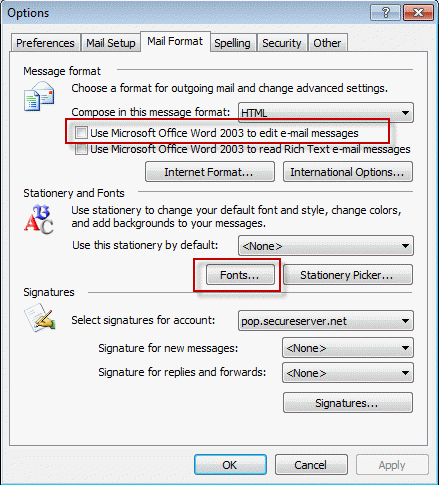
To change the fonts in Outlook 2007, go to Tools, Options, Mail Format dialog and click Fonts button to open the Fontsdialog to the Fontstab. (This dialog is identical to the screenshot above.)

Vivek Sethi says
Hi Diane,
Is there a way where I can view only the response/ reply received on an incoming email in a different colour, or only if the response text could be highlighted on the body of the email?
Diane Poremsky says
No, not in current versions.
Ray McAllister says
I frequently get email messages in Outlook addressed to dozens if not hundreds of people on the TO: and/or CC: lines. When I need to reply to the sender or forward that message and include the original text, Outlook also includes all of those addresses in the text of my reply. This can be extremely cumbersome and detract from the information I really want to forward. Editing out the addresses can be a real pain, but I often have to do it. How can I create an Outlook format for the body of reply or forwarded messages that includes all of the information from the original, EXCEPT for that long list of addresses?
On my iPhone, forwarding a message includes those addresses in the body, while a reply omits the addresses (and other information I would generally like to keep). Ideally, all the senders would put such long address lists in the bcc: category, but I haven't made much headway in convincing the rest of the world.
Tami Fine says
When I try to change the font color by clicking on "Change font color when replying or forwarding" the sample text comes up with (AutoColor) and always uses black. Any suggestions?
Diane Poremsky says
Are the messages using HTML formatting? Plain text messages will always show up as black text.
steven davis says
HI there how do I change settings so when in an email thread I'm not just seeing myself as the sender but those who I have sent it to in the message thread?
example:
From: Sue Croxford [mailto:sue.croxford@joeblogs.com]
Sent: 22 April 2016
Subject: party
but as you can see no indication of who it was sent to
thanks
Diane Poremsky says
This is in the message list? You'd need to add add the To field to the message list view, but it would change it for incoming messages too, if you use the compact view (the default message list view). If you don't use the reading pane and use the single line view, you'd see the to and from for all messages after adding the To field to the view.
Emran hassan says
when i send mail reply . in replay mail not saw in my reply chart. it's not showing. when i clicking reply mail saw in attach file . reply chart saw blank
John says
Hi,
I seem to have sorted this now. In Outlook 2016 Office 365, if you right click on the people icon, you can find Options which gives the option to alter the fonts for replying to and forwarding emails. It worked for me
Hope that helps,
Thanks,
John
John says
Hi,
This doesn't seem to work in Outlook 2016 - Office 365 personal as there is nooption under Mail in Options for Stationary and Fonts.
Thanks,
John
Diane Poremsky says
Is there a Signature button on the Options, Mail page? They will open the same dialog but on a different tab - select the stationery tab to change the fonts.
Mary says
When I copy and paste an email into reply, I can't insert my own font and color to reply. Windows 7 and MS Office 2013.
Diane Poremsky says
what is the message format? formatting is not available with plain text messages, only HTML.
Marilyn Cameron says
Why are some of the formatting buttons (such as bullets) "greyed out" when I reply to certain emails and how do I fix this? This is using Microsoft 2010.
Diane Poremsky says
Are the messages plain text? Formatting is only available in HTML email.
Bob Needham says
Hi Diane,
Is it possible to edit the subject line of reply e-mails so that when I select 'Reply' a used definable word is automatically included before the original subject matter (Outlook 2007)
Diane Poremsky says
I cleaned up the code sample on the other page so its ready to use - see Do something when Reply is clicked
Diane Poremsky says
Yes, that is possible. You can use a macro that watches for replies/reply all button click. If you want to pick and choose when to use it, you'd assign a macro to a button and use it for replies. The code at https://www.slipstick.com/developer/code-samples/insert-attachment-names-replying/ has the basics to do this (along with a lot of junk not needed).
Brendan says
Hi Diane
I use standard paragraph spacing when composing a message so that it looks 'natural' on the page. However, I notice that when a respondent replies to my email, the paragraphing in the original message has changed to double spacing, which makes for lengthy and awkward-looking messages. How can I lock in the format so that the message I send looks the same as the one they receive? I.e. how can I set the paragraph spacing so that it doesn't alter during transmission? Thank you.
Diane Poremsky says
This often happens when the recipient uses web-based email. Do you use 2 Enter's between paragraphs? That causes double spacing in web-mail. However, the double spacing should only be seen in the replies - it should be spaced normally in the original message. (It is here.)
Brendan says
I use Microsoft Outlook (embedded as far as I know). I press 'enter' twice. This sets up normal-looking paragraphs in whatever email I am sending. It's only when the email is returned (as part of a reply) that the spacing has increased to something like triple or quadruple space.
Diane Poremsky says
Right, that is because Outlook the Enters are converted to
tags in web mail. You can use Shift+Enter - see messages are double spaced for other options.
Dan Mazzeo says
Diane - we have MS Outlook 2010 professional plus and I am trying to automate a different color for inserted text in the body of a message reply. I have not been able to find a way to do this. Do you have any instructions for this?
Thank you,
Dan
Diane Poremsky says
You mean something like the setting in Options, Stationery and Fonts where a different color is used for each reply in the thread? I don't believe it's configurable or manageable beyond those settings but will check.
Dietmar says
I am using Outlook 2010 and like the "Pick a new color when replying or forwarding" feature very much except the golden color Outlook chooses after the thread has got a certain length. Is it possible to cutomize the sequence of colors Outlook uses when applying this feature?
Diane Poremsky says
No, sorry, it is not. You can select the text and change the color yourself.
Chris says
How can I change my forward/reply email text from blue to black ?
Diane Poremsky says
To change your font go to File, Options, Stationary and Fonts, then change the font color for replying and forwarding to messages.
Lance D. says
Outlook 2010, show signature on replies/forwards. If you already have a signature, or need to create one on new messages, go File/Options/Mail down to "Create or Modify Signatures" and click Signatures. In new window, you can design and save a new signature if need be, including "right click" paste insertion of a picture, etc. In the New Messages bar, the signature(s) that you have saved will show in the scroll down. The same will show in the Replies/forwards scroll down bar, so select the one you want to show, then OK or save your way out. Note, the font color that you have selected for reply /forward will transfer to the signature.
Annette says
Diane, I just discovered a way to format paragraph spacing on replies. I agree that it cannot be formatted in a template for replies, so I found the quick keystroke for adding space, ctrl 0. It's much easier than changing the paragraph format any other way that I can find.
Devina says
Hi Diane, thank you for your response. Yes, the message I was replying to, was plain text. I did try your code, but it didn't work. Perhaps I did something incorrect in copy/pasting the sequence. But my boss ended up showing me, when I hit "reply" or "reply all", up at the "Format Text" tab, I could change the "Format" from "plain text" to "HTML". That seems to take care of my issue.
Diane Poremsky says
Unless you need to do it a lot, do it manually is easy enough to do.
Diane Poremsky says
Unless you need to do it a lot, do it manually is easy enough to do.
Devina says
Hi Diane, I'm using Outlook 2010. There are times when I hit reply on an e-mail, everything turn into text only. My signature jpeg icon doesn't show up properly & I can't change the color / size / attribute of the text. How do I change that? Please help! Thank you beforehand.
Diane Poremsky says
is the message you are replying to plain text? The only solution is to convert it to HTML.
https://www.slipstick.com/outlook-developer/always-reply-using-the-same-message-format/
Darren says
Hi Diane, I've also experienced this problem with the replies being at the bottom of the email. I am using Outlook 2010
Cheryl says
When replying to an email, my response appears on the bottom of the receiver's original email instead of at the top. So if there is a long list of emails back and forth among a group of us, when I respond, my response shows at the bottom of the long list (which requires recipients to scroll to bottom of many emails in order to see my response.) How can I fix this? Thanks.
Diane Poremsky says
What version of Outlook do you use? That is not normal Outlook behavior. Outlook should always add the reply on top.
Kathy Nett says
Why when I go to "reply" does the screen I'm looking at have print that is so small I can't read what I'm typing. The font size says it is 12 but I can't even read what it says. The ruler on the top of the page goes all the way to 22. I know this has something to do with it but I don't know how to go back to a normal size page! HELP!
Diane Poremsky says
That is usually the zoom - press ctrl+0 to reset it or look at the zoom button. Adjusting Outlook's Zoom Setting
Sue says
Why do I get the following when forwarding messages or typing in websites in Outlook 2003? It did not used to happen.
{ HYPERLINK } with a long string of coding numbers and symbols along with the address
What happens if I do tools - options - mail format - internet format, and switch to the Rich Text option instead of the HTML
Diane Poremsky says
Those are Word fields. Press Alt+F9 to toggle their display off and on. No need to change the mail format.
Sue says
thank you thank you thank you -- I was hoping it would be something easy. Please ignore the second request -- didn't know the first one sent.
Sue