• Outlook User
  • New Outlook app
  • Outlook.com
  • Outlook Mac
  • Outlook & iCloud
  • Developer
  • Microsoft 365 Admin
    • Common Problems
    • Microsoft 365
    • Outlook BCM
    • Utilities & Addins

Disable "Always ask before opening" Dialog

Slipstick Systems

› Problems › Disable “Always ask before opening” Dialog

Last reviewed on October 24, 2023     121 Comments

We're hearing from many users: Outlook always prompts for permission to open attachments and the checkbox for "Always ask before opening this type of file" is grayed out. This is due to User Access Control (UAC) restrictions in Windows.
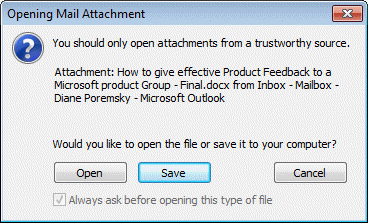
Open or Save attachment

There are two ways you can address this:

1: Run Outlook as Administrator and open the attachments, removing the check from "Always ask before opening this type of file" box. After you set the desired file types to open without asking, you can run Outlook normally.

2: If you know the file types and are comfortable editing the registry or want to change it via policy, you'll need to identify the file type in HKEY_CLASSES_ROOT or (buried under) HKEY_LOCAL_MACHINE if Windows 10 64bit and Office 2016 32bit. After locating the key, create or change the EditFlags Binary value to 00 00 01 00.


Run as Administrator

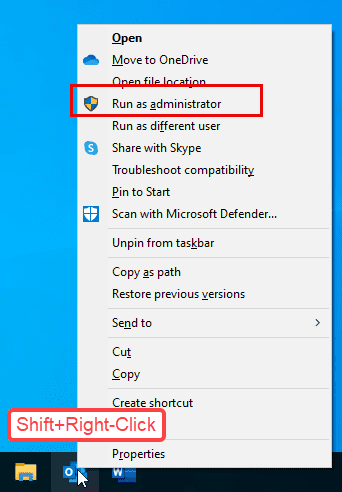
  1. Hold the Shift key and right click on the shortcut you use to open Outlook.
  2. Choose Run as Administrator.
    Shift + right click on the pinned icon and choose Run as administrator


Edit the Registry

If you are using Windows 7 (and newer) with Office in the same bitness (both Office and Windows are 32 bit, or both are 64bit), the path is under HKEY_CLASSES_ROOT.
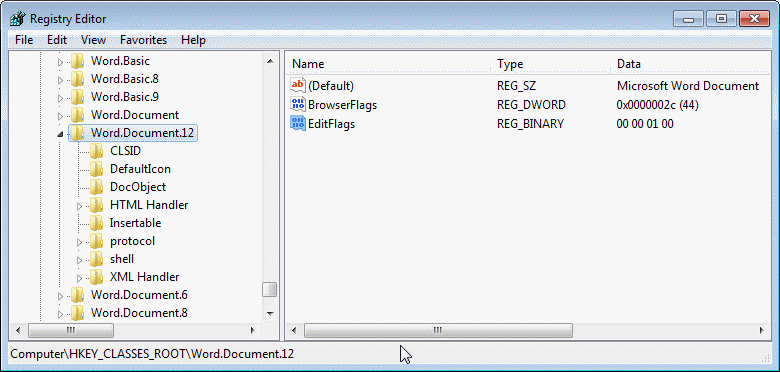
Registry editor

DOC: HKEY_CLASSES_ROOT\Word.Document.8
DOCX: HKEY_CLASSES_ROOT\Word.Document.12
PDF: HKEY_CLASSES_ROOT\AcroExch.Document
XLSX: HKEY_CLASSES_ROOT\Excel.Sheet.12
XLS: HKEY_CLASSES_ROOT\Excel.Sheet.8
PPT: HKEY_CLASSES_ROOT\PowerPoint.Show.8
PPTX: HKEY_CLASSES_ROOT\PowerPoint.Show.12
HTML: HKEY_CLASSES_ROOT\htmlfile

EditFlags: 00 00 01 00

To always ask before opening, either delete the EditFlags value or change the value to 00 00 00 00

If you are using 32-bit Outlook on Windows 64-bit, the registry keys are now stored in a (crazy-long) path under HKEY_LOCAL_MACHINE. This is the path for 64-bit Windows and 32-bit Office:

This registry key path works with 64-bit Outlook 2016/2019/365.

HKEY_LOCAL_MACHINE\SOFTWARE\Microsoft\Office\ClickToRun\REGISTRY\MACHINE\Software\Classes\

DOC: Word.Document.8
DOCX: Word.Document.12
PDF: AcroExch.Document
XLSX: Excel.Sheet.12
XLS: Excel.Sheet.8
PPT: PowerPoint.Show.8
PPTX: PowerPoint.Show.12

EditFlags:  00 00 01 00 (Binary Value)

If you have more than one PDF program installed, you will need to edit the keys for each PDF program.

Outlook 2016 32-bit on Windows 10 64-bit:
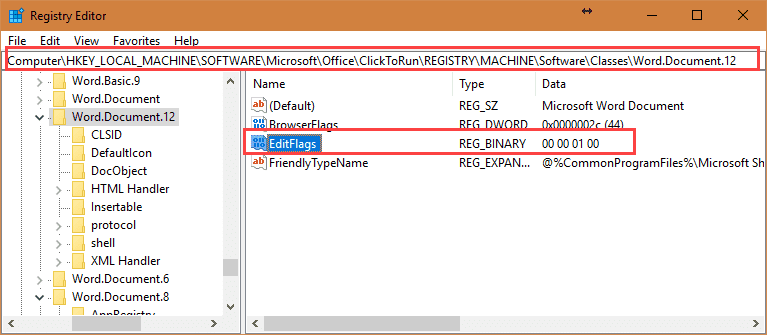
registry path in windows 10 - outlook 2016 32-bit

See Restore (or Hide) the Open Save Dialog if you need instructions for older versions of Windows.


Identify keys for other file types

To identify other file types, look at the extension's key in the registry - most (if not all) will include a more descriptive name. Locate this name under HKEY_CLASSES_ROOT and change it's EditFlags value.

For example, this is the key for the .pptx extension (shown in the screenshots):
HKEY_CLASSES_ROOT\.ppt\PowerPoint.Show.12
So you would change the EditFlags value at HKEY_CLASSES_ROOT\PowerPoint.Show.12
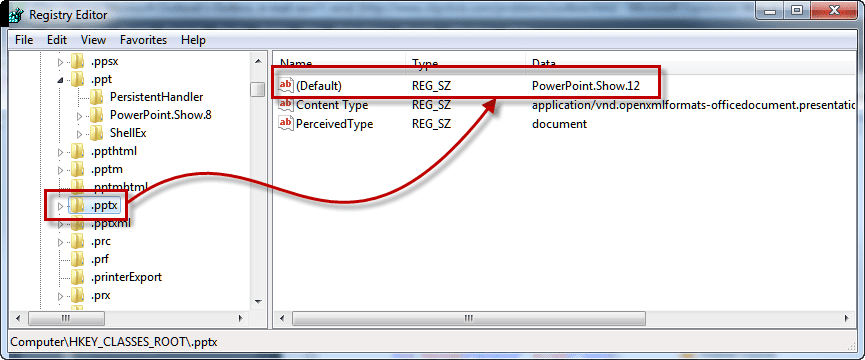
Extension keys

The locate the key by that name. Double click on the EditFlags key to open it for editing.
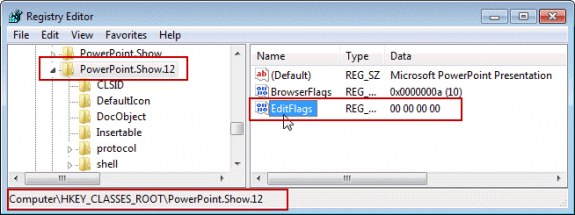
EditFlags in the Registry Editor

00 00 00 00 displays the Open or Save dialog
00 00 01 00 opens the file.

Do it for me

If you don't want to edit the registry, you can use this Registry file. It contains the EditFlag for Word, Excel, and PowerPoint listed above plus htmlfile.

Edit Flags registry keys 32-bit Outlook on 64-bit Windows

Download the file and double click to add the keys to the registry. Note that some browsers will save it with the .txt extension. You'll need to change the extension to .reg to use.

More Information

Restore (or Hide) the Open Save Dialog Instructions for older versions of Windows.

Disable "Always ask before opening" Dialog was last modified: October 24th, 2023 by Diane Poremsky

Related Posts:

  • Restore (or Hide) the Open Save Dialog
  • Disable Protected View for Outlook Attachments
  • Edit Outlook’s Attach File list
  • Excel Files Won't Display in Reading Pane

About Diane Poremsky

A Microsoft Outlook Most Valuable Professional (MVP) since 1999, Diane is the author of several books, including Outlook 2013 Absolute Beginners Book. She also created video training CDs and online training classes for Microsoft Outlook. You can find her helping people online in Outlook Forums as well as in the Microsoft Answers and TechNet forums.

Subscribe
Notify of
121 Comments
newest
oldest most voted
Inline Feedbacks
View all comments

Tracey
December 18, 2024 12:31 pm

THANK YOU!!! This has been driving me crazy for far too long!!!

0
0
Reply
Yehuda
October 24, 2023 7:24 am

For adobe reader - after comparing the classes before and after the change - you need to add this value:

[HKEY_LOCAL_MACHINE\SOFTWARE\Microsoft\Office\ClickToRun\REGISTRY\MACHINE\Software\Classes\PDFPlus.Document]
@=hex(40000):
"EditFlags"=hex:00,00,01,00

Last edited 2 years ago by Yehuda
1
0
Reply
Duane
August 10, 2023 12:39 pm

I think many people have this issue because the default PDF handler is only partially selected. I was able to fix the issue on 2 different PCs (one Win10 standalone, the other Win7 domain-joined). Simply open Adobe Reader, go to Edit -> Preferences -> General (scroll down if needed). Click on "Set as Default PDF Handler".

To explain... on both computers, Adobe Acrobat (Reader) was set as the default action when double-clicking a PDF to launch or when opening an attachment. However, there is more than just one setting, and the registry showed the ".pdf" extension as "MSEdgePDF" which was my clue. In both cases, simply using the built-in "Set as Default" in Adobe Reader fixed the registry entry.

4
0
Reply
tateetewter
Reply to  Duane
December 14, 2024 6:43 am

have to say you save me hahahaha

0
0
Reply
Josh
June 8, 2023 9:05 pm

I'm repeatedly having this issue, despite opening Outlook as an admin and unchecking the "always ask" box. It seems to reset either every time I restart the computer, or at some other interval. I just did this for .docx files least week, and now it's reverted back to asking every time. I've tried several registry paths I've found online, including this one, but I've never found any of them to work. Either the folder isn't where it says, or as happened with the one described here, I can find the folders but there's no "EditFlags" setting. I tried creating one, but I'm not able to edit the value, so it stays all zeroes. Also, the path here doesn't include file types I use regularly, such as .pdf, .jpg, and .dwg - What am I missing here? Microsoft's setup to protect you from yourself is incredibly infuriating. If they had it default to this but it was easy to turn off, fine. But to not even have an option that works to stop it is absolutely ridiculous.

0
0
Reply
Diane Poremsky
Author
Reply to  Josh
October 24, 2023 8:46 am

>>
Also, the path here doesn't include file types I use regularly, such as .pdf, .jpg, and .dwg
>>
These aren't usually blocked.

You need to find the key for the extension under CLASSES and add or edit the editflag value.

0
0
Reply
Josh
Reply to  Diane Poremsky
October 24, 2023 1:40 pm

I've solved the issue with most of those file types, but pretty much everything was blocked, including .pdf and .jpg. That's one reason it was so infuriating. I did finally find the location of all those types in the registry from another source. It seems to have stuck.

0
0
Reply
Dan
Reply to  Josh
April 3, 2024 6:01 am

Could you please share those locations? Having same problem on .pdf files and there is not any Acroexch.Document folder.

0
0
Reply
Diane Poremsky
Author
Reply to  Dan
May 15, 2024 9:06 am

What are you using to view PDF files? If you are not using Acrobat, the folder name could be different.

For example, from https://www.slipstick.com/problems/disable-always-ask-before-opening-dialog/#comment-220678
For adobe reader - after comparing the classes before and after the change - you need to add this value:
[HKEY_LOCAL_MACHINE\SOFTWARE\Microsoft\Office\ClickToRun\REGISTRY\MACHINE\Software\Classes\PDFPlus.Document]
@=hex(40000):
"EditFlags"=hex:00,00,01,00

1
0
Reply
MicrosoftSucks
April 18, 2023 2:55 pm

The stuff in this article sadly doesn't work. Neither administrator rights nor registry edits solve the issue. Now, after a lot of trying I finally found myself a working solution. (Tried on Windows 10, Office 2019)

  1. Right-click outlook.exe
  2. Click on "Troubleshoot compatibility"
  3. Click on the second option which should say "Troubleshoot program"
  4. From the 4 options, choose the first and third
  5. Choose Windows 8
  6. Now under "Test compatibility settings for the program" it should say "Windows Compatibility mode: Windows 8" and "Run as administrator" (this is important, just compatibility mode or administrator won't fix the issue, you need BOTH!!)
  7. Click Test program...
  8. Now when you try to open an attachment the "Always ask before opening this type of file" option will not be greyed out. Deselect it and open the file. Afterwards you can close Outlook and open it normally again. The issue is now fixed.
0
0
Reply
Diane Poremsky
Author
Reply to  MicrosoftSucks
October 24, 2023 8:42 am

Using compatiblity mode in Outlook is not needed (they removed the tab from the Properties dialog several versions ago so people wouldn't use it) because it causes more problems than it solves.

0
0
Reply
Stepehn
March 20, 2023 11:04 am

Thank you very much - it is the only and therefore best way.

0
-1
Reply
Gene
May 26, 2022 5:57 pm

Great information. Way better than MS online community.

THANK YOU !

0
0
Reply
Richard
August 11, 2021 12:21 pm

Hi Diane - Thanks for this. I've got the .docx extentions opening without hassle. ?

My PDF (and default) viewer of choice is Sumatra PDF. Sumatra doesn't appear as a key (that I can find) under HKEY_CLASSES_ROOT. (I've tried a search with F3). Also, the value name "Default" under "HKEY_CLASSES_ROOT\.pdf" is blank.

Any thoughts on how I could locate the Sumatra key?

Thanks, R.

0
0
Reply

Visit Slipstick Forums.
What's New at Slipstick.com

Latest EMO: Vol. 30 Issue 36

Subscribe to Exchange Messaging Outlook


Support Services

Do you need help setting up Outlook, moving your email to a new computer, migrating or configuring Office 365, or just need some one-on-one assistance?

Our Sponsors

CompanionLink
ReliefJet
  • Popular
  • Latest
  • Week Month All
  • Use Classic Outlook, not New Outlook
  • How to Remove the Primary Account from Outlook
  • Reset the New Outlook Profile
  • This operation has been cancelled due to restrictions
  • Disable "Always ask before opening" Dialog
  • Adjusting Outlook's Zoom Setting in Email
  • How to Hide or Delete Outlook's Default Folders
  • Removing Suggested Accounts in New Outlook
  • Remove a password from an Outlook *.pst File
  • Syncing Outlook with an Android smartphone
  • Opt out of Microsoft 365 Companion Apps
  • Mail Templates in Outlook for Windows (and Web)
  • Urban legend: Microsoft Deletes Old Outlook.com Messages
  • Buttons in the New Message Notifications
  • Move Deleted Items to Another Folder Automatically
  • Open Outlook Templates using PowerShell
  • Count and List Folders in Classic Outlook
  • Google Workspace and Outlook with POP Mail
  • Import EML Files into New Outlook
  • Opening PST files in New Outlook
Ajax spinner

Recent Bugs List

Microsoft keeps a running list of issues affecting recently released updates at Fixes or workarounds for recent issues in classic Outlook (Windows).

For new Outlook for Windows: Fixes or workarounds for recent issues in new Outlook for Windows .

Outlook for Mac Recent issues: Fixes or workarounds for recent issues in Outlook for Mac

Outlook.com Recent issues: Fixes or workarounds for recent issues on Outlook.com

Office Update History

Update history for supported Office versions is at Update history for Office

Outlook Suggestions and Feedback

Outlook Feedback covers Outlook as an email client, including Outlook Android, iOS, Mac, and Windows clients, as well as the browser extension (PWA) and Outlook on the web.

Outlook (new) Feedback. Use this for feedback and suggestions for Outlook (new).

Use Outlook.com Feedback for suggestions or feedback about Outlook.com accounts.

Other Microsoft 365 applications and services


New Outlook Articles

Opt out of Microsoft 365 Companion Apps

Mail Templates in Outlook for Windows (and Web)

Urban legend: Microsoft Deletes Old Outlook.com Messages

Buttons in the New Message Notifications

Move Deleted Items to Another Folder Automatically

Open Outlook Templates using PowerShell

Count and List Folders in Classic Outlook

Google Workspace and Outlook with POP Mail

Import EML Files into New Outlook

Opening PST files in New Outlook

Newest Code Samples

Open Outlook Templates using PowerShell

Count and List Folders in Classic Outlook

Insert Word Document into Email using VBA

Warn Before Deleting a Contact

Use PowerShell to Delete Attachments

Remove RE:, FWD:, and Other Prefixes from Subject Line

Change the Mailing Address Using PowerShell

Categorize @Mentioned Messages

Send an Email When You Open Outlook

Delete Old Calendar Events using VBA

Repair PST

Convert an OST to PST

Repair damaged PST file

Repair large PST File

Remove password from PST

Merge Two Data Files

Sync & Share Outlook Data

  • Share Calendar & Contacts
  • Synchronize two computers
  • Sync Calendar and Contacts Using Outlook.com
  • Sync Outlook & Android Devices
  • Sync Google Calendar with Outlook
  • Access Folders in Other Users Mailboxes

Diane Poremsky [Outlook MVP]

Make a donation

Mail Tools

Sending and Retrieval Tools

Mass Mail Tools

Compose Tools

Duplicate Remover Tools

Mail Tools for Outlook

Online Services

Calendar Tools

Schedule Management

Calendar Printing Tools

Calendar Reminder Tools

Calendar Dates & Data

Time and Billing Tools

Meeting Productivity Tools

Duplicate Remover Tools

Productivity

Productivity Tools

Automatic Message Processing Tools

Special Function Automatic Processing Tools

Housekeeping and Message Management

Task Tools

Project and Business Management Tools

Choosing the Folder to Save a Sent Message In

Run Rules on messages after reading

Help & Suggestions

Submit Outlook Feature Requests

Slipstick Support Services

Buy Microsoft 365 Office Software and Services

Visit Slipstick Forums.

What's New at Slipstick.com

Home | Outlook User | Exchange Administrator | Office 365 | Outlook.com | Outlook Developer
Outlook for Mac | Common Problems | Utilities & Addins | Tutorials
Outlook & iCloud Issues | Outlook Apps
EMO Archives | About Slipstick | Slipstick Forums
Submit New or Updated Outlook and Exchange Server Utilities

Send comments using our Feedback page
Copyright © 2025 Slipstick Systems. All rights reserved.
Slipstick Systems is not affiliated with Microsoft Corporation.

:wpds_smile::wpds_grin::wpds_wink::wpds_mrgreen::wpds_neutral::wpds_twisted::wpds_arrow::wpds_shock::wpds_unamused::wpds_cool::wpds_evil::wpds_oops::wpds_razz::wpds_roll::wpds_cry::wpds_eek::wpds_lol::wpds_mad::wpds_sad::wpds_exclamation::wpds_question::wpds_idea::wpds_hmm::wpds_beg::wpds_whew::wpds_chuckle::wpds_silly::wpds_envy::wpds_shutmouth:
wpDiscuz

Sign up for Exchange Messaging Outlook

Our weekly Outlook & Exchange newsletter (bi-weekly during the summer)


Please note: If you subscribed to Exchange Messaging Outlook before August 2019, please re-subscribe.

Never see this message again.

You are going to send email to

Move Comment