• Outlook User
  • New Outlook app
  • Outlook.com
  • Outlook Mac
  • Outlook & iCloud
  • Developer
  • Microsoft 365 Admin
    • Common Problems
    • Microsoft 365
    • Outlook BCM
    • Utilities & Addins

How to color-code your email as it ages

Slipstick Systems

› Outlook › Rules, Filters & Views › How to color-code your email as it ages

Last reviewed on March 22, 2016     13 Comments

I receive a lot of questions from users who want help identifying email as it ages. One user wanted to count how many times a message was read and after it was read 3 times, but not replied to, send an email to two supervisors. He also wanted to send an email when there were more than 500 messages in the Inbox. Other users are looking to mark or highlight mail as it ages. While all of these requests are possible, highlighting mail as it ages is fairly simple for anyone to do with a custom view, in any version of Outlook.

To create a custom view to highlight messages 7 to 14 days old in Outlook 2010 or Outlook 2013, follow these steps:

    1. Switch to the View ribbon.
    2. Click View Settings.
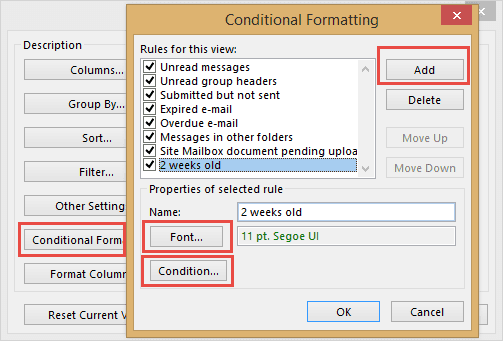
    3. Click Conditional Formatting button to create formatting rules.
    4. In the Conditional Formatting dialog, click Add, and enter a name for the conditional rule
    5. Click Font to choose a font color.

Create a conditional rule

    1. Click Condition.
    2. On the Advanced tab, type Received in the Field box, choose between as the condition and type 7 days ago and 14 days ago as the value then save.
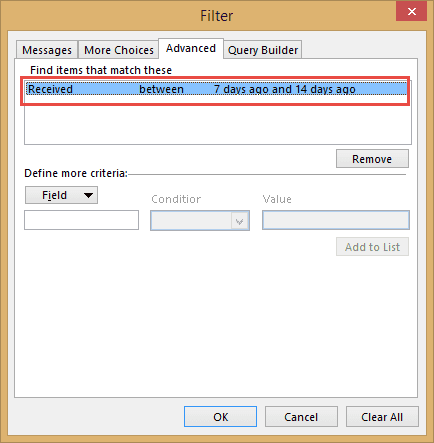
Add the filter values

  1. Save the rule.

Repeat Steps 4 through 8, choosing a different color for the Font for each conditional formatting rule. Repeat as necessary.

When you’re finished, click Change View then select Save current view as a new view to save a copy of your view.
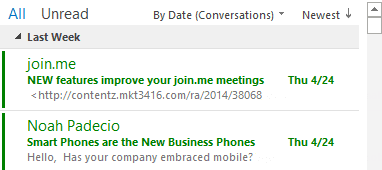
Filtered views

Outlook 2007 and older

You can create the same custom views in any version of Outlook. The steps are the same, once you open the Customize view dialog. To open the Customize View dialog, right click on the row of field names at the top of the message list and choose Customize. Click the Automatic Formatting button and create your conditional formatting rules.

To create a copy of the view, look for the Define Views command on the View menu. It's on one of the fly-out menus on the View menu, the exact location will vary with each version of Outlook.


How to color-code your email as it ages was last modified: March 22nd, 2016 by Diane Poremsky
Post Views: 6

Related Posts:

  • Create a conditional formatting rule
    Where is the Organizer?
  • Use Conditional Formatting to Highlight Messages
  • Create a custom view to list upcoming birthdays
  • Make 'Today' stand out more in the calendar

About Diane Poremsky

A Microsoft Outlook Most Valuable Professional (MVP) since 1999, Diane is the author of several books, including Outlook 2013 Absolute Beginners Book. She also created video training CDs and online training classes for Microsoft Outlook. You can find her helping people online in Outlook Forums as well as in the Microsoft Answers and TechNet forums.

Subscribe
Notify of
13 Comments
newest
oldest most voted
Inline Feedbacks
View all comments

John
December 17, 2022 7:37 pm

<span style="color: #000000;"> Thank you Diane for the interesting post, I use it so often and it really changed my life! Could you advice if it would be possible to color code the emails received during vacation? Thanks!<A style="color: #000000;"HREF="HTTPS://misterpaton.com"> Cheers </A>.</span>

0
0
Reply
Diane Poremsky
Author
Reply to  John
May 15, 2024 7:41 am

You would use a condition on the filter for date. Advanced filter - received between 12/15/2023 AND 12/18/2023

0
0
Reply
Trevor
December 29, 2017 3:02 pm

Is there a way to color code email in stages of hours? For example 0 - 12 hours old would be green and 12 - 24 hours old would be red? I've tried multiple syntax combinations and nothing seems to work?
I'd also like minutes if that is possible i.e. between now and 15 minutes ago (basically the last 15 minutes)

0
0
Reply
Diane Poremsky
Author
Reply to  Trevor
December 29, 2017 10:34 pm

I'm not aware of a way to do elapsed time. It is possible to color mail more broadly within today - using 'received on or after 2:00 PM', 'received on or after 11:00 AM' etc. 'On or after 3 hours ago' doesn't work.

You could use VBA to set a field and color mail based on the field, but it's not practical to run it constantly, but maybe hourly, or less often could be doable. I'm thinking vba sets a custom field for mail by age, like a 1 for 0-12 and a 2 for 12-24 hours. Then color mail that arrived today, and use a different color for 1's and a a different color for 2.

1
0
Reply
N Trueman
November 24, 2016 4:19 am

Is there a way to color code email in stages of hours? For example 0 - 12 hours old would be green and 12 - 24 hours old would be red? I've tried multiple syntax combinations and nothing seems to work?

0
-1
Reply
Trevor
Reply to  N Trueman
December 29, 2017 3:03 pm

I have this same question. any updates?

0
0
Reply
Ayush Gaur
March 22, 2016 6:41 am

Can we use custom/user defined columns for updating conditional formatting or updating categories

0
0
Reply
Diane Poremsky
Author
Reply to  Ayush Gaur
March 22, 2016 10:57 pm

You can add them in the Advanced tab under user defined fields in folder or forms, if it's a field in a custom form.
custom fields in views

0
0
Reply
Jose
July 8, 2015 2:30 am

I don't remember now, but I have read the higher ones have preference, so I suppose I need to set it up first so that others do not overide it. But I have tried setting up only that one, making sure there wouldn't be conflicts with other rules. The feeling I ended up having is that maybe I needed to type in something similar in Outlook 2010, not exactly: between X days ago and Y days ago.I tried other ways (for instance: between X and Y days ago), but with no avail. Could the Windows versions influence? The Windows version were it didn't work was an earlier (I think Windows 7) version than where it worked ( Windows 8). I don't know what else I can come up with. Maybe the account configuration? I have found nothing related to this in it.

0
0
Reply
Jose
July 7, 2015 2:36 pm

Thank you for your reply. It doesn't show the expected result, which consists of changing the font color (of the messages). I have tried both along with other conditions and just by itself. The only particularity I am aware of is that, when using Outlook 2010, we are within a network (VPN), but I have no idea how that could affect the conditionals (actually some work: for instance, typing "last week" ( for Received, as well).

0
0
Reply
Diane Poremsky
Author
Reply to  Jose
July 7, 2015 9:42 pm

The VPN shouldn't affect it. In what order is the conditional rule (in relation to the other rules)? That can affect it.

0
0
Reply
Jose
July 6, 2015 6:40 pm

Hi, I don't know why but typing "7 days ago and 14 days ago" for the same condition (selecting between) is not working for me on Outlook 2010. It is on 2007 though. My problem is that I need it on 2010. Any idea, please, on how could I replace that?

0
-1
Reply
Diane Poremsky
Author
Reply to  Jose
July 7, 2015 1:06 am

It should work the same on both. Does it error or just not show the expected results? Are you using any other conditions?

4
-3
Reply

Visit Slipstick Forums.
What's New at Slipstick.com

Latest EMO: Vol. 31 Issue 3

Subscribe to Exchange Messaging Outlook


Support Services

Do you need help setting up Outlook, moving your email to a new computer, migrating or configuring Office 365, or just need some one-on-one assistance?

Our Sponsors

CompanionLink
ReliefJet
  • Popular
  • Latest
  • Week Month All
  • Use Classic Outlook, not New Outlook
  • How to Remove the Primary Account from Outlook
  • Reset the New Outlook Profile
  • Disable "Always ask before opening" Dialog
  • This operation has been cancelled due to restrictions
  • How to Hide or Delete Outlook's Default Folders
  • Adjusting Outlook's Zoom Setting in Email
  • Mail Templates in Outlook for Windows (and Web)
  • Removing Suggested Accounts in New Outlook
  • Remove a password from an Outlook *.pst File
  • Error Opening iCloud Appointments in Classic Outlook
  • Opt out of Microsoft 365 Companion Apps
  • Mail Templates in Outlook for Windows (and Web)
  • Urban legend: Microsoft Deletes Old Outlook.com Messages
  • Buttons in the New Message Notifications
  • Move Deleted Items to Another Folder Automatically
  • Open Outlook Templates using PowerShell
  • Count and List Folders in Classic Outlook
  • Google Workspace and Outlook with POP Mail
  • Import EML Files into New Outlook
Ajax spinner

Recent Bugs List

Microsoft keeps a running list of issues affecting recently released updates at Fixes or workarounds for recent issues in classic Outlook (Windows).

For new Outlook for Windows: Fixes or workarounds for recent issues in new Outlook for Windows .

Outlook for Mac Recent issues: Fixes or workarounds for recent issues in Outlook for Mac

Outlook.com Recent issues: Fixes or workarounds for recent issues on Outlook.com

Office Update History

Update history for supported Office versions is at Update history for Office

Outlook Suggestions and Feedback

Outlook Feedback covers Outlook as an email client, including Outlook Android, iOS, Mac, and Windows clients, as well as the browser extension (PWA) and Outlook on the web.

Outlook (new) Feedback. Use this for feedback and suggestions for Outlook (new).

Use Outlook.com Feedback for suggestions or feedback about Outlook.com accounts.

Other Microsoft 365 applications and services


New Outlook Articles

Error Opening iCloud Appointments in Classic Outlook

Opt out of Microsoft 365 Companion Apps

Mail Templates in Outlook for Windows (and Web)

Urban legend: Microsoft Deletes Old Outlook.com Messages

Buttons in the New Message Notifications

Move Deleted Items to Another Folder Automatically

Open Outlook Templates using PowerShell

Count and List Folders in Classic Outlook

Google Workspace and Outlook with POP Mail

Import EML Files into New Outlook

Newest Code Samples

Open Outlook Templates using PowerShell

Count and List Folders in Classic Outlook

Insert Word Document into Email using VBA

Warn Before Deleting a Contact

Use PowerShell to Delete Attachments

Remove RE:, FWD:, and Other Prefixes from Subject Line

Change the Mailing Address Using PowerShell

Categorize @Mentioned Messages

Send an Email When You Open Outlook

Delete Old Calendar Events using VBA

Repair PST

Convert an OST to PST

Repair damaged PST file

Repair large PST File

Remove password from PST

Merge Two Data Files

Sync & Share Outlook Data

  • Share Calendar & Contacts
  • Synchronize two computers
  • Sync Calendar and Contacts Using Outlook.com
  • Sync Outlook & Android Devices
  • Sync Google Calendar with Outlook
  • Access Folders in Other Users Mailboxes

Diane Poremsky [Outlook MVP]

Make a donation

Mail Tools

Sending and Retrieval Tools

Mass Mail Tools

Compose Tools

Duplicate Remover Tools

Mail Tools for Outlook

Online Services

Calendar Tools

Schedule Management

Calendar Printing Tools

Calendar Reminder Tools

Calendar Dates & Data

Time and Billing Tools

Meeting Productivity Tools

Duplicate Remover Tools

Productivity

Productivity Tools

Automatic Message Processing Tools

Special Function Automatic Processing Tools

Housekeeping and Message Management

Task Tools

Project and Business Management Tools

Choosing the Folder to Save a Sent Message In

Run Rules on messages after reading

Help & Suggestions

Submit Outlook Feature Requests

Slipstick Support Services

Buy Microsoft 365 Office Software and Services

Visit Slipstick Forums.

What's New at Slipstick.com

Home | Outlook User | Exchange Administrator | Office 365 | Outlook.com | Outlook Developer
Outlook for Mac | Common Problems | Utilities & Addins | Tutorials
Outlook & iCloud Issues | Outlook Apps
EMO Archives | About Slipstick | Slipstick Forums
Submit New or Updated Outlook and Exchange Server Utilities

Send comments using our Feedback page
Copyright © 2026 Slipstick Systems. All rights reserved.
Slipstick Systems is not affiliated with Microsoft Corporation.

:wpds_smile::wpds_grin::wpds_wink::wpds_mrgreen::wpds_neutral::wpds_twisted::wpds_arrow::wpds_shock::wpds_unamused::wpds_cool::wpds_evil::wpds_oops::wpds_razz::wpds_roll::wpds_cry::wpds_eek::wpds_lol::wpds_mad::wpds_sad::wpds_exclamation::wpds_question::wpds_idea::wpds_hmm::wpds_beg::wpds_whew::wpds_chuckle::wpds_silly::wpds_envy::wpds_shutmouth:
wpDiscuz

Sign up for Exchange Messaging Outlook

Our weekly Outlook & Exchange newsletter (bi-weekly during the summer)


Please note: If you subscribed to Exchange Messaging Outlook before August 2019, please re-subscribe.

Never see this message again.

You are going to send email to

Move Comment