To change how frequently Outlook does automatic send and receives, you need to edit the Send and Receive settings. The easiest way to open the Send and Receive dialog is using the keyboard shortcut: Ctrl+Alt+S.
If you prefer to use the mouse, look on the Tools, Send and Receive menu, Send/Receive Groups, Define Send and Receive Groups.
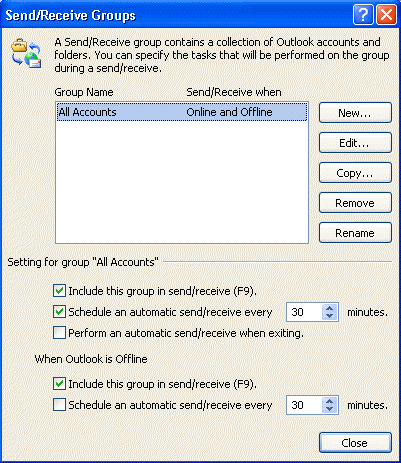
In Outlook 2010 or Outlook 2013, look on the Send and Receive tab, under Send/Receive Groups, Define Send and Receive Groups.
For best results, don't check for new mail more frequently than about 8 - 10 minutes. Checking too frequently (either automatically or manually) can cause Outlook to hang on the process and you will not be able to send or receive mail until you restart Outlook.
Send immediately when connected is in Tools, Options, Mail Setup tab in Outlook 2007 and older.
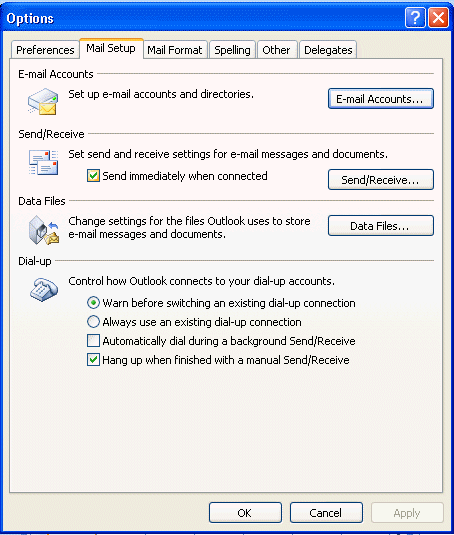
In Outlook 2010 and 2013, Send Immediately when connected is about halfway down the File, Options, Advanced page.
A link to the Send and Receive dialog is on the Mail Setup tab too.

Saif Ullah Khan says
I have struggled with problem of receiving a lot of mails form job seekers in daily bases. I headache from them because whenever I open my outlook inbox i can't see the received mails....
Diane Poremsky says
Are they in the inbox or in the junk email folder? Did you try resetting the view one the folder?
Saif Ullah Khan says
Hello
Yes they are in the inbox and I also tried to reset the view but still a lot of mail receiving from them
Del says
How long should outlook 2016 receive e-mails when (send receive) is selected? After my current e-mails received by my e-mail server are received, it that (send receive) operation complete? If additional mail is are received by my (charter.net account), should they continue to be downloaded? I would like that (send receive) break the connection when the current batch of e-mails have been received.
William Bruce says
I have struggled with the problem of receiving mail for two or three days including time spent with my ISP for help. I have tried many possible solutions; however, the simple solution was to change the frequency of checking for mail from 1 to 10 minutes. I immediately started receiving email. I thank you for the help.
Diane Poremsky says
Yeah, that is why we recommend not checking mail more frequently that every 5 - 8 minutes.
Michelle says
Using Office 365 - I tried to edit the send/receive groups but there is no OK selection to save my changes. Any idea?
renee says
was there a resolution>
Diane Poremsky says
do you see the full dialog on screen? Is the save or OK button off the screen?
Sebastian says
Hi, I managed to set outlook to send/receive all emails every 3h. However I would like to add a rule that if I receive emails from my bosses (or a specific list of email addresses), I should receive them directly and not wait 3 hours, like for the rest of "customers". Does anyone know how to do this?
Diane Poremsky says
Outlook can't do that - it downloads everything in the mailbox when it checks mail, it can't do a filtered download. There might be manual apps that check mail (like mailwasher) that can alert you if there is an important message, but you will need to download all to get it into outlook.
Yehudit Hannah Cohn says
Set a separate send-and-receive group just for your bosses' email address, and let it check more frequently as well as sending you notifications.
Generally, with a little ingenuity, you can set very specific send-and-receive actions and mailbox rules, which can include rules about handling exceptions just as specific addresses.
Diane Poremsky says
This assumes it's sent to a separate email account - if it's from the boss to your email account, you can't use send and receive rules to only get mail from the boss.
Also note that if you are using Exchange accounts (including Outlook.com and Office 365), you should not change the send and receive settings for the account.
dazed confused says
Using outlook 2010 and one imap account I have to delete and create the same account every morning or it won't fetch new messages...even with anti virus disabled. any ideas?
Diane Poremsky says
Does it work in safe mode? To open Outlook in Safe mode: Close Outlook then hold Ctrl as you click on the Outlook icon. You'll get a message asking if you want to start in Safe mode. Click Ok.
Did you customize send and receive settings? Delete the SRS file for the profile. The only change you should make to the send and receive settings (Ctrl+Alt+S) is to lower the check every 30 min setting to 5 minutes (or higher) - the checkbox to check every nn minutes should be checked and set to 5 min or higher.
Thomas Wayne says
I am looking for my emails from january 2,2016. How can O see them?
Diane Poremsky says
What type of email account? Are they in Outlook? they should be in a folder in outlook if you downloaded them.
Russ Parsons says
Hi - I just updated to Office 2016 for the Mc from Office 2011, and I can see no way in the new version of Outlook to receive mail (either automatically or manually) from one account only. I occasionally send messages from my wife's account for her business, but I don't want to receive her emails. In 2011 Outlook, the send/receive button allowed you to send/receive ALL, or just from one account. In the 2016 version, send receive ALL is the only option—is there a way to change this?
Jalal says
Hi Diane. Thanks for this information. Can you guide me on how to modify these settings programmatically? Specifically, I use Outlook with IMAP but without Exchange Server and I want to automate all Outlook clients in all client PCs (joined to active directory) to download email headers only (in order to save Internet bandwidth). I tried to search for group policy settings, VBA, registry settings but couldn't get to a way to do it. If you can guide me on how to do this setting or some other way to save the Internet bandwidth, I will be so grateful. Thanks in advance. :-)
Diane Poremsky says
Because it's per account, it's not in the GPO. Which version of Outlook are you using?
Jalal says
I am so grateful for your reply. I am using Outlook 2010. (By the way,I tried to change this setting manually on a PC and noticed that there is no registry changes. It seems that Outlook save this setting inside the PST file.)
Diane Poremsky says
I thought it was in the account's separate reg settings, but don't see it in the registry.... that puts it in the data file.
Jalal says
Thank you from the bottom of my heart Diane for considering looking at it. If you find a way to do it by any means, please post it here. I really appreciate your help.
Senzo says
This is helpful, also made me understand what"s going. I thought my outlook needed fixing while it needed setting. Thank you.
ehsan says
my outlook mail is not going why ..outpoot given error....but if any person send me then receive that msg......plz help me
this type of error given
Task 'itsupport@xenatech.net - Sending' reported error (0x800CCC0F) : 'The connection to the server was interrupted. If this problem continues, contact your server administrator or Internet service provider (ISP).'
Rob MacDonald says
My send/receive settings do not stay set when Outlook 2010 is restarted.
I don't want to "send immediately", so I set the Online setting to send every 20 minutes, and click the box. This works fine until I reboot or restart Outlook, when it reverts to not sending at all. I have to go in and recheck the box every time.
Is there a permanent cure for this?
Oh, and note that when working on line, this is not "send/receive", it is effectively send only, as e-mails come in instantly/constantly.
Thanks.
Diane Poremsky says
What type of email account do you use? Do you use a registry cleaner utility? Do you reboot every day?
If Windows reboots, settings aren't always saved and you revert to the last know settings before the update that forced the reboot was installed. Registry cleaners will often block changes. Group policy or log on scripts will also revert changes.
Bote Man says
I experienced the same problem of the automatic send/receive checkbox not being sticky. This is a brand new Dell laptop with Windows 7 and a valid subscription to Office 2013 ProPlus. I had put 2 e-mail accounts into the default send/receive group that Outlook sets up for you.
On a hunch I copied the default send/receive group to another one and named it "standard" (doesn't matter what you call it). I checked the box to connect every 10 minutes, closed Outlook, made sure the process stopped in Task Manager, started Outlook again and VOILA! The checkbox for the standard group stuck, while the checkbox for the default group that came with Outlook was cleared again. Junk.
Hope this helps.
Bjorn Kassoe Andersen says
Hi Diane. Thanks for responding. It's got to be IMAP as I have everything syncing across several computers and two Google Apps accounts (using the Google Apps Sync for Outlook add-on). If it syncs like you describe has it then changed from Outlook 2010 to 2013? The computer I have with 2010 does not behave this way and I've never used the 'offline' option.
So what is the best set up for Outlook 2013 with IMAP if want to be in charge of when email is fetched? I don't want to be distracted by new mail while working with other stuff. I want it only to arrive when I press F9 or CTRL-M or something else (I can automate keystrokes if necessary).
Bjorn Kassoe Andersen says
In Outlook 2013 I seem to be unable to stop automatic send/receive. I have selected
"Disable scheduled send/recieve" and I have tried to enable it with time set to both 30 and 270 minutes for online as well as offline. I have (with Outlook closed) tried to rename the .srs file to .srs.old without any change. No matter what I do, Outlook keeps checking every one minut. I have Outlook 2013 running with Google Apps Sync. Have checked if the Google add-in has a sync setting that could interfere but I didn't find any. I have several email accounts set up, as I receive and send mail from a number of different addresses. I have a similar setup with Outlook 2010 on a different machine that works fine without automatic send/receive.
Diane Poremsky says
What type of email accounts? Are all of the accounts being checked? IMAP accounts will refresh when you open the folder, unless offline.
Marco says
Exactly. Make then post available when you can. I'm guessing there's a bunch of people out there dealing with the same problem,
Marco says
Luckily enough, the removal shouldn't affect the synchronization with iCloud.
Diane Poremsky says
Oh, you mean the me.com or icloud.com email account? Yeah, if you aren't using it for email, remove it. It shouldn't affect the send/receive groups or signatures though. (I'll release that post as soon as i test some things - if i don't keep it in pending, I'll forgot to come back to it. :))
Marco says
Here's the follow up for those looking for a fix to the problem I mentioned, Remove the icloud account from your profile and that should fix the whole shebang.
Diane Poremsky says
Yeah, unless you need icloud to sync with your iphone. :)
Marco says
Hi Diane,
I have a related question that's driving me insane. A few months ago I noticed I could no longer edit the 'Send/Receive Groups.' I can open the 'Send/Receive Groups' and click on 'Define Send/Receive Groups,' but clicking on Edit won't do anything. When I click on it nothing happens at all. The function stopped working for all groups. I've been searching for a solution for months and haven't found any. I also noticed that this issue affects the selection of signatures. Simply put, I can't assign new signatures to my accounts and the field 'Choose default signature' is grayed out.
I read your post about editing the registry but that didn't fix either. I uninstalled and reinstalled Office 2010 a number of times, to no avail. I also briefly upgraded to Office 2013 (trial) to see if that could fix the problem, to no avail. I'm now back to Office 2010 and the problem persist no matter how many different Outlook profiles I create. I have removed all profiles and started from scratch, but the problem persist. Any idea what might be happening?
Craig says
Why on God's good earth did Microsoft decide, in Outlook 2010, to put “Send Immediately when connected” in the Advanced section instead of the intuitive section- E-mail?
Diane Poremsky says
Is that a rhetorical question? lol
Rebekah says
I have an issue where my outlook account seems to get "hung up" in a send receive process. When this happens the send receive box will populate, indicating from 6-7 items processing up to 3200 items processing. This has been occurring frequently, but the strange part is that no new items ever appear in my in or outbox. I am afraid that my entire account is corrupt. Can you provide insight?
Diane Poremsky says
It's possible it's corrupt. But before making a new profile, does it work as expected for awhile following a reboot? Does it work correctly in safe mode? (To open Outlook in Safe mode: Close Outlook then hold Ctrl as you click on the Outlook icon. You'll get a message asking if you want to start in Safe mode. Click Ok. )
If the answer to both is yes, then you may have an addin causing problems.
sharon says
I have a totally unrelated question. But am hoping you would know why my outlook 2007, after a few years, my 'send/recieve' option is now sending me 'everything' on my email server, from years ago! It appears to be the email that I have archived to pst files. Even archives that are a few years old.
Diane Poremsky says
Are you leaving mail on the server? If so, the "message manager" file was damaged and outlook isn't properly tracking the messages it downloaded.
Tam says
Dear Diane,
Either with Outlook 2k7 or 2k10, all my "sent" mails are not being stored to the Send Items; it stored in All mail items folder. I have to go there and search for the mail and move them to the Sent Items. Or I have to do this on every single new mail: click Options, and select Save Sent Items To, and then Other Folders. After that I will then select Sent Item.
I want to have a permanent fix, but I can't find one. Please help! Thanks a lot for your time.
Diane Poremsky says
This is a Gmail Account? That is how gmail does it - rather than using separate folders, it uses one mailbox and labels and filters to create fake folders in the mailbox. (Labels are converted to real folders in email clients such as Outlook and thunderbird.)
Because saving sent items to the server in Outlook may not properly tag the sent item Outlook uploads (and other issues), we recommend setting Gmail IMAP account to either save sent items locally or not to save them at all (in Outlook's Account Settings, double click on the account, More Settings, Sent Items tab) - saving them to the Gmail IMAP folders is problematic. If you choose not to save a copy in Outlook, gmail will still save a sent copy in your mailbox online.
We also recommend not subscribing to the all mail folder and its subfolders as it only duplicates all the mail in outlook - first in the regular folders and again in all mail.