• Outlook User
  • New Outlook app
  • Outlook.com
  • Outlook Mac
  • Outlook & iCloud
  • Developer
  • Microsoft 365 Admin
    • Common Problems
    • Microsoft 365
    • Outlook BCM
    • Utilities & Addins

Change the size of the font in Outlook's Folder list

Slipstick Systems

› Outlook › Change the size of the font in Outlook’s Folder list

Last reviewed on December 7, 2023     21 Comments

Applies to: Outlook (classic)

This suggestion for dealing with the small fonts in Outlook 2013 and 2016's folder list comes from Cowboy over at OutlookForums.

As we all know, Microsoft removed the ability to change the font and font size in the Outlook 2013 folder list. But all is not lost. For those people with high resolution monitors and/or poor vision there is something we can do short of enlarging the whole display image.

To change the font size in Windows 8/8.1, right-click on the desktop and choose Personalize then click Display. Click on the dropdown under Change only text size. You will see the items that you can change the text size are Title Bars, Menus, Message Boxes, Palette Titles, Icons and Tool Tips.

Select Menus and choose a new font size.
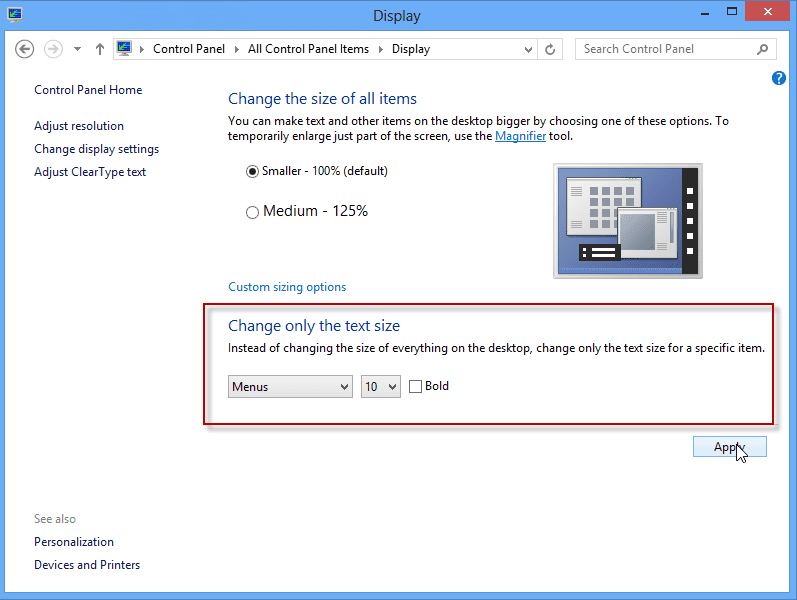
Change the font size in Display settings

You cannot change the font that is used, but you can change the size and make it bold.

I found if I just change the menus size from 9 to 10 it makes the folder list text larger. It also increases the size of the ribbon which in my case is fine. One client changed almost everything to 12 which I think is a little over the top, but he really likes it. So if you are having trouble reading text in Office 2013 applications, play around with it and I think you will be able make some adjustments which will really improve the look and feel of outlook and other applications as well.

Thanks Cowboy!

Change Font size in Windows 8 Video Tutorial

In Windows 7, the Font settings are in Personalization > Windows Color. The Menu font and font size used by all applications can be changed. Because it is used by all applications, I don't recommend changing it more than a size or two.
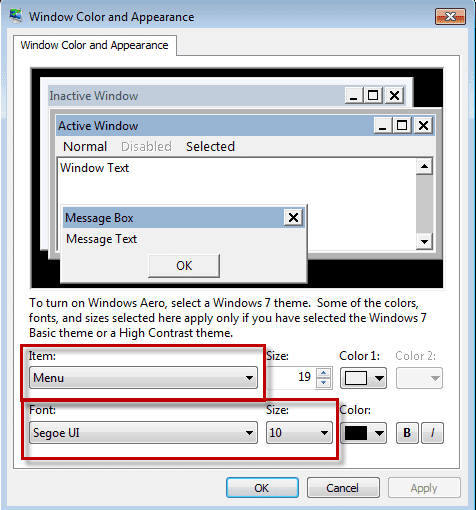
Change Windows Font size

Outlook 2010

Outlook 2010's folder list has it's own folder list font setting in View > Navigation Pane > Options.
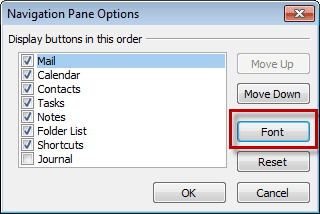
Change Folder list font size in Outlook 2010

More Screenshots are at Changing Folder and Message List Fonts.

Change the size of the font in Outlook's Folder list was last modified: December 7th, 2023 by Diane Poremsky
Post Views: 8

Related Posts:

  • Understanding Fonts and the +Body Style
  • To Change the Font on Incoming Messages
  • Outlook's Font button is disabled
  • To Change the Look of Outlook Replies

About Diane Poremsky

A Microsoft Outlook Most Valuable Professional (MVP) since 1999, Diane is the author of several books, including Outlook 2013 Absolute Beginners Book. She also created video training CDs and online training classes for Microsoft Outlook. You can find her helping people online in Outlook Forums as well as in the Microsoft Answers and TechNet forums.

Subscribe
Notify of
21 Comments
newest
oldest most voted
Inline Feedbacks
View all comments

Robert Maxey
May 7, 2019 8:59 am

I want to change the font size of the number of unread messages in an outlook folder. I am using outlook 365. Any ideas?

0
0
Reply
Diane Poremsky
Author
Reply to  Robert Maxey
May 8, 2019 8:52 am

Just the folder count? At this time it's not possible to change any of the fonts in the folder list, including for the message count. Sorry.

0
0
Reply
Christopher Bedford
April 15, 2019 10:05 am

Windows 10 ver 1809 doesn't have that setting any more, that I can find. No - *Zero* - display settings in Control Panel, and the 'new' Settings menu for Display has two things you can set: Scale & Layout (the all text setting mentioned above), and "Advanced scaling settings" which allows you to switch On or Off the option to "Let WIndows try to fix apps so they're not blurry". Or custom scaling (still the same setting but you can select 124% if you want) That's it.

Microsoft's pursuing the Apple paradigm a little too slavishly, methinks. Used to be you could fine tune just about anything on a WIndows machine, but increasingly it's FIFO aka "do it our way, or don't bother".

1
0
Reply
Dave R.
April 7, 2018 2:55 pm

Every morning, I have to change my Outlook 2010 Navigation Pane Font size. It won't keep the setting overnight.

I leave the computer on 24/7. During the day, it's fine and stays where I set it. Overnight, it reverts back somehow, and I have to go to View>Navigation Pane>Options>Font>. . . my previous settings are there, so I hit Ok>Ok> . . . and it changes to where it should have been in the first place.

This is getting really annoying. Why Microsoft felt it was in everyone's best interest to make the default font so small to start with is beyond comprehension. It has zero impact on the operation of Outlook. They cannot point to any necessary reason to code Outlook that way.

Anyone have any suggestions on how to make the changes stick?

0
0
Reply
Diane Poremsky
Author
Reply to  Dave R.
April 7, 2018 3:33 pm

Since the setting is saved, it sounds like a screen redraw issue from waking up. Does it come back to the desired size if you minimize outlook and restore or restart Outlook?

0
0
Reply
stuart wohl
August 14, 2016 3:15 pm

Perhaps you can help me. I am trying to increase the font size of my "contacts" shown after clicking the "to" in a new email view
( create new email, having the new email showing, clicking on the "to" bringing up my contact offering me to choose one (or more) The list is what I am attempting to increase the size of

0
0
Reply
Diane Poremsky
Author
Reply to  stuart wohl
August 14, 2016 3:32 pm

I know of no way to change the size of the text in that list. Sorry. Well, short of changing the display % in windows, which affects all applications.

0
0
Reply
Confused Outlooker
July 29, 2016 12:08 pm

I recently purchased a new Windows 10 Pro pc. I installed Outlook 2013 (click to run). I'm having an issue with the font sizes and spacing in the email lists. The font size and spacing between the e-mails in the list of incoming e-mails in my inbox is different from the list in the sent folder. In the inbox, the font is smaller and there is much more padding between the e-mails than what I see in the sent folder. The font size for both is the same (10 pt). Do you have any thoughts on what may be causing the issue?

0
0
Reply
Diane Poremsky
Author
Reply to  Confused Outlooker
August 14, 2016 3:34 pm

without seeing screenshots, i can only guess that it's something in View Settings > Other settings or View Settings > conditional formatting.

0
0
Reply
ijust fahted
July 23, 2016 11:00 am

finally, someone who really knows what they are talking about!!!

0
0
Reply
Aristotle Economou
January 24, 2016 3:46 pm

Hello, I have a similar problem with small fonts under the icon preview in Reading Pane. Is here the right place to ask my question?
Thank you.

0
0
Reply
Diane Poremsky
Author
Reply to  Aristotle Economou
January 25, 2016 3:04 pm

It is. This is in the Notes folder? I'm not aware of any way to change the font in the icon views, other than by changing windows settings, which will apply to all programs, not just notes.

0
0
Reply
steven yarnell
December 12, 2015 8:38 am

For Outlook 2016/365 the Navigation Pane is not longer available in View/Layout. Not sure where to change that font in Windows 10/Outlook 2016

3
0
Reply

Visit Slipstick Forums.
What's New at Slipstick.com

Latest EMO: Vol. 31 Issue 3

Subscribe to Exchange Messaging Outlook


Support Services

Do you need help setting up Outlook, moving your email to a new computer, migrating or configuring Office 365, or just need some one-on-one assistance?

Our Sponsors

CompanionLink
ReliefJet
  • Popular
  • Latest
  • Week Month All
  • Use Classic Outlook, not New Outlook
  • How to Remove the Primary Account from Outlook
  • Reset the New Outlook Profile
  • Disable "Always ask before opening" Dialog
  • This operation has been cancelled due to restrictions
  • How to Hide or Delete Outlook's Default Folders
  • Adjusting Outlook's Zoom Setting in Email
  • Mail Templates in Outlook for Windows (and Web)
  • Removing Suggested Accounts in New Outlook
  • Remove a password from an Outlook *.pst File
  • Error Opening iCloud Appointments in Classic Outlook
  • Opt out of Microsoft 365 Companion Apps
  • Mail Templates in Outlook for Windows (and Web)
  • Urban legend: Microsoft Deletes Old Outlook.com Messages
  • Buttons in the New Message Notifications
  • Move Deleted Items to Another Folder Automatically
  • Open Outlook Templates using PowerShell
  • Count and List Folders in Classic Outlook
  • Google Workspace and Outlook with POP Mail
  • Import EML Files into New Outlook
Ajax spinner

Recent Bugs List

Microsoft keeps a running list of issues affecting recently released updates at Fixes or workarounds for recent issues in classic Outlook (Windows).

For new Outlook for Windows: Fixes or workarounds for recent issues in new Outlook for Windows .

Outlook for Mac Recent issues: Fixes or workarounds for recent issues in Outlook for Mac

Outlook.com Recent issues: Fixes or workarounds for recent issues on Outlook.com

Office Update History

Update history for supported Office versions is at Update history for Office

Outlook Suggestions and Feedback

Outlook Feedback covers Outlook as an email client, including Outlook Android, iOS, Mac, and Windows clients, as well as the browser extension (PWA) and Outlook on the web.

Outlook (new) Feedback. Use this for feedback and suggestions for Outlook (new).

Use Outlook.com Feedback for suggestions or feedback about Outlook.com accounts.

Other Microsoft 365 applications and services


New Outlook Articles

Error Opening iCloud Appointments in Classic Outlook

Opt out of Microsoft 365 Companion Apps

Mail Templates in Outlook for Windows (and Web)

Urban legend: Microsoft Deletes Old Outlook.com Messages

Buttons in the New Message Notifications

Move Deleted Items to Another Folder Automatically

Open Outlook Templates using PowerShell

Count and List Folders in Classic Outlook

Google Workspace and Outlook with POP Mail

Import EML Files into New Outlook

Newest Code Samples

Open Outlook Templates using PowerShell

Count and List Folders in Classic Outlook

Insert Word Document into Email using VBA

Warn Before Deleting a Contact

Use PowerShell to Delete Attachments

Remove RE:, FWD:, and Other Prefixes from Subject Line

Change the Mailing Address Using PowerShell

Categorize @Mentioned Messages

Send an Email When You Open Outlook

Delete Old Calendar Events using VBA

Repair PST

Convert an OST to PST

Repair damaged PST file

Repair large PST File

Remove password from PST

Merge Two Data Files

Sync & Share Outlook Data

  • Share Calendar & Contacts
  • Synchronize two computers
  • Sync Calendar and Contacts Using Outlook.com
  • Sync Outlook & Android Devices
  • Sync Google Calendar with Outlook
  • Access Folders in Other Users Mailboxes

Diane Poremsky [Outlook MVP]

Make a donation

Mail Tools

Sending and Retrieval Tools

Mass Mail Tools

Compose Tools

Duplicate Remover Tools

Mail Tools for Outlook

Online Services

Calendar Tools

Schedule Management

Calendar Printing Tools

Calendar Reminder Tools

Calendar Dates & Data

Time and Billing Tools

Meeting Productivity Tools

Duplicate Remover Tools

Productivity

Productivity Tools

Automatic Message Processing Tools

Special Function Automatic Processing Tools

Housekeeping and Message Management

Task Tools

Project and Business Management Tools

Choosing the Folder to Save a Sent Message In

Run Rules on messages after reading

Help & Suggestions

Submit Outlook Feature Requests

Slipstick Support Services

Buy Microsoft 365 Office Software and Services

Visit Slipstick Forums.

What's New at Slipstick.com

Home | Outlook User | Exchange Administrator | Office 365 | Outlook.com | Outlook Developer
Outlook for Mac | Common Problems | Utilities & Addins | Tutorials
Outlook & iCloud Issues | Outlook Apps
EMO Archives | About Slipstick | Slipstick Forums
Submit New or Updated Outlook and Exchange Server Utilities

Send comments using our Feedback page
Copyright © 2026 Slipstick Systems. All rights reserved.
Slipstick Systems is not affiliated with Microsoft Corporation.

:wpds_smile::wpds_grin::wpds_wink::wpds_mrgreen::wpds_neutral::wpds_twisted::wpds_arrow::wpds_shock::wpds_unamused::wpds_cool::wpds_evil::wpds_oops::wpds_razz::wpds_roll::wpds_cry::wpds_eek::wpds_lol::wpds_mad::wpds_sad::wpds_exclamation::wpds_question::wpds_idea::wpds_hmm::wpds_beg::wpds_whew::wpds_chuckle::wpds_silly::wpds_envy::wpds_shutmouth:
wpDiscuz

Sign up for Exchange Messaging Outlook

Our weekly Outlook & Exchange newsletter (bi-weekly during the summer)


Please note: If you subscribed to Exchange Messaging Outlook before August 2019, please re-subscribe.

Never see this message again.

You are going to send email to

Move Comment




























