The Rules Wizard for Microsoft Outlook automatically processes both incoming and outgoing messages. You set conditions similar to those used for Microsoft Outlook filters, then indicate what action(s) you want to be performed on messages that meet those conditions.
Rules in the Rules Wizard apply to only to mail at the time its downloaded. They can be applied to mail after its downloaded using the Run Rules Now command.
For Microsoft Exchange Server users, Rules Wizard automatically converts rules created with the Inbox Assistant feature (which Rules Wizard replaces). Exchange Server users also have an Out of Office Assistant for handling such things as vacation notices and Folder Assistant rules that run on public folders. See Server-based vs. client-based rules.
Filters are used with Search folders, Custom Views, and Advanced Find. Filters are used with Outlook items in the data file and show or hide but do not move items. You can apply filters to any Outlook item type, not just email. Filters can show, hide, or highlight items in different colors based on a variety of conditions and criteria.
Although Outlook does not support locking views against changes, you can lock view in Outlook 2010 using VBA. See How to prevent changes to Outlook views for a code sample.
Create a Custom View to Show the 'Remind at' Time
How to create a custom view to print or display the actual date a reminder is set for in Outlook.
Create rules that apply to an entire domain
How to create a rule so that all emails from a specific server (example microsoft.com) go into a specific folder.
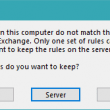
Keep Client or Server Side Rules?
How to fix the rules on the computer do not match the rules on the server error message in Outlook.
Conditional Formatting by Contact Category
How to apply rules or automatic formatting to messages and meetings with people in specific categories.
How to color-code your email as it ages
Create an Outlook Custom View using Conditional Formatting to highlight messages as they age.
Filter Internal Mail from External Mail
Create a rule in Outlook to filter messages sent from Internet Addresses when you use Exchange Server.
Create a Filtered View on the Fly
This entry in my Lazy Programmer series starts with a code sample from the TechNet forums and changes it to meet this user's needs: My team receives about 500 emails a day many of the messages do not require any action. In the past we used rules extensively to manage the flow but I'm hoping
Outlook View Tricks
How to configure Outlook's Views to hide message preview, remove group by headers, and restore the taskpad.
Display the recipient addresses in an Outlook Email
I want to add a column to my Inbox showing the recipient's email address. I have many email accounts and want to quickly see the recipient mail address to check if the message looks legitimate before opening it. There are several ways you can do this. If each address is a separate Outlook account you

Using the Sent Items view on other folders
A frequent complaint from people who move sent items is that the view on the new folder is wrong, with the From field visible but the To field. I move the sent emails to other folder, but it changed from "To" to "From". I tried to select "arranged by "To", but it keeps staying as
Disable Outlook's Reading Pane
How to use Group Policy or a registry key to disable the reading pane in Outlook 2013, 2010, or 2007.

Count Received Emails
How to display a count of messages received in Outlook today (or received during any period).
Hide Read Receipts in Conversation View
How to create a custom view to hide read receipts and non-delivery reports in Outlook's Inbox.
Create a view for appointments that don't have reminders
How to create a view to display appointments that don't have reminders in Outlook.