In our article discussing BCCing messages, Michael wanted to BCC all incoming meeting requests and cancellations to another address. You can do this with a run a script rule. The macro at the bottom of the page is an ItemAdd macro and watches for new items to be added to the calendar, forwarding appointment details as well as meeting details to another address.
The Run a script version is built off of the AutoAcceptMeeting request code sample.
To use this macro, open the VBA Editor (Alt+F11) and paste the code into ThisOutlookSession.
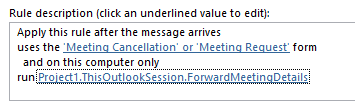
Next you will need to create a rule that looks for meeting cancellation or meeting request forms then choose the Run a Script action.
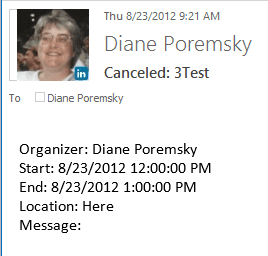
The macro creates and sends a message containing appointment details. The message body will look like the following screenshot and can be edited to add or remove fields.
Sub ForwardMeetingDetails(oRequest As MeetingItem)

Dim oAppt As AppointmentItem
Set oAppt = oRequest.GetAssociatedAppointment(True)


Dim fwdAppt As MailItem
Set fwdAppt = Application.CreateItem(olMailItem)
 strBody = "Organizer: " & oAppt.Organizer & vbCrLf _
 & "Start: " & oAppt.Start & vbCrLf & "End: " & oAppt.End _
 & vbCrLf & "Location: " & oAppt.Location & vbCrLf & "Message: " & oAppt.Body

With fwdAppt
 .Recipients.Add "alias@domain.com"
 .Subject = oAppt.Subject
 .Body = strBody
 .Send
End With


End Sub
Forward appointment details when an appointment is added to the calendar
With a few tweaks to the macro above, you can forward all appointments added to your calendar to another address.
This macro watches for new items to be added to the calendar and sends the details in a message.
It's an Application_Startup procedure and runs when Outlook starts. To test it without restarting Outlook, click in the Application_Startup macro and press Run (F5).
This macro needs to be in ThisOutlookSession.
Dim WithEvents newAppt As Items

Private Sub Application_Startup()
   Dim NS As Outlook.NameSpace
   Set NS = Application.GetNamespace("MAPI")
   Set newAppt = NS.GetDefaultFolder(olFolderCalendar).Items
   Set NS = Nothing
End Sub

Private Sub newAppt_ItemAdd(ByVal Item As Object)

Dim fwdAppt As MailItem
Set fwdAppt = Application.CreateItem(olMailItem)
Dim strBody As String
 strBody = "Organizer: " & Item.Organizer & vbCrLf _
 & "Start: " & Item.Start & vbCrLf & "End: " & Item.End _
 & vbCrLf & "Location: " & Item.Location & vbCrLf & "Message: " & Item.Body

With fwdAppt
 .Recipients.Add "maryc@domain.net"
 .Subject = Item.Subject
 .BodyFormat = olFormatPlain
 .Body = strBody

'Use Display to view onscreen and send yourself. Send will send it automatically
' .Display
 .Send
End With

End Sub
More Information
More Run a Script Samples:
- Autoaccept a Meeting Request using Rules
- Automatically Add a Category to Accepted Meetings
- Blocking Mail From New Top-Level Domains
- Convert RTF Messages to Plain Text Format
- Create a rule to delete mail after a number of days
- Create a Task from an Email using a Rule
- Create an Outlook Appointment from a Message
- Create Appointment From Email Automatically
- Delegates, Meeting Requests, and Rules
- Delete attachments from messages
- Forward meeting details to another address
- How to Change the Font used for Outlook's RSS Feeds
- How to Process Mail After Business Hours
- Keep Canceled Meetings on Outlook's Calendar
- Macro to Print Outlook email attachments as they arrive
- Move messages CC'd to an address
- Open All Hyperlinks in an Outlook Email Message
- Outlook AutoReplies: One Script, Many Responses
- Outlook's Rules and Alerts: Run a Script
- Process messages received on a day of the week
- Read Outlook Messages using Plain Text
- Receive a Reminder When a Message Doesn't Arrive?
- Run a script rule: Autoreply using a template
- Run a script rule: Reply to a message
- Run a Script Rule: Send a New Message when a Message Arrives
- Run Rules Now using a Macro
- Run-a-Script Rules Missing in Outlook
- Save all incoming messages to the hard drive
- Save and Rename Outlook Email Attachments
- Save Attachments to the Hard Drive
- Save Outlook Email as a PDF
- Sort messages by Sender domain
- Talking Reminders
- To create a rule with wildcards
- Use a Macro to Copy Data in an Email to Excel
- Use a Rule to delete older messages as new ones arrive
- Use a run a script rule to mark messages read
- Use VBA to move messages with attachments

grijsbert says
Hello Diane,
The script does not work when I test it by sending a meetingrequest to myself.
What could be the problem? Privacy-options?
Diane Poremsky says
its not privacy options -it picks up the values from the meeting request and creates an new message. If you send it to your own address, it could be a spam filter blocking mail from you, to you.
Try changing .send to .display so you can see the created message.
Tom Harron says
I have vba code in Outlook to forward an email if instr(subject line) = . Works great and thank you. The email address is actually a cell phone number as a SMS text. Works great, as long as Outlook is open.
If I close Outlook app, it does not work.
Before the VBA code, I did the email forwarding by setting up 'Manage Rules & Alerts | New Rule | Send an alert to my mobile device when I get messages from someone" When I set up this rule in this fashion, it DOES work when Outlook app is closed!
I would rather use the VBA method, as I need 60 people to set up their Outlook similarly
Is there a way to make the VBA scripts to run when Outlook is closed?
Diane Poremsky says
No, sorry, there is not. VBA need Outlook loaded to run.
Dipika says
Hi Daine,
I work in India, IST Time zone and our work hours are 9:00am-6:30pm.
Now since we work with USA clients, many meetings are scheduled after 7:00PM IST, to attend which either we have to connected via GTM from our mobile at the time of meeting or stretch our work hours to attend the meeting. So we need to prepare before hand for such meeting. But many a times we forget to check our calendar before we leave for the day and also these meetings we get a reminder 15/30 minutes prior to the start time of the meeting, which is after we have left from office. Hence we don't get notified at a correct time. So i wanted to know if there is an option to run a script at 6:00PM IST(as we are actively working in front of our desktop at that time), that reads from our calendar, meeting details, and displays as a pop up/ alert/ reminder, about the meetings that are scheduled after 6:30PM IST.
Diane Poremsky says
it should be possible - i don't have any scripts that do that, but will look into it as I'm sure others would like to do this too.
Dipika says
Great Diane,
Thank you for your quick response.
Dipika says
Hi Diane,
If you could help me with how to trigger any alert at the end of the day, i might be able to work on rest of the code to tag it with timing of the meeting and performing the filter.
Awaiting your response and thank you in advance for the help.
Diane Poremsky says
you need to use find or restrict to find the appointments that are scheduled after the appointed time and list them in a message box. You can kick this macro off manually or using a task reminder.
Lucas says
Why for me does not show the meeting status ?
To work in Outlook 2016, I do that.
Dim WithEvents newAppt As Items
Sub ForwardMeetingDetails(oRequest As MeetingItem)
Dim oAppt As AppointmentItem
Set oAppt = oRequest.GetAssociatedAppointment(True)
Dim fwdAppt As MailItem
Set fwdAppt = Application.CreateItem(olMailItem)
strBody = "Organizer: " & oAppt.Organizer & vbCrLf _
& "Start: " & oAppt.Start & vbCrLf & "End: " & oAppt.End _
& vbCrLf & "Location: " & oAppt.Location & vbCrLf & "Message: " & oAppt.Body
With fwdAppt
.Recipients.Add "mateus.mattos@sistemainfo.com.br"
.Subject = oAppt.Subject
.Body = strBody
.Send
End With
End Sub
Private Sub Application_Startup()
Dim NS As Outlook.NameSpace
Set NS = Application.GetNamespace("MAPI")
Set newAppt = NS.GetDefaultFolder(olFolderCalendar).Items
Set NS = Nothing
MsgBox "Welcome, " & Application.GetNamespace("MAPI").CurrentUser
'Application.ActiveExplorer.WindowState = olMaximized
End Sub
Sub newAppt_ItemAdd(ByVal Item As Object)
Dim fwdAppt As MailItem
Set fwdAppt = Application.CreateItem(olMailItem)
Dim strBody As String
strBody = "Organizer: " & Item.Organizer & vbCrLf _
& "Start: " & Item.Start & vbCrLf & "End: " & Item.End _
& vbCrLf & "Location: " & Item.Location & vbCrLf & "Message: " & Item.Body
With fwdAppt
.Recipients.Add "mateus.mattos@sistemainfo.com.br"
.Subject = Item.Subject
.BodyFormat = olFormatPlain
.Body = strBody
'Use Display to view onscreen and send yourself. Send will send it automatically
.Display
' .Send
End With
End Sub
Diane Poremsky says
What status do you want to include? You need to add that field to the string that is added to the body.
Tomas V. says
Hi Diane,
is there any option how to forward meeting request to personal email with no information to organizer?
Diane Poremsky says
Try attaching it to an email and don't accept it, just drag it off the message and into the calendar. Or use a macro to create an appointment with the details that is forwarded to your personal account.
Alwyn says
Hi Diane,
Sorry for the very late reply but this didn't work at all. I tried to delete the srs file in case it was corrupt but nothing.
I did write this however from another code on the web, it works for me but can't seem to get it to work for other users! Any help would be appreciated. Ideally the first code would be better as its an automatic process. Thanks in advance!
'This is the email you want to forward meeting items to
Private Const forwardMeetingsTo As String = "nev_evans@hotmail.com"
'This is the prefix in the subject for forwarded meeting appointments
Private Const forwardSubjectPrefix As String = "[CalSync] "
Private Sub Application_ItemSend(ByVal item As Object, Cancel As Boolean)
' Call to forward AppointmentItems on to a different address. The called method is responsible for determening the type of Item and for cleaning it before sending it on
Call ForwardmeetingRequests(item)
End Sub
'This method is called from the SendItem event, and will start the clean-and-forward
'procedure for Meeting requests
Private Sub ForwardmeetingRequests(ByVal item As Object)
Dim ic, bIsDuplicateAppointmentItem As Boolean
Dim prop
bIsDuplicateAppointmentItem = False
''''Start check to see if Item is a meeting. If so, make a call to forward it
ic = item.Class
Select Case ic
Case olMeetingRequest: '53
Set prop = item.UserProperties.Find("DuplicateItemv2")
If TypeName(prop) "Nothing" Then
bIsDuplicateAppointmentItem = True
End If
If bIsDuplicateAppointmentItem = False Then
Call ForwardMeetingItem_CreateNewItem(item, forwardMeetingsTo)
End If
End Select
End Sub
'This sub is used to 'forward' meeting items.
'Forwarding creates some problems, so a blank meeting request is created,
'and several properties are copied from the original one to the new one.
'The new one is then sent and deleted right afterwards
Private Sub ForwardMeetingItem_CreateNewItem(ByVal incommingItem, ByVal sendTo As String)
''''Create a new meeting item and copy what is needed from the incoming one
Set myAppt = incommingItem.GetAssociatedAppointment(False)
Dim fwdMeetingItem As Object
Set fwdMeetingItem = myAppt.Application.CreateItem(olAppointmentItem)
fwdMeetingItem.MeetingStatus = olMeeting
fwdMeetingItem.Subject = forwardSubjectPrefix & myAppt.Subject
fwdMeetingItem.Start = myAppt.Start
fwdMeetingItem.End = myAppt.End
fwdMeetingItem.Location = myAppt.Location
fwdMeetingItem.Sensitivity = olPrivate
fwdMeetingItem.ReminderMinutesBeforeStart = 15
fwdMeetingItem.ReminderSet = True
fwdMeetingItem.Importance = myAppt.Importance
''''Add a recipient
fwdMeetingItem.Recipients.Add "nev_evans@hotmail.com"
Dim prop
Set prop = fwdMeetingItem.UserProperties.Add("DuplicateItemv2", olText)
''''Send item .send or .display
fwdMeetingItem.Send
''''Delete the forwarded item from the calendar
fwdMeetingItem.Delete
End Sub
'This is called by the Rule in Outlook
Sub CustomMeetingRequestRule(objItem As Outlook.MeetingItem)
If objItem.Class = olMeetingRequest Then '53
Call ForwardMeetingItem_CreateNewItem(objItem, forwardMeetingsTo)
End If
End Sub
Diane Poremsky says
What happens when they try it? It worked fine here. If nothing happens, check their macro security.
Alwyn says
This is the code that I've written based on your code. Thanks in advance
Dim WithEvents newAppt As Items
Sub Application_Startup()
Dim NS As Outlook.NameSpace
Set NS = Application.GetNamespace("MAPI")
Set newAppt = NS.GetDefaultFolder(olFolderCalendar).Items
Set NS = Nothing
End Sub
Error
Sub newAppt_ItemAdd(ByVal Item As Object)
Dim fwdAppt As AppointmentItem
Set fwdAppt = Application.CreateItem(olAppointmentItem)
With fwdAppt
.MeetingStatus = olMeeting
.Recipients.Add "alwynw27@gmail.com"
.Subject = "Copy" & Item.Subject
.Start = Item.Start
.Duration = Item.Duration
.Location = Item.Location
.Sensitivity = olPrivate
'Use Display to view onscreen and send yourself. Send will send it automatically .display .send'
.Display
End With
Set fwdAppt = Nothing
Diane Poremsky says
Try this one:
Dim WithEvents newAppt As ItemsSub Application_Startup()
Dim NS As Outlook.NameSpace
Set NS = Application.GetNamespace("MAPI")
Set newAppt = NS.GetDefaultFolder(olFolderCalendar).Items
Set NS = Nothing
End Sub
Sub newAppt_ItemAdd(ByVal Item As Object)
Dim fwdAppt As AppointmentItem
Dim CalFolder As Outlook.MAPIFolder
Set fwdAppt = Application.CreateItem(olAppointmentItem)
Set CalFolder = Session.GetDefaultFolder(olFolderDeletedItems)
If Left(Item.Subject, 5) <> "Copy:" Then
With fwdAppt
.MeetingStatus = olMeeting
.Recipients.Add "diane@xsolive.com"
.Subject = "Copy: " & Item.Subject
.Start = Item.Start
.Duration = Item.Duration
.Location = Item.Location
.Sensitivity = olPrivate
'Use Display to view onscreen and send yourself. Send will send it automatically .display .send'
.Send
End With
fwdAppt.Move CalFolder
End If
Set fwdAppt = Nothing
End Sub
Alwyn says
I've come up something and it does do what it's told, however it repeats the action as each time a new appointment is added to the calendar it send another appointment - I've had a total of 156 appointments being sent before I figured it out. Currently I've changed from .send to .display to get around this. Is there another way?
Or is it possible to forward all new appointments to gmail without it also displaying on my calendar for a second time?
Diane Poremsky says
I'll have to test it, but one option is moving the copy to a second calendar folder. Deleting it in code after sending it might work too.
Alwyn says
Hi Diane,
The macro works great but is there a way to send an exact copy of the appointment as an appointment to an external email address instead an email? I would like to see what is in my work outlook calendar in my day to day one with Gmail and as google sync is no longer available this is proving difficult
Diane Poremsky says
You could forward the meeting or appointment.