When a user has Full Access permission to another user's mailbox, Outlook 2007 and above may automatically open the mailbox in the profile. This is called "automapping".
These mailboxes are not listed as secondary mailboxes in Account Settings and can only be removed by removing full access permissions or by using a cmdlet to remove automapping.
Keep Full Access Mailboxes from being AutoMapped
Not everyone likes automapping of mailboxes, It's great for the end-user: the mailboxes they have permission to open are automatically added to their profile, avoiding the need to go into the profile and add the secondary mailbox manually. But not everyone wants to see the shared mailbox in their profile.
It's possible to give a user full access to a mailbox without automapping by adding –AutoMapping $False parameter to the Add-MailboxPermission cmdlet.
Add-MailboxPermission "shared-mailbox" -User "alias" -AccessRights FullAccess –AutoMapping $False
Remove Full Access Permission
To remove full access permissions from a shared mailbox, use this PowerShell cmdlet.
Remove-MailboxPermission -Identity shared-mailbox -User user-alias -AccessRights FullAccess -InheritanceType All
Server Migration
Following a server migration, an administrator had user's mailboxes showing up in his profile. This was the result of giving himself Full Access permission to the mailboxes during the migration.
The administrator removed Full Access permission for the mailboxes but this didn't remove the accounts from his profile.
Following an Exchange server upgrade, I have several users mailboxes in my profile. I cannot close the mailboxes. The accounts are not listed as additional mailboxes in my profile. I removed Full Access permissions. Any idea of how to get rid of these extra mailboxes?
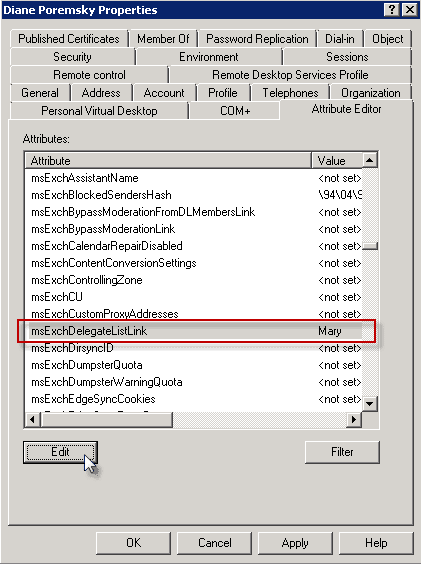
You need to edit the user accounts in the Active Directory and remove your name from the MsExchDelegateListLink attribute.
- Open Active Directory Users and Computers
- Go to View menu and select Advanced Features
- Open the user account that is showing in your mailbox (in the screenshot, my mailbox is in Mary's profile)
- Open the Properties dialog
- Click Attribute Editor tab
- Locate MsExchDelegateListLink

- Click Edit
- Remove your name from the attribute
- Close the dialogs

Tim says
how does an admin that has user working remote fix this? i can run powershell on their remote computers, and i have about 100 of them?
Jimmy says
same here we have hundreds of users and were supposed to go around on every single computer every time we want to add and remove shared mailboxes? come on.
bob says
unfortunately even if this works, and it didn't the first one we tried it on, but when you have 3-400 users, this is not a viable solution. this fix is only ideal, if only one or a handful of users have this issue. you would spend a year, fixing everyone's mail box. anything else?
George says
Thank you so much for this. I had been trying many different ways to remove some additional mailboxes from my Outlook account, to no avail. After following your suggestion, they have all finally gone: I can hardly believe it!
Katie says
Brilliant! Thank you so much!!
Peter says
I have the same issue in O365
A mailbox was shared with a user and when it was no longerrequred the share was cancelled.
however the mailbox still comes up in the client's outlook.
Where do i remove this "LINK"
Zervo says
I have one account whith full mailbox to everyone, so above, I want to remove that automapping ONLY for my account zadd. Is this it?
Also, going to O365 so have to run powershell
To run the command ONLY to remove mapping for my account, zadd and remove all automappings only for my account, do I run this:
To run the function on all mailboxes, just run the command below:
Get-Mailbox | % {Remove-Automapping -Mailbox zadd}??
Abdullah says
Thank you very much. I was struggling for weeks and finally found your page. it worked like charm. Thank you!!!
Mark says
Very helpful. Worked perfectly. I initially made the mistake of going to my account properties instead of the user accounts I wanted to get rid of. I noticed down in the comments someone else said, "...but there is nothing in MY user attribute entry." Step 3... make sure you're in the right account. The user to be removed, not your own. Thanks so much!
Steve says
Diane,
First of all I have read many, many of your tips and find you very helpful, thx.
I am not an IT pro (but pretty capable) and I am having this exact problem but do not have Active directory connected to Office 365 (I don't think)
Suggestions?
Thomas says
If the shared mailbox is hidden in the GAL, removing Full Access permissions will very likely not remove the mailbox from your Outlook profile. The name of the box will remain but you will get an access denied error. To fix it, un-hide the mailbox in the GAL and give Outlook enough time to autodiscover that you no longer have access. It will remove the shared mailbox and you can re-hide the box from the GAL.
Sarbjeet Khosa says
Add-MailboxPermission "shared-mailbox" -User "alias" -AccessRights FullAccess –AutoMapping $False
Add-MailboxPermission sharedmailbox address -User useremailaddress -AccessRights FullAccess –AutoMapping $False
but got exception "ManagementObjectNotFoundExceptioon", i got many times.
please help me.
Diane Poremsky says
does the error say where the problem might - something like "The operation could not be performed because object... "
Jan Arie Koelewijn says
I have the same problem as you guys, but there is nothing in my user attribute entry. ?
How can i fix this now ?
Diane Poremsky says
Is the account listed in your profile, under More Settings, Advanced, Add Mailboxes?
Jim R says
Thank you for this- was struggling trying to get rid of these accounts, this worked like a charm!
Mike says
this appears to be fine for an existing mailbox. curious as to removal of an additional mailbox from an Outlook profile when the additional mailbox has previously been deleted from Exchange - yes, the administrative processes need improvement. reviewed the attribute noted and it is blank yet the additional mailbox remains visible
Patsy Feola says
Did you ever get an answer to your question? I'm having the same problem that users are seeing mailboxes of accounts that were deleted from AD and the only thing remaining is their Archived email in EV.
Nima says
Great thanks for instructions. It worked and made all staff happier.
erikofmke says
I have one that was set up prior to my knowing you could use –AutoMapping $False.
Nothing in Attributes. If you click on the listing for the mailbox, it confirms that there is no longer access.
I'm hoping that it will fall off on its own.
erikofmke says
What actually worked for me was to run the add permission with –AutoMapping $False giving the user full management again, but turning off the automapping.
I waited to see the permission sync up and then I removed it again. All gone.
J Pauker says
Very interesting and helpful! This worked as described for my admin account, with Exchange 2010 SP3 and Outlook 2007.
After removing the link attribute from my account profile, I found that I could:
1) Open the target mailbox ("Open Other Folder") to view folder contents without the folder itself displaying in Outlook,
2) End the folder viewing session by navigating away from the folder.
Question:
How does this work for non-admin accounts - can this provide them with on-demand Outlook folder access without cluttering their Outlook folders with one or more shared folders?
Diane Poremsky says
It's supposed to work the exact same way for all end users, assuming they have the necessary permissions that allow them to view the folder.
Dennis Collado says
This is very very helpful information. After a week of searching and searching to fix the problem, finally I found this information. Thank you very much!
R WIze says
There appears to be a twist.. as my scenario was that there shared mailboxes were presenting even when there were no entries in the attribute area referenced. The solution that worked for was to use the shell and remove full mailbox access this way and the mailbox names dropped out. This is likely because I assigned full mailbox access via the shell however removed the permissions form the ECP.
If you use the shell and it still does not work, unmount the mailboxes that was given Full Access from your Outlook and re-add it again.
Cheers
Irfan says
Thanks, this worked for me, the only trick was, i was not able to find the attribute editor tab on the shared mailbox AD property when i searched for it, i had to browse for the AD object then the attribute editor tab showed. Thanks again.
Howell Strain says
For users with admin rights the ECM does not work thoroughly enough to remove the mailbox from Outlook. however the following command does work:
Remove-MailboxPermission -Identity johnsmith@contoso.onmicrosoft.com -User admin@contoso.onmicrosoft.com -AccessRights FullAccess
Yury Kovshilovsky says
Thanks a lot. Work like a charm.
Danny Lo says
Hi Diane, for some reason in Exchange 2013 after I remove the full access permissions for a shared mailbox from a user it does not automatically remove that mailbox for that users Outlook 2013.
Diane Poremsky says
Hmmm. Mine finally disappeared when i clicked on the mailbox. Expectation would be to disappear on its own on a restart, if not sooner.
David Hite says
Hello. I was wondering if there was a way to speed this up? We have users that are given access on certain days, and at certain times. I would love for the mailbox to disappear within a minute or so of the permissions being removed. Do you have any suggestions?
Diane Poremsky says
AFAIK, the only way to speed it up is to restart the exchange services.
Microsoft Outlook 2013 says
Thank you very much for this helpful instruction.
There is one thing I learned after visiting a Workshop in Munich due to Microsoft
Outlook. Once you learned how to use Outlook in a right way, then you won´t have any problems in your work, because it makes everyday work much simpler.
And I´m glad to have found your site. It´s a good source to get new information.