Microsoft is moving the navigation buttons at the bottom of the folder list to a vertical bar on the left of the folder list (just like in Outlook on the web). To address complaints that the bar makes the folder list too wide, Microsoft reduced the minimum size of the folder list by 40 pixels.

Why is Microsoft moving the buttons for Outlook modules? To make the "Outlook experience" more consistent with other Microsoft 365 products like Teams, Outlook on the web, and Office.com. They added links to the other Office apps, and to new Microsoft 365 apps, including To-Do.
Vote for and comment on this suggestion. Hopefully, they will add a permanent solution for people who want to remove it.
Navigation bar chnge (Microsoft feedback)
"Snooze" the change
Beginning with Outlook Version 2211, released to the Current Channel in late November 2022, you have the option to revert the navigation to the bottom, at least temporarily, or using Microsoft's phrasing "snooze it".

Go to File > Options > Advanced and remove the check from Show apps in Outlook.
You will need to restart Outlook and the navigation buttons will be on the bottom again.

The registry setting for this is
HKEY_CURRENT_USER\Software\Microsoft\Office\16.0\Outlook\Preferences
DWORD: EnableAppsInOutlook
Value = 0 (Nav bar on the bottom)
If you have Coming Soon
If you have a current version of Office, you will either have a "Coming soon" button on the top right that will switch between the bar on the left (Coming soon on) or on the bottom (Coming soon is off). When the coming soon button is missing or replaced by the "Try the New Outlook" switch, the vertical navigation bar is permanent. Sort of.

A temporary solution (it will no longer work when the function is no longer experimental) -
Open the registry editor and locate an entry named Microsoft.Office.Outlook.Hub.HubBar and change it to False.
Change Microsoft.Office.Outlook.Hub.HubBar value to false
- Type regedit on the start menu, open Registry Editor when it comes up.
- Browse to the keys listed above to find Microsoft.Office.Outlook.Hub.HubBar
It should be in one of these two locations, depending on which Channel your software is on.
HKEY_CURRENT_USER\Software\Microsoft\Office\16.0\Common\ExperimentConfigs\ExternalFeatureOverrides\outlook
or
HKEY_CURRENT_USER\Software\Microsoft\Office\16.0\Common\ExperimentEcs\Overrides

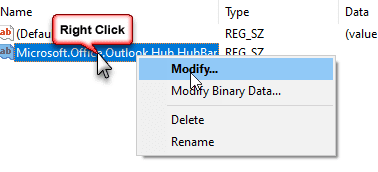
- Right-click on Microsoft.Office.Outlook.Hub.HubBar and choose Modify.
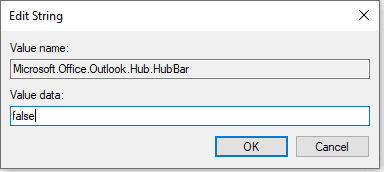
- Type false in the Value data field.
- Close and restart Outlook for the key to take effect.


If you do not have an entry in either key, you will need to add a string value for Microsoft.Office.Outlook.Hub.HubBar to the registry.
Add Microsoft.Office.Outlook.Hub.HubBar to the registry
- Type regedit on the start menu, open Registry Editor when it comes up.
- Browse to
HKEY_CURRENT_USER\Software\Microsoft\Office\16.0\Common\ExperimentConfigs\ExternalFeatureOverrides\outlook - Select the Outlook folder to display the contents on the right
- On the right side of the screen, right-click and select New > String Value.
- Name the new value Microsoft.Office.Outlook.Hub.HubBar
- Right-click on the new string and choose Modify.
- Type false in the Value data field.
- Close and restart Outlook for the key to take effect.

If you don't want to edit the registry, you can download and run this reg file:
Microsoft.Office.Outlook.Hub.HubBar registry key

Rob says
Running Microsoft® Outlook® 2019 MSO (Version 2311 Build 16.0.17029.20028) 64-bit
The apps/folders moved over to the left "awhile back". It was a surprise, and different, but I got used to it. Recently, they're gone and Outlook has reverted back to "the way it used to be" with the folder icons at the extreme bottom left. I went back to try to re-enable them on the left, and I've found that the option check box "Show apps in Outlook" IS NOT PRESENT under File -> Options -> Advanced. Great. Now that I'm used to the apps being on the left, they're gone with apparently no way to get them back.
Chris says
I am very confused! My nav bar was at the side for a long time, recently moved to bottom. I have Outlook Pro 2021 Version 2311 (Build 17029.20108). From all I have read for most people its been at the bottom and now at the side? I don't have Try New Outlook nor the turned off note. I don't have the Advanced - show apps option. I like the apps at the side as top/side is the location of all the tools so its natural to go there. Any thoughts on how I get it back to the side so it stays there? I note the registry edit option is a temporary fix? Also not sure why I have to edit the software when it should be a user option.
No One says
This happened to me, too. I did not like the "New Outlook" at first, but grew used to it. Now it is completely gone and no way to get it back without reverting to an older Office build and disabling Office Updates. Very frustrating.
Diane Poremsky says
You don't have the "Show Apps in Outlook" option at the top of file > options > advanced?
Steffen Norbert Dr. Altus says
Hi, i didn't get anywhere on the MS website. Maybe you can help?
I use a PC with Office 2019, where I set up the vertical navigation bar (which I personally like) without any problems. My 2nd PC has the following version: Outlook 2016 MSO (version 2312 build 16.0.17126.20078) 32 bit. Setting up the vertical navigation bar is not possible there or do you have an idea?
Thank you
Jan says
I have hade the navigation pane to the left for a time. I did like it to be there. Now it has suddenly got back to the bottom!?!? How do I get it back to the left side?
Diane Poremsky says
What version of Outlook? Is the option for Show apps in Outlook unchecked in File > Options > Advanced?
Milo says
I have no option to show apps in Outlook
Also a registry-fix (EnableAppsInOutlook) to show the apps, does not work with me
So this option does not work for me
Milo says
Hello,
I have replied before, but apparently that went wrong.
I experience the same problem; I like the navigation-bar on the left topside of my outlook and all of a sudden it is on the bottom left side again.
The options with the registry chances that worked earlier, do not work anymore
I do not have the option Show Apps in my Outlook, also not with a found registry-chance
My Outlook version is:
Microsoft Office Professional Plus 2021
Version 2311 (build 17029.20068)
Microsoft® Outlook® 2021 MSO (Versie 2311 Build 16.0.17029.20028) 64 bits
Eric says
Same thing happened to me on the 10th. Any Idea how to move it back to the left side?
Jenn says
Thank you! Worked great. I found the layout very distracting, and am glad that I can turn it off.
Larry says
Thank you! Worked for me using second location (…ExperimentEcs/Overrides) and adding in the new string. April 2023.
Kylie says
Thanks! I had no idea this option became available!
Cath says
Much prefer the navigation apps at the bottom, left bar cuts into the full display of outlook (integrated with iManage) and cannot be adjusted to a narrow bar. Please do not make this permanent!
Pam says
Does not work when adding the registry key for me. I am on Outlook version 2302 (Build 16130.20306 Click-to-Run)
Diane Poremsky says
You no longer need the registry jkey - use File > Options > advanced - checkbox at the top for show apps..
Ohm says
It's works very well! Thank you very much :D
20-Mar-2023
Outlook version 2301 (Build 16026.20238 Click-to-Run)
Charlotte says
Thank you! I spent 30min of my time trying to find a solution and landed here from a community post on MS's site.
Eric says
Doesn't work for me as of Jan 25, 2023
Diane Poremsky says
Which version and build of Outlook are you using? Are you using the registry key or look for the option in file > Options?
Did you restart Outlook?
Sudheer says
I tried the same, it did not work
Diane Poremsky says
Which version and build of Outlook are you using? Did you try the registry key or look for the option in file > Options?
Did you restart Outlook?
Dalikoo says
Works well Thank you
Scott says
Thank you. Worked great... I already had my office account to not update, but it did it anyway yesterday.
Doman says
Awesome! Thanks! I hate when software devs force something new w/o asking first if I wan't that.
Lipa says
many thanks, that's better. Now I have a bit more estate on the screen
David B says
Thanks! - Worked like a charm.
Wai says
Thank you, Thank you!
John says
Very helpful!
marc r. B says
Brilliant. Many thanks !
Mike T. says
This feature is (like most of MS recent 'improvements') another piece of crap, what about fixing the stuff that matters like exchange...?
Cindy says
Bless You!!! I put both strings in, the first one worked for me!