You can easily change the values in some fields, including Private, change or remove birth dates, change or remove Companies, and more, by using a list view (with in-cell editing enabled) and either editing the individual items inline or using a group by view and dragging the items to a new group.
If you are not using a List view, you need to change to a list or table view. You can do this from the Home tab in some Outlook modules, or the View tab, Change views in all modules.

Most list views have in-cell editing enabled. If you see the row that says Click here (to add a new item), in-cell editing is definitely enabled. If you don't see the Click here row, click on a text field. If it is white and editable, in-cell editing is enabled. If you hear a ding, in-cell editing is enabled but that field is not editable. Or click in a date field: if the date picker pops out, in-cell editing is enabled.

Once you are in a List view:
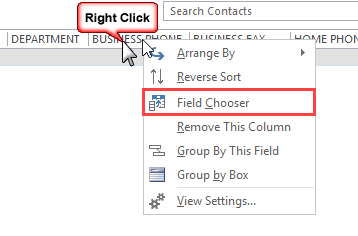
- Right-click on the row of field names and click on Field Chooser.

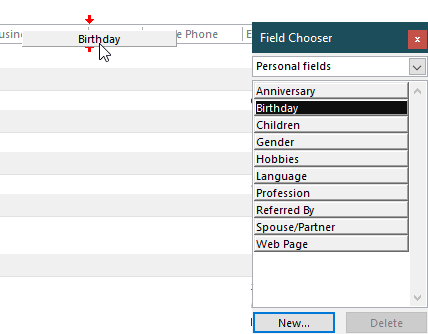
- Find and drag the field you need to change (Birthday in this example) to the row of field names and drop.
- Click on the field to Sort by it.
- If you want to group by the field, right click on the field name and choose Group by this field, right-click again and choose Show Group by box and drag to remove any other fields from the box.
- If you need to enable in-cell editing, from the View tab, select View Settings, then Other Settings and tick Allow in-cell editing.
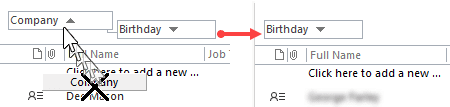
Once you have the view configured, you can type in the fields to change one at a time or drag items to another group. If the group you need doesn't exist, edit one item then drag the others to the new group. To change many items at once, select a group (hold Ctrl or Shift to select multiple items) and drag the entire selection to the other group.
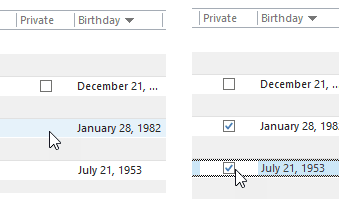
For Yes/No fields that are displayed as a tick box (such as the Private field), you may only see the tick box if the value was previously set. If you don't see the box the value is currently No or Off. To change it to Yes/On, click in the column.
When you are finished, you can reset the view. In current versions of Outlook, Reset View is on the View tab. Or right click on the row of field names and choose View Settings, Custom, or Customize (which you see depends on your Outlook version), then Reset View.
Change the Private Flag Tutorial
Tips
- The field chooser lists all fields available and groups them by item type. Some fields, such as From (also called Organizer) and Private are supported in multiple item types. You can choose the field from any item group (as I did in the video).
- If in-cell editing is enabled, you can click and edit many fields in the row, however, not all fields are editable. If in-cell editing is not enabled, click on the row of field names, choose Custom and enabled in-cell editing in Other settings.
- Some, but not all, editable fields can be updated by dragging to new group.
- If you don't see the little boxes in the column, try clicking anyway. Sometimes the view is goofy and doesn't show the boxes until you click in the row.

LINDA A. SOMERHALDER says
Dear Diane, You were so kind to answer a question on Microsoft Questions and then I followed your information to this sight. Words can not express how helpful your answers are. I am in my early 70's and have been struggling to move from G-Mail back to Outlook. Thank you, your new student, Linda
Emilie says
Thanks for this. Really helpful. When I go into my contacts and categories them as private, I only see the no and blank categories but not the yes. How can I expand this list?
Diane Poremsky says
Do you have some that are marked private? You wont see the Yes category unless you have at least one item marked private.
Alex says
This doesn't work with Outlook 2013 (in this case using Exchange) the "Private" tick box is greyed out.
Any ideas? Thanks
Diane Poremsky says
Something is causing the private flag to be disabled. Offhand, I don't know what that something might be.
yay!! says
Super useful ! Changed 2500 entries quickly with the move to group option. Private was under Sensitivity and did not have check box option. New item row option was greyed out. On client-only Outlook 2010
Stan says
Any chance this could be done server-side (Exchange 2013) via Powershell? Specifically on all past Calendar events.
Diane Poremsky says
I'm not sure if the private field is exposed in EWS but will check - i have a script around her somewhere that touches calendar appointments.
Zoltan says
Thanks!
Tobemank says
Hello Guys,
can MFCMAPI change this Property PR_SENSITIVITY multiple or only for one Item seperatly?
Thanks for reply...
Diane Poremsky says
MFCMAPI does it one at a time.
Michael says
Dear Diane,
this did not work on my end, Outlook 2010 stops with an error message saying "The sensivity of this Private message cannot be changed." and reverts the change back to the initial value.
Nonetheless I found a way to get it done by using MFCMAPI:
1. Locate the message and have a look for the property:
"PR_SENSITIVITY, PidTagSensitivity, ptagSensitivity"
2. Private value is decimal 2 -> change it 0 for normal sensivity
Hope this helps other users if necessary. (If someone reads this and does not know what MFCMAPI is how it is used, please don't use it!!)
Best regards,
Michael