• Outlook User
  • New Outlook app
  • Outlook.com
  • Outlook Mac
  • Outlook & iCloud
  • Developer
  • Microsoft 365 Admin
    • Common Problems
    • Microsoft 365
    • Outlook BCM
    • Utilities & Addins

Filter Internal Mail from External Mail

Slipstick Systems

› Outlook › Rules, Filters & Views › Filter Internal Mail from External Mail

Last reviewed on September 10, 2015     10 Comments

To filter Internet Email, Microsoft Exchange Server users can create a rule that looks like this:

Apply this rule after the message arrives
with @ in the sender's address
<whatever actions you want>
except with @mycompany.com in the sender's address

This is a client-only rule, because the "with specified words in the sender's address" condition is an Outlook-only condition that does not have an analog in the conditions used by the Exchange Server to process rules.

This rule works because email sent through the Microsoft Exchange service does not have a header and Exchange server addresses do not contain the @ symbol. The exception is not needed for mail originating inside the company but is added to capture mail sent using other services that use a SMTP server as well as messages sent by some smartphone configurations.

If you don't use an Exchange server, your rule would read exactly as above or you could look for @mycompany.com in the sender's address and act on it.

Do you want to filter messages sent by other users of your Exchange server? Use /ou as the words in the address.

Search Folder Criteria

If you prefer to use a Search Folder, choose the predefined Search folder for Mail from Specific People .
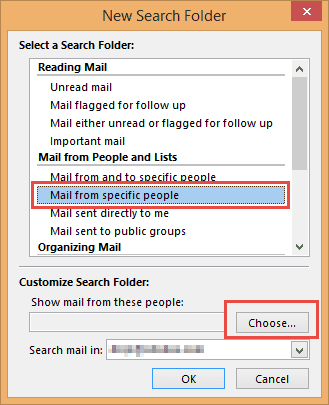
Create a new search folder

Click Choose, then type @ in the From field and click Ok.
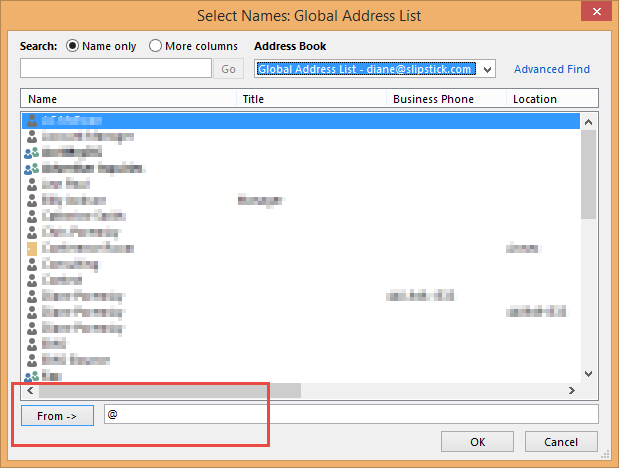
Type @ in the From field

Filter Internal Mail from External Mail was last modified: September 10th, 2015 by Diane Poremsky
Post Views: 159

Share this:

  • Share on Facebook (Opens in new window) Facebook
  • Share on X (Opens in new window) X
  • Share on Reddit (Opens in new window) Reddit
  • Share on Bluesky (Opens in new window) Bluesky
  • Share on Mastodon (Opens in new window) Mastodon
  • Email a link to a friend (Opens in new window) Email

Related Posts:

  • Microsoft Outlook contains a rule condition you can use to sort mail r
    Create rules to sort messages by email account
  • Create rules that apply to an entire domain
  • Apply Conditional Formatting to Internal Email
  • Rules and Tools to Filter Junk Mail

About Diane Poremsky

A Microsoft Outlook Most Valuable Professional (MVP) since 1999, Diane is the author of several books, including Outlook 2013 Absolute Beginners Book. She also created video training CDs and online training classes for Microsoft Outlook. You can find her helping people online in Outlook Forums as well as in the Microsoft Answers and TechNet forums.

Comments

  1. Walter L. says

    June 22, 2021 at 11:35 am

    How do I do the opposite? i.e. Find all external domain emails? I tried several suggestions on the internet "from: NOT"@domain.com"" and using search criteria "from does not contain domain.com" - none works.

    Reply
    • Diane Poremsky says

      June 22, 2021 at 12:36 pm

      Are you using instant search or filtered view or a rule?

      If you are using Exchange server, internal email would use the x500 address - and have /ou in it
      /O=EXCHANGELABS/OU=EXCHANGE ADMINISTRATIVE GROUP (FYDIBOHF23SPDLT)/CN=RECIPIENTS/CN=[user account]

      If you aren't using exchange, then @yourdomain.com would be the criteria - but the From field is the display name - you need to look for words in the address. In filters (view, search folder) you need to use the From field on the Message tab, not advanced find.
      Tip 373: Filters and the From Field - Outlook Tips (outlook-tips.net)

      Reply
      • Walter L. says

        June 22, 2021 at 1:30 pm

        Thanks for the quick response Diane. I actually tried both instant search and search folder creations using criteria. For instant search I tried the from: NOT "@domain.com" unsuccessfully. For search folder criteria I used the "does not contain" rule, unsuccessfully as well.

        I am using Exchange server and could probably use your suggestion. However, unless I'm mistaken, it only finds internal mail rather than inverse. If you can suggest the ability to invert the OU criteria then that's probably what I'm looking for.

      • Diane Poremsky says

        June 22, 2021 at 1:55 pm

        address contains @ should work for external email - but I don't think it will work in instant search. you need to use a search folder or custom view. 

        It may fail on internal mail sent from smartphones though - if it uses SMTP not the exchange service. Mail to mailing lists pass through a smtp,and will be found too. A custom view could filter these out using the SQL filter.

      • Diane Poremsky says

        June 22, 2021 at 2:04 pm

        This filtered view removed the senders with domain addresses

  2. Sal Bonello says

    May 14, 2020 at 9:35 am

    Hello Diane - thank you in advance.

    I am a developer on an IBM system, many times I am very focused and deep in my logic, and i get a TEST Phishing email - where I am supposed to 'pass' this test by hovering over the link to check that this is a test,. However, I get blind-sided by these tests due to my focus.

    Is there a rule that I can set up that would examine the body of the email for a link and discern that the sending server is NOT from our exchange or company server, then route this test email to another folder, like JUNK, for my examination, when my mind is NOT 10 layers deep in logic... I keep getting burned by these juvenile tests. When I am at home, I am responsible.

    It also seems to me, that out MS network IT people should have the resources to analyse incoming emails that have links and examine those @servers which may be suspicious and route then to my junk folder for me..?!?

    Thanks again,

    -sb

    Reply
  3. Roger says

    September 4, 2019 at 1:56 pm

    I am looking to identify ONLY internal email in the sense that it is all internal / internal - there is nobody external copied on that email.

    Reply
    • Diane Poremsky says

      October 28, 2019 at 12:07 am

      You'd use /ou as the words in the address to filter internet exchange email.

      Reply
  4. Liviu Teodorescu says

    September 9, 2015 at 5:46 pm

    Hello, actually (at least in Outlook 2013), in order to filter messages sent by other users of your own Exchange server, you need to use /ou (not \ou) as the words in the sender address.

    Reply
    • Diane Poremsky says

      September 10, 2015 at 12:20 am

      Correct. Thanks for catching that typo.

      Reply

Leave a Reply Cancel reply

Your email address will not be published. Required fields are marked *

Visit Slipstick Forums.
What's New at Slipstick.com

Latest EMO: Vol. 31 Issue 8

Subscribe to Exchange Messaging Outlook


Support Services

Do you need help setting up Outlook, moving your email to a new computer, migrating or configuring Office 365, or just need some one-on-one assistance?

Our Sponsors

CompanionLink
ReliefJet
  • Popular
  • Latest
  • Week Month All
  • Deleting Auto-Complete Entries No Longer Works
  • Use Classic Outlook, not New Outlook
  • How to Remove the Primary Account from Outlook
  • How to Hide or Delete Outlook's Default Folders
  • Disable "Always ask before opening" Dialog
  • Change Outlook's Programmatic Access Options
  • Removing Suggested Accounts in New Outlook
  • Adjusting Outlook's Zoom Setting in Email
  • Reset the New Outlook Profile
  • Understanding Outlook's Calendar patchwork colors
  • Deleting Auto-Complete Entries No Longer Works
  • Sync Issues and Errors with Gmail and Yahoo accounts
  • Error Opening iCloud Appointments in Classic Outlook
  • Opt out of Microsoft 365 Companion Apps
  • Mail Templates in Outlook for Windows (and Web)
  • Urban legend: Microsoft Deletes Old Outlook.com Messages
  • Buttons in the New Message Notifications
  • Move Deleted Items to Another Folder Automatically
  • Open Outlook Templates using PowerShell
  • Count and List Folders in Classic Outlook
Ajax spinner

Recent Bugs List

Microsoft keeps a running list of issues affecting recently released updates at Fixes or workarounds for recent issues in classic Outlook (Windows).

For new Outlook for Windows: Fixes or workarounds for recent issues in new Outlook for Windows .

Outlook for Mac Recent issues: Fixes or workarounds for recent issues in Outlook for Mac

Outlook.com Recent issues: Fixes or workarounds for recent issues on Outlook.com

Office Update History

Update history for supported Office versions is at Update history for Office

Outlook Suggestions and Feedback

Outlook Feedback covers Outlook as an email client, including Outlook Android, iOS, Mac, and Windows clients, as well as the browser extension (PWA) and Outlook on the web.

Outlook (new) Feedback. Use this for feedback and suggestions for Outlook (new).

Use Outlook.com Feedback for suggestions or feedback about Outlook.com accounts.

Other Microsoft 365 applications and services


New Outlook Articles

Deleting Auto-Complete Entries No Longer Works

Sync Issues and Errors with Gmail and Yahoo accounts

Error Opening iCloud Appointments in Classic Outlook

Opt out of Microsoft 365 Companion Apps

Mail Templates in Outlook for Windows (and Web)

Urban legend: Microsoft Deletes Old Outlook.com Messages

Buttons in the New Message Notifications

Move Deleted Items to Another Folder Automatically

Open Outlook Templates using PowerShell

Count and List Folders in Classic Outlook

Newest Code Samples

Open Outlook Templates using PowerShell

Count and List Folders in Classic Outlook

Insert Word Document into Email using VBA

Warn Before Deleting a Contact

Use PowerShell to Delete Attachments

Remove RE:, FWD:, and Other Prefixes from Subject Line

Change the Mailing Address Using PowerShell

Categorize @Mentioned Messages

Send an Email When You Open Outlook

Delete Old Calendar Events using VBA

Repair PST

Convert an OST to PST

Repair damaged PST file

Repair large PST File

Remove password from PST

Merge Two Data Files

Sync & Share Outlook Data

  • Share Calendar & Contacts
  • Synchronize two computers
  • Sync Calendar and Contacts Using Outlook.com
  • Sync Outlook & Android Devices
  • Sync Google Calendar with Outlook
  • Access Folders in Other Users Mailboxes

Diane Poremsky [Outlook MVP]

Make a donation

Mail Tools

Sending and Retrieval Tools

Mass Mail Tools

Compose Tools

Duplicate Remover Tools

Mail Tools for Outlook

Online Services

Calendar Tools

Schedule Management

Calendar Printing Tools

Calendar Reminder Tools

Calendar Dates & Data

Time and Billing Tools

Meeting Productivity Tools

Duplicate Remover Tools

Productivity

Productivity Tools

Automatic Message Processing Tools

Special Function Automatic Processing Tools

Housekeeping and Message Management

Task Tools

Project and Business Management Tools

Choosing the Folder to Save a Sent Message In

Run Rules on messages after reading

Help & Suggestions

Submit Outlook Feature Requests

Slipstick Support Services

Buy Microsoft 365 Office Software and Services

Visit Slipstick Forums.

What's New at Slipstick.com

Home | Outlook User | Exchange Administrator | Office 365 | Outlook.com | Outlook Developer
Outlook for Mac | Common Problems | Utilities & Addins | Tutorials
Outlook & iCloud Issues | Outlook Apps
EMO Archives | About Slipstick | Slipstick Forums
Submit New or Updated Outlook and Exchange Server Utilities

Send comments using our Feedback page
Copyright © 2026 Slipstick Systems. All rights reserved.
Slipstick Systems is not affiliated with Microsoft Corporation.