Outlook includes a Junk Email filter. This filter cannot be updated by the end user and Microsoft stopped releasing updates for it in November 2016. For most users, setting the Junk email filter set to high is good enough, especially if their mail is also scanned by a server side anti-spam filter. If it does not meet your needs, check out the Anti-spam Tools below. As time goes on, Outlook's junk email filter will become less and less effective.
Note: The Junk Email filter runs before Rules Wizard.
Adding Senders addresses or domains to the blocked lists is an ineffective way of dealing with spam. Because few spammers reuse addresses and the lists hold a limited number of addresses, it fills the lists with addresses that will never be used. For this reason, only use this method to add addresses which send you mail often when you are unable to unsubscribe from the mailing list.
The following article explains how the Safe and Blocked senders lists work.
Using Outlook's Blocked and Safe Senders lists
Sue's low maintenance method | Anti-spam Tools
Notes | More Information
Sue's low maintenance method
I think Sue's low-maintenance method here may work better for many people, requiring a rules update only when you join a new mailing list.
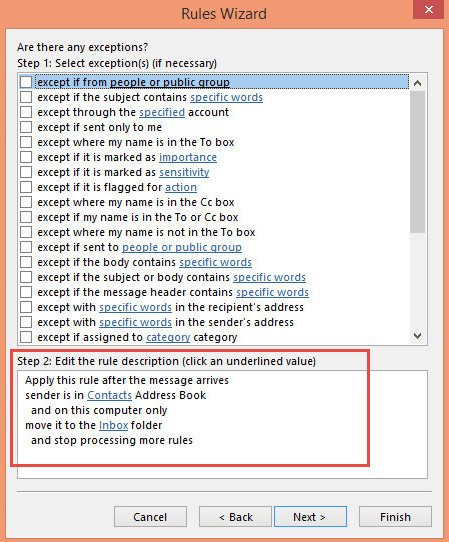
The last four rules in my Rules Wizard list work together to make sure that undesired messages not sent directly to me are diverted to a Junkmail folder. These rules are mostly designed to handle mailing lists that I've subscribed to. Some lists work better with a "from people or distribution list" rule, while others are best handled with a "sent to people or distribution list" rule.When I receive the first message from any new mailing list that I've subscribed to, I examine the header to figure out whether the From or To address is the one that distinguishes the distribution list; it's usually easy to tell. Then, I right-click and choose Add to Contacts to add the address to my Contacts folder. (You could also add to the Personal Address Book if you have it in your profile.) This step is crucial to gathering all the addresses for distribution lists into my first two anti-junkmail rules.
I have some separate rules to move messages from a few specific distribution lists into their own folders. Items sent to or from other lists are caught by these two rules and retained in the Inbox:
Rule#1 - Pre-Junk FROM. Can use people or distribution list condition or use the in address book condition to apply to all addresses in a contacts folder.
When you use the "sender is in address book" condition, Outlook will look up the address in the address book you specify. Depending on the number of entries in that address book, this condition might skip some messages if you receive a lot of mail.
You really only need the "stop processing" action; using the "move" action is optional in modern versions of Outlook.
Apply this rule after the message arrives
from people or distribution list (select distribution list addresses from the address book)
move it to the Inbox folder
and stop processing more rules
Rule #2 - Pre-Junk TO: Use people or distribution list condition or the in address book condition.
Apply this rule after the message arrives
to people or distribution list (select distribution list addresses from the address book)
move it to the Inbox folder
and stop processing more rules
Whenever you join a new list, add its To or From address, as appropriate, to one of the above two rules.
The next rule handles mail sent to any of my own personal e-mail addresses (e.g. sue@slipstick.com). I have also put these addresses in Contacts. I find that this rule works more reliably than rules created with the sent directly to me or where my name is in conditions.
Rule #3 - Pre-Junk TO ME:
Apply this rule after the message arrives
to people or distribution list (select my own addresses from the PAB or Contacts)
move it to the Inbox folder
and stop processing more rules
You may actually need quite a few names in Rule #3. Outlook is sensitive to the display name.
The final rule catches everything else and slaps it into the Junk Mail folder, for later review and deletion. Note that it does not include any conditions, only an action and an exception:
Rule #4 - Move to Junk Mail folder :
move it to the Junk Mail folder
except if my name is in the To or Cc box
Notes
If you are bothered mainly by messages sent to you in foreign languages, see Foreign spam removal for suggested characters to use in a Rules Wizard rule.
Or, get a third-party program to go through your mail before you let Outlook touch it. Spam-prevention services and tools that aren't specifically related to Outlook. Most provide either a POP proxy to run on your machine or a separate mailbox to cleanse your mail:
Client anti-spam tools are listed below. For server-based tools, see Content Control Tools:
Tools in the Spotlight
It is an easy-to-use Microsoft Outlook add-on designed to provide an advanced intelligent protection against junk-mails, viruses, unsolicited emails. The program uses Bayesian filtering technology that identifies about 99% of incoming junk messages. QMailFilter seamlessly integrates into the MS Outlook, scanning all incoming emails. Emails identified as junk are moved to the Junk Email folder. |

Tools
DeleteItemsInJunkFolder Flow deletes emails in the "Junk Email" folder based on the display name of the sender address. Example: a spammer sent you a message where the From address looks like this: [?? $500 Nike Gift Card Unlocked ??] You want each message that contains "[" in the sender's display name will be deleted. The flow will do that for you. The flow checks if the sender's display name contains any string you have specified as "trigger words". | |
Anti-spam tool using Bayesian filters, whitelist, blacklist, and challenge queries. Automatically bounces known spam messages back to the sender as if your address didn't exist. Also blocks potentially dangerous attachments. | |
SpamBayes attempts to classify incoming email messages as 'spam', 'ham' (good, non-spam email) or 'unsure'. First SpamBayes must be trained by each user to identify spam and ham. Essentially, you show SpamBayes a pile of email that you like (ham) and a pile you don't like (spam). SpamBayes will then analyze the piles for clues as to what makes the spam and ham different. For example; different words, differences in the mailer headers and content style. The system then uses these clues to examine new messages. Open source anti-spam add-in. | |
Anti-spam tool based on peer reporting, blacklist, and whitelist techniques. Can handle any type of Outlook account -- POP, IMAP, Exchange, Hotmail. Works with Microsoft Outlook, Outlook Express, Windows Mail, Windows Live Mail (POP3) and Thunderbird |
More Information
- How do I view Internet headers? -- if you want to know who is sending you junk mail
- Content Control Tools -- utilities to stop junk mail at the server level
- Foreign spam removal -- suggested characters to use in a rule to eliminate messages sent to you in foreign languages
- Using Outlook's Blocked and Safe Senders lists

badsoden says
I think it's absurd that MS was not capable of creating a decent antispam filter for end users. The client antispam and server antispam don't work together, many antispam stillcome through although clearly spam, blocking a whole domain is very cumbersome (whereas many spammers use the same domain), etc. etc. Those 3rd party tools create often problems and are sometimes spammers by sending you constantly emails to buy other products from them. I bough spamfighter. It could be a good product but it doesn't work properly, has huge bugs in it and they don't answer your emails properly (though there is someone sending you emails back asking for reinstallation all the time).
Basically, MS could solve this much and much better but it seems that they stopped developing office totally since 2000 except for a few superficial changes.The online office is far from usable and we as users are stuck. Any competitor has been squeezed out of the market and that's it.
MS enjoys their monopoly and leans comfortable backwards.
Neo Phema says
I have a slightly different problem - legitimate but unwanted emaiI. I suspect it is because I have a presence on some professional websites and while my email is not listed, sellers can figure out my corporate email address easily. We use a firstname.lastname format - easy to guess.
I'll get an email from marketing@suppersoftware.com and block that, then I receive an email from Nat@suppersoftware.com, then sales@suppersoftware.com, then Sue@suppersoftware.com and on and on. I add their domain to the blocked senders list but this is a manual process.
Is there a tool that lets me select and click a macro that will add their domain to the blocked senders list? In practice the trusted list of contacts can't be used as new email domains come to my inbox and I genuinely need to respond. I am on High now - the Safe filter will still require me to inspect the junk emails which is what I want to avoid. I just want to have the option to filter the well meaning but unwanted emails.
JSP says
Add only the domain in the block senders list and keep the "@" prefix, e.g. use: "@suppersoftware.com" without quotes in Outlook desktop and/or Outlook.com blocked senders list.
Diane Poremsky says
In Outlook on thw web, you'll use domain.com - in Outlook desktop, use @domain.com.
CVH says
There are various instructions in Outlook 2007 and on the web about how to access the Junk mail filter options, either through Tools>options>preferences, or through Action. Neither of these routes in my Outlook lead to anything mentioning junk mail. Where might it have been hidden? I have downloaded the recent (February 2016) update but cannot find any instructions on how to use it.
Diane Poremsky says
Updates install automatically if you have windows update set to install them - otherwise you need to run the msi or exe file.
you don't have this button in 2007's Tools, options?

John Bean says
Outlook 2010 reminds me daily of the mistake I made buying a PC Laptop Vs a Apple Laptop. Apple's IOS actually "learns" and in a week or so will accurately identify and non junk email. (Today i had 42 junk, 32 not being junk, and all 32 having been identified as not being junk repeatedly in the past 90 days)
Diane Poremsky says
What type of email account do you use? What is Outlook's junk mail option level set to? Try High (default is low).
Dave says
Good day. whenever I send an email, it reflects in the junkmail folder. How can I overcome this? I use Outlook 2010.
Diane Poremsky says
The sent message ends up in Junk instead of the Sent items folder?
What type of email account do you use?
If IMAP, check the Sent mail settings in File, Account Settings, double click on the account, then more settings, sent items tab. Is the sent folder selected?
Hannah Czerny says
Very useful! Thanks!
nigel eastwood says
how do I move items in my blocked senders list to junk without it arriving in my inbox.
Diane Poremsky says
What type of email account? Are you downloading full items? Items on the blocked list should be moved to the Junk folder as they arrive but when you download only headers (most common with IMAP accounts), the junk filter doesn't run until the full message is downloaded.
jhon says
i don't want any filter or any control such as spam or junk
Diane Poremsky says
See How to disable the junk mail filter to disable it completely.
Victor says
See https://ivasoft.com/fromjunktoinboxflow.shtml
Dale says
I am particularly frustrated with the rule that says "move... then stop processing further rules. That means it only processes ONE rule. I have set up and reset up rules 3-6 times, and I continue to get rules failing, and that is all that I find. I do ger an error message, but it makes no sense either.
What is the falue of "stop processing rules"?
Diane Poremsky says
Stop processing should only stop the rest of the rules from acting *on the current message*. Something else is causing the rules to fail. What is the error message?
For example, if you have a rule to move a message from Bob and a second rule to move message with "Hi there" in the subject and Bob sent you a message with Hi there in the subject, both rules would apply to the message. Stop processing tells outlook to move on to the next message once a message is affected by a rule - so if the first rule has stop processing, it moves the message from bob and stops checking for more rules that match.
RONALD RYAN says
How can I make sure that when I click with Norton Anti-Spam that a particular email is "Not Spam" will go the approved senders list for Outlook 2010. Norton is supposed to approve the sender automatically when I click that an email is "not spam."
Diane Poremsky says
Honestly, i would disable the Norton addin. If you are clicking a button in Norton, doesn't it go on their safe list, not outlooks? (I don't use norton and only know what others have told me.)
Uditha Desilva says
Hello Mr. Scott Briggs of Microsoft,
Thanks a lot for your response. Hope to go ahead with your service.
Good Day Sir !!!
peter says
Hi,
My Norton 360 Premium is not compatable with Windows Live.I recently started to get Spam/Junk mail which repeats itself on a daily basis.
Any solution availlable
Peter