The “Outlook could not create the work file. Check the temp environment variable.” error is more common after an upgrade of the operating system. It's the result of a corrupted temporary internet cache variable, possibly caused by the upgrading the OS or using Easy Transfer to move settings to a new computer.
Fixing it is easy - you can either edit the registry to change the location of the Temporary Internet Files or make the change within Internet Options (Control panel).
If you don't want to edit the registry, you can use the Mr. Fix it in You receive an "Error 1606" error message when you try to install or remove a Microsoft program. Mr FixIt will reset all User Shell Folders values, including Cache.
Edit the Registry method:
At Start menu, Run (or Windows key + R) type
regedit
Browse to HKEY_CURRENT_USER\Software\Microsoft\Windows\Current Version\Explorer\User Shell Folders
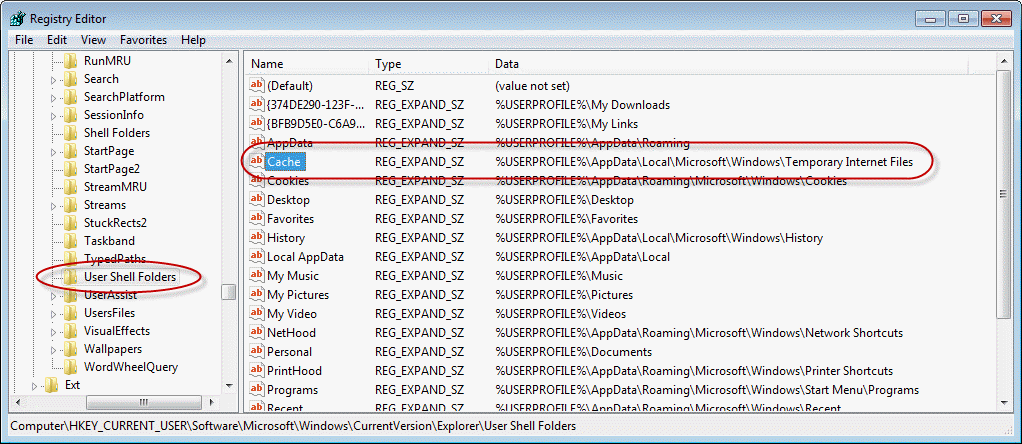
The Cache variable (in the right pane of the register editor window) should be as follows:
Windows 10:
%USERPROFILE%\AppData\Local\Microsoft\Windows\INetCache
Windows 7 or Vista:
%USERPROFILE%\AppData\Local\Microsoft\Windows\Temporary Internet Files
Double click on the Cache name to open it then edit it, entering the correct path (as listed above).
Internet Options method
Open Control Panel, Internet Options or go to Internet Explorer's Tools menu, Internet Options.
- In the Internet Options dialog, click the General tab. In the Browsing history section click Settings to open the Temporary Internet Files and History Settings dialog.

- In the Temporary Internet Files and History Settings dialog, click Move Folder to open the Browse for Folder dialog.
- In the Browse for Folder dialog, select the correct location for your Temp folder.
- Click OK to close the Browse for Folder dialog. Click OK to close the Temporary Internet Files and History Settings dialog. Click OK to close the Internet Options dialog.
- Wait for content to migrate to the new location.
- Reboot the computer when prompted.
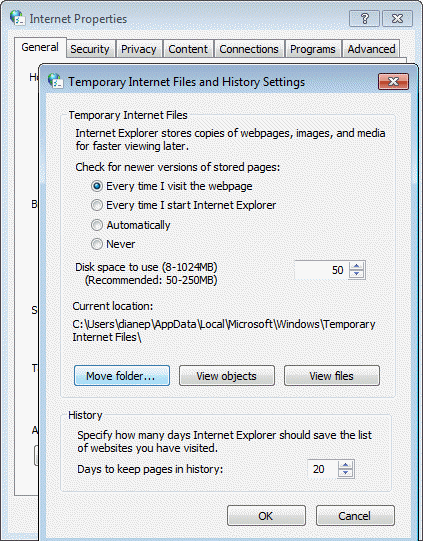
In Windows 10, the folder is at C:\Users\user name\AppData\Local\Microsoft\Windows\INetCache
In Windows 7 or Vista, and Windows 2008 Server, look for the folder here: C:\Users\user name\AppData\Local\Microsoft\Windows
For Windows XP and prior versions of Windows: C:\Documents and Settings\user name\Local Settings

Anthony says
Thanks Diane it worked!
Tim says
Neither of these worked for me. My problem is Windows Mail for Windows10 giving me this error message whenever I try to open an email.
Redloh says
Diane,
Tried other fixes which didn't work; yours did, thanks.
hil says
thanx. registry fix worked
Herb says
Deanne
Thanks for this info. I have the same problem with outlook from Office Professional Plus 2016 installed with Windows 10. Can you give me the information to adjust my registry for it? Thanks
Diane Poremsky says
The registry is the same for all versions of outlook - the win10 path is the same as for 7/8 - %USERPROFILE%\AppData\Local\Microsoft\Windows\Temporary Internet Files
HappyGoLuckyBrightNSunny says
I used the Control Panel method (some newbs might be afraid of manipulating the REGEDIT, which is a good idea) and it changed the registry keys to match the correct path. After the restart, the issues with Office 365/2016 in Win10 stopped and as of now, I haven't seen any other issues. Thanks for the easy fix. Too bad MS doesn't seem to know how to do it!
Kodaska says
The same problem shows up with Outlook 2013 when upgrading to Windows 10.
The registry entry is
%USERPROFILE%\AppData\Local\Microsoft\Windows\NetCache
but the folder does not exist.
There are two options.
1. Change the registry to INetCache, since there is a corresponding folder in the Users\UserName\AppData\Local\Microsoft\Windows folder on the hard drive.
2. Create a new folder called "NetCache" without changing the registry.
I did the second option and it worked fine.
Bob Ptak says
Tried this fix (created new folder NetCache) and problem remains with Windows 10
ksarginson says
Diane, I have been getting an error message "there are no file" every time I try to save a document. I am running Outlook 2013 on Windows 7. I use this for business, and I am desperate. Thanks.
Diane Poremsky says
These are email attachments or linked files? Are all attachments affected or just certain file types?
Noordin says
Hi Diane, thanks to your help on this.
I've had sleepless nights searching for solutions until I found yours.
Thanks and my Ourlook works normally now.
Tim says
I recently got a virus, which I have since removed, but now I'm getting the error message when I open Word. I can type in it and all, but when I hit 'save' or 'save as' it does nothing.
I've checked the registry and everything points to the right location. I've even deleted everything in there and still nothing. I have also tried creating a new folder and replacing the Temporary Internet Files folder, but it still doesn't work.
Please help. Thanks.
Diane Poremsky says
Did you try the FixIt in this KB article: https://support.microsoft.com/kb/886549/ ? Reboot when it's done and it will work.
Merel 469 says
Thank you very much, Diane. Actually , I'm still using Windows XP Professional.
My Office suite is "MS Office Professional Plus 2010 - Academic" which is the complete suite.
Installation and activation didn't generate any warnings and were completed without problem.
However I still can't use any module of the suite mainly because the major sticky issue the "work file".
This issue seems to appear with any module of any version of MS-Office, and using any Windows version.
I'm using now Open Office (and it works, without the annoyances of MSOPP2010). I paid for the MS product. Must I also pay more, just to receive some help getting this suite working properly ?
I will have a look at your register key anyway (first renamed it to .txt file)
It might help me to understand. But I can't use it for XP.
Best regards
Merel 469 says
MS Office Professional Plus 2010 (MSOPP2010) has been uninstalled and installad again.
After all updates fot it were downloaded and re-installed again.
MSOPP2010 has also been activated.
I still have the error message " Outlook/Word cannot open the work file "
Anyone with same software without problems ? Please give the Environment Variables you are using.
I have changed them to what I believe to be the default values.
This didn't work either after an attempt of both methods .
https://www.slipstick.com/problems/outlook-could-not-create-the-work-file/
Diane Poremsky says
Mine is %USERPROFILE%\AppData\Local\Microsoft\Windows\Temporary Internet Files (using Windows 7)
The regfile from my computer is here - https://www.slipstick.com/doit/cache-win7.reg - if you use windows 7 you can download it and double click to run.Close and restart Outlook.
Merel 469 says
Neither of both solutions on that webpage worked here.
After both methods were made there is still a LOOP of events when starting Office :
1. Message : Please wait while Windows configures Microsoft Office Professional Plus 2010
2. The configuration takes some time
3. Message : Teh configuration chages made to Microsoft Office Professional Plus will not take effect until your computer has been restarted. Would you like to restart now ?
4. YES => Restarts
5. Open Outlook2010
6 Message: Previously not closed normally; Would you like to open Outlook in safe mode
7. YES => Opens in safe mode
8. Working in safe mode will still give error "cannot open workfile"
9. Back to closing Outlook2010