Problem: After closing Outlook, it continues to run. Outlook can't close properly if another application is accessing Outlook's message store and you need open the Task Manager and End Process.
Symptoms which indicate that Outlook is not closing properly include receiving an alert telling you that Outlook is checking the data file when you open it. If you use two Outlook profiles, when you switch profiles, you aren't presented the screen to select the profile and Outlook opens directly to the first profile. Outlook may close and only the splash screen loads when you restart it.
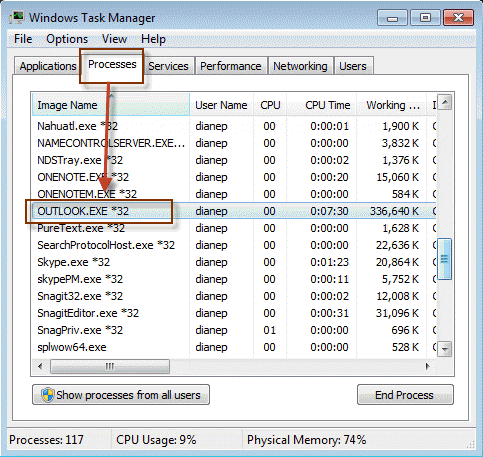
Not sure how to open Task Manager? Right click on the Windows Taskbar and choose Task Manager. Select the Processes tab and look for Outlook.exe in the Image Name column.
If you use an IMAP account in Outlook 2016 and newer, Microsoft is investigating an issue where outlook doesn't close properly. There is a registry key to use as a workaround.
HKEY_CURRENT_USER\SOFTWARE\Microsoft\Office\16.0\Outlook\IMAP
DWORD: AllowLOGOUTWithoutOK
Value: 1
If you don't want to edit the registry, I have a ready-to-use registry file available. Please note, this applies only to profiles with an IMAP account.
Beginning with Office 2007 SP2, Outlook addresses the problem and forces Outlook to close (most of the time), but you may need to wait a few minutes. This should eliminate most of the problems with Outlook not closing and the need to check the *.pst file on the next start; in addition, newer versions of Outlook are "better" about checking the data file for errors.
Below is a list of software known to cause problems in all versions of Outlook. This list is intended to give you an idea of what types of programs will cause Outlook to remain running, most often Fax software, anti-spam or anti-virus software, or PDA sync software. However, the culprit on your computer may be a different program.
See Disable Add-in or uninstall the software.
Add-ins | How to Disable Add-ins | Other Causes | Developer Information | Tools | More Information
Antivirus programs that support scanning email for viruses will tend to keep Outlook open. Disable email scanning and Outlook should close correctly. It's perfectly safe to disable this setting - it gives you advanced warning of viruses but as long as you can control your urge to open every attachment you receive, you'll be just as safe with it disabled. The antivirus programs that can affect Outlook include, but are not limited to, the following programs:
- Kaspersky Antivirus Pro version 5
- Panda AntiVirus Outlook Plug-In (pavexcli.dll)
- Norton Antivirus with e-mail scanning and script blocking enabled.
Once you identify the program that is causing Outlook to remain loaded, check their support site for updates and additional information, or disable or uninstall the add-in.
Many spyware and adware programs hook into Outlook and other email clients. Removing them will usually correct the problem and allow Outlook to close properly.
Other user accounts
If you are trying to solve the problem of Outlook not loading, this story from administrator could point you in the right direction.
We installed Shoretel's Call Manager under the Administrator's account and later installed Office 2010 under the user's account. On other cases we had created a new user on the workstation and were attempting to run both apps under the new user's account.When we removed Shoretel's Call Manager and reinstalled it under the account of the current user, the problem resolved and we could load and unload Outlook 2010 multiple times without any problem. In our environment Shoretel's Call Manager only reads Outlook's Contacts at startup to load it's own contact information. This should not effect one's ability to close and then reopen Outlook especially when everything works fine at first. Then when you add in the apparent sensitivity to having another app (Call Manger) installed under a different user account, it makes for a very bizarre scenario.
Add-ins which may keep Outlook open
The following is a short list of add-ins which are reported to keep Outlook running after it's closed.
- Skype for Business
- Outlook Change Notifier - Apple iTunes addin for syncing with iPhones, iPods etc.
- WinFax Pro. Disable WinFax or remove the WinFax Fax log from the profile. Remove them by opening Tools, Options, Mail Setup tab, Data Files and delete if present.
- Blackberry software
- Stamps.com (when using address from Outlook's Contacts)
- Franklin Covey Plan Plus
- Mapilab's Messenger Journal utility
- Earthlink's Spamblocker (the installation file is ELSBSetup.exe)
- Outlook Attachment Sniffer
- TechSmith's SnagIt 7 with Outlook integration enabled.
- Cloudmark Spamnet
- Fourelle Venturi Client
- Internet Download Manager - uninstall
- iProtectYou
- TMAntispam - the antispam part of Trend Micro's PCCillin Internet Security 2005 suite
- Infuzer
- FSecure 2005 antispam add-in
- Prophet 2004 (by Avidian) - check for updates
- Intuit Quickbooks
- iTunes calendar sync add-in
- iPhone Add-in
- ABBYY FineReader 9.0
- WMPNETWK or sharing files within MS media player 11
Disable Add-ins
Before uninstalling or disabling add-ins, check for an updated version. It may fix the problem.
In Outlook 2010 and newer, go to File, Options, Addins.
- Select COM Add-ins from the dropdown at the bottom of the dialog
- Press Go.
- Uncheck the add-ins you suspect might be keeping Outlook open
- Close the dialog.
In Outlook 2007, you need to go to Tools, Trust Center, Add-ins.
- Select COM Add-ins from the dropdown at the bottom of the dialog
- Press Go.
- Uncheck the add-ins you suspect might be keeping Outlook open
- Close the dialog.
In Outlook 2003 and earlier, add-ins are found on the Tools, Options, Other tab.
- Click the Advanced Options button.
- Click COM Add-ins button and uncheck add-ins to disable.
- While most add-ins are listed under COM add-ins, some may be in Add-in manager.
- Return to Outlook.
Most add-ins will be listed in COM Add-ins, but a few may be listed under Exchange Client Extensions, which on the dropdown with COM Add-ins.
Office 2007 SP2 addresses the problem and forces Outlook to close. his should eliminate most of the problem with Outlook not closing and the need to check the *.pst file on the next start. Download it from The 2007 Microsoft Office Suite Service Pack 2 (SP2)
Other Causes
Setting Outlook's "Empty deleted items when closing" option can also cause Outlook to close slowly. Disable it in File, Options, Advanced (Outlook 2010 and newer) or in Tools, Options, Other tab (Outlook 2007 and older).
If the 'Empty deleted' setting is set via GPO, you'll need to disable it.
In addition, a corrupt *.SRS (send and receive profile file) appears to keep Outlook 2003 open (we don't believe it affects newer versions of Outlook). Find and rename the SRS for the profile. It's a hidden file found at C:\Documents and Settings\username\Application Data\Microsoft\Outlook. Paste this line into the Windows Explorer Address bar: %USERPROFILE%\Application Data\Microsoft\Outlook
To learn more about the files contained in this directory, see Outlook Backup and Dual-Boot.
Tools
More Information
Mail Issues with Microsoft Outlook
The Outlook window closes, but the application continues to run when you try to exit Outlook MSKB

Mark Scarpa says
Thank you! So far so good.
I haven't had to go into Task Manager to end the Outlook.exe process to restart Outlook.
jean says
Hello thank you so much for your help but the problem remains. i installed you registery file it worked for a while bi tnow the problem occurs again. I disabled all of the addons but still have that problem.
rsbrux says
You don’t list Google Workspace Sync for Microsoft Outlook (GWSMO) in your list of suspects, but I’m pretty sure that it’s the culprit in my case. It is supposed to close when Outlook does, but when Outlook is hung, it is still sitting in the taskbar. Sometimes it says (on mouseover) “Connection to Google is temporarily unavailable”. Unfortunately, I am dependent on it, and can’t just disable the add-in. I have gotten used to waiting for the inevitable error message and clicking “Shut down anyway”. Outlook sometimes (but seldom) complains the next time I start it, but it doesn’t appear to have corrupted anything. Any better suggestions?
Yadin Elam says
Hi Diane, I'm using Outlook 2016 and the 2 accounts I have linked to outlook are set as IMAP but there is no IMAP in the registry.
Diane Poremsky says
You need to add the key if its not in the registry.
Jim says
🧭 Step-by-Step: Manually Create the Registry Key
Windows + R, typeregedit, and press Enter.Outlookfolder.IMAPIMAPkey:IMAPfolder.AllowLOGOUTWithoutOK1.Lee Anderson says
Thanks Diane. This was starting to drive me nuts as I didn't have any add-ins running and had to constantly kill the process to shut outlook down. As I have an IMAP account your tip to edit the registry worked a treat!
Richard says
Hello to all
I have a new Outlook glitch, which up until the last few days, has run pretty reliably.
For the last 48 hours, Outlook will now only sync email accounts just the once (when the app is opened for the first time). It will send/receive emails, and the software itself continues to run fine, with the exception that any other automatic email sync's subsequently fail - when they run every 30 mins or so. What happens, is that the Send/Receive dialogue box just sits there as if it's waiting. Beside every email account is the "down" arrow, indicating that it is attempting to download email from that email account, and the Progress field simply states "Processing"... and not one of the email accounts sync's at all. That's all it does from sync 2 onwards.
Eventually, the sync attempt ends having done nothing. Any emails that have been written and "sent" are simply sitting in the Outbox awaiting transmission. The only way to send/receive new email, is fully shut Outlook down completely and restart it, to get the first-time sync after opening the app.
There is a secondary, new problem also. Outlook does not fully shut down properly now either! I noticed this, when trying to shut down and re-open... what's happening is that I am finding Outlook sitting in the Processes section of the Task Manager. Sometimes, it sits there in the "Apps" section of Task Manager, and you simply have to "End Task" - but it's mostly sitting in the "Background Processes" section, and it has an odd greyed out icon, with a small grey "x" in a circle in the Outlook app icon - the whole image is grey, which seems to suggest a sort of terminal sort of problem?! Again, clicking "End Task" will remove it, and then permit Outlook to be re-opened on the computer for continued use and a one-time email sync.
Keith Eagles says
I am having the exact same issues. I have uninstalled and reinstalled Office and Outlook without resolution. The problem arose a few days ago, Outlook having worked fine for some two months on my new machine. I think the issue is associated with 2 email accounts which sync; the first is the default account associated with one of those annoying accounts that automatically gets set up when you subscribe to a new MS software licence; the second is the email account I use for business. Very annoying. As an IT ignoramus, all I want to do is to remove that first email account, leaving just my business account as the 'first' account to sync; but I don't know how to do that.
Diane Poremsky says
Both are Exchange accounts? If they are the only 2 accounts, making a new profilw wqith only the valid account would be easiest.
If you get a message that you can't remove the primary account, see this article
https://www.slipstick.com/exchange/primary-account-removed-outlook/
Keith Eagles says
Thanks Diane, This is where the ignoramus aspect kicks in. I will paste all this information into a doc where I will try to get help from someone.
Keith Eagles says
Just an update that might be helpful to some. Without seeking any further expert help, I decided to incrementally try out simple things to see if I could resolve the OUTLOOK not closing and hanging up during the folder syncing. The first thing I tried actually solved the problem. I removed the 'annoying' MS firstname.lastname@name.onmicrosoft.com email account mentioned above, using the FILE>ACCOUNT SETTINGS>ACCOUNT SETTINGS. This was the account that had been promoted to be the default account. I reinstated my business account as the only account in OUTLOOK and the ' failing to close properly' and 'hanging up during syncing' just disappeared.
Diane Poremsky says
Were you getting mail at the onmicrosoft address? The Exchange online mailboxes wouldnt normally cause problems but if you only had it for teams or software license, you don't need it in Outlook as you shouldnt send mail from that address (many sites block the onmicrosoft domain.)
Brian John Luckham says
All add-ins are listed as inactive apart from Outlook Change Notifier, which is disabled.
Outlook reports "No Active Application Add-ins"
Brian John Luckham says
I use btinternet.com for my email; erratic at best, but I've had the address for 20+ years and don't want the hassle of changing all of my consumer accounts etc.
Other add-ins are:
Outlook Social Connector 2016
OneNote Notes About Outlook Items
Microsoft VBA for Outlook
Microsoft Exchange Add-in
Microsoft Access Outlook Add-in for Data Collection and Publishing
AVG Antivirus Add-In
4Team Outlook Premium Support
Brian John Luckham says
The regedit file doesn't appear to work with Microsoft 365. I have also disabled the AVG email scanner, to no effect.
Diane Poremsky says
The AllowLOGOUTWithoutOK reg setting should work with Office 365 software - down to Office 2016. But it only applies to IMAP accounts. (It works for me.)
What other addins are installed?
José says
Outlook 365 remains open in background (shutting down for several minutes) after having closed it. This make impossible to re-open it or to shutdown the computer, need to wait for several minutes before (or to kill the process in task manager or force shutdown the pc). I have unchecked all the add-ins without success. Any other solution ?
Thanks
José
Diane Poremsky says
What type of email account do you have configured in Outlook? POP, IMAP, Outlook.com, or Microsoft Exchange?
There is a known issue with IMAP accounts - outlook doesn't close properly when you have an imap account and there is a registry key to use as a workaround.
HKEY_CURRENT_USER\SOFTWARE\Microsoft\Office\16.0\Outlook\IMAP
DWORD: AllowLOGOUTWithoutOK
Value: 1
If you have an IMAP account and don't want to edit the registry, I have a ready-to-use registry file available
https://www.slipstick.com/doit/AllowLOGOUT.reg
deb says
I am using Outlook 2016 with exchange server in Windows 10. I have to keep ending task to get it to ask for my other profile. Is there a fix for this for exchange email? It does not do this on my other machine just on one of them.
Diane Poremsky says
so just an Exchange account in the profile? Do you have any other applications - such as sync utilities - accessing Outlook data?
David Bergeron says
Does the server timeout setting affect this issue?
Diane Poremsky says
It should not affect it.
But... If you have the time out set high, try lowering it and see if it makes a difference.
none says
Do you also agree that it is just ridiculous that as a user you can not kill your own tasks? What a stupid design decisions are happening at microsoft.
Diane Poremsky says
You can kill it using Task Manager.
David Schultheis says
Outlook was shut down because the restart was holding up for a long time with the comment: "Outlook is shutting down" Now Outlook will not boot up. Using Outlook 365 on Windows 10. Unable to access Outlook/Safe mode. Using Outlook 2016
Marc Hoshovsky says
Malwarebytes is another Add-in that keeps Outlook open. I didn't realize this was happening until I found that I could not open Outlook from either my taskbar icon or desktop icon. At first, the only way I could get these icons to work was to reboot the entire system, which was a pain. After the reboot, the icons would work the first time, but they did not work after I had "exited" Outlook. Even though Outlook did not appear open on my desktop, it was running in the background, as I determined using the Task Manager. I discovered that Malwarebytes was running in my list of hidden icons (bottom right corner of Win 10 screen). By right-clicking and quitting Malwarebytes, the Outlook taskbar and desktop icons worked every time. I tested it by starting Malwarebytes up again, and the icons refused to work after closing Outlook (because Malwarebytes prevented Outlook from completely closing). Malwarebytes is a nice app, so no criticism there. Just substitute any of the other add-ins listed in the article above, and I'm sure you'll find the same story about preventing Outlook from completely closing.
Diane Poremsky says
Does malware bytes scan email? That should be the only reason it keeps it open - and disabling mail scanning should solve it.
Sandy says
I also use Malwarebytes. Since it does scan email, how do we continue to use both?
Diane Poremsky says
Disable email scanning - if it installed an outlook addin in File > Options > Addin, disable the addin.
hitesh chawla says
this is fix error in the outlook because many times work the outlook after you closed the outlook because this service host continue starting the task manager.
Paul Abke says
For us, the fix was to change this setting back to Not Configured in the Office 2013 GPO. UsersAdministrative TemplatesMicrosoft Office Outlook 2007/Miscellaneous/PST SettingsPermanently remove all deleted content from PST and OST files > Set to Not Configured or do it in the registry if GPO is not setting the value:
The registry settings is:
> PSTNullFreeOnClose, set to 0.
Anon says
Diane,
We were experiencing the following issues:
Outlook freezing
Stuck at “Loading Profile” when opening outlook
Unable to kill the outlook process
Access denied when trying to kill outlook process
PC hangs at logging off or shutting down screen
We had users with .pst files on a network share that also had "Offline Files" turned on. Just thought I'd mention it as a possible culprit.
Diane Poremsky says
Thanks for the details. This is one reason why storing pst files on a network drive is not supported by microsoft.
Vytautas says
I have just started having this problem with Outlook 2013. My computer starts working slowly when its opened. In TaskManager show that Outlook uses like 80% of Network and it goes to 10MB/s to Disk... and all the processes lag... :/ I have disabled all Addins, I have deleted email not to have PST files more than 20GB. What else should I do?
Ebrahim says
My outlook keeps getting stuck whenever i start my computer. i.e. it gets stuck in sending and receiving emails and doesnt receive or send any. and when i exit it, it still remians running. hence i have to end it in the task manager and restart it again. Any idea why this is happening. How can i resolve the prolem?
Diane Poremsky says
What version of Outlook do you use? What type of email account? How frequently are you checking for new mail? It should be set to no less than 5 minutes, preferably closer to 10 minutes.
Micro says
I never had a problem with Outlook 2003 until an "Important Update" on April 9th 2014 which is the day after support ended for the product. It is one thing to end support, it is another to sabotage my hold me hostage by sabotaging my purchase 10 years ago. Imagine your car being disabled on the day after the warranty ended intentionally by the manufacturer. I would go on, but I need to go because my ass still hurts.
Diane Poremsky says
Microsoft didn't do anything to intentionally disable it. What OS are you using? Was it an Office update or Windows update that 'broke' it?
Dennis says
I would have already done that, but is it safe? I mean, viruses can surely come in via email.... scary. ;)
Diane Poremsky says
It's safe. Outlook saves all attachments to the hard drive before opening, so the scanner picks it up them (assuming you didn't know it wasn't legit by looking at it) and Outlook won't run active content. The only thing you need to worry about is whether your virus definitions are up to date.
Dennis says
Hi Diane,
I tried a few times in SAfe Mode and had no issues, but the issue does not happen all the time - it is very random. I might go a few days without the issue and then have it again. The only add ins I have are iCloud, CodeTwo for iCloud, and Avast. I do not think that iCloud or CodeTwo are the issue since I am pretty sure they do not care about incoming emails. I could TOTALLY see Avast being the issue though. Any thoughts? Know of Avast being a possible issue with Outlook 2013?
Thanks again for all the help. You are a great person :)
Dennis
Diane Poremsky says
All of the antivirus/antispam/security scanners are know to cause issues for some people. disable the Avast addin and see if it works better.
Dennis says
Hi Diane,
This issue seems to have come back and is even more prevalent now. I broke out my send receive groups, but Outlook hangs on random accounts for no specific reason. It's not the end of the world to close outlook, kill the task, and restart, but surely that is not a solution. Wish you could stop Outlook from doing the auto send/rec when you open up. Any additional ideas you have would be appreciated. thx! Dennis
Diane Poremsky says
Does it work as expected if you run it in Safe mode?
Dennis says
Thanks for the info - it seems deleting the SRS has worked. I do have multiple groups now, but the issue is always when Outlook first opens, never after that. I did think that it was trying to run through too many accounts too quickly, but there really is no way around that. Will continue to monitor. thanks again! Dennis
Dennis says
Hi Diane,
I have alot of accounts - about 15 or so. i do have custom send/receive groups, but they always run when Outlook starts - and that is the only time it hangs. I wish you could tell outlook to NOT run them at start up. I deleted the .SRS and will monitor to see how that goes after recreating them.
Thanks for the help! Fingers crossed.
Dennis
Diane Poremsky says
Unfortunately, if you have an account doing an automatic check, it will check all accounts when outlook is first loaded. You definitely want to break the accounts into multiple send and receive groups with staggered automatic send and receive times - i recommend groups of about 3 -4 accounts (more is ok if they are pop3) with staggered send and receive times - using odd numbers so they are less likely to overlap. The most important accounts go in the first group, set to check every 5 or 7 minutes. If more than 2 accounts use the same server, try to put no more than 2 in the same group - some servers limit the number of threads a client can use and imap accounts use a lot of threads as each folder is checked.
Dennis says
Hi there,
I have an odd issue on my new profile I finally got set up. When I have to cancel a send/receive task since it hangs, this will stop from from send / receiving anymore. So, i have to close outlook. When I do, the process sticks around and I have to manually kill it. Is there a reason for this? New, clean profile I just built from scratch - and it took FOREVER to recreate!!!
Thoughts?
Thanks in advance,
Dennis
Diane Poremsky says
How many accounts are in your profile? It can take some time to cancel it if there are a lot of email accounts.
Did you create custom send and receive groups? If not, I'd try deleting the .SRS file at %appdata%\microsoft\outlook (type paste it in the address bar of windows explorer and press enter). If you are using custom groups, rename it and see if the S/R cancels easier.
rick says
Thanks! I unchecked Kaspersky box in an old version of Outlook (2003). Worked like a charm. I do wonder why the people at Kaspersky don't seem to know this solution.
Don Rogers says
I discovered it was being caused by "Outlook Connector" A program which connected a hotmail account with outlook. I uninstalled that and it seems Outlook is closing fine now.
Karl says
Hi there
I installed the outlook task and appt gadgets from:
slipstick.com/outlook/using-windows-gadgets-with-outlook/
I decided the same day that it wasn't what I wanted so removed them and deleted the donloaded gadget files.But since then, my outlook will not close. It just minimises to the icon tray but is still running in task manager. Any solutions on offer? Running windows 7 with outlook 2010.
Diane Poremsky says
You reversed the steps and deleted everything? How long ago did you do it? System restore may be any option, although there is really nothing that would cause problems, if you reversed the steps and deleted the gadget. It's possible an update was installed about the same time and caused problems - I know the June update for 2010 was buggy and they removed it.
Wesley Hader says
Not good practice to disable your antivirus! Nor is it a solution! It is a workaround that leaves you more susceptible to attack!
Diane Poremsky says
Disabling Antivirus scanner add-ins in Outlook is quite safe. If you attempt to open an infected attachment, your antivirus will alert you at that time - scanning in outlook will catch it sooner but uses more resources and causes more problems. It's just not worth it. 9 times out of 10 even a "less sophisticated" user is going to look at a message and know its bad news.
Client side antivirus scanning
Eric Shields says
Your solution worked-disabling Trend Micro's add-in allowed Outlook 2003 AND Merlin to close correctly. What a simple solution for a simple problem! Thanks for the heads-up.
Richard McLaughlin says
I tried that. It didn't work for me fullstop! I did exactly what you suggested, renaming the Outlook.srs file. Everything right down to the absolute last detail. The process still remained in memory. In short; have you been drinking?
Diane Poremsky says
I haven't been drinking anything - there are several causes of Outlook not exiting and the srs file is just one cause. What addins do you have installed? Do you sync with a smartphone?
spedgey says
Renaming the file C:Documents and SettingsusernameApplication DataMicrosoftOutlookOutlook.srs worked for me, it then recreated another Outlook.srs and the original remains, everything is fine, faster startup and close down...Many Thanks
Jon says
FYI - For all who need to close Outlook without the task menu -> Open RUN -> type 'taskkill /im outlook.exe /f' -> Press ENTER
ItuaS_veD says
Wow, i've been looking for this for some time. I have used to create a convinient shortcut for the users to close the ghost outlook so that it starts again. Thanks.
Howard says
Hi,
I'm using Steller Phoenix Outlook PST Repair. It has scanned my pst file, but I can't save recovered file because the program says Outlook is open...it is not. I've looked on the taskbar and the taskmenu..nothing. Right click on the shortcut and OPEN is displayed. What's going on? Can't fix or open, not too happy.
Joe says
FUUUUCCCCCKKKKKK I can't even kill the Outlook.exe process! F*** MICROSOFT!
Diane Poremsky says
It's not listed or it won't die?