A user complained that he kept getting a message saying his Exchange server mailbox was full. He cleaned out some old mail but could not eliminate the warning message.
The first step in addressing this message is to empty the Deleted Items and Junk Email folders.
Delete or archive old Appointments and Tasks. Check the Journal folder and delete or archive older Journal items. Check the Sync errors folders (from the Folder list in Outlook) and delete sync error messages older than a few days.
Use a Large message search folder to identify large messages and delete them or delete large attachments from the message.
After you've cleaned up the old messages, remember to empty the deleted items folder to remove the items from the server.
How to use AutoArchive: Using Outlook's AutoArchive Feature
If you still get the message after deleting a lot of items from Outlook after doing this, you either need to delete more or the changes did not sync up. Log into the account using OWA and verify the changes synced back to the server. Check the Sync errors folders from OWA and delete older error messages. Note: if you have a lot of sync error messages, talk to your administrator.
If you use a POP3 account and get "mailbox full" warning emails, you need to log into your account using web access and delete items from the server. Don't forget to empty the deleted item folder on the server too. IMAP users need to delete items in Outlook and purge folders, then either do a Send and Receive or switch folders and return to the current folder.
Check your Mailbox Quota
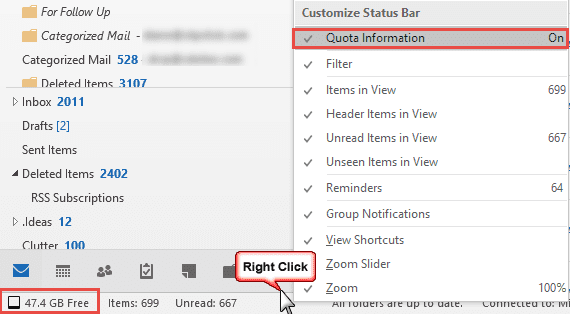
Newer versions of Outlook can display the Exchange mailbox quota in the Status bar. (As you can see, Office 365 offers a very generous mailbox size.)
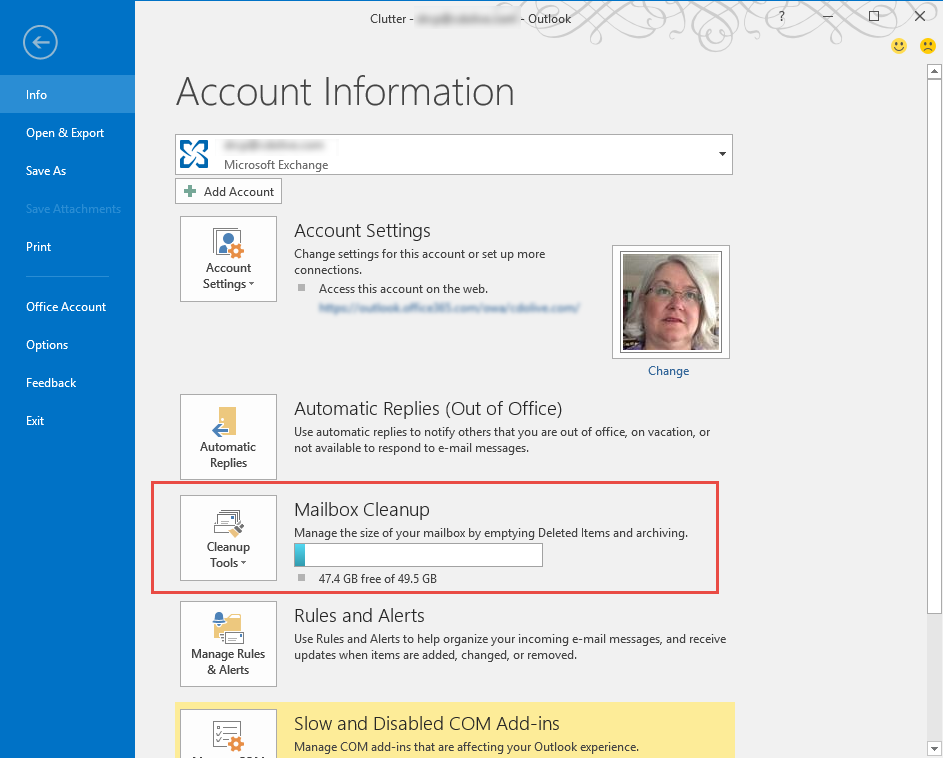
Outlook 2010 and up also display the Quota on Backstage (File, Info)

Mike says
Hello.
I just updated to microsoft365 and am transferring my acconts from thunderbird to outlook 2016. This morning when opening outlook we received the message "mailbox is full. It´s possible that you will not be able to send or receive messages" and have clicked on the link to clean up and backup options, and it won´t clean or back up.
Your assistance is appreciated.
Thank you!
Diane Poremsky says
This message is generated by the mail server - you need to delete messages from the server.
Chris says
how to delete the emails from the server? I think outlook 2016 is to complicated to do some basic operations
Diane Poremsky says
It depends on your email account type. With IMAP, Outlook.com or Exchange, you can delete it from outlook & empty deleted items. If you use POp3 and are leaving mail on the server, you need to log into your account's web access and delete the mail from the server.
Jared says
I deleted my box and still says full mailbox? Help I don't understand!
Diane Poremsky says
Log into your email account's web access and check your mailbox - that is where the problem is.
techvet says
Thanks for the help.
Sorry for omitting the version - it's for Outlook 2007 and I don't see the option. I went to a colleague's test who has Outlook 2010 and there is an option for Quota Information when y you right-click on the Status Bar, but it currently set to OFF on his system, so I am assuming the Exchange admins haven't turned that feature on (for whatever reason.
Diane Poremsky says
He should be able to turn quota on by clicking on it, but it could also be due to the version of Exchange that you use.
techvet says
Is there a way for users to see the their mailbox quota themselves? Not how much is in use, but what their maximum mailbox size is before going over the quota. If not, I wonder why Microsoft wouldn't expose this information to the user.
Diane Poremsky says
it should be in the status bar - if it's not showing, right click on the status bar and select quota information. Depending on your version of outlook, it might be in the File, Info pane.
Oh... and the above would generally only apply to Exchange mailboxes (including outlook.com) POP3 and IMAP users would need to log into web access to check.
Marcel says
diane, thanks for your helpful replies
i did it the patient way and clicked away all the notifications one by one while swearing about ms each time ;-)
Marcel says
... so what I did.. I setup a rule in Outlook.com to delete all mails older than 60 days from my Outlook.com Inbox,
However, after I saved this rule - nothing happens - I still have about 3000 mails in the inbox.
Diane Poremsky says
I'm assuming you ran it on the messages in the inbox using run now? If you are deleting all of the old mail select the first one then scroll to the end and hold ctrl as you click the last one and hit the Del key.
Marcel says
Hi Diane,
tks for your quick reply.
I doubt I already have 5G or 10G of data.
Where can I check the amount of data currently in the folder?
Regarding the auto-archiving, i have the following problem.
I have several email accounts (the outlook.com ones only 3 of them).
All emails are then setup so that all incoming mail ends up in the inbox of my exchange server.
I am assuming since it is backed in my Exchange account, I could just delete the emails in the outlook.com online version "Deleted Files" folder?
Thanks,
Marcel
Diane Poremsky says
If you are delivering mail to the exchange mailboxes, then yes, the mail is backed up with your mailbox and you don't need to archive. You can delete mail from the outlook.com account.
The easiest way to guesstimate the size is if using the outlook connector or eas - check the pst size. It's not 1-to-1, but would give you an idea if you were near 5 GB.
Microsoft's recommendations: https://windows.microsoft.com/en-US/windows/outlook/email-storage-limits
Marcel says
perfect, thanks a lot
Marcel says
Dear Diane,
I have another question regarding the Outlook.com mailbox size.
I keep getting messages saying "It looks like your account is growing really fast" and emails from clients bounce back.
The thing is, I opted for Outlook.com since I thought it had unlimited storage - at least thats what MS claims.
Also I do not want to constantly clean up the deleted items folder since sometimes I need to look for old emails.
So my questions are the following:
What is the actually allowed mailbox size with Outlook.com and is there a way to enlarge the capacity against an annual feel so that I have a clear & reliable indication how much data I can store there in order to avoid client emails bouncing back? MS is very vague about it.
If there is no such thing - could I just auto-archive old emails in Outlook Desktop version and is there a section on your blog instructing on how to set this up properly?
I tried to delete old emails in my "Deleted Items" folder on Outlook Desktop version but kept getting a message "... requested a notification be sent when this message is deleted. Do you want to send a receipt?
[Checkbox] Don't ask me about sending receipts again"
>> I clicked the checkbox and then the button "No" but this message kept popping up again and again - even for the same message several times - and it took forever to clean out the "Delete Items" folder
>> Is this a bug and is there a way to fix it?
Thanks a lot,
Marel
Diane Poremsky says
The mailbox size is 5GB and will slowly grow larger. If you are sending/receiving a lot of mail, it probably won't grow as fast as you need. The no-ad version is 10 GB to start. You can autoarchive to a pst - this will remove it from the server.
The deleted items folder automatically empties as the mail ages - don't "file" mail in the trash can with a plan that you can go back months later and look for mail you deleted - the janitor takes the trash out. :) If you think you might need it, move to it another folder instead.
It sounds like the receipt dialog is a bug - I hadn't noticed it with other account types, I'll see if i can repro with my outlook.com account.
Artem Komissarov says
• You mentioned that you had upgraded to IE 11 but some applications were not compatible. So downgraded IE back to IE 9.
• But after downgrading IE to 9, outlook is not launching.
• Found that machine is running a 64bit OS
• And had 32 bit office
• Checked the Registry path HKEY_LOCAL_MACHINE/Software/Microsoft/Internet Explorer and the correct version of IE was updated there.
• Again checked the registry on the machine. Went to HKEY_LOCAL_MACHINE/Software/wow6432node/microsoft/internetexplorer - entered the version and then launched outlook and it fixed the problem
• Checked if you can be updated as the primary contact for the ticket and you confirmed the same.
Diane Poremsky says
Did this fix your issue?
Robin says
I only got my new laptop and Outlook 2012 two weeks ago and every day I get a message saying my mailbox is almost full at 250MB. This seems very small and unmanageable.
Diane Poremsky says
That is very small. Who is your email provider? Is the account configured in Outlook using IMAP or POP3?