The Search Folders feature was added to Outlook beginning with Outlook 2003. There are several predefined Search Folders available but the most useful Search Folders are the ones with customized filters. 
Advanced Find gives you essentially the same feature, except it's not in real time and the search criteria cannot be saved.
Create a Search Folder
To create a Search folder, right click on Search Folders and choose New Search Folder.
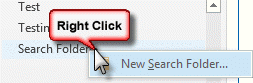
Select one of the pre-defined options or create a custom search folder. The customized filter option is at the bottom of the New Search folder dialog.

Keep Search Folders Active
Search Folders remain active for 8 days, then stop searching until you use the folder again. If you need to keep the folder active longer, you can set the searchofflinekeepalivedays registry value. The key isa at HKEY_CURRENT_USER\Software\Microsoft\Office\nn.0\Outlook\Options\General, where nn = your version of Outlook.
For Office 16.0 versions (Outlook 2016 and newer)
HKEY_CURRENT_USER\Software\Microsoft\Office\16.0\Outlook\Options\General
REG_DWORD: searchofflinekeepalivedays
Value: 1 to 999
If you don't want to edit the registry, you can open the Run command using Windows key + R and paste the following into the box. As written, it saves the search folders for 90 days. Change the 90 to a value between 1 and 999 as needed.
reg add "HKCU\Software\Microsoft\Office\16.0\Outlook\Options\General" /v searchofflinekeepalivedays /t REG_DWORD /d 90 /f
Administrator can use group policy to set the value. The key will be stored in the registry at HKEY_CURRENT_USER\Software\Policies\Microsoft\Office\16.0\outlook\options\general.
Tips
- The Search folder filter dialog is also used for Views, Automatic Formatting, and Advanced Find. While you can't export the filter conditions and import them in the other filter dialogs, you can use the information you learned creating one filter when you create filters for other uses.
- Enable QueryBuilder if you need to create a Search folder that uses the OR operator.
- You can reduce the number of search folders needed by combining views with search folders. Make one search folder that does something globally then create filtered custom views to further control what you see.
- There is a limit to the number of Search folders available with Exchange accounts.
- With Exchange accounts (including Outlook.com), search folders are stored in the cache file. They are not available online.
- Search folders are not supported in OWA in Exchange 2013 and newer, or in Office 365/Outlook.com.
How to Restore a Search Folder You Deleted
Use VBA to create an Outlook search folder
Use Instant Search to find messages from a contact
Tools
TabView is a plugin for Microsoft Outlook that allows you to search, sort, group, and view information in a few clicks. Tabbed Switch between customized search Filters and Views in any Microsoft Outlook Folders. The software provides an easy search of your Microsoft Outlook data through sorting and filtering them by tabs. It is a one-click filter switch that will save your time with pre-sorted, filtered items, such as e-mail, contacts, tasks, notes etc., and will show it in a custom view. | |
Lookeen Desktop Search with an optional Outlook add-in enables Windows users to quickly and easily browse all data in documents, e-mails, attachments, contacts, appointments, tasks and notes. Relevant information is at the user's fingertips within a few seconds, and search results are always up to date with real-time indexing. Advanced search queries and filter options allow users to easily narrow down a search. View & edit documents, reply to or forward emails and more from within Lookeen. Supports Outlook 2003, 2007, 2010, 2013 and Office 365, and Windows Vista, 7,8, and 10. | |
When you receive a message NameFromContact detects the sender address and searches for it in Contacts. If this address is in Contacts, NameFromContact retrieves the Display Name from the contact item and marks the message with a category. You see the name you have assigned to the sender. | |
NEO FIND organizes all emails automatically in the most logical and intuitive way people think about their messages: around the correspondent involved in the email communication. Adopting Caelo's patented virtual folder structure all emails (both sent and received) are organized in a Correspondent folder. This folder can be searched or filtered to quickly zoom-in on the message needed. | |
NEO Pro is an email organizer and search engine for Outlook that indexes emails (including multiple message stores), as they are sent and received, into convenient virtual folders such as Correspondent, Date, Attachment Type and Category for instant access. NEO Pro introduces Conversation View, which allows users to expand the thread in the message list. Includes email notation so that users can add notes to individual messages for future reference. |
More Information
MSKB Articles (from Microsoft)
Use Search Folders to find messages or other Outlook items
Search Folders created in Outlook do not appear in Outlook Web Access

b52apl says
Is there any dirty way to collect the search folder criteria for Office 2013 internal files? I get about 300-500 emails a day at work. I have 14 Search Folders applied in a specific order to pick out the must do now from the must do later from the I don't care. Over the last 3 years, I've developed a fairly good way to filter them which my teammates want to copy. The Search Folders work better than Rules because you can check on what's selected and make manual corrections. You can also look at From more generally. For example, if it comes from epcr3, I don't care which server it came from. Rules do. Search Folders don't. I can have about 20 different conditions on the From field, for example, to filter out, things like From contains "ISG svc run ID" or From contains epcr3. This is a really time saving tool I want to spread around. Isn't there a way to hack into the MS Office internal files and extract it, then put it back in on other people's machines?
Auden L. Grumet, Esq. says
Anyone know how to resolve the error with MS Outlook 365/2016 related to exceeding the maximum number of search folders? I'm getting an error saying I can't create new ones because I've allegedly exceeded the limit. Yet I know that''s not accurate, because I have more search folders on another machine (this occurred when a new one wasn't syncing to another machine, and I had to disable the cache setting). In other words, one machine will let me have all my search folders show, another will not (they are greyed out). Same version of Outlook.
What is the maximum number purported to be by MS? Can a group policy editor or registry tweak override this?
Thanks
Diane Poremsky says
Are both using cached mode? How many do you have? There are group policy settings that specifies the maximum number of Search Folders that run on the Exchange server. Outlook can have more, but they are local to the computer.