When you use custom forms or email templates, Outlook will add a signature to the form, if one is assigned to your email account. You can prevent this by adding a key to the registry. This key is an all-or-nothing deal - you can't apply it to some custom forms and not others.
If you want a signature on some forms but not others, your choices are:
- Set the registry value and add a signature to the template or form before saving the template or custom form
- Set the registry value and insert a signature when you use the form
- Don't use the registry value and delete the signature from the form each time.
Edit the Registry
This registry key works with Outlook 2002 and up. If you don't want to edit the registry, a ready-to-run reg file is listed below.
- Open the registry editor by typing regedit into the Start menu's Search field (Windows 7 & Vista) or by press Windows key + R on your keyboard (all versions of Windows).
- Browse to the HKEY_CURRENT_USER\Software\Microsoft\Office\xx.0\Outlook\Options key in the registry
- Right click on the Options key and choose Add > DWORD
- Type or paste NoAutosigOnCustomForms as the name
- Double click on NoAutosigOnCustomForms and enter a value of 1 if you don't want the autosignature added.
You'll need to restart Outlook for the change to take effect.
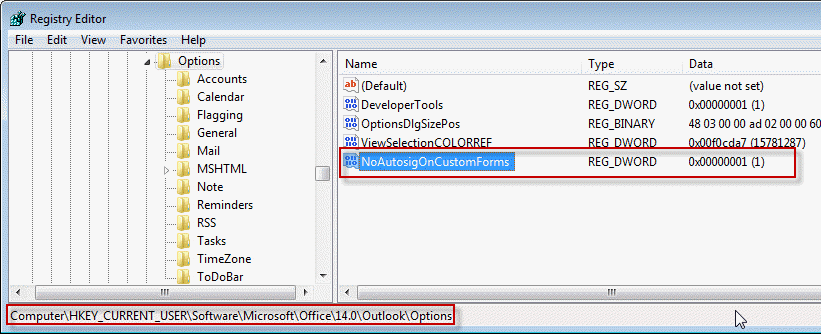
Outlook 2016
HKEY_CURRENT_USER\Software\Microsoft\Office\16.0\Outlook\Options
DWORD: NoAutosigOnCustomForms
Data Value: 1 = no signature; 0 = uses signature (the default)
Outlook 2013
HKEY_CURRENT_USER\Software\Microsoft\Office\15.0\Outlook\Options
DWORD: NoAutosigOnCustomForms
Data Value: 1 = no signature; 0 = uses signature (the default)
Outlook 2010
HKEY_CURRENT_USER\Software\Microsoft\Office\14.0\Outlook\Options
DWORD: NoAutosigOnCustomForms
Data Value: 1 = no signature; 0 = uses signature (the default)
Outlook 2007
HKEY_CURRENT_USER\Software\Microsoft\Office\12.0\Outlook\Options
DWORD: NoAutosigOnCustomForms
Data Value: 1 = no signature; 0 = uses signature (the default)
Outlook 2003
HKEY_CURRENT_USER\Software\Microsoft\Office\11.0\Outlook\Options
DWORD: NoAutosigOnCustomForms
Data Value: 1 = no signature; 0 = uses signature (the default)
Outlook 2002
HKEY_CURRENT_USER\Software\Microsoft\Office\10.0\Outlook\Options
DWORD: NoAutosigOnCustomForms
Data Value: 1 = no signature; 0 = uses signature (the default)
To restore the default behavior of adding a signature to custom forms and templates, delete NoAutosigOnCustomForms from the registry or change the value to 0.
Do it for me
If you don't want to edit the registry yourself, you can download one of the *reg file for your version and run it.
Outlook 2016 Outlook 2013 Outlook 2010
Outlook 2007 Outlook 2003 Outlook 2002(XP)
To restore the default behavior of adding a signature, open the downloaded *.reg file using Notepad and change the 1 to a 0 then save and double click to run the *.reg.
No signature: "NoAutosigOnCustomForms"=dword:00000001
Signature: "NoAutosigOnCustomForms"=dword:00000000
Delete value: "NoAutosigOnCustomForms"=-
More Information
No Automatic Signatures on Custom Forms & Templates
Tip 366: Signatures on Custom Forms (Daily tips)

euramtek says
thanks for sharing the article, where should I browse to this registry? server side? the user who created this form is no loner with company and not sure how i need to change his registry key
Diane Poremsky says
it's a client side setting - you need to set it on the desktop computers.
xiaoshi says
Really useful. Many thanks for your valuable infol
James says
Thanks Diane - Great suggestion - solved me a long-time nag. However - when you open the Outlook Template it defaults to send from the personal mailbox email - when we want to send it from a generic email account such as sales@ email address it then adds the footer of the personal mailbox email back onto the Template. Can you suggest a fix for this?! I look forward to hearing from you! Many Thanks. James
Asad says
Not working in Windows 10 with Office 2016 followed your steps for Outlook 2016 but it seems it is still there
Bernard Ouellet says
Hello, I have used your solution and it works perfectly on Windows 7. But I can't seem to make it work in Windows 10. Do you have a solution for Windows 10?
Diane Poremsky says
It should work exactly the same - if you have a new version of windows, you need to change the version # in the registry path.
Walt Herman says
Good morning. I am using some code from John Walkenbach and Ron DeBruin which sends emails to all members in a list in Excel. The issue is that the macro obliterates the signature when producing the email in Outlook. Are you aware of any vba code I can use to retain the signature in the email the code generates? Thanks for sharing, the MVP community is an amazing group of people.
Diane Poremsky says
that is a limitation of sending from outside of outlook. load it into memory before you start the merge then insert strBuffer in the message
this code will insert a signature -
Set objFSO = CreateObject("Scripting.FileSystemObject")
'Edit the signature file name on the following line as needed
Set objSignatureFile = objFSO.OpenTextFile(strSigFilePath & "the signature.htm")
strBuffer = objSignatureFile.ReadAll
objSignatureFile.Close
when you create the message - use this for the body (can use any body format as long as the signature file matches the body format)
.HTMLBody = .HTMLBody & strBuffer
Ruby A. Wolff says
How can one woman so clearly and succinctly do what Microsoft cannot? Thank you for sharing your knowledge. I thought I was going to make 6 templates and then, go home. It had been so easy on two other computers. Then, I discovered this computer had the double signature problem on Outlook 2013 (just like the other computers). Forever grateful for helping with this higher level issue.
Angelo says
Is there a way to query the register or some other way to determine whether the auto signature feature is enabled on an individual instance of Outlook? I'm looking to include some conditional code in VBA that checks for the auto signature setting and then adds (or doesn't add) a signature accordingly.
Diane Poremsky says
Yes, but not easily. The signature assignments are stored in the profile keys - there isn't a specific key to check to see if it's on or off.
You need to find the account key then look for the signature key. If there are multiple profiles or multiple accounts, you need to identify which is used.
The keys look like this - check for the account name then you can check the signature keys.
HKCU\Software\Microsoft\Office\16.0\Outlook\Profiles\Diane\9375CFF0413111d3B88A00104B2A6676\00000006\Account Name: "me@gmail.com"
HKCU\Software\Microsoft\Office\16.0\Outlook\Profiles\Diane\9375CFF0413111d3B88A00104B2A6676\00000006\New Signature: "Gmail"
HKCU\Software\Microsoft\Office\16.0\Outlook\Profiles\Diane\9375CFF0413111d3B88A00104B2A6676\00000006\Reply-Forward Signature: "gmail"
Allie says
I'm not needing this to work on a form, but on a template instead. Is there a way to turn off auto signature when you open a specific template?
Diane Poremsky says
No, it's all or nothing. If you open the template using a macro, you can erase the signature.
Liang says
Hi Diane,
I am using the macro to open a template.
how do you erase the signature in that template?
Thanks
Liang
Diane Poremsky says
if you can't set the reg key so one is not added to the email created by the template (and delete the signature when you create the template), either of these methods will work. The first requires you to use a unique 'signature indicator' as the first line of the signature. The second uses the word object model to find the signature bookmark and delete it.
i always use '-- ' (two dashes and a space) before my signature so this will remove it here.
Sub MakeItem()
Set newitem = Application.CreateItemFromTemplate("C:\test.oft")
newitem.Display
newitem.Body = Left(newitem.Body, InStr(1, newitem.Body, "-- ") - 2)
Set newitem = Nothing
End Sub
or, if you don't use a something like that in the signature, you can replace the newitem.body line with the following lines and set a reference to the word object model in tools, references.
Dim objDoc As Word.Document
Dim oBookmark As Word.Bookmark
On Error Resume Next
Set objDoc = newitem.GetInspector.WordEditor
Set oBookmark = objDoc.Bookmarks("_MailAutoSig")
If Not oBookmark Is Nothing Then
oBookmark.Select
objDoc.Windows(1).Selection.Delete
End If
Margo says
I tried it but it didn't work for me - I have Outlook 2010 - ???
Diane Poremsky says
Did you restart Outlook? Did you edit the registry or use my reg file?
Liko Puha says
Thank you so much! Your solution worked perfectly for Outlook 2013.
JMO says
Thanks for the great tip.
Auto sig. addition is a pain when you use the one email for multiple roles.
browneyednatural says
Thanks Diane, this is a great solution
Comrad says
Thank you Diane, your solution worked for me.
Erin says
I've created a template which I need to share with other members of the organization. They will use this template to reach out to clients. I need to remove the automatic email signature from the template itself since I cannot ask each end user to edit their registry. Is this possible?
Diane Poremsky says
The easiest way is to push the reg key out using group policy when the user logs in. AFAIK, there is no way to prevent it otherwise.
The signature that is added should be their own signature... if its adding your sig, you need to delete the contents of the body before you save it.
Jamey says
Can you please provide a vbscript that would do the same as the reg files so it could be included with a custom form?
Thanks in advance,
Jamey
Diane Poremsky says
I will look into it...