• Outlook User
  • New Outlook app
  • Outlook.com
  • Outlook Mac
  • Outlook & iCloud
  • Developer
  • Microsoft 365 Admin
    • Common Problems
    • Microsoft 365
    • Outlook BCM
    • Utilities & Addins

No Automatic Signatures on Custom Forms & Templates

Slipstick Systems

› Outlook › Email › No Automatic Signatures on Custom Forms & Templates

Last reviewed on April 16, 2020     26 Comments

When you use custom forms or email templates, Outlook will add a signature to the form, if one is assigned to your email account. You can prevent this by adding a key to the registry. This key is an all-or-nothing deal - you can't apply it to some custom forms and not others.

If you want a signature on some forms but not others, your choices are:

  1. Set the registry value and add a signature to the template or form before saving the template or custom form
  2. Set the registry value and insert a signature when you use the form
  3. Don't use the registry value and delete the signature from the form each time.

Edit the Registry

This registry key works with Outlook 2002 and up. If you don't want to edit the registry, a ready-to-run reg file is listed below.

  1. Open the registry editor by typing regedit into the Start menu's Search field (Windows 7 & Vista) or by press Windows key + R on your keyboard (all versions of Windows).
  2. Browse to the HKEY_CURRENT_USER\Software\Microsoft\Office\xx.0\Outlook\Options key in the registry
  3. Right click on the Options key and choose Add > DWORD
  4. Type or paste NoAutosigOnCustomForms as the name
  5. Double click on NoAutosigOnCustomForms and enter a value of 1 if you don't want the autosignature added.

You'll need to restart Outlook for the change to take effect.
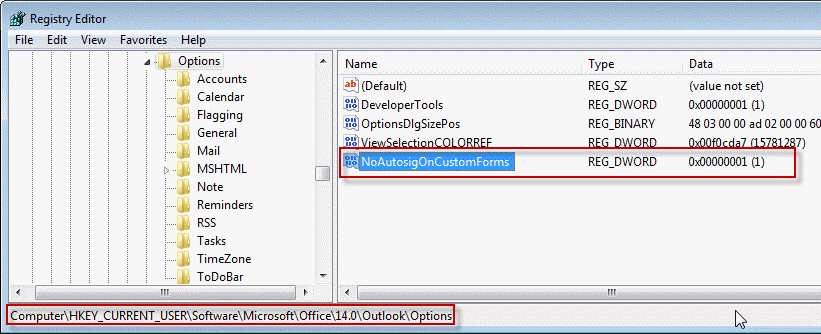
No AutoSignature on Templates and Custom forms

Outlook 2016

HKEY_CURRENT_USER\Software\Microsoft\Office\16.0\Outlook\Options
DWORD: NoAutosigOnCustomForms
Data Value: 1 = no signature; 0 = uses signature (the default)

Outlook 2013

HKEY_CURRENT_USER\Software\Microsoft\Office\15.0\Outlook\Options
DWORD: NoAutosigOnCustomForms
Data Value: 1 = no signature; 0 = uses signature (the default)

Outlook 2010

HKEY_CURRENT_USER\Software\Microsoft\Office\14.0\Outlook\Options
DWORD: NoAutosigOnCustomForms
Data Value: 1 = no signature; 0 = uses signature (the default)

Outlook 2007

HKEY_CURRENT_USER\Software\Microsoft\Office\12.0\Outlook\Options
DWORD: NoAutosigOnCustomForms
Data Value: 1 = no signature; 0 = uses signature (the default)

Outlook 2003

HKEY_CURRENT_USER\Software\Microsoft\Office\11.0\Outlook\Options
DWORD: NoAutosigOnCustomForms
Data Value: 1 = no signature; 0 = uses signature (the default)

Outlook 2002

HKEY_CURRENT_USER\Software\Microsoft\Office\10.0\Outlook\Options
DWORD: NoAutosigOnCustomForms
Data Value: 1 = no signature; 0 = uses signature (the default)

To restore the default behavior of adding a signature to custom forms and templates, delete NoAutosigOnCustomForms from the registry or change the value to 0.

Do it for me

If you don't want to edit the registry yourself, you can download one of the *reg file for your version and run it.

Outlook 2016 Outlook 2013 Outlook 2010
Outlook 2007 Outlook 2003 Outlook 2002(XP)

To restore the default behavior of adding a signature, open the downloaded *.reg file using Notepad and change the 1 to a 0 then save and double click to run the *.reg.

No signature: "NoAutosigOnCustomForms"=dword:00000001
Signature: "NoAutosigOnCustomForms"=dword:00000000
Delete value: "NoAutosigOnCustomForms"=-

More Information

No Automatic Signatures on Custom Forms & Templates
Tip 366: Signatures on Custom Forms (Daily tips)


No Automatic Signatures on Custom Forms & Templates was last modified: April 16th, 2020 by Diane Poremsky

Related Posts:

  • How to Manage Signatures using Group Policy
  • Publishing Custom Forms
  • Shared Mailboxes and the Deleted Items Folder
  • Remove Team Calendars from Outlook's Navigation Pane

About Diane Poremsky

A Microsoft Outlook Most Valuable Professional (MVP) since 1999, Diane is the author of several books, including Outlook 2013 Absolute Beginners Book. She also created video training CDs and online training classes for Microsoft Outlook. You can find her helping people online in Outlook Forums as well as in the Microsoft Answers and TechNet forums.

Subscribe
Notify of
26 Comments
newest
oldest most voted
Inline Feedbacks
View all comments

euramtek
July 23, 2019 12:26 pm

thanks for sharing the article, where should I browse to this registry? server side? the user who created this form is no loner with company and not sure how i need to change his registry key

0
0
Reply
Diane Poremsky
Author
Reply to  euramtek
October 27, 2019 11:48 pm

it's a client side setting - you need to set it on the desktop computers.

0
0
Reply
xiaoshi
April 29, 2017 3:42 am

Really useful. Many thanks for your valuable infol

1
0
Reply
James
July 26, 2016 7:15 am

Thanks Diane - Great suggestion - solved me a long-time nag. However - when you open the Outlook Template it defaults to send from the personal mailbox email - when we want to send it from a generic email account such as sales@ email address it then adds the footer of the personal mailbox email back onto the Template. Can you suggest a fix for this?! I look forward to hearing from you! Many Thanks. James

2
0
Reply
Asad
July 23, 2016 12:11 am

Not working in Windows 10 with Office 2016 followed your steps for Outlook 2016 but it seems it is still there

0
0
Reply
Bernard Ouellet
June 16, 2016 4:25 pm

Hello, I have used your solution and it works perfectly on Windows 7. But I can't seem to make it work in Windows 10. Do you have a solution for Windows 10?

0
0
Reply
Diane Poremsky
Author
Reply to  Bernard Ouellet
June 16, 2016 11:16 pm

It should work exactly the same - if you have a new version of windows, you need to change the version # in the registry path.

0
0
Reply
Walt Herman
May 12, 2016 8:28 am

Good morning. I am using some code from John Walkenbach and Ron DeBruin which sends emails to all members in a list in Excel. The issue is that the macro obliterates the signature when producing the email in Outlook. Are you aware of any vba code I can use to retain the signature in the email the code generates? Thanks for sharing, the MVP community is an amazing group of people.

0
0
Reply
Diane Poremsky
Author
Reply to  Walt Herman
May 12, 2016 1:11 pm

that is a limitation of sending from outside of outlook. load it into memory before you start the merge then insert strBuffer in the message

this code will insert a signature -
Set objFSO = CreateObject("Scripting.FileSystemObject")
'Edit the signature file name on the following line as needed
Set objSignatureFile = objFSO.OpenTextFile(strSigFilePath & "the signature.htm")
strBuffer = objSignatureFile.ReadAll
objSignatureFile.Close

when you create the message - use this for the body (can use any body format as long as the signature file matches the body format)
.HTMLBody = .HTMLBody & strBuffer

0
0
Reply
Ruby A. Wolff
June 16, 2015 1:10 pm

How can one woman so clearly and succinctly do what Microsoft cannot? Thank you for sharing your knowledge. I thought I was going to make 6 templates and then, go home. It had been so easy on two other computers. Then, I discovered this computer had the double signature problem on Outlook 2013 (just like the other computers). Forever grateful for helping with this higher level issue.

0
0
Reply
Angelo
June 4, 2015 11:13 am

Is there a way to query the register or some other way to determine whether the auto signature feature is enabled on an individual instance of Outlook? I'm looking to include some conditional code in VBA that checks for the auto signature setting and then adds (or doesn't add) a signature accordingly.

0
0
Reply
Diane Poremsky
Author
Reply to  Angelo
July 30, 2015 12:54 am

Yes, but not easily. The signature assignments are stored in the profile keys - there isn't a specific key to check to see if it's on or off.
You need to find the account key then look for the signature key. If there are multiple profiles or multiple accounts, you need to identify which is used.
The keys look like this - check for the account name then you can check the signature keys.
HKCU\Software\Microsoft\Office\16.0\Outlook\Profiles\Diane\9375CFF0413111d3B88A00104B2A6676\00000006\Account Name: "me@gmail.com"
HKCU\Software\Microsoft\Office\16.0\Outlook\Profiles\Diane\9375CFF0413111d3B88A00104B2A6676\00000006\New Signature: "Gmail"
HKCU\Software\Microsoft\Office\16.0\Outlook\Profiles\Diane\9375CFF0413111d3B88A00104B2A6676\00000006\Reply-Forward Signature: "gmail"

0
0
Reply

Visit Slipstick Forums.
What's New at Slipstick.com

Latest EMO: Vol. 30 Issue 38

Subscribe to Exchange Messaging Outlook


Support Services

Do you need help setting up Outlook, moving your email to a new computer, migrating or configuring Office 365, or just need some one-on-one assistance?

Our Sponsors

CompanionLink
ReliefJet
  • Popular
  • Latest
  • Week Month All
  • Use Classic Outlook, not New Outlook
  • OUTLOOK.EXE continues running after you exit Outlook
  • Reset the New Outlook Profile
  • How to Remove the Primary Account from Outlook
  • How to Hide or Delete Outlook's Default Folders
  • Move an Outlook Personal Folders .pst File
  • Adjusting Outlook's Zoom Setting in Email
  • Disable "Always ask before opening" Dialog
  • Removing Suggested Accounts in New Outlook
  • This operation has been cancelled due to restrictions
  • Opt out of Microsoft 365 Companion Apps
  • Mail Templates in Outlook for Windows (and Web)
  • Urban legend: Microsoft Deletes Old Outlook.com Messages
  • Buttons in the New Message Notifications
  • Move Deleted Items to Another Folder Automatically
  • Open Outlook Templates using PowerShell
  • Count and List Folders in Classic Outlook
  • Google Workspace and Outlook with POP Mail
  • Import EML Files into New Outlook
  • Opening PST files in New Outlook
Ajax spinner

Recent Bugs List

Microsoft keeps a running list of issues affecting recently released updates at Fixes or workarounds for recent issues in classic Outlook (Windows).

For new Outlook for Windows: Fixes or workarounds for recent issues in new Outlook for Windows .

Outlook for Mac Recent issues: Fixes or workarounds for recent issues in Outlook for Mac

Outlook.com Recent issues: Fixes or workarounds for recent issues on Outlook.com

Office Update History

Update history for supported Office versions is at Update history for Office

Outlook Suggestions and Feedback

Outlook Feedback covers Outlook as an email client, including Outlook Android, iOS, Mac, and Windows clients, as well as the browser extension (PWA) and Outlook on the web.

Outlook (new) Feedback. Use this for feedback and suggestions for Outlook (new).

Use Outlook.com Feedback for suggestions or feedback about Outlook.com accounts.

Other Microsoft 365 applications and services


New Outlook Articles

Opt out of Microsoft 365 Companion Apps

Mail Templates in Outlook for Windows (and Web)

Urban legend: Microsoft Deletes Old Outlook.com Messages

Buttons in the New Message Notifications

Move Deleted Items to Another Folder Automatically

Open Outlook Templates using PowerShell

Count and List Folders in Classic Outlook

Google Workspace and Outlook with POP Mail

Import EML Files into New Outlook

Opening PST files in New Outlook

Newest Code Samples

Open Outlook Templates using PowerShell

Count and List Folders in Classic Outlook

Insert Word Document into Email using VBA

Warn Before Deleting a Contact

Use PowerShell to Delete Attachments

Remove RE:, FWD:, and Other Prefixes from Subject Line

Change the Mailing Address Using PowerShell

Categorize @Mentioned Messages

Send an Email When You Open Outlook

Delete Old Calendar Events using VBA

Repair PST

Convert an OST to PST

Repair damaged PST file

Repair large PST File

Remove password from PST

Merge Two Data Files

Sync & Share Outlook Data

  • Share Calendar & Contacts
  • Synchronize two computers
  • Sync Calendar and Contacts Using Outlook.com
  • Sync Outlook & Android Devices
  • Sync Google Calendar with Outlook
  • Access Folders in Other Users Mailboxes

Diane Poremsky [Outlook MVP]

Make a donation

Mail Tools

Sending and Retrieval Tools

Mass Mail Tools

Compose Tools

Duplicate Remover Tools

Mail Tools for Outlook

Online Services

Calendar Tools

Schedule Management

Calendar Printing Tools

Calendar Reminder Tools

Calendar Dates & Data

Time and Billing Tools

Meeting Productivity Tools

Duplicate Remover Tools

Productivity

Productivity Tools

Automatic Message Processing Tools

Special Function Automatic Processing Tools

Housekeeping and Message Management

Task Tools

Project and Business Management Tools

Choosing the Folder to Save a Sent Message In

Run Rules on messages after reading

Help & Suggestions

Submit Outlook Feature Requests

Slipstick Support Services

Buy Microsoft 365 Office Software and Services

Visit Slipstick Forums.

What's New at Slipstick.com

Home | Outlook User | Exchange Administrator | Office 365 | Outlook.com | Outlook Developer
Outlook for Mac | Common Problems | Utilities & Addins | Tutorials
Outlook & iCloud Issues | Outlook Apps
EMO Archives | About Slipstick | Slipstick Forums
Submit New or Updated Outlook and Exchange Server Utilities

Send comments using our Feedback page
Copyright © 2026 Slipstick Systems. All rights reserved.
Slipstick Systems is not affiliated with Microsoft Corporation.

:wpds_smile::wpds_grin::wpds_wink::wpds_mrgreen::wpds_neutral::wpds_twisted::wpds_arrow::wpds_shock::wpds_unamused::wpds_cool::wpds_evil::wpds_oops::wpds_razz::wpds_roll::wpds_cry::wpds_eek::wpds_lol::wpds_mad::wpds_sad::wpds_exclamation::wpds_question::wpds_idea::wpds_hmm::wpds_beg::wpds_whew::wpds_chuckle::wpds_silly::wpds_envy::wpds_shutmouth:
wpDiscuz

Sign up for Exchange Messaging Outlook

Our weekly Outlook & Exchange newsletter (bi-weekly during the summer)


Please note: If you subscribed to Exchange Messaging Outlook before August 2019, please re-subscribe.

Never see this message again.

You are going to send email to

Move Comment



























