This content has been archived. It may no longer be relevant.
Microsoft Outlook supports importing from Eudora Pro or Light versions 2, 3, and 4. If you use Eudora 5 or above, you may need to convert the mailbox files using Thunderbird before importing. Users report that they have successfully convert Eudora 7 without using Thunderbird.
Also, if you import from Eudora directly to Microsoft Outlook you may end up with two issues:
- The Send and Receive dates show the date of the import, not the actual date the message was sent.
- The email messages may contain odd html tags. It's readable, but ugly.
To avoid problems, you can do one of two things: import from Eudora to Thunderbird then to Outlook or invest in a tool that will make the conversion for you in one step. The conversion utilities will import both email and address books. If "time is money" using a utility can be cost-effective. We have a long list of conversion utilities below, many of which will convert from Eudora to Microsoft Outlook.
Locate Eudora's Files
In order for Outlook to successfully import your Eudora mailboxes and address book(s), the files need to be in the folder where it's Import wizard is going to look: C:\Program Files\Qualcomm\Eudora folder. If you store your mailboxes, address book, etc. in another location, you need to copy the files to C:\Program Files\Qualcomm\Eudora before you begin the import process to Outlook.
The files you need in this folder path are:
*.mbx - mailbox files
*.toc - table of contents files
nndbase.txt - nickname file
*.fol folders - Eudora folders containing mailboxes
Nickname folder (if it is not empty)
Attach folder (if it is not empty)
descmap.pce - keeps track of your mailbox and folder list
If you are not going to import all of your Eudora mailboxes and folders, open the copied "descmap.pce" file with Notepad and remove any mailbox and folder names that you are not going to import. If you don't do this, you will receive an Import Error (The mail folder could not be opened. If another application is using this file, please close it and try again).
Import from Microsoft Outlook
Empty Eudora's Trash mailbox.
In Microsoft Outlook, go the File, Import and Export menu. (In Microsoft Outlook 2010, its File, Open, Import).
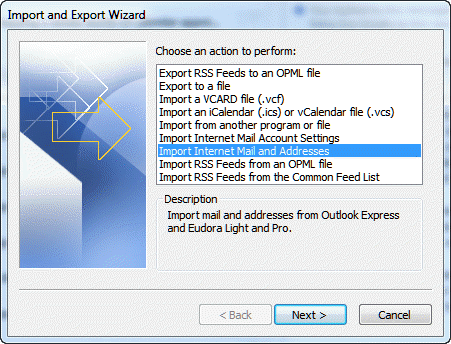
- Select Import Internet Mail and Addresses. Click Next.
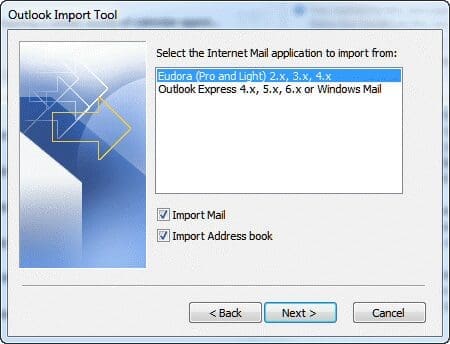
- Select Eudora Pro or Light from the (short) list of programs Outlook can import from.
- If you don't want to import both Mail and Contacts, remove the check from the appropriate box. Click Next.
- Choose how to handle duplicates. We recommend using the default of Allow duplicates to be created.
- Click Finish then browse for the Eudora mail folder to finish the import.
Tips for Eudora Users
If you use IMAP, Outlook will sync with the server, so there is no need to Import.
If you leave POP3 mail on the server, Outlook will redownload it again, causing duplicates with the copies that were imported. You have several options:
- Move the mail out of the Inbox on the server (POP3 only downloads the Inbox) or delete it from the server before Outlook downloads mail from the server.
- If you don't have rules configured to move messages out of Outlook's Inbox, create a new folder in Outlook and move the old mail to it. (Select All using Ctrl+A and use the Move to folder command or drag the mail.) Delete the older mail you downloaded then move the imported mail back to the Inbox.
- If some time has passed between the Import and the redownloading, you can sort by the Modified field to delete newly downloaded messages. Instructions are at Manually Remove Duplicates from Outlook
- Create a Rule to categorize all mail you download. Remove the category from mail that is not duplicated then group by category and delete the duplicates.
- Use a duplicate remover tool.
Attachment Handling
Outlook keeps attachments attached to the message, unlike Eudora, where attachments are moved to a folder. Outlook blocks certain files types that are potentially dangerous. If Outlook has blocked attachments (or shortcuts to the attachments, create by Eudora), retrieve them from the Eudora attachment folder.
Use Thunderbird to convert Eudora email
To use Thunderbird to convert your Eudora email, follow these steps:
- Download and install Thunderbird from mozilla messaging
- Run the import from the tools menu (only do mail, not the settings or the address book)
- After it completes, quit Thunderbird. Now locate the converted mail files. If you use Windows XP, they should be in: "C:\Documents and Settings\youraccount\Application Data\Thunderbird\Profiles\something.default\Mail\Local Folders\"
- Ignore the .msf files. Your mail files are the files without extensions.
Outlook can't import from Thunderbird so you will need to rename the Thunderbird files and and put them mail files into Eudora's mail folders. After you do that, open Eudora once to register the files as mailboxes, then you will be able to import them using Outlook's Import wizard.
- Locate your Eudora data folder.
- Sort the files by type and move out all the .mbx and .toc files (mailboxes and table of content files). Move, don't delete them.
- In the Thunderbird folder, add the .mbx to the mail file names (In is now In.mbx).
- Move these mail files into the Eudora data folder.
- Run Eudora. Don't check for new mail or do anything else, just open it then quit.
- Run Outlook and do an import of Eudora including the address book.
Tools
Convert your Personal Address Book to or from Windows Address Book, Eudora, Netscape, Outlook Contacts, LDIF and other address book formats. | |
Address Magic supports dozens of applications and formats to convert email, calendar, and address books, to or from Outlook. Converts over 30 address book formats, 20 email formats, and 4 calendar formats. Automatically customizes itself for your computer by finding your email applications and data files. Supports over 150 different address book fields, including names, postal addresses, email addresses, phone numbers, comments, and many more. Automatic field mapping between different address books, full distribution list support, and maintains email folder structure. Converts HTML email, text email, attachments, and all headers. | |
Aid4Mail is an email migration and conversion tool, which supports over 30 mail formats including Outlook (PST, MSG files), Windows Live Mail, Thunderbird, Eudora, and mbox. It can search mail by date, header content, and in the Forensic and Enterprise versions, by message body content. Mail folders and files can be processed even when disconnected (unmounted) from their email client including those stored on CD, DVD, and USB drives. | |
Use the Aid4Mail MBOX Converter to convert MBOX, Thunderbird, or Eudora to EML files. It will also convert between Mac or UNIX and Windows MBOX. EML files can be opened by Outlook 2007 and up, Windows Mail, or Live Mail. Free. Converts email only. | |
Import Eudora .mbx Files into PST, EML and EMLX. Convert all Eudora emails along with attachments. | |
Stellar MBOX to PST Converter is a powerful utility that converts MBOX files of various email client applications such as Thunderbird, Spicebird, Entourage, PocoMail, Eudora, and Apple Mail files to Outlook PST files. The user can convert single, multiple or all mailboxes into PST file. The converted data can be saved as a new PST file or appended to an existing PST file. The PST file so created is compatible with Outlook 2010, 2007, 2003, 2002 and 2000.The demo version of the tool offers a preview of the MBOX file items before conversion. | |
Transend Migrator converts data between virtually all email systems. |
More Information
Converting Microsoft Outlook Messages and Calendars
Reply by Atithd (Microsoft Answers)
Reply by David Couch (TechNet)

maurizio says
new laptop running MS 10. I imported Eudora program and all my Eudora's messages and mailboxes here...I want now to export them to Outlook Office 365... what's the way?
Nick says
One may want to consider this aspect of the conversion when choosing a target .pst for the conversion. Apparently, "By default, Personal Folders (.pst) and offline Outlook Data File (.ost) files are in Unicode format in Microsoft Outlook 2010 and Outlook 2013. The overall size of .pst and .ost files has a preconfigured limit of 50 GB. This limit is larger than the limit for Unicode .pst and .ost files in Outlook 2007 and Outlook 2003" Ref:
https://support.microsoft.com/en-us/kb/982577
From this I infer that "35 gig of eudora emails" may well bump up against the .pst file size limit - soon. (Esp considering that Outlook incorporates attached files into the .pst, instead of offering a separate directory for them, as Eudora did).
Another article I found stated: "You have no direct way to convert your Outlook 97-2002 PST file to a Unicode PST file. The best way to do so is create a new data file in Outlook 2003 or 2007 and import the old data into it". Ref:
https://www.ehow.com/how_6302986_convert-pst-unicode-pst-file.html
And, of course the email account settings, and message sorting rules in Eudora are not converted into Outlook. So making sure one has the correct version of .pst file is best before investing gobs of time in setting up accounts, creating rules, etc. These hurdles have inhibited me from converting, but I need to do it - soon. Am interested in reading about your success and tactics!
Will says
Hello Diane, could you please clarify something for me please. I'm thinking of using aid4mail to convert 17 years and 35 gig of eudora emails to outlook. Is it a one time transfer then everything is categorised and filed in outlook, or, as it is a subscription service, does it use Outlook as a 'mask' for the eudora files? Guess I'm asking if it is a programme that you purchase and run one time, then its done? Thanks in advance
Diane Poremsky says
it's a one time deal - once you get everything converted you won't need to use it again.
Nick says
This article is *very* helpful, esp since my Eudora 7.1.0.9 is now basically useless for POP. I suspect that my ISP 1and1.com (one of the largest ISPs) revised how it handle certificates, in Feb 2015 (but they will not admit it). Symptoms replicate over multiple fresh installations, using Win XP and Win Vista. So, reluctantly, I have concluded I must migrate email away from Eudora. (Would love to avoid this if I could, even if it means staying on Win XP or WinVista)
My Eudora 7.1.0.9 still handles 1and1.com method of IMAP, so via that method I have accumulated 2 months of IMAP messages over 8 email addresses (lots of messages), while searching for transition tools. Since I have years of messages POPed and stored on my local machine within Eudora 7.1.0.9 format (but left *on* server), I would like to avoid or reduce the size of the double- message import-into-Outlook problem if I can.
Question: When I connect to 1and1.com mail host soon using Outlook POP, will I be able to POP the last two months of messages (that were IMAP-read by Eudora) into Outlook? Or will those messages be inacessible via Outlook POP?
Thanks in advance for any tips you have time to share.
Diane Poremsky says
Outlook POP3 will only access mail in the Inbox on the server. Any mail in other folders will not be touched when you use POP3... so, if you want to only download the last 2 months of mail, that should be all that is in the inbox folder.
NBela says
Thanks for sharing this article post ! its very grateful...
Mark mohan says
Thank you
Jena says
I'm not getting the option to Import Internet Mail and Addresses :(
Diane Poremsky says
Which version of Outlook? Outlook 2013 removed many of the Import types. You'll need to use a utility or Export from the other program to Outlook (you need to use 32bit Outlook.)
jim says
Thanks much for your reply
jim says
Is there any converter that will convert, not just messages and address book, but also Eudora Personalities, filters and mailboxes to Outlook
You will have to send me an email if you answer, otherwise I will never find my way back here.
Diane Poremsky says
AddressMagic can do the mailboxes- https://addins.slipstick.com/tools/addressmagic - but personalities and filters will need to be redone.
Rene says
Sorry outlook 2010
Rene says
I know how to import my eudroa address book to outlook 2012, but I need to set up a macro we are running a duel system and need to make it simple for my office staff they may be updating the client list every day
Diane Poremsky says
I'll have to check on that - Import is not exposed in the object model but there may be ways to do it.