If you have Contacts in Microsoft Outlook's Contacts folder but they are not accessible when you click on the To button, check these settings:
Are you using the "wrong" view?
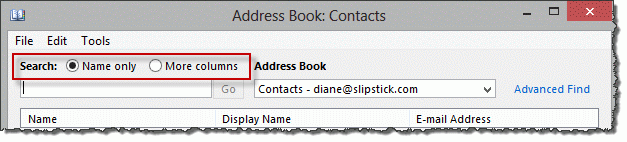
Is Name Only selected at the top of the Address book dialog? When More Columns is selected as the Search option, the address book will only display names if you search.
Is the expected address book set as the default address book?
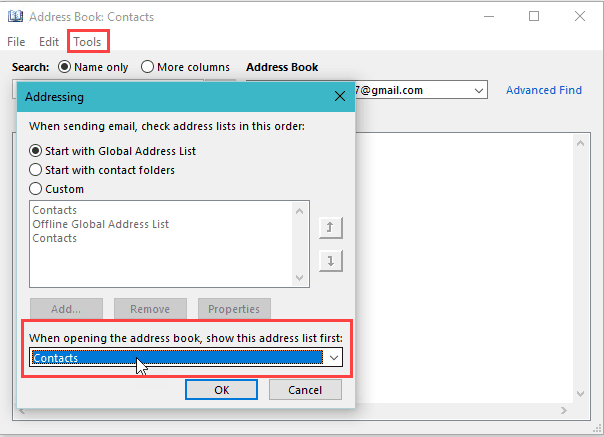
- Open the Address Book using the Address Book button on the ribbon
- Click Tools, Options
- Which contacts folder is selected in When opening the address book, show this address list first?

Is the Contacts folder enabled as an Address Book?
Make sure the Contact folder is enabled as an email address book.
To do this, right-click the Contacts folder, choose Properties then Outlook Address Book.
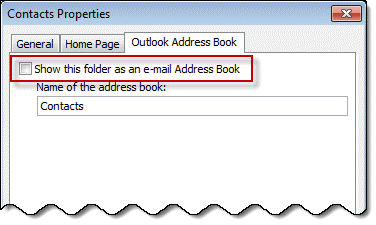
Is the box to Show this folder as an email address book checked?
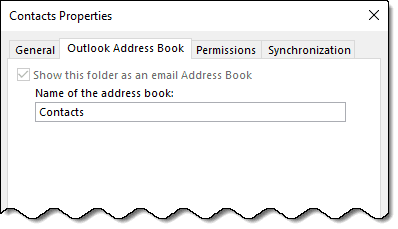
In Outlook 2013 and up, the Show folder as an email address book should be checked and grayed out for the default address book. If you have Microsoft Exchange accounts in your profile, each Exchange account's default contacts folder will be enabled as an address book and grayed out.
If this is grayed out (but not checked)...
If this is not checked but grayed in Outlook 2013, Outlook 2016, or newer, you'll need to make a new profile to fix it.
If you are using Outlook 2007 or Outlook 2010 and the checkbox is grayed, you'll need to remove the email account and re-add it or make a new profile as you can't remove the Outlook Address Book service in these versions.
Imported Addresses are Missing from Address Book
If only imported addresses are missing from the address book, the addresses need to be resolved. If you have just a few, you can delete the email address from the contact and retype it, then Save the contact. If you have a lot of contacts to fix, a macro can make short work of it. See Imported Addresses are Missing from Address Book for the macro and instructions.
Remove the account from Outlook
If the solutions above do not fix the problem, your address book may be corrupt. You may be able to fix it by removing all accounts from your profile and adding the accounts back, otherwise, you'll need need to make a new profile.
In many cases its better to make a new profile because a missing address book service means the profile is corrupt. This is especially true if you used Windows Easy Transfer to move the profile from one computer to another. Taking the time to make a new profile now may save you a lot of time in the future.
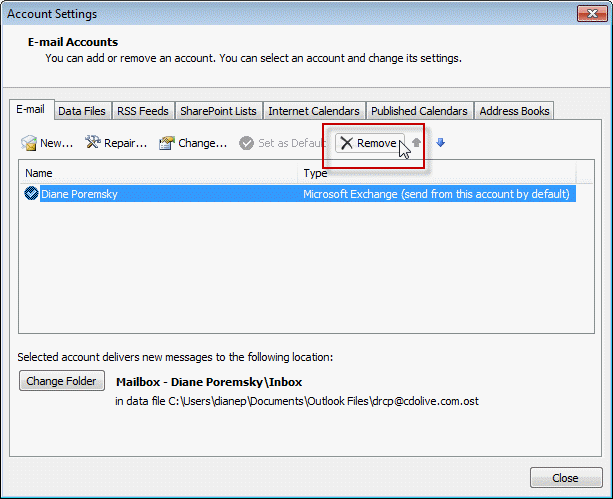
Go to Account settings, Email tab and select the account. Click Remove. Click Add and recreate the account.






























Hi Diane,
Thank you for posting this. My problem is that I have five folders of contacts in my outlook contacts, and most of the time when I click on the To box, to write an email, all the folders appear, and I can select the recipient from whichever folder. However intermittently, only one of the folders appears. The other four are no longer in the drop-down menu, nor do they appear when I begin typing a few letters of the recipient`s name in the To box, as happens when the folders are indeed visible in the drop-down menu. Any idea why this is happeningÉ
Contact lists are not working ever since we switched to O365. Can't open the lists in the outlook app but can see them in outlook.com...But if I add it to an email, view it, try to add/remove recipients, etc. it gives me the same object missing error if I try to view/expand the list. From that point it will not send. (This is something that specifically started from O365 and didn’t have this in the older configuration) any suggestions?
When I start typing an email address, the contact options are now showing above the to field. I am not able to see all of the options or scroll through them. How do I change the setting to get the contact options to show below the to field again?
There is a bug in the current update. Microsoft is aware of the issue.
I'm tracking this bug and will update it when I hear from Microsoft about when it will be fixed.
https://www.slipstick.com/outlook/autocomplete-opens-upward-outlook/
A favorite feature in Thunderbird email is the ability to select an entire Address Book and add to Bcc ...... I've been unable to find a similar feature in outlook.com.Is there one?
In Outlook on the web, there is no easy way to do this - you can select all and click Send mail, but it add the names to the To field. You need to drag them, one at a time to the BCC field.
It's a easier in Outlook desktop. You can select all in the Address book and add to the BCC field.
In Outlook desktop, click the To button then select hold Shift and scroll to select the last - then hit the BCC button.
Sorry to bother.....but I just realized what happened. Other name first and last names all data imported is placed in the Notes Section. I'm now in the process of updating all contacts with the data items that made it to the Notes Section.
Outlook.com comments/reviews could have been more forthcoming ..... would have saved a lot of people a lot of time and stress. And why in the world did they name it Outlook.com!
I would have deleted the imported contacts, looked at the file in Excel and made sure the column headers were correct and try importing again.
Diane, I'm having the same issues with outlook.com. I imported the contacts from Thunderbird and they will display when I access the Contacts folder. However no names appear when I try to access from New Message To, Cc, Bcc. I've been wrasslin' with this issue for several days and so far you are the first to present any solutions......albeit none of them work with outlook.com. Would really appreciate any information you might have.
Thank you
Doug
None of this made any sense.
What are you having problems with? Are you using Outlook desktop software? If so, which version and build number?
Hi sir, i have problem with my outlook 2013 contact I have my old PST file and the new PST file .If i put my old PST file default when i create new mail it shows my email contacts but if i select the new PST file default none of the contacts will not come.
in my address book also empty if put old PST and the new PST i don't know where the address save not visible any where help
The autocomplete list is stored in the pst file - its a hidden item so you can't see it.
do you have contacts in the contacts folder in either pst file? That is what is used to populate the address book.
Address book is empty .I haven't save contacts on address book while composing email, I will type manually .Ones i did that automatic save on the pst
Yes it must be in the PST file