An Outlook user asks:
Without starting Outlook, I moved the IMAP pst from C to D. I hoped Outlook would ask me where the file is. However it creates a new one in the same location. How do I make Outlook use the new location?
That method is used to move *.pst files used by POP3 accounts, it won't work with the IMAP protocol (and is no longer recommended for moving PST files; you should move the PST then point the profile to the new location before opening Outlook.)
While I don't recommend moving the IMAP data files unless your drive space is tight, you can change the default location for IMAP data files. Note: because IMAP syncs with the server, everything in Outlook IMAP account is also on the server so the IMAP data files do not need to be backed up, with one exception: if you have "'(this computer only folders)'", you risk losing calendar and contacts in those folders.
You cannot reuse an IMAP data file with a different profile.
Use ForcePSTPath registry value to relocate Outlook IMAP .ost or .pst data files, not the ForceOSTPath key.
I recommend using ForcePSTPath with Outlook 2010 and up, not the steps to move the IMAP data file found here. Note: IMAP *.ost files honor the ForcePSTPath key, not ForceOSTPath even though the data file extension is *.ost.
Symbolic Links
and Junction Points can be used.Outlook 2007 and up use the ForcePSTPath registry key to change the default data file path from C:\Users\username\AppData\Local\Microsoft\Outlook. This change will not move existing pst files in your profile. If you create new accounts in your profile (or create a new profile), .pst or IMAP .ost files will be placed in the path entered in the registry.
This key works for for POP3, IMAP, and SharePoint data files but does not affect Microsoft Exchange (including Outlook.com) .ost files; Microsoft Exchange data files can be relocated using the ForceOSTPath key.
Using ForcePSTPath | Reusing an IMAP data file | Move the PST
Using the ForcePSTPath regedit
Use the ForcePSTPath regedit to change the default *.pst path and in Outlook 2013 and newer, the IMAP *.ost path.
The ForcePSTPath key will recreate the pst files used by IMAP accounts in Outlook 2010 and up but not in earlier versions. If you use Outlook 2007, you'll need to move the pst file and repoint the profile to it, following the steps below.
Note: This does not change the path for existing accounts. It works only for accounts created after the key is set. Remember to create the folder you want to store the IMAP pst files in before you set the key.
In Start menu, Run (Windows key + R) or the Start menu or Task bar Search field type regedit and click OK.
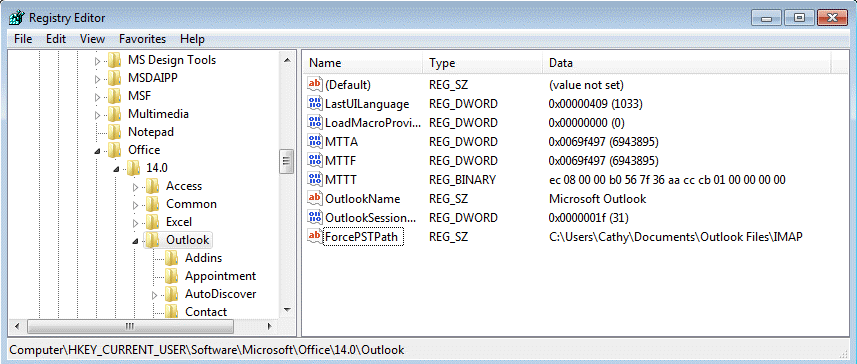
Browse to the following subkey in the registry.
In Outlook 2016 go to
HKEY_CURRENT_USER\Software\Microsoft\Office\16.0\Outlook
In Outlook 2013, the path is
HKEY_CURRENT_USER\Software\Microsoft\Office\15.0\Outlook
In Outlook 2010 go to
HKEY_CURRENT_USER\Software\Microsoft\Office\14.0\Outlook
In Outlook 2007 (POP3, Sharepoint, and default pst files only):
HKEY_CURRENT_USER\Software\Microsoft\Office\12.0\Outlook
Right click on the key and choose New then click String Value.
String Value: ForcePSTPath with your desired data path as the value data
Click OK and edit the registry editor. If Outlook is open, close it then restart. Newly created data files will default to the location. Existing data files would need to be moved.
Do It For Me
If you don't want to edit the registry directly, you can use one of these text files - you need to edit the path before changing the file extension to reg and double clicking on it to run it.
Be sure the path exists before adding the key to the registry. If it does not exist, Outlook will drop back to the default Microsoft\Outlook location under the user account (and in Outlook 2010 and up, to My Documents\Outlook files for POP3 and additional pst files.)
Remember to use double \\ between folder names in the path in the reg file. (Use single slashes if you edit the registry directly.)
Windows Registry Editor Version 5.00
[HKEY_CURRENT_USER\Software\Microsoft\Office\14.0\Outlook]
"ForcePSTPath"="C:\\folder\\folder\\folder\\folder\\folder"
Outlook 2016 Outlook 2013 Outlook 2010 Outlook 2007
Remember: you need to edit the path name, the save it using the .reg extension (or change the extension to reg after saving). Then you need to double click on the reg file to update the registry!
Reusing an IMAP data file
We receive a lot of questions from people who want to reuse the IMAP data file, either on a new computer or with a new profile. Sorry, this is not possible currently. Only the profile that created the IMAP data file can use it.
Using it in a new profile would not make the process faster as Outlook would re-sync every thing in the data file.
Note: If you download full messages, you can open and view the contents of the Outlook 2010 and older IMAP *.pst file in another Outlook profile. While this may suffice as a backup of the mailbox or an archive, if you need to clean out the IMAP account, we recommend moving messages to a local pst file to insure the full message bodies are downloaded. Outlook 2013/2016's IMAP *.ost file can't be reused (and will be automatically deleted when you delete the account from a profile).
Steps to Move the PST
Note that this method works to move and reuse an IMAP data file in older versions of Outlook but is not recommended with Outlook 2010 and newer. With Outlook 2013 and newer, set the ForcePSTPath registry key then remove and re-add the account to Outlook.
First, close Outlook then make sure Outlook is not listed in Task Manager, Processes tab a few minutes after you close it.
- Open the profile (Control panel, search for Mail) and click on Data files.
- Select the IMAP acct and click Open Folder to open the folder containing the PST.
- Move the PST to the desired location. Do not rename the file Outlook creates a new file in the default location if you try to rename it - you can only move it.
- Switch to the Data Files window and double click on the account's data file.
- Now you'll get the 'can't find' error and can tell outlook where to find it.
- Close the dialogs and you are ready to restart outlook.
Video Tutorial: Move IMAP *.pst
More Information
If the above methods don't work and you are serious about moving the pst, you can use symbolic links or junction points. See Symbolic Links (MSDN), Junction Points (MSDN), and How to Move Shell Folders (and contents) for more information.
See To move a Personal Folders .pst file for instructions for moving POP3 pst files.

Kevin Maher says
Thanks, that seemed to work fine for my account, but I've also got some shared accounts in my Outlook which it didn't seem to copy over, unfortiunately so would have been the ideal solution otherwise.
Diane Poremsky says
What type of account are they? The ForceOSTPath key only works for new accounts. If they accounts are in outlook, junction points / symbolic link work for existing data files (but will move all of the files and folders in the %localappdata%\microsoft\Outlook path unless you do it for individual files.)
Kevin Maher says
Hi Diane - they're shared accounts, like sales@company or info@company. Can they be moved along with my work account?
Diane Poremsky says
Yes. It's unusually easier to use the junction point and move the folder if there is more than one account. Or set the key for FORCEPSTPATH and remove and rea-add the account.
Heathside Boy says
2 no. Identical Exchange Accounts with one having a '(2) 'next to it.
Hi Diane,
I'm sorry; as shown below, I should have added a bit more to my last question.
If I look in Outlook on File > Account Settings > Account Settings and click on the 'Data Files' tab, I then highlight my Exchange Account. If I click on 'Open File Location,' I notice I have 2 identical Exchange accounts, whereas before, I only had one. The one being used by my email account has (2) written at the end of the email address, whereas the other one is just my email address.
I have noticed an anomaly, though. When I click on Send / Receive in Outlook 2019, I notice that all my POP3 accounts correctly synchronise with sending and receiving, and they all have ticks beside them. Then, the IMAP account shows it is sending properly with a tick beside it. I then have another line that is ticked with the others that say, 'Synchronising subscribed folders for Andy,' which is my IMAP account. However, I cannot see my Exchange Account anywhere within this window.
Should I direct my email account to the original Data File without the (2) next to it? After that, delete the Data File with (2) at the end of it. After doing all that, will the Exchange Account reveal itself inside the Account Settings window? I must point out that I can still send and receive emails with my Exchange Account with no problems at present.
I would gladly appreciate any help with this. Thank you.
HB
Diane Poremsky says
>>
I have noticed an anomaly, though. When I click on Send / Receive in Outlook 2019, I notice that all my POP3 accounts correctly synchronise with sending and receiving, and they all have ticks beside them. Then, the IMAP account shows it is sending properly with a tick beside it. I then have another line that is ticked with the others that say, 'Synchronising subscribed folders for Andy,' which is my IMAP account. However, I cannot see my Exchange Account anywhere within this window.
>>
Exchange accounts sync as the mail hits the server. It does not use Send/Receive.
>>
Should I direct my email account to the original Data File without the (2) next to it?
>>
You can only direct mail to pst files if you use a POP account.
Do you have 2 data files with the same name in your profile - one pst and one ost?
Heathside Boy says
Hi Diane, Heathside boy here.
I am still trying to move my IMAP account files from my C drive to the D drive by following your instructions. However, I noticed your caveat saying, ‘This does not change the path for existing accounts. It works only for accounts created after setting the key.’
I already have an existing IMAP account for my C drive, which shows up in Outlook 2019. Should I delete the IMAP account first, then change the key in the registry and then re-add the existing IMAP account back into Outlook 2019? Thank you.
HB
Diane Poremsky says
Yes, remove the account from Outlook and add it back. If you have “(This computer only)" folders with calendar, contacts, or tasks in them, yopu need to export those folders before removing the account or you will lose the contents of the folders.
Heathside Boy says
I'm not sure what you mean by "(this computer only)" folders with calendar, contacts or tasks in them. I have several computers with different versions of Outlook, and they all have calendar, contacts and tasks in them. Eventually, I plan to move all the mail in all of my computers from the C drive to the D drive.
Do I need to move the calendar, contacts, and tasks to the same place as the mail on the D drive? How do I actually move them, as I have never done it before?
Just to confirm, I do not need to delete the IMAP account on Outlook.com (the web-based version), do I? Just the IMAP account on Outlook 2016, 2019 and 2021 for Windows on all my computers, respectively?
Changing the subject slightly, I want to do the same for my Exchange account. Do you have a link to how I do this, too? Thank you.
HB
Diane Poremsky says
If an IMAP account's data file is set as default, it will have folders for calendar & contact labeled "(this computer only)". If a pst or Microsoft exchange account is the default data file, then there is no problem - they are less likely to be deleted accidently.
>>
Just to confirm, I do not need to delete the IMAP account on Outlook.com (the web-based version), do I? Just the IMAP account on Outlook 2016, 2019 and 2021 for Windows on all my computers, respectively?
>>
No, you don't need to remove it from outlook.com (assuming it is added as a connected account) - remove the account from the desktop Outlook after setting the key.
Use the forceostpath to move exchange accounts
https://www.slipstick.com/exchange/moving-outlook-ost-file/
Heathside Boy says
Thank you, Diane, that is a little clearer to me now. My default account is my Exchange Account, not an IMAP account. If this is the case, I do not need to worry about moving any calendar, contacts or tasks, do I?
Diane Poremsky says
If you are using Exchange, everything is synced to the server. You can move the data file to a new drive, especially if the C drive is too small - and can just remove the exchange account and add it back after you set the key.
Bala says
sir
how to move the imap defalt store location to new locatiopn
Diane Poremsky says
If the account is in outlook already, symbolic links or junction points would be the easiest way to move it.
You can try the methods in this article to move it - the pdf method near the end should work.
https://www.slipstick.com/exchange/moving-outlook-ost-file/
Omar says
Am I the only one for whom this didn't work!
Could it be because I'm on Windows 7?!!!
Diane Poremsky says
It works on 7 too. You need to set the key them add the account to outlook - it won't work on accounts already in outlook.
Vijay says
Amazing solution. I was breaking my head to fix it for 3 hours, with all the tricks on the web, this one is miracle. At peace :)
Pervading says
Dear Ms. Diane,
You have written: "You cannot reuse an IMAP data file with a different profile." I am going to move on my Outlook's data to a new computer, including Business Contact Manager's data. The problem that I see is linking of items seen in history of BCM's clients (e-mail's titles) with messages stored in PST files. When the link works properly, after double click on the item, a window of Outlook's message is opening (then I see original message incl. attachments, so I can forward it, reply etc). In case when the link is broken I see a different window, that consists only a plain text copy of the original message, without possibility to forward it or reply). What should I do to avoid this undesired result?
How does BCM identify a particular message stored in a PST file? By its name? Or by a folder's name which is displayed in Outlook?
Earlier I have moved on all my old Office 2007 incl. BCM and SQL server, settings and data files to a new computer copying also an Outlook's profile from a registry, but result was disappointing. Outlook itself worked almost perfectly - all IMAP PST files were the same. But there was impossible to enter into 'signatures' and 'stationary and fonts' settings (these buttons were dead). I have read it was a problem with copied profile. And the worst thing was that a history button in BCM, in client's history, was also dead - there was not possible to see items in history.
I could also go by this way again but this time changing some appropriate values in the registry after importing an Outlook's profile. Finally I am going to install Office 2013, but I can also install first again Office 2007 (my system is restored to that point before Office 2007 had been installed) then 2013 as an upgrade. What suggestions would you have for me?
Thank you in advance!
Diane Poremsky says
First IMAP data files (and cached Exchange data files) are a little different than POP PST files. They are linked to the account/profile that created the data file. PST files can be used in any profile, with any account.
>> How does BCM identify a particular message stored in a PST file? By its name? Or by a folder's name which is displayed in Outlook?
It uses the EntryID and may use the pst path (many things do) and a user account/hardware id for the computer. The entryID should not change if you move the BCM database and the pst - it will change if you import/export, so always open the pst in the new profile.
>> But there was impossible to enter into 'signatures' and 'stationary and fonts' settings (these buttons were dead).
Best guess: it wasn't the registry or moving the profile, but the new computer had the windows store version preinstalled.
https://www.slipstick.com/problems/the-stationery-and-font-button-doesnt-work/
>>> And the worst thing was that a history button in BCM, in client's history, was also dead - there was not possible to see items in history.
This may be due to a new security setting. There is a reg key to fix it.
https://www.slipstick.com/outlook-bcm/bcm-errors-after-upgrading-to-windows-10/
>>I am going to install Office 2013, but I can also install first again Office 2007 (my system is restored to that point before Office 2007 had been installed) then 2013 as an upgrade.
Install the one you want to use - no need to install 2007 if you are going to use 2013.
Pervading says
Thank you very much for your immediate reply. So... but it is possible, under some circumstances, reuse IMAP PST files to a new installation, expecting that messages will be reachable from client's history in BCM. So I am going to repeat my the first try moving my current Outlook's profile from the old computer, then installing Office on a new one, but this time I will follow your suggestions to remove problems mentioned before. And to be sure that EntryID of PST files will be preserved, I will reconstruct the same folder's path where they are stored using junction points (there is a different user folder name on a new computer, that's why).
glnz says
Diane - what a GREAT website!
You wrote above " ... reuse the IMAP data file, either on a new computer or with a new profile [?] Sorry, this is not possible currently. Only the profile that created the IMAP data file can use it."
Questions:
1) My PC dual-boots Win 7 Pro 64-bit and Win 10 Pro 64-bit. I have Office 365 Home on the Win 7 side and will also put it on the Win 10 side.. (Its Outlook is currently version 16 - no year is given.) I suppose your info means that the two Outlooks cannot point to the same .ost file - correct?
2) Can the two Outlooks point to the same .pst file?
3) From your numerous articles, I am now confused whether an IMAP email account MUST generate an .ost file. Can it be set to create and use only a .pst file? This will be helpful if your answers to Qs 1 and 2 are No and Yes.
4) O365's Outlook really doesn't permit an initial setup without a forced Wizard that demands an initial email account. I want to make that my old [MyName]@verizon.net, which I have used as POP3 for a long time on an old XP computer in Outlook Express. IS IT POSSIBLE to start this email account on my new Outlook O365 as IMAP and then Import my old historic .pst email files on my old computer to the Profile and folders? (I have already converted my old .dbx files to .pst by Exporting them to Outlook 2003 on the old machine. They are now ready to be Imported into Outlook O365 on the Win 7 machine. And before I starting the new Outlook, I will also go to the verizon.net webmail-site on AOL and move all current emails into Archive so the initial IMAP connection is virgin.)
5) By chance, I saw that if I Win+R Run "outlook.exe /manageprofiles", it go directly to the email setup windows and skip over some of the wizard requirements. Is that a good way to start?
Thanks!
Diane Poremsky says
1. Correct, they cannot share the ost.
2. Yes, pst files can be shared as long as they are in a location accessible ot each partition.
3. Imap can only use an ost file in outlook 2013 and up. Previously it has an pst extension, but it was still only synced with the account that created the pst.
4. If you don't want an email account, you can create a no mail profile then add an account later... but you can also add the account as imap and add the pst to the profile. (I would open the pst using file, open & export, open outlook data file rather than import it. )
5. Yes, its the same dialog as in control panel, mail.
Tom says
I would really like to know why Microsoft always has to make things harder in new versions. I have used the same pst file through several versions of outlook and now they feel they must make it difficult to do this. I despise Microsoft.
Diane Poremsky says
The pst file shouldn't be any harder to use. They removed the forced requirement for pst files with imap accounts due to user requests - a lot of people hated having the separate pst for calendar & contacts.
Hal says
Outlook attacked me a couple of weeks ago. I have two email accounts, one is gmail and one is hosted on a different site.
The email I sent from my gmail account vis Outlook is not showing up in the recipients spam box. If I send the email from the goal client it is ok
I spent 2+ hours chatting with Microsoft help and they identified the problem was my account was corrupted and created a new one for me. Gmail sent from it works great.
However, I have been using the same pst file for a year for both emails. The new 'new' outlook email is imap, which will not synch with my other account. It appears that if I set up the gmail (as it had been) as pop it turns my sent mail into spam.
Since I need the gmail account to be secondary (it may go away) how can I share the folders.
gamil -> imap -> not spam -> cannot share folders
gamil ->pop -> is spam -> can share folders
I need the best of both worlds.
Diane Poremsky says
As long as the pop account is using the gmail servers, it should be treated the same... plus imap/pop is incoming only, it wouldn't affect mail you send.
Are you using a 3rd party antivirus program that installed an outlook addin? if so, disable it.
Ben says
I have an IMAP account that I initially setup in Outlook. Then later I added an Outlook.com account, only for syncing contacts. As soon as I added it, the default data file changed to be the Outlook.com account.
Should I set the default data file back to the original OST, or leave it with the new one?
Diane Poremsky says
leave the default data file on outlook.com - the default email account should be the imap account. If the "wrong" folder opens when outlook starts (probably the outlook.com inbox), select the desired folder in options, advanced - Start outlook in this folder selector is right at the top. You can also put the imap account at the top of the folder list.
if you have folders labeled 'this computer only' in the imap account, move the contents of the folders into the folders in outlook.com then close outlook and delete the imap data file - it will resync the mail and not recreate those folders.
Kobir says
This works smoothly.i am very happy having this blog. Thanks a lot.
Gaurav says
Hi Diane,
First of all thanks for all the great explanation. I have used this blog for my previous 2 laptops and same steps worked perfect when I had Office 2007 and then Office 2010. Today I have a new Laptop with new Win10 Pro and I Installed Outlook 2016 64 Bit edition. I have followed registry entries and used video "Video Tutorial: Move IMAP *.pst" to change my IMAP Account. I have restarted machine, created new account but still path was "C:UsersVertexAppDataLocalMicrosoftOutlook" and using video "Video Tutorial: Move IMAP *.pst", If I move the file from default folder to H: (my Emails Drive - no folder) then on click of "Settings" it does not popup any message to select ost file, rather a 0 kb file is automatically created in 1 second and then again click on "Settings" opens the same location.
Any help in this is highly appreciated.
Regards,
Gaurav
Diane Poremsky says
Moving the imap data file doesn't work with 2013 and 2016. You need to use set the forcepstpath key before creating the imap account in the profile.
Gaurav says
Hi,
I found out the solution. In my case I was giving path as "H:" in registry. Once I changed it to "H:Local" then everything worked fine.
Hope this should help.
regards,
Gaurav
Admin Gotitnow.in says
Tried above method but not working for me. I have to resetup my email id. [removed personal information]
But thanks for the article
Diane Poremsky says
When you set the ForcePSTPath key, it only applies to new accounts added to your profile, not existing accounts - so you would need to remove the account from outlook and add it back after setting the ForcePSTPath key for it to use the new path.
Crristian Zamora says
This doesn't seem to work the way it's described any longer with Office 365. Yes, I have modified the registry and if I create a NEW email account the file is created exactly where I have pointed it to in the registry. BUT, this does nothing for moving an existing pst or ost file that you may want to use.
Diane Poremsky says
The registry edit does not move the existing data files - it allows you to change the default location of the data files to another location. If it is a pst file for a pop3 account, you can move the file to the new location and point outlook to it, but imap is fussy and won't reuse a data file.
If you want to move the data file and reuse it, try setting up a junction point or symbolic link. This redirects the default path to a new folder. This should allow you to move the data file into the new path and outlook might use it rather than resyncing. (It's been a long time since i tested it with an imap account.)
Harley Davis says
Thanks Diane, this worked wonders on my new Acer with an SSD. I've got a student 365 account, a technology account where I do some tech cleanup and repair, and my personal account. My 365 is an OST and set to run from my second drive, HDD, and it worked fine. I didn't realize at the time that I had to set 2 reg keys, one for each type of file. THis really helped me out. I'm trying to keep only my apps and system on my SSD to save it from too many writes. Plus, it's already pretty full.
Joe says
I moved my IMAP 2007 PST file from the C: drive to the D: drive by following the instructions under "Steps To Move The PST" but without changing the "ForcePSTPath" reg entry.
This appears to work perfectly EXEPT that the Send / Receive progress dialog box no longer displays a "Synchronizing subscribed folders" message for this PST or even just the plain "Sending" message for this PST. But otherwise all appears OK.
Since this makes me nervous I have moved the PST file back to its original location on the C: drive, and the "Synchronizing subscribed folders" message has now returned. What is happening here?
Thanks!
Diane Poremsky says
It's hard to say what is causing it. It's possible it would fix itself after a bit. If the data file isn't too large that it would take forever to resync, i would set the key and remove then re-add the account.
ian says
Hi There
It doesn't work for me. The second i reopen Outlook, the file reappears in its original location :(
Any Suggestions ??
Diane Poremsky says
Did you set the key before adding the account to outlook? Does the new folder exist?
Andrew says
THANKS , thanks and thanks a lot :)
Alex says
Great - thanks a lot for the instructions. This finally frees up a lot of space on my poor c-drive.
João Paulo A. de Moraes says
Dear Diane,
I am grateful for your great content!
Use Outlook 2016 and IMAP protocol. I searched a lot on the internet a solution to the name of my .OST file, which appeared indexed (2) and I could not rename it because Outlook automatically created the same file.
Based on its contents, insert the key ForcePSTPath (I took care in writing the name, in other articles, there was mention of the use of key ForceOSPath, which did not work with Outlook 2016) in the appropriate registry location and in my case, I wanted just rename the file and do not change your site, kept the same address as the destination folder. Once in control created a new temporary profile panel with another account name but linked to the same server address. That done, delete the old profile. The final, recreated the old profile, which was originally with the desired name (without indexing), deletes the temporary profile, and waited download messages from the server.
Congratulations and thank you again!
Diane Poremsky says
Generally speaking, if you delete all of the ost files in the folder that being the same
me@address.com.ost, me@address.com(1).ost etc, then restart outlook, it should create iut without the number... but if not, you need to delete those files and remove the account from your profile then add it back.
You shouldn't need to use ForcePSTPath (IMAP uses this, not the OST Path key, for legacy support) to change the name, but it would work because (presumably) the new folder doesn't have an ost by the same name.
Dennis Peters says
I want all my emails to come into the same .pst file but my gmail accounts won't give me the option. I can't get my gmail accounts to obey the "rules" I set for emails to go to particular files. Help. In older versions Everything went to one folder, but not anymore. (2016)
Diane Poremsky says
It sounds like you were using POP3 in older versions and are using IMAP now. Try adding the account to outlook using manual setup, choosing pop3. https://www.slipstick.com/outlook/config/online-services-in-outlook/#gmail
Dennis Peters says
You are Wonderful!!!!!!! Thank you so much. This has been bugging me ever since I got my new Tablet!
Doug Jensen says
This doesn't mention Outlook 2016 which is the version Microsoft Office 365 installed on my PC. Does it work with that?
Diane Poremsky says
Yes, it works with 2016. In 2013/2016 the extension changed for imap accounts, but the forcepstpath key still applies. You need to set it before adding the account to the profile.
Allyssa says
Hi Diane, your explanations are great but I have kind a "small" issue. I have tried several other ways to move this pst file and now I have more of them under an user account different than admin account, that Outlook automatically count them such as poremsky@gmail.com(2) or even (3). What can I do? Which one should I move? There is no room on drive C and I have no other option than to move pst file....
I would appreciate your help greatly...ASAP, please!
Diane Poremsky says
Sorry I missed this earlier. Right click on the account in the folder list and choose Open file location. That is the file you need to move. Also, if you use the details view in windows explorer, you should see the last modified date field. You can delete all the older, unused ost files. (If the modified field is not in the view, add it.)
Lillian says
Thank you very much, it is so great, I solved this problem according to your method, I'm in China, I use outlook 2010
Jodi says
I thought I read the settings (e.g., views) is stored in the PST so I wanted to transfer one from my old PC to new. But you're saying you can't do that. How can I transfer settings like views, autocomplete, etc. I swear I've done this before, but can't remember how! I'm using Outlook 2010.
Ion says
Thank you sooo much, this solved my issue!!!
Can't thank you enough, I contacted Microsoft tech support, and they were unable to do it. The funny part is that they found a similar article to this and applied them but were not able to get the result, and after that i followed more attentively your advise and it worked. So microsoft tech support can't even follow ready given answers, what to expect of them to elaborate their own.
I have another issue with microsoft excel, and even level 2 tech support were unable to resolve it after 3 days of remote control with them. Hope that i will find an article like yours to solve my issue, as these guys are unprofessional, have no idea were they get them.
Diamon says
Now, i know how to change the path of the data..great!! Thank you all.
And one more question is after months/year of using the outlook the data will be increasing/gaining size. when the mail size is too big (10Gb or more) the outlook doesn't respond properly consuming lot of time to open. During that time waht should i do to make it faster.
Diane Poremsky says
Assuming it's not slow because outlook is repairing the data file, the only way to fix it is to archive or delete old mail - but generally speaking, if the inbox has under 5000 messages, it should only be slow when you use other folders (that have more messages in them).
If outlook is constantly repairing the data file, what programs are accessing the data file? One could be corrupting it. Stop it and the problems should go away.
Terry says
Thank you! Thank you! Thank you! I spent hours of frustrations in researching (and a lot of extra PST files created by Outlook) trying to do this. Your method worked great, and instructions were crystal clear. You are a credit to your MVP designation.
Harry says
Great! It works for Outlook 2013
I am really appreciated for your kind explanation. I have search several methods and all are failed except yours.
Now I can resolve C:\ drive shortage issue.
Thank you again for your kind explanation. Best Wishes,
Rob says
Thanks for the explanation. It was very helpful. I did find it easier to completely delete the IMAP account, PST file, and associated sub-folders, then add the Registry redirect, then create a new IMAP account (the same account) in Outlook 2010 and allow it to rebuild the files from the host server.
Diane Poremsky says
FWIW, this is the best way to do it, but some people don't want to recreate the account so I include all method.
Ray says
Thanks for this detailed tutorial. This is exactly what I was trying to do, and it worked as I wanted. (Outlook 2010)
Nguyễn Triết Học says
Hi Diane,
I have Outlook 2010 and I cannot move the IMAP PST file like you in the video! DO I need another Outlook version to do that?
Thanks a lots.
Hoc Nguyen Triet.
Diane Poremsky says
No, it works in Outlook 2010. It's better to use the forcepstpath registry key to move the file - it "sticks" better, but you need to remove the account and add it back, resyncing the mail.
Troy says
really helpful for me. That what i looking for. Thanks for sharing that.
José Oliveira says
Hi. Thanks for sharing your work.
My interest was to use the same imap file in two computers (desktop and laptop). You said that one cannot reuse the same imap file, since it's specific to the profile thast created it. But...
1. What if the profile has the same name and user in both computers?
2. If ForcePSTPath doesn't work for that purpose, does using a symbolic link on both computers for the same folder do the trick?
Thanks!
Diane Poremsky says
Outlook uses more than just the profile name to identify the computer that created the data file, the computer name and a unique GUID are also used. A symbolic link won't work either. Sorry.
Isaac Gonzalez says
doesn't seem to work in outlook 2007 even after removing and recreating account...I'm not hosing my profile, just deleting and recreating my imap account...other new pst files do get created in the new folder btw, so I know my regkey is correct. OUtlook still is putting imap pst file on c drive default path...
asdasdffasd says
great, thanks.
jane says
Diane, it says windows 7 and Outlook 2007, not 2010. Does that make a difference?
Diane Poremsky says
In outlook 2007, either method should work, but I recommend using forcepstpath registry key then removing and recreating your account in outlook so it uses the path set in the key.
A MacR says
Hi, I just solved this problem for myself in Outlook 2013.
File - Account Settings - E-mail tab
At the bottom of the window there is a button "Change Folder" to specify where new messages are delivered. The location was blank after I moved my PST file. I selected the inbox (I actually had to add a 'wrong' location to get it to populate, and then switch it back to the inbox) and my mail would send.
hope this helps.
Steve says
Still not working. When I set up the email account and relocate the PST file to drive D, and click to test account settings, the sending is successful. When I try to write an email and clicking the send button, it says that send/receive error, 0x8004010F, Outlook data file cannot found... but I previously set in the Control panel/Mail where the new location of the PST file is... I am (trying to) using Outlook 2010. I am able to receive my mails, but cannot send any. What do you mean under correct folder? I can choose a subfolder in the IMAP folder tree, but that's all...
Steve says
Okay, I moved the *.pst files to my drive D (not for a backup reason but just simple space management, one of my Gmail associated pst file is 12 GB!) After the relocation, the receiving of emails is fine but sending is not working at all. I couldn't understand why it is so complicated, what is the reason that Outlook 2010 requires that the pst files MUST be located on the system partition?
Diane Poremsky says
The location doesn't matter for sending, but make sure the correct folder is selected in Account Settings -select the account. If using POP3, click Change folder and reselect the correct pst. If you are using IMAP, click More Settings and select the desired folder for sent items and deleted.
Frex says
Excellent! MSsupport doesn't specify that ForceOSTPath doesn't work for OST files, =/ Instead ForcePSTPath does the work. Thank you for this valuable key. =)
Andrew says
Thanks, Diane, for taking the time to help me. I did set up Gmail as an IMAP account in Outlook, and it is sitting there in my Folder pane. When I try to drag folders from my main Outlook work file into it, I get an error message saying "Your IMAP Server wants to alert you to the following: https://support.google.com/accounts/bin/answer.py?answer=185 833 (Failure). When I then hit the OK button on that window, it brings up another window called "Internet E-mail - ...@gmail.com". In that window are the following lines: Enter your user name and password for the following server. Server: imap.gmail.com User: ...@gmail.com Password: this is filled in already, but if refill it with my Gmail pw, check Remember Password and hit OK, it goes back to the window "Your IMAP server wants..." I was very careful in setting up my Gmail account as an IMAP account in Outlook. Would appreciate your thoughts, thanks. Andrew
Andrew says
Thanks, Diane. This is a big disappointment. I'm now moving to Gmail and leaving Outlook behind. I guess you don't know of a method to move all old email within Outlook into the Gmail account? All the methods I've read about on the web don't work. That may be because my Outlook has been running an IMAP account through SecureNym. Any suggestions, please? I easily moved my Outlook Contacts and Calendar to Gmail. With thanks, Andrew.
Diane Poremsky says
Add the gmail account to outlook as an imap account. Drag the mail from the folders in the other email account to the gmail folders. Do it fairly slowly (couple hundred or so at once) and wait them for them sync before moving more.
Andrew says
Diane, thanks for your excellent comments on this subject. I think they don't help me with my problem, unfortunately. I was running Outlook 2007 on an old computer. I use an IMAP account. I bought a new Win 8.1 computer, and have just installed Outlook 2010 Pro Plus on it. Outlook set up its own data file when it was opening itself up, which I didn't want to use. Using File/Open, I opened my old pst file copied across from my old computer, and then shut down the data file that Outlook 2010 created. Now I have in my Folder pane the data file that I brought across from the old computer, with all its subfolders in it, but it has no email account associated with it (under Account Settings, my data file is shown under the Data files tab, but under the Email tab there is nothing). How do I set up an email account associated with that data file? I tried to set up a new email account by going to File/Add account, but it made its own data file which was not associated with the data file I have been using for 3 yrs, and which I want to go on using. I'd really appreciate your help, thanks. In summary, I want to set up an email account which is linked to the data file already showing in my Folder pane. Andrew
Diane Poremsky says
unfortunately, you can't reuse the imap pst files. Outlook will delete all the mail in it and resync it. Let outlook make a new pst and remove the old pst from the profile.
Mor says
Thank you very much.
One thing i can't understend.
If i have a 10GB (backup) PST file of an IMAP accunt, there is no way i can direct Outlook (2013 in my case) to take this? When i reinstall outlook it will sync completly from the server?
Is there any way i can save the time and data?
Diane Poremsky says
Outlook will not reuse an imap data file created by another account/profile. There are ways to trick outlook to use it, but its pointless as outlook deletes everything in it.
Outlook 2013 uses an ost file type for IMAP accounts now, so if its a pst file type created in an older version of Outlook, outlook 2013 won't let you use it. However, if you need to recover mail from it, you can open pst files in the profile - for this to be useful, you need to download full messages as outlook won't go looking for the bodies.
Gurdeep says
Worked for me, Thanks a lot. The Outlook 2010 help was no good.
fffffffcccccc says
Thank you for your information.
This is very useful for me!!!!!
Karen says
Sorry, my screen wouldn't show the "post comment" with too much information in there.
If there is any other info you need, please let me know.
I do use separate profiles for each of the email types (business & personal).
Thank you in advance,
Karen
Diane Poremsky says
As an FYI, you can keep typing them use Tab to get the submit button back.
Karen says
Hi Diane,
Specs: Windows 8 (64) & Office 2010 (32)
From: C:\Users\username\AppData\Local\Microsoft\Outlook
To: E:\My Programs\My Data\1 Outlook 2010\1 email accounts
.pst - standard IMAP email accounts from a work server & for iCloud .me accounts
.ost - Outlook connector for hotmail & live accounts
I used ForcePSTPath (works correctly) & junction.exe to link the the folders:
mklink /J "above" "above"
Overkill? Because junction moves the entire folder, I shouldn't need the registry edit?
2: What do I do with: C:\Users\username\AppData\Local\.aplzod
Diane Poremsky says
Yes, it's probably overkill to use both, but it doesn't do any harm either. Junction repoints the path for current data files, the reg key only moves the data files if you create new accounts.
Is there a reason you need to move the apple file? It doesn't need backed up (everything is on the iCloud server) and because it only holds the calendar, appt, and tasks, it shouldn't get too large, maybe a few megs or so (unlike the other data files which can grow into the GB). If you need to move it, you'll have to use junction points.
Nathalie Arrigone says
Hi. In anticipation of this issue happening I tried to move my IMAP.pst's contents to a regular pst file. unfortunately this errored out losing MUCH data I the process...not in either pst file nor on the internet server (google apps/gmail). fortunately i have one of the IMAP.pst files on another machine that is near enough up to date. What is the recommended method of cleaning out THOUSANDS of files and HUNDREDS of folders to another pst file...or maybe I could just use that IMAP.pst file elsewhere 'as-is' ???
any pointers appreciated
Diane Poremsky says
IMAP pst files (Outlook 2010 and earlier) can but used in outlook profiles, as a normal pst file, provided you were downloading full messages. Just open it in Outlook using File > Open > Outlook Data File. Don't try to use it as the data file for your IMAP account, as it will try to sync it and will erase everything.
Tony Cannon says
Diane, thanks for your time. I went through the video again and used ForcePSTPath, but still the Send/receive button disappeared. in Account Setting > select account > Change folder button it asks me for a new email delivery location. No sign of the word IMAP. Am I being dim?
Diane Poremsky says
I'll have to test it - see if can see what you are seeing.
Tony Cannon says
Diane, thanks for the easy video. I successfully moved my .pst file in Outlook 2010 under Win 7 Pro. However, when I opened Outlook and told it where the file had gone to, though it opened everything OK, the Send/receive button had gone from the Home ribbon, and emails wouldn't send using the Send /Receive tab. So I had to move it back! WHat am I doing wrong?
Diane Poremsky says
Several people have reported that problem. Oh, did you select the IMAP inbox as the delivery folder in Account Setting > select account > Change folder button? If i recall, when i checked this out, it worked when i did that. Otherwise, in my tests, using the ForcePSTPath path key worked.
flaneige says
Yes, it is (but the thread is long)
The problem comes from delivering several POP email accounts into the same PST file.
There is no a single block/safe list but there are as many as email accounts.
Add sender to list update the list for the default account only.
See also https://support.microsoft.com/kb/2447034
Diane Poremsky says
Right, each account has their own blocked and safe lists. I don't know of any way to have it add to the correct list when you use one pst for delivery.
flaneige says
I've got an explanation here
https://social.technet.microsoft.com/Forums/en/outlook/thread/d45e2563-d333-45bd-9b3e-26c79d82a267
Now, I just have to find a workaround !
Diane Poremsky says
Is that the right link? It's about block/safe lists.
flaneige says
I have been through the same process (upgrade from Office 2003 to Office 365) on my second PC. One is running Windows 7, the other is running Windows 8.
The problem is on both computers.
I suspect some keys remain wrong after the upgrade.
What do you suggest ?
Thanks again for your help.
flaneige says
Thanks
One list has about 50 entries, the other about 250
Even with empty lists, the "Add sender to ..;" does not add the sender to the list
I have deleted the profile and created a new one. The PST file is now in the default location.
The problem is still there
flaneige says
Hi,
I uninstalled Office 2003, then I subscribed to Office 365
Everything went ok (email accounts, PST file, rules), except junk email handling.
- block sender does not add the sender to the liste (although the message is moved to the junk folder)
- senders in the list are not blocked
I use only POP accounts.
The PST file isn't in the defaut location, could that be the issue ?
I have tried the ForcePSTPath modification, to no avail.
Thanks for your help
Diane Poremsky says
The default location for pst files in Outlook 2010 and up is in the My Document \ Outlook Files folder, but it can use a pst anywhere on a local drive. That is unlikely to be the root of your problem.
How large is your blocked and safe senders lists?
Nick Iaconetti says
I have repeatedly tried to follow the steps in the initial article with no success. I copied the IMAP file and then deleted the source file. I then executed the command below from an elevated prompt.
mklink "C:\Users\%username%\AppData\Local\Microsoft\Outlook\ABC Business Account-1.pst" "C:\Users\%username%\Documents\Mail Files\ABC Business Account-1.pst"
The message below followed execution of the command.
The syntax of the command is incorrect.
I am running Windows 7 Professional 64 Bit.
Any suggestions as to why this is not completing successfully would be greatly appreciated.
Thank you in advance
Diane Poremsky says
I believe this is wrong - "C:\Users\%username% - use %localappdata%\microsoft\outlook\ABC Business Account-1.pst and %USERPROFILE%\My Documents\mail files\ABC Business Account-1.pst. I'm not sure the correct way to wrap the path in quotes- it's needed for the pst name but may not work if %localappdata% is inside quotes.
is there a reason you are using symlinks instead of Using ForcePSTPath?
Sean Ackley, CA says
What a great article. Thanks so much. The key for me was to get into the Mail control panel window, as specified and move underneath. This causes the control panel to force a find on the new path. Very excellent subtle tip!
Jack says
I tried most all the ways to move a pst posted here and other places like Microsoft and found the only one that worked was the one suggested on Oct 3, 2011. Thanks for posting it. I was surprised that the MS one indicated going to Control Panel and use the Mail routine. There is no Mail in Control Panel. Thanks for all your help.
Diane Poremsky says
Mail is in the Control panel but you need to use a list view (not Category view) or use Search - type mail in the search field when in control panel and you'll find it.
müslüm Baba says
moving PST worked perfect for me. Thanks. I have Outlook 2010 on Windows 8.
Neal Murphy says
Diane,
I've set up a linux-based samba v3 domain for a church office, with file server; 1000 lines of shell script builds the whole domain, including users, groups, folder structure, and access controls. Using various tricks I dug out of Google, I have each user's entire profile stored on the server, in the 'home' dir mounted at H:. The idea is to store their 'local' data on the server and ensure that they get their desktop and email regardless of where they log in.
In testing, all was great. Then the business manager tested transferring her docs & settings to the domain. And quickly found that Outlook 2010 does not deal with the profile being on the server, with respect to IMAP; it *always* creates the IMAP PST on the local computer. And won't use it on the next login. POP3 works great. We despaired because I'd found no workable solution; they're going to stay with local logins until I find a solution.
I've just discovered ForcePSTPath, and this site. I want to try it; I'll gladly be a guinea pig as usual. But it leads to a question: will ForcePSTPath work if the new location is not local (resides on a server? That is, would you expect "H:\some_path" to work? Might you even expect "\\samba_server\homes\user\some_path" to work? Oh, and another Q: will this work just for the current user? Or can it be made to work for all users who log into the domain from that computer?
Thanks!
Diane Poremsky says
The key needs added to local machine branch (applies to all accounts on the computer), on all machines each user uses.
I don't know if it will work with the network location (mapped drive letter might work better than network path) but there are several reasons why I wouldn't keep an IMAP pst on the server or roam it:
1) Transferring large pst over the network can bog down the network. (Only a problem if you are using roaming profiles)
2) The constant read/writes can bog down a network.
3) If you shut down the computer before the pst is transferred, it will be corrupt. Corruption can also occur if the network is slow and outlook loses connection to the pst.
Besides that, it kinda defeats the purpose of an IMAP account. All of the mail is on the server, accessible from anywhere.
Storing the local pst that holds calendar and contacts on the server is a different matter (unless you use byrani's addin). It is at risk of corruption but it's where their calendar and contacts are so they want to roam it. Because these pst files are generally small, they should roam just fine. I would make frequent backups of it though.
Vince says
OK thanks for the info.
You said that Outlook 2010 imap accounts use ost files - I've read that before, but my Outlook 2010 created a pst file when I set up my Gmail imap account. Do you have any thoughts why that would be?
Thanks
Diane Poremsky says
Did I say that? 50 lashes with a wet noodle for me - I meant Outlook 2013. Outlook 2010 still uses pst files. Sorry about that.
Vince says
One other question. For me, the only reason to move the IMAP pst is to make it easier to backup. But is there really any reason to back it up, since it is stored on the server and on my other devices? Thanks
Diane Poremsky says
No, there really isn't a reason to back it up, unless you don't trust your host to have backups. Not only is it a copy of what is on the server, outlook also won't reuse it if you recreate the account (so you can't avoid redownloading thousands of messages).
If you use it as a backup, make sure you download full messages. You would need to open the pst as a pst, not as the data file for an account, and headers only won't be much use. Also note that this won't work in Outlook 2013
2010- imap accounts use ost files (and store calendar, contacts, task etc in the ost file).If you need a backup, exporting to a new pst would be better, especially with outlook 2013. Exporting will download full bodies and in Outlook 2013, include calendar and contacts.
Vince says
OK thanks
Vince says
I'm confused after reading here. Does the 6 step move method only create problems on Outlook 2010, or possibly on older versions too?
Thanks
Diane Poremsky says
To the best of my knowledge, Outlook 2010 is the only one affected.
bob says
DOES NOT WORK! RAH
Diane Poremsky says
Which method did you try? Both the move method and the reg key work, but if you use the reg key, you need to set it before you add the account to your profile.
Prashanth says
Registry edit worked for me. Running Windows 7 64bit and Office 64bit. I deleted my previous acc and all pst files before editing the registry and then remade the same acc. Since its IMAP, its redownloading all my email from server to my pc into the new location which i have set. My email is 15gb big so probably gonna take the whole night but i don't mind. Thanks for the user friendly guide.
Michael Madsen says
Thank you SO much!
I've been trying out all kinds of things, searching the internet for solutions for how to move IMAP pst file in Outlook 2007.
Your 6 "Steps to Move the PST" did the trick!
anandchakru says
After 30 mins of wasting my time.. ended up here !! You rock !! Thank you !!
Catalin B. says
I managed to do this for Outlook 2010 using IMAP accounts.
See my solution here: https://superuser.com/a/463836/153381
Diane Poremsky says
Correct, you can use Symbolic links to move any of the data files, in any version of Outlook. The ForcePSTPath registry key method is recommended however.
George says
ForcePSTPath
should I try removing the account, delete any pst files and then built it again from scratch?
Diane Poremsky says
I wouldn't delete the profile just yet, but i would either try a new profile or remove the account from the profile and add it back.
George says
i put to do not save sent items
same error message and code
any other ideas?
Diane Poremsky says
Did you use the ForcePSTPath registry method or the move method?
George says
it is ticked on Save sent items in the following folder on the server: Gmail > sent items
Diane Poremsky says
Set it to either local or don't save then test it again. If it works, you can change it back to the imap folders, but note that Gmail recommends choosing the option to not save sent items in outlook as it saves a copy on send and you wnd up with 2 copies.
George says
hi
thanks for this solution
I work on outlook 2010.
I succeeded on pointing to a different drive and I can read new email messages
the only problem now is that I cannot send emails
it returns the following error message:
Sending reported error (0x8004010F): 'Outlook data file cannot be accessed'
could you please help me on this?
Diane Poremsky says
Others report that error, but I couldn't repro it. Since its not sending, first check your Sent folder settings. File, Account Settings, double click on the account, More Settings. What sent folder are you using?
Paul Wagner says
Outlook 2010. Data currently stored in IMAP pst. If I build a new POP3 profile and drag the messages from the IMAP pst to the POP inbox, can I then close/remove the IMAP file. In other words, is the data in the POP NOT simply referencing the IMAP in cloaked disguise.
Diane Poremsky says
Yes, you can drag from the imap folder to the POP3's pst file and the messages will be removed from the IMAP server and only stored locally.
Robert says
This was perfect - Thank you so much for taking the time
Mr. O says
I configured my IMAP account as POP3 in Outlook 2010 (x86), with reference to my incoming server like imap.mydomain.com
That way I was able to attach to the user selectable pst file (far away from the C drive).
Everything seems to work fine, although I have only been running with this account for a couple of hours.
Diane Poremsky says
If you configured it as POP3, you won't have the benefits of using IMAP... moving pst files for POP3 will work fine.
rcarty says
This worked great for me, thank you! I have a SSD drive for my OS, and a 2tb files drive and needed the space badly. I had to remove and re-ad my IMAP account after using the ForcePSTpath setting (I tried using the moved IMAP file, but had the send mail error as you mentioned). Otherwise it's all good.
Windows7x64; Outlook 2010
Neil Garside says
It looks like my use of angled brackets wasn't appreciated! The 2 PST file names are (this time with square brackets):
[1] [mail_account_name] – [profile_name].pst (~70 MB in size)
[2] Outlook Data File – [profile_name].pst (265 KB in size)
Kind regards,
/Neil
Neil Garside says
Hello!
I'm using Outlook 2010 x64 on Windows 7 x64 and having applied the 'ForcePSTPath' registry setting to force my PSTs to go to the "C:\Users\\My Outlook Files" directory. I then created a brand new Outlook profile for an IMAP account but was surprised to find two pst files were created in the "C:\Users\\My Outlook Files" directory. The two files are named:
[1] - .pst (~70 MB in size)
[2] Outlook Data File - .pst (265 KB in size)
Furthermore, when I open Outlook and select the 'Folder List' in the navigation pane I see two sets of folders, one named 'Outlook Data File' and the other with my mail account name. Only the second set of folders contain e-mails; the 'Outlook Data File' e-mail folders are empty.
In my account settings/E-mail tab I can see that new messages are delivered to PST [1] above, but on the 'Data Files' tab it is PST [2] above that is set as the default. I cannot set PST [1] as the default as the 'Set as Default' is disabled!
Is this the usual behaviour, i.e., for 2 PST files to be created for a single IMAP account, and for 2 sets of folders to appear in Outlook, one of which is essentially empty?
Kind regards,
/Neil
Diane Poremsky says
Yes, that is normal when you use an IMAP account. You need the outlook data file to hold calendar and contacts because they can't be stored in the imap pst file. The data file used by calendar and contacts needs to be set as default because the imap data file can't be set as default.
billb says
Have you ever solved the problem with outlook 2007 and windows 7 64 bit? Would appreciate your follow-up.
Thnx.
Beredan says
Howdy Guys.
I've had the joy myself of hitting my head against a brick wall due to migrating to outlook 2010 for staff this month and let me say office 2010 is hopeless. We previously in 2007 we used Group Policy to perform the path for outlook %HOMEDRIVE%\Application Data\Microsoft\Outlook which worked well. of course you had to manually move the IMAP pst but this was not too much of a problem and it didn't cause a serious problem if it switched back. With outlook 2010 has been a nightmare with outlook profiles getting in the slightest tizzy if the pst file moves at all. Which is made even worse as outlook keeps ignoring the imap.pst file frequently and creating a new 1 in the c drive. -.- this happens to both Migrated and new profiles (which it creates in the right spot) too.
Any words of wisdom before i tell Microsoft where to shove it.
FYI Windows XP 32 Bit - Microsoft Office 2010 Professional Plus
HZ says
Thanks, I look forward to your feedback.
HZ says
Thanks for your reply.
This is exactly the key that I used. I tried it six different times using all possible alternatives that I could think of; for example, once putting the new path in quotation marks and another time trying without quotation marks, etc. But the result was always the same. I also tried it on another computer that had win 7 home premium 64, instead of win 7 professional 64. Same result. Thank you for your advice.
Diane Poremsky says
It's not windows - unless the path is one that is protected through permissions. A quickie test this morning failed in outlook 2007 - I'm checking with my contacts to find out why its not working with imap accounts in 2007.
Diane Poremsky says
I'll see if i can repro the problems in Outlook 2007, but it should work just fine - forcepstpath is supported in all versions.
Using the wrong key will prevent it from working - for 2007, its HKEY_CURRENT_USERSoftwareMicrosoftOffice12.0Outlook
HZ says
Hi
I have Outlook 2007 with Windows 7 professional 64-bit. Like some of the people in this discussion list, I couldn't synchronize the IMAP folders after moving, and also creating a new profile after the ForcePSTPath did not work (it still created the pst-file in the old location, even though I indicated the full path in the string value, and the folders of this new path already existed). I tried the latter method many different times, but it wouldn't work. I noticed that the people who had the same problem with ForcePSTPath all have Outlook 2007 and Windows 7 64-bit, and those who succeeded seem to have Outlook 2010 and Windows 7 64-bit. Might this be the problem? Thanks for your recommendations.
Susan says
Outlook 2007, windows 7 Ultimate, 64 bit. I have since moved the pst files back to App Data\Local\Microsoft\Outlook, removed the ForcePSTpath key, and removed/added my single email account back to Outlook. I can get my mail now, but cannot get Notes or Contacts. I have created a monster and have forgotten whatever it was that made me want to mess with this in the first place! Since Outlook now has several PST files, I wonder if there is any software that will clean up pst files, that is, remove duplicate emails, merge pst files, or separate them into custom groups. I appreciate your help.
Diane Poremsky says
I'm assuming appointments and tasks are missing to - if so, they were in a different pst file than you have now. Go to the folder where the psts are and check the filee size and date - 256kb is empty. Really old dates (from before you last had the contacts in outlook) are probably archive files or just old pst that were duplicated at some point. Go to Tools, Account settings, Data file tab and click Add. You can browse to the folder where the pst files are and open them in the profile. You can use import to get everything into the new pst or move the contents yourself - open a folder, select all, then use the Move to folder command or drag and drop. For appointments, you need to use a list view - view, current view, by category - if you are going to move them yourself. See Duplicate remover tools for addins you can use to remove duplicates. Most work on any folder.
Susan says
Argh! I have spent most of the day in an attempt to move my pst files to My Documents. You'd think I was performing brain surgery blindfolded. I moved my old pst file to a new folder under: c:\Users\Susan\Documents\OUTLOOK. I removed all profiles in Outlook before I started ForcePSTpath and added a new key with the value: c:\Users\Susan\Documents\OUTLOOK. I opened Outlook was asked to create a new profile which I did. Under data files, I see Personal Folders pointed to the new file under Documents. The email account however is pointed towards anew file in the darn Users\Susan\App Data etc. default location. I cannot "remove" this new pst file in the App Data location becuase it is linked to the email account that I just set up after adding the registry key.
I am tempted to uninstall and reinstall Outlook but I'm not sure that will help. I am so tired of this and wondering why I even cared where Windows wanted to put the darn pst file. Any recommendations? Thanks.
Diane Poremsky says
Uninstall /reinstall won't help. What version of Outlook and Windows do you use?
Koblenz says
In Outlook 2010 (32-bit) running on Win 7 Enterprise 64-bit, I ran into the same problem of being able to receive e-mails, but not able to send e-mails -- after moving the IMAP-based PST file. To resolve the problem, and as suggested in the thread above, here is what worked for me:
1) Added the ForcePSTPath registry item as described at the beginning of this posting. For what it's worth:
i) I added a "Expandable String Value" instead "String Value"
ii) I only used single backslashes rather than double backslashes (e.g., c:\mail)
2) Rebooted (probably not necessary, but did so to be sure)
3) Added a brand new profile, being careful to select the same IMAP settings as my original profile.
4) Upon opening Outlook, I immediately checked to confirm that the *.pst file was being created in my newly-specified location.
Diane Poremsky says
As an FYI, double slashes are only used when editing the reg files. When you edit the registry directly you always use single slashes - you can copy the path from Windows Explorer address bar and paste it into the value field.
Davis says
Well I finally gave up on moving IMAP folders (Win7-64 bit & Outlook 2010). After I reset Outlook to first run, deleted all pst files I used the ForcePSTPath regedit option, but, after re-setup, email accounts this only moved the POP accounts. The IMAP's reset in C-drive. Next I tried moving IMAP folders as in above video. That, I thought worked... but after checking I found out while I was recieving mail, it was not sending. Only work around was to manually click on Send Receive Tab/individual account Inbox. The Send All account, while it had listed IMAP accounts in it, did not work The IMAP's were not showing up in the Send&Receive Progress window. So if I wanted to manually send each account, it would work. So went back to defaults on C-drive.
Why does Microsoft see fit to lock user data files locations? I had C-drive failure between backups that cost me alot of work. I now try to keep all user data on D-drive and back it up daily. Now I have to set backup to locate these individual files. Oh well...
Diane Poremsky says
They don't make it easy to move the imap folders because its not really necessary to back them up as its a server based account and the pst file is tied to the account that created it. If the local drive fails, you'll need to re-download all the imap mail if you recreate the account - you can't re-use an imap pst with a new imap account (you can open it independent of the imap account though). Keeping a backup of the imap pst in case the imap server fails doesn't necessarily work - unless you download full message bodies.
The only time its useful to move imap is if the C drive is full.
Diane Poremsky says
@Davis - are you sure the path you entered into forcepst key was valid? Outlook 2010 defaults POP3 and extra pst files to My DocumentsOutlook files on its own. If the path is not valid, Outlook falls back to the default paths - it will not create the folders in the path.
I just retested the key and it does work for imap pst files too (screenshot) - if you add the key to the registry. (I changed the path to "ForcePSTPath"="C:UsersDianeDocuments" but didn't run the reg file the first time i tried it -silly me, what was I thinking. :) ) Sending works too.
On the sending problem - go into Send and Receive settings, select the group then Edit. Is the account enabled for sending? Normally, it is enabled by default.
Franz47 says
Thanks a lot for the "Using the ForcePSTPath regedit" hint! After trying for several days in vane to make Outlook 2010 / Win7-64bit keep its data on another partition than the program and almost giving up this method worked for me. Registry edited, new account created in Outlook, everything goes to the place I want.
Mr. X says
Microsoft should be taken back to the shed and paddled on this one. Does anyone at Microsoft proof their KB articles? They just assume everyone uses POP3 accounts and skip the rest. Their instructions at https://office.microsoft.com/en-us/outlook-help/mo... were a waste of time for this Outlook 2010 IMAP user on 64-bit Windows 7. I kept trying to find the "Deliver new messages to" settings but never found them. I just rebuilt my computer and have spent more time on trying to bring in my old IMAP PST file than on anything else.
Diane Poremsky says
I assume you discovered that 'deliver to' does not exist for IMAP accounts. While you can backup or move the imap pst files, they can only be used as a backup file (if you downloaded full messages) - imap accounts, like outlook connector and exchange, need to create their own data file and sync it with the online mailbox. Moving the pst would not save badnwidth as outlook will empty it and recync everything.
SSP says
"Steps to Move PST" is very helpful. Thank you.
fd says
Hi sorry to come back so late.... i dont remember! I had too much stress so i had to quit what i was doing.
Reading again your post i notice that its written "This does not change the path for existing accounts. It works only for accounts created after the key is set." . So if i have well understood i cant move this folder in 2010/imap.
I need to move the one that exist and dont want to re-create it..
Diane Poremsky says
That applies to the registry entry only. You need to use the instructions under Steps to move the pst. (and in the tutorial).
fd says
Do you think junction.exe could work?
Diane Poremsky says
It should work. I haven't used that utility but tested junction points and symbolic links to move imap pst files years ago. If you repoint the folder, all of the contents in it need to be moved.
Chris says
Thanks!! I have been looking how to do this for ages and moving the pst didn't work.
Oulook is such a pain!
I used the ForcePSTPath for Outlook 2010 64-Bit to move 2 IMAP emails to another partition. Absolutely awesome.
Diane Poremsky says
Glad it helped. And yes, Outlook can be a royal pain. :)
fd says
hi, I m on win 7 64bits and outlook 2007. I tried the ForcePSTPath method, including another path (T:OUTLOOK) . I cut the pst and moved into this folder, but outlook keep creating a new file in c:... when opening it.... so for me no solutions :(
Diane Poremsky says
Did you create the account in the profile after setting the key?
Did the folders in the path exist before setting the key?
It works with 32bit Outlook. I'll have to wait until I get back in my office later in the week, to test it on 64-bit windows/64-bit Outlook.
GD says
your right I didn't realise after I changed type from POP3 to IMAP that the option to select folder location was removed, should have known it would not be that easy.
oh well!!!
Diane Poremsky says
Nothing in Outlook is ever easy. *G*
GD says
I tried other methods and this method looks way too complicated.
But I have found another method (at least for MS Outlook 2010) to move the PST data file to a new folder.
1. Move/copy data file to desired location. (yes if you move this file it will generate another PST file straight away but don’t worry about this at this time)
2. In outlook go to FILE>ACCOUNTSETTINGS
3. On the email tab select the email account of the PST file you have just copied/moved and delete/remove.
4. On the same email tab now select NEW.
5. Select the E-MAIL ACCOUNT BUTTON> NEXT.
6. Select MANUALLY CONFIGURE SEVER SETTING OR ADDITIONAL SEVER TYPE, button > NEXT.
7. Select INTERNET E-MAIL button> NEXT.
8. N.B. Select EXISTING OUTLOOK DATA FILE button and then browse/locate the PST file that you moved.
9. Fill in the usual email account setting for your account for the rest of the form.
10. Delete old PST file in windows explorer.
11. Done :)
Diane Poremsky says
This method won't work for IMAP folders (but will work for POP3). You can't select a pst when you create an IMAP account - IMAP accounts create their own folders and need to be moved using one of the methods in the article.
Instructions to move POP3 pst files is here: https://www.slipstick.com/outlook/config/to-move-a...
Tom says
The method selecting manually configuring server worked in outlook 2013. I had to select pop3 and of course it did not work, but I had outlook repair it and it works fine.
Lee says
Hi
I have tried in vain all evening, both methods, to no avail.
Can't send and receive after moving PST file and the registry edit doesn't work either.
Using Windows 7 x64 with Outlook 2007.
Diane Poremsky says
Yeah, IMAP accounts in Outlook 2010 are buggy when the pst is moved.
Did you try using the registry key - set it before creating the profile so outlook uses the new location from the start.
Brian says
This does not work with Vista-64 or Windows 7-64.
The move works fine and all emails can be seen, but Outlook will no longer syncronize the IMAP folders afterwards. Had to move it back and it worked again.
dporemsky says
What version of Outlook? We have reports that Outlook 2010 won't send/receive after using the move method. Using the ForcePSTPath key should work though.