Microsoft Outlook comes with a file named Outlook.hol that includes lists of holidays that you can import into your personal Calendar folder using the File, Options, Calendar, Add Holidays command. This makes it easy to add holidays and many users wind up importing the same group of holidays twice or adding extra holidays.
If you have holidays in a separate calendar, see Remove the Holiday or Birthday calendar from Outlook.com or Office 365 Email.
You can remove the holidays, or duplicates, using one of these methods: delete all events in the Holiday category then re-add the holidays you want added, use Instant Search to find all events with 'holiday' in the subject and group by location then delete, or to delete just the duplicates, use the Created date field to sort by date added and delete the events which have same created date.
If you added more than one set of holidays, you can group by location, then select the location group header and delete.
Search for Holidays
You can use the Search field to find holidays.
- In the Search field, type 'holiday'.

- Right-click on a field and choose Group by This Field. If you want to delete all holidays, group by the Holiday field. If you want to delete some locations but not all holidays, group by the Location field.
- Go to View tab, click Expand/Collapse menu and choose Collapse All Groups.
- Select the group name and Delete.


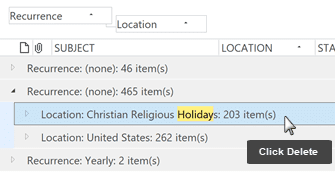
Delete all events in the Holiday category
You can delete all holidays then add back the holidays you need. This works especially well if you have duplicate holidays to delete.
- Switch to a List view then arrange by Category.
- Collapse the Groups to make it easier to find the category
- Select the Holiday category then press Delete.
- Go to File, Options, Calendar and click Add Holidays. Select the Locations you want to install and complete the wizard.


Sort by Created date
Use this method if you have duplicate holidays to delete from the calendar. All holidays that were added at the same time will have the same created date.
In Outlook 2010 and up:
- Switch to the View ribbon and select Change View, List
- Click View Settings then Columns
- Select Created and click Add -> to add it to the view
- Click OK to return to Outlook
- Sort by the Created date field
- The holidays that are imported together will have the same Created date
- Select the first event and hold Shift as you select the last
- Press Delete
To remove the duplicates from Outlook 2007 and older
To use the Created date method to delete duplicated appointments in Outlook 2007 and older, follow the instructions below.
- Choose View | Current View | Events to switch to the table-format Events view. All the holidays will be listed under the Recurrence: (none) group. (Outlook 2003: View | Arrange By | Current View | Events)
- Right-click any column heading, then choose Field Chooser.
- In the Field Chooser, switch from the Frequently-used fields list to Date/Time fields, and then drag the Created date to the view to add it to the fields displayed.
- Click on the Created column header to sort by that field.
- You should now see two distinct sets of holidays, each in reverse chronological order. Click on the first holiday of the set you want to delete.
- Use the scroll bar to view the last holiday of that set. Hold down the Shift key as you click on the last holiday. This selects all the holidays in that set.
- Press Delete to remove them all from the Calendar folder.
- Drag the Created column header out of the view to remove it.
While its very easy to remove duplicate Holidays and a duplicate removal utility is not necessary, if you have duplicates of other calendar appointments, one of the tools below can remove the duplicates.
Tools in the Spotlight
Outlook Duplicate Killer is an add-in for Microsoft Outlook. Find, merge and remove Outlook duplicates. Compare, assign the category, flag and move duplicates to selected folders. Find and remove duplicate contacts, emails, calendar events, tasks and notes automatically. Manage duplicates in any Microsoft Outlook folder, including Microsoft Exchange and Public folders. Preview duplicate search results prior to processing. New Duplicate Killer has improved user interface. Now account name and folder path are display. | |
Delete duplicate contacts, notes, tasks, journal and calendar items in Microsoft Outlook folders and Exchange Server folders. Duplicates can be marked, copied or moved to any folder. It supports searching across the folders. Supports all versions of Outlook, including Outlook 2007/2010. Version 2.6 | |
ReliefJet Essentials is a set of 162 utilities for Outlook, Office 365 and Exchange Server. It can backup, import, export and convert data into different formats. Perform personalized mass mailings. Save, remove and optimize attachments. Find and remove duplicate messages, contacts, appointments, meetings, and other items. Retrieve statistics on email usage and get reports on Outlook data and settings. You can run the utilities directly from Outlook, automatically in rules, via standalone app, or from the command line. |


Tools
More Information
Add Holidays Form (sample Outlook form to distribute holidays company-wide)
Outlook Holidays on the Wrong Date
Limited Holidays for Outlook Calendar
Microsoft Outlook’s missing holidays (Outlook-tips)

Allen says
Hello: I tried this and it keeps popping up saying it is a read only folder so I can't delete!
Diane Poremsky says
Is that the calendar called Holidays in outlook.com or Microsoft 365 Exchange accounts? That is a read-only calendar. You cannot edit it. You can disable the calendar in Outlook on the web - in Calendar section, click Add Calendar then holiday on the lower left. Uncheck the calendar to remove it. Remove birthday calendar the same way.
Nick says
Thank you so much for this. I've had duplicate Holidays and it has been driving me insane! This is the only article I found online that explained in easy steps where the Holidays are located. Thank you! (Finally some peace, lol)
pete says
nice, option 3 works for undoing any .ics import
Jacques Lecart says
Hi, using the newest version of Outlook and I can't figure out a way to use the old one..
I just can't go to file or anything.. everything is just screwed up right now ?
Diane Poremsky says
Look on the Help tab - is there a button to Go to classic Outlook? Or Go to something?
Łukasz says
Thanks! It worked.
Dilip G says
This was so good! Thanks again.
Shari says
Brilliant! Thank you so much. Clear steps; worked perfectly.
dale fisher says
Is there a way to delete in the "Sort by Created date" method in Outlook for Mac 2011? I can't seem to find a way to add a "Modified" date to the columns in this product.
Diane Poremsky says
Probably not (and i can't check as i not longer have it installed on my mac.)
Smithe241 says
Great, thanks for sharing this blog.Really thank you!
Terri Folino says
I used this to delete 949 entries in Outlook 2010 that were listed under the Holiday category about an hour ago and I just went back to my calendar and they are all there again.
I do use CodeTwo to sync to my iCloud account but none of them are on the iCloud account or on my iPhone but for example under Nov 27 I have 8 entries for Day After Thanksgiving in Outlook 2010.
Kate Wolman says
Thank you it was bothering me for a while your instructions were perfect!
Mark Spencer says
Very helpful...thanks for the direction...video made the difference.
Christiane says
Tks Diane - saved me a lot of time searching the web!
Juan Ramos says
Thanks Diane...your solution is far simpler than the official one published by Microsoft
Richard J. Shannon says
Thank you, Diane. I searched and searched for an answer, and you had it!
Sharolyn Molle says
Thank you very much for the easy instructions to remove duplicate holidays from Outlook 2010 calendar!
Pete Chamberlain says
Diane,
Have just used your information to add new dates to outlook 2007 and remove duplicates (forgot to uncheck UK when adding my wifes country of origin holidays).
Thank you for your easy to read and use instructions
Pete
Ron Johnson says
Can MS Word be reset to original defaults? If so how.
Thank you
Ron Johnson
Diane Poremsky says
Yes. you can delete registry entries, normal.dot and other support files to revert to the original defaults. See https://support.microsoft.com/kb/822005 for details (for all versions of word).