A common request is how to make recurring appointments for every x number of workdays. Unfortunately Outlook does not offer this type of recurring option. You can use a third party add-in, WS:Repeat Appointment II, to create recurrences not supported by Outlook. If this is a frequent need, its well worth the cost but if your needs are infrequent, you can use Excel to create the recurrence pattern and import it into Outlook.
Use VBA to create appointments for every xx weekday
You can either start with a blank workbook and create your own fields which will need mapped to Outlook's fields when you import it, or export your calendar from Outlook to Excel, then delete the appointments from the workbook, leaving just the field names. Or download an Excel workbook with the calendar fields and a few lines of sample data.
If you create the workbook yourself, you should use the start and end time fields, along with the subject field and the date field, of course. Any other fields are optional.
Prepare the Excel Workbook
Row 1 contains the field names.
Cell A2 contains the starting date.
Cell A3 contains the formula you need to calculate workdays: =WORKDAY(A2,4,F2:F147) The first parameter is the cell it bases the date calculation on. The second is the number of days. In my example, the calculation is for the 4th workday. The final parameter is an array of holidays. You are only required to to use the first two parameters =WORKDAY(A2,4) if you don't need to consider holidays, only weekdays.
Drag Cell A3 down to fill the cells. If the subject and time fields will be the same for each appointment, drag to fill these cells too. Use the method at Create Countdown Calendar Items to fill the subject field with consecutive numbers, such as Meeting 1, Meeting 2, etc.
Enter the dates to be skipped in Column F.
I used the "Use Custom View Data in Another Program" method to display a list of the holiday dates in Outlook, which I copied and pasted into Excel. You'll need to change the Field format in Outlook to display just the date for it to work. Do this by right clicking on the field name and choose Format columns.
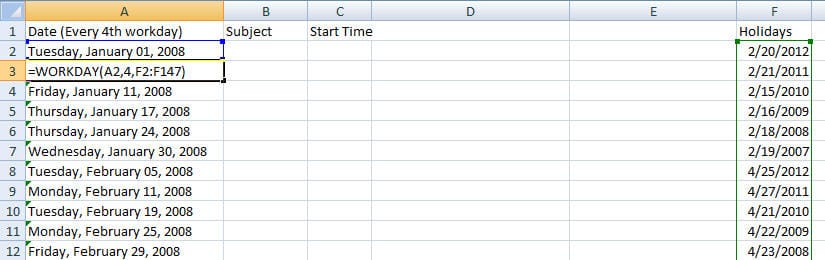
- When you are finished creating the spreadsheet, select and copy the cells you will be importing then use Paste Special, Values to paste the data in Sheet 2. By doing this you will avoid the need to make a named range.
- Save Sheet 2 using Comma Separated Value (CSV) format.
If you want to save the workbook with the formulas intact, choose Save As and save it in Excel format.
To import the appointments into Outlook
In Outlook:
- Select File, Import and Export (File, Open, Import in Outlook 2010)
- Select Import from another program or file.
- Select the program or file type. In this example, we're using Comma Separated Value (CSV)
- Browse for the file. (If the file is still open in Excel, it will cause an error.)
- Select the Calendar folder you want to Import the file into.
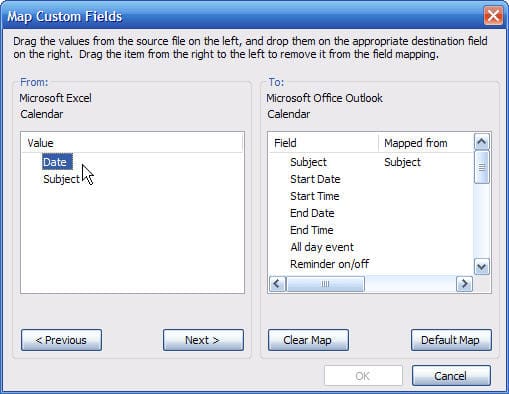
- If fields need mapped, use the Map Custom fields dialog.
- Outlook doesn't recognize Date, so I need to drag it to Start Date and Outlook adds it to the Mapped From column next to Start Date.

- Click Finish to import your items.

Shannon says
Thank you!! Here we are at the end of 2021 and this is still the only solution to this. You have saved me weeks of work having to enter random deadlines in manually.
Senthil says
Nice; I did not use the calculation but helped me to import reminders. Thanks.
Ian says
is this the same for meetings?
Diane Poremsky says
You can't import meetings from a spreadsheet - well you could, but only as appointments. You can't add recipients via import.
Ian says
Then? Where can I see the new option?
Diane Poremsky says
Sorry, I'm not sure which option you are asking about.
Anand Joshi says
When I map the column, I don't see option to Finish. The okay button is still grayed out. What am I doing wrong?
Diane Poremsky says
Did you map all of the fields? If you use field names outlook uses, you won't need to map them (click the button for Default Map) - you can also get this list by exporting the calendar to a CSV then open it in Notepad.
"Subject","Start Date","Start Time","End Date","End Time","All day event","Reminder on/off","Reminder Date","Reminder Time","Meeting Organizer","Required Attendees","Optional Attendees","Meeting Resources","Billing Information","Categories","Description","Location","Mileage","Priority","Private","Sensitivity","Show time as"
Kristen says
Close the mapping window then select finish.
mark vanderpol says
Why cant they just reference the day of the week, if the day falls on a Saturday or Sunday then it should skip to Monday. problem solved
Diane Poremsky says
You'd need to use a macro to do that - outlook doesn't support it.
Michael F says
YES OUTLOOK DOES DO THIS... go to recurrence, select MONTH on the left, then in middle select numbered day you want, then select (in drop down window - scroll UP to more options) 'Business Day".
You will be able to do what you want.
Diane Poremsky says
The problem with using weekday is that it's a specific day - the 3rd weekday, not every 3rd weekday. It also only does 1st - 4th + the last weekday of a month.
docmomma says
Why doesn't Outlook just have an option for "Fifth" workday? People have been asking for this since at least 2006, judging by my google hits....
Diane Poremsky says
I believe there are issues calculating it - Outlook needs to know what to do when there are only 4 of that day in a month. The last day and 4th day are easy to calculate (and last is sometimes the 5th).
Sarah R says
I created an appointment in Outlook 2013 for Windows running on Exchange Server. I clicked the radio button and typed 2 in the box just as in Diane Poremsky's Nov. 14, 2012, post above and the appointment shows up every (1) week. Is this a bug?
Diane Poremsky says
I'm not aware of any bugs in this area, it should work. You created an appointment and set the recurrence pattern to 2 weeks and it created it weekly? If you open the series and look at the recurrence dialog, is 1 or 2 in the box?
johnholcombe@me.com says
I have the exact same problem as Tom, I'm using a Microsoft exchange server at work.
Tom Ellett says
This is really great, but when I try to import the CSV file, the "Map Custom Fields" button is grayed out and so is the "Next" button. I have tried using the "Change Destination" button, but no matter what I choose, I can't go on. Any ideas? I'm using the latest version of Outlook, if that matters. Thanks!
Diane Poremsky says
What type of email account are you using?
Desiree says
Click the checkbox next to the name of the file. The next button and Map Custom fields will become available.
Kalin says
What if I would like it to be the fourth workday of a month versus a week? Is there a way to do that?
Diane Poremsky says
I think this formula will work - EOMONTH is the end of the month - you'll use the last day of the previous month as the starting point.
=WORKDAY(EOMONTH(A1+1,0),4)
Steve Holt says
Would it be possible to use something like this on a 3 day on/ 3 day off work schedule?
Diane Poremsky says
Should be able to do that with the macro. Are the 3 On days 24 hours? If the hours are the same, you can use 3 recurring appointments for every 3 days. if they are 24 hours on, you could use 1 appointment and a multiday recurring event. When it's shift work (that keeps shifting :)), a macro or a spreadsheet can do it.
Marcus Ahlbäck says
Nice, thank you!
Ashley says
How would I create appointments for every x workday of the month? For example, what if I only wanted the appointment on the 5th working day of every month, meaning there would only be one day each month that this appointment is occurring?
Diane Poremsky says
use this formula in the spreadsheet: =WORKDAY(A2,5-1) - column A (or another column) has the 1st of each month - 9/1/2014, 10/1/2014 etc. If you need other workdays, change the 5 to the desired value. (You could use 4 instead of 5-1, but this serves as a reminder that it's the 5th working day.)
Amanda Hunt says
Hi,
I am trying to make recurring tasks that occur on a particular working day of the month (i.e. working day 7). I have created them using your method but when I mark them complete for the month I'm in they don't re-appear in the next month.
Thanks,
Amanda
Diane Poremsky says
For tasks, you need to use the task pattern and regenerate them. That can't be set on import, you need to either do it manually or using VBA.
Amanda Hunt says
Hi, I created your spreadsheet and it worked perfectly but how do I get them to recur on the same working day each month? Once I mark them as completed they disappear.
Diane Poremsky says
Appointments are disappearing or do you mean tasks? (Since they can be marked complete.)
Ellen Farley says
I followed the instructions and imported the list, however, it didn't create appointments on my calendar, any suggestions?
Diane Poremsky says
Step through the macro using F8 or the Step into command on the Debug menu. Does it skip any lines?
Ian says
how to check Macro?
Diane Poremsky says
I'm not sure which macro you are using.
Can you find the events using search? Are you looking on the correct calendar?
Ian says
encountered the same problem
Neil says
Exactly what I need and I have followed the above, but I need to invite more than one attendee, however when I use
abc@abc.com; efg@efg.com;
It doesn't seem to import this when converting to outlook and therefore no invites are sent out. Please advise how to import RequiredAttendees into Outlook so it sends invites?
Diane Poremsky says
I think you'll need to use VBA to send meeting requests but on multiple names, use quotes around them so Outlook knows they belong together.
Diane Poremsky says
A macro is here - Import Appointments FROM Excel - Outlook 2013 doesn't support links to contacts, so it needs to be edited a bit. To make it a meeting, you need to add the recipients and set the meeting status: objAppt.MeetingStatus = olMeeting
Diane Poremsky says
I have an updated version of that macro that at create-meetings-csv-file
Becky says
So...if I want to schedule a task to be completed every other Sat & Sun I have to go through that long rigamarole to do it?
Diane Poremsky says
Only if the pattern isn't available in Outlook - the weekly pattern to recur every 2 weeks on sat and sun. I think if you start it on a Sat it's due, it will work.

Bernie Brightman says
So much work is unnecessary. Just choose weekly occurrence, select multiple days and you're done.
Diane Poremsky says
That won't handle every 4th weekday and skip holidays. It will make every xx Monday etc.