Beginning with Office 2013, the Office applications were designed with touch screen tablets in mind, and to this end, When Outlook is in Touch Mode, the ribbon is a little roomier and useful buttons visible along the right edge of the screen.
When you first install Office on a computer with a touch screen, touch mode is enabled by default.
All of a sudden, the delete button is missing next to the messages in the message pane and the reply, reply all, and forward buttons are no at the top of the reading pane. I have these buttons, along with Flag, Move, and others on the far right side next to my To Do bar.
The bar on the right is the Touch bar, putting the buttons close to the user's thumb in tablet mode.
Turn Touch mode on or off
To check out touch mode, expand the Quick Access Toolbar menu and select Touch Mode. This adds the Touch Mode button to the QAT which you can use to toggle Touch Mode off and on.
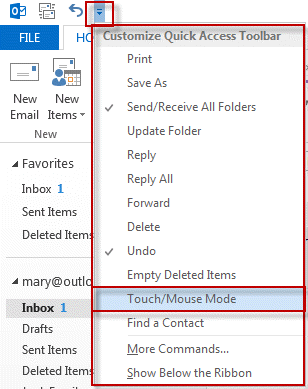
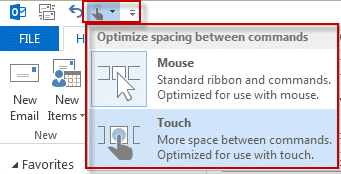
Although it's less than useful if you don't have a touch screen, if you like the roomier ribbon, you can use it with a mouse. If you like the Delete button in the message list, you'll want to stick with mouse mode unless you are using a touch screen.
This screenshot shows the Home ribbon in "normal" mode. The Touch Mode button was added to the QAT and is highlighted.

Touch Bar
When Touch Mode is enabled, a toolbar is added to the right side of the screen (see screenshot below) and the ribbon is roomier. I like the Quick Steps menu (especially on a window wider than I used for the screenshot.)
The Quick Delete, Mark as Read bar, and Flag buttons in the message list cannot be selected by touch, you'll need to use the icons on the Touch bar instead.
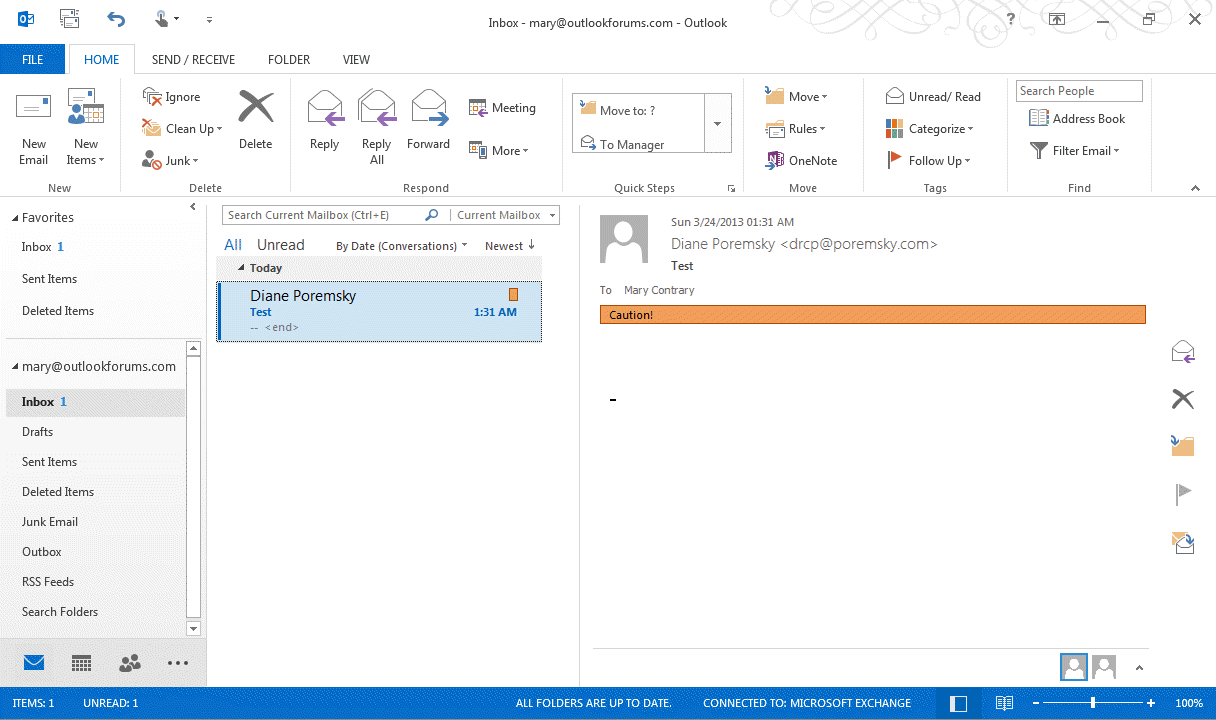
Use the touch bar on a tablet to reply (flyout includes reply all and forward options), quick delete, move or copy to folder, flag for followup, or mark messages read and unread.
| Icon | Command |
|---|---|
 | Reply, Reply to All, Forward |
 | Delete |
 | Move or Copy to Folder |
 | Flag for follow up |
 | Mark as Read or Unread |

Vyv says
I love this! Thank you for giving my brain a break from the clutter at the top of my screen.
Victor says
I've had an update to a new version of Outlook today ("Build 13127.21064 Click-to-Run") and it seems that I can no longer use it to move the Delete/Trash button to the toolbar on the right.
Enabling Touch Mode now causes me to have two Delete buttons on the screen - as it only enables the toolbar on the right, does not remove the "old" Delete button.
Claire V Brisson-Banks says
This does not solve the problem. I need to have the delete key not be there as I am unable to flag anything at all!
Diane Poremsky says
If you have touch mode on, the flag button will be in the toolbar on the right. Or use the flag on the ribbon.
Michell says
Thanks, very helpful!
James says
Thank you! Annoying little unintuitive setting, particularly for those on their first touch-enabled laptop. Appreciate you taking the time to write this up with such a great explanation.
Robert says
Thank you!!! This also fixed the issue where I could not remove the toolbar of icons on the right of my reading pane that showed "next email", "delete", and so on. It would display to the right of the calendar so that wasn't a very good place for it.
Denver says
Thanks, been driving me crazy
Ron says
Finally, the answer to my question. Thank you Diane.
Kayleah says
Hello Diane! Thank you for this walkthrough with screenshots! I found this page via your answer to the trashcan icon disapearring issue on https://answers.microsoft.com
Diane wrote:
On the surface, is the deleted icon in a vertical bar on the right? If so, you have Touch mode enabled. Switch to mouse mode in the Quick Access Toolbar - i have screenshots in this article if you need them:https://www.slipstick.com/outlook/outlook-touch...
Making that change (from touch to mouse) did make my Outlook view look more normal, in that it restored the "Focused" and "Other" tabs - yay!
However, the verticle bar on the right side of the screen is still there and I still do not have a trashcan icon.
Not having the trashcan icon is driving me nuts!
Your advice would be greatly appreciated! Below is some info and a picture to show.
Thank you!!
- The laptop is in desktop mode (not tablet mode)
- Running desktop Outlook 2016
- Running Windows 10
- Touch/Mouse Mode is disabled
Diane Poremsky says
It looks like the button is not visible on the quick access, but that doesn't mean you are in mouse mode. You need to show it on the ribbon, then switch from touch to mouse.
Villy says
very nice, people have been asked how to get the delete icon back on each mail in the inbox. i I have been annoyed too about it's been missing. just get it out of touch mode.
Ted Davis says
Using Touch Mode is NO answer to having the Quick Delete icon next to the Flag icon. I don't WANT the Touch Bar present - or any other touchy stuff enabled.
Making the Delete next to the Flag is stupid. NOT making it customisable is just crazy.
Diane Poremsky says
I wouldn't consider touch mode to be a solution to anything, except convenience when using a tablet or touch screen laptop. Unfortunately, the message list buttons are not customizable.
Greg says
I also had this trouble. Could not find any other mention of the delete on the mail header. Spent 30 hours looking for solution after installing outlook 2016. Finally found this post after 6 weeks of suffering. THANK YOU
Purushotham says
Extremely helpful to separate delete icon and flag a to do it. Thanks for your help.
Michael Campbell says
Hi Dianne I have an issue with Outlook (2016 Office 365) I cannot use my mouse to select a contact - have to use up/down keys on keyboard. I changed from my vaio pro (touchscreen) to a surface pro 4 a few months ago and this problem continues. Microsoft tried to fix on the Surface but no luck.
Any thoughts
Regards
Mike
Diane Poremsky says
Which view are you using?
What display % are you using? (There are issues with it set above 150%.)
Does it ever work? (Like right after a reboot.)
Joel says
Great info tks
Manuel Sanhueza says
Thanks so much.
This explanation was really useful. This thing was driving me nuts, having the commands on the other side of the reading pane did not make sense to me. I really missed not being able to delete a message from the message preview pane.
Diane Poremsky says
The touch bar is definitely not left-hander friendly. I prefer using the ribbon buttons in tablet mode because it's less reaching, even if it means i lose screen real estate by keeping the ribbon open.
Majuba says
Very helpful, thank you
bu732blog says
Perfect thank you very much
Charlie says
Hi there, I hope somebody out there can help. I use Outlook 2013 in an open office environment. I would like to remove the delete function from the SHARED inbox, I have had many incidents that we have lost orders because of an accidental delete.
I know the function is available on Lotus Notes.
I need to safe guard business.
Please help
Vicki says
Thank you! Have a good day!
Vicki says
I don't have a touch screen and the touch bar is showing up. How do I turn it off?
Diane Poremsky says
If the touch button is not visible in the Quick Access Toolbar (QAT), click the button to expand the menu and select it, then switch to mouse mode. It's the instructions and screenshots under "Turn Touch mode on or off"
Murray says
So if a turn the touch screen mode on I can slide appointments around the screen?
Diane Poremsky says
No. Touch mode just makes some buttons bigger and adds a touch bar. It makes Outlook a little more touch friendly, but just a little... hopefully a touch version of Office will give us the ability to slide stuff around.
John says
Help! Love my new SP3. Love using OL13 on it. But whenever I touch calendar items to open them OL13 crashes. Please help me maintain my love affair. :-)
Diane Poremsky says
It's a bug. There is a work around, but i forget what it is offhand. I'll look it up...
Bill Teeple says
Thanks - looking for this since I got my M3800 - couldn't understand why everything was so spaced out!!!
Watts says
Hi Dianne,
Hope things are well.
Would be great if there were any updates on when TOUCH dragging is going to get fixed in desktop Outlook 2013.
SP1/Update 1 are out with no change. Office Gemini popped up at BUILD but only for Word/Excel/PowerPoint. Looks like Outlook for touch is still far away.
There are no apps in Windows Store to replace functionality for touch at present. Please let us know where things are at - only a tiny code change is required to register fingers along with mouse to do the same thing.
PS btw murray stevens was asking about the same thing - i.e. no interest in "To-Do Bar" or MOUSE dragging to the Calendar link at bottom of Outlook's window.
Thanks again
Diane Poremsky says
Don't look for changes in the near future. :( Outlook has a more complicated and will likely be behind the others.
murray stevens says
Dianne. I too cannot drag in calender and makes outllok calender useless too me. when is a fix for this available?
Diane Poremsky says
The calendar peek is definitely not as useful as the old To-do Bar. I'm not sure if or when they will bring that feature back. Until then, you can drag things to the Calendar link in Folder list at the bottom of Outlook's window.
Watts says
Hi Diane,
Would you know how to enable touch dragging events/appointments in calendar(Outlook 2013)? Dragging by mouse works as per usual but fingers are not registering.
Many thanks
Diane Poremsky says
At this point, touch is only half usable. It's one of my long list of things that need fixed for Outlook to be useful on touch screens.
john davis says
do you know if we can edit or customize this bar.. i would like to have quick access to block sender?
Diane Poremsky says
No, sorry, you can't edit the touch bar. It really doesn't do much good to block senders - spammers will change addresses. However, if you really want to, you can add the Block Sender command to the ribbon (or QAT). It won't be quite as handy as the touch bar, but should be more convenient than it is now. Look for it under All commands.
Evgeny says
Hi,
Is there a way to change those buttons on the right? I'd like to use another set of commands.
Diane Poremsky says
No, sorry, not at this time. I don't know if a future update will add customizability or not.
Stephan Waba says
Diane,
Thank you very much for your quick reply! :)
Best,
Stephan :)
Stephan Waba says
Diane,
Thank you very much for this very helpful piece! :) Can I actually edit or move this vertical row of icons appearing in touch screen mode or are they stuck there at the right hand side of the screen no matter how I have configured the appearance of my Outlook window?
Thank you very much in advance!
Best,
Stephan :)
Diane Poremsky says
It's stuck on the right in touch mode, sorry. It's not very user friendly in a left-handed world.
Gareth Morgan says
I'm being driven wild because I can't find a way to select more than 1 email in Outlook 2013 on my touchscreen tablet. I can bulk select from lists in Explorer but not in Outlook. Is there any way?
Diane Poremsky says
I can only do it using the onscreen keyboard. Select one message, hold shift and use the left and right arrow keys.
Do you have a problem where selecting a message in outlook brings up the right click context menu? That annoyance has been plaguing me - and it's impossible to read messages when you can't select them. :)