When you receive the message
The form required to view this message cannot be displayed. Contact your administrator
It usually means that you need to clean Outlook's forms cache.
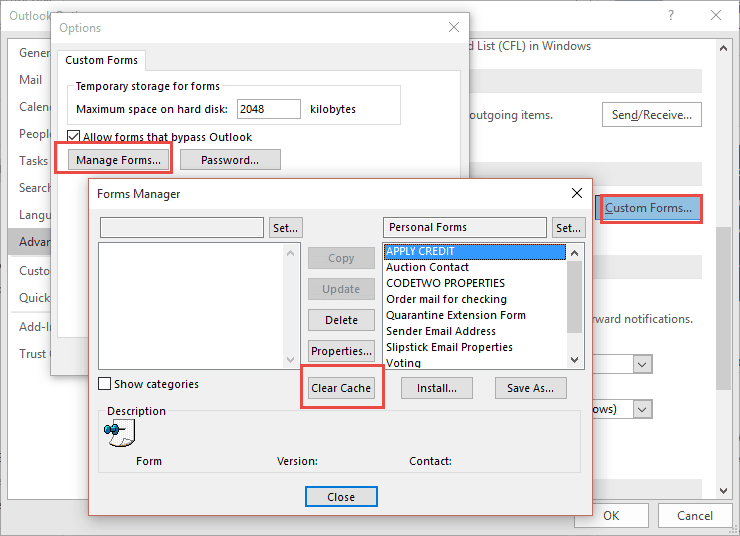
To clear the forms cache in Outlook 2010 and newer, follow these steps:
- Go to Filemenu, Options.
- Click Advanced.
- Click Custom Forms.
- Click Manage Forms.

- Click Clear Cache.
- Restart Outlook.
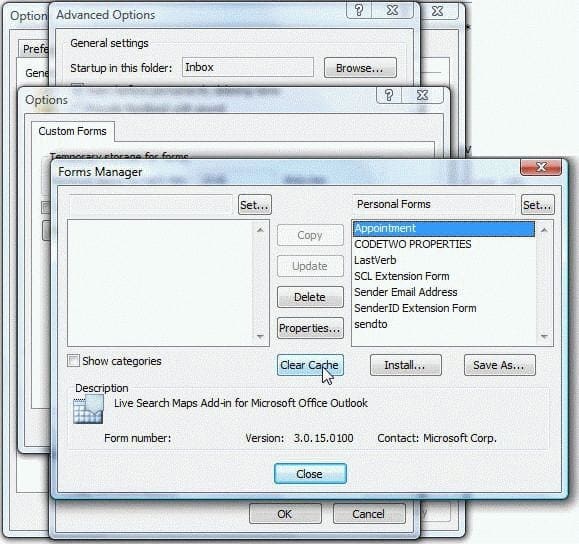
To clear the forms cache in Outlook 2007 and older, follow these steps:
- Go to Tools menu, Options.
- Click the Other tab, and then Advanced Options.
- Click Custom Forms.
- Click Manage Forms.
- Click Clear Cache.
- Restart Outlook.
If that doesn't work, delete the Forms Cache Files.
- Close Outlook.
- Locate the Forms folder. In Windows 7, 8 or Vista, its at C:\Users\username\AppData\Local\Microsoft\FORMS
- Delete all the frmcache.dat file and folders that are in the Forms folder. You'll have one folder for each custom form you have installed. If you haven't created custom forms, you won't have any folders here.
- Re-open Outlook.
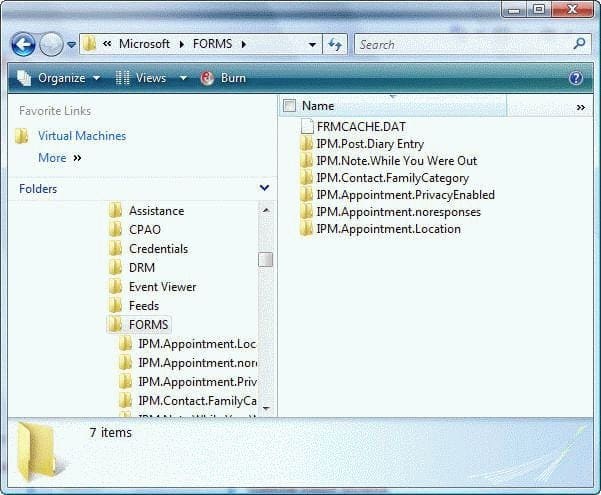
When you restart Outlook, and use a form Outlook will automatically reinstall the form, recreating the forms cache and index.
For a shortcut to the Forms folder, copy, then paste the following line in the address bar of Windows Explorer in Windows 7, 8, Vista:
%localappdata%\Microsoft\Forms
or in Windows XP:
%USERPROFILE%\Local Settings\Application Data\Microsoft\Forms


Neil says
Tried both methods, but neither one worked. After deleting the frmcache.dat file and folders that are in the Forms folder, and making sure they were deleted by refreshing the folder, which was completely empty, I restarted outlook, opened a form, and still got the same message.
Diane Poremsky says
What controls are on the form? I've seen some forms error due to controls (including the category control) - removing the control and republishing it allowed the form to open. Also, make sure that email security is set to allow scripts if you are in a folder outside of your own Exchange mailbox - this is in the trust center.
James Burge says
WONDERFUL! This was the PERFECT resolution! Thank you!
Ileana Mendoza says
Thanks, it solved my issue. I can open the forms in both versions of Outlook, 2010 and 2007
Bryan says
The second method worked for me in Office 2010. Thanks!
Pushpraj says
Thanks! Worked for me.
Sam says
Spot on. This resolved an issue that was driving me crazy and I never would have figured out on my own. Thanks.