Rules Wizard and Assistants

The Rules Wizard for Microsoft Outlook automatically processes both incoming and outgoing messages. You set conditions similar to those used for Microsoft Outlook filters, then indicate what action(s) you want to be performed on messages that meet those conditions.

For Microsoft Exchange Server users, Rules Wizard automatically converts rules created with the Inbox Assistant feature (which Rules Wizard replaces). Exchange Server users also have an Out of Office Assistant for handling such things as vacation notices and Folder Assistant rules that run on public folders. See Server-based vs. client-based rules.


Availability | Usage | Specific Applications | Maintenance | Limitations | Problems | More Information

Rules Index

The following is a list of all files in the Rules section of slipstick.com. The newest pages are at the top of the list.

  • Exchange Server's 32 KB Rules Limitation
  • Why are Inbox and Out of Office Assistant on the Tools menu grayed out?
  • Make automatic reply rules in Outlook
  • Back up Outlook Rules Wizard rules
  • Custom actions in rules for the Outlook Rules Wizard or Inbox Assistant
  • Create a rule to expire mail after a certain number of days with Outlook
  • How Exchange Assistant Rules Work
  • Rules and tools to filter junk mail in Microsoft Outlook
  • To use a rule to filter all the items from a mailing list
  • To distinguish internal from external mail with Outlook rules
  • Using Inbox Assistant in Outlook
  • Understanding the Safe and Blocked Senders lists
  • Server-based vs. client-based rules
  • Create rules to sort messages by mail account in Outlook
  • Handle messages forwarded from another user's mailbox with Outlook Rules Wizard
  • Create a rule to search for two different possible phrases in a message
  • Create a rule with wildcards with the Outlook Rules Wizard
  • Availability

    If you use Outlook 98 or a later Outlook version, Rules Wizard is installed automatically.

    For Outlook 97, you can download the latest version of the Rules Wizard, included with Office 97 Service Release 2.

    Inbox Assistant is disabled if Rules Wizard is installed.

    Both Inbox Assistant and Out of Office Assistant are disabled if you do not have the Exchange Server service installed in Tools | Services. The appropriate addin -- in Outlook 97/98,  Emsuix.ecf or, in Outlook 2000, Outex2.ecf -- must also be installed in the Add-in Manager. 

    If you have the Exchange Server service installed in Tools | Services and have Owner permission on a public folder, you will be able to set Folder Assistant rules. 

    If you prefer Inbox Assistant because it supports certain kinds of rules that Rules Wizard doesn't, you can disable Rules Wizard in Outlook 98 in the Add-in Manager. For Outlook 2000, see Activate the Inbox Assistant in Microsoft Outlook 2000.

    Back to Top


    Usage

    There are two ways to put the Rules Wizard to work. If you're in the Microsoft Outlook Viewer, choose Tools | Rules Wizard. If you're working with an open message and want to build rules from information in that message, choose Actions  | Create Rule (Outlook 98 or 2000)  Tools | Create Rule (Outlook 97).

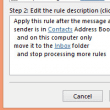
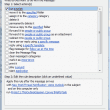
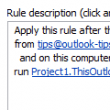
    The Rules Wizard consists of several screens where you enter information about the type of rule you want to create (incoming or outgoing messages), what you want to look for, what you want to happen to messages that fit the rule and what types of messages should be handled as exceptions to the rule.

    At the top of each screen, check the boxes that you want to apply to the current rule. Then in the bottom half of the screen, click any underlined text to set the value for that part of the rule. For example, if you see with specific words in the subject or body, click on that text to set the specific words to search for.

    After you go through all the screens in this fashion, you can click the Finish button to save the rule.

    To make a rule apply to all incoming or outgoing messages, just enter no conditions for the rule. You'll get a popup message informing you that the rule will apply to all messages and asking whether that's OK.

    The order in which rules are processed can be important, since if you move a message from the Inbox to another folder, other rules won't process it. To change the order and enable/disable rules temporarily, choose Tools | Rules Wizard from the main Microsoft Outlook menu. In many cases, you will want to add a Stop Processing action to your rules, so that once that rule is applied, no subsequent rules will act on the item.

    Also see:

  • Custom actions in rules
  • OL2000 (CW): How to Use the Out of Office Assistant
  • OL2002 How to Use the Out of Office Assistant
  • OL2000 (IMO): How to Emulate the Out of Office Assistant
  • Managing Email With Outlook Rules-- tutorial
  • OL2002 How to Create a Script for the Rules Wizard
  • Automatic Out-of-Office Assistant Switching Script
  • Forcing a Rule to Operate only on Certain Items
  • Customizing the Envelope System Tray Icon
  • Back to Top


    Specific Applications

  • To filter junk mail
  • To make automatic reply rules
  • To distinguish internal from external mail
  • To sort messages by mail account
  • To handle messages forwarded from another user's mailbox
  • To search for two different possible phrases in a message
  • To create a rule with wildcards
  • To to expire mail after a certain number of days
  • To to filter all the items from a mailing list
  • OL98: (IMO) How to Request Read Notification
  • OL2000 (IMO): How to Save Sent Items on an IMAP Server
  • OL98: (IMO) How to Save Sent Items on an IMAP Server
  • Remove Out Of Office Messages from Your Outlook 2000 Inbox 
  • To mark mail as read and suppress the "new mail" envelope in the system tray, use AutoRead for Outlook.
  • Back to Top


    Maintenance

  • To back up Outlook Rules Wizard rules
  • OL2000: How to Import Existing Rules into the Rules Wizard
  • OL98: How to Import Existing Rules into the Rules Wizard
  • XADM: Deleting All Inbox Rules Using the Exmerge Utility
  • Installing and Using the CleanSweep Tool -- BackOffice Resource Kit tool to delete permissions, forms, views, rules, or reply rule templates from a Microsoft Exchange Server mailbox
  • XCLN How to Use the Mdbvu32 Utility to Remove Inbox Rules
  • Back to Top


    Limitations

    Rules Wizard cannot automatically move items to another folder after you read them.

    You can't print out a copy of your rules. If you want a record of your rules, you'll need to jot down the conditions, actions and exceptions manually.

    For rules that are copied to Microsoft Exchange Server, there is a 32k limit. (Apparently, this limit applies to all Outlook installations, not just those with Exchange Server.) This amounts to about 40 rules. See XCLN: Out of Space Error Message When Creating or Importing Rules.

    In Outlook 98 and Outlook 2000 Corporate/Workgroup mode, messages forwarded with a rule or replies sent with a rule are not saved in the Sent Items folder.

    Rules Wizard does not have the ability to delete messages from the server based on a rule, but there are plenty of third-party POP3 mail tools (i.e. not Outlook-specific products) that can do that. Check at your favorite shareware download site. 

    You can set up a rule to mark incoming messages as read using the MarkRead custom action in Outlook 2000 and earlier versions or the "mark it as read" action in Outlook 2002, but this will not affect the appearance of the "new mail" envelope icon in the Windows system tray. It will still show that you have new mail.

    Out of Office Assistant works only with Exchange Server. For other environments, see To make automatic reply rules in Microsoft Outlook.

    Also see:

  • OL2000 (CW) Rule to Forward Messages Does Not Save Copy in Sent Items Folder
  • Back to Top


    Problems

    If you start using a different Personal Folders file (say, if you changed machines) or mailbox and then import your rules, you will need to edit any rule that involves a folder. You have changed the information store you were using, so the Rules Wizard thinks the folders have changed, too.

    If a rule moves an item out of the Inbox, Outlook's automatic processing cannot access it. In particular, that means that voting button, meeting and task responses will not be processed. 

    To remove misbehaving Out of Office or other rules, you can use the CleanSweep tool from the BackOffice Resource Kit. See Installing and Using the CleanSweep Tool.

    In an Exchange Server environment, automatic forwarding and replies to the Internet may be disabled at the server level. Consult your Exchange administrator if automatic replies are working to internal recipients, but not those one the Internet. See:

  • XFOR: Rule For Forwarding To Internet Address Does Not Work
  • Also see:

  • OL2000: Outlook Rules Wizard Troubleshooting
  • OL98: Outlook Rules Wizard Troubleshooting
  • OL97: Outlook Rules Wizard Troubleshooting
  • OL97: How to Remove the Rules Wizard
  • XADM: Out Of Office Assistant Does Not Start If a Rule Is Set to Stop Processing Other Rules
  • XCLN: Rule to Forward E-mail Shows Wrong Sent Time for Recipient
  • XFOR Outlook Rules May Not Start on Internet Mail
  • OL2000 (IMO) Rule to Forward Messages Only Sends One Message
  • XADM Messages That Contain RTF Text Strings Are Not Delivered Correctly
  • OL2000 Outlook Does Not Migrate Rules When You Upgrade
  • To troubleshoot Rules Wizard rules with categories

  • OL2000 (CW) Rules Act Differently After Converting to Rules Wizard

  • OL2002 Rules Conflict Error Message Appears When You Gain Access to Your Account from a Second Computer

  • OL2002- Error Message- The Rules on this Machine Do Not Match the Rules on Your Exchange Server...

  • XCLN- Unable to Auto Forward Messages to SMTP Address with the Out of Office Assistant

  • OL2000 (IMO) Rule to Forward Messages Only Sends One Message

  • XADM Out of Office Assistant Rules Continue to Function Even Though You Select the Stop Processing More Rules Check Box -- Exchange 2000, post SP3 patch

  • XCLN Error Message Out of Office Assistant Cannot Be Displayed

  • OL2002 Outlook Rule Based on LDAP Entry Does Not Fire -- post SP2 hotfix

  • OL2000 Outlook Quits When Rule Searches for a Specific Word in the Subject or Body of Received Message -- post SP3 hotfix

  • XCLN Error Message Out of Office Assistant Cannot Be Displayed

  • Back to Top


    More Information

  • Automatic Messaging Processing Tools -- Alternatives to Rules Wizard and Inbox Assistant; tools for managing out-of-office settings
  • Rule COM Component -- API for creating rules programmatically
  • OL2000: Overview of the Rules Wizard in Outlook 2000
  • OL98: Overview of the Rules Wizard Add-in
  • OL97: Overview of the Rules Wizard Add-in
  • XCLN: Exchange Client Inbox Assistant Rules FAQ
  • More MSKB articles on Rules Wizard
  • XADM Steps to Move User and Inbox Assistant Rules
  • Rule Your E-Mail -- Detailed article, with screen shots, on creating Rules Wizard rules in Outlook 2002, including rules to handle spam
  • XADM How to Use the Inbox Rules Manager Program - for Exchange 5.5; said to be rather messy to use
  • Tips from Kaitlin Duck Sherwood, author of Overcome Email Overload with Outlook 2000 and 2002:

  • Organize and prioritize -- using rules to set categories
  • If you need functionality that Rules Wizard or the available add-ins can't supply, then you might want to consider writing custom code for Outlook 2000 using Visual Basic for Applications. The support for VBA in earlier versions is only for external applications, not for VBA running in Outlook itself. See:

  • Visual Basic and VBA in Outlook Development
  • OL2000: How to Create a Custom Rule Using Visual Basic for Applications -- Using VBA to monitor your Inbox
  • To quarantine application file attachments
  • To convert incoming HTML messages to Outlook Rich Text format
  • To automatically add an e-mail address as a Bcc to all outgoing messages
  • OL Overview of Programming with Rules
  • Updated Jul 15 2008

    Copyright Slipstick Systems. All rights reserved.
    Send comments using our Feedback page

    Home | What's New | Exchange Server | Outlook | Utilities | Bookstore
    About Slipstick | Feedback | Privacy Policy | Site Map | Archived Pages | Link to Us | Advertise