There are two ways to give other users the ability to "send as" another user, mailbox, or public folder address when you use Microsoft Exchange server. The first is using the Delegates feature on the Tools, Options menu. This is configurable in Microsoft Outlook by any user and adds "on behalf of" to the From field: From: Bill on behalf of Mary.
If this is unacceptable, the administrator can give the account "Send As" permissions.
Once Send as permission has been granted, users will type the mailbox name or smtp address in the From field when composing a message to send it as the other user or public folder. Their own email address will not be exposed on the message header, however all sent messages will be stored in their own sent folder.
If you want avoid typing the From address, see the Tools listed below. Microsoft Outlook 2010 allows you to have multiple Microsoft Exchange server accounts in one profile and replies from the correct account.
Configure Mailboxes
- Open Active Directory Users and Computers on the Exchange Server.
- Go to the View menu and choose Advanced.
- Right click on the mailbox you need to configure Send As on. Choose Properties.
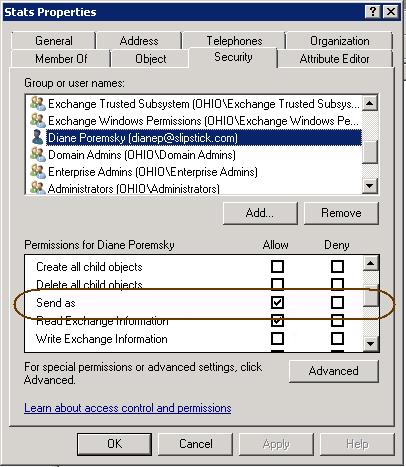
- Click the Security tab. (This is visible only if you selected Advanced in Step 2).
- Click Add and select the users name that you want to give Send As permission to.

- Find Send As in the Permissions list and check it.
- Click Apply and close the dialog.
Configure Public Folders
- Open Exchange System Manager.
- Browse to the Public Folder tree.
- Right click on the public folder and choose Properties.
- Click on the Permissions tab.
- Click on Directory Rights button.
- Click Add and select the users name that you want to give Send As permission to.
- Find Send As in the Permissions list and check it.
- Click Apply and close the dialog.
Tools
Office 365 mailbox may have multiple SMTP addresses and receive mail sent to any of the secondary addresses but Exchange Online always uses the primary SMTP address for sending messages. ChooseFrom 365 application allows Office 365 users to send a message with any of their own SMTP addresses as the From address. New feature: multiple display names associated with a single SMTP address. The application is a cloud service. | |
Exchange server mailboxes can have multiple SMTP addresses and receive mail sent to any of these addresses but Exchange will always use the primary SMTP address for sending messages. ChooseFrom allows users to send a message with any of their SMTP addresses as the From address. | |
Lucatec Mask Add-in for Outlook is used with Exchange server accounts, allowing replies from a shared mailbox or public folder, automatically entering the folder or mailbox's email address in the From field. Lucatec Mask will automatically determine the correct sender address to use based on the mailbox or public folder the user is currently using in Outlook. It also offers the option to move or copy the sent message to the relevant account's Sent Items folder (or Public Folder). It supports shared Exchange Server accounts and Public Folders with email addresses. Works with Outlook 2000-2010. Version 3 | |
Proxy Manager lets you send emails from Outlook using any alias (proxy) SMTP address with an arbitrary display name from your Exchange account, hosted or on-premises. There are no server components, everything is done on the client side - just install Proxy Manager, and you are ready to go! Select one of your proxy addresses and click Send. Outlook 2010, 2013, 2016 and 2019 are supported. | |
RightFrom automatically fills in the correct From address when the user is responding to a message in another user's Exchange mailbox. Also RightFrom utility can associate the signatures with the mailboxes. When John Doe navigates to Sales mailbox and clicks the "New message" button, the From: field will be populated automatically with "Sales" and the salesperson (non-default) signature will be added to the message automatically too. | |
SelectSender is a tool for Office 365 users who need to send mail from different addresses. This utility allows an Office 365 OWA user the ability to easily select the From address of the new, replied or forwarded message. SelectSender can be used only in cooperation with ChooseFrom 365 cloud service. | |
This add-in will automatically substitute the From: address when you reply to or forward a message sent to the distribution list. In other words, when a person who is a member of the distribution list replies to a message sent to the distribution list, the default sender address will be the distribution list address. | |
Outlook COM add-in that lets you automatically insert in the "From:" or "Have replies sent to:" field any address/alias that you need for each outgoing message. If you're mainly concerned with getting From right when replying to mail from another user's Exchange mailbox, RightFrom, from the same author, would be more appropriate. | |
ShowAlias allows an Outlook 365 user to see if an e-mail has been sent to the main (default) e-mail address or an alias address. This is an Office 365 addin and works with Office 365 and Outlook.com mailboxes in Outlook desktop and Outlook on the web. | |
SmartReply is an utility for Exchange Server users who need to send email using different addresses. This utility provides an Outlook user with the ability to easily select the From address of the new, replied or forwarded message. The message can be replied with the same From address as original message has been sent to. Also you can set a different signature for each e-mail address. Supports Office 365 Exchange Online. | |
SmartReply 365 is an utility for Outlook desktop (Windows) users who have enabled the Microsoft feature to send emails from an alias in Office 365. This utility will automatically populate the proper From: address when you reply to or forward a message received as alias. In other words, if you get a message addressed to jdoe_alias@contoso.com and hit Reply(Reply All, Forward) button, the replied/forwarded message will have jdoe_alias@contoso.com in the From: field. The utility is an Outlook COM add-in. |
More Information
Chose the account to send a reply from (has a macro to choose the account to send from)
Outlook 2010, Multiple Accounts and the Default Account

rino says
so what do you do if before, you are able to "send as" then now it says you are not allowed to send as?
Diane Poremsky says
Assuming the permissions weren't changed, I would download the offline address book. (in send/receive settings)
Abhijeet Dalal says
Hi erikofmke,
Thanks for your command which you provided in the comment.
This is the only working command which I found on net and solved my problem.
Thanks,
Abhijeet Dalal
erikofmke says
If you have Office365 with exchange on the Microsoft server, then you will need to do this through PowerShell.
Open Active Directory Module for Windows PowerShell
Run the following commands all at once, adding your credentials when required:
**********************************************************************************************************
$LiveCred = Get-Credential
$Session = New-PSSession -ConfigurationName Microsoft.Exchange -ConnectionUri https://ps.outlook.com/powershell/ -Credential $LiveCred -Authentication Basic -AllowRedirection
Import-PSSession $Session
Import-module Msonline
Connect-MsolService -Credential $Livecred
**************************************************************************************************************
Then run:
**************************************************************************************************************
Add-RecipientPermission "shared@yourdomain.com" -Trustee user@yourdomain.com -AccessRights SendAs
**************************************************************************************************************