A user had this to say about moving Outlook to a new computer:
Still trying to move Outlook 2003 settings on a WinXP machine to Outlook 2007 on a new Win 7 machine. Research suggests that this is an easy, straightforward process - just find and move the PST file, and you're done. Really, its way more complicated than that, unless you already know how to do it, which I don't.
This page is for those users who don't know "how to do it." I'm going to base these instructions on the scenario above - moving from Outlook 2003 on WindowsXP to Outlook 2007 on Windows 7. Moving from Windows 7 to Windows 7 or 8? I have an updated instructions at Moving Outlook 2010 to a new Windows computer, with screenshots from Outlook 2010 and 2013.
The steps to move other versions of Outlook are similar but dialogs may be different.
Step 1: Get Files from Old Computer
Step 2: Put Files on New Computer
Step 3: Create a Profile
Step 4: More Settings
Step 5: Add Old Data File (*.PST)
Step 6: Finishing Touches
Step 7: Signatures & Stationery (and custom dictionary)
Do you leave mail on the server? See this section
Things to keep in mind when you are preparing the new computer:
You really only need to move the PST and create a new profile using this PST - the other files Outlook uses are (usually) easily rebuilt.
If you use Windows Easy Transfer to move your Outlook data, you will need to recreate your Outlook profile as the move process corrupts the profile.
You will need to install Office (or Outlook) on the new computer. You can only move user data, not the program itself.
Your accounts are stored in the registry and need to be recreated on the new computer.
Get files from Old Computer | Put files on New Computer | Create a Profile | More Settings
Add Old Data File (*.PST) | Finishing Touches | Signatures & Stationery | Leave on Server issues | Links
Step 1: Collect Files from the Old Computer
You need the PST from the old computer. This contains your email, calendar, and contacts. You may have more than one PST. In most cases, they will be in the default location Outlook uses. You can go to Outlook's File, Data File Management command to see the data paths. Select one then click Open Folder to open Windows Explorer to the PST location.
If you need to recover pst files from a hard drive removed from a crashed computer, see Recover Outlook Data Files from a Crashed Computer
To quickly access the default PST location outside of Outlook, paste this line in Windows Explorer's address bar.
%USERPROFILE%\Local Settings\Application Data\Microsoft\Outlook
You'll see a list of files in the Outlook folder- you need to copy the Outlook Data Files (PST). Outlook needs to be closed to copy the PST. Outlook can hold PST files open for as long as 30 minutes after you close Outlook, so if you receive any errors when copying the PST, wait and try again.

The screenshot is from a computer with Outlook 2007 installed - the obi file is used for RSS feeds. If you are using Outlook 2007 on the old computer, it does not need to be moved.
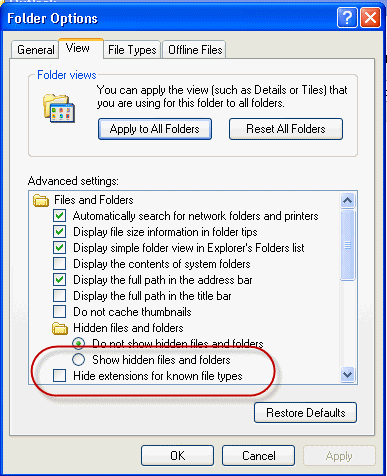
If you have Windows configured to hide extensions, look for the Outlook Data Files or enable 'show extensions' in Window Explorer's Tools, Folder Options, View tab. This makes it easier for you to see the files you are copying. You can also choose the option to Show hidden files and folders, although its not necessary since we are in the hidden folders.
You'll copy the PSTs to the new computer. If you have several PSTs in the folder and aren't sure which one is the one with your data, look at the file dates and file sizes. If you have 265KB PST files, they are empty and don't need to be moved.
Next, get the other support files.
Paste the following line into the address bar.
%USERPROFILE%\Application Data\Microsoft\Outlook
In this folder you'll have the NK2 (autocomplete nickname file), SRS (send and receive settings), XML (navigation pane), outlprnt (printer configuration) and VBA project files.
If you are using macros, you'll need to move the VBA file and many users like to copy the NK2 so they have their autocomplete list. The SRS and XML files corrupt easily and I don't recommend moving them.

Outlook 2003 uses outcmd.dat. This contains your toolbar customizations and it does not need to be moved to the new computer.
Rules are stored in the PST but to be safe, export them to an RWZ file.
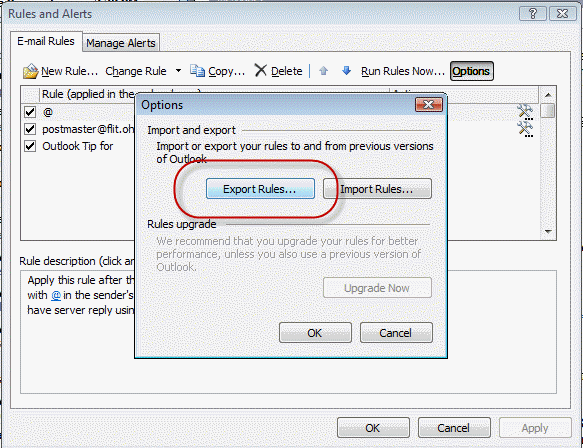
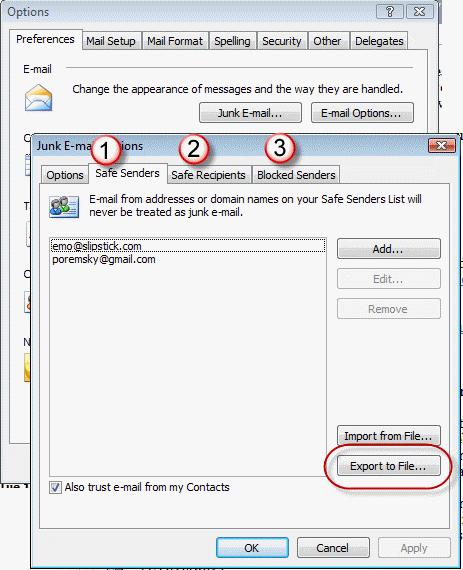
Also export names on the safe and blocked senders lists. Export all 3 safe/blocked lists (if they contain names).
Step 2: Copy the Files to the New Computer
Install Outlook on the new computer, if you haven't already.
Open the AppData Roaming folder using the following command and copy the NK2 file (and SRS and XML, if desired) to the folder. The VBA project goes into this folder also. If the Outlook folder does not exist under Microsoft, create it.
%APPDATA%\Microsoft\Outlook
My recommendation for PST files: Make a folder called Outlook in your My Documents or directly under your User account folder (C:\Users\username), where My Pictures, My Documents, Downloads, Music etc are located, for your PST files. It's easier to find and backup your PST files when they are easy to find. (Outlook 2010 will use a folder under My Documents, so you might as well get used to it now.)
If you really want to use Outlook's default location, click on AppData in the address bar then browse to Local - Microsoft - Outlook and put the PST file(s) into the folder.
Step 3: Create a Profile
After the PST file is on the local drive, go to Control Panel, type Mail in the Search field then open the profile dialog. (If you use the Category view, Mail is under the Users group; in Win7 64-bit, Mail is under 32-bit applications.)
- Click the Show Profiles button.
- Click Add to create a new profile.
- Enter a descriptive name for your profile.
- Enter the name you want to use for your display name, your email address, and your password.
If your mail provider supports autodiscover, Outlook will set your account up for you. (Most large ISPs support autodiscover.)
If your ISP doesn't support autodiscover or you want to set up an account using other server options, click the "Manually configure..." checkbox to set up your account yourself.
Choose the account type and click Next. Enter your name, email address and mail server names as well as your password. Most mail servers do not require SPA, so leave it unchecked unless your ISP tells you to use it.
After Outlook sets up the account using autodiscover, you can click the Manually configure server settings box to get into More Settings.
Video Tutorial covering Steps 3 - 5
Step 4: More Settings
If you are back at the profile selection dialog, select your profile and click Properties to get to the More Settings button.
Configure additional server options in the More Settings dialog, including leaving mail on the server and alternate SMTP ports.
General tab: Enter a Reply to Address, if using an address different from your account address on the first screen. (Most people don't enter a reply address.)
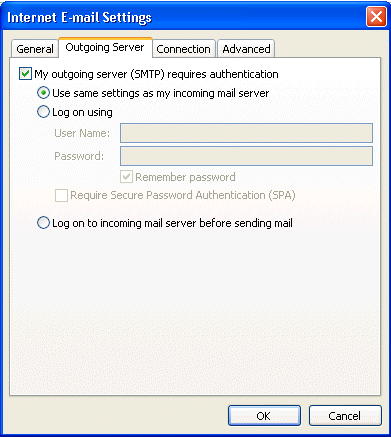
Outgoing Server tab: Configure your outgoing server authentication. Many ISPs now require SMTP authentication. If you aren't sure, check your mail provider's support website.
Connection tab: Configure specific Internet connection properties, if needed. (Most people will use the defaults.)
Advanced tab: Configure alternate ports (if used) for incoming and going email on this tab and set POP3 accounts to leave mail on the server, if desired.
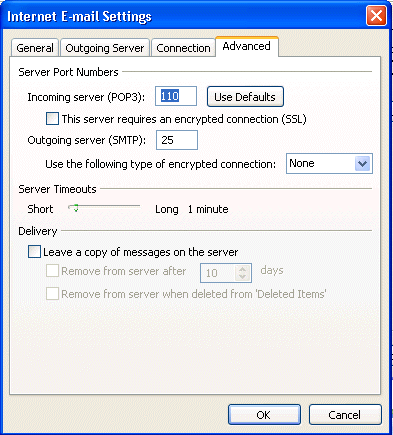
If you aren't sure if you need to use an Alternate port, check your mail provider's support. Many mail servers use the standard ports but more and more are using alternate ports in an effort to combat spam.
If you use autodiscover to configure the account, the correct ports may be entered for you.
If you aren't sure - ask your mail provider!
Click Ok when you are finished configuring More Settings then click Next to exit the New Profile wizard.
Step 5: Add Your Existing Data File (PST) to the Profile
If you have an Outlook data file (*.PST) you want to use with your new profile, follow these steps immediately. Do not open Outlook until you change the PST.
- Select the newly created profile then click Properties.
- Click Data files button to open the Account Settings dialog to the Data files tab.
- Click Add then browse to your existing PST file.
- If the PST is a native Outlook 2003/2007 file type, choose the top entry for Outlook Personal File. (It is highly recommended that you use Outlook 2003/2007 PST format for your default PST). Click Ok
- Select your existing PST file.
- You can enter a friendly name or just click Ok to return to the Account Settings dialog.
- Click the Set as Default button.
- Select the PST Outlook created when it created the profile and click Remove. If you want, click Open folder to find and delete this PST.
Close the dialogs.
Step 6: Finishing Touches
If you are going to use the NK2 from your old computer, use the following command to open the Outlook folder where the NK2 belongs and rename the old one to match the name of your new profile. (If Outlook created a new NK2 already, delete it.)
%APPDATA%\Microsoft\Outlook
Now start Outlook. Check your calendar and contacts folders then open a new message and click the To button. Do you see your Contacts?
Go to Tools, Rules Wizard and check your rules. Import the RWZ file if necessary.
In Tools, Options, Junk email, import the Safe and Blocked lists.
Step 7: Signatures & Stationery
If you are using Signatures, custom Stationery, or want to save your custom dictionary, you'll want to move these files to the new computer. Use the command below to open the folder where the Signature, Stationery, and Proof folders are (on both computers).
Outlook doesn't use the Stationery folder under My Documents - the stationery needs to be in the appdata\roaming path. Create the Stationery folder if it does not exist.
%APPDATA%\Microsoft\
After moving the signatures, you'll need to configure your accounts to use them. This is in Tools, Options, Mail format tab, Signatures.
Note: For signatures created in older versions of Outlook, select the signature in the signature editor and press Save to convert it to newer HTML code. Repeat for each older signature. This converts the HTML to newer code (using CSS) and prevents inconsistencies which may come up when switching or deleting signatures in a message.
Leave Mail on the server issue
When you use a POP3 account and leave mail on the server, Outlook will always re-download all of the mail. If you use the data file in Outlook 2010 and use it in a new profile, Outlook 2010 might not try to download the messages already downloaded, but moving from any other version will result in the messages being downloaded again.
Some email accounts can be configured to only allow new mail or mail that arrived after a certain date to be downloaded. Log into your account online and check your account options to see if you are one of the lucky ones. For most people, the only workaround is to log into the account using the web browser and move the mail to a new folder as Outlook will only download the mail that is in the Inbox.
More Information
Customizations made in Tools, Options are in the registry under the HKEY_CURRENT_USER\Software\Microsoft\Office key. In most cases, I do not recommend exporting this key. Most settings will be lost if you are upgrading to a new version of Outlook.
Windows Messaging Backup and Dual-Boot
Outlook 2007 Backup and File Locations
Outlook 2010 Backup and File Locations
How to move the IMAP personal folder (*.pst)
To move a Personal Folders .pst file
Where Are My Files? (Outlook-tips.net)
Making a new Outlook 2007 profile (Outlook-tips.net)

pedro says
great post, thanks
Dan Nainan says
I cannot believe how helpful this is, thank you so much! What a wonderful, helpful post.
Dara says
Further info:
We used two methods to copy the data - USMT to copy the users profile and data from the old laptop to a migration server, then a LiteTouch script to transfer the USMT to the users new laptops. However as our old laptops had a D partition for the users data, we copied the contents of the D partition manually as well (as in straightforward drag and drop). Since we discovered these problems with the PST files we tried going back to the original XP laptop and just copying the PST files directly to the new laptop also. In all cases the file sizes and modified dates are identical so the files are copying fine. Outlook 2010 gives no error when opening the PST, just displays it as an empty file and says it is 0kb in size. As you say, a lot of these files are greater than the 2GB limit so they are not ANSI files, it’s just the only common denominator we can see with the users who are having this issue is that they have been with us for a very long time and would have years’ worth of Outlook data in archives.
What I meant by "the only solution" is that we have tried re-copying the files, tried exporting from Outlook 2003 and importing into Outlook 2010, tried SCANPST and nothing works. The only thing that works is manually migrating all the data from the old PST into a new PST in Outlook 2003 and then copying the resulting file to the new laptop.
We have migrated data from approx 170 users by now, most of whom would have had Outlook 2003, and only 6 or 7 users have reported issues with their PST files. All other data on those transfers copied perfectly.
Dara says
We are replacing many old Windows XP/Office 2003 laptops and migrating the data to WIndows 7/Office 2010 laptops. We have noticed that when we copy over PST files many of them open in Outlook 2010 but appear empty and report that they have size 0kb. In Windows Explorer you can see the correct size e.g. 3GB. Scan pst reports no errors in the original PST files, and exporting and importing rather than just copying makes no difference. We have noticed this mainly with users who have had these files for many years and may have originally been created in Office XP. The only solution we have found so far is to go back to the old laptop and manually create a new PST and migrate the contents but obviously this is no solution as it is taking hours to do this even for one user.
Does anyone know why this would be happening? Is there any tool that can migrate the PSTs to a newer format if that’s what’s needed?
David Smith says
Success! after some false starts. Some time ago my email was switched from POP3 to IMAP/SMTP, and probably as a result I have multiple pst files on my old computer (archive.pst; two files apparently produced by my service provider ending @charter.net-00000010 and 00000012; and Outlook.pst), and I was not sure what you meant by "native Outlook file type". The new Outlook also added an ost file when I used the autodiscover feature, which I was not able to remove. My only suggested addition to your instructions is, in the case of multiple pst files on the old computer, to note the default data file on the old computer (in Windows 7, file/data file management, right column) and mark the same file as the default on the new computer. Until I did this my contacts and old email did not appear, even though the file was listed in Data Files. Thanks very much for your instructions, and of course I would appreciate any correction to my thinking. Best wishes.
David Smith says
BTW old Windows 7, new windows 10. Cheers
Mike Phillips says
Diane, thanks for your patience! I'm moving my email from Outlook 2003 on XP to 2013 on Windows 10. From what I've read, the PST file for 2003 is the same unicode file for 2013, so it can be used without importing. Is that correct? Second, and most importantly, 2003 puts all email into a single PST file. That's what I want to do in 2013 as I have multiple email accounts, and 2013 fills up the left column to the point that I have to scroll to see whether those accounts have new email (unless I "un-expand" the folder view, which is a pain.) How do I do that?
Diane Poremsky says
yes, the pst will work as long as it is a unicode pst, which was first introduced to outlook 2003. if the pst was used in an older version, it will need to be imported into a new pst.
as you add the accounts to the profile, choose manual then select the data file you want to use, or go into file, account settings and select the account then the change folder button and select the inbox folder you want to use.
Donald Flanky says
Activity: Moving Outlook-2007 to Outlook-2016.
Backups: I have full-disk backups (images) on both PCs
On new PC (Win10), I've MANUALLY added 3 accounts. I added them manually so they could share a single PST (OUTLOOK.PST): I added all 3 as POP.
The accounts added:
- A MyCompany.com account
- A Verizon.net account
- A Live.com account - also (POP3)
All 3 accounts were set up manually (POP) and to "deliver" to the same OUTLOOK.PST.
I have 3 data files.
OUTLOOK.PST is my first data file (default), I think it has Calendar and Contacts.
I've added 2 other PSTs: Archive.PST and OldStuff.PST.
Everything seems to be working well.
I can even receive email sent to Donald@live.com
----------------------------------------------------------------------------------------
I've learned about Outlook.com migration. I've checked mine and confirmed that it WAS migrated to Outlook Mail.
My issues:
- I want the Live.com mail, calendar and contacts to be visible in Outlook
- I've heard migrated Live.com accounts should be added manually. If I try to Remove my POP Live.Com, I see "Careful. If you remove this account, it's offline cashed content will be deleted. Learn how to make a backup of the Offline .OST file."
So I'm unsure of how to proceed.
I am guessing:
a) It is OK to delete the Live.Com POP account
b) I should recreate it using "auto-detect".
Alternatively, I might be able to do both a and b, using the Repair option.
c) The Live.com email, contacts and calendar can not go into the PST.
d) Do I need to add the .OST to my data files?
Thank you
Diane Poremsky says
>> I want the Live.com mail, calendar and contacts to be visible in Outlook
Then it needs to be added as an Exchange Account.
>> I've heard migrated Live.com accounts should be added manually.
No, you need to use auto account setup to add it.
>> a) It is OK to delete the Live.Com POP account
Yes, you can delete it. Outlook won't complain if you add the account using auto account setup then delete the pop3 one later.
>> b) I should recreate it using "auto-detect".
Yes, you need to let outlook add it using auto account setup.
>> c) The Live.com email, contacts and calendar can not go into the PST.
Correct.
>> d) Do I need to add the .OST to my data files?
Outlook will create the ost file for you.
Jeff Adam says
Hello Diane,
I appreciate the help that you provide to many users and have 2 of your books.
I am able to manage pst files and migrations for Outlook 2007 on 4 computers running windows 7 Home Premium SP 1, 8 and 10.
I purchased a new DELL desktop (my 3 other systems are HP) running windows 7 Professional SP 1 to REPLACE an HP desktop using windows 7 Home Premium SP 1. Because we use a syncing software to sync all computers at home, we use Outlook 2007. 6 weeks ago, i replaced the laptop running window 8.0 with a new HP laptop running window 10. The migration went well and outlook 2007 runs fine.
NOW, I am migrating to the "NEW" DELL desktop professional SP 1 (from HP with windows 7 Home Premium SP 1 eg "OLD" ). The migration has gone fine with all files and other software. I'm giving
I installed MS Office 2007 from disc. HOWEVER, while WORD & EXCEL 2007 have been fine, Outlook 2007 is not going well. I followed the instructions above. Additionally, before copying my Outlook and archive pst files, i compacted, SCANPST'ed and corrected errors. Outlook works fine on the OLD computer.
Upon starting Outlook on the NEW computer, it loads and briefly displays (correctly) the folders, mail, inbox, calendar,,etc windows briefly. (Correct info showing eg same as on the OLD computer from which I'm migrating). However, it then gives the error message "Microsoft Office Outlook has stopped working"
then "checking for solution" then "a problem caused the program to stop working correctly ...."
I am a reasonably experienced home office pc and network guy. I have checked online for 6 hrs installing, removing, reinstalling exactly as above. but NO GO
Can you point me in the right direction ?
Diane Poremsky says
Does it work in safe mode? To open Outlook in Safe mode: Close Outlook then hold Ctrl as you click on the Outlook icon. You'll get a message asking if you want to start in Safe mode. Click Ok.
Does it work if you make a new profile? Test it with one account in a new profile, don't use an old pst - we just want to see if the problem is with the profile or outlook installation.
Bob says
I need to move Outlook 2007 files from a PC running Windows 7 U to Outlook 2016 on a PC running Windows 10 Pro. I have found info on moving from Outlook 2007 to 2010, but nothing about Outlook 2007 to 2016. Are the steps for moving from Outlook 2007 to 2010 accurate for Outlook 2016?
Thanks
Diane Poremsky says
Yes, they are basically the same - copy and pst file you use and set up the accounts on the new computer.
Paul says
Thank you very much for your step by step, worked perfect! Save me a lot of time and got it set up just how I wanted.
David U says
With your good instructions, Outlook 2010 is now running on new W7 desktop using files transferred from wife's old O-2003 (on XP). Except one thing: O-2010 does not see the archive.pst file that was transferred and put alongside the outlook.pst. I'm puzzled how to fix that without maybe messing things up, since you do not mention archive.pst.
Background: [Also my earlier post dated Feb. 11, 2016--now solved, did not use WET.]
I copied and pasted the PST and Archive.pst files into the same created "Outlook" folder directly under wife's "My Documents." Then I set up her Outlook profile, (a bit tricky since 2010 kept trying to enter its own default filepath to an empty "Outlook Files" folder on another branch). Started O-2110 and it works, found new mail and puts it in Inbox.
Problem: It began "Receiving message [nn] of 42,700," of 3.99GB; and continues every time Outlook is restarted. If it completes, Outlook.pst would grow to >7 GB. Her old archive.pst is close to 7 GB itself, containing messages up to the last 2-3 years. She is convinced now to begin deleting the really old messages from webmail's "Inbox," that should be in archive.pst already--per advice of ATT support. However, since O-2010 does not see an "Archive" folder, is it really still accessible to Outlook? How can that be fixed now; does it involve pointing a profile to that archive location, or what? Any special precautions?
(Archive.pst includes messages from the two email accounts accessed by Outlook. Also, on O-2003 she has her own folder tree within Archive, as I recall, as does her main PST. She's had numerous projects all this time.) BTW, the ISP is using ATT-Yahoo webmail, with no server/date controls, with mail left on server.
Thanks for your great help to us who can't fathom the mysterious, black-box PST files and "OCD behavior" of Outlook! (As for me, I'm stickin' with Eudora7.)
Diane Poremsky says
>> does not see the archive.pst file that was transferred and put alongside the outlook.pst.
Did you open it in Outlook using File, Open, Outlook Data File.
Outlook will need to download messages stored on the server - you can create a rule to delete mail with received date before yesterday (or the last time you downloaded new mail)
David U says
Thank you, Diane! No, I didn't try setting an opening path to archive.pst since I thought just doing that for outlook.pst was sufficient to show the folder; plus when the idea occurred to me later, I wondered if it would create a problem since I had already started outlook without that step. Sounds like it's safe to do now, thanks again..
David U says
Maybe I'm disoriented. Thought I'd need to go back to Step 5 [with Outlook closed] and trace those steps to the archive.pst file as had been done for outlook.pst. When I find Wife's [now existing] profile & click Properties, I do not see any of the choices stated.
Rereading your last reply, I try opening Outlook in her account, File, Open, but there is no outlook.pst or just plain Archive shown. I do see her Inbox folder list ,but no archive anywhere (as it was on the 2003 version). Also I do see her Contacts under that category. But why no archive folder(s), as shown in 2003?
Under her account on main W7 menu, the Outlook folder [created] has both files; Outlook has grown from downloading some 10,000 messages that do not show; but archive has remained static. [The default(?) "Outlook Files" folder next below in same account, is empty.] I'm puzzled as to what's the problem.
Diane Poremsky says
Outlook 2003 defaults to %localappdata%\microsoft\outlook for pst files, beginning with outlook 2010, it defaults to my documents\outlook files. did you move the archive from the old computer and where did you put it?
David U says
Thanks, Diane, in O-2010 I created a new folder under Users\[wife]\My Documents called "Outlook" per Step 2. (Had to edit the auto entries to do that.) I put both Outlook.pst and archive.pst (copies from O-2003) in that same new folder. [Not the "Outlook Files" folder already there.]
Then, Step5, browsed to the Outlook.pst and made it the default.
Does Outlook need to be shown the path to achive.pst also (same folder)? I can't seem to find the right 'profile" choices like your video calls for, to do that. [My replies tonight seem to have gotten out of sequence w/ p.s., etc.]
Diane Poremsky says
My answers to your replies being out of order is my fault - i answered the easy questions first. :)
>> Does Outlook need to be shown the path to achive.pst also (same folder)?
do you mean to add it to the profile? Outlook won't automatically add it to the profile, you need to select it. If you mean to use as the archive pst, if it's in the right path (documents\outlook files), outlook will use it, otherwise, you need to set the path in the archive settings.
David U says
YAY!! YAY!! YAY!! Thanks a million, Diane!
As the engineer said as he lay face-up staring at the sticking guillotine blade, "Wait! Now I see the problem!"
Going back to Step 3 again, I was writing:
For me, typing "Mail" in the Start search field on the Start menu, brings no result;
"or go to Control Panel, Mail then open the profile dialog" -- no "Mail" choice was evident. [64-bit W7]
[in Control Panel, I see 8 stupid big icons, not a full list, too.] Finally I figured out I needed the "Small Icons view," once I saw the little toggle link, upper right. [On my own PC with W7 the view is set differently with more choices.] Then I was able to see "Mail" with dialog choices to edit the profile and add in the same path for Outlook to find Archive.pst .
Then, under "Archive files," wife's huge store of old archived message folders finally showed up.
This forum is the greatest ever for Outlook sufferers!
Diane Poremsky says
Yeah, you need to use an icon view, not category - lately I just tell people to search in control panel. I'll go over the article and see if it needs to be updated.
David U says
p.s.-- When I say it downloaded 10,000 more emails, that's to say there are 10K fewer left to go-- but no evidence other than the outlook.pst has grown from under 3 GB to over 3.5 GB. All displayed messages are dated since the archive was made, about 2014.
Diane Poremsky says
This is typical behavior when you set up a new account in a profile - if you use pop3 and mail is left on the server, it will download it into a new profile. You can create a rule to delete all messages with a received date before like last week or yesterday or whatever. Outlook will still download them, but you won't have duplicates. If you use the delete from server when deleted from outlook, disable that setting for now.
David U says
p.p.s--Our issue here is that until she can see the Archive messages are accessible in outlook, she is not going to go back and move or delete them from the webmail "Inbox" lest they end up nowhere, Outlook on the new PC is kept OFF most of the time.
Frank says
Have you tried the Zinstall tool for an Outlook transfer?
I am considering it as it seems to do this and other transfers automatically.
Diane Poremsky says
No, i haven't. The big problem with tools that move the profile is the profile has the path to the folders and files under the user account hard coded and unless the computer name and user name is the same, the profile may be corrupt. If the utility moves the files, at most you would need to make a new profile.
Sharon B says
I just ordered a new computer which will have Windows 10. Currently I have Outlook 2003 on my Windows 8.1 computer and I really would like to keep Outlook as I like how I can organize folders. Would I follow the same directions as you gave above to move Outlook 2003 to my new Windows 10 computer? Also, what I can't figure out is how does Outlook.com fit into the picture?
Just a common computer user without a lot of technical knowledge.....
Diane Poremsky says
Outlook.com is just the email server - like Gmail, yahoo, Comcast etc. They offer online access via a web browser or using an email client (like Outlook). Outlook.com syncs calendar and contacts between outlook & the server and is in the processes of moving to Exchange server as the backend mail server, however, it won't work with Outlook 2003 - if you happen to have an outlook.com, account, you need to set the mail up using IMAP account type and can't sync calendar and contacts.
The instructions at https://www.slipstick.com/outlook/config/move-outlook-to-a-new-windows-computer/ might be a little better since you are using windows 8.1 now - the paths are the same in Windows 10.
Does you new computer include Office 365 (Office 2016) software? It would be better to upgrade the software, but as long as you don't need to connect to a newer Exchange server or outlook.com, outlook 2003 should work fine.
Zarathrustra says
I'm sorry, but this didn't hel me at all. It assume greater knowledge than I possess. When you say "You can go to Outlook's File, Data File Management command to see the data paths" I have no idea where to 'go to'. iIn my Outlook, File doesn't have anything resembling 'Data File Management'.
Diane Poremsky says
What version of Outlook do you use? That instruction is specific to Outlook 2007 and older. in newer versions, Right click on the pst name in the navigation pane and choose Open file location.
David U says
[Sorry if this posts more than once; two prior attempts seem to have failed, maybe my "subscription" wasn't fully in effect then. Two rewrites is my endurance!]
Thanks very much, Diane! I'm partly through the process you describe, but on hold due to doubts on how to phase this with using the WET ("Easy Transfer") process to move other app-data files probably later. [From an old Dell PC, Win XP, to a new Win 7 PC.]
To now, I've installed a few newer 3rd-party apps (e.g., Quicken) and the converted files that go with them. Also, I've done steps 1 and 2 to move Outlook. Now I'm concerned as to whether after I create the new Outlook "profiles," will anything moved later from the old PC, using WET, over-write or tangle with the new profiles? Should WET be used first (NOT moving Outlook of course), then enter Outlook profiles? What are the pitfalls to avoid?
I think I read a post elsewhere from you, saying WET often corrupts Outlook; other than that, I have no insight on how to stage the various operations --and whether WET can be used in increments to move various classes of files at different times? (My wife keeps megatons of files.)
Thanks for any insight you can provide on this!
Diane Poremsky says
You can use WET to move your data files - but the address books are often corrupted if you use it to move profiles. If I were going to use it, i would use it to move the files first, then create the Outlook profile, pointing outlook to use the moved pst file.
Marsha says
After failing with MS directions, I found yours gratefully! But after reading all the replies, I would lke some clarification and help. I transferred from Oulook 2003 to 2010, Windows 7 on laptop and I sync my iphone to Outlook (customized calendar w/SMS appt. reminders). I redirected to old pst files and opened the data file in Outlook. Everything is in personal folders and allows changes. But I due have an Outlook data file (folder or icon) personal folder and archive folder in all the categories (mail, contacts..). Do I need to copy/move everything from my personal folders into the Outlook data file to get it to sync properly? I also added gmail & aol accounts into the new profile that hadn't been used thru Outlook, which seem to be working fine.
Diane Poremsky says
if you want the old mail to sync, it will nee to be in the folder that syncs with the phone.
Mike Blackwell says
They actually set it up IMAP the first go round, which is when I learned that IMAP syncs the files. Luckily, this was done on a laptop that I am using for initial practice. I think moving the pst file to the Documents folder location might resolve this. I plan to just save a copy of a good pst file to this location next week, overwriting the existing file. I will report back on the results. When I was Googling a question about dual time zones, it took for to another of your threads. All Outlook questions seem to lead to Diane...
Mike Blackwell says
Hi Diane,
I'm upgrading from Outlook 2007 on a Windows 7 computer to Outlook 2013 on a different Windows 8.1 computer. Copying/pasting the .pst file to the appropriate folder (my tried-and-true method of syncing Outlook 2007 between a desktop and laptop) doesn't seem to work (I get an error message 'unable to find data file'). I will be meeting someone again from the Microsoft Store tommorrow.
The problem with importing the .pst file with Outlook 2013 is that it seems to create a second duplicate version of all the folders (inbox, deleted, etc) with all imported emails/folders (past 10 years worth) going to the duplicates in the bottom half of the pane, and all new emails going forward to be in the upper half folders. This can't be right, can it?
Diane Poremsky says
it should use the same folders for inbox etc, so something isn't right. Could it be setting up an imap account? i would add the old pst to the new profile and set it as the default - use auto account setup then when it is done, click manual and if pop3, add the pst as the default pst. if imap, change it to pop3 if you prefer and set it to use the pst.
Allie Vd Westhuyzen says
Its been importing the pst file for solidly two days and nights and I suspect that something is wrong.
Allie Vd Westhuyzen says
Dear Diane: I have bought a new laptop Packard Bell EasyNote ENTF71BM and opened a new account in Outlook 2007 and imported all my old .pst files from my old laptop. But its quite big files and now it has been loading and loading and I don't know how to stop it.
Diane Poremsky says
Open Task manager (right click on task bar, click Task Manager) and force Outlook closed. You can either take the pst you copied and overwrite the one you tried to import into or go to control panel, mail and add the pst to the profile and set it as default, then remove the one you tried to import into.
Jody Townsend says
I'm moving from XP to Win 7 using Outlook 2007. I moved the PST file to the new hard drive(I'd been running it off an external drive prior to the HD crash). When I point to that as the PST file it doesn't bring in my subfolders. I also tried importing & selected subfolders with the same result. Suggestions? Thank you.
Diane Poremsky says
If you open the pst file using file > Open > Outlook Data File and the folders aren't there, it's not the correct data file. Switch to the Folder list (Ctrl+6) to see all of the folders in the pst file.
muffitt says
Hi there,
I have windows 8 and I have created 2 users . How do I set up the outlook on user 2 from user 1 please. Its on the same pc
Diane Poremsky says
It's the same basic steps - copy the data file or put it in the public documents folder if you want to share it. You will need to log into the computer as user 2 to set it up.
muffitt says
I should have explained that it's the same person, I just needed to set the pc up differently. so I am in fact using the same email etc. and then after the trial run for a few days i will then delete the user 1.
Diane Poremsky says
You can't share the profile but you can set the account up in the other user account. Set up the profile and if you need to share a pst file, place it in a location where both user accounts can access it.
Kris says
It looks like this has got it Diane! Emails, check. Contacts, check. Rules, a little work but check. Thank you again for taking the time to help us get it right.
Kris K. says
Wow, Diane, you are so patient and giving of your time. Thank you.
I have been studying your information and hope I am ready to tackle this after verifying with you. My hard drive crashed and was replaced. I was and still am running Vista and use Outlook 2007 with several POP3 accounts. I did a full restore from Carbonite Personal version. Carbonite put my pst files in an obscure folder. Can and/or should I simply move them to My Documents as you describe, and then create my profile and use this new location as my default delivery location? Or should I create my profile using this obscure location and not worry about moving it?
Like everyone else I am afraid of messing up irreversibly and appreciate your sharing of knowledge! Thank you and many blessings.
Diane Poremsky says
My Documents is ok, or in a subfolder called Outlook Files. It doesn't really matter where, as long as you can find them.
ShutterAce says
I just used your excellent SBS to migrate Outlook 2007 from an old XP box to a new 8.1 box with no issues. Thank you!
MA says
Hi Diane, I am going through your instructions (very detailed, thanks!) and trying to adapt so that the conversion can work from Outlook 2007 (Windows 7) to Outlook 2013 (Windows 8.1) with two email accounts (personal & work). I have one .pst file that contains all the messages from both accounts which is not a problem for me. Any ideas how this can be done? (I've tried and it doesn't work - may be lack of my technological abilities though!)
Thanks!
Diane Poremsky says
What happened when you tried? It will work and the steps are pretty much the same - screenshots may vary between versions.
Marvin says
Diane,
Please help me move Outlook 2003 INBOX & SENT ITEMS only on Windows XP to Outlook 2003 on Windows 7. It seems daunting!
Diane Poremsky says
What type of email account? All you need to do is move the pst and open it in the new profile.
cattledogit says
Thank you so much for this article! Getting Outlook 2003 working on Win 8.1 was tough, and this saved me a lot of time. Some add-ons I rely on don't support Outlook 2013, and the many negative reviews on Amazon made me very hesitant to try it.
Bill Krouse says
Hi again Diane, I am still a little confused. I was trying to comply with your Step 5, sub step 4 above. But it sounds like my best option is to Not switch the pst file before running Outlook 2007. Just run Outlook 2007 and then use the import feature to get my emails in from the Outlook 2000 pst file???? This way I will be using the newer and better Unicode pst? And yes, I would like to do something else.:)
Thanks again.
Diane Poremsky says
Correct, don't switch the pst files. Let Outlook 2007 create the pst and then import the Outlook 2000 pst into it.
Bill Krouse says
Hi Diane, Your advice and support on this topic is amazing. I have been studying it for a couple of weeks now. My first attempt to move my emails failed so I re-imaged my PC from a full system backup and I am getting ready to try again. I was able to transfer my emails from Outlook Express on a Windows XP computer to a Outlook 2000 on the same computer. I am trying to get them to a Windows 7 computer that has Outlook 2007 on it. So here is my question. I have located the Outlook.pst file and moved it to the Windows 7 computer. However, I have also exported the emails from within Outlook 2000 and it created a backup.pst file. Does it matter which file I use and is one better than the other? Perhaps one is meant to be imported vs. Copy and Paste? Because of your strong recommendation in Step 5, I am going to try to install Outlook 2003 on my Windows XP computer and use it to create my pst file. Any thoughts? This may sound funny, but like Chris just above, this also is my fist ever post to the internet and I am no novice.
Thanks.
Diane Poremsky says
Since it was created in Outlook 2000, it doesn't matter which you use - you should let Outlook 2007 create a new pst file and import anyway. Outlook 2007 will create a Unicode pst (it can exceed 2gb) - Outlook 2000 only uses ANSI pst (can't be larger than 1.9GB).
If you install Outlook 2003 (or Outlook 2007, if you have a disk for office or outlook), you can create the Unicode pst on the old computer. In this situation, I would use a copy of the original pst, not the backup.
I'm not sure if there is really any benefit to installing Outlook 2003 on the old computer - i think i would spend the time doing something else. :)
Barb Berry says
Hi, I've moved my .pst from an XP machine to a new Windows 7 machine. I installed Outlook 2013 as per your instructions above and everything seems to work except my contacts are missing. All my old emails are showing, my signatures are there, etc. It's a pop3 account but I don't think that has anything to do with it. Is there something else I should have done to get my contacts to show?
Thanks
Diane Poremsky says
Is the contacts folder empty or is the list empty when you click To? If the contacts folder is empty, the contacts are in a pst on the old computer. If the contacts are in the folder but not visible when you click To, right click on the contacts folder and choose Properties, then Outlook Address Book tab. Is it enabled as an address book?
Chris Hennessy says
Dear Diane, thank you for your excellent advice. I have been moving pst files between laptops for years, and always hate when I have to do it. Your tips are clear and simple. Thank you! Chris Hennessy, The Netherlands. PS this my first ever Internet post after twenty years
Diane Poremsky says
I'm glad my site could be your first post. :)
Mitchell says
Hello Diane,
I'm sure you have heard this problem many, many times, but I am getting quite frustrated. I switched out my older computer at work with an ex-coworkers newer model, and followed your instructions for moving my pst file twice. The first time, I ended up with 2 data files, the transferred PST file and one seemingly created by Outlook. I also had 2 sets of email folders, with all new emails going to the new set of folders instead of coming to my transferred set of folders. I tried deleting the PST files from the new computer and starting over, and now I have 3 data files. Please help.
Mitchell
Diane Poremsky says
At this point, it might be easier to create a new profile... but try this: in Control panel, search for Mail. Open your profile (if its the only profile, click data files, otherwise click Profiles). Remove the data files. Click Add and add the old data file back. On the email tab, select he email account and click the Change folder button at the bottom of the dialog. Select the inbox in the old pst you just added to the profile. Open outlook. if you need to move mail from the 'new' folders, use File, Open, Import.
Meredith says
Hi there -
Thanks, I've been using your helpful hints all day as I'm migrating from Windows and Office 7 over to Windows 8.1 and Office 2013. It's a big task! I've gotten my pst up and running in outlook, but the problem I haven't been able to solve is finding ALL my calendars now. I use three calendars but I can only find one of them that's come over in the pst. Any idea where the other two might be hiding or do I have to bring them over separately...and if so, how?
Thanks in advance!
Diane Poremsky says
What type of email account / where are the other calendars? You may need to open the data file they are stored in. If they are on the server (outlook.com or exchange) they should be in your profile automatically.
Todd James says
Diane,
Thanks for responding. I only use outlook for my one business email account (tjames@.....). Prior to attempting the transfer I tried to organize Outlook 2007 as much as possible, putting emails into respected folders, deleting unwanted emails (mainly business newsletters, client news, etc. that are easily obtained from other sources). I then archived anything over 36 months old (I often have to reference past deals so I wanted easy access to the emails from prior deals). I then went onto my web mail and cleaned out all emails that had already been pushed to Outlook. 5 new emails came in whilst I was doing this, so I figured they would just push to Outlook 2013. Then following the directions above, I copied the two PST files (Outlook and Archive) and the support files (NKS, sra, xml and Outlprnt) to a external usb drive and copied them to the new computer per Step 2. I then created a new profile per Step 3. Could this be where I went wrong? I don't remember creating a profile in Outlook 2007 on the last computer?
Outlook 2013: It appears the 82 unread are those that transferred from the Outlook 2007 Inbox and the 5 are the new ones, but they appear to be different accounts? In Outlook 2013 on the left side it shows:
Favorites, Inbox (82), Sent Items, Deleted Items.
Then below that it shows:
Outlook, Inbox (82), Drafts, Sent Items, Deleted Items, Download Manager, Extra, Incoming/Saved Mail, Junk E-Mail, Outbox, etc.
And below that it shows:
tjames@exceladvisory.com, Inbox, Drafts (This computer only), Sent (This computer only), Deleted Items (This computer only), Junk E-Mail (This computer only), Outbox, etc.
I would really like to have just 1 Inbox.
Archived Mail: when I click on the Archive Folders it says, "We didn't find anything to show here". I went into setup and under the Data tab browsed to the folder that has the PST's and clicked on Archive.
Mail Folders: Also as mentioned, in Outlook 2007 I used subfolders below the Inbox to organize mail from clients, projects, etc. (e.g 2014-02a XYZ Project, NYC (TMJ) - where in Feb 2014 Project XYZ in New York City for client TMJ). It appears they transferred over, but I can't seem to locate them and have them visible?
Thanks again for your help.
Todd James says
Diane,
I am trying to transfer my outlook 2007 (mail, folders, calendar, contacts, etc.) to a new laptop which has Outlook 2013. I copied the PST, Archive, NKS, srs, xml and outprnt files as you instructed.
I use a lot of folders to keep track of mail from projects, clients, etc., which are on the left in Outlook 2007, but when I opened Outlook 2013, I can find them or the Archived files?
I also seem to have two "Inbox" one below Favorites with 82 and the other below tjames@exceladvisory with 5. Please help.
Diane Poremsky says
What type of email accounts do you use? Are you sure you got all of the correct pst files? Did you add them to the profile?
I'm guessing the 82 and 5 are new unread message counts for those two accounts.
Garrie says
Diane,
Thanks so much for this detailed and thorough assistance to migrating Outlook email data. I am a consulting botanist in business for myself and have no support for this kind of stuff. I have an older laptop using Windows XP and Outlook Express. I purchased a new laptop with Windows 7 and Outlook 2013. I first migrated my email from Outlook Express to Outlook 2007 on the older machine. I then used your tutorial to move my email and other settings over from the old machine to the new one. It would appear that everything worked perfectly. I had spent some time searching tutorials to do this, including Microsoft's website, but could not have accomplished this without what you provided here. Well done!
Jamie says
Diane,
The profile name is the basic default: “Outlook” for all 4 computers. I did have different names for the 2 email POP3 accounts on the Win8 computer. I went into the Outlook settings and changed both of them to match the Win7 account names. It made no difference. Would it make any difference if the send/receive accounts were made from scratch via Control Panel/Mail with the same name as the other computer rather than changing the name after the fact in Outlook settings?
I do have two extra accounts on the Win7 computer (total of 4) that are not part of the regular send/receive, and therefore have not been created on the Win8 computer. I don’t think removing those less important accounts would help though, would it?
By the way I borrowed an Office 2010 disk and temporarily installed it into the troublesome Win8 computer to see what would happen. It made no difference. I still got duplicates when back in the Win7 one. I was hoping a PST that 2010 had used might modify/improve the file somehow so that it might work better when transferred to another computer. It didn’t.
When installing Office 2010 I did create a new profile name than “Outlook” (via control panel/mail) and used the default account name the program gives for the account (the POP3 email address), but in 2010 that shouldn’t have made a difference, should it?
Diane Poremsky says
It's really iffy in 2010 (that's why i added 'should'), when it's worked for me, the profile names were the same. I'm surprised it's working for you in 2007. Did you create the account using Easy Transfer or by exporting the registry key from one computer? That could give the accounts the same GUID and allow it to use the same mailbox manager.
The message count is stored in an mailbox manager file, one for each account, and its either getting replaced on two computers or ignored. The profiles shouldn't need to be identical, but that doesn't mean it won't work better if they are. In the two that work, are they identical?
If you use MFCMAPI to look at the associated contents for the Inbox in that pst, you'll see some entries like this:
if the GUID for the account is not the same, Outlook will create a new one for the account.
Jamie says
I’m still wrestling with how to be able to transfer the pst between all the computers and not get duplicates downloading on some computers, but not on others. Yesterday I noticed it said this for the pst file format under Data File Management in Outlook 2007: “Personal Folders File (97-2002)”
Do you think upgrading the format of the file would help it be more transferable (without duplicates arriving in the inbox), or would that be a waste of time? If it would prove useful, how would I change the format of the pst to a later version?
Diane Poremsky says
You should upgrade the pst format - you'll need it to work with future versions. It probably won't fix your problem though. Since it involves creating a new pst and importing the old stuff, the first use will redownload everything from the server - disconnect from the internet and set up a rule to move everything received before today to a new folder (I'm pretty sure Outlook 2007 has the date rule, if not ,move everything to a folder then move new mail to the inbox yourself).
Change the settings in Tools, Account Settings - double click on the account, then click More Settings. On Advanced tab, change the setting to delete from server when you delete in Outlook. After everything is downloaded again, go to the new folder, select all, shift delete to delete the duplicates permanently then change the delete from server settings to your desired settings.
Jamie says
Maybe you can help me solve a mystery. Including work and home I have 4 computers that I work on (3 Win7 and one Win8). I have Outlook 2007 on each and I synchronize Outlook by carrying around the most recently modified outlook.pst on a thumb drive and replacing the outdated outlook.pst on each. This works fine for 2 of the 4 computers. After I do a send/receive on one, if I copy the outlook.pst from that computer to the other computer, and then run a send/receive from the new computer, it will remember what has been downloaded, and NOT download them again. (I have Outlook configured to “keep a copy on the server” for about 14 days for safety, and that is why the new emails are still on the server and not deleted after the first send/receive.)
HOWEVER on the other 2 computers, replacing the pst with the updated one results in all the emails being downloaded since the last send/receive done on that computer. It is as if 2 of the computers reference a previously downloaded email list from on the pst itself (what I want), while the other 2 computers are getting the info from somewhere else. How can this be fixed?
You said in your article that the downloaded emails list stored in the pst file is new to Office 2010, but with 2 of my computers the “already downloaded email” list is definitely being transferred via a thumb drive in a 2007 pst file. I therefore wonder if I still might have the same problem even if I were to upgrade all computers to Office 2010.
I read this entire web page and cannot see anyone that has the same problem. Thanks for your help.
Diane Poremsky says
The list is stored in the pst in 2007 but 2010 is the first version that will (or should) use it with other profiles when you move the pst file. Is the profile name and the account name (in Account settings) the same on all 4 computers?
KayteinLA says
Thank you so much for this. I had tried to upgrade outlook before, but couldn't get it to maintain my 197 folders and tons of rules. This did the trick!
Allan says
I did a warm reboot (restart), not a cold reboot. I can try that. The PST files don't seem corrupt, I was able to open Outlook to check mail and calendar. I may try to reformat the 32GB thumb drive to NTFS. I know these are large files I am trying to move, ~4GB for the archive file and about 11GB for the main Outlook file (years of accumulated emails with attachments). Open to other thoughts.
Allan says
Any reason why I am not able to copy the PST files to a removable drive ? I continue to get the message that there is no space available, yet I have used a blank 32GB Thumb drive and a 500GB Western Digital drive. I can copy other files, but not the PST. I shut down Outlook overnight before attempting the file move, so it should have had plenty of time to cycle down and truly close.
Appreciate any help in getting those files off of my old machine onto the new.
THANK YOU
Diane Poremsky says
Can you copy them right after a reboot? Do the pst files seem to be ok, not corrupt? That error often comes up if the files are corrupt, but if you are using the pst files, they should be ok.
Khaled Nafie says
Dear Diane,
Many thanks for you and its very helpful for me, i appreciate your effort
Best Regards
Ralph says
Worked just fine Diane. Thank you for the help.
Ralph says
Thanks Diane. It is a POP3 and nothing is left on the server. I'll try it tomorrow. I take it the PST file is to be copied to the same location whence it came, but on the Win 7 Outlook?
Diane Poremsky says
You can place it anywhere and point the profile to the location. (outlook 2010 puts it in a folder called Outlook Files that is under My Documents)
Ralph says
I have just migrated from Win XP to Win 7 with Outlook 2007 on each system. How can I copy only the emails from the XP Outlook system to the Win 7 Outlook system. I already have my contacts and calendar data on the new Win 7 system and do not want to lose it. All I have read appears to indicate the PST file contains the calendar entries and contacts. I appreciate the assistance.
Diane Poremsky says
What type of email account do you use? The pst holds the emails for POP3 accounts and archives. Outlook.com, IMAP, and Exchange email is stored on the server and you just need to create the account in Outlook.
For POP3 accounts or Archives, copy the pst files to the new computer. If you leave mail on the POP3 server, set up the account and see how much is downloaded before importing the pst and creating duplicates.
Lucy says
Thank you for this advice - I have been putting off migrating from Outlook 2003 on a Windows 7 PC to Outlook 2010 on Windows 8 PC for almost a year!! It was so easy following your instructions :)
Mike Coy says
Thanks Diane, Having the old puter die it was easy peasey to set the old drive in a sata dock, transferring the relevant pst files to the new desktop then using import/export in Outlook all following your instructions, contacts,sent items, inbox are all in the new computer, again many thanks....
Rick says
Thank you for your help. Have a great week.
Rick says
I forgot to also ask how to make the Archive.pst the default archive file for older emails.
Diane Poremsky says
In the File, Options, Archive dialog, click Browse and select the old Archive file as the file to use.
Rick says
I have a computer that crashed and used this article and your article on "Recover Outlook Data....". When I opened Outlook, it made a new Inbox in the name of my email address and downloaded all of the emails into that Inbox. How do I import those emails into my old (and preferable current) Inbox and default it to put the emails there?
Diane Poremsky says
What version of Outlook? What type of email account? If POP3, Go to File, Account Settings and select the email account. Click Change Folder and select the old Inbox as the delivery location. Then you can drag the mail from the new Inbox to the old one before removing the new data file from the profile.
Moonlocks says
I spent a couple of hours last night trying to figure out how to share stationery that I made in Outlook 2013. I know where the files are, but gathering them up, exporting, and re-installing in the right way, to the right place, were completely eluding me.
Then I stumbled into a ridiculously simple solution:
I emailed myself using the stationery, opened the email on the other computer, clicked Forward, erased the forward header, and then saved the result as stationary on the new machine....
It's a fairly complex newsletter design with multiple columns that shift into one column for mobile screens (I don't know HTML, I just built it with tables in Outlook). And this seems to have worked perfectly.
I keep looking for the catch. Is this really all I had to do?
Diane Poremsky says
That works. It's basically the same way you'd create stationery using Outlook, well except for the Forward part. :)
To move it manually, find it on the old computer and copy it to C:\Users\username\AppData\Roaming\Microsoft\Stationery on the new computer.
mike says
Thanks for the information.
Thomas says
Is the profile key the only one I need or do I need these other two as well?
HKEY_CURRENT_USER\Software\Microsoft\Office\[ver]\Outlook\Catalog
HKEY_CURRENT_USER\Software\Microsoft\Office\[ver]\Outlook\Profiles
HKEY_CURRENT_USER\Software\Microsoft\Office\Common\UserInfo
Diane Poremsky says
I'd probably do the entire HKEY_CURRENT_USER\Software\Microsoft\Office\[ver]\ key - this copies office settings too. Otherwise, just the profiles key. The keys outside of the version # path are mostly unique to the install and probably shouldn't be moved - especially the addins keys.
Thomas says
Isn't there a way to cause Outlook to recognize the profile file I've copied in? I admit I have not read all of the responses, so maybe you covered this. I used a program (zinstall) that caused Outlook to recognize the imported profile without any additional setup required in Outlook, so I know it is possible. However, the program was prohibitively expensive, so I am using batch files to migrate from XP to 7. I am placing the files in the correct locations. What else needs to be done to avoid the manual profile recreation?
Diane Poremsky says
You need the data files and you need the profile key from the registry.
Kathleen Paton says
Although I've been upgrading Outlook and moving to new computers and new operating systems for many years (too many), I was stumped with Win 8.1 & Outlook 2013. Your video touched on something I didn't know or forgot, but in the short time it took to follow your instructions, everything worked! And your instructions weren't the first I waded through during the last couple of days.
Thank you for spreading your valuable knowledge.
cantormummy says
Thank you I will try that.
cantormummy says
Hi Diane,
My computer died, and all the data was retrieved and stored on an external hard drive. I want to install the Outlook Data on the new computer. I have Outlook installed already. I do not use the email feature, only the address book and the calendar. However when I try to migrate the info into the new computer, I am asked for a password for Outlook. I have never had a password on the Outlook on the old computer, or even to sign on to the old computer, and only one on screen now to unlock the new computer when I sign on. Is there any way to by pass this? I am most frustrated as I need all the info.
Diane Poremsky says
This seems ot be a very common problem with migrations - no idea why Outlook thinks the pst has a password, but a password remover should fix it for you. See https://www.slipstick.com/problems/pst-repair/remove-a-password-from-a-pst-file/#tools - pstpassword should fix it for you.
Bill Meier says
I had a problem with managing the Contacts folder and read
Russ Valentine [MVP-Outlook] 4/2/08
You cannot use WET with Outlook. If you do, the profile it populates is corrupt and has no address book service, nor can you repair it.
Diane Poremsky says
Correct. In many cases, using WET will corrupt the profile and you'll need ot recreate the profile. It does work for some people and I'm not sure why - but because it fails for a lot of people, we don't recommend using it.
linda says
Thanks Diane. My account is a POP3. Just want to make sure I understand & do this correctly from the beginning. I assume after I install Outlook 2013, open and add my email addresses it will automatically have a profile called Outlook. I can then create a new profile, open Outlook with the new profile and import the copied pst files and I will only see the old emails when I open Outlook in this 2nd profile. Is this correct? If so, is there a way to only import the calendar, contacts & signatures and not the old emails into the 1st profile?
Thanks again
Diane Poremsky says
Yes, you are correct.
When you import, you can select one folder to import - it will be a little slower because you'll need to repeat the import for each folder separately, instead of importing everything at once.
linda says
I am going to move my pst files from Outlook 2007 running on XP to Outlook 2013 on Windows 7 and have a question about profiles. Can I just setup my 2013 Outlook account under one profile and transfer contacts, calendar, signatures, etc. and no emails and then set up a 2nd profile and transfer the same plus emails from Outlook 2007? If I do this, do I only see the old emails if I open up the 2nd profile? (obviously I do not completely understand the profile concept).
Also, is there any reason to not just export each file I want via Outlook export feature and then import into the new Outlook via import feature?
Am trying to post this question in the "Moving to a New Computer" article by Diane Poremsky?
Thanks
Diane Poremsky says
The best way to move your account depends on the account type. We recommend copying pst files to the new computer, not exporting. On the new computer, you can either open the old pst or import it. You don't need to more pst files that belong to IMAP accounts, only ones that are used by POP3 or are archive files.
You can import the calendar, contacts, email etc and use them in more than one Outlook profile (in the same or a different Windows user account).
When you open a profile you'll only see the email you imported into it.
Jimmy Pierre says
Hi,
Thanks for this headsup.
I have a story for you:
Outlook 2010 was running on XP SP3. Complete reinstallation on Windows 8. In terms of installation, just copied PST from XP to Win8.
All seem to be working fine. Except no way to save contacts (new), change a contact detail and contacts have just dissapeared all together.
Thanks in anticipation!
Best,
Jimmy
Diane Poremsky says
What type of email account?
Did you open the pst you copied?
Is it set as default?
Switch to the folder list (Ctrl+6) so you can see all folders in the profile. Can you find the contacts?
I'm thinking that you are trying to edit contacts through the Address book, not the Contacts folder and that you might have two contacts folders.
Tregonsee says
Thanks for the confirmation!
Tregonsee says
A related (?) question about reversing the process. If you need to move the PST file information from an Outlook 2013 to an Outlook 2003 machine, is it as simple as moving the file? (POP3 accounts.) I have found some places, including MS forums, which imply that PST files beginning with Outlook 2003 are the same format as all later versions, but am wondering if there is a catch? I understand the account information is a different issue.
Diane Poremsky says
As of Outlook 2003, there is a Unicode pst format. A pst created in Outlook 2003 is forward compatible, a pst created in 2013 is backwards compatible, back to 2003. You just need to open it in Outlook 2003.
Sara Miggins says
Does exporting contacts to the desktop in order to import to a flash drive and import from the flash drive to another computer remove them from the original computer
Diane Poremsky says
No, Export doesn't remove them from the original computer.
Angie says
Hi Diane,
Thanks for getting back so swiftly! I have managed to add one account successfully. They are both Hotmail/windows live accounts so that may be a red herring. When I try to add the other account using outlook connector, I get the following error:
"the account you have added is not fully configured. it might not work properly until fully configured"
Not helpful as it doesn't give me an option to fully configure as it wont add it. Is there any other mail server settings I could use instead?
Diane Poremsky says
I'm not sure what it thinks is not fully configured - there really isn't anything to configure. It's possible that the server that account is on is still affected.
Angie says
Diane,
Can I please ask your advice on the best option to configure my outlook 2010 to download my Hotmail(now outlook or livemail) mail and sub folders? I've tried a number of settings and one account will not find the Hotmail account server settings. The other one does but doesn't download on synch although it briefly shows progress.
Many thanks
angie
Diane Poremsky says
Assuming you are using the outlook connector, auto account setup should set it up for you BUT... outlook.com is buggy right now. They've been having service issues for the past few days and your problem could be the result of that. You can check status here - https://status.live.com/ Sometimes it works, sometimes it doesn't.
William Kaericher says
Diane - You are a fountain of advice! I hope you can help me too, and I thank you in advance for your help.
I moved from Outlook 2010 on a computer running Vista Pro, to Outlook 2013 on Windows 8. I followed your instructions, and everything worked well.
I now have 2 inboxes - one for gmail, and another for my company (exchange server).
My transferred pst file has created " Personal Folders", and I also have a Central Email appearing on Outlook 2013.
Can I route my gmail and company email to the personal folders?
I hope this question is clear; I'm trying to figure this out!
Also - do you know what Central Email is for? I've tried looking online but have not found anything really describing what it is (maybe I'm not looking hard enough??).
Regards,
William
Diane Poremsky says
Routing mail to personal folders: in Gmail, you would need to use POP3 and select the personal folders as the delivery location. Exchange server: you need to use rules to move mail, exchange can't be delivered to a mailbox in Outlook 2013.
Central mail: Could it be a shared mailbox? Exchange has a feature called 'managed mailbox' where mailboxes you have permission to view are added to your profile automatically. If its not a shared mailbox, can you post a screenshot somewhere?
Lise says
Hi Diane,
Two questions! I am trying to pass all the emails from one Outlook 2007 profile to another. First: when I import the pst file into a new profile, some of the information seems to be missing. I have read somewhere that pst files shouldn't be larger than 2GB and mine is around 4GB..... is that the reason why?
Two: I'm not sure how to see the archived folders from the old profile in the new profile.
Thank you in advance!
Diane Poremsky says
The pst size restriction is for ANSI format only. If you have 4 GB, it's the new Unicode format. Do you have any idea how much is not getting imported? (I assume you confirmed it in the old pst.)
You can open the archive folders in a profile using File > Open > Outlook Data File. Is the old profile on this computer? If not, you need to move the archive to the new computer.
Ian - NZ says
Hi Diane and fellow Outlookers :-)
I'm a PC tech and I have a question:
I've just tried to switch my wife's XPPSP3 computer mail prog from OE to Outlook 2003.
I've done a few transfers recently on other machines and had little trouble using the method of installing Outlook, running it, then accepting the 'Upgrade from OE' option.
However, on my wife's computer, perhaps because her dbx files were up around 2Gb, the transfer hasn't been 100%.
For example, some mails were duplicated, no apparent pattern.
Also, some were showing today's date instead of the actual date, ie, months ago.
Although not the end of the world, this is a bit of a nuisance, especially as I've been trying to wean my wife away from her old XP machine to a new one :-)
Anyone able to comment on this?
Diane Poremsky says
The date (and messed up reply to addresses on imported mail) is normal if you use Outlook's import command. If you export from OE, its usually better. The problem with missing/duplicated mail is the partially the result of importing a large quantity of messages.
arjun says
I am trying to move my pst file from a Win XP Outlook 2010 to a Win7 Outlook 2013 system.While I do so,it is asking me to enter the PASSWORD,which I had never given while creating the pst file in Outlook 2010.
I tried getting the password list from Control Panel>User Accounts>Manage Passwords and nothing is listed there as well.Tried using a cracker to retrive the p/w but it said the pst file does not have any p/w.Also tried pst19upg utility - didnt give any result.
Could you please offer a solution as I cant afford to loose my emails in pst.
An early response would be highly appreciated.Thanks.
Patrick O'Mahony says
Thanks again Diane. When I use Outlooks File etc as you outline above, the Outlook Data File contains 5 files, Archive (1.44GB), Outlook (13MB), OutlookPat's mail-00000014 (265KB), OutlookPat's mail-00000015 (265KB) and Outlookwebmail.eircom.net-00000012 (18.6MB). When I double click on Archive an empty Archive screen opens. When I double click the Outlook file, Outlook Today opens and when I click on Calendar in that screen, my calendar appointments open but nothing else. The remaining 3 files behave as the Archive file, i.e. an empty screen. I'm not sure what you mean by "use the Folder list (Ctrl+6)". I take it to mean select a file and then click Ctrl+6 but when I do this nothing happens. Apologies for taking so long on this.
Diane Poremsky says
The 2 265KB files are empty. You can delete those.
In Outlook, add the 3 psts that are left. Use File, Open, Outlook Data File. Switch to the folder list. You can use Ctrl+6 or the Folder icon at the bottom of the navigation pane. There you will see all of the folders in each pst. Even the smallest at 13 MB is not empty.
screenshot of folder list
Patrick O'Mahony says
Thanks Diane but unfortunately I'm still in trouble. On the new computer I set the .pst file to default, closed Outlook and reopened it. When I checked the contacts ("People" in 2013) it was empty. Similarly for calendar. Obviously I'm doing something wrong but I don't know what! I then tried to check the contents of the Outlook Data Files again. ignoring the warning outlined in my earlier reply I'm asked what to open the files with and given two options, one to search the web and the other to chose from a list. The web option didn't nominate a program to open the files with and I don't know which one to pick from the list. Any further help you can give me would be really appreciated.
Diane Poremsky says
You can't open pst files from the hard drive like you can word documents or text files. You need to open them using Outlook's File, Open, Outlook Data Files command. After you open it, use the Folder list (Ctrl+6) to review the folders and contents.
Patrick O'Mahony says
Thanks Diane.
One of the difficulties I have is that I have been unable to verify the contents of the Outlook Data file.
I have checked the data file on the old computer and when I click on Outlook Data File, an Outlook folder opens which contains 5 files. If I attempt to open any of those 5 files I get a warning that " You are attempting to open a file of type 'Office Data File' (. pst). These files are used by the operating system and by various program's. Editing or modifying them could damage your system"
Needless to say as I wasn't sure what to do, I cancelled out of this and didn't open any of them.
When I try to open the Data file in the 2013 Outlook in Account Settings>Data Files, they open in a General tab giving Name, Filename, Format, Change password option and Compact option but no indication as to what is in the file!
Clearly I'm doing something wrong but I don't know what!
Re the other issue re .ost files, if I set the .pst file as Default, is there any need to try to change the .ost files to .old?
Thanks again for your help.
Diane Poremsky says
Open the files using File, Open, Outlook data File- this will add it to your profile so you can browse the folders.
No, you don't need to change the extension. Just set the desired pst as default.
Patrick O'Mahony says
Diane,
I have been trying to move my contacts, address book and calendar from Outlook 2003 (on windows XP) to Outlook 2013 (Windows 8). (Note I have 2 iMap email accounts set up on the 2 computers.) I believe I have copied the .pst files from the old computer onto the new computer but am not totally convinced as I cannot see what data is in these files. Should I be able to see contacts etc in these data files?
At the moment In Outlook 2013, under Account Settings > Data Files, I have 2 .ost files, one for each email account, and the .pst file I copied from Outlook 2003. I have been advised to set the .pst file as the Default and to change the .ost files to .old and that this will result in my contacts, calendar etc being available on the new computer. Do you agree with this advice? I understand that changing the .ost files to .old must be done with Outlook closed but unfortunately I don't know how to do that. I'm sure it is straightforward but I need step by step instructions and I have looked through much of the advice above but haven't found it. I'd appreciate any help you can give me.
Diane Poremsky says
The advice is only half right.
Move the pst - open it in Outlook 2013 using File, Open, Outlook Data File (or in Account Settings, Data files). Verify the contacts and calendar are in it. I highly recommend setting it as default in Account Settings, Data File.
If you set the pst as default:
If the imap folders marked 'this computer only' have anything in them, move the contents to the pst you just added.
Close Outlook.
If either imap data file had the 'this computer only' folders, delete them (paste %localappdata%\microsoft\outlook into the address bar of windows explorer, press enter to locate the imap ost files.)
Restart Outlook.
The pst will be default and the 'this computer only' folders will not be created.
More information on these steps (and a tutorial) is here: Outlook 2013 and imap accounts
Donna Wilkins says
Thanks, Diane. I recopied the old .pst and this time it got everything. Luckily, it was still set at pop not IMAP. I must have made a mistake when I copied the first time. That's all I can figure. Bottom line...it's working now!
Donna Wilkins says
I created her profile and copied the old machine's .pst files to it. I have asked her to close Outlook and I have closed it on the old machine. I read that it can take a while for all files to "settle down" in Outlook. Then I will recopy and put in her profile.
If the new Outlook is using IMAP, how can I tell and how can I switch it back?
Thanks.
Diane Poremsky says
In the new outlook, go to File, Account Settings - to the right of the account name will be the type. If it says IMAP, click New and use the manual setup option to add the account as POP3. Point the account to the old pst file.
This video shows how - https://youtu.be/kZpuhTAtDwE?t=27s - start at about 27 seconds to see how to do it after you click New... The steps are the same for 2010 & 2013 (and 2007).
Donna Wilkins says
pop and SMTP - is that what you mean?
Diane Poremsky says
Yes, that is what I wanted to know. How did you do the migration?
It sounds like mail was being left on the server and Outlook is using IMAP now, not POP3.
Donna Wilkins says
Hi, Diane,
I have run into a problem I have not seen before with all these email migrations. When I moved my principal's mail, her Inbox messages transferred but the sub-folders inside the Inbox did not transfer. None of her Sent messages transferred, either. Also, messages that she had read and acted upon but left in the Inbox were still bold like they had never been opened. I had no trouble with the previous transfers. Could you suggest what I should do?
Also, she has distribution lists that I need to move as well. Not at all sure what to do there.
Thank you for your help.
Donna Wilkins
Diane Poremsky says
What type of email account do you use? I have never seen this behavior before either.
Donna Wilkins says
It worked just fine.., and I did not need to convert to Unicode. Thanks so much!
Azhar says
i have a new laptop and the old one totally damaged and i cant access to it again so is there a way to restore my inbox and sent msg from net or somthing? please some answer me because i really need my emails
Diane Poremsky says
What type of email account? Were you leaving mail on the server? Unless you used IMAP, Exchange mailbox, or outlook.com/Hotmail, there is probably not a copy online. Is the drive in the old computer dead? You can remove it, connect it using a drive case or special cable and get your old data. Recover files from computer
Carl says
Please disregard. I had been using a .pst file in a totally different location. I was copying a old .pst file. Took me a bit, but I figured out my error! Thanks!
Carl says
Diane, I had to copy my PST files from one windows 7 computer to another. I did everything you said to do, However, when I restarted Outlook 2007 on my laptop (the second computer) all I have showing are archived (2010 date) inbox messages. No contacts, no new messages, etc.
What could I have done incorrectly?
Thanks.
Donna Wilkins says
Hi, Diane,
Your instructions have been invaluable to me as I have been moving our teachers mail from Outlook Express to new win 7 computers with Office 2007. Now I have run into different problem. One staff member has been using Office 2000 and OE. I installed Office 2007 to the machine and exported the mail to Outlook. At some point in the export process, I think at the end, I got a message that the .pst files were in Outlook 2002 format. I placed these data files in the profile for the her. Is there going to be a problem with her Outlook because of this format issue? It is important that she have access to these old mail messages and I am at a loss as to how to make it work for her.
Thank you.
Diane Poremsky says
Outlook 2007 won't have a problem with them and if they are just extra pst files in her profile, it's fine. I don't recommend using the older data files as the email delivery location. If you are worried about using the older format, you can import them into a new pst. Options to change ot the new format are at Convert ANSI to Unicode.
Nomde says
That worked and I wouldn't in a million years have thought to try copying data into a file that is missing data from an identical copy of the same file. It's like having an empty bucket and getting another empty bucket to fill it up with and you pour the second one into the first one and the first one becomes full. I'm curious as to the benefit of having it behave this way, it must be something important.
Thank you Diane!
nomde says
Diane,
Thanks but no luck. The Contact folder has two entries, the two that I entered when I sent that first email I described before. For clarity, the old pst is now the main pst and it seems to have only the two new contacts that I just added. I still have the original copy of the old pst available although it is about a week stale.
Thank you
Diane Poremsky says
open the old pst in the profile using File, open, outlook data file then copy the contacts to the "new" contacts folder.
Nomde says
My computer with Outlook 2003 died but hard drive preserved. My new computer has Outlook 2007, I copied my Outlook.pst file to the new computer, launched Outlook and made my old pst file the data file. All my email is there but I had to set up all my email accounts and create new rules. I just went to send an email and found that I have no contacts. From what I have read, I think the Contacts should be contained in the old pst that I have brought over from the old computer. Is there something I need to do to point Outlook to them?
Diane Poremsky says
Go to the folder list (Ctrl+6). Look in the contacts folder of the old pst. Do you see the missing contacts? If so, you have two options: move the contacts to the new Contacts folder or set this contacts folder to be used as an address book.
To Move (or copy): Select all (ctrl+a), right click drag and drop in the new contacts folder.
To set as an address book: Right click on the Contacts folder and choose Properties. Switch to the Outlook address book tab and enable it as an address book. More information is at missing contacts.
Frank says
Worked Like a charm. Thanks
New Yorker says
I am doing multiple things. I am moving from an XP 32 bit machine with Office 2003 to a Windows 7 64 bit machine with Office 2010. First, and most important, will I be able to salvage my Outlook folders/messages/accounts and everything else? Assuming the answer to this is Yes - how would I proceed? If I do a clean new install of Office 2010 on the new machine, will copying the .pst files, etc from the old machine to the new one accomplish what I am looking for? BTW - I have a number of POP3 accounts set up in Outlook 2003 and I leave the messages on the werver. I do NOT get duplicates downloads of messages. Once they've been downloaded I do not get them again.
Thanks for any direction you can offer.
Diane Poremsky says
Move the pst from the old computer to the new one and set up your accounts to use the old pst files. Because you are making a new profile/accounts you will re-download all of the mail already on the servers - once the new profile downloads the messages, it won't download them again, but the file that keeps track of when has been downloaded is tied to the account and profile that downloaded the messages.
Accounts are stored in the registry and don't move well, but Outlook 2010 supports autoaccount setup, so its not difficult to let Outlook find the account settings.
John N says
Any idea if this information applies to a migration to Outlook 2013?
Diane Poremsky says
It does apply to Outlook 2013.
Suzie Dwyer says
i am moving from a Windows computer to a Mac. I will continue using Outlook (now for Mac) and want to know if there is a CRM (Client Relationships Manager) programme compatable with Outlook for Mac?
Best
Suzie
Diane Poremsky says
I'm not aware of any. Dynamics has (or soon will have) a CRM front end that works on mac, but its overkill for many users (and pricy) and I'm not sure if it integrates with Outlook 2011.
Ted Hanlon says
I did use GSyncIt, for a short time, to sync Outlook notes/contacts with Google Docs & Contacts for backup & remote access. But the local Outlook always remained the master copy. And I have a Outlook plug-in that syncs contacts with my phone system, but it doesn't access "notes or tasks" (which are missing). I just noticed today that "only" my reaccurring appointments transferred over in Calender. And all of the other Calender items are gone....(for a short time, last year, I sync'd Outlook calender with Google calender). Are these the types of "connector accounts" you're referring to?
Diane Poremsky says
Connector accounts would be outlook.com/hotmail that sync with Outlook using the Outlook Hotmail connector. Tasks won't sync with many phones, notes don't sync with any.
Ted Hanlon says
Thanks for your response. I don't use an exchange server, just my local laptop. I just have three emails (two gmail & one aol) that all go to Outlook. I have tons of contacts (they moved perfectly) and tons of notes (can't find them). I'm wondering if there are keywords, or other identifiers, that I can do a hard drive search to locate the .PST files that "notes" resides in?
Diane Poremsky says
Since it sounds like you use imap, the notes should be in the same pst with the calendar and contacts. Did you press Ctrl+6 to open the folder list and look to see how many notes folders you have?
Ted Hanlon says
Email, Calender & Contacts transferred over very well, but Notes & Tasks did not. I have tried various backup files, but cannot seem to find Notes or Tasks. Are there any file identifiers that I can run search for that will find which .PST file the notes & tasks reside in?
Diane Poremsky says
Tasks and notes should be in the same folder as the calendar and contacts. What type of email account did you have before? It almost sounds like an Outlook connector account (Hotmail/Outlook.com) - calendar and contacts sync to the server but tasks and notes don't.
kristen says
Thank you for this tutorial - VERY helpful.
I am migrating our main computer files from a office 2007/Windows XP tower to a Office 2010/Windows 7 laptop. I pulled over all of the old settings, folders, and rules (crucial!), but have not been able to send or receive any new mail. The email accounts all pass their "Test Settings;" any thoughts??
Diane Poremsky says
Do you get any error messages in Send and Receive settings? Is this a new laptop?
Russell says
I have failed to recover my contacts and calendar. I have numerous backups but I notice that the Outlook.pst is only about 2,500 KB, however, archive.pst and backup.pst are about 500,000 KB.
I am using online backup via a commercial organisation (Mozy) for which I am paying.
I would be grateful if you could tell me whether the size of my backed up Outlook.pst files indicates I have not been correct.
Thank you.
Diane Poremsky says
Archive should be larger, because it has all of your archives data. I'm not sure why the backup would be larger than your pst in use, unless mozy is doing a differential backup.
Did you open the backup.pst in outlook using file, open, outlook data file and look at the folders from the folder list (Ctrl+6) ?
Danielle says
I'm a novice trying to transfer to my new Windows 8 comptuer and can't figure out how to find the 'hidden file' locations. Where do I type %APPDATA%\Microsoft\ into the new Windows 8?
Diane Poremsky says
Type it into the Address bar of Windows Explorer.
Rachel Hurd says
I'm transitioning from a four year old computer running Window Vista/Outlook 2007 to a new one running Windows 8/Outlook 2010. After several attempts I finally got my new profile created with the correct pst file and the files created by Outlook removed, but I'm baffled why the new messages are loading so slowly. It's trying to receive 1 of 377 messages (71MB), which is a lot, but it's taking 10 minutes to load 1.81 KB. But the old computer on the same home network was receiving mail at normal speed. Any suggestions?
Diane Poremsky says
Something is wrong. Test it in Safe mode. Is it faster? If so, what antivirus do you use? If not, what router do you use? I understand that one Cisco router has a problem with Windows 8.
Ian - NZ says
Thanks, Diane. Very helpful tutorial. One thing that's always puzzled me (and I don't recall you mentioning it here) is transferring the archive.pst. Does that file slot into the new installation in the same way as the main pst? Or does it need special treatment? Similarly the extend.dat file. Is this needed?
Diane Poremsky says
Extend.dat is not neededand should not be moved. The archive.pst should be moved- add it to the profile the same way you add the other pst file. You'll also need ot confirm in AutoArchive settings thaOutlook is lookingfor it in the correct location, otherwise it will make a new archive.pst.
richardodw says
It seems that you have stated that there is no way to remove outlook 2007 frommy Vista machine and install the same licenced (as part of Office 2007 pro) on my new W8 machine?
Diane Poremsky says
That's not what I said. :) You can install it on the new computer but you don't need to uninstall it because Microsoft doesn't "deactivate" Office 2007 when it's uninstalled. But that will not prevent you from installing it on the new computer. If it won't activate over the Internet, you'll need to call in, but generally speaking, unless you have Activated it many times already, it will activate without a problem. Depending on your version, you may have a 2 computer allowance anyway... the EULA allows for a desktop and a portable used only by you.
Kevin Matis says
You are AWESOME! I just had to rebuild our two main office computers after a bug got through our firewall (i should say invited through, but I digress...)and had to reinstall Outlook. Your easy instructions saved me countless hours of work, and did a better job than I ever could have hoped to do on my own. The links for these instructions were sent to me by a very sympathetic tech at my online provider. Kudos to you both for making a Microsoft program bend to my will!
Phil Gencher says
thanks, but what's the main purpose of copying a profile? If I were to copy an older Outlook 2003 or 2007 profile and use it in Outlook 2010, are there any limitations? Does a 2010 profile have added features? I assume it is the version of the PST file that determines any limitations based on the program version. Are the rules and categories associated with the profile or PST?
Diane Poremsky says
It's just to make it easier to have similar profiles. In older versions you could do it to have identical profiles but with a different default account. Yes, there are added features in Outlook 2010 profiles ("added properties" is a more accurate description). If you copy profiles created in older versions outlook for use in Outlook 2010, outlook will add the additional properties. Generally speaking, we recommend making a new profile if you are going up more than one version but you can certainly try an older profile. If it works, fine, if it acts goofy then you can make a new profile.
Rules and categories are stored in the pst. If you copy a profile, rules should work fine. If you just reuse a pst in a new profile, you may need to repoint the rules that move mail to folders.
Phil Gencher says
is there anything this Copy feature does not do that I should be concerned about? What exactly is it copying in addition to the Email Account?
Diane Poremsky says
Never mind.... i see you other question and are copying the profile. That copies the profile and each profile copy uses the same data file. In most cases, this is not a problem but could result in duplicate email messages with POP3 accounts if you leave mail on the server. Generally speaking, there are more benefits to copying a profile than there are problems with it.
All you are copying is the data file and using it with a new profile on the new computer. You'll have all of your old mail, calendar, contacts and many customizations on the new computer. You'll need to create a profile on the new computer.Phil Gencher says
i have 3 different profiles in Outlook 2010 (Vista) and i would like to create a new one but keep my current Email Accounts from one of the profiles, I know in the Control Panel under Mail/Show Profiles, there is a Copy command and it appears to copy the email accounts over to the new profile and I pointed the new profile to use my current PST data file, I also selected when starting MS Outlook to prompt for a profile to use, and if I select the old profile that I copied from to start, how come I don't see the new copied profile listed in the Folder Lists? What is the main use for the Copy command in the Show Profiles window?
I remember when Outlook 2003 and older versions had size restrictions on their PST data file and now Outlook 2010 no longer has those restrictions, but you had to create a new profile & PST file when migrating over to the new outlook version, I assume this is one of the main uses for the Copy command? What if a profile is corrupt, and you use the Copy command to copy over the email accounts, is it not also copying over the corruption?
On my old profile, I had several PST files opened in the folder lists, such as different Archives and one of them is an Exchange profile/pst that I rarely use, it's quick & easy to have those open to see the folders just in case I need to search for old emails, but with the newly created profile that I copied, will it keep the structure of the folder lists? If not, can you copy over the folder lists?
Diane Poremsky says
I thought I answered this last night. Sorry about that. You can copy the profile and remove the accounts you don't want in the copy. When you copy the profile, it copies everything and uses the same data file as the original profile, including the pst that it uses. So yes, the entire folder structure is copied. If you want to use a new pst, you need to change the data file on the data files tab. If you select the copied profile when you start outlook, you should see everything in it that you had in the original profile.
If a profile is corrupt it will copy the corruption you should only copy profiles that you know are good.
Steve Story says
I'm migrating Outlook 2003 folders, contacts, etc from old PC (still up and running) to new PC with Win 7 and Office 2010. I setup Outlook 2010 with my gmail account. Now I want to import Outlook 2003 stuff (primarily email folders and contacts) so I did Export from the 2003 PC of "Archive Folders" with subfolders into a .pst file that is visible from new PC. On Outlook 2010 I did File-->Open-->Open Outlook Data File, chose the 2003 .pst and not much happened... Outlook 2010 appears to display a single folder details in center column but does not show any new folder names in left column or any messages. I was assuming that it would give me a running tally of what folders it was importing.
Diane Poremsky says
You should see the pst name and folders in the navigation pane. What do you see if you switch to the Folder list? (Ctrl+6)
Tim Sowerbutts says
Another very, very happy reader of your blog. Your clear thoughts helped me through a very confusing move of OE to Outlook 2010. Thanks for your work
Ross says
Diane - I copied my Outlook 2003 .pst file to a flash drive and imported the file into Outlook 2010 after I setup the profile. It imported the top level folders, but none of the subfolders or there contents. Any idea what I did wrong?
Diane Poremsky says
Open the pst using File, Open, Outlook Data File - do you see the missing folders?
When you imported, did you choose include subfolders?
Chip Frazier says
The address book feature of Outlook 2007 does not function properly after copying my Outlook.pst file in my Windows XP computer to the Outlook folder on my new Windows 7 computer. The Contacts and the Personal Folders are visible, but the address book is empty. When I check Properties>Outlook Address Book tab of the Contacts file, there is a checkmark in the box next to “Show this folder as an e-mail Address Book” and that item is ghosted. I set up a new Outlook profile, but that did not work. What am I doing wrong? Or is there another option to get the Address Book to show the information in the PST file?
Cyndi says
I just discovered that if IMAP is the account type, I had to change it to POP3, then I could select to 'send messages to an existing pst file and then there was a 'Browse' button to find the pst file.
NOTE: in Step 2 of the above instructions, it is recommended to copy your pst file to the Outlook folder in My Documents. However, the folder actually needs to be named Outlook Files if you want to use the default location for Outlook 2010 pst files. I simply renamed the the folder from Outlook to Outlook Files and then it found my pst file.
NOTE2: If you had previously used a password on your Outlook.pst file, you need to make sure you know what it is because after creating the new mail profile, I was prompted to enter my Outlook password. Thank goodness I remembered it correctly!
Cyndi says
Thanks, Diane. When I created my new profile, my email account was set up as IMAP, but I've always used POP3 email. Will this make a difference when using my existing pst files?
Diane Poremsky says
You need to use POP3.
Cyndi says
I was using Office 2007 on a Windows XP machine that crashed last year. Technician was able to 'image' the old C: drive to a new computer, and installed Windows Home Premium 32-bit so all of my previously installed programs would still work. This was working fine, except the new computer had other issues, and eventually the technician replaced the computer with a new computer and installed Windows Professional 2007 64-bit last week. The C: drive from the other computer was installed as a third hard drive labeled F: so I could still access all my files (but I have to install all of my programs on the new C: drive). I can find my Outlook.pst file now on the F: drive.
However, before I installed Office 2007 on the new new computer, I found out that Microsoft will no longer support Office 2007 after October 2012. I decided instead of installing Office 2007 to go ahead and install Office 2010, which I just did today. I have not yet opened Outlook 2010.
What I want to do is copy my Outlook.pst and archive.pst files to the default location that Outlook 2010 uses - which I believe would be in C:/Users/username/My Documents/Outlook/
My problem is that I have already merged My Documents from the C: drive to another hard drive (E:/My Documents/). If I create an Outlook folder in E:/My Documents/ and then copy my Outlook.pst and archive.pst files to E:/My Documents/Outlook/, will that work with Outlook 2010?
Diane Poremsky says
Yes, it will work. When you create the profile, choose the option to manually configure the AFTER autodiscovery sets up your account - there is a button to use existing pst files. Click it and select the old pst file.
nagendra says
Hi Diane,
Thanks for u r great help.I'm facing one problem.First I copied that .pst file in usb portable hdd.I formatted the totoal laptop.I installed all drivers and software. I created same outlook accout. I added .pst file from usb protable hdd .The capacity of .pst file is 7.30Gb.
Problem is the mail not came correctly,I mean 2006 to 2009 mails came properly and 2011 to 2012 mails came,But 2009 to2010 mails not came...
Please give ur valuable suggestions
Regards.
Nag
Diane Poremsky says
So you are missing a year or two worth of email? If they are not in the pst, then either they were archived or deleted. A Filtered view is also a possibility. Did you try a search folder for the entire pst, that looks for mail received between 5/1/2009 AND 5/1/2010 (you can do any dates in the period you can't find)
When you got the pst off the drive, was it in My Documents or the microsoft\outlook folder under your user account?
james blair says
diane,
after hours of frustration i found this article and it was very helpful!
i have completed all steps and all my old emails show on my new windows 7 pc with outlook 2010.
but when i send a test message it does not receive on the new computer? only the old one!
any ideas?
thanks in advance
james
Anil Gupte says
It is actually a little easier if you just start Outlook fresh, then create a new profile. While creating it (manually), just select the .pst file you copied from the other computer in Step 2. Voila!
Charlie Wallin says
Hi Diane,
I've switched from an old Dell to a new HP Pavilion. I ran Office 2003 before and have now purchased Office 2010 Pro. Transferring the Word and Excel files I wanted wasn't a problem.
However, I've obviously missed a crucial step as far as Outlook is concerned and when I follow the MS guidance it isn't successful.
The Outlook Data .pst copied across fine - I can see everything in Outlook 2010, access old messages, access contacts and use them and email is working fine. But, if I try restarting the computer and then opening Outlook without the flash drive that I used for the transfer inserted, it won't open the programme at all and refers to an incorrect path - J/: - which is the USB port where the flash drive was.
If I reopen with the flash drive back in again, Outlook opens again and is fully functional.
There are 3 items on the flash drive - the main data file .pst and also 'archive' (only 265K) and 'personal folders' (also only 265K).
Maybe you can help with the final step?
Much appreciated,
Charlie
Cheshire in flooded England!
Diane Poremsky says
Did you copy the pst files from the flash and connect them to the profile from the hard drive? Check in Outlook's file, Account Settings, data files tab.
If they are on the hard drive, open a new message and click the insert button. Is outlook looking at the flash drive? If yes, browse to My documents and select something, close the dialog then close the message without sending.
If everything is pointing to the hard drive, does Outlook work ok if you remove the flash once it's started.
Julie Platten says
I am afraid this tutorial is obviously designed for computer savvy people - it does not make sense to me and I still havent got a clue about how to transfer my inbox to my new computer
Diane Poremsky says
what version of Outlook do you use on the old computer? What version of Outlook is on the new computer? What OS are you using?
Darrin Krush says
My outlook file does not have a data file management command
Diane Poremsky says
What version of Outlook do you use?
Andrew Thomson says
Hi Diane,
I am currently using Windows7 pro and want to perform a complete install of a new copy of Outlook 2010. I suspect the copy of "Office 2010 Pro" I am currently using is not genuine and has issues. Is the process of saving all emails,contacts etc fairly similar to the above, or is it a completely different process??
Thanks,
Regards,
Andrew.
Diane Poremsky says
The process is the same. Copy the pst files for backup, checking both in My documents\Outlook files and %localappdata%\microsoft\outlook. Copy any other files you might want to save, like custom.dic etc, then reinstall office. You don't need to delete the profile unless you think it might be part of your problem. In fact, I'd definitely try a new profile before an uninstall. Usually the 'not genuine' label is based solely on the key you used for activation and it may prevent some updates from being installed so you do need to make sure you are 'genuine'.
Jon says
I copied my outlook.pst file and replaced the new file with the old one. It worked. I have all my emails in my inbox. However, I have 25-30 folders to organize emails. None of the folders (or emails that they contained) transferred. Do you have any suggestions?
Doug Ivison says
P.S. if you exported and copied junk email "safe senders" lists etc,
this link tells you where you go in Outlook 2010 to import them:
https://office.microsoft.com/en-us/outlook-help/import-email-addresses-into-junk-email-filter-lists-HP010356477.aspx
Doug Ivison says
((first, TO WEBMASTER: this form's error messages -- name & email required -- LOSE everything typed!))
Doing this on Windows 7, 64-bit, porting to Outlook 2010, some things look different:
Re' step 2 (copy files) --
Hindsight: I'd create a folder named "Outlook Files" (2010's name) under My Documents instead of "Outlook".
Re' step 3 (create profile) -- use the 2nd suggestion: under Control Panel, run "Mail (32-bit)".
It will immediately put you into a dialog titled "Mail", and you click "Add", to create a profile ("Add New Account").
I saw "Existing Outlook Data File" (radio button) and "More Settings" (button on lower right) offerred after selecting "Manually configure" (which I saw on the 1st and 2nd dialogs). It had a problem finding my file, but then prompted me for it again, and found the same file, the 2nd try.
Re' step 4 (more settings) -- if you didn't catch it above, "More Settings" appears if you (a) double-click a profile (or click the profile and then click Properties), (b) click the "Email Accounts" button, then (c) double-click the email address in the middle (or click it, and then click Change).
Re' step 5 (data file) -- if you have more than 1 existing PST file, you can add them (and the primary, if you didn't already do it above), under the dialog Accounts Settings, under the tab "Data Files".
Re' step 6 (finishing touches) -- if the PST brought in your rules with errors in move-destinations, importing them will not fix those destinations -- importing will simply duplicate the rules. Destinations are fixed one rule at a time. (Edit each rule shown in red, click on "specific folder", and browse / select the destination.)
Good luck!
donald ballew says
I had outlook for twenty years. Like the service. Then it didn't come on new computer. Now I have the hateful windows. I can get done an email. Don Ballew
Diane Poremsky says
It sounds like you were using Outlook Express, not Outlook. That was the program that was shipped with Windows until Windows7. Windows Live Mail is very similar and a free download from Microsoft.
Bob Gabriel says
Does anyone know why the "leave messages on the server" check box would default to unchecked after rebooting pc??
I recently moved Outlook 2003 to new pc - and checked this option, only to have it default every time I boot.
Help please,
Thanks,
Bob Gabriel
Clay says
OK I found the file folders.
I had to click inbox to see them. (I did this move for my wife's new computer, I don't use outlook personally anymore)
Awesome tutorial. Thank you very much.
Successfully moved Outlook XP 2002 .PST to new computer with Office 2007.
Being a guy it was difficult to get my arms around following directions, but once I just did what you said to do, it all went perfectly.
@ClayFranklin
Clay says
I followed the instructions.
copied the outlook 2002 .pst to the app data file replacing the default one set up with outlook 2007 that was 256k.
The mail and contacts are there when I opened outlook 2007 for the first time,
but I am missing the folders from the old computer with all the categorized email stored in them.
Help!
Thank you for the great tutorial.
Thomas Snyder says
Thanks. I found the help article on slipstick.com (found under #698 on outlook-tips.net) very helpful.
Is there a version that tells what to do when only moving the pst from outlook 2003 on the XP platform to the same on another PC?
Tom
Diane Poremsky says
We don't have a tutorial for that, but the steps are the same. Use the same paths as you used to get the files: %USERPROFILE%Application DataMicrosoftOutlook and %USERPROFILE%Local SettingsApplication DataMicrosoftOutlook - if you need the more detailed steps or screenshots for making a new profile in Outlook 2003, see https://www.outlook-tips.net/outlook-2003/new-outlook-2002-2003-profile/. Actually, I could create a video for that and put it on outlook-tips. It's also available on youtube: https://youtu.be/zjT7R1O8pIo
Martin says
@Heath
If the jumpdrive is formatted as FAT32 you will not be able to copy files that are more than 4GB. You could se a compression program like winzip/Winrar/7Zip to copy the PST file using "disk spanning" and set the limit to 3.9GB and you should end up with 3 files on your jump drive.
Alternatively format the jumpdrive as NTFS to bypass this problem completely. Back up anything on the jumpdrive first!
Sarah says
I have 23 email accounts and have purchased a new PC, so I need to move Outlook to a new computer. I find it insulting that I will have to manually setup 23 email accounts on the new machine, once again. Computers are supposed to perform exactly this kind of task, specially expensive software like Office. It´s pathetic.
Diane Poremsky says
Hopefully they all support autodiscover so the process will be fairly painless - type or paste name, email address and password (which would not be included in an account backup) and outlook will do the PITA work of entering the server names (that's the part I hate).
You could try using Windows Easy Transfer but if your address book doesn't work (empty when you click To button) or have any other weirdness, you will need to make a new profile. The problem is that Outlook's profile in the registry points to the exact path - which will vary unless the computer names (and often OS version) are identical - and even then, some things won't work because Outlook uses the computer GUID, which you can't control.
If you redo your computer often (such as when using Windows betas) you can create a PRF - it will make life easier when you frequently rebuild, but is probably overkill for you as building the PRF is more work than entering your name, address, and password. Sorry.
Kurosh says
Hi Diane,
Thanks very much for this detailed info.
I have a small client (4 workstations) where I moved them from POP to hosted Exchange (Outlook Anywhere). Everything seems to be working well, except that I created (per their suggestion) new profiles for each user in their Outlook 2010 (3 upgraded from Outlook 2003, one was already 2010).
The problem I'm facing now is that the autocomplete cache is only working properly for one user who I manually imported the N2K file (from 2003) into her new profile. The others, I let Outlook 2010 upgrade their profiles first (for the two who had 2003), then made a new profile. I see everything in Contacts and Suggested Contacts, and I tried the suggestion you had above:
"If nothing comes up when you start typing in the To field, you need to repopulate the cache – Open a new message and click the To button, select all of the names in the Suggested Contacts folder and add them to the message. Repeat for your Contacts folder. Close the message without sending."
This works temporarily (while Outlook is open), but seems to disappear by the next day. I told them a temporary workaround is to use CTRL + K, which is slowly rebuilding their caches. Any other suggestions?
Best Wishes,
Kurosh
Jared says
Thanks so much! I would have never been able to do this on my own from reading Microsoft's support info.
Heath says
Hi Diane,
I went back and found that the hard drive one my current computer was close to full. So I deleted files to make room and have been able to copy the .pst file to my desktop. However, when I attempt to copy the .pst file to a jump drive(29.6GB of free space) I am still getting the error "The disk in the destination drive is full. Insert a new disk to continue." Give me the option to Retry or Cancel. When I hit Retry it gives me the message "Cannot copy Outlook: There is not enought free disk space. Delete one or more files to free disk space, and then try again." The .pst file size is 8.73GB. Any ideas?
Thanks
Heath
Diane Poremsky says
How much space is on the hard drive where the file is right now? You need about 1x free space to copy it too - drives me nuts when i need to move a 10GB file to free up space and need about 10 GB free - if i had 10 GB free I wouldn't need to move the file.
If you don't have enough free space, find the temp folders under your user account and windows and delete the temp files and folders and older log files under LogFiles folder (under c:\windows\system32 if my memory is good). If you still need more space, you can compress a few folders - right click on the folder, choose properties and set it to compress them on the drive. oh, and make sure the trash is emptied.
Trapper says
Hi Diane.
I have decided to re-install Win 7 64bit and my Office 2010, there have just been to many problems and glitches.
I wish to copy all relevant Outlook 2010 files in order to enable me to paste them into my new installation of Outlook 2010. I will, once copied, format my C:\ drive then re-install. You may remember my posts of earlier this year!
I need to make sure I have both profiles of my emails safe also my address book. I would also, if I can have a copy of my settings that I have applied. Are there any points I need to note in this guide as it seems to relate more for OL 2003 and XP to Win 7 whereas I am going from OL 2010 on Win 7 64 bit to OL 2010 on Win 7 64 bit.
Heath says
Diane,
I have a quesiton. When I go to copy the PST file to a jump drive so I can move it over to my new computer I receive the error: "The disk in the destination drive is full. Insert a new disk to continue." My jump drive has 14.7 GB of free space and the PST file is only 8.61 GB. I've tried shutting down the computer and restarting it. I've tried copying the PST file to the desktop on the current computer(again it says there isn't enough free space).
Any ideads?
Thanks in advance
Heath
Diane Poremsky says
Is the jump drive locked to writing?
How much free space is on the computer? You need about twice as much free space as the file size.
Mike Damken says
Step 5 is fine if you have a limited number of PSTs. Can you script this for 50 PSTs? For hundreds of users that each have 50 PSTs? Going through the GUI for Data Files isn't an option when the numbers are large!
Diane Poremsky says
Have you checked out the CIW / OCT? I'll see if i can find a script that can do it.
Diane Poremsky says
If found this code snippet on the internet - i'll keep looking and see if i can find a complete script.
set objOutlook = CreateObject("Outlook.Application")
set objNS = objOutlook.GetNamespace("MAPI")
for each strKey in dicPaths.Keys
strPath = dicPaths(strKey)
strFileName = mid(strPath, inStrRev(strPath, "\") + 1)
objNS.AddStore strFileName
next
tom coolman says
Success...sort of. I had to go through CONTROL PANNEL/MAIL and delete the OUTLOOK.PST file.
Then in outlook import the tjat file. All my emails are in one spot.
All my contacts showed up but not the folders in contacts.. What happned?
tom coolman says
This was the best explaination of how to tranfer XP OL 2002 from the old computer to the new compjuter Windows7 OL 2010. Still I did somethng wron, I have two Inboxes. One is the one set up when I installed Office 2010 "name@comcast.net" the second is "outlook" and contains all my information from the old computer. How do I get the old information into the first inbox
Diane Poremsky says
Is comcast configured as POP3 or IMAP account? Look in File, Account settings to verify.
If IMAP, that is normal.
If POP3, right click on the old pst file name in the folder list and choose Close. Go to File, Open, Import and import it into the new pst.
Trish Glees says
I have outlook installed on three computers. On one of the outlook we have color coded "via" categories all of our contacts. I than exported the completed contact file. When I import the file, the color coding does not come over. What am I doing wrong?
Diane Poremsky says
Color coding is not stored in the contacts, only the category name. If the category does not exist on the computer, you need to use the 'upgrade to color categories' to add the categories to outlook and then adjust the colors if necessary.
Hari says
This worked a treat. Thanks so much for the clear instructions!
Diane Poremsky says
So the old pst is in the profile already? If its a POP3 account, go to File, Account settings, select the account and click on Change folder at the bottom of the dialog then select a new location.
If its an MAP account, you can use an old pst file with it.
ASISH says
hi friends,
I am able to configure a new account setting in outlook 2010.but as there is a old *.pst file which i am selecting as my default storage location, but as new account is created a the new mail is send & received from it. in the left side of panel i need to send & receive the mail from old inbox & send folder.instead the incoming mail and outgoing is only by new folder created.
Earle Rheaume says
Dear Diane Poremsky,
Thank you for your excellent technical information.
Please forward instructions how to copy/transfer files from my networked old HP desktop to my new Acer One 721-3922 laptop, and then How to install them..
Background Information:
Using my Seagate Expansion Drive I copied/transferred MS Outlook 2007 to mylaptop.
With my HP External Top-load DVD-ROM Drive I copied MS oFFICE home and Student 2007 to my new laptop.
Thank you in advance.
Regards,
Diane Poremsky says
The process is the same for all computers:
Install the software on the new computer (if there is no CD drive, see How to install Outlook on a Netbook).
Find the data files on the old computer.
Move them to the new computer.
Set up the new profile and point to the old files.
Hugh McCann says
Morning Diane,
This seems a great process with many successes commented. Can I ask if indeed it is the same moving Outlook 2010 files from old compuetr to a new computer with Outlook 2010 installed?
Thanks in advance for your time in this matter.
Diane Poremsky says
Yes, the process is the same. However, autocomplete cache is stored in the pst file - there is no NK2 with Outlook 2010. If the cache is not working on the new computer, add all the addresses in the suggested contacts and contacts folder to a message then close it without sending to repopulate the autocomplete cache.
If you created the profile in Outlook 2010, the pst files may be in My Documents\Outlook Files. Safe/Blocked lists/Junk mail settings should move with the pst as should rules.
bob tamaki says
Questions - I followed the steps to move my .pst files from Outlook 2007 to Outlook 2010 and noticed in one of the postings. It states the addresses are included in the .pst files. Why cannot I find them in Outlook 2010. I downloaded the .pst files to a USB drive from the old computer and then uploaded it back up on the new computer.
Thanks
Diane Poremsky says
What addresses? Your contacts, address book (comes up when you click To), or autocomplete cache (names that com up when you type in the To field).
If you moved the pst, the contacts folder should have your contacts.
If the address book is empty when you click To, you'll probably need to make a new profile.
If nothing comes up when you start typing in the To field, you need to repopulate the cache - Open a new message and click the To button, select all of the names in the Suggested Contacts folder and add them to the message. Repeat for your Contacts folder. Close the message without sending.
Jeff Groberman says
Your drag then delete suggestion worked.
Thanks
Jeff Groberman says
There seems to be only one pst file... but under the first list there's another two listings of my accounts i.e. jgroberman@shaw.ca and one other. If clicked there are sub categories but non as complete (ie with sub folders etc) than the main one. Clicking on the note folder at the bottom brings up the same two note folders.
Jeff Groberman says
Hi Diane
Thanks for the reply. I followed the great instructions, everything tranfered, but the notes. I found a more up to date NK2 file and exported it in place of the original one I exported.. At that point my notes appeared in a second folder. That folder can be deleted, but the original empty one can't. On the bottom of the list on the left hand side are two small icons - a folder and note. If I click on the folder I(F6). I get the standard list on the left hand side. If I click the not (F5) then I just get the two note folders referenced above. I guess I can happily make do in the F6 mode. Curious though why there's two folders in the F5 mode.
Thanks.
Diane Poremsky says
when you are in folder list mode, how many folder sets do you see? Is the second notes in the main pst file or do you have 2 pst files?
To get rid of the second notes, open it, select all and move or drag to the other notes folder. Then delete it. (The one you can't delete is the default Notes folders.)
Jeff Groberman says
Well that worked pretty well thanks! I was moving from 2003 to 2010. My notes didn't move. I moved the NK2 file manually and it worked except I'm showing TWO notes files. An empty one (44Kb) and my full one (760K). However windows won't let me delete the empty one, and I can't find it on my computer to delete. The only NK2 file is the one I exported. I tried merging use run:outlook.exe/importnk2. It executes, but nothing happens. It's a small glitch I guess I could live with, but it would be nice to find out how to delete the empty notes folder (if I could find it!)
Thanks
Diane Poremsky says
Switch to the folder list (Ctrl+6) - you only have one set of folders? Did you move the pst file or export it? If you moved it and opened it in the new profile, you should have all of the old notes and only one folder, if that is what you had on the old computer.
Outlook 2010 doesn't use NK2, it keeps the autocomplete list in the pst, so you won't have a file in use. When you ran the switch you had a space between outlook.exe and /importnk2?
Terry Bell says
Clare, I get exactly the same thing...the pst folder is in the correct directory, but when I open in Outlook 2010 there is no mail in it. If you solve this please post a reply
Diane Poremsky says
Go to File, Account Settings - Data file tab. Is the data file you moved in the profile? Close the dialogs.
Press Ctrl+6 so you can see the folder list. How many pst files do you see? Check each one for the missing mail. (If you know the subject of one missing message, you could also try using Instant search and searching All Mail Items.) Press Ctrl+1 to jump back to the Mail-only window.
Clare Fazackerley says
I finally moved the PST file successfully to the Outlook folder on the new computer. The permissions look OK, and I can "open" it, but I get no messages! I have separately moved my address book.
Diane Poremsky says
If you used Outlook on the old computer, how did you separately move the address book? The address book is a view of your contacts folder - every thing is in the pst file. When you move it, you moved your addresses too.
Clare Fazackerley says
Am trying to move Outlook 2003 files into Outlook 2010 on a new computer.
I've tried this every which way -- copying the PST files directly per above, or via a backup program downloaded from Microsoft, but I always get a "File access is denied. You do not have the permission required to access the file" message!
Diane Poremsky says
At what point do you get that message? Are you using a USB drive, direct network connection, or a CD? If a CD, you need to make sure the read only flag is not set on the pst file.
Right click on the ppst file and choose permissions - make sure your account and anonymous has permission to it. Also check the read-only status - you need read-write permission to the pst to use it.
David Figueroa says
I have not been able to retreive my old emails and address book from my Windows XP computer running Outlook2007 to my new Computer running Windows 7 Professional and Outlook 2010 because your tutorial wanted me to change my Control panel view to classic view which does not seem to be available. I have saved my .PST files in a newly created directory on the old XP machine and transferred them to the %APPDATA%MicrosoftOutlook directory on the Windows 7 computer there is also a .SRS file in this directory which was there before the transfer and updates with newly received mail..
I cannot find the profiles in Outlook 2010 although I think I changed to the new profile as created in your tutorial. The new Outlook seems a mystery to me and I still do not have my old emails or contact lists!
Diane Poremsky says
If you have the old pst files from the old computer, you can place them anywhere on the new computer - outlook 2010 puts the data files used by POP3 accounts in My DocumentsOutlook files. You don't need to move the SRS files - those are send and receive settings - Outlook creates an SRS when you set up a profile.
If you double click on outlook shortcut on the start menu or desktop, what happens?
Stephanie says
This worked perfectly on the first try! Thank you so much for taking the time to post this!!!
Tom says
Thank you so much Diane.
Moving from Win XP to Win 7 sounded straight forward from Microsoft using WET but all it managed to do was to move my desk top. Nothing else worked till I read your helpful instructions.
Thanks again. You saved the day.
Ian says
Before I got a look at your posting above I thought I'd give it one last shot.
But hey, thanks anyway,
I thought I'll try to keep it simple and just went to Outlook, File, Open, Import, .PST and there they all were - files wizzing across into Outlook2010 with file structure intact.
It's all there and seems to be working - now what's all this about a profile? That sounds tough and complicated stuff!
I should say I managed to move my address book during the week as a comma separated values file which seemed to import OK.
The final hurdle is that we have 24 group mailings formed from the overall address book that worked under Outlook 2002. Any idea where they might be in all of this? Are they again in a discreet folder anywhere that could be as easily imported into Outlook 2010?
Diane Poremsky says
If it's working you have a profile. :)
Re: Groups: Assuming you mean distribution lists, look in your contacts folder. They should be in there will all of your contacts. If not, you'll need to open the old pst using File, Open, Outlook Data file, find groups and copy them to the new Contacts folder.
Ian says
I've read and re-read these instructions and find them so complex I really don't know where or how to start.
For a kick off there appear to be two folders called Outlook in Windows 7 at the location %APPDATA%MicrosoftOutlook and think what you're saying is to put one of the 'old' PST files into it - the one that's 543MB as the other in only 256KB. Don't even know which of these two Outlook folder to move the stuff to.
I'm starting with a clean Windows 7 and a clean Off ice 2010 and all I want to do is copy across my old emails and folders from XP running Outllook 2002.
Why is it so difficult?
Diane Poremsky says
You should only have one microsoftoutlook folder in %appdata% - the second one is a local appdata folder (%USERPROFILE%Local SettingsApplication DataMicrosoftOutlook)
You can have 2 or more pst files in folder where the pst files are.
In your case, the 256 KB pst is empty. You don't need to move it.
Move the 543 MB file to the new computer. Because you are using Outlook 2002 on the old computer, you should create your profile in Outlook 2010 then Import the contents of the old pst, using File, Open, Import.
James Harnett says
This has been the best advice for migrating earlier versions of outlook to newer versions that I have found thus far. However, I'm still not real clear on the migrating process (export/import) for the rules. When there are 50+ rules, a migration process is vital. It was stated that the rules for earlier versions are stored within the pst files. I do not believe that is true, because when the required pst file is closed, the rule (as it exists somewhere else within Outlook) is displays the message that it unable to find the folder and cannot incomplete the transfer (past of the rule). If I were able to run the earlier version of Outlook (that ran under Windows XP), I might be able to export and/or change the pst files to rwz format, but my former computer died after a mother board failure. I can open the pst files and see the e-mail folders created in the earlier Outlook.
All of this I have done on my own, but I need advice for moving the Outlook 2000 rules to outlook 2010.
Thank you for your assistance,
James Harnett
Portland, Oregon
jas-list@ipns.com
James Harnett says
(sorry, I missed the full address)
Outlook 2007 and Outlook 2010
In Outlook 2007 and Outlook 2010, rules are stored as hidden files within the pst or mailbox. When you copy the pst file to a new computer (or use it with a new Outlook profile) the rules will be available when you use the existing pst file as your default delivery location (no need to use import a rwz file), although rules that move messages to folders may need to be re-pointed to the folders. You can (and should) create a backup of your rules using the Export function but won't need it when moving pst files to new computers or creating new profiles.
Mark says
Ok, I did all that and it seems successful, but:
a. Doesn't the .pst file contain the memorized email addresses? I think not, since it won't autofill on new emails. What should I do?
b. I now have two inboxes on my new computer; one that was set up initially - that gets all of my new emails, and the one I just transferred, that does not import the emails. How do I sort that out?
Thanks.
Diane Poremsky says
The 'autocomplete' addresses are in a NK2 in older versions of Outlook. You can easily restore the autocomplete list - at least from addresses in your Contacts by opening a new message, adding all the names in your address book to it and them closing (without sending) the message.
If you already had the profile set up on the new computer, you should import the old data file - or since its open in outlook, move the items you need to access and keep the old pst file as an archive. You can remove it from the profile by right clicking the top level of the folder (where it says the file name - often Personal folders).
PJNT says
Thanks so much - your tutorial got me through the tricky spots I just wasn't having any luck with. I've now got it all transfered over and working perfectly!
R. says
Sept 9, 2011. I am a very savvy and heavy MS Office user and a systems analyst. but I could not, for the life of me, move the Outlook calendar 2003 to another computer with 2007 until I read your tips and hints.
Lesson learned ... "don't follow Microsoft instructions. They completely skip over or neglect to mention some of the obvious things that are not so obvious to others
Thanks so much!